The Dashboard is your admin interface for the eTailPet system. This article covers the navigation elements you'll see on every page of the system: the Main Menu on the left, the elements across the top bar, the Maintenance Updates button in the lower left, and the Chat panel in the lower right. Get familiar with where everything lives!
Your Admin Dashboard
You'll see the Dashboard navigation elements on every page of the system as soon as you log in. They stay in place no matter which page you're currently viewing, whether that's the Dashboard Insights page, Manage Catalog, New Sale, or any other area.
Here is how to work with the eTailPet system interface:
Main Menu
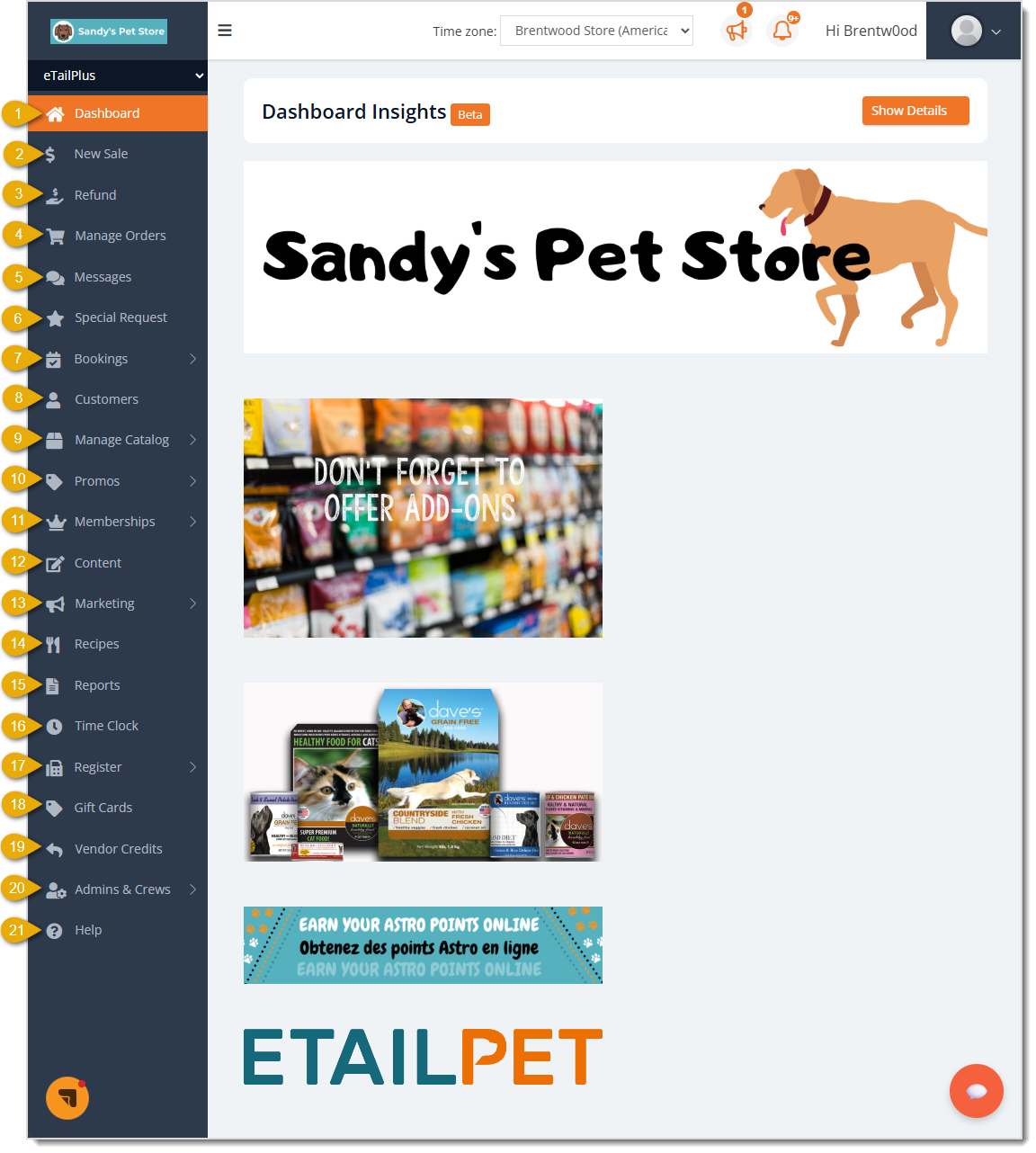
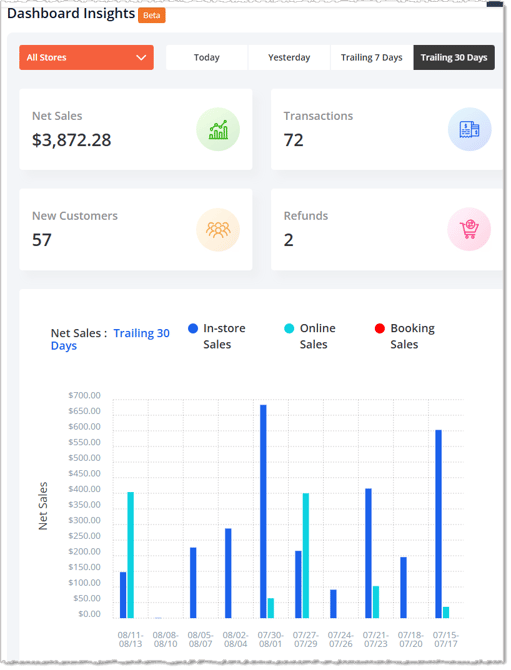
- Dashboard — Click this or your store logo in the upper left to open the Dashboard Insights page, where you can view your store's net sales, transactions, new customer counts, and refunds in summary cards and a sales chart, as pictured below. This page is what will open for your crew every time they sign into the system, and you can add your own images here as needed, as pictured above. Click here to learn how to add images to your Dashboard.
- 💲New Sale — This menu item is only visible when logged into the Register. This is your on-screen cash register where you process transactions for your customers. Click here to learn more about the New Sale register.
- 💲Refund — This menu item is only visible when logged into the Register. This page allows you to either scan in a receipt barcode or enter a Receipt ID to do a refund on a transaction. Click here to learn more about performing Refunds and Returns.
- Manage Orders — Click this to view and manage customer orders across the Warehouse Orders, Store Pickup, Local Delivery, Ship to Me, and Instore Orders tabs, where you can search, filter, and export order details. Click here to learn more about the Manage Orders page.
- Messages — Click this to open a full page where you can view your text-message conversations with customers and send new messages, similar to the Chat panel described below. Click here to learn more about Messages and Chat.
- Special Request — Click this to view and manage special product order requests that customers have placed for items not typically carried in your store, including each request's status and order quantity. Click here to learn more about your Special Requests.
- Bookings — Click Bookings to expand a submenu with the following options:
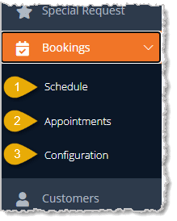
- Schedule — View a monthly, weekly, or daily calendar of your booked services and appointments, and click New Appointment or Block Times to manage your schedule directly from this page. Click here to learn more about your Booking Schedule page.
- Appointments — Search, filter, and review individual customer appointments by customer, pet, attendant, date range, and status. Click Import Appointments to bring in appointments in bulk. Click here to learn more about Booking Appointments.
- Configuration — Set up the required and optional settings your booking service needs, such as service types, pet types, venues, attendants, services offered, feeding preferences, and waiver forms. Click here to learn about configuring all the areas of your Bookings.
- Customers — Click this to view, search, and manage your customer list, including contact information and account activity.
- Manage Catalog — Click Manage Catalog to expand a submenu with the following options:
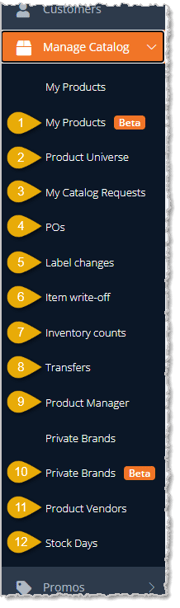
- My Products — View and manage the products currently in your store's catalog, including in-store and online pricing, quantity on hand, and whether an item shows on your website. Click New Private Product to add a product unique to your store. Click here to learn more about your My Products page.
- Product Universe — Search the full shared product database, and click Add to Catalog to bring new products into your store, or click Request Changes to request an update to an existing product's details. Click here to learn more about the Product Universe.
- My Catalog Requests — Track the status of add or update catalog requests you've submitted, and click Request New Product to submit a new one. Click here to learn more about making and tracking Catalog Requests.
- POs — View, create, and manage Purchase Orders you send to vendors, including order and expected dates, status, and shipping details. Click here to learn more about working with your Purchase Orders.
- Label Changes — View and print updated price and shelf labels for items that changed recently. Label change entries are automatically removed after 7 days. Click here to learn how to work with labels.
- Item Write-Off — Record and review inventory that's been lost, donated, or expired, across the Batched Write Offs, Write Off Lines, and Expiries tabs. Click here to learn how to work with your item write-offs.
- Inventory Counts — Record and review physical inventory counts compared to your system's quantity on hand, and view any resulting cost adjustments. Click here to learn more about inventory counting.
- Transfers — Create and track inventory transfers of products between your store locations. Click here to learn more about inventory Transfers.
- Product Manager — Access bulk catalog tools, including changing or removing information on multiple items at once, converting private products to public, reviewing your profit margins, and reviewing product import activity. Click here to learn more about working with your Product Manager.
- Private Brands — View, search, and click Add New to create the private or custom brand names used for products exclusive to your store. Click here to learn more about Private Brands.
- Product Vendors — View, add, and manage the vendor records you purchase products from, including shipping fees, minimum order amounts, and contact details. Click here to learn more about working with your Vendors.
- Stock Days — Set up and view each vendor's restock day, order by day, and ordering frequency to help automate your Purchase Orders. Click here to learn more about setting up Stock Days.
- Promos — Click Promos to expand a submenu with the following options:
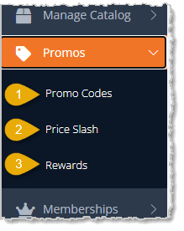
- Promo Codes — Create and manage discount codes that customers enter at checkout for a dollar or percentage discount, or a Buy/Get style offer. Click here to learn more about working with your Promo Codes.
- Price Slash — Create and manage automatic Dollar/Percentage or Buy/Get discounts that apply to eligible products without requiring the customer to enter a code. Click here to learn more about working with Price Slashes.
- Rewards — Configure your store's loyalty rewards program, including how much a customer needs to spend to earn a reward, the reward amount, and which stores and products participate. Click here to learn more about the In-House Rewards program. There is also an integration with Astro Loyalty, and you can click here to learn more about that program.
- Memberships — Click Memberships to expand a submenu with the following options:
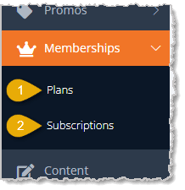
- Plans — Create and manage subscription or membership plans customers can sign up for, including pricing and renewal frequency. Click here to learn more about working with Plans.
- Subscriptions — View and search individual customers' active membership subscriptions. Click here to learn more about working with Subscriptions.
- Content — Click this to open the Content page, where you can customize your storefront website's themes, navigation banners, footer links, and other page content and settings. Click here to learn more about your Content Configuration.
- Marketing — Click this to expand a submenu with the following options:
- ShareIt! — Click this to open the eTailPet Social tool in a new tab, where you can create, schedule, and publish social media posts for your store. You can also review scheduled, sent, and failed posts. Click here to learn more about social media marketing in the eTailPet system. is there an article with this pathway?
- Product Reviews — View, filter, and moderate the product reviews customers have submitted, including each review's rating, status, and verification. Click here to learn more about working with your Product Reviews.
- Reputation Management — Monitor your average rating and review volume, and click Respond, Mark as Responded, or Dismiss on customer reviews across your store locations. Click here to learn more about your Store Reviews.
- SMS Campaigns — Create and manage SMS marketing campaigns sent to your customers, including scheduling, audience, and message content. Click here to learn more about working with your SMS Campaigns.
- Recipes — Please Note: This functionality is a future development that is on the way. eTailPet will announce its release when it is ready. Click Recipes to expand a submenu with the following options:
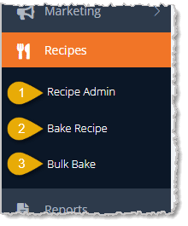
- Recipe Admin — Create and edit your bakery recipes, the materials (ingredients) used in them, and recipe categories.
- Bake Recipe — Browse your recipes and click one to bake an individual batch, adding the finished product to your inventory.
- Bulk Bake — Filter your recipe list and click Bake next to each recipe you want to prepare, to bake multiple recipes at once.
- Reports — Click this to open the Reports page, where you can work with numerous reports under categories such as Sales & Refunds, Memberships, and Discounts & Promotional to view detailed data about your store's performance. Click here for an overview of your available reports.
- Time Clock — Click this to view and manage crew time cards, including clock-in and clock-out times and hours worked. Click here to learn more about working with the Time Clock and the Time Clock reports.
- 💲Register — This menu item is only visible when logged into the Register. Click Register to expand a submenu with the following options for working with your register cash drawer:
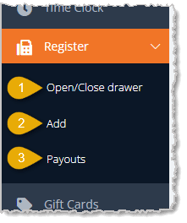
- Open/Close Drawer — Click this to load the Open/Close Drawer page which allows you to put in your count for coins and bills for the cash drawer to either Open or Close the register for the day. Click here to learn more about your opening and closing procedures.
- Add — Click this if you need to add more cash to your register cash drawer.
- Payouts — Click this if you need to pay out cash from your register cash drawer. Click here to learn more about add-ins and payouts in the register.
- Gift Cards — Click this to view, search, and manage the gift cards your store has issued, including balance and status. Click here to learn more about working with your gift cards.
- Vendor Credits — Click this to view and manage vendor returns, return lines, and other vendor requests across three tabs. Click here to learn more about managing your vendor credits.
- Admins & Crews — Click Admins & Crews to expand a submenu with the following options:
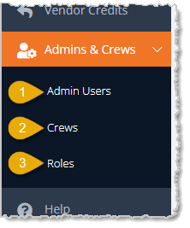
- Admin Users — View, search, and manage the admin user accounts that can log into the back-office system, including each user's assigned store and user type. Click here to learn more about working with your Admin Users.
- Crews — View, search, and manage crew or staff members, including their assigned roles and the PIN code they use to log into the POS. Click here to learn more about working with your employee user accounts.
- Roles — Create and manage permission roles that control what admin users and crew members can access, and see how many users are assigned to each role. Click here to learn more about permission settings in the system for users.
- Help — Click this to open the eTailPet Knowledge Base in a new browser tab, where you can search articles and find answers to questions about the system.
Top Bar

- Store Logo — Click your store's logo in the upper left corner to return to the Dashboard Insights page from anywhere in the system. You can also click the Dashboard item at the top of the main menu to go to that page.
- Menu Icon — Click the Menu Icon next to your logo to either hide or reveal the Main Menu on the left as needed.
- System Mode Drop-List — Select eTailPlus, Ecomm only, or BookIt Only from this drop-list at the top of the Main Menu to switch which set of menu items and features display, based on which parts of the system your store uses.
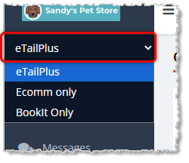
- Store Selection — Select a store location from this drop-list to change the primary store you're working with in the system. Please Note: If you only have one store location, you will not need to use this function.
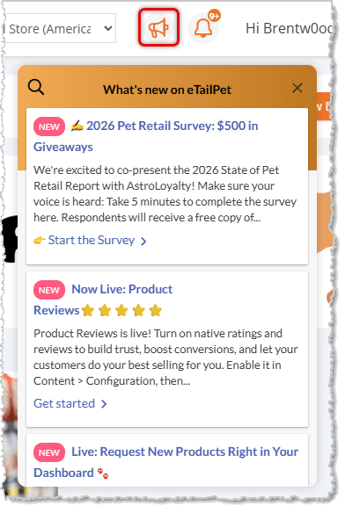
- Announcements Icon — Click the Megaphone Icon to open the What's New panel, which lists recent product announcements and feature updates. You can click items to view more information. If there are announcements you haven't yet viewed, you'll see the count of items as a small number over the Megaphone Icon.
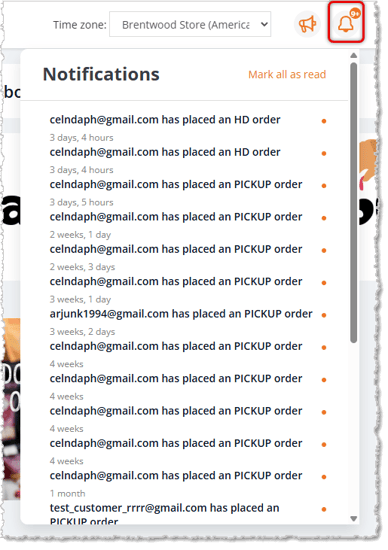
- Notifications Icon — Click the Bell Icon to open the Notifications panel, which lists recent order and account activity. You can click individual items to load them and view their full details. Click Mark All as Read to clear the unread count.
image needs alt text
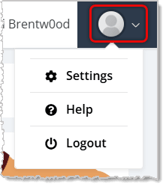
- User Greeting — This text displays the Username of the currently logged-in user.
- Admin User Menu — Click User Icon to open a drop-list showing options for Settings, Help, or Logout.
Maintenance Updates Button
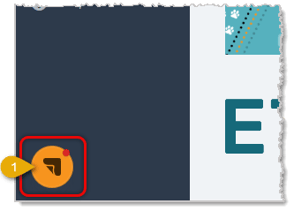
- Maintenance Updates Button — Click this orange icon in the lower left corner of the page to open the Maintenance Releases and Platform Updates panel.
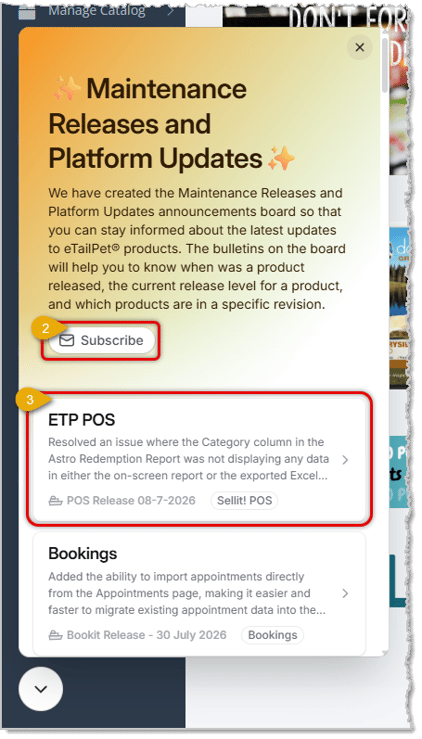
- Subscribe — Click the Subscribe button if you want to receive email notifications whenever a new platform update is posted.
- Release Bulletins — Each entry in this panel lists a product area, a short description of what changed, and the release date. Click a bulletin card to read more about that update.
Chat
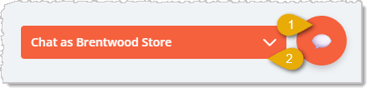
The eTailPet Chat is called the Messaging Assistant. For full details, click here to read more about messaging.
- Chat Toggle Icon — Click the round orange icon in the lower right corner of the page to open or close the Chat panel.
- Chat As [Store Name] — Please Note: When logged into the Register, users will only see the Chat Toggle Icon. The Chat As Store function is only for Admin users. Select a store location from this drop-list if you want to send and receive customer messages under a different store identity.
- Search Conversations and Contacts — When you click to toggle the Chat window open, you can enter a customer's name or phone number here to find an existing conversation or start a new one.
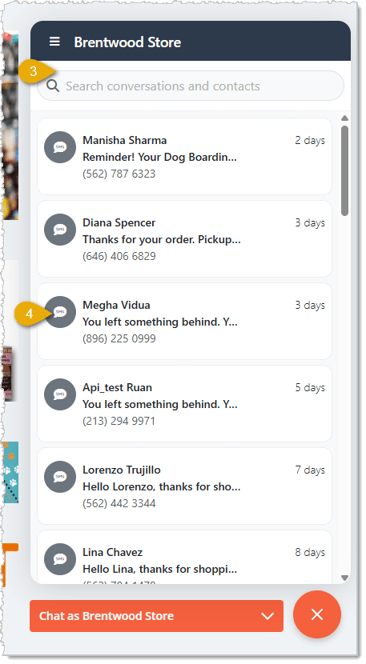
- Conversation List — This list shows your recent text-message conversations with customers, including each customer's name, phone number, a preview of the latest message, and how long ago it was sent. Click a conversation to open it and reply.
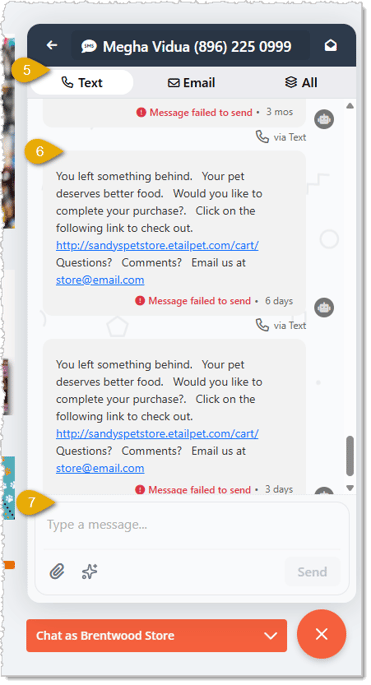
- Message Mode — You can message by Text (default), Email, or via both methods by selecting All.
- Message History — Each message you've sent or received from the contact is listed here for your reference, along with how long ago it was sent.
- Compose Message — Enter your reply text here. You can click the Paperclip Icon to attach a file, which will be sent as a link the contact can click. Click the Sparkle Icon to have the system AI compose a message for you. Click Send to send a text message to the customer once you're finished composing.
 Boss Quote
Make sure your human takes the time to familiarize themselves with the eTailPet system. It's a complex system with lots of moving parts, even a kitten knows that. Don't let them have nap or self-grooming time until they've learned it!
— Felicity, Scranton, PA
Frequently Asked Questions
Q: How do I get back to the main Dashboard Insights page from anywhere in the system?
A: Click your store's logo in the upper left corner of the page, or click Dashboard in the Main Menu on the left.
Q: What is the difference between My Products and Product Universe under Manage Catalog?
A: My Products shows the items already in your store's catalog, while Product Universe lets you search the full shared product database and add new products to your catalog.
Q: What is the difference between Promo Codes and Price Slash?
A: Promo Codes require the customer to enter a code at checkout to get a discount, while Price Slash discounts apply automatically to eligible products without a code.
Q: Where do I manage staff PIN codes and permissions?
A: Click Admins & Crews in the Main Menu, then click Crews to manage staff PIN codes, or click Roles to manage the permissions assigned to each role.
Q: Where can I find recent product updates and release notes?
A: Click the orange button in the lower left corner of the page to open the Maintenance Releases and Platform Updates panel, and click Subscribe there if you want updates sent to your email.
Q: I have a question, but I can't find my answer here. How do I get more assistance?
A: You can ask any question at the number listed here. Contact our support team at (323) 370-0738 for the U.S. and (888) 370-2363 for Canada.







 Aug 13, 2026
Is this page helpful?
×Help us improve our articles