When items need to be removed from inventory for various reasons, you may need to create an Item-Write Off. This article explains the process of creating an Item Write-Off to remove products from inventory and how to request Vendor Credit if it qualifies for a Vendor Return. Take a look at how they work!
Vendor Credits
Some Item Write-Offs are automatically generated in the eTailPet system when an inventory change event happens that removes products from your inventory. An inventory change event is triggered whenever products are added to or removed from inventory. Click here to learn more about inventory change events.
Besides sales, there are many other events that trigger an inventory change event that removes a product from inventory. There are some that are automatically generated by the system, and there are some that you must manually create using the Item Write-Off page.
Some events may qualify for vendor credits, while others do not. Click here to learn more about Vendor Credits.
|
Vendor Credit
|
No Vendor Credit
|
- Received damaged on PO: Item(s) received on PO but the item was damaged and not sellable.
✅ Automatic vendor credit line created.
✅ Automatic batch vendor credit request email sent.
- Received shortage on PO: Invoice amount is greater than shipped/received amount.
✅ Automatic vendor credit line created.
✅ Automatic batch vendor credit request email sent.
- Store Returns that qualify for a vendor credit.
✅ Automatic vendor credit line created (If the product has an assigned default vendor and cost).
✅ Automatic batch vendor credit request email sent when the next new PO is created for that vendor.
- Defective, Recalled, No Lot or Date Code, and Return to Vendor (Qualifying Manual Item-Write Off Reasons)
✅ Automatic vendor credit line created (If the product has an assigned default vendor and cost).
✅ Automatic batch vendor credit request email sent when next new PO created for that vendor.
- Expiry Item (Manually Created Private Product Discounted for Upcoming Expiration Date)
✅ Automatic vendor credit line created (If the product has an assigned default vendor and cost).
✅ Automatic batch vendor credit request email sent when the next new PO is created for that vendor.
|
- Marketing Sample
❌ Automatic vendor credit line created.
❌ Automatic batch vendor credit request email sent.
- Product Lost
❌ Automatic vendor credit line created.
❌ Automatic batch vendor credit request email sent.
- Damaged Instore
❌ Automatic vendor credit line created.
❌ Automatic batch vendor credit request email sent.
- Store Supplies
❌ Automatic vendor credit line created.
❌ Automatic batch vendor credit request email sent.
- Donations/Gift Baskets
❌ Automatic vendor credit line created.
❌ Automatic batch vendor credit request email sent.
- Expired/Discard
❌ Automatic vendor credit line created.
❌ Automatic batch vendor credit request email sent.
|
Item Write-Off
Creating an Item Write-Off adjusts your inventory and reduces your inventory cost at the same time. For qualifying items, it will also create a vendor credit line which you will be able to submit to the vendor to request credit IF the product has a default vendor and cost set up.
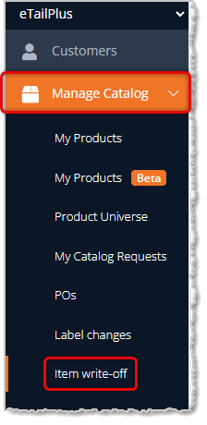
To get started, go to Manage Catalog in the main menu on the left, and click on Item Write-Off.
There are three tabs on your Item Write-Off page: The Batched Write Offs tab lists Item Write-Offs of all types listed above in the table, both automatic and manually-created. The Write-Off Lines tab lists Item Write-Offs that this sentence wasn't finished, and there's not an explanation for the Expiries tab
Here is how to use the functions of the Item Write-Off page:
The Batched Write-Offs Tab
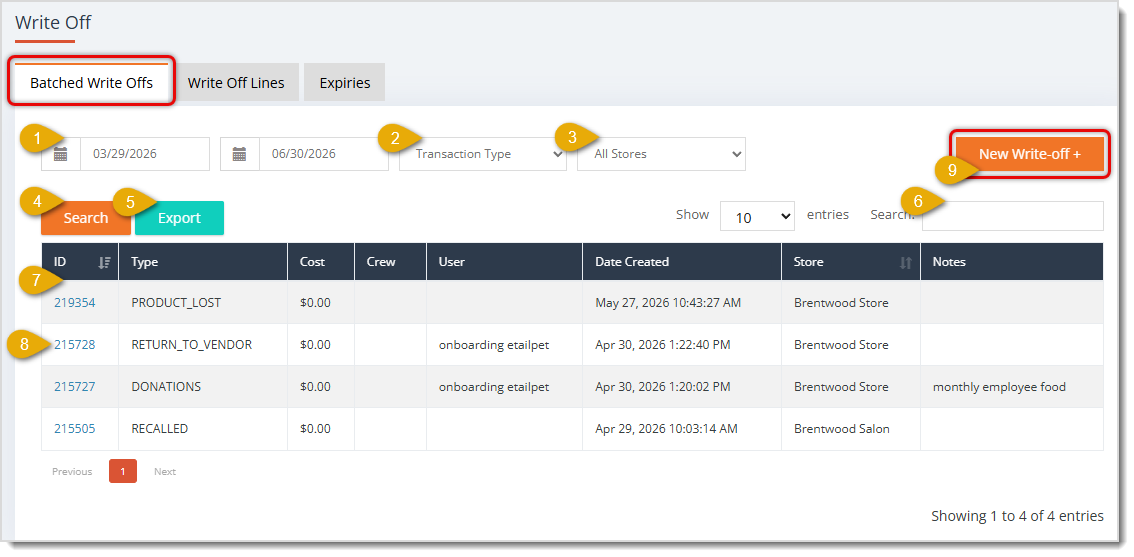
- Date Range — By default, the starting date range will be for the past 90 days, but you can use the From Date and To Date controls to adjust it, if needed.
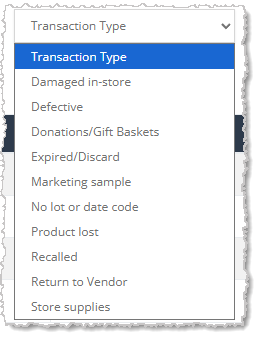
- Transaction Type — If you need to view a specific Transaction Type for an Item Write-Off, click to open this filter and select the one you want from the drop-list. By default, this filter will display all Transaction Types. Types include Damaged In-Store, Defective, Donations/Gift Baskets, Expired/Discard, Marketing Sample, No Lot or Date Code, Product Lost, Recalled, Return to Vendor, and Store Supplies.
- Stores — If you need to view Item Write-Offs for a specific store location, click to open this filter's drop-list and select the one you want. By default, the system will display all Item Write-Offs for all of your store locations.
- Search — Click this button if you adjusted any of the filters described above and the system will reload the data table with the results.
- Export — Click this button to download a CSV spreadsheet file of the filtered data in the table.
- Search Write-Offs — If you have a long list of Item Write-Offs, you can get to what you want by entering text in this search field. After entering your text, you can either hit your Enter key on your keyboard or click the Search button described above to see the results.
- Item Write-Off Data Table — The Batched Item Write-Offs data table has columns for the Item Write-Off ID, Transaction Type, Cost of the write-off, Crew member and/or User that created the write-off, the time and Date Created, the Store name where the write-off was created, and any Notes that were saved
- View Write-Off — You can click the Write-Off ID to open the full Item Write-Off details. This looks similar to the New Item Write-Off page, but you can no longer add items and the Transaction Type is set and not editable. You can add or edit Notes or Delete a line item from the Write-Off, if needed.
- New Write-Off — Click the New Write Off + button to create a new Item Write-Off. We detail this process for you in the section below on Create an Item Write-Off.
The Write-Off Lines Tab
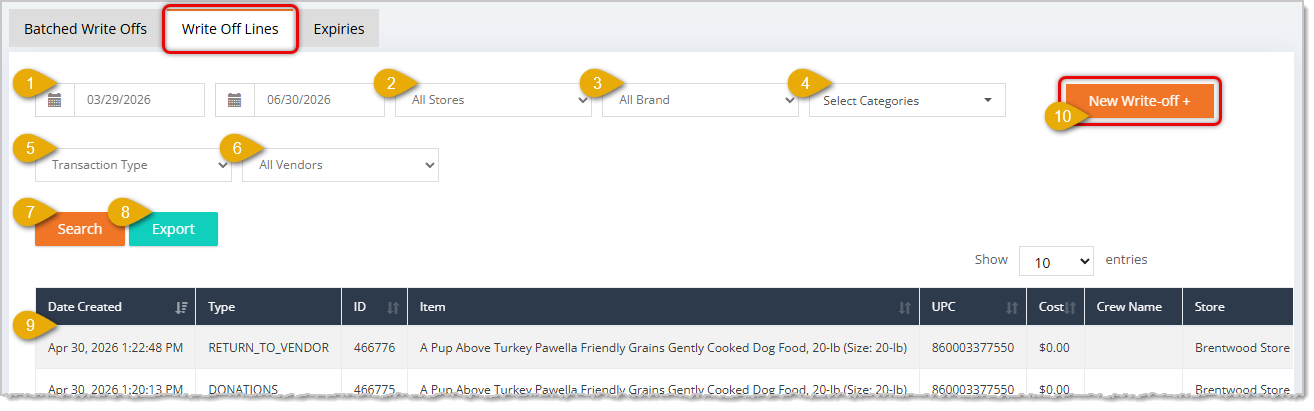
- Date Range — By default, the starting date range will be for the past 90 days, but you can use the From Date and To Date controls to adjust it, if needed.
- Stores — If you need to view Item Write-Offs for a specific store location, click to open this filter's drop-list and select the one you want. By default, the system will display all Item Write-Offs for all of your store locations.
- Brands — If you need to view Item Write-Offs for a specific Brand, click to open this filter's drop-list and select the one you want. By default, the system will display all Item Write-Offs for all of your Brands.
- Categories — If you need to view Item Write-Offs for one or more product Categories, click to open this filter's drop-list and select the one(s) you want. By default, the system will display all Item Write-Offs for all Categories.
- Transaction Type — If you need to view a specific Transaction Type for an Item Write-Off, click to open this filter and select the one you want from the drop-list. By default, this filter will display all Transaction Types. Types include Damaged In-Store, Defective, Donations/Gift Baskets, Expired/Discard, Marketing Sample, No Lot or Date Code, Product Lost, Recalled, Return to Vendor, and Store Supplies.
- Vendors — If you need to view Item Write-Offs for a specific Vendor, click to open this filter's drop-list and select the one you want. By default, the system will display all Item Write-Offs for all of your saved Vendors.
- Search — Click this button if you adjusted any of the filters described above and the system will reload the data table with the results.
- Export — Click this button to download a CSV spreadsheet file of the filtered data in the table.
- Item Write-Off Data Table — The Batched Item Write-Offs data table has columns for the time and Date Created, Transaction Type, the Item Write-Off ID, the Item title/description, the UPC, Cost of the write-off, Crew Name, and the Store name where the write-off was created.
- New Write-Off — Click the New Write Off + button to create a new Item Write-Off. We detail this process for you in the section below on Create an Item Write-Off.
The Expiries Tab
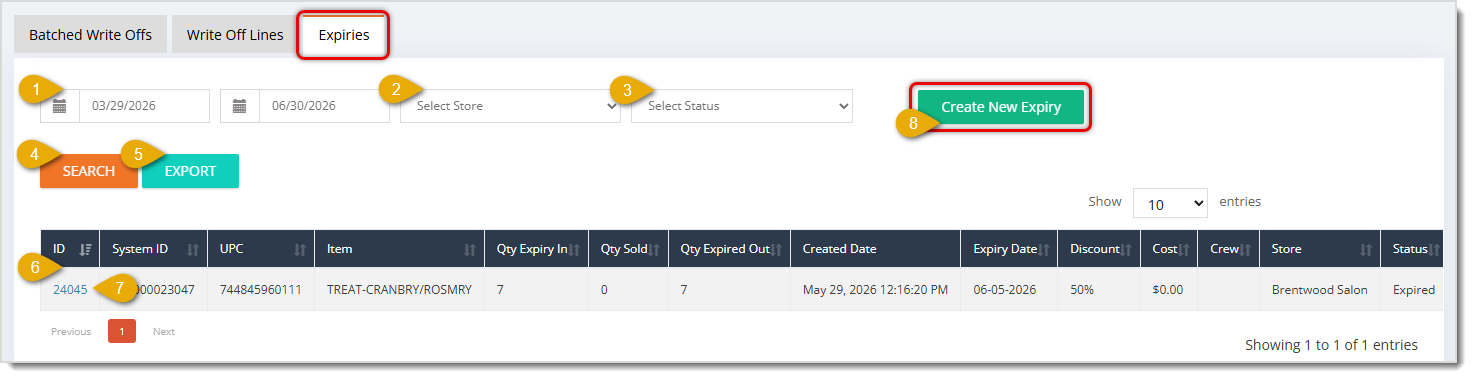
- Date Range — By default, the starting date range will be for the past 90 days, but you can use the From Date and To Date controls to adjust it, if needed.
- Stores — If you need to view Expiries for a specific store location, click to open this filter's drop-list and select the one you want. By default, the system will display all Expiries for all of your store locations.
- Status — If you need to view Expiries of a specific Status, click to open this filter's drop-list and select the one you want. By default, the system will display all Expiries of all Statuses. Statuses include Active, Expired, and Sold Out.
- Search — Click this button if you adjusted any of the filters described above so the system will reload the data table with the results.
- Export — Click this button to download a CSV spreadsheet file of the filtered data in the table.
- Expiries Data Table — The Expiries data table contains data for the Private Products that are created in the Expiry process. It has columns for the Expiry ID, the System ID, the UPC, the Item name and description, the Quantity of Expiry In, the Quantity Sold, the Quantity Expired Out, time and Created Date, the Expiry Date, the Discount, the Cost, Crew Name, the Store name where the Expiry was created and resides, and the Status of the Expiry.
- New Expiry — Click the Create New Expiry button to create a new Expiry Private Product. We detail this process for you in the article on Product Expiry.
Create a New Item Write-Off
To get started, go to Manage Catalog in the main menu on the left and click on Item Write-Off.
Here is how to create a new Item Write-Off:
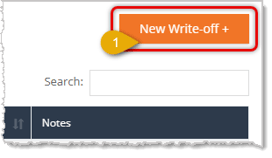
- In the upper right of the Item Write-Off page, on either the Batched Write Offs tab or Write Off Lines tab, click the New Write-Off + button. The Create Write Off page will open for you.
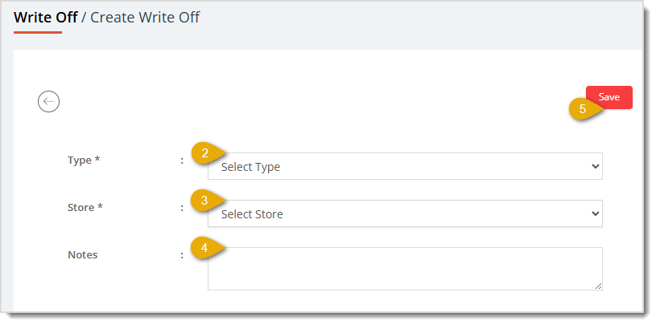
- Write-Off Type* — Click the Select Type drop-list to choose the type of Write-Off you want to create. Types include Damaged In-Store, Defective (Creates Vendor Credit), Donations/Gift Baskets, Expired/Discard, Marketing Sample, No Lot or Date Code (Creates Vendor Credit), Product Lost, Recalled (Creates Vendor Credit), Return to Vendor (Creates Vendor Credit), and Store Supplies.
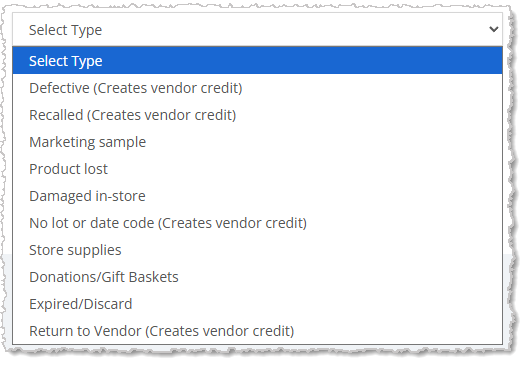
image needs alt text
- Store* — Click to open this drop-list and select the store for which you want to create the Item Write-Off.
- Notes — While not a required field, it might be a good policy to have anyone creating an Item Write-Off enter notes with specific reasons in this area.
- Click the Save button in the upper right to save your Item Write-Off.
* Required field in order to save the Item Write-Off.
Your Write-Off will now appear in the list on the Item Write-Offs page, and depending on the type (see the Table above), vendor credits will be created and notification emails will go out.
Related Topics
Purchase Orders
The Purchase Order Process
Product Vendors
Product Expiry
Frequently Asked Questions
Q: I have a question, but I can't find my answer here. How do I get more assistance?
A: You can ask any question at the number listed here. Contact our support team at: (323) 370-0738 for the U.S., and (888) 370-2363 for Canada.







 Jun 29, 2026
Is this page helpful?
×Help us improve our articles