






Vendor Credits
 May 20, 2026
Sometimes goods are damaged in transit or missing on orders, and the eTailPet system allows you to request credits from your vendors in such situations. Read on to learn how you can work with your vendor credit requests!
Qualifying Credit Events
Vendor credit requests are automatically created for the following reasons:
- Items returned by customers to the store:
- These are not placed back in inventory and are non-sellable.
- Eligible refund reasons: Animal didn’t like, Animal got sick, Product Spoiled, and Recalled.
- Write-Off items that qualify for credit (Manage Catalog > Item Write-Off)
- Items from Purchase Orders that arrive damaged.
- Items from Purchase Orders that have a quantity discrepancy between the Purchase Order and the Vendor Invoice.
Set Up Returns to Vendors
Step 1: Enable Returns for a Vendor
You first have to mark a Vendor as eligible for returns. Here is how to do so:
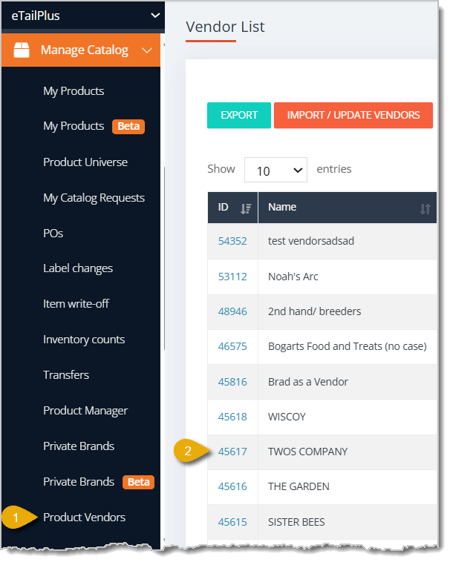
- Go to Manage Catalog > Product Vendors in the main menu.
- Click on a Vendor's ID to open its full details.
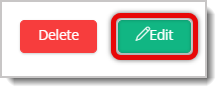
- Click on Edit in the upper right.
- Enter a Return Email Address that for the vendor for credit and refund requests. If you want to add multiple email addresses, separate them by commas.

- Scroll down to Return Eligible and check the box.

- Click on Save in the upper right.

Step 2: Mark a Default Vendor for a Product
The item also has to have a default vendor to be eligible for credits. Follow these steps to indicate a default Vendor for a product:
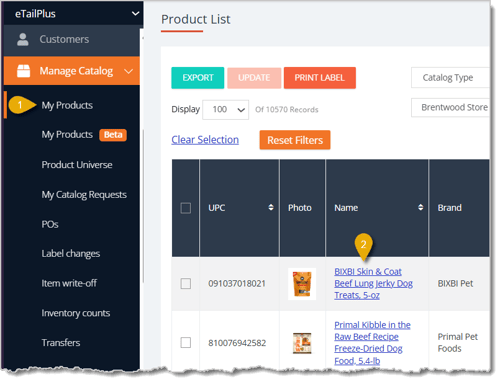
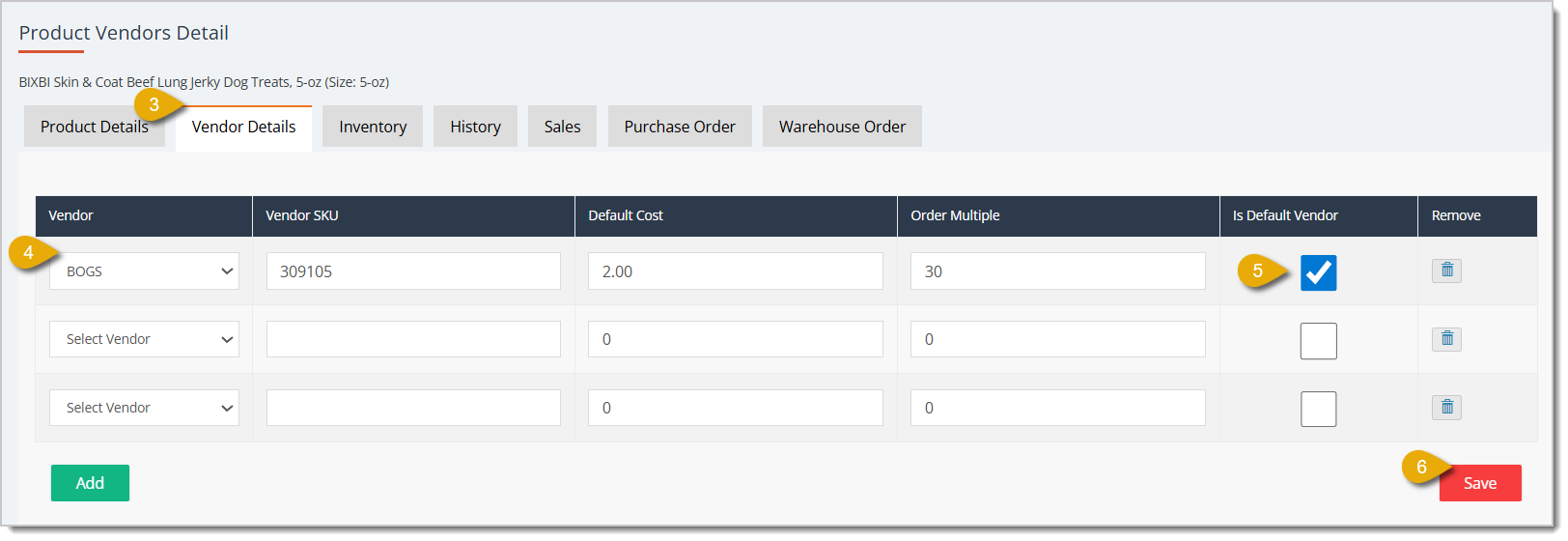
- Go to Manage Catalog > My Products.
- Click on the Name of a product. You'll be directed to its full details.
- Click on the Vendor Details tab.
- Select the Vendor from the drop-list, and fill out the Vendor SKU, Default Cost, and Order Multiple (the quantity you want to order).
- Check the box for Is Default Vendor for whichever Vendor you need.
- Click on the Save button in the bottom right.
Please Note: You can set the Default Vendor for many products at once by going to Manage Catalog > Product Manager > Change or Remove Things on My Items, search what you want or select Brands, Categories, and/or Vendors > Select the products you want from the list, then in the Bulk Actions drop-list, you can Change Default Vendor. Be sure to save your changes when you're finished.
Return Lines
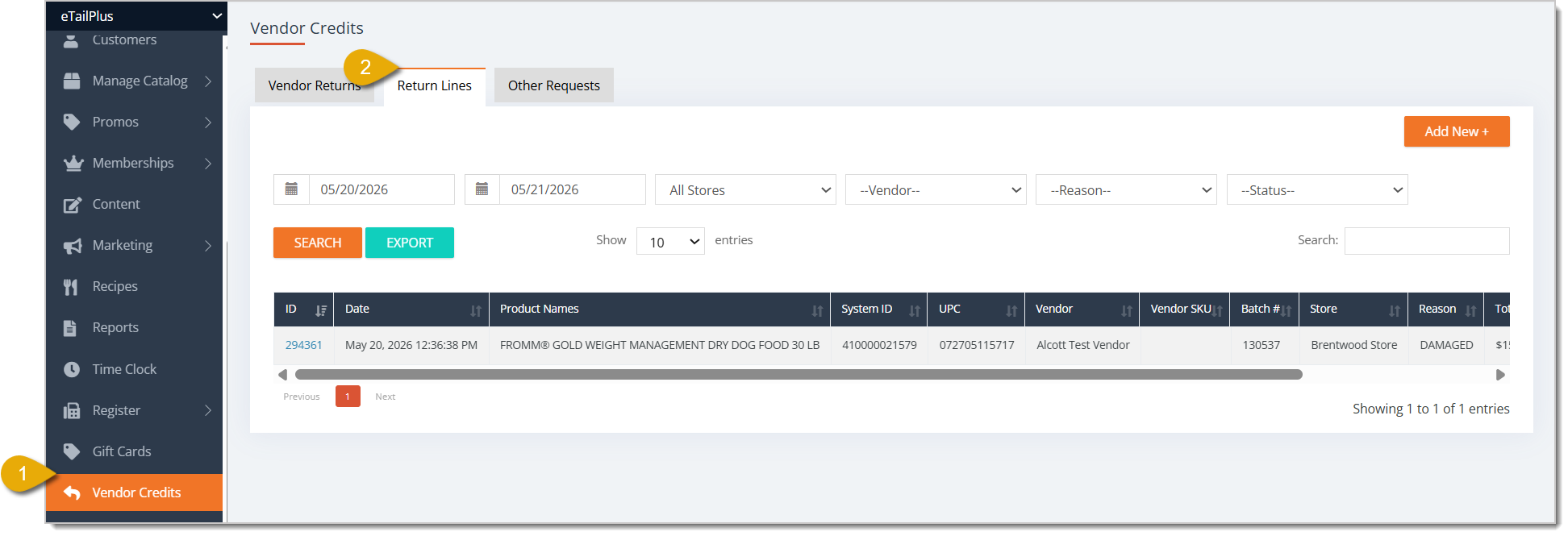
A Return Line is automatically added to the Return Lines tab queue (pictured below) every time a qualifying credit event occurs. To access the Return Lines area, you have to:
-
Go to Vendor Credits from the main menu.
- Click the Return Lines tab.
Add New Return Line
To manually add a Return Line, click on the Add New button in the upper right. This will direct you to the Add New Return Line form.

Here is everything to fill out in the Return Line form:
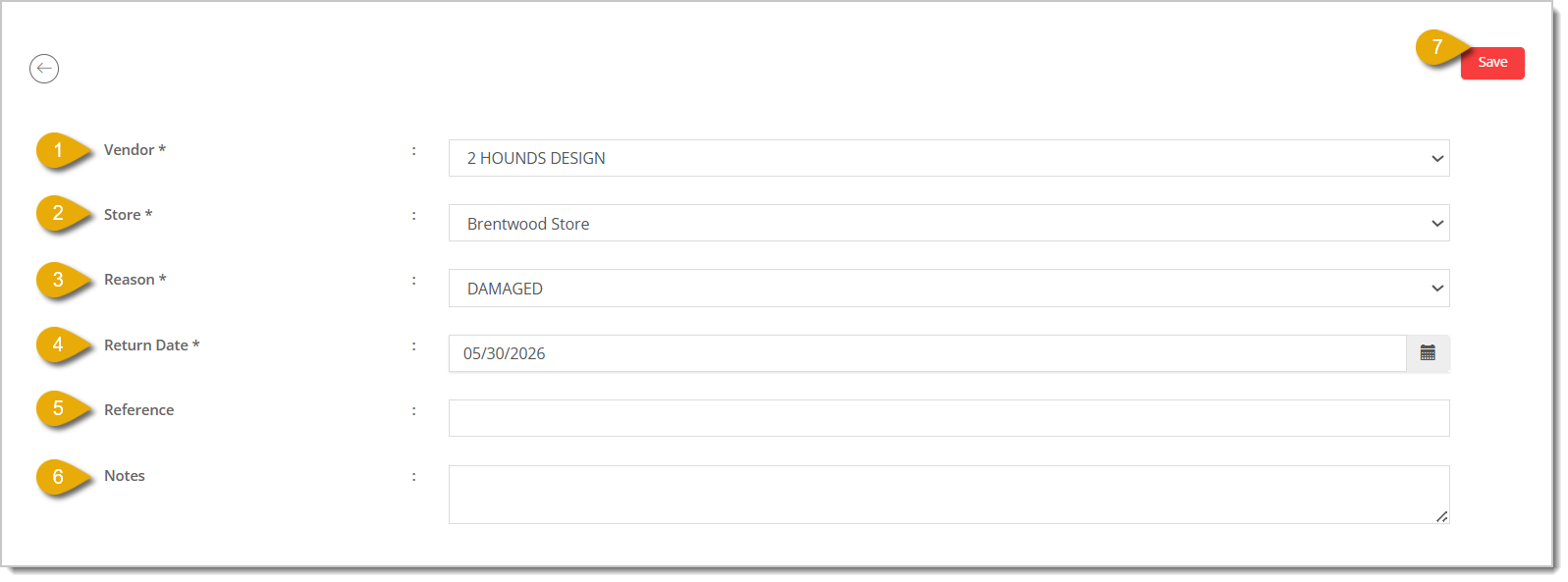
- Vendor* — Select the Vendor of the product you're returning from the drop-list.
- Store* — Select the store the product is at from the drop-list.
- Reason* — Select a reason for the return from the drop-list.
- Return Date* — Enter the date the product is being returned.
- Reference — Enter a reference number for the return, if needed.
- Notes — Enter notes about the return, if needed.
* Required Field
Batched Vendor Returns
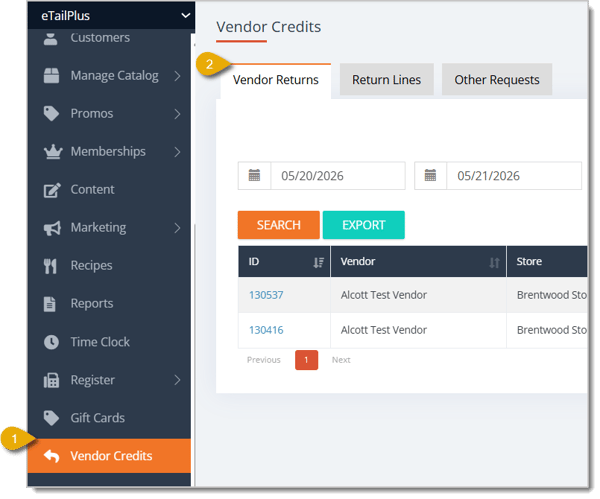
Vendor Returns is a group of Return Lines that are batched together and emailed to the vendor to request credit. To access the Vendor Returns area, you have to:
-
Go to Vendor Credits from the main menu.
- The page should be on the Vendor Returns tab by default. If not, click on the tab.
Credit Request Sequence
Below is a table outlining the credit request process for each type of qualifying event:
|
Qualifying Event |
Return Line |
Batched Return |
|
|
Item Return |
The item is automatically sent to the Return Lines queue when a qualifying item is returned to the store. |
A batched return is automatically generated for Returns and Item Write-Offs the next time that a Purchase Order is created for that vendor. If a Vendor is set up with a Stock Day, the Vendor Return Lines will be generated and sent on the same day you create the Purchase Order. |
If you create the next Purchase Order manually for that Vendor, then the vendor return lines will be batched and emailed at the time you've manually created the Purchase Order. |
|
Item Write-Off |
The item is automatically sent to the Return Lines queue when you create a qualifying item write-off. |
||
|
Damaged PO Item |
The item is automatically sent to the Return Lines queue when an item is marked as damaged during the Purchase Order Check-In process. |
A batched return is automatically created when the Purchase Order status changes to Closed. The batch will include all items that were received damaged on the current Purchase Order. |
The vendor credit request will automatically be emailed when the Purchase Order status changes to Closed. |
|
PO Quantity Discrepancy |
The item is automatically sent to the Return Lines queue when a quantity discrepancy is checked in during the Purchase Order Approval process. |
A batched return is automatically created when the Purchase Order status changes to Approved. The batch will include all items that had a quantity discrepancy and were marked as “Needs a Credit.” |
The vendor credit request will automatically be emailed when the Purchase Order status changes to Approved. |
Create or Add to a Batched Return
Item Write-Offs and Product Returns are now automatically batched and emailed when a Purchase Order is created for that vendor (either manually or from a Stock Day). You can add to an existing batch that is Pending, or you can create a new batch and add to it if you don’t want to wait for the next Purchase Order.
Create a New Batch Return
To manually add a Vendor Return, click on the Add New button in the upper right. This will direct you to the Add New form.

Here is everything to fill out in the Return Line form:
- Vendor* — Select the Vendor of the product you're returning from the drop-list.
- Store* — Select the store the product is at from the drop-list.
- Reason* — Select a reason for the return from the drop-list.
- Return Date* — Enter the date the product is being returned.
- Reference — Enter a reference number for the return, if needed.
- Notes — Enter notes about the return, if needed.
* Required Field
Add to an Existing Batch
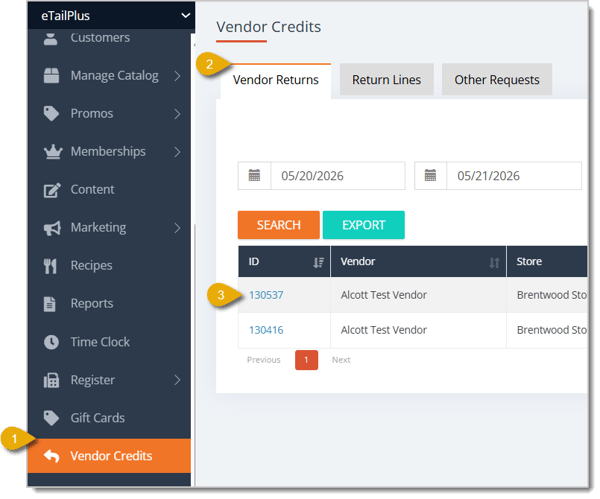
- Go to Vendor Credits from the main menu.
- The page should be on the Vendor Returns tab by default. If not, click on the tab.
- Click on the ID of the Vendor Return to which you want to add.
- Scroll down to find Available Vendor Return Lines at the bottom; this is where you'll find unsubmitted Vendor Return Lines. There are a few ways you can add these to the batch:
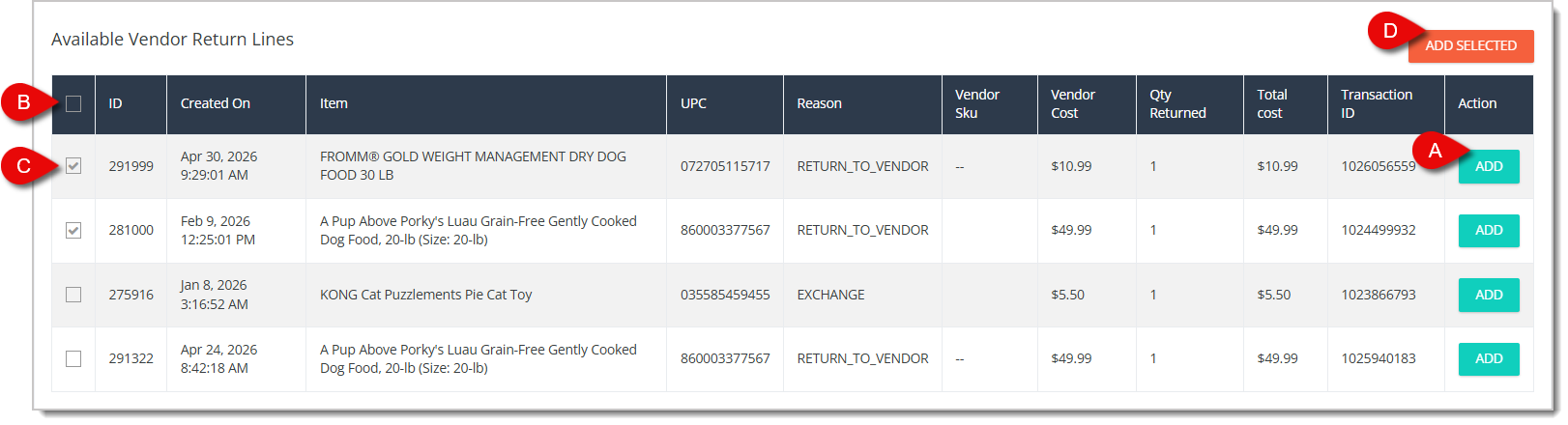
- You can click on the Add button on the right of an individual Return Line to add the item to the batch.
- You can select all Return Lines by checking the box in the column header, which will select all that are displayed.
- You can check individual boxes to select them.
- For B and C, if you have multiple boxes checked, click on the Add Selected button in the upper right.
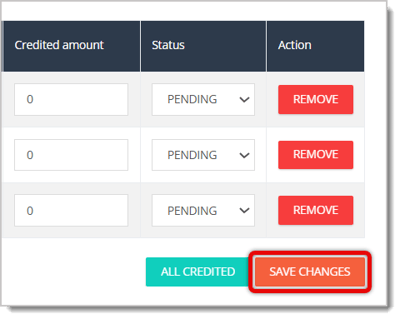
- Items will be added to the Items section. Scroll back up and click on Save Changes in this section.
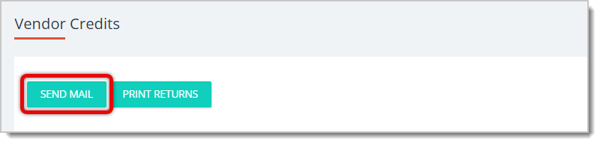
- Click on Send Mail at the top of the page to send the credit request by email to the Vendor. Please Note: This is sent to the Return Email that is associated with the Vendor. To set a Return email address for a Vendor, read the Set Up Returns to Vendors section above.
Receive Vendor Credit
Return Lines and Batches that have been submitted will have the Pending status. When the vendor issues your credit request, you will need to mark the Batch as Credited.
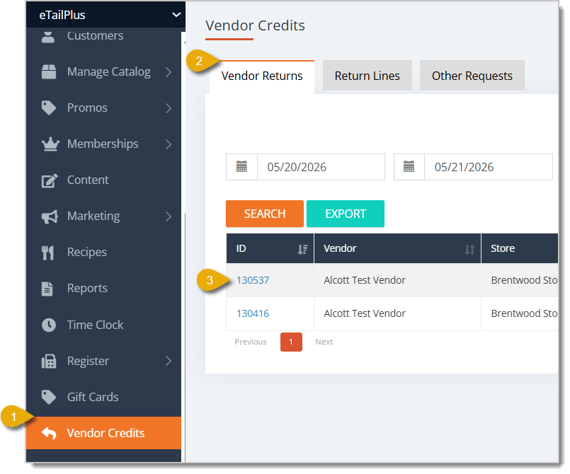
- Go to Vendor Credits.
- If the page doesn't open to the Vendor Returns tab by default, click on the tab.
- Open the Vendor Credit Request by clicking on its ID Number.
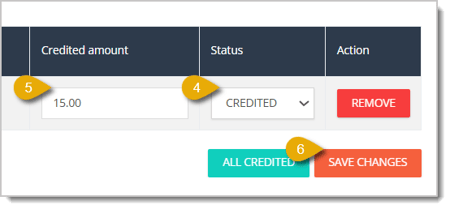
- Use the Status-column drop-list to select Credited.
- Enter the Credited Amount.
- Click the Save Changes button.
Related Topics
Frequently Asked Questions
Q: What has to be set up before a product's returns qualify for vendor credit?
A: Two things: the vendor needs Return Eligible checked with a Return Email Address on file, and the product needs that vendor marked as its Default Vendor.
Q: What's the difference between a Return Line and a Vendor Return?
A: A Return Line is a single item flagged for credit. A Vendor Return batches multiple Return Lines together and emails them to the vendor as one credit request.
Q: Do items returned by customers go back into my sellable inventory?
A: No. Items returned for a qualifying credit reason are marked non-sellable and don't get restocked.
Q: When does the system automatically email a vendor for a batched return?
A: It depends on the event. Item Returns and Write-Offs batch and send with your next Purchase Order for that vendor. Damaged PO items send when the PO status changes to Closed. Quantity discrepancies send when the PO status changes to Approved.
Q: How do I record that a vendor issued my credit?
A: Open the Vendor Return by its ID, change the Status to Credited, enter the Credited Amount, then click Save Changes.
Q: I have a question, but I can't find my answer here. How do I get more assistance?
A: You can ask any question at the number listed here. Contact our support team at (323) 370-0738 for the U.S. and (888) 370-2363 for Canada.
Is this page helpful?
×Help us improve our articles