In the eTailPet system, you can use purchase orders to order inventory from your vendors. This article gives an overview of the Purchase Order workflow, detailing the different steps of the process as well as who can perform each function. Take a look at what's here for you!
In this article, you will learn the following:
Purchase Order Overview
The Purchase Orders Page
Purchase Order Item Population Automation
Purchase Order Overview
In the eTailPet system, your Purchase Orders will proceed through a series of Statuses that show where they are in the overall process. Here are the Statuses in order:
Created
A Created purchase order is one that has been created automatically by the system. This status means that the purchase order has been started for you for a particular vendor, and is waiting for you to enter parameters and create an actual Purchase Order. A purchase order created in this way does not yet have any items added to it. A purchase order that is in the Created status will be deleted after 24 hours if you don't move it into the next stage. There are a few different events that trigger a Purchase Order to become Created.
-
Stock Days — Stock days can be set inside the admin section of the site. This is a predetermined day for a purchase order to be made. For example, if you always order from a certain vendor every Monday, you can set a Stock Day for a PO for that vendor to be created every Monday. Then, every Monday morning when you log into the system, a PO will be waiting for you under Created status. You can set Stock Days for as many vendors as you need. If you don’t have admin privileges, you can contact your site administrator to create stock days for you. Remember that a Created purchase order will be deleted after 24 hours unless you move it to the next status.
-
Special Requests — If a Special Request is made for an item and the vendor for that item has a Stock Day, then the special request item will appear on the Created PO on that vendor's Stock Day. If a Special Request is made for an item and the vendor for that item DOES NOT have a Stock Day, then a PO will be Created automatically for that vendor the following day. Again, remember that a created purchase order will be deleted after 24 hours unless you move it to the next status.
-
Manual Creation — You can manually create a Purchase Order at any time using the New Purchase Order button in the upper right of the Purchase Order page (see below).
Open
A Purchase Order’s status will be Open once you have worked on and saved it. You can continue to work on the PO as long as the status remains as Open. If you need to leave and come back to it, just be sure to click the Save button to save your edits.
Ordered
A Purchase Order with the status of Ordered means that you have completely set up the PO and you've submitted it to the vendor for fulfillment.
Check-In
The status of Check-In means that you have received a shipment for the PO from the vendor and you're in the process of checking the received items into inventory. You don't have to complete the check-in process all at once, as sometimes orders come in multiple shipments, depending on the vendor. The PO will remain in this status until you've completely checked it in.
Finished / Closed
Once you have completely checked in the PO, you will click the Finished button. This is a step in between Check-In and Closed where you are given a chance to review the checked-in items and make any final changes. After the review is complete, you can change the PO status to Closed. At this point, the PO will move into Admin review.
Approved
If you are an Administrator for the store, you will perform the final step in the PO process. The purpose of this step is to reconcile the purchase order, mark any items that need a vendor credit, and review price and other discrepancies. This ensures that your PO will be reconciled to your vendor Invoice. Once you have completed the review and reconciliation, you will mark the PO as Approved. Click here to learn more about the PO approval process.
Archived
If you don't need them in your list for reference, you can archive POs after they are in the Approved status. Archiving allows you to remove the PO from your visible list. You are always able to adjust the filters on the Purchase Orders page so you can view your Archived purchase orders (see below).
The Purchase Orders Page
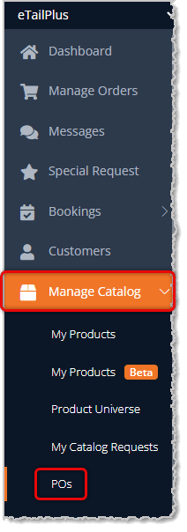
To begin working with your Purchase Orders, in the main system menu on the left, go to Manage Catalog > POs.
On the Purchase Orders page, you can do the following:
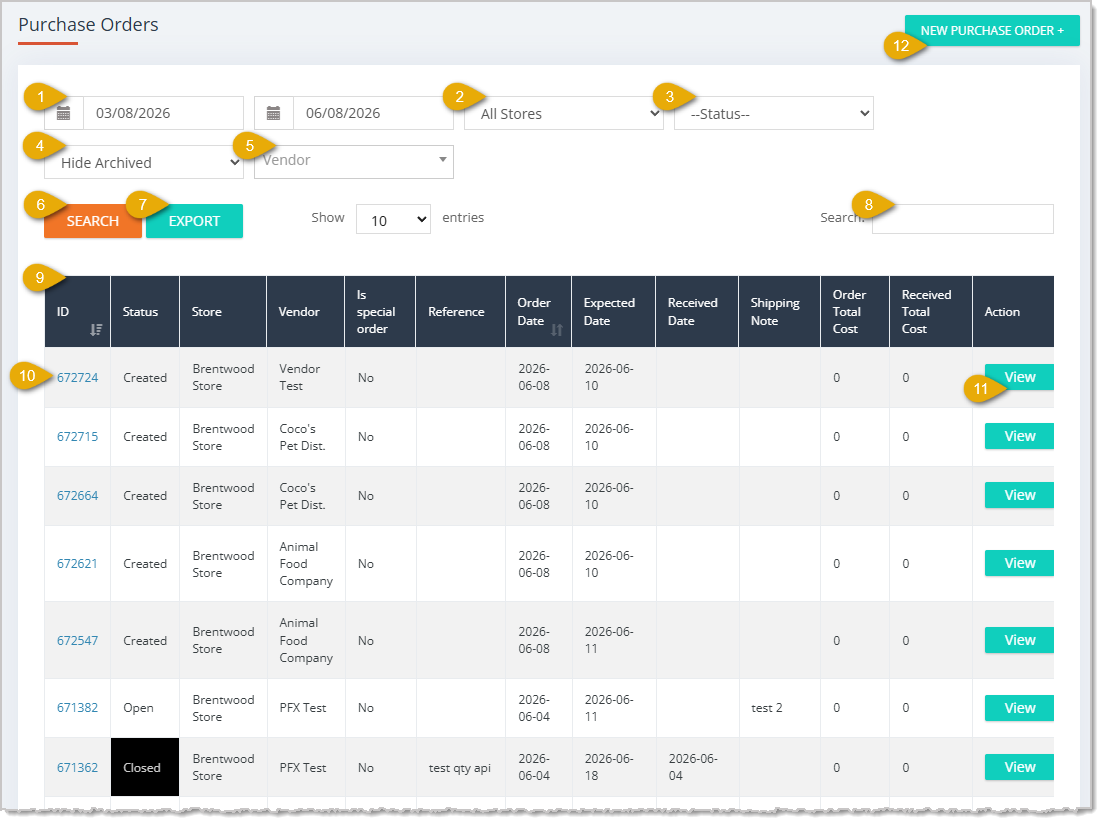
- Date Range — The default date range is the last 90 days, but you can adjust the From and To dates as needed.
- Store Filter — By default, the Purchase Orders for all stores will display, but you can filter in this area to view the POs for any single store if you like.
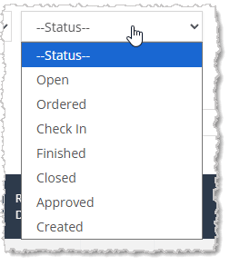
- Status Filter — By default, POs of all Statuses are visible. You can use this filter to view only the Status you need. Statuses include Open, Ordered, Check In, Finished, Closed, Approved, and Created. All are explained in more detail below.
- Archived PO Visibility — By default, Purchase Orders that are Archived are hidden on this page. Change this filter to Show Archived and they will be visible.
- Vendor — You can search for a Vendor by entering three or more characters from the Vendor's name. When you apply the filter, only POs for that Vendor will display.
- Search Button — After entering a Search, adjusting the Date Range, or adding a Filter, click the Search button to load the results into the data table.
- Export — Click the Export button to download a CSV file of the currently-filtered data across all pages.
- Search — Enter keywords or values to search the Data Table for the Purchase Order you want.
- Data Table — The Purchase Orders page Data Table has columns for each PO's ID (the internal system code), Status, the Store at which the PO was created, the Vendor, if the PO Is Special Order or not, any Reference note saved for the PO, the Order Date, the Expected Date of delivery, the actual Received Date, any Shipping Note, the Order Total Cost, the Received Total Cost, and an Action button column. By default, the table is sorted by ID column to show the most recent Purchased Orders at the top, but you can click column header to sort by Order Date and you can click again to reverse-sort.
- Purchase Order ID — The system creates a unique ID for each Purchase Order. That number is linked here, and if you click on it, a page will open where you can edit the PO if it is in a Created, Open, or Finished (review) Status. Once a PO has been Ordered, you will have to wait until the Check-In step to adjust what you actually receive for the order. The Purchase Order detail page where you can add or remove items to a PO is fully described in The Purchase Order Process article.
- Actions — On the far right of each Purchase Order line-item, you can click the View button to see but not adjust PO details. The items in the order will display their internal System ID, and those codes are linked to view details about the product, if needed. You can click the Export button to download an Excel file of the items in the order.
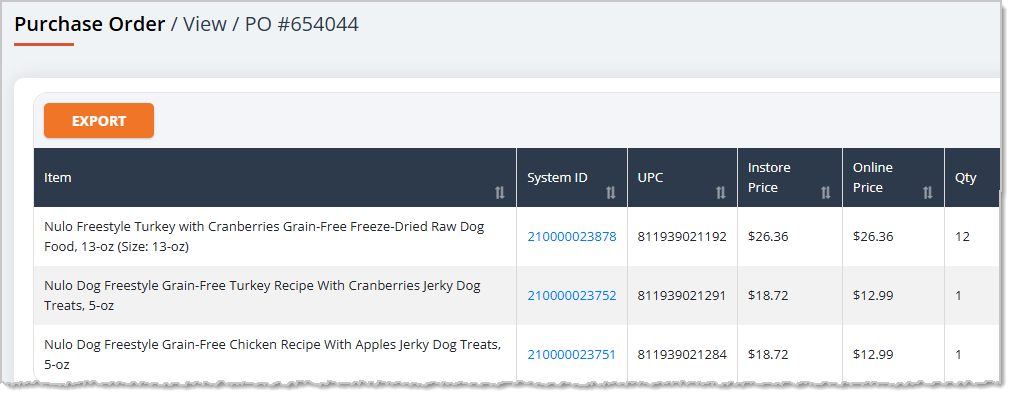
For orders that are in the Ordered status, there is also a Check In button here. You can click this button if you have received a shipment of the items in the order and you want to start adding them into your inventory. Check In is fully detailed in the section below on The Purchase Order Process.

- New Purchase Order + — Click the New Purchase Order + button to go to the New Purchase Order page and manually create a new PO. This page is fully detailed below in the section about The Purchase Order Process.
Purchase Order Item Population Automation
There are two ways in the eTailPet system to populate items into a Purchase Order on which you are working. You can have the system compare the Desired Inventory Level (DIL) of all items provided by the Vendor in your catalog to the Quantity on Hand of those items and then add any that need to be ordered to your PO. Also, you can use our Smart Ordering system, which looks at sales trends and incorporates advanced inventory management to order items that are running low and likely need to be restocked soon. Here is more information on each of these methods.
Desired Inventory Level
You can choose to bypass the Smart Order portion and instead set up the PO by Desired Inventory Level. To use this method, check the box in the top right of the table for Calculate Based on Desired Inventory Level, ignore that Smart Order portion, and run the PO.
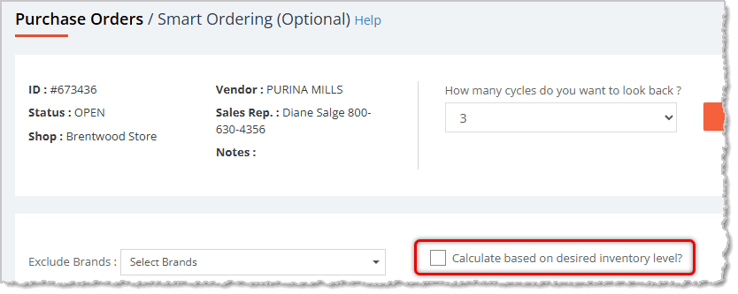
- When items are populated into your order by desired inventory level, the system first finds all items that have that Vendor as the Primary Vendor or the Secondary Vendor. It will then compare your current Quantity on Hand (QOH) to your Desired Inventory Level (DIL). You can check or change these at any time using the product’s Inventory tab on the product's detail page.
- When you run this order it will NOT take previous sales into consideration. The only values that DIL takes into consideration are the current QOH and the set DIL for each item. This option is excellent for items where you will always need a certain quantity of an item in order to fill a shelf in your store or to fill a display case. Remember that although it may take some time to initially set up DILs for items, you only have to set them up once. Then you can allow the Smart Order system do the work from that point forward.
- It is recommended that all new retailers use Desired Inventory Levels for all purchase orders for the first five weeks of using the platform so that the system can build enough data to utilize the Smart Order system.
DIL Example
You currently have an item that has a Quantity on Hand of two. You have manually set the Desired Inventory Level of this item to five. When you run your purchase order, it will perform the following calculation to determine the quantity to be added to your order:
Desired Inventory Level (DIL) of product minus current Quantity on Hand (QOH) of product equals the quantity to be added to the PO.
A DIL of 5 - QOH of 2 = quantity of 3 to be added.
Smart Ordering Basics
The Smart Ordering process is much more complex than the other two Purchase Order population methods (Manual addition and Desired Inventory Level). However, this system can yield the best inventory management for your store. For a detailed overview of how Smart Ordering works, please review the Smart Ordering article.
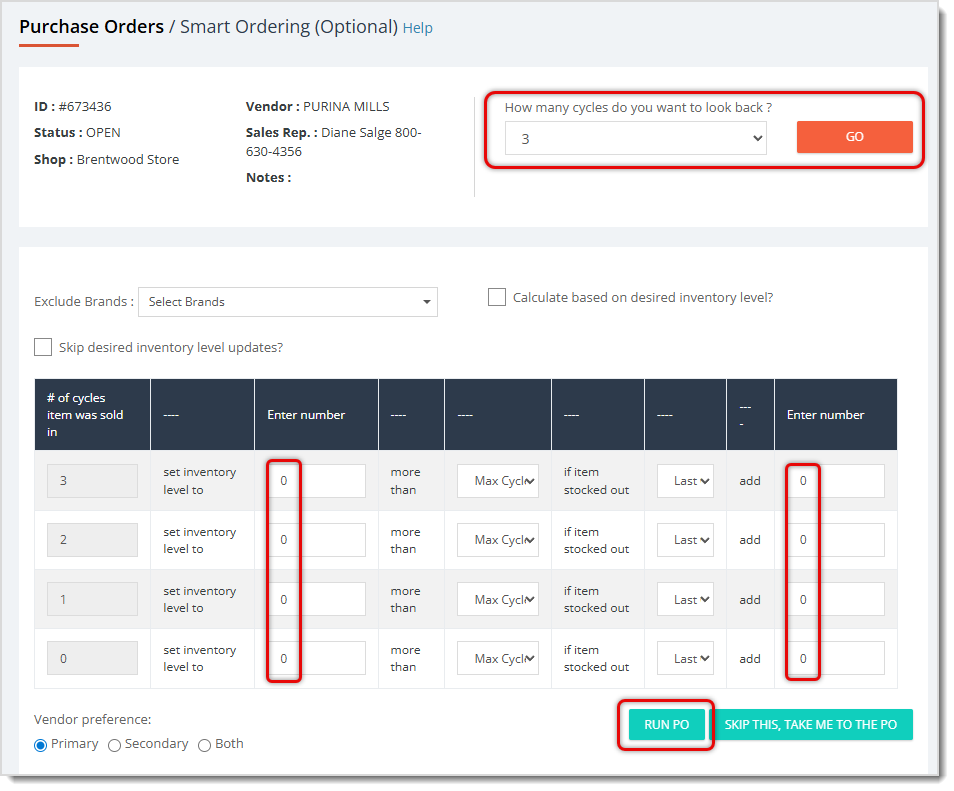
The
Smart Order process can be broken down into some key ideas.
- Cycles — A Cycle is the time between Purchase Orders. The cycle is measured from the day after your PO was received, to the moment you are placing the purchase order.
- Last Cycle — The Last Cycle is the most recent cycle, meaning the period from the day after your Purchase Order was received until the moment you are placing this order.
- Number of Cycles Item Was Sold In — This means looking back on your set number of cycles (we recommend 5), and identifying how many of them had at least one sale of the item (not how recently or how much of the item was sold).
- Max Cycle Units Sold — This goes through each individual cycle, finding the maximum quantity of an item that sold in a given cycle. So if four cycles had 2 sales of an item each and one cycle had 4, the Max Cycle Units Sold for that set of cycles would be 4.
- Last Cycle Sales — This is the amount of units that sold in the Last Cycle.
- Item Stock Out — This is when an item’s Quantity on Hand has been decreased to zero in a cycle, causing you to be out of stock of the item.
Setting Up a Smart Order
The Smart Order is a customizable process that allows you to quickly set general guidelines for how you would like to reorder your products. Generally these parameters will be the same each time you run a Smart Order, although there will be certain times like the holidays or peak sales seasons when you will want to increase these values.
- Number of Cycles — The first setting you should consider is how far back you would like to look, or more specifically how many cycles you would like Smart Order to consider. User your best judgement here and consider if any of the cycles you're looking at might throw off your reordering. For example, you don’t want to look back to December in February as those seasonal sales will not be reflective of what you will be needing this week. We suggest looking back 5 cycles, however you can adjust this to your preference.
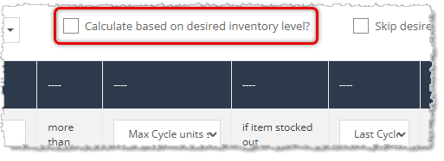
- Desired Inventory Levels — The starting point for every item in the smart order system is the product’s Desired Inventory Level (DIL). Initially you set this manually, and it requires the product to be one you will actively be reordering. The Smart Order system will adjust this Desired Inventory Level each time you populate a purchase order using the Smart Order system. If you are new to our system, it is recommended that you populate your purchase orders using only Desired Inventory Level for the first five cycles prior to switching to smart order. You can do this by checking the box labeled Calculate based on desired inventory level? just above the data table, as pictured here.
- Number of Cycles Item was Sold In — A key way in determining future performance of an item is by examining past performance. Each “row” represents how many of the previous cycles in which you have sold a particular item. The Smart Order will adjust the Desired Inventory Level for items that you have sold at least once per cycle for all cycles according to way you configure the top row. The Smart Order will similarly adjust the DIL for items that you have not sold in any of the cycles selected according the your user adjustments on the bottom row.
- Smart Order Parameters — Now you will select the parameters for the Smart Order PO by determining what level to set the Desired Inventory Level.
- (1) The number of cycles in which you sold the item (Example: If you had a single sale for the item in 5 of the last 6 cycles, your number would be 5)
- (2) Set the DIL to .
- (3) More than choose: (Max Cycle units sold or Last Cycle Sales, see definitions above)
- (4) If the item stocked out choose: (Last Cycle or Any Cycle).
- (5) Add .

These parameters determine how you would generally like to set your Desired Inventory Level. They can be confusing. It might help to think about it as a logic statement:
“If an item is selling (1) every cycle I would like to
(2) set my desired inventory level to 1
(3) more than the Maximum Cycle Units Sold
AND if the (4) item stocked out in the Last Cycle
(5) then add 2 extra to the PO.”
The amount by which you increase your DIL is entirely up to you. However, you do not want to set this number higher than two or three. The final portion of the logic statement above indicates whether you would like to set this number using the Maximum Cycle Units Sold or the Last Cycle’s sales. The definitions are listed above for you, if needed. If you have a period where the amount you are selling is erratic then it would be good to select Last Cycle’s sales to get a more accurate result. Maximum Cycle Units Sold would be a good choice for if you want to have more items in stock.
Quick PO
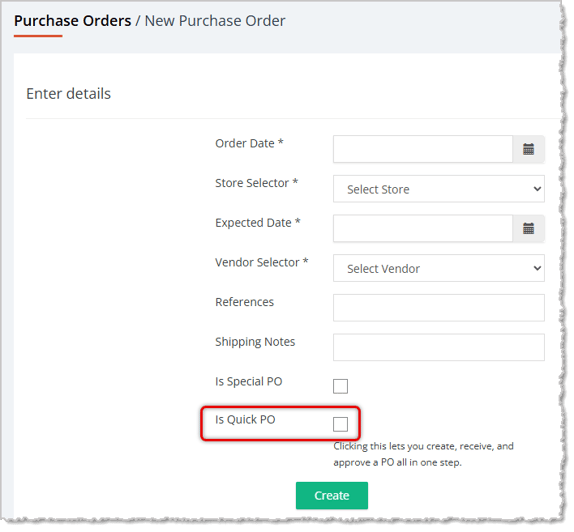
A Quick PO is a method you can use for purchase orders you have made outside of the system. A Quick PO allows you to create, receive, and approve a Purchase Order all in one session. The purpose of this function is to reconcile your inventory levels with those external POs. When you're manually creating a new Purchase Order, the checkbox at the bottom will set the Purchase Order to be a Quick PO, as pictured below.
Completing Your Purchase Orders
The remaining steps of completing your Purchase Orders are explained in detail in the article about The Purchase Order Process. We highly recommend you review that article before running your first PO.

Boss Quote
Make sure your human plans to use Smart Ordering as soon as they can, since it obviously provides the best inventory management. Even a human can understand that. Also double-check that they're ordering enough extra catnip toys for your needs, they may not realize how fast we go through those.
— Adrian, Wenatchee, WA
Related Topics
The Purchase Order Process
Purchase Order Admin Approval
Stock Days
Desired Inventory Level
Smart Ordering
Case vs. Each Ordering
Frequently Asked Questions
Q: I have a question, but I can't find my answer here. How do I get more assistance?
A: You can ask any question at the number listed here. Contact our support team at (323) 370-0738 for the U.S. and (888) 370-2363 for Canada.







 Oct 01, 2024
Is this page helpful?
×Help us improve our articles