🏬 The Warehouse page in Settings allows you to view and manage any warehouse locations included in your current subscription, from its physical address and contact information to its payment processor credentials, among others. Because a warehouse record controls how orders are shipped, taxed, and paid for, keeping this information current is essential to day-to-day operations. Learn how to review and update your warehouse settings!
Please Note: If you do not have a Warehouse location, you will not need the information in this article.
Warehouse Settings
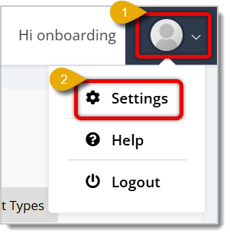
To reach the Warehouse page, do the following:
-
Click on your User icon in the top right corner of the screen.
-
Click on Settings.
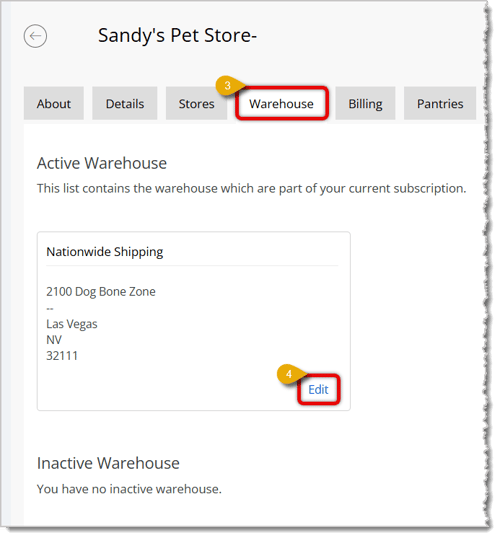
- Click on the Warehouse tab in the Settings area. The page first shows a simple list of your Active and Inactive warehouses.
- Active Warehouse — This section displays a card for each warehouse that is part of your current subscription. The card will display its name and address.
- Inactive Warehouse — This section lists any warehouses that have been deactivated. If you don't have any inactive ones, the page displays a message stating you have no inactive warehouse.
- Click on Edit on any warehouse to open a detailed form that shows its location, contact information, payment, shipping, auto order, tax, and receipt settings.
Location Details
Here is how to configure your warehouse's location:
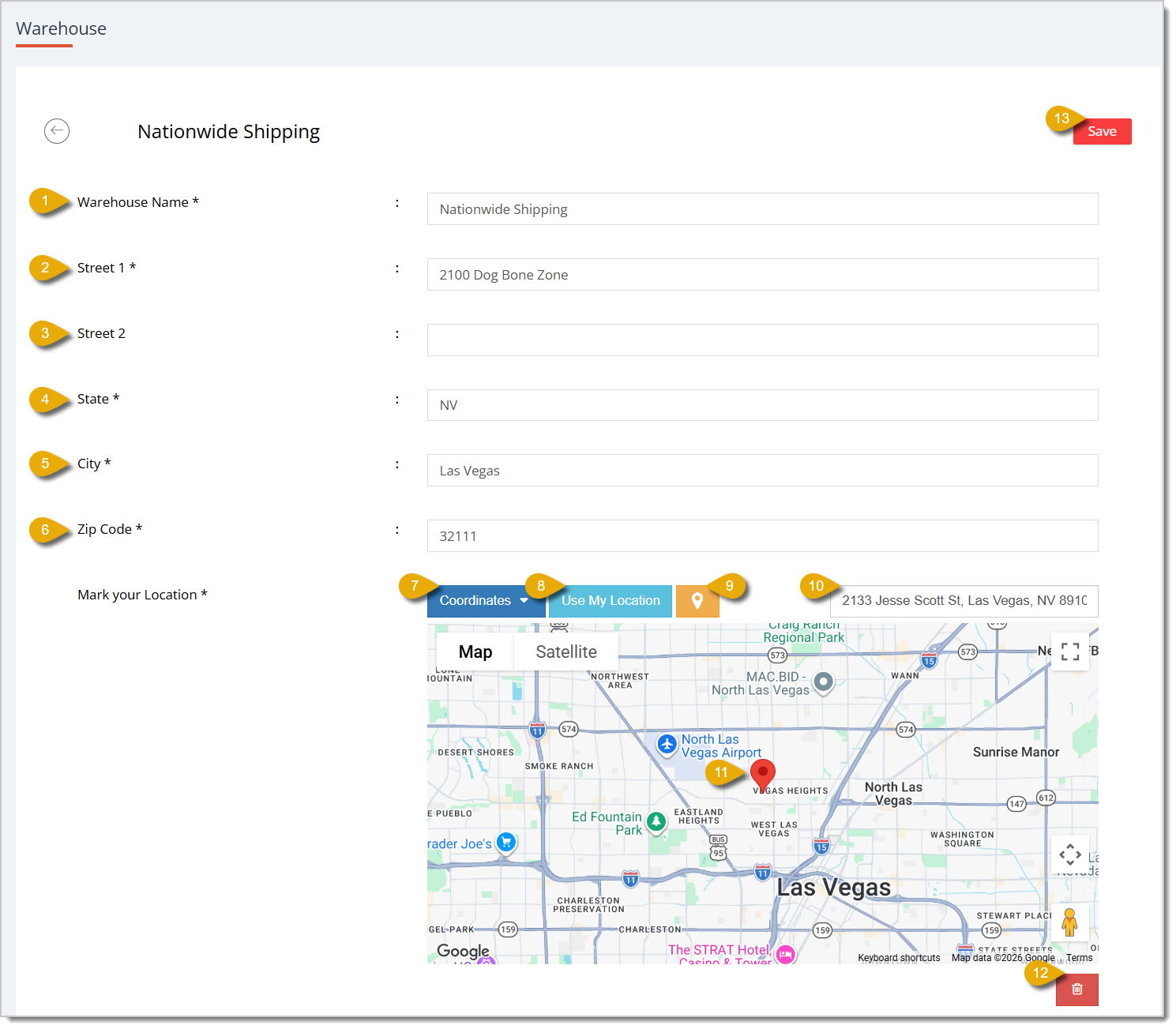
- Warehouse Name* — Enter the name you want to use to identify this warehouse.
- Street 1* — Enter the primary street address of the warehouse.
- Street 2 — Enter any additional address information, such as a suite or unit number, in this field.
- State* — Enter the state for the warehouse address.
- City* — Enter the city for the warehouse address.
- Zip Code* — Enter the ZIP code for the warehouse address.
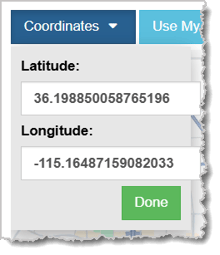
- Coordinates (Mark Your Location*) — One way to mark your warehouse's location is to click the Coordinates button. This opens a panel where you can enter the location's latitude and longitude. Then click Done.
- Use My Location (Mark Your Location*) — One way to mark your warehouse's location is to click on the Use My Location button, which will use your device's current location. You will also have to give the eTailPet system permission through your web browser to use your location.
- Pin (Mark Your Location*) — One way to mark your warehouse's location is by clicking on the Pin icon, then clicking on the location in the map to pinpoint the spot. Your cursor will look like a Plus Sign while you're setting your location with this method.
- Enter Address (Mark Your Location*) — One way to mark your warehouse's location is to enter the address in this field. Type in the address and select it from the drop-list.
- Move Pin (Mark Your Location*) — One way to mark your warehouse's location is to click on the pin inside the map and manually move it to another spot.
- Remove Location Pin — Click the trash icon button below the map to clear the current map marker (the red pin).
- Save — Click this button in the upper right of the page to save your changes to the warehouse. This button is also located on the bottom of the page. Make sure to save after you've made any changes, or they will not be saved.
* Required Field
Contact and Content
Here is how to configure the warehouse's contact information and content that will appear to staff:
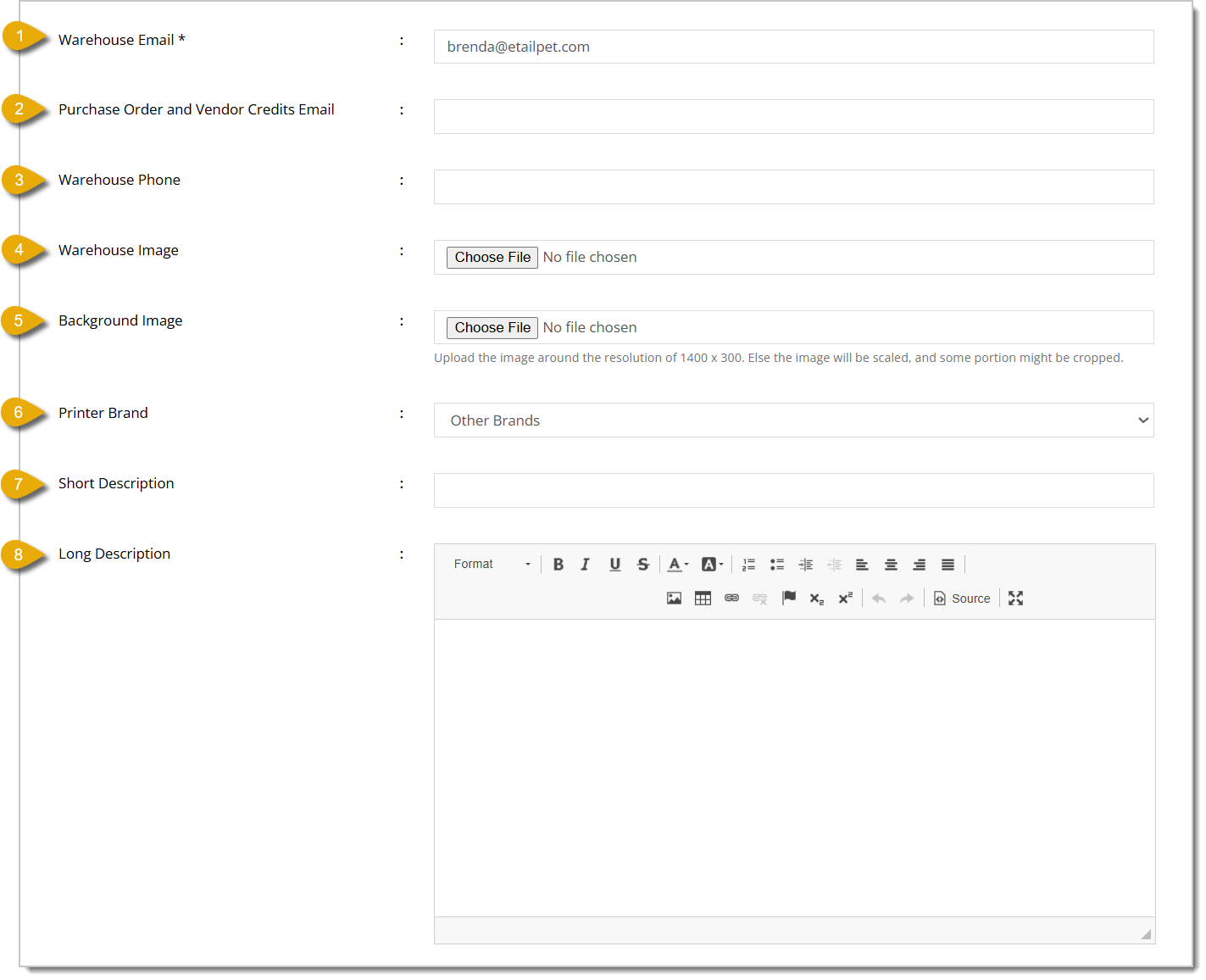
- Warehouse Email* — Enter the contact email address associated with this warehouse.
- Purchase Order and Vendor Credits Email — Enter the email address that will receive purchase order and vendor credit notifications.
- Warehouse Phone — Enter the contact phone number for the warehouse.
- Warehouse Image — Click on Choose File in this field to upload an image representing the warehouse. Please Note: It is best to use JPG or PNG image files sized 1MB or less for this area and #5 below.
- Background Image — Click on Choose File in this field to upload a background image for the warehouse. We recommend an image resolution of around 1400 x 300 pixels to avoid cropping.
- Printer Brand — Select the printer brand used at this warehouse from the drop-list. This will be for your product barcode / shelf tag label printer.
- Short Description — Enter a brief plain-text description of the warehouse.
- Long Description — Enter a more detailed description of the warehouse using the text editor.
* Required Field
Social Media and Info Links
For most warehouse locations, if you use it for store inventory only and not for online sales, you will not need the settings in this area. Here is how to enter the warehouse's social media and information links, if any:
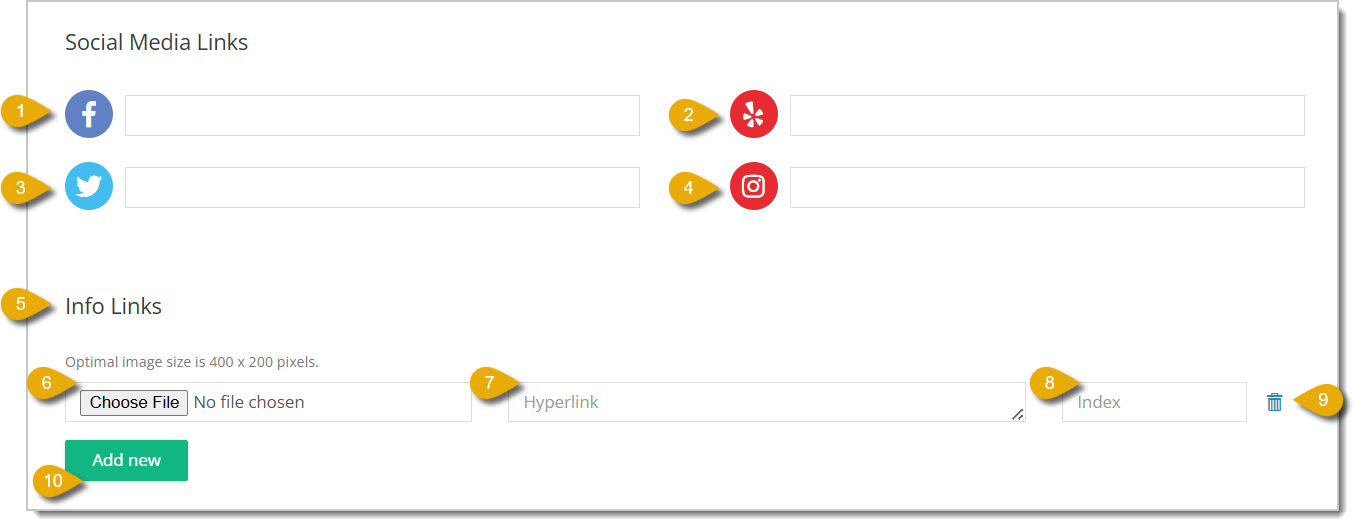
- Facebook Link — Enter the URL for the warehouse's Facebook page.
- Yelp Link — Enter the URL for the warehouse's Yelp page.
- X (formerly known as Twitter) Link — Enter the URL for the warehouse's X profile.
- Instagram Link — Enter the URL for the warehouse's Instagram profile.
- Info Links — In the Info Links section, you can enter links that provide more information about the warehouse, like their hours page.
- Upload Image (Info Links) — For each info link, click the Choose File button to upload an image. The optimal size image is 400 x 200 pixels. Please Note: It is best to use JPG or PNG image files sized 1MB or less.
- Hyperlink (Info Links) — For each info link, enter the URL in the Hyperlink field.
- Index (Info Links) — For each info link, enter a display order number in the Index field
- Remove Info Link — Click the Trash Can icon to remove an existing info link.
- Add New — Click this button to add another Info Link line item.
Payment Settings
For most warehouse locations, if you use it for store inventory only and not for online sales, you will not need the settings in this area. Here is what you can edit in the warehouse's payment settings:
Please Note: For eTailPet Payments you will be assisted by a Payments specialist to get your warehouse set up this area. U.S. stores will use eTailPet Payments Adyen, and Canadian stores will use eTailPet Payments. You do NOT need to adjust any eTailPet Payments settings. If you are on the old Clover Connect processing, your settings are listed below.
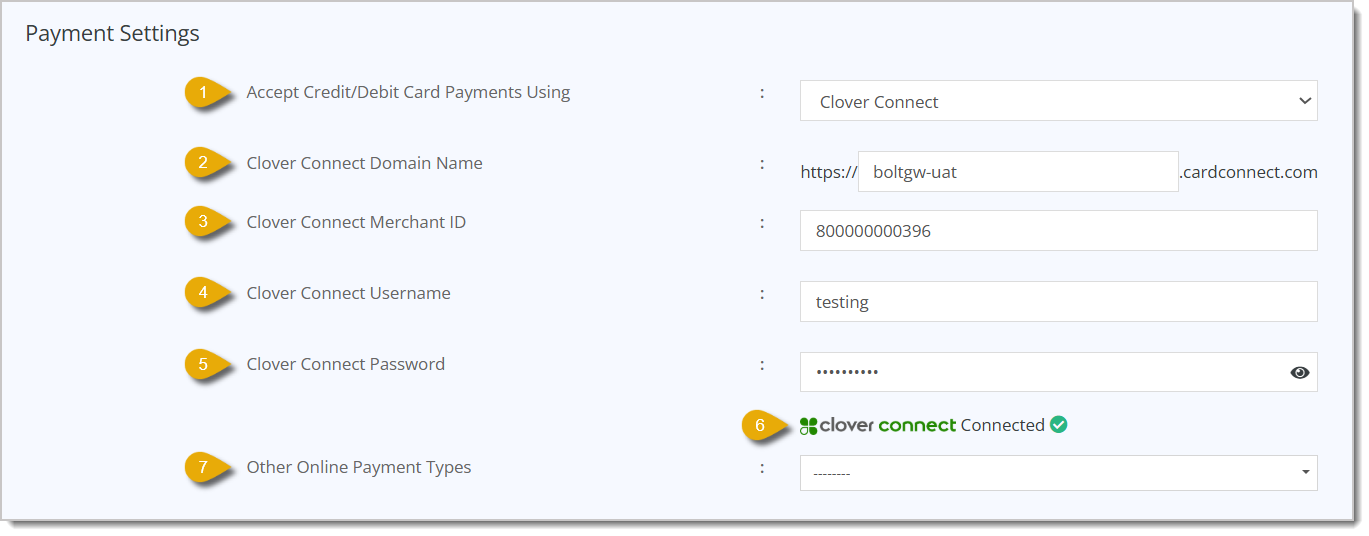
- Accept Credit/Debit Card Payments Using — Select the payment processor for this warehouse, such as eTailPet Payments or Clover Connect, from the drop-list.
- Clover Connect Domain Name — Enter the subdomain portion of your Clover Connect gateway URL.
- Clover Connect Merchant ID — Enter your Clover Connect merchant ID. For security purposes, do not share this ID outside of your organization.
- Clover Connect Username — Enter your Clover Connect account username in this field.
- Clover Connect Password — Enter your Clover Connect account password in this field. Click the eye icon to toggle the password's visibility. For security purposes, this password should be kept secret from people who do not need to use it for tasks.
- Connected Status — This badge indicates if the Clover Connect integration is currently connected. This cannot be clicked.
- Other Online Payment Types — Select additional accepted payment types, such as Gift Cards or Reward Credits, from the drop-list.
Ship to Me Details
For most warehouse locations, if you use it for store inventory only and not for online sales, you will not need the settings in this area. Here is how to configure your Ship to Me Details for the warehouse:
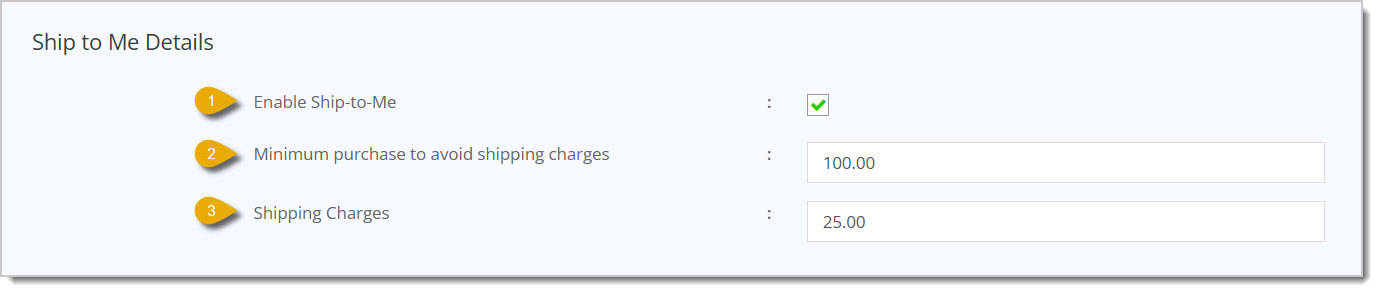
- Enable Ship-to-Me — Check this box to allow customers to have their orders from this warehouse shipped to them.
- Minimum Purchase to Avoid Shipping Charges — Enter the minimum order subtotal a customer must reach to get free shipping.
- Shipping Charges — Enter the flat shipping charge applied to Ship-to-Me orders that are under the minimum subtotal.
Auto Order Details
For most warehouse locations, if you use it for store inventory only and not for online sales, you will not need the settings in this area. Here is how to configure Auto Order Details for the warehouse:
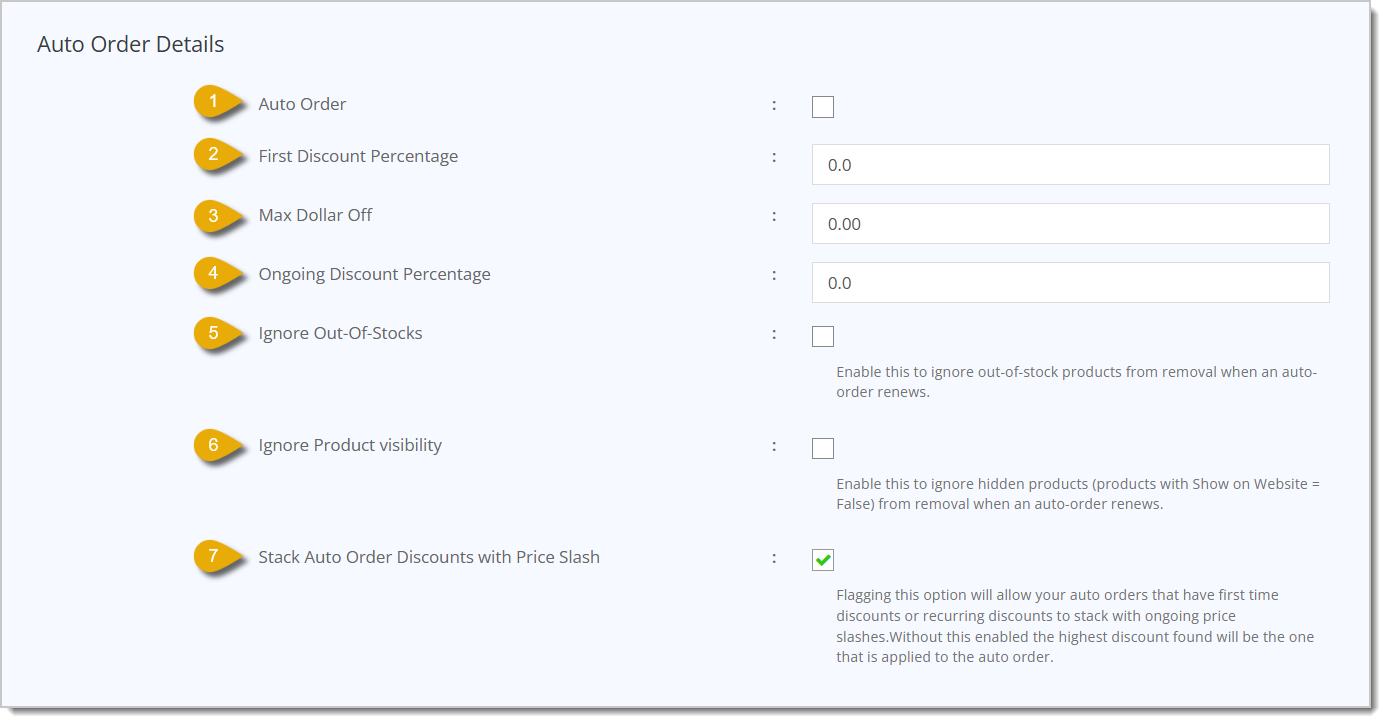
- Auto Order — Check this box to enable recurring auto orders from this warehouse.
- First Discount Percentage — Enter the discount percentage applied to a customer's first auto order in this field.
- Max Dollar Off — Enter the maximum dollar amount that can be discounted on an auto order in this field.
- Ongoing Discount Percentage — Enter the discount percentage applied to recurring auto orders after the first one.
- Ignore Out-Of-Stocks — Check this box to prevent out-of-stock products from being automatically removed from an auto order when it renews.
- Ignore Product Visibility — Check the box to prevent hidden products (those with Show on Website unchecked in Manage Catalog > My Products) from being removed automatically from an auto order when it renews.
- Stack Auto Order Discounts with Price Slash — Check this box to allow auto order discounts to stack with price slashes for new or recurring auto orders. If this is unchecked, only the highest available discount is applied to the auto order.
Tax Info
If you only use your warehouse location for inventory for your stores, it is likely you will not need to set up tax since you won't be selling to the public from the location. If needed, here is how to configure Tax Info for your warehouse:
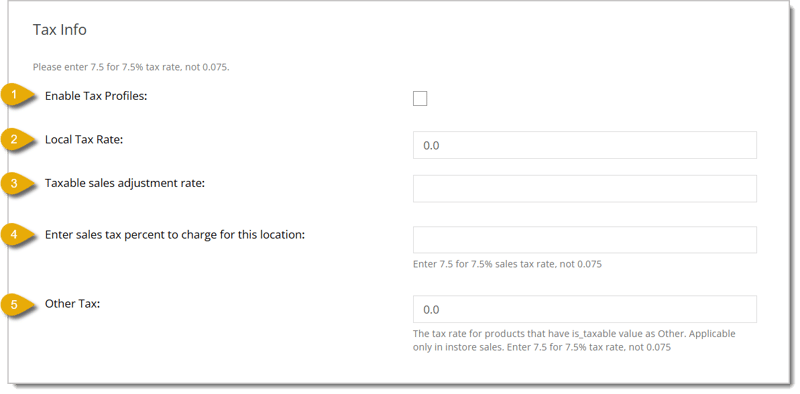
- Enable Tax Profiles — Check the box to enable the use of tax profiles for this warehouse.
- Local Tax Rate — Enter the local tax rate as a percentage (for example, 7.5 for 7.5%, not 0.075).
- Taxable Sales Adjustment Rate — Enter the taxable sales adjustment rate as a percentage (for example, 7.5 for 7.5%, not 0.075).
- Enter Sales Tax Percent to Charge for This Location — Enter the sales tax percentage to charge for this warehouse (for example, 7.5 for 7.5%, not 0.075).
- Other Tax — Enter the tax rate percentage (for example, 7.5 for 7.5%, not 0.075) applied to products that are marked with an is_taxable value (Manage Catalog > My Products > Is Taxable column > Select Yes in drop-list).
Other Info
For most warehouse locations, if you use it for store inventory only and not for online sales, you will not need the settings in this area.
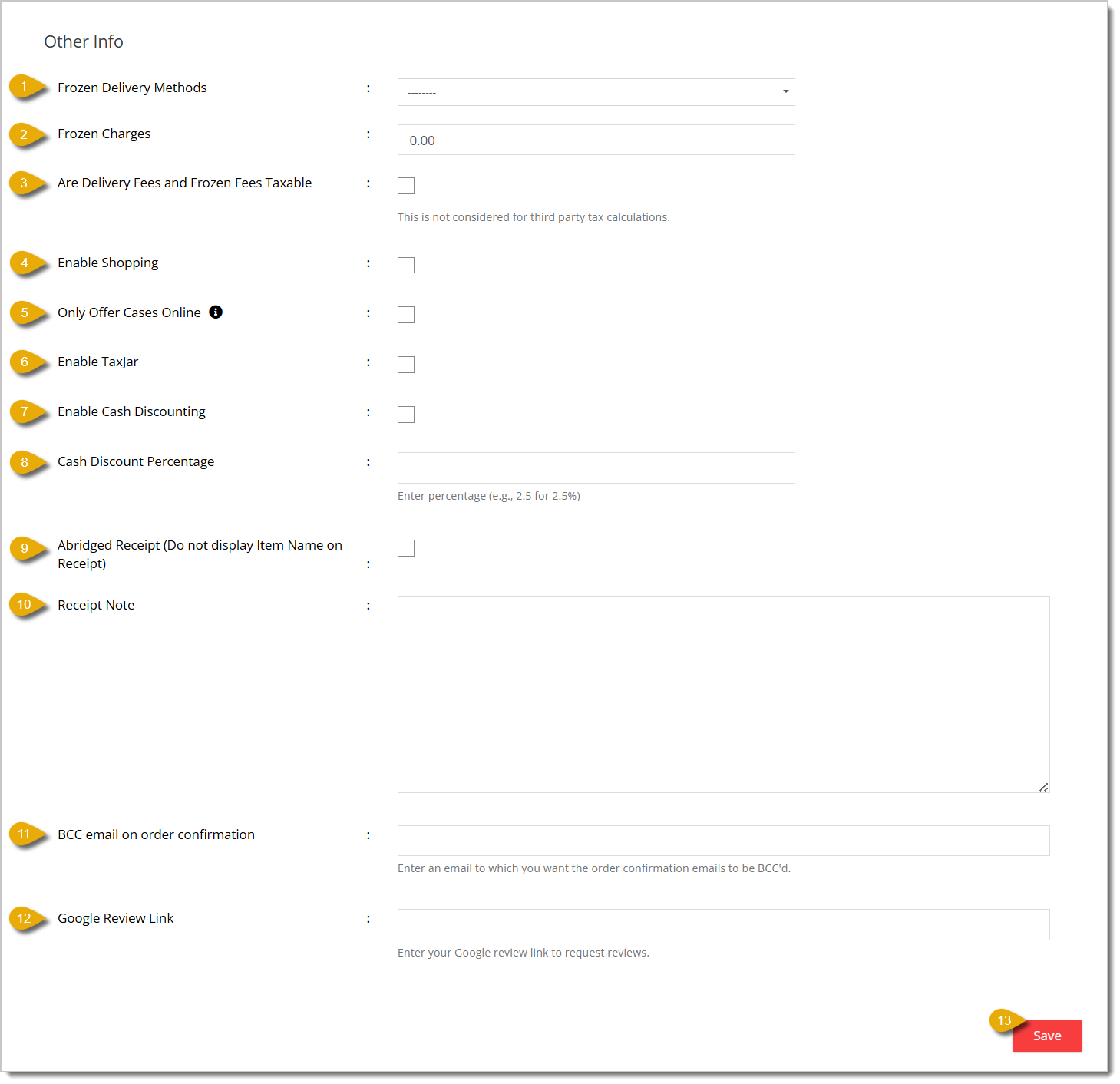
- Frozen Delivery Methods — Select one or more delivery methods, such as Local Delivery or Ship to Me, that frozen charges apply to (see number 2 in this section) from the drop-list.
- Frozen Charges — Enter the additional charge applied for frozen item handling.
- Are Delivery Fees and Frozen Fees Taxable — Check this box to make delivery and frozen fees taxable. Note that this setting is not considered for third-party tax calculations.
- Enable Shopping — Check this box to enable online shopping and ordering from this warehouse.
- Only Offer Cases Online — Check the box to limit online offerings to only quantities by case.
- Enable TaxJar — Check this box to enable the TaxJar tax calculation integration for this warehouse.
- Enable Cash Discounting — Check this box to enable a cash discount program for this warehouse.
- Cash Discount Percentage — Enter the cash discount percentage (enter 2.5 for 2.5%, not 0.025).
- Abridged Receipt (Do Not Display Item Name on Receipt) — Check the box to omit item names from printed receipts for orders from this warehouse.
- Receipt Note — Enter any custom note you want printed on receipts for orders from this warehouse.
- BCC Email on Order Confirmation — Enter an email address that should be blind-copied on order confirmation emails from this warehouse.
- Google Review Link — Enter your Google review page in this field to allow customers to leave reviews.
Related Topics
Settings: About User Tab
Settings: Billing Tab
Settings: Pantries Tab
Settings: eTail Payments Reader
Settings: Payment Types Tab
Auto Orders
Ship to Me
My Products Overview
Frequently Asked Questions
Q: Can I add a brand new warehouse from this page?
A: The Warehouse page only displays the warehouse locations included in your current subscription and lets you edit them. It does not include an option to create a new warehouse yourself. If you need an additional warehouse location added to your account, contact support using the information below.
Q: How do I set the exact map location for a warehouse if the address search doesn't find it?
A: Click the Coordinates button under Mark your Location to expand the panel with Latitude and Longitude fields. Enter the exact coordinates, and click Done. You can also click the orange pin icon and manually place the marker on the map.
Q: What is the difference between the First Discount Percentage and Ongoing Discount Percentage under Auto Order Details?
A: First Discount Percentage applies only to a customer's very first auto order, while Ongoing Discount Percentage applies to each subsequent recurring auto order.
Q: Does checking "Enable Cash Discounting" automatically apply the discount, or do I need to set a percentage separately?
A: You need to do both. Check the Enable Cash Discounting box to turn the feature on, and enter the discount amount in the Cash Discount Percentage field so the system knows how much to apply.
Q: I have a question, but I can't find my answer here. How do I get more assistance?
A: You can ask any question at the number listed here. Contact our support team at (323) 370-0738 for the U.S. and (888) 370-2363 for Canada.







 Aug 05, 2026
Is this page helpful?
×Help us improve our articles