The eTailPet Payments Reader page of the Settings area is where you can view, add, and manage the physical card reader devices, such as the P5 or WisePOS E / S700 terminals, that are connected to registers. You can search and filter existing readers, pair a new device to a register, and update or remove an existing reader. Learn how to set up and manage your payment readers!
Connecting a P5 Reader
You can watch the video below to learn how to connect your P5 reader:
Initial Wiseasy P5 Credit Card Reader Setup
🐱Please Note: This terminal only works for Merchants using Adyen. For Merchants on Stripe, you must use the WisePOS E / S700 terminal.
The Wiseasy P5 terminal is a wireless countertop terminal that accepts chip, contactless NFC, or swipe methods. Its features include:
- Contactless Payments
- EMV Enabled (Chip Cards)
- Touchscreen
- Wi-Fi connection
- Ethernet connection
- USB-C charging with 15 hour battery life
- 1-year limited warranty
- Thermal receipt printer
Read the sections below to see how to power up the P5 device and connect to your Wi-Fi network.
Powering Up the Device
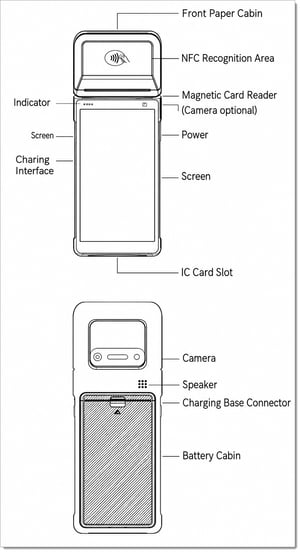
When you first receive the device, it should already be partially powered up. Refer to the image on the right as you learn to work with your device.
-
Use the USB-C wall charger (not a USB port that connects to a computer) to begin charging the device to full power.
-
Once it is fully charged, hold down the power button on the right hand side until the screen turns on.
-
When the device turns on, press the power button once to make it sleep, then another time to wake the device.
-
To fully power off the device, hold down the power button until the Power Off option appears on the screen and select it.
-
If you need to replace the battery, lift up from the indentation at the bottom of the back cover to detach it.
🐱Please Note: If the device is powered down, we recommend turning on the reader about 30 minutes before your store opens in case there are updates to be installed. The terminal should also be powered off each evening, then powered on each morning, so it can receive automatic software updates.
Connecting to Your Wi-Fi Network
Once the device is powered on, an Android loading screen may appear.
- Unlock the device by using your finger to swipe from the bottom of the screen to the top of the screen.
- The screen may prompt to connect to Wi-Fi. If it doesn’t, click on the Settings app. If the settings app is not displayed, swipe up from the bottom again to show the device's applications.
- After opening the Settings app, navigate to Network & Internet and toggle Wi-Fi on.
- Select the Wi-Fi network and enter your network details and password. It should now say that it is connected under the network name.
🐱 Please Note: Your Wi-Fi network must use WPA-Personal or WPA2-Personal encryption and be password-protected. Wi-Fi for your terminal is also not supported for enterprise networks.
The next section shows you how to pair your payment reader to a register in your store.
Pairing Your eTailPet Payments Reader
The eTailPet Payments Reader page shows a list of every card reader registered across your stores. To get to this page, do the following:
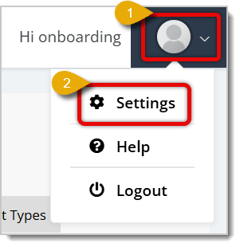
- Click on your profile image in the upper right corner of the page.
- In the resulting menu, open Settings.

-
Click the eTailPet Payments Reader tab. You'll now see your Card Reader list, which is described more below.
Card Reader List
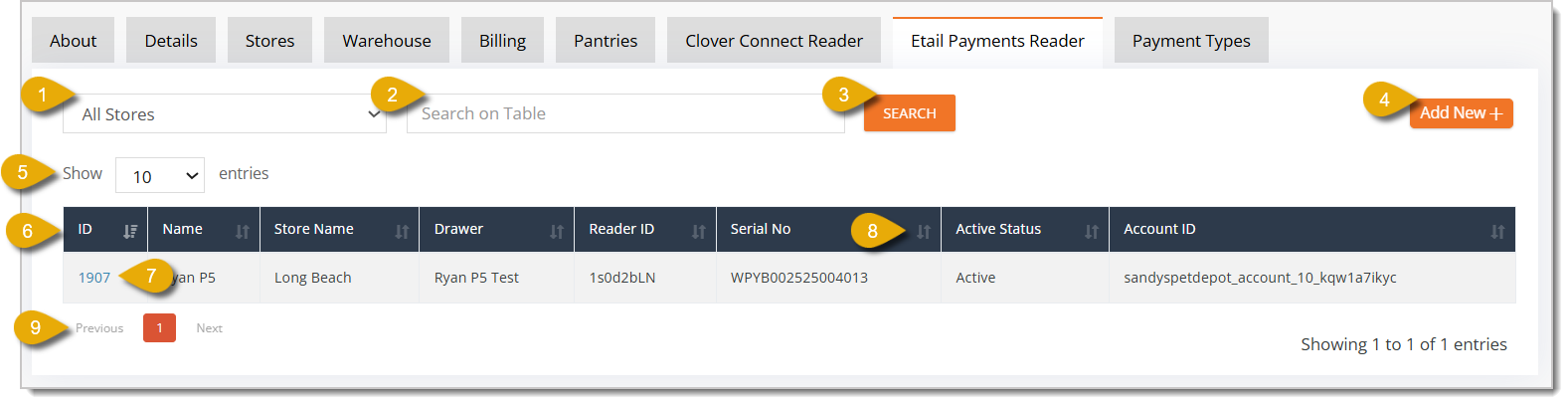
- Store Filter — Select a store from the drop-list to filter the list to readers at a single store.
- Search on Table — Enter the Name, Drawer, ID, Serial Number, or Account ID of a reader in this field to find a specific one.
- Search — Click this button if you've entered a filter or search term to filter the list.
- Add New — Click this button to register and pair a new card reader. Learn more information about this area in the Add a New Card Reader section below.
- Show Entries — Select from the drop-list how many entries you want to view per page.
- Reader Results Table — This table lists each reader's ID, Name, Store Name, Drawer, Reader ID, Serial Number, Active Status, and Account ID.
- Reader Details — Under the ID column, you can click on an individual terminal's Reader ID to view or update the reader's full details. Learn more information about this area in the View or Edit an Existing Card Reader section below.
- Sort Table — Click on the Arrows Icon next to a column heading to sort the list by that column.
- Page Navigation — Click on Previous or Next to navigate between pages if your list spans more than one page. You can also click on Page Numbers in this area to skip to that page.
Add a New Card Reader
Clicking Add New opens a form used to register and pair a new reader to a store and register.
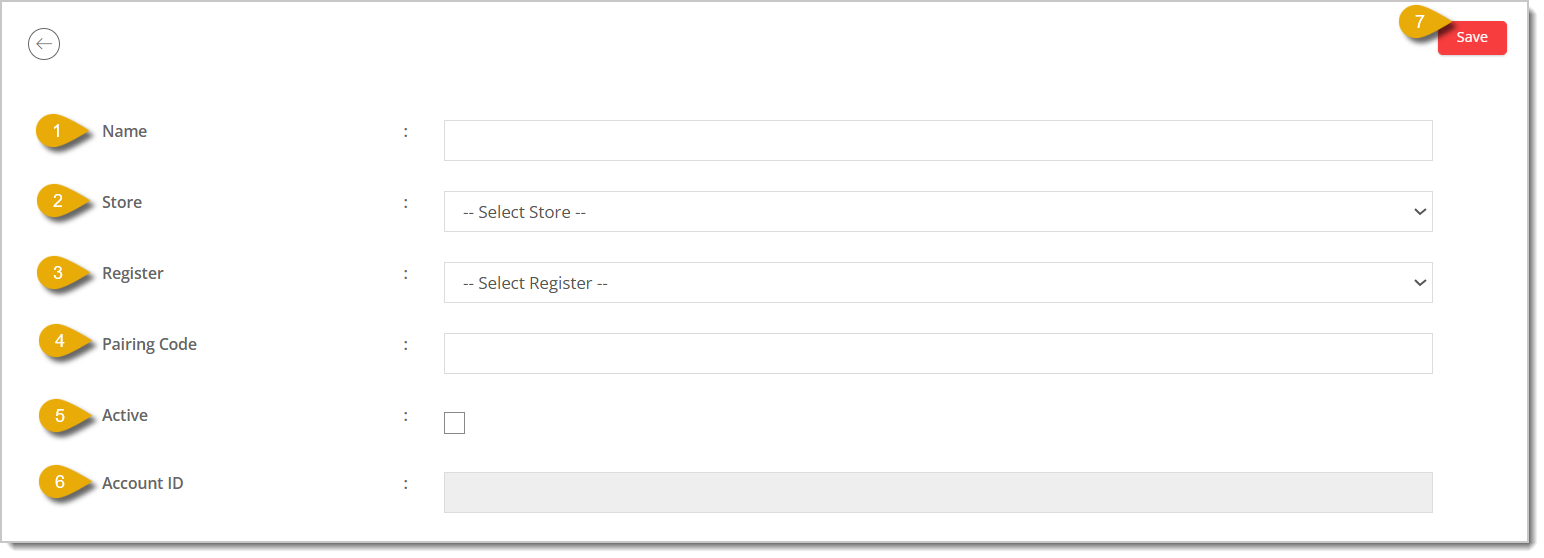
- Name* — Enter the name of the card reader to identify it.
- Store* — Select the store location of this reader from the drop-list.
- Register* — Select the specific register/drawer the reader will be paired with from the drop-list.
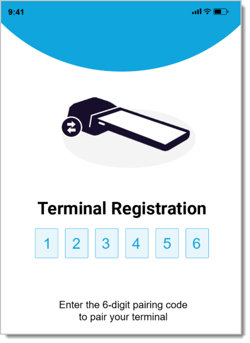
- Pairing Code — Enter the pairing code for the reader device that will link it to your account. The code is shown on the physical reader device, like in the image of a P5 credit card reader's screen.
- Active — Check this box to indicate that the reader is currently enabled.
- Account ID — This field shows the ID number that links the reader to your payments account. This ID is generated by the system after you save the reader. It is a read-only field, so you cannot edit it.
- Save — Click this button to save the new reader.
* Required Field
View or Edit an Existing Card Reader
Clicking a card reader's ID or Name from the list opens its details, where you will find the following fields and functions:
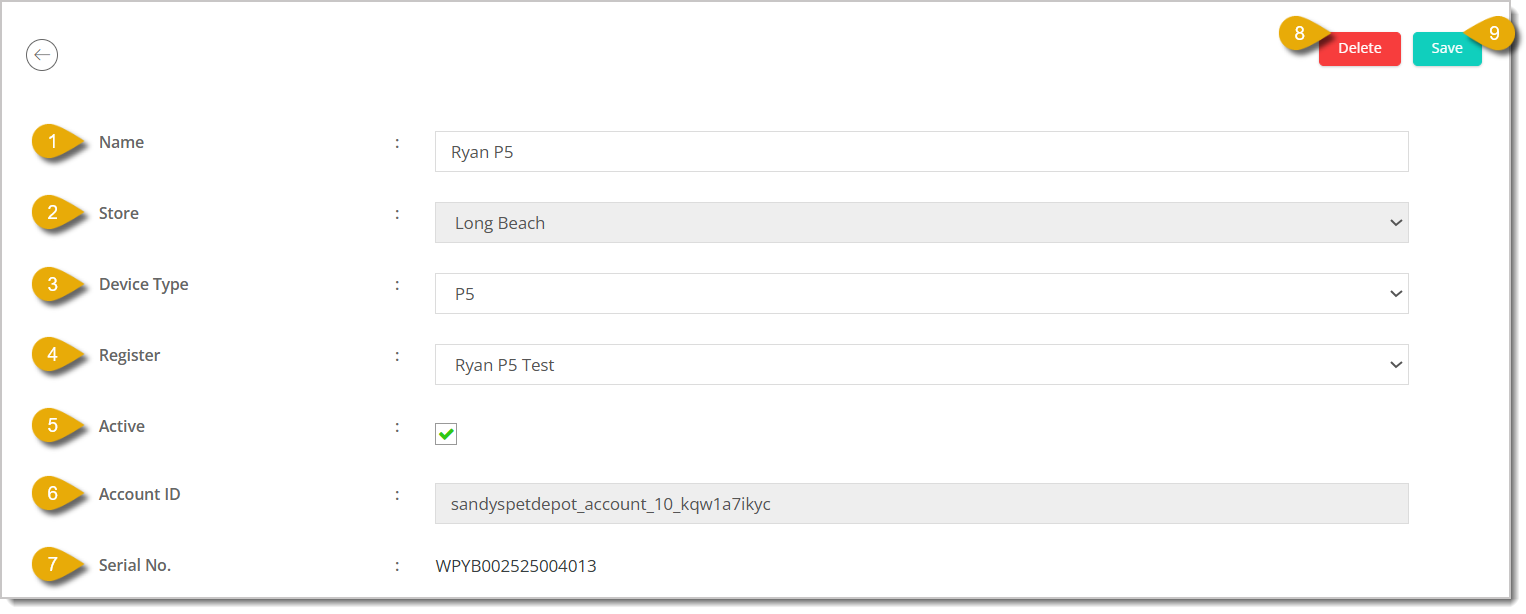
- Name — Enter the name of the card reader to identify it.
- Store — This field shows which store the card reader is located at; note that this field is read-only and cannot be edited.
- Device Type — This field shows the model of the card reader, such as P5 or S1F2. This field is detected automatically once the device is paired, but you can change it by selecting the model from the drop-list.
- Register — This field shows the register that the reader is currently paired with, and you can reassign it by selecting another register from the drop-list.
- Active — Check this box to indicate that the reader is currently enabled, or uncheck it to mark it as inactive.
- Account ID — This field shows the ID number that links the reader to your payments account. This ID is generated by the system after you save the reader. It is a read-only field, so you cannot edit it.
- Serial No. — This field shows the manufacturer serial number of the reader device and is read-only, so you cannot edit it
- Delete — Click this button if you want to remove this reader from the system.
- Save — Click this button to save your changes.
Related Topics
Network Settings and Requirements
Settings: Payment Types Tab
EBT Payment Processing
New Sale Tour
Payment Portal (PayFac)
Payment Types in New Sale
Frequently Asked Questions
Q: What is a pairing code and where do I find it?
A: The pairing code is displayed on the physical card reader itself when it is ready to be linked. Enter that code in the Pairing Code field of the Add a New Card Reader form.
Q: What happens if I uncheck the Active box on a reader?
A: An inactive reader will no longer be available to process payments until it is marked Active again.
Q: Can a reader be paired with more than one register?
A: No. Each reader can only be paired with a single register at a time.
Q: I have a question, but I can't find my answer here. How do I get more assistance?
A: You can ask any question at the number listed here. Contact our support team at (323) 370-0738 for the U.S. and (888) 370-2363 for Canada.







 Aug 07, 2026
Is this page helpful?
×Help us improve our articles