Settings: Payment Types Tab

Aug 12, 2026
💲The Payment Types tab in Settings is where you set up accepted payment methods for your store. Some examples of this might be PayPal, Care Credit, Third Party Processor or Scratch Pay. You can add, archive, and edit payment types in this area. See how you can set up special payment methods!

Payment Types Overview
-
When you accept custom payment methods, eTailPet only records the transaction for tracking and reporting purposes. This means the payment is not integrated and the processing and collecting the actual payment has to be done outside of the eTailPet POS.
-
eTailPet POS has built-in methods for credit cards, gift cards, and cash payments. Do not create custom payment types for these.
-
Checks are normally processed as cash in eTailPet. Checks can be added as a custom payment type if you do not want to treat them as cash. If you do this, please keep in mind that checks received will not be included in your Cash Till Report, Cash Reconciliation Report, or general register functionality within eTailPet. However, checks will still be included in your Payment Report, Payment and Sales Summary Report, EOD Range Report, and Journal Entry Report.
Payment Types Tab
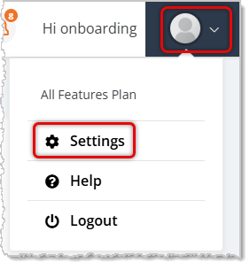
Start by clicking on your User Icon in the upper right corner of the eTailPet system. This will expand a menu; click on Settings.
Click on the Payment Types tab in Settings. Here is how to configure your custom Payment Types:
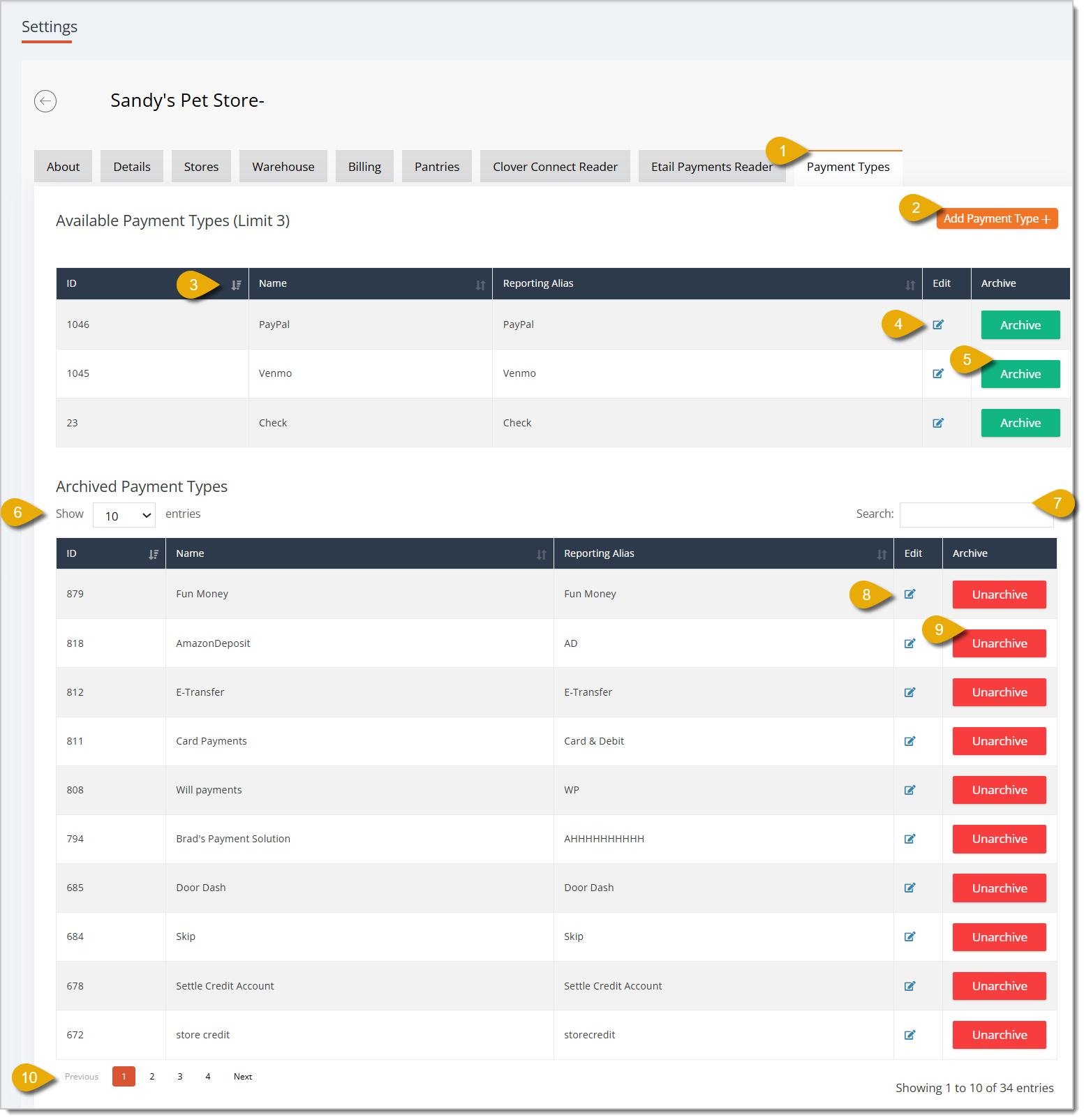
- Payment Types Tab — Click on the Payment Types tab in Settings to open it.
- Add Payment Type — Click on this button towards the upper right to open a window where you can add a new payment type. You can have up to 3 active custom payment types at one time. The window's fields and functions are explained below:
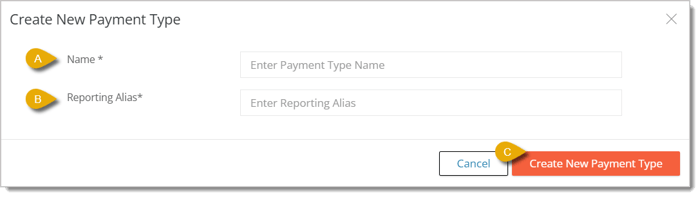
- Enter the Name of the payment type.
- Enter the Reporting Alias for the payment type. This is how the payment type will appear in your records and reports.
- Click on Create New Payment Type.
- Sort by Column — Click on the Arrows next to a table column name to sort the data according to that column. Click once to sort or click again to reverse the sort.
- Edit (Available Payment Types) — Click on the Edit button on a currently active payment type's table row to edit its details.
- Archive — Click on the Archive button in a payment type's table row to archive it. This means transactions using this payment type will no longer be recorded by the eTailPet system.
- Show Number of Entries — In the Archived Payment Types section, you can select how many entries will display per page from the drop-list.
- Search — Enter a keyword in the Search field to find a payment type.
- Edit (Archived Payment Types) — Click on the Edit button on an archived payment type's table row to edit its details.
- Unarchive — Click on the Unarchive button in a payment type's table row to make it available again. Note that if you have three currently active payment types, you cannot unarchive a payment type (unless you archive an active one).
- Page Navigation — Click on Previous or Next to navigate between pages of your archived payment types. You can also click on the Page Numbers here to skip to a certain page.
How to Use Payment Types in New Sale
When you're ringing up a transaction in New Sale, you can find your custom payment types in the Payments window.
- Click on Payment in the bottom right of the New Sale screen.
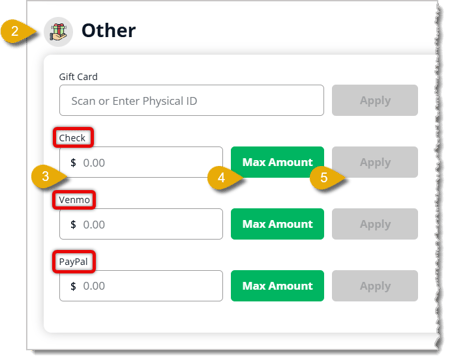
- Scroll down to the Other section in the Payment window. You'll see each custom payment type.
- In the field below a payment type name, enter the amount the customer is paying for using the payment type.
- You can also click on the Max Amount button to apply the entire transaction's total to the payment type.
- Click on the Apply button after entering an amount. The payment type will now appear as this format: Processed [Payment Type Name]: [Amount].
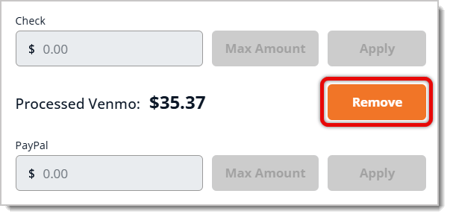
- If the customer no longer wants to pay using that payment type, you can click on the Remove button.
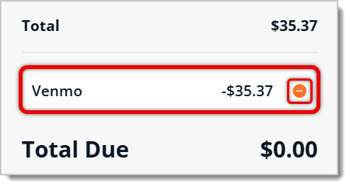
- You'll also see the payment reflected in the transaction total on the left of New Sale. You can click on the Minus button here to remove the payment amount.
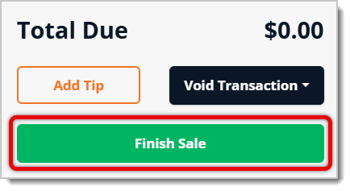
- Click on Finish Sale to complete the transaction.
Related Topics
Settings: Billing Tab
Settings: Stores Tab
Settings: eTail Payments Reader
Payments Reports
New Sale Tour
Frequently Asked Questions
Q: What happens if I archive a payment type?
A: When a payment type gets archived, it no longer appears as a payment option in the New Sale screen, and it will no longer be recorded in future reports.
Q: Can I delete a payment type?
A: No. You can only archive them.
Q: I have a question, but I can't find my answer here. How do I get more assistance?
A: You can ask any question at the number listed here. Contact our support team at (323) 370-0738 for the U.S. and (888) 370-2363 for Canada.
If the need to change the bank account that your payouts are deposited in a new bank account can be
🏬 The Warehouse page in Settings allows you to view and manage any warehouse locations included in
The About tab on the Settings page of the eTailPet system displays the profile details for the logge







Is this page helpful?
×Help us improve our articles