Your Payments Reports offer tools for tracking payment activity across your business: the Payment Report, which lists every individual order payment as it's processed, and the Payment & Sales Summary Report, which rolls up your payment and sales totals. This article shows you how you can use both reports to audit individual payments and monitor your overall payment and sales activity. See how you keep a close eye on your payment data!

You can get to your Payments Reports by logging into the admin dashboard and clicking on Reports in the main menu. On the Reports page, scroll down to the Payments section, as pictured below.
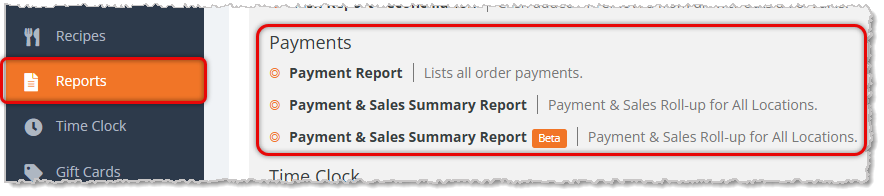
Your Payments reports include the following:
The Payment Report
The Payment Report shows you every individual order payment processed within your selected Start Date and End Date, so you can review or audit each transaction's payment method, amount, and source.
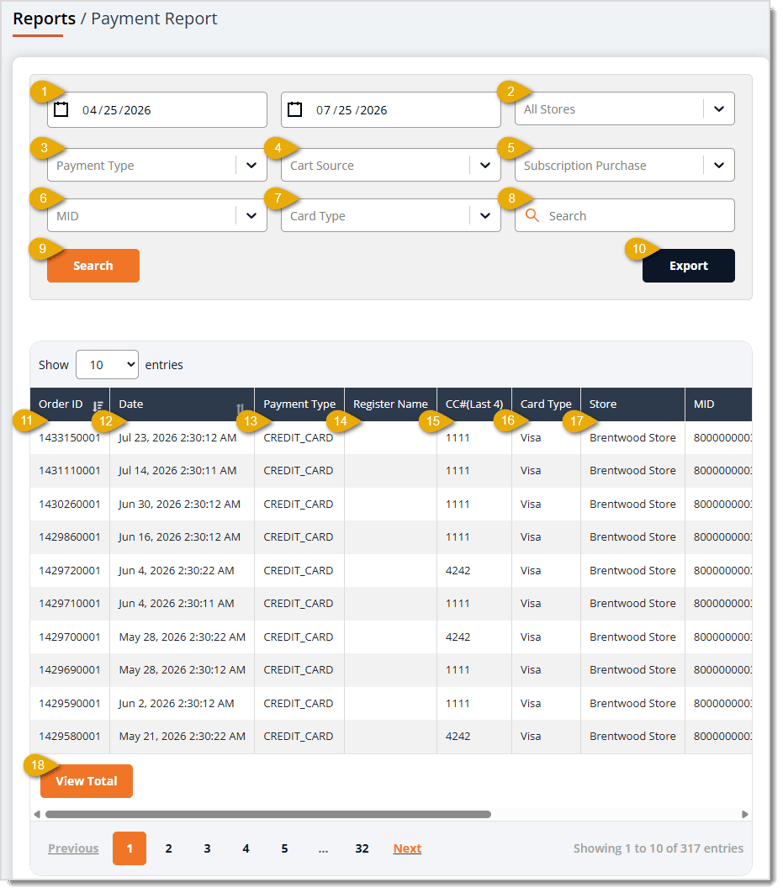
The Payment Report has the following functions:
- Date Range — Enter or select the Start Date and End Date fields to set the date range you want to view. This area defaults to the current day.
- All Stores — Select a specific Store location from this drop-list to filter the table to payments from that store only. This field defaults to All Stores.
- Payment Type — This field defaults to all payment types. Select an option from this drop-list to filter the table to only that payment method. This includes Payment Types you have set up for your store, such as Cash, Credit Card, Check, Store Credit, Customer Credit, Gift Card, Deposit, External Credit Card, Exchanges, or custom payment methods such as Venmo or PayPal.
- Cart Source — Select Instore or Online from this drop-list to filter the table to just payments made at a register or through your e-commerce site.
- Subscription Purchase — Select True or False from this drop-list to filter the table to only payments tied to a subscription order or only payments that are not.
- MID — This field will show all payments from every Merchant ID by default. Select a specific merchant identification number from this drop-list to filter the table to payments processed under that ID.
- Card Type — Select Amex, Diners, Discover, JCB, Mastercard, or Visa from this drop-list to filter the table to payments made with that card brand.
- Search Field — You can enter search text, such as an Order ID or customer name, into this field to narrow the table to matching results.
- Search — Click the Search button after setting your filters to load matching results into the data table.
- Export — Click the Export button to download the table's data across all pages that match your current filters as a CSV file.
- Order ID — This column lists the internal Order ID tied to each payment. You can click once on the header to sort the data according to this column, or click twice to reverse the sort.
- Date — This column shows the Date and Time each payment was processed. You can click once on the header to sort the data according to this column, or click twice to reverse the sort.
- Payment Type — This column displays the payment method used for each order, such as Cash or Credit Card.
- Register Name — This column lists the name of the register where each payment was taken.
- CC# (Last 4) — This column shows the last four digits of the card number used if the payment was made by card.
- Card Type — This column indicates the card brand used for each payment, such as Visa or Mastercard.
- Store — This column displays the Name of the Store where each payment took place.
- View Total — You can click this button to view the grand total sum of the Amount column (all pages of the report combined) at the bottom of the data table, as pictured below.
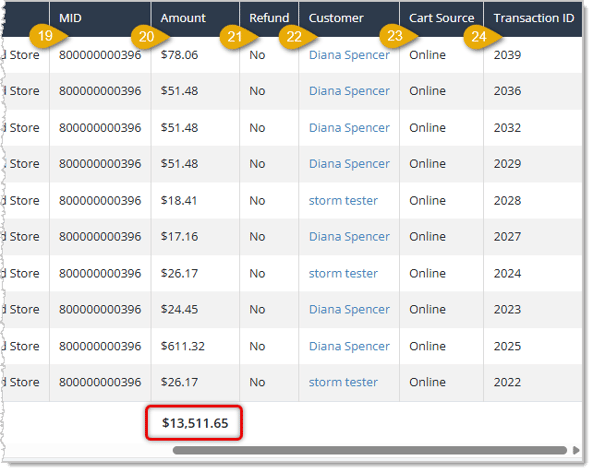
- MID — This column lists the Merchant Identification Number you used to process each payment.
- Amount — This column shows the dollar amount of each payment.
- Refund — This column displays the dollar amount refunded, if any portion of the payment was refunded. The entries in this column all say No, so would it show the dollar amount if the payment was refunded?
- Customer — This column lists the name of the customer tied to the order. You can click the customer's name in this column to view the customer's Details page.
- Cart Source — This column indicates whether each payment came from an Instore or Online order.
- Transaction ID — This column shows the Transaction ID of each payment transaction.
The Payment & Sales Summary Report
The Payment & Sales Summary Report shows you a single roll-up of your payment and sales totals across your selected Date Range.
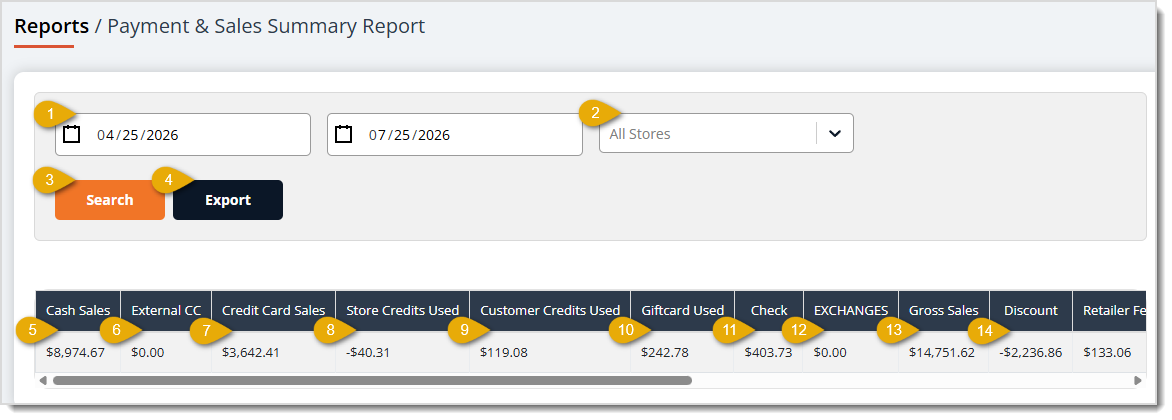
The Payment & Sales Summary Report has the following functions:
- Date Range — Enter or select the Start Date and End Date of the range you want to summarize. This area defaults to the current day.
- Stores — By default you'll see data for All Stores, but you can use this filter to view data from a single store, if needed.
- Search — Click the Search button after setting your Date Range and Stores selections to refresh the summary totals.
- Export — Click the Export button to download the summary totals as a CSV spreadsheet file.
- Cash Sales — This column shows the total dollar amount collected in cash across the selected Date Range and store.
- External CC — This column displays the total dollar amount collected through externally processed credit cards.
- Credit Card Sales — This column lists the total dollar amount collected through credit cards processed in the system.
- Store Credits Used — This column shows the total dollar amount of store credit redeemed as payment.
- Customer Credits Used — This column displays the total dollar amount of customer account credit redeemed as payment.
- Gift Card Used — This column lists the total dollar amount of gift card balance redeemed as payment.
- Check — This column shows the total dollar amount paid via Check. I think this is a custom payment method because I don't see it on my end. I do see Venmo as a column, so maybe a description about custom payment methods should be here instead?
- Exchanges — This column displays the total dollar amount in Exchanges during the date range.
- Gross Sales — This column shows the total sales amount before discounts and other deductions.
- Discount — This column lists the total dollar amount deducted from sales through discounts.

- Retailer Fee — This column displays the total dollar amount collected in retailer fees.
- Net Sales — This column shows the total sales amount after discounts and fees are applied.
- Taxable Total — This column lists the total dollar amount of sales subject to tax.
- Non-taxable Total — This column displays the total dollar amount of sales not subject to tax.
- Tax Collected — This column shows the total dollar amount of tax collected.
- Tip — This column lists the total dollar amount collected in tips.
- Gift Card Purchased — This column displays the total dollar amount of new gift cards sold.
- Shipping Charge — This column shows the total dollar amount collected for shipping charges.
Related Topics
Reports Overview
Register Reports
Gift Card Reports
Customer Reports
Frequently Asked Questions
Q: Why does my Payment Report show no results?
A: The Payment Report only displays payments that fall within your selected Start Date and End Date, and this defaults to the current day. Try widening your Date Range and clicking Search to see older payments.
Q: How do I find all payments made with a specific card brand in the Payment Report?
A: Select the card brand, such as Visa or Mastercard, from the Card Type drop-list, then click Search. You can also confirm the brand for any row afterward in the table's Card Type column.
Q: Can I see which customer made a specific payment in the Payment Report?
A: Yes. The Customer column lists the customer tied to each payment, and clicking their name opens that customer's Details page.
Q: Why doesn't the Payment & Sales Summary Report show individual transactions?
A: The Payment & Sales Summary Report is designed to roll up totals like Gross Sales, Net Sale, and Tax Collected across your selected Date Range and store, rather than list transaction-level detail. If you need individual payment records, use the Payment Report instead.
Q: Can I view the Payment & Sales Summary Report for just one location?
A: Yes. Select the location you want from the All Stores drop-list, then click Search to refresh the totals for that store only.
Q: I have a question, but I can't find my answer here. How do I get more assistance?
A: You can ask any question at the number listed here. Contact our support team at (323) 370-0738 for the U.S. and (888) 370-2363 for Canada.







 Jul 24, 2026
Is this page helpful?
×Help us improve our articles