Your Register Reports give you analytical tools for auditing the cash and accounting activity that runs through your registers: one that lists every accounting journal entry generated by your sales and payments, one that tracks every cash till transaction drawer by drawer, and one that lets you review and verify cash adjustments. This article will show you how to use them to help you reconcile your books, track down cash discrepancies, and confirm your registers are balancing correctly. Take a look at what's there for you!

You can get to your Register Reports by logging into the Admin Dashboard and clicking on Reports in the main menu. On the Reports page, scroll down to the Registers section, as pictured below.
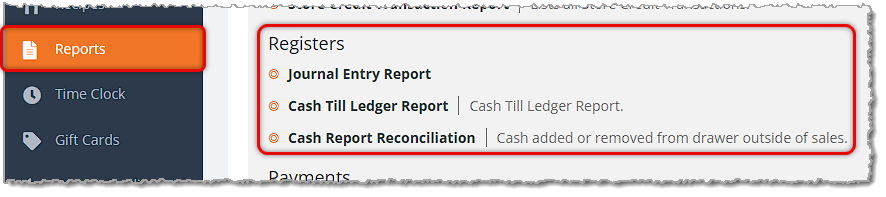
This section of your Reports listings has the following Registers reports:
The Journal Entry Report
The Journal Entry Report shows you the accounting journal entries generated by your sales, payments, and other register activity. These are broken out by account, such as Sale of Product Income, Gift Card Liability, or Cost of Goods Sold, with a debit or credit amount for each line. This report is currently in beta mode.
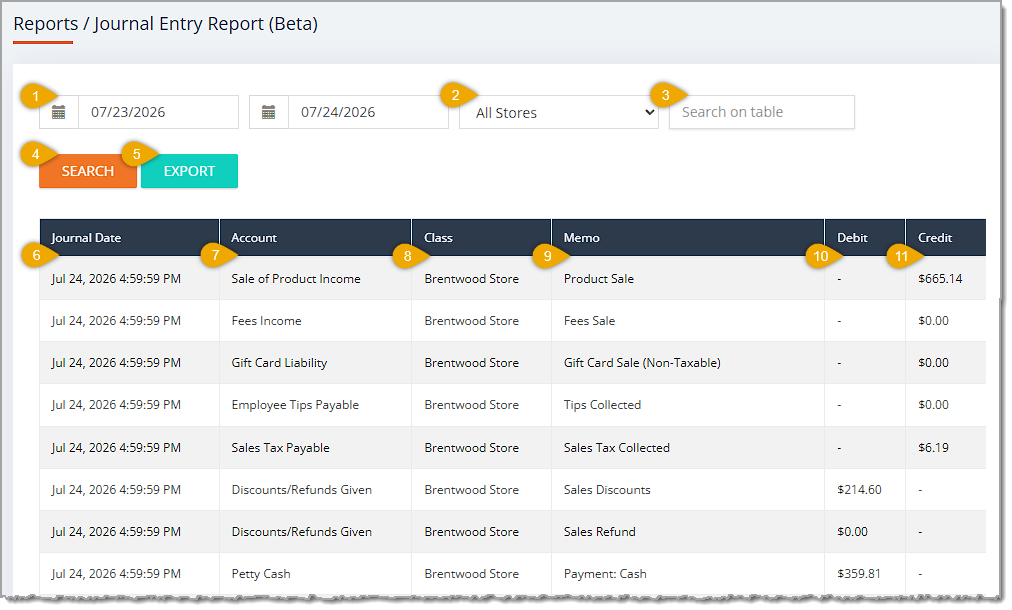
The Journal Entry Report has the following functions:
- Date Range — Enter or select the Start Date and End Date of the range you want to search. This field defaults to the current day. The range between the Start Date and End Date cannot exceed 3 months.
- Store — This drop-list defaults to All Stores. Select a specific location to filter the table to journal entries from only that store.
- Search on Table — Enter search text into this field to filter the table to matching journal entries.
- Search — Click the Search button after setting your filters or entering a keyword in the Search field to narrow down the table's results.
- Export — Click the Export button to download the table's data as a CSV file.
- Journal Date — This column displays the Date and Time each journal entry was recorded.
- Account — This column shows the bookkeeping account affected by the entry, such as Sale of Product Income or Cost of Goods Sold.
- Class — This column lists the Store from which you created each journal entry.
- Memo — This column displays a short description of what generated each entry, such as Product Sale or Cash Payout.
- Debit — This column shows the Debit Amount recorded for that account on each entry, when applicable.
- Credit — This column lists the Credit Amount recorded for that account on each entry, when applicable.
The Cash Till Ledger Report
The Cash Till Ledger Report shows you every cash till transaction recorded on your registers, including till opens, closes, sales, refunds, payouts, and cash adds, along with the resulting balance for each drawer.
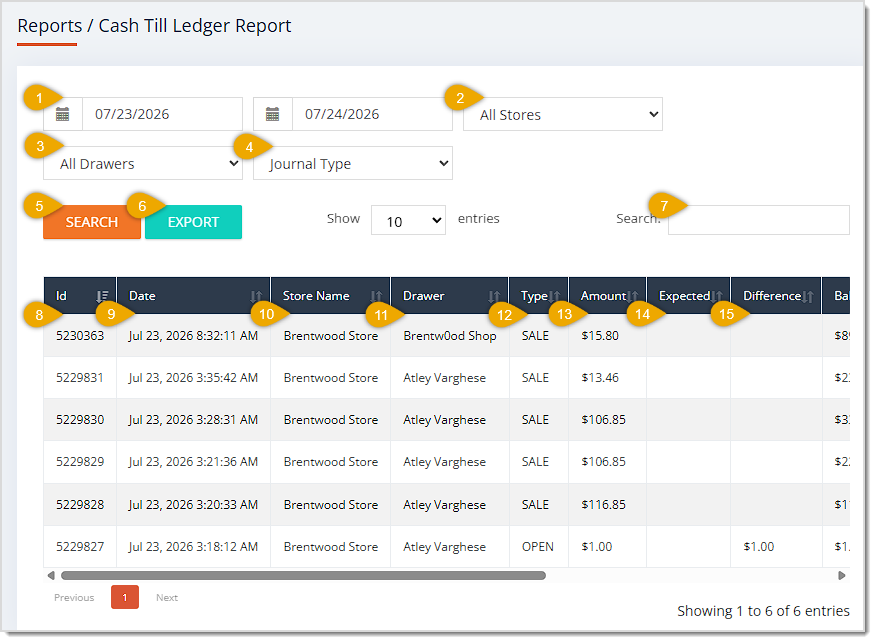
The Cash Till Ledger Report has the following functions:
- Date Range — Enter or select the Start Date and End Date of the range you want to search. This field defaults to the current day. The range between the Start Date and End Date cannot exceed 12 months.
- Store — This drop-list defaults to All Stores. Select a Store from this drop-list to filter the table to activity from that store.
- Drawer — This drop-list defaults to All Drawers. Select a register drawer from this drop-list to filter the table to activity from that drawer.
- Journal Type — This field defaults to show every journal type. Select Add, Payout, Open, Close, Sale, or Refund from this drop-list to filter the table to a specific type of transaction.
- Search — Click the Search button after selecting your filters, or text in the Search field to narrow down the table's records.
- Export — Click the Export button to download the report data across all pages as a CSV file.
- Search Field — Enter text in this field to filter the table data to matching results.
Note: For each of the columns described below, you can click once on a header name to sort the data according to that column, or click twice to reverse the sort.
- ID — This column displays the internal Transaction ID number of each transaction.
- Date — This column shows the Date and Time you completed each transaction.
- Store Name — This column lists the Store Name where you completed each transaction.
- Drawer — This column displays the Register Drawer to which each transaction belongs.
- Type — This column shows the Type of each transaction, such as Sale or Open.
- Amount — This column lists the Dollar Amount of each transaction.
- Expected — This column displays the expected amount of cash in each drawer, when applicable, such as at an open or close.
- Difference — This column shows the difference between the expected and actual till amount, when applicable.
- Balance — This column lists each drawer's running balance after each transaction.
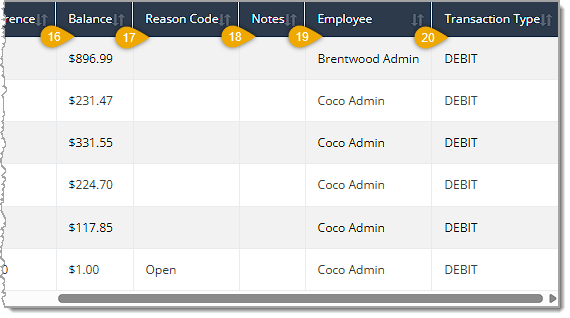
- Reason Code — This column displays the Reason recorded for each transaction, when applicable.
- Notes — This column shows any Notes entered for each transaction.
- Employee — This column lists the Employee who processed each transaction.
- Transaction Type — This column displays whether each transaction was paid with Debit or Credit to the drawer.
Cash Report Reconciliation
The Cash Report Reconciliation report shows you cash till adjustments, such as cash added or removed from a drawer outside of a sale, so you can review and verify each adjustment.
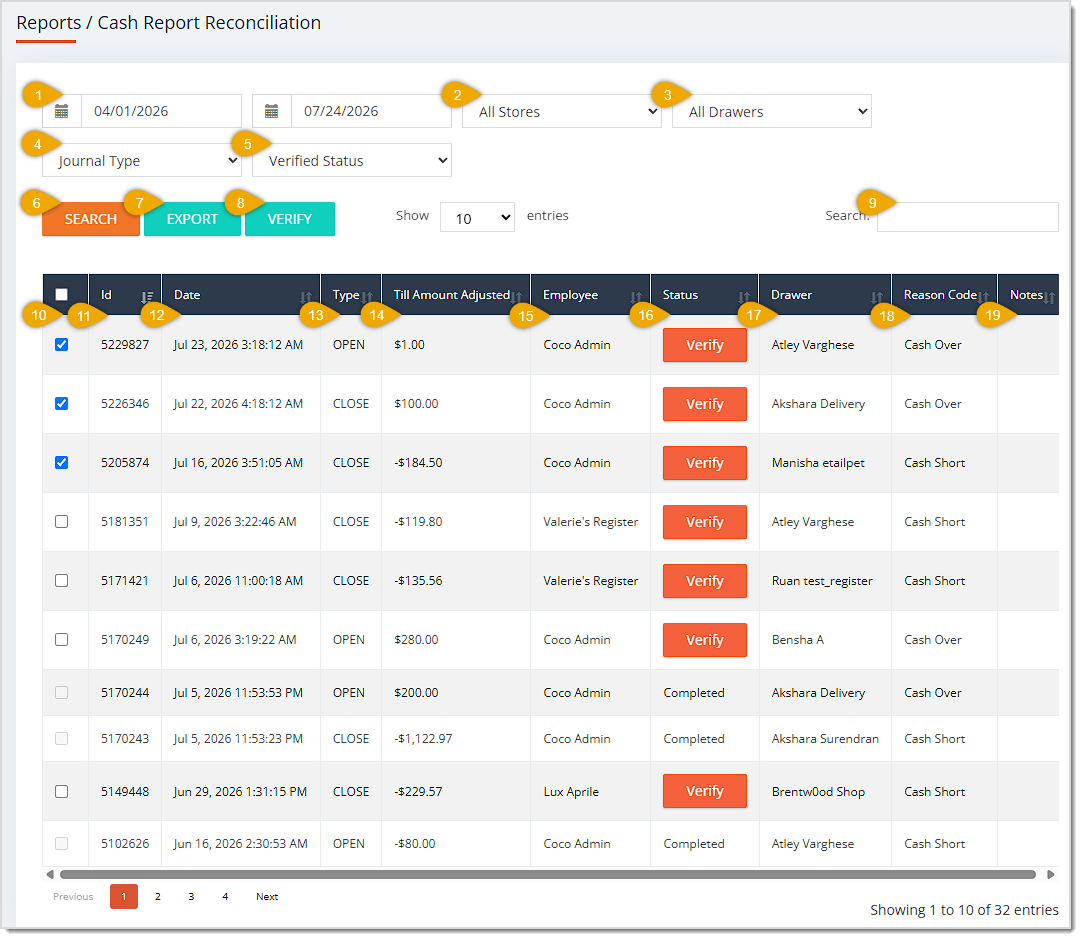
The Cash Report Reconciliation report has the following functions:
- Date Range — Enter or select the Start Date and End Date of the range you want to search. This field defaults to the current day. The range between Start Date and End Date cannot exceed 12 months.
- Store — This drop-list defaults to All Stores. Select a Store from this drop-list to filter the table to cash adjustments from only that store.
- Drawer — This drop-list defaults to All Drawers. Select a register drawer from this drop-list to filter the table to adjustments from only that drawer.
- Journal Type — This field defaults to show every journal type. Select Add, Payout, Open, or Close from this drop-list to filter the table to only that type of adjustment.
- Verified Status — This field defaults to show adjustments regardless of verification status. Select Verified or Pending from this drop-list to filter the table to only adjustments that have or haven't been verified.
- Search — Click the Search button after selecting your filters, or enter text in the Search field and press enter, to narrow down the table's records.
- Export — Click the Export button to download the table's data across all pages as a CSV file.
- Verify — Click the Verify button if you have selected multiple adjustments and want to verify them all at once.
- Search Field — Enter search text into this field to filter the data table to what you want.
- Adjustment Selection — If you want to Verify multiple adjustments at once, check the boxes for the ones you want, then click on the Verify button above the table.
Note: For each of the columns described below, you can click once on a header name to sort the data according to that column, or click twice to reverse the sort.
- ID — This column displays the internal Event Number of each cash adjustment.
- Date — This column shows the Date and Time you made each adjustment.
- Type — This column lists the type of adjustment, such as OPEN.
- Till Amount Adjusted — This column displays each adjustment's Dollar Amount.
- Employee — This column shows the Employee who made each adjustment.
- Status — This column lists each Completed adjustment and has a Verify button you can click for adjustments that you haven't yet verified.
- Drawer — This column displays the register drawer to which each adjustment belongs.
- Reason Code — This column shows the Reason recorded for each adjustment, such as Cash Over.
- Notes — This column lists any Notes entered for each adjustment.
Related Topics
Reports Overview
Payments Reports
Frequently Asked Questions
Q: Can I see a running total for the amounts on the Cash Till Ledger Report?
A: No. The Cash Till Ledger Report doesn't include a totals row or a View Total button, but you can still review each drawer's running Balance column line by line, or click Export to total the figures yourself.
Q: What's the difference between the Journal Type options on the Cash Till Ledger Report and the Cash Report Reconciliation report?
A: The Cash Till Ledger Report lets you filter by Add, Payout, Open, Close, Sale, or Refund. The Cash Report Reconciliation report only includes Add, Payout, Open, or Close, since it focuses on cash till adjustments rather than sales or refunds.
Q: How do I mark a cash till adjustment as verified?
A: On the Cash Report Reconciliation report, click the Verify button next to a single row, or select multiple rows with the checkboxes and click the Verify button above the table to verify them all at once.
Q: Can I filter any of the Registers Reports down to a single register drawer?
A: Yes. Both the Cash Till Ledger Report and the Cash Report Reconciliation report include a Drawer filter that defaults to All Drawers, which you can use to select a specific register drawer.
Q: I have a question, but I can't find my answer here. How do I get more assistance?
A: You can ask any question at the number listed here. Contact our support team at (323) 370-0738 for the U.S. and (888) 370-2363 for Canada.







 Jul 23, 2026
Is this page helpful?
×Help us improve our articles