The Reports page of the eTailPet system gives you access to every report available across sales, inventory, customers, payments, and more. This article gives you an overview of what you'll find on this page. Find the exact details you need, right when you need them!

eTailPet Reports
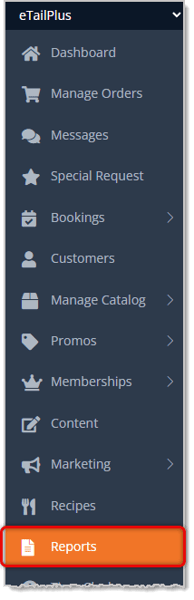
To get to this area, click on Reports in the main system menu on the left.
Here is an overview of what you'll find on this page:
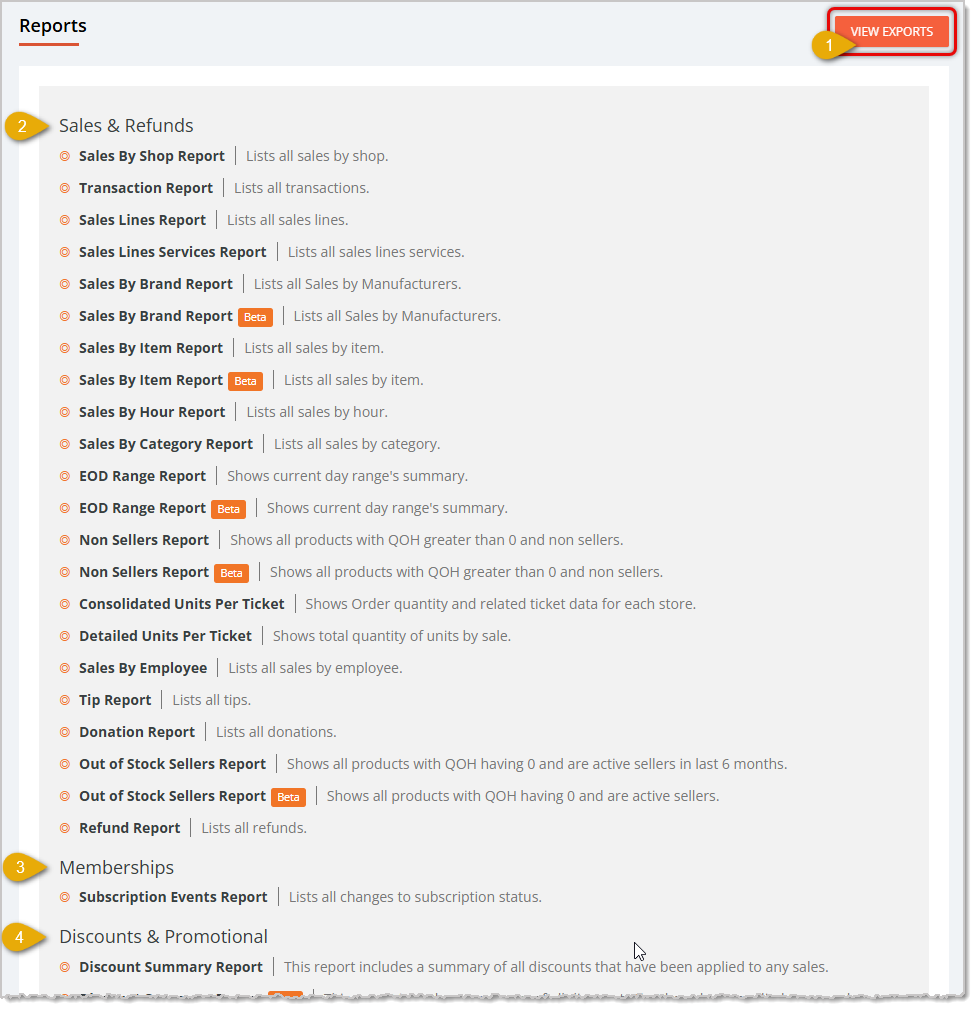
- View Exports — Click this button in the upper right of the page to see reports you've previously exported in an Export Report. This report is detailed later in this article in the section on the Export Report.
- Sales & Refunds — Use these reports to review sales activity from multiple angles, including sales by shop, item, brand, category, hour, and employee, along with transaction details, tips, donations, non-seller and out-of-stock seller data, and refunds. Reports in this area include Sales by Shop, Transaction Report, Sales Lines Report, Sales Lines Services Report, Sales by Brand Report, Sales by Item Report, Sales by Hour Report, Sales by Category Report, EOD Range Report, Non-Sellers Report, Consolidated Units Per Ticket, Detailed Units Per Ticket, Sales by Employee, Tip Report, Donation Report, Out of Stock Sellers Report, and the Refund Report.
- Memberships — Use the Subscription Events Report to track changes to customer subscription statuses.
- Discounts & Promotional — Use these reports to review discount activity, including summary-level totals and line-level detail for every discount applied to a sale. Reports in this area include the Discount Summary Report and the Discount Line Report.
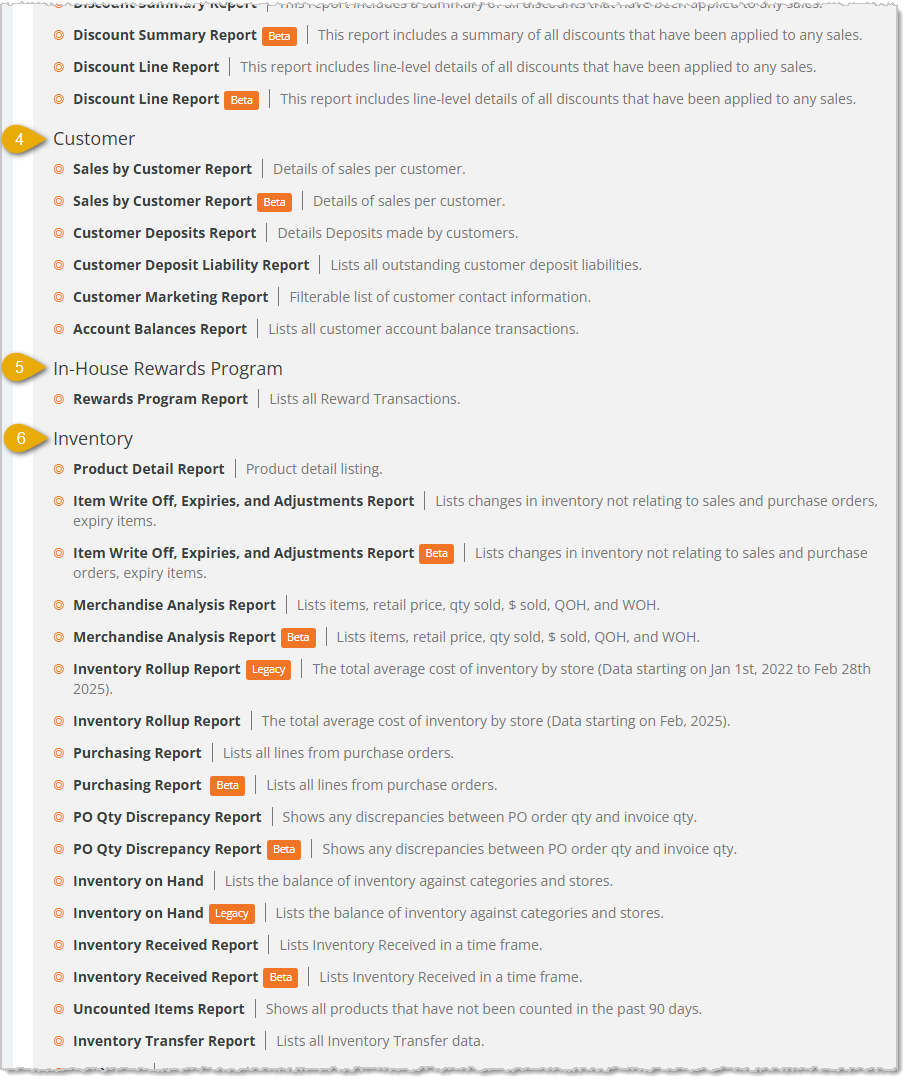
- Customer — Use these reports to review customer activity, including sales by customer, customer deposits and deposit liabilities, contact information, and account balance transactions. Reports in this area include Sales by Customer Report, Customer Deposits Report, Customer Deposits Liability Report, Customer Marketing Report, and the Account Balances Report.
- In-House Rewards Program — Use the Rewards Program Report to review all reward transactions.
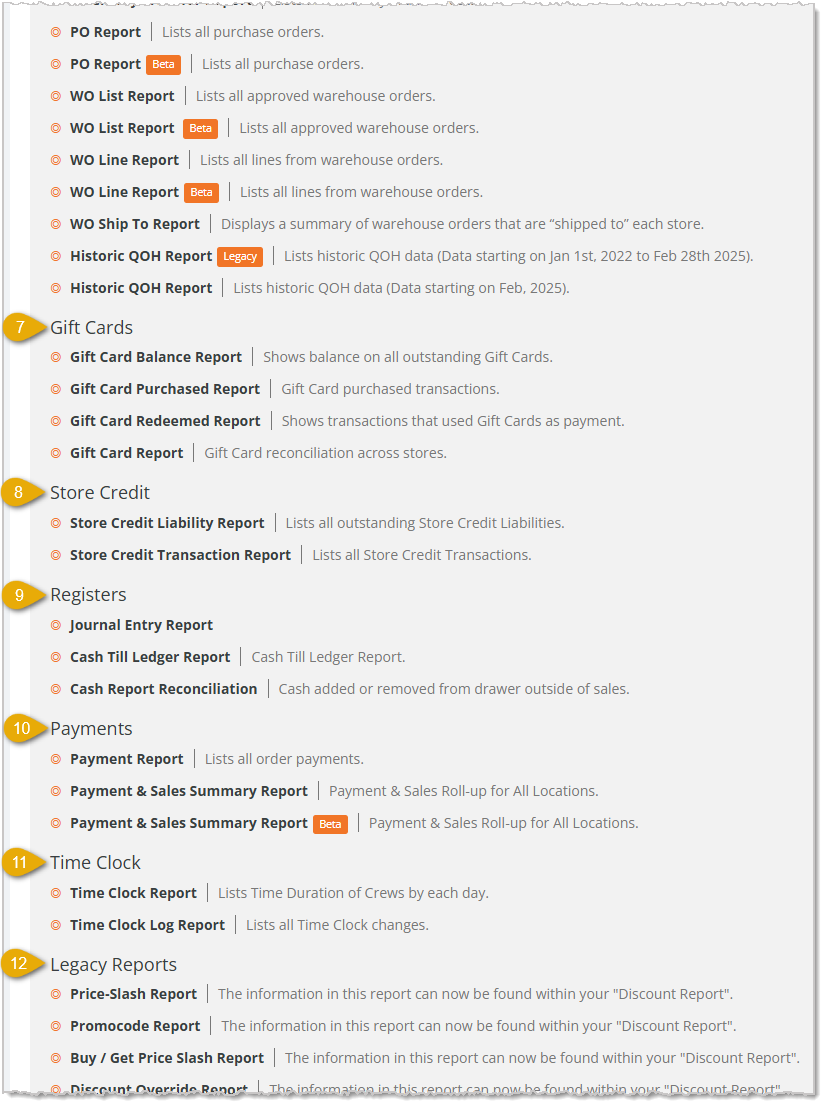
- Inventory — Use these reports to review your inventory position and movement, including product detail, write-offs and adjustments, merchandise analysis, inventory rollup, purchasing, purchase order discrepancies, inventory on hand, inventory received, uncounted items, inventory transfers, and warehouse orders. Reports in this area include Product Detail Report, Item Write-Off, Expiries, and Adjustments Report, Merchandise Analysis Report, Inventory Rollup Report, Purchasing Report, PO Quantity Discrepancy Report, Inventory On Hand, Inventory Received Report, Uncounted Items Report, Inventory Transfer Report, PO Report, WO List Report, WO Line Report, WO Ship-To Report, and the Historic QOH Report. suggestion: use semicolons to separate reports in this list? because item write-off, expiries, and adjustments report having commas could make this harder to read
- Gift Cards — Use these reports to review gift card balances, purchases, redemptions, and reconciliation across your stores. Reports in this area include the Gift Card Balance Report, Gift Card Purchased Report, Gift Card Redeemed Report, and the Gift Card Report.
- Store Credit — Use these reports to review outstanding store credit liabilities and store credit transactions. Reports in this area include the Store Credit Liability Report and the Store Credit Transaction Report.
- Registers — Use these reports to review your registers' cash activity, including journal entries, the cash till ledger, and cash reconciliation. Reports in this area include the Journal Entry Report, Cash Till Ledger Report, and the Cash Report Reconciliation.
- Payments — Use these reports to review order payments and a rolled-up payment and sales summary across all your locations. Reports in this area include the Payment Report and the Payment & Sales Summary Report.
- Time Clock — Use these reports to review crew time durations and time clock changes. Reports in this area include the Time Clock Report and the Time Clock Log Report.
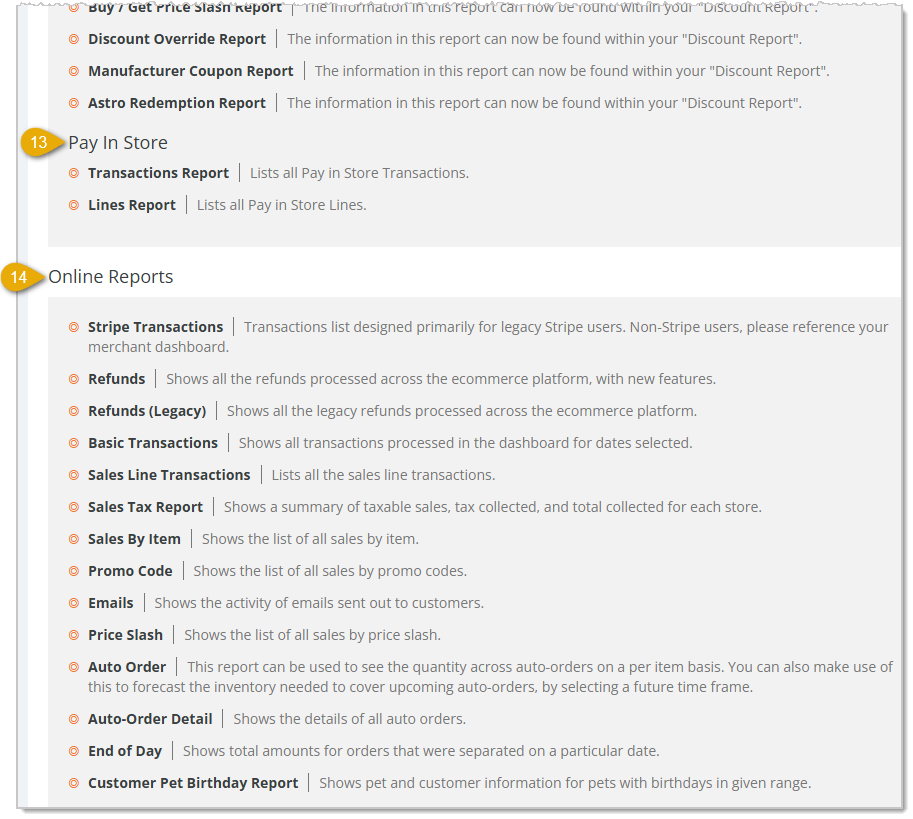
- Legacy Reports — These reports are retained for reference only. Use your Discount Summary Report instead, since it now contains the information previously found in these legacy price-slash, promo code, discount override, manufacturer coupon, and Astro redemption reports. Reports in this area include the Price-Slash Report, Promocode Report, Buy / Get Price-Slash Report, Discount Override Report, Manufacturer Coupon Report, and the Astro Redemption Report.
- Pay In Store — Use these reports to review Pay in Store transactions and lines. Reports in this area include the Transactions Report and the Lines Report.
- Online Reports — Use these reports to review your e-commerce activity, including transactions, refunds, sales tax, sales by item, promo codes, email activity, price slash sales, auto-orders, end of day totals, and customer pet birthdays. Reports in this area include Stripe Transactions, Refunds, Basic Transactions, Sales Line Transactions, Sales Tax Report, Sales by Item, Promo Code, Emails, Price Slash, Auto Order, Auto Order Detail, End of Day, and the Customer Pet Birthday Report.
The Export Report
When you click the View Exports button at the top of the Reports page, you'll see this report. Here is how to work with the Export Report:
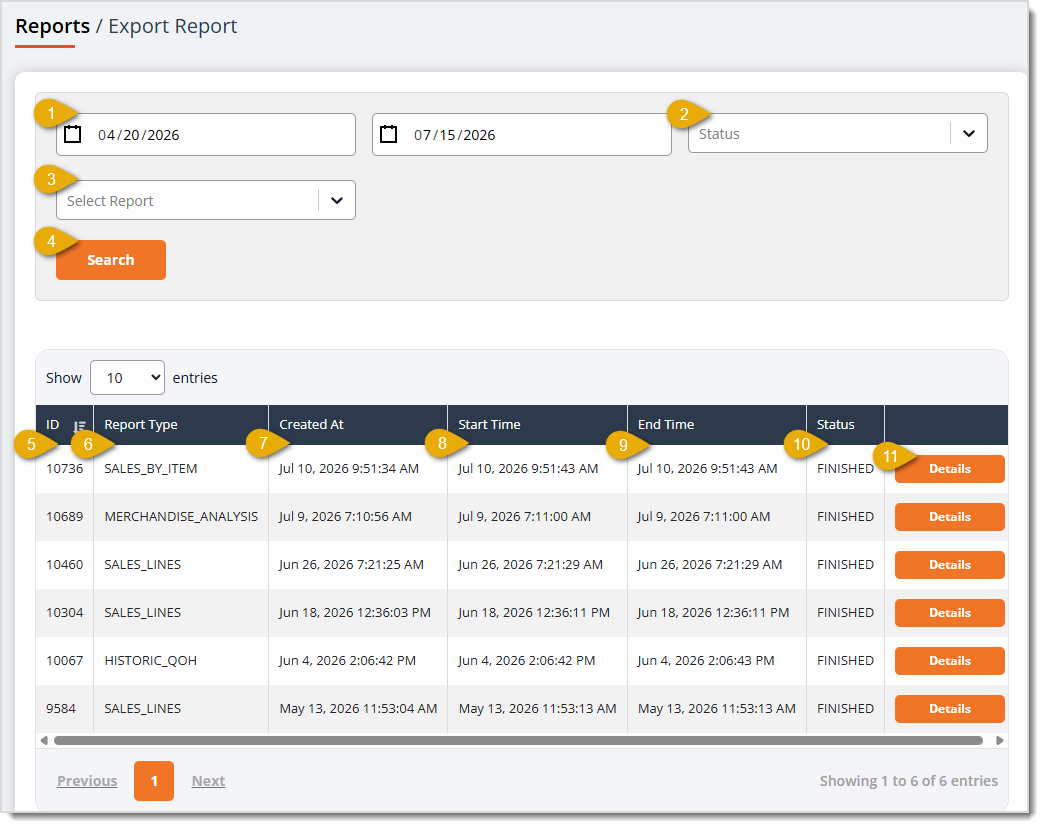
- Date Range — Enter or select the Start Date and End Date of the date range you want to view. By default, you'll see the last 24 hours.
- Status — Select In Queue, Started, Finished, or Failed from the drop-list to filter the table to exports at that stage.
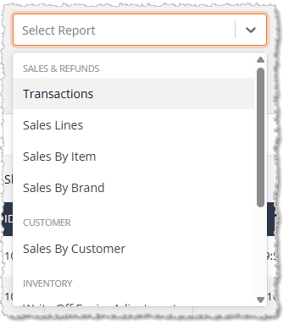
- Select Report — Select a specific report type from the drop-list, grouped by category, to filter the table to that report. Reports that produce Exports include Transactions, Sales Lines, Sales by Item, Sales by Brand, Sales by Customer, Write Off Expiry and Adjustments, Historic Quantity on Hand, Merchandise Analysis, and Daily Appointments.
- Search — Click the Search button after adjusting your filters to narrow down the table's listings.
- ID Column — This column displays the unique ID assigned to that export. Click the sort icon next to ID to reverse the sort of the table by this column. By default, the data table is sorted by this column with the most recent exports at the top.
- Report Type Column — This column displays the name of the report that was exported.
- Created At Column — This column displays the date and time you requested the export.
- Start Time Column — This column displays the date and time the system started processing the export.
- End Time Column — This column displays the date and time the system finished processing the export.
- Status Column — This column displays the current status of the export: In Queue, Started, Finished, or Failed.
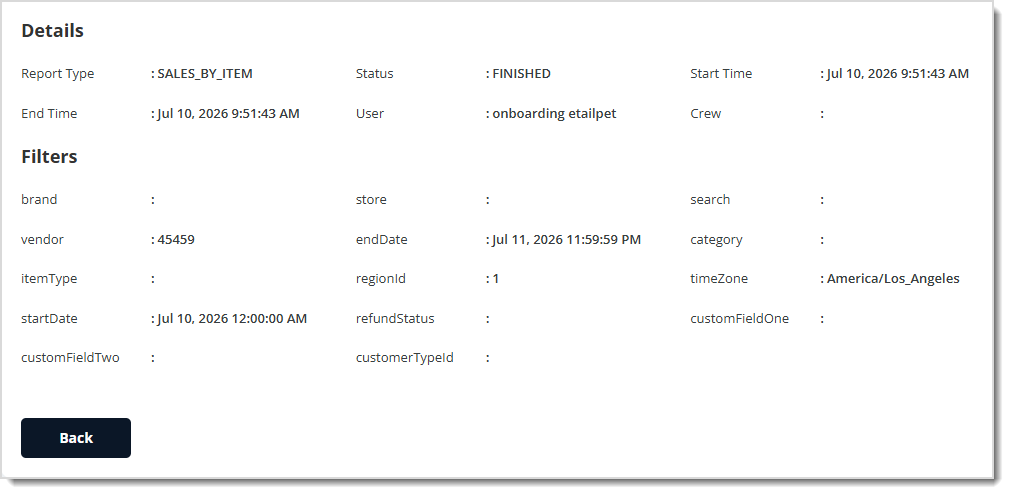
- Details — Click this button to view the full details of the export including the Report Type, Status, Start and End Time, User, Crew, and every Filter you used to generate the export. You can click the Back button at the bottom to return to the Export Report.
Using the eTailPet Reports
There are some universal functions in the reports of the eTailPet system. Here is an overview using the Transaction Report as an example:
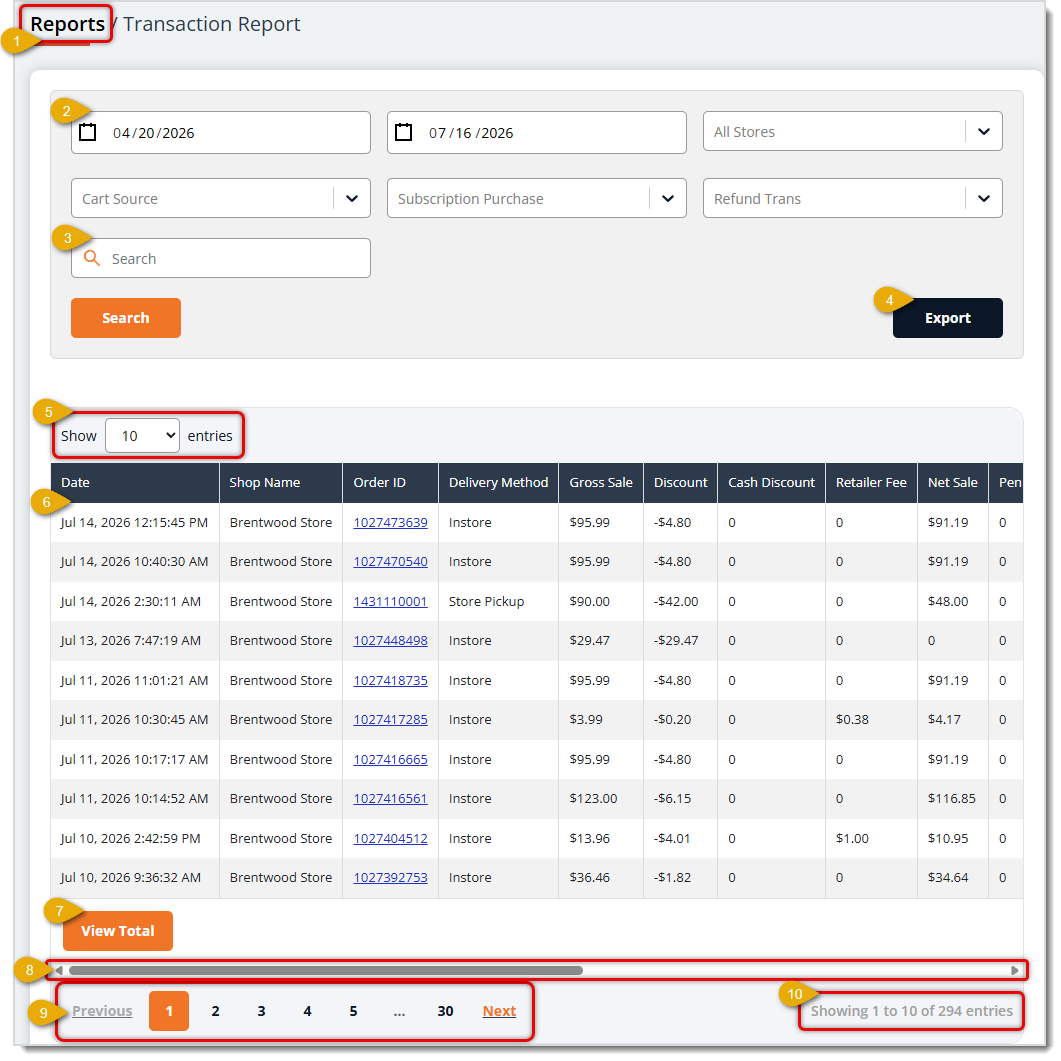
- Reports Link — In the upper left, there is a Breadcrumb Link and you can click on Reports to return to the main Reports page.
- Filters — Most reports contain filters, such as Date Range, Store, Category, etc., and you can use the filters to narrow down the listings in the data table to get to what you need.
- Search — Some reports allow you to enter search text into a Search field. For any reports that have filters or a search field, there will be a Search button that initiates the search and filters down the data table.
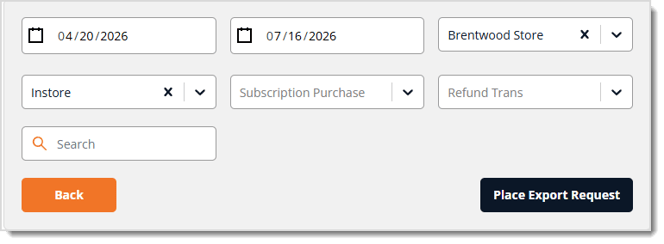
- Export — Some reports allow you to Export the data. This is done by the system in the background and the resulting spreadsheet will be sent to the primary email address on your company account (the Email listed under Settings > About). Below is an example of the export configuration page. After setting the filters the way you need, you will click Place Export Request and the system will send you the spreadsheet file.
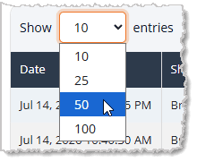
- Show Entries — By default, you'll see 10 entries in the Data Table, but you can use this control to change it to 25, 50, or 100 if you need.
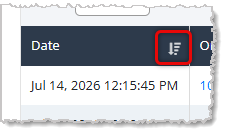
- Data Table — All system reports have a Data Table that shows you the details you need for the topic. Some have links in the data, as in the Order ID links from the Transaction Report pictured above. Clicking a link will show you a related item; for example, the Order ID link will open the Order Details page for complete information on the transaction. Some of these items open in the current browser tab, so in those cases, you will need to use the browser's Back Button to return to the report you were using. Some of the Data Tables have columns that allow you to Sort the table by the column. In those cases, you'll see a Sort Icon like the one below. Clicking it again will reverse the sort and display the Reverse Sort Icon.
- Special Functions — Some reports have special functions such as the View Total button, which will display a Totals row in the data table for columns with numeric values. There are a wide variety of special functions in the eTailPet system reports.
- Big Data — Some of the reports have a large number of data columns that can't be viewed all at once. You may need to scroll horizontally to the right to see all the columns. If you have a large, high-resolution display, maximizing your browser window to fill the entire screen may allow you to see all data columns without the need for scrolling.
- Navigation Controls — For reports with a large number of line items that span multiple pages, you'll see data table navigation controls in the lower left. You can use the Previous and Next controls to jump one page at a time, or you can click on a page number to go straight to that page. The first and last page numbers are always in the numbered list, just in case you need to jump all the way to the end or the beginning.
- Line Item Stats — All reports will display the number of line items currently in view and where those fit into the total number of line items, as in the example above: "Showing 1 to 10 of 294 Entries."
Frequently Asked Questions
Q: Where can I find reports I've exported previously?
A: Click View Exports at the top of the Reports page to see the Export Report of your previously exported reports.
Q: Why do some reports show a "Beta" label next to them?
A: A Beta label means that report is a newer version being rolled out. You can use either the standard or Beta version while both are available.
Q: Should I still use the Legacy Reports like Price-Slash Report or Promocode Report?
A: No. The information in these legacy reports is now included in your Discount Summary Report, so use that report instead.
Q: Where do I find reports specific to my e-commerce store versus my physical store?
A: Look under Online Reports for e-commerce-specific activity like online transactions, refunds, and sales tax. Look under Sales & Refund Reports and other categories for reports that cover both online and in-store activity.
Q: Which report should I use to review my current inventory levels?
A: Use the Inventory on Hand report to review the balance of inventory against categories and stores.
Q: I have a question, but I can't find my answer here. How do I get more assistance?
A: You can ask any question at the number listed here. Contact our support team at (323) 370-0738 for the U.S. and (888) 370-2363 for Canada.







 Jul 14, 2026
Is this page helpful?
×Help us improve our articles