💲The eTailPet Dashboard gives you multiple ways to find a transaction and process it for a refund or return. Read on to see how you can use a Receipt ID, Product, Customer, or Transaction Date to search for the transaction you need, then give a refund!
Please Note: You cannot perform refunds or returns on orders that have already had one. For example, if a customer had two items in the same order, but got a refund processed for one of them, they cannot get a refund or return on the other item after that.
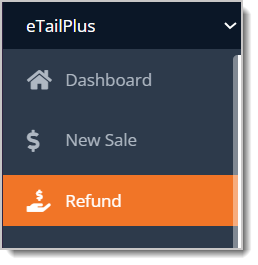
Access the Refund area by clicking on Refund in the eTailPet Main Menu. The page will be on the Receipt tab by default, but you have other ways to search for a specific transaction in this area.
You can also process refunds in the Manage Orders area of the eTailPet Dashboard. Skip to the Refunds in the Manage Orders Area section to learn how.
Each section of this article is linked below for your convenience:
Employee Permissions for Refunds
For an employee to be able to perform refunds, you have to grant their Role permission. Here's how:
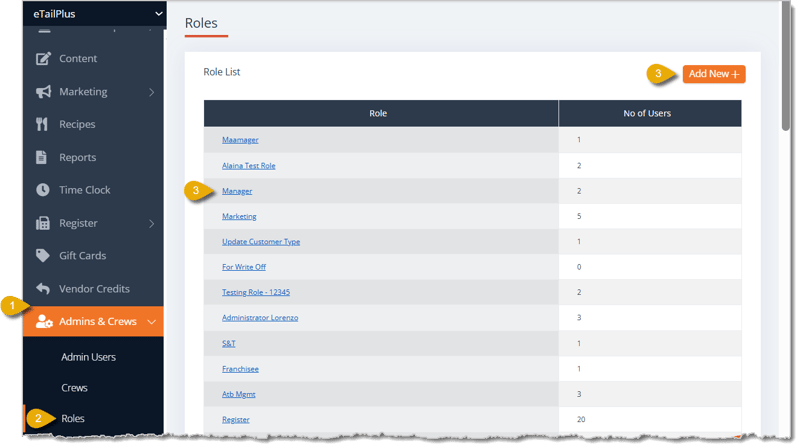
- Click on Admin & Crews in the main menu.
- Click on Roles.
- Click on the existing Role, or add a new one and then click on the Role.
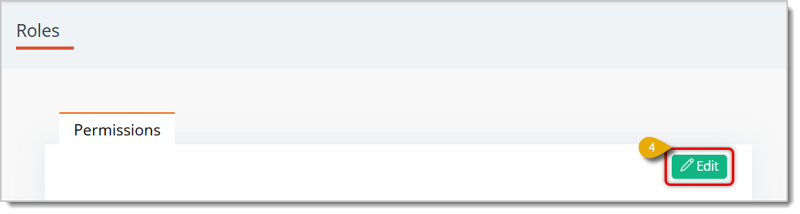
- After selecting the Role, click on the Edit button in the upper right of the Permissions tab.
- Scroll down to the Store section of Permissions.
- Check the boxes for Adhoc Refund to Cash and Adhoc Refund to Store Credit. These allow orders without receipts to get refunded by cash or store credit. Note that refunds in store credit require a customer to have an account in your store's system.
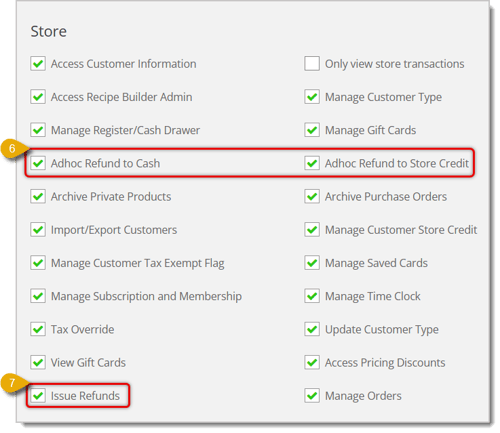
- Check the box for Issue Refunds so an employee with the Role can give refunds.
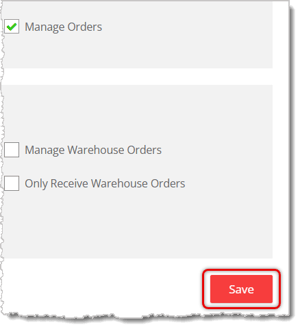
- Click on Save on the bottom right of the Permissions page. Employees with this Role can now do refunds and exchanges for customers.
Find a Transaction By Receipt ID
The Refund area will be on the Receipt tab by default, but if you've moved to another tab, you can click on Receipt again to search for a transaction by Receipt ID again.
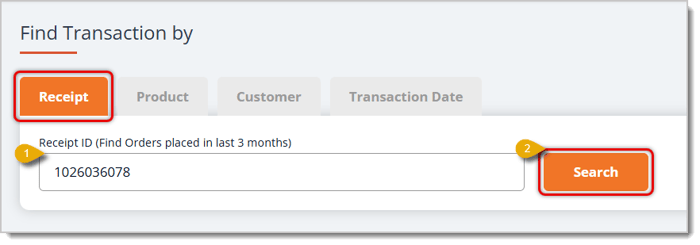
- Enter the Receipt ID in the field below the tab, or scan the barcode on the customer's receipt if they brought it. This will find an order with that ID that has been placed in the past 3 months.
- Click on the Search button on the right. This will redirect you to the order with the matching Receipt ID.
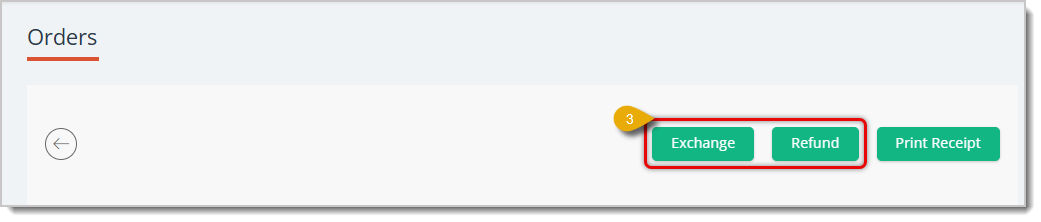
- Click on either Exchange or Refund depending on what the customer wants.
To see how to process an exchange, read the Process an Exchange section below. For refunds, read the Process a Refund section.
Find a Transaction By Product
You can filter transactions into ones that had a specific product. Here is how to access the Product tab and what filters you can use:
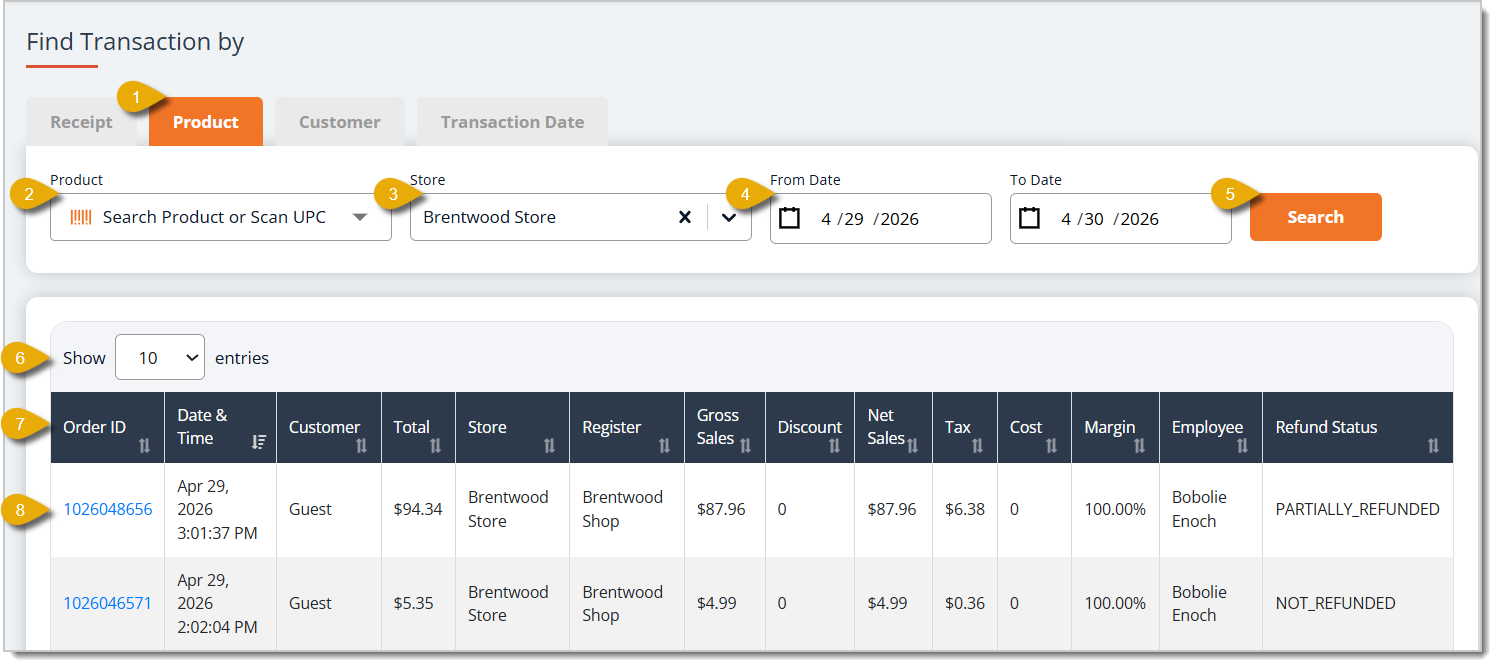
- Click on the Product tab.
- Search for the product by entering its description, or scan the barcode of the item.
- Select the store of the transaction you're trying to find.
- Enter the From Date and To Date to find transactions that took place in that time period.
- Click on Search to find results that match your filters.
- Select how many entries will be displayed per page. Options are 10, 25, 50, and 100.
- You can sort the data table according to a column, if needed. Click once on the Two Arrows icon, highlighted in the image below, by a Column Name to sort the entries by that column. Click again to reverse the sort.
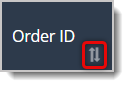
- After you get matching results, click on the Order ID of the transaction you need to refund.
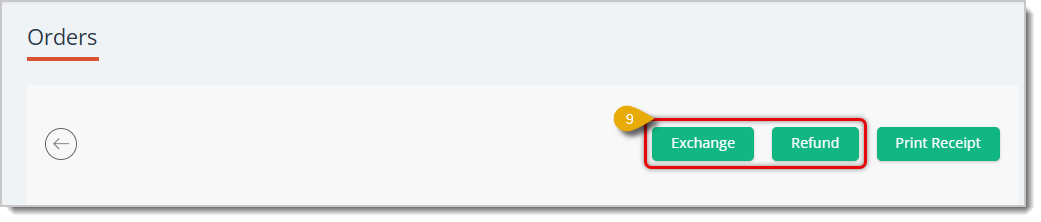
- Click on Exchange or Refund depending on what the customer wants.
To see how to process an exchange, read the Process an Exchange section below. For refunds, read the Process a Refund section.
Find a Transaction By Customer
There are two ways to filter transactions with a specific customer attached. Note that these does not work for guest transactions.
From the 'Find Transaction By' Page
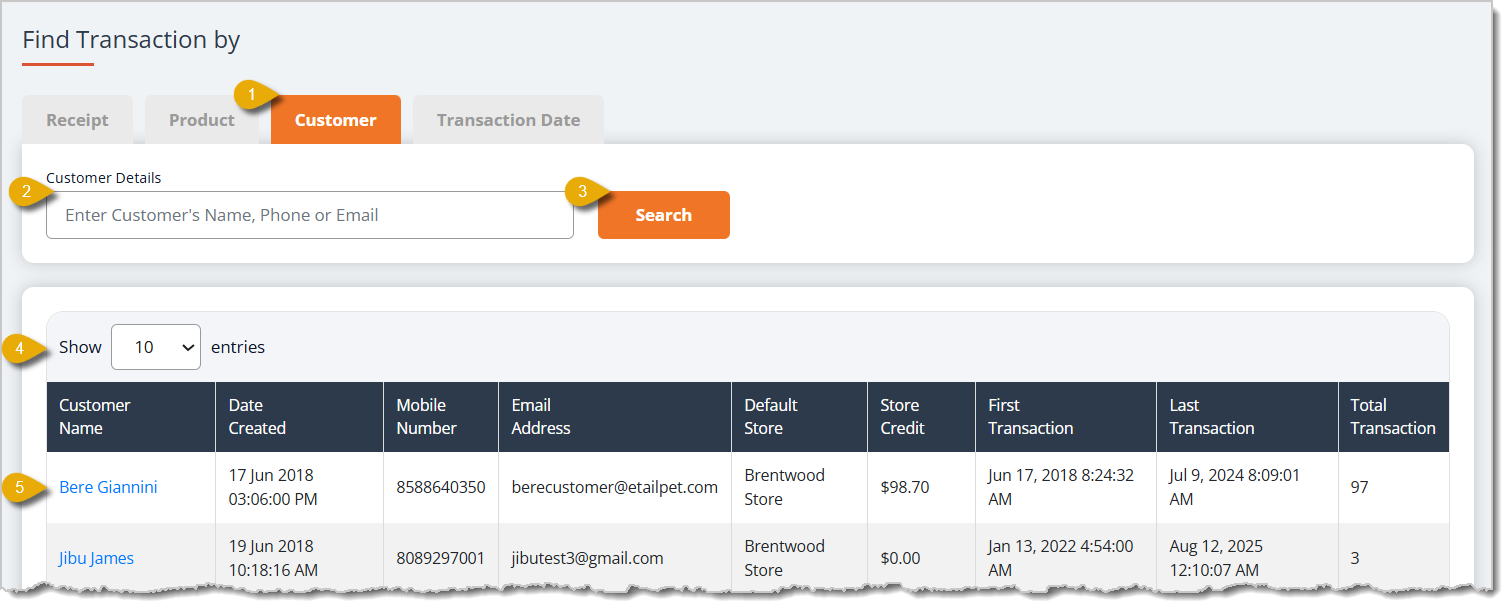
-
Click on the Customer tab to open the filter menu.
-
Enter the customer's name, phone number, or email address.
-
Click on the Search button.
-
You can select how many entries will be displayed per page. Options are 10, 25, 50, and 100.
- Once you find the customer you need, click on the Customer Name. This will open a page showing their order history.
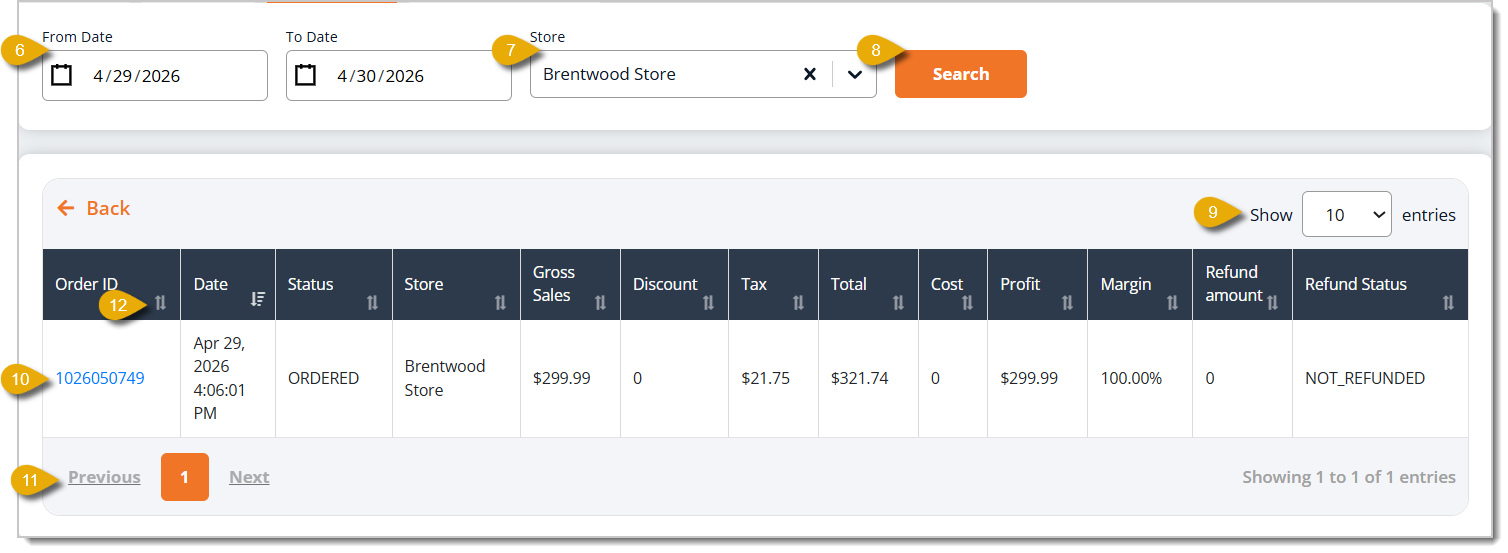
- Enter the From Date and To Date. The table will display orders from this customer that happened in this time period.
- Select from the drop-list the Store for the transaction you need.
- Click on the Search button to pull matching results.
- You can select how many entries will be displayed per page. Options are 10, 25, 50, and 100.
- Once you find the transaction you need, click on the Order ID.
- If the entries span multiple pages, you can use the Previous and Next buttons to navigate between pages.
- You can sort the table by a certain column. Click on the Two Arrows icon by a Column Name to sort the entries by that column. Click again to reverse the sort.

- Click on either the Exchange or Refund button depending on what the customer wants.
From the Customer List Page
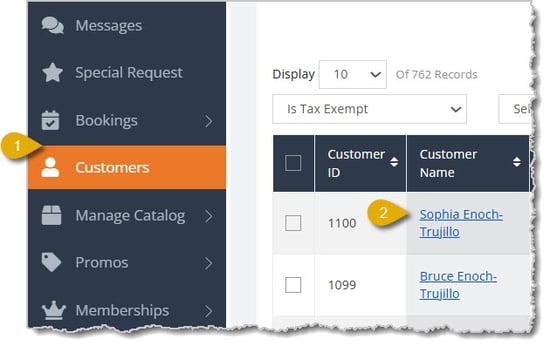
- Click on Customers in the main menu of the Dashboard.
- Click on a customer's name in the Customers List.
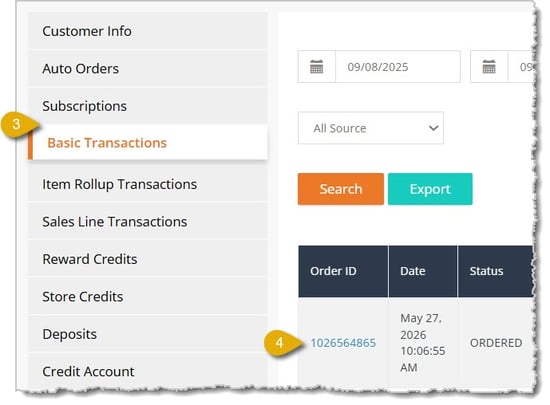
- In the Customer Details page, click on Basic Transactions.
- You'll see a table showing the customer's past transactions. Click on the Order ID of the transaction you need.

- Click on either the Exchange or Refund button.
To see how to process an exchange, click here for the Process an Exchange section. For refunds, click here to read the Process a Refund section.
Find a Transaction By Transaction Date
You can filter transactions into ones that happened within a specific time period. Here's how to access a transaction using the date:
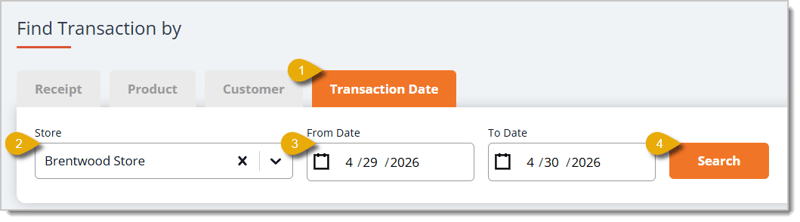
- Click on the Transaction Date tab.
- Select the Store in which the transaction happened.
- Enter the From Date and To Date to specify the time period.
- Click on Search. This will pull results matching the filters you've set.
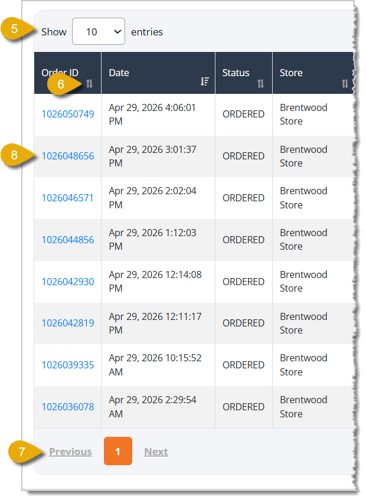
- In the data table, you can select how many entries are displayed per page. Options are 10, 25, 50, and 100.
- You can sort the table by a certain column. Click on the Two Arrows icon by a Column Name to sort the entries by that column. Click again to reverse the sort.
- If the entries span multiple pages, you can use the Previous and Next buttons to navigate between pages.
- Click on the Order ID of the transaction you need.
- Click on the Exchange or Refund button depending on what the customer wants.
To see how to process an exchange, read the Process an Exchange section below. For refunds, read the Process a Refund section.
Refunds in the Manage Orders Area
You can also process refunds in the Manage Orders area of the eTailPet Dashboard. This section covers how to process refunds for both online orders and in-store orders.
Refunding Online Orders
Here's how to search for online orders and refund them:
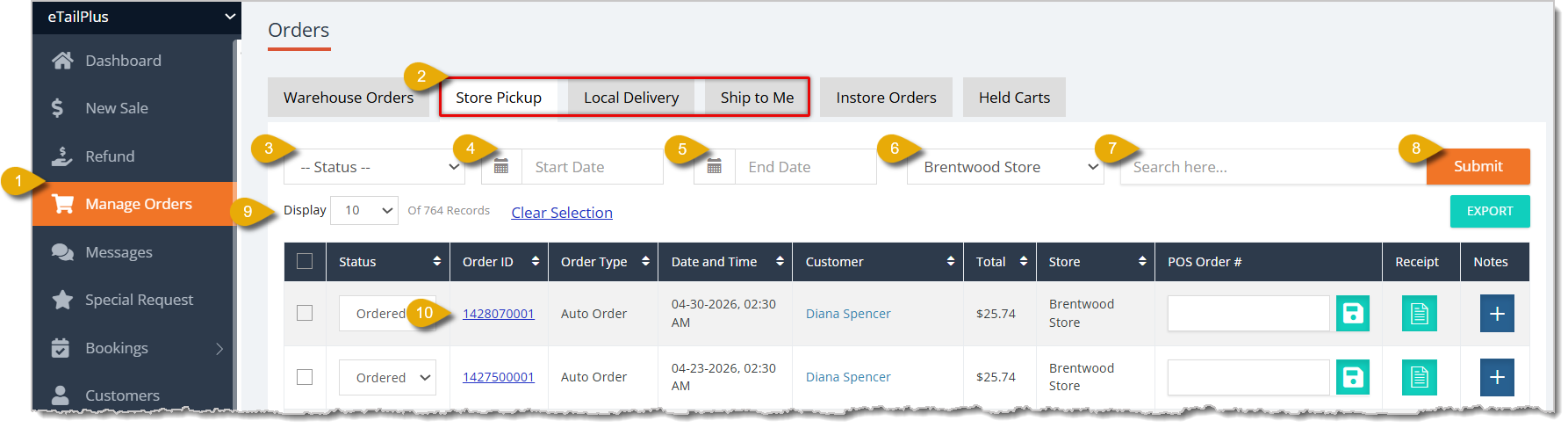
- Click on Manage Orders in the main menu.
- Click on the Store Pickup, Local Delivery, or Ship to Me tab, depending on the transaction.
- Select the Status of the transaction to filter your results, if needed.
- You can enter the Start Date to filter transactions to a time period.
- You can enter the End Date to filter transactions to a time period.
- Select the Store to find transactions from there.
- You can click into the Search bar to scan the receipt barcode, or enter the customer's name or the order ID.
- Click on Submit to filter transactions according to your filters.
- You can select how many results will display per page.
- Click on the Order ID in the data table of the transaction you need.
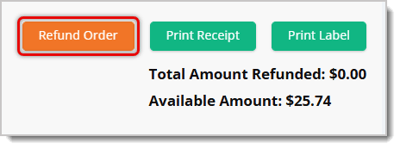
- After opening the order, click on Refund Order in the upper right.
- After opening the Refund Order page, select the Refund Reason from the drop-list.
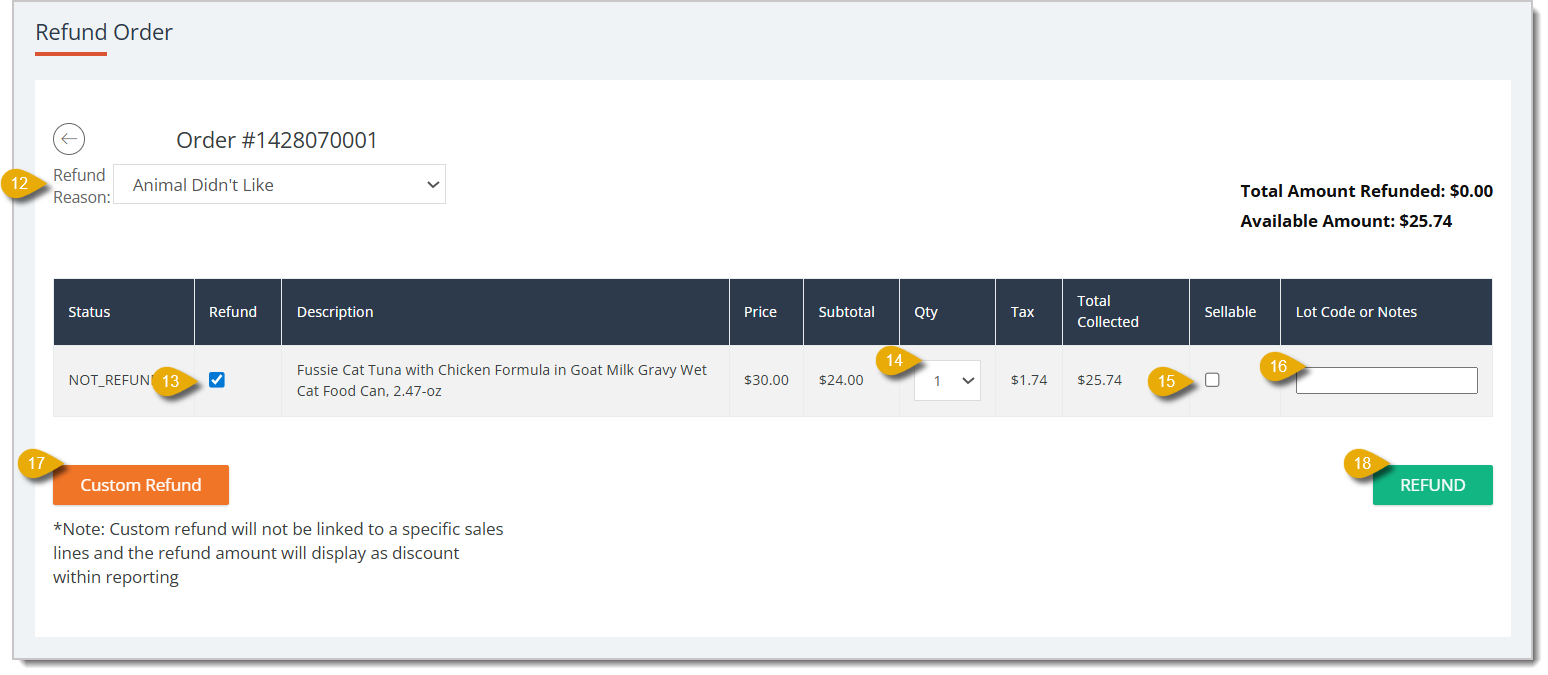
- Check the box for Refund.
- Select the Quantity of the item that is being refunded.
- Check the box for Sellable if the item can go back into your inventory for sale.
- You can enter a Lot Code or Notes for the refund.
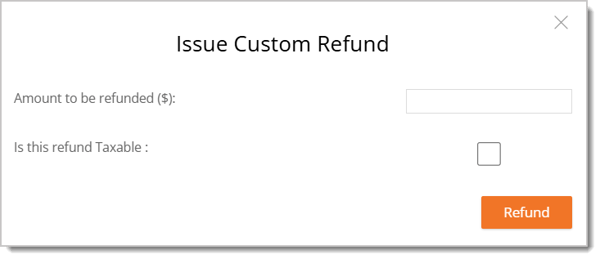
- Click on Custom Refund if the refund amount is different from the price the customer originally paid (if the refund amount is the same as the paid amount, skip to step 18). A window will pop up for you to enter the amount of the refund and indicate if the refund is taxable. Click on Refund when you've filled out the window.
- Click on Refund if the refund amount is the same as the paid amount. A panel will open on the right with the refund details.
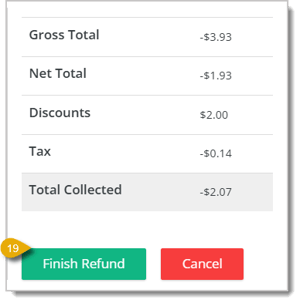
- Click on Finish Refund to process it.
A confirmation at the top of the page will show that the refund was successfully processed.
Refunding In-Store Orders
For in-store transactions, the process is similar. Here's how to find a transaction in this tab and process a refund:
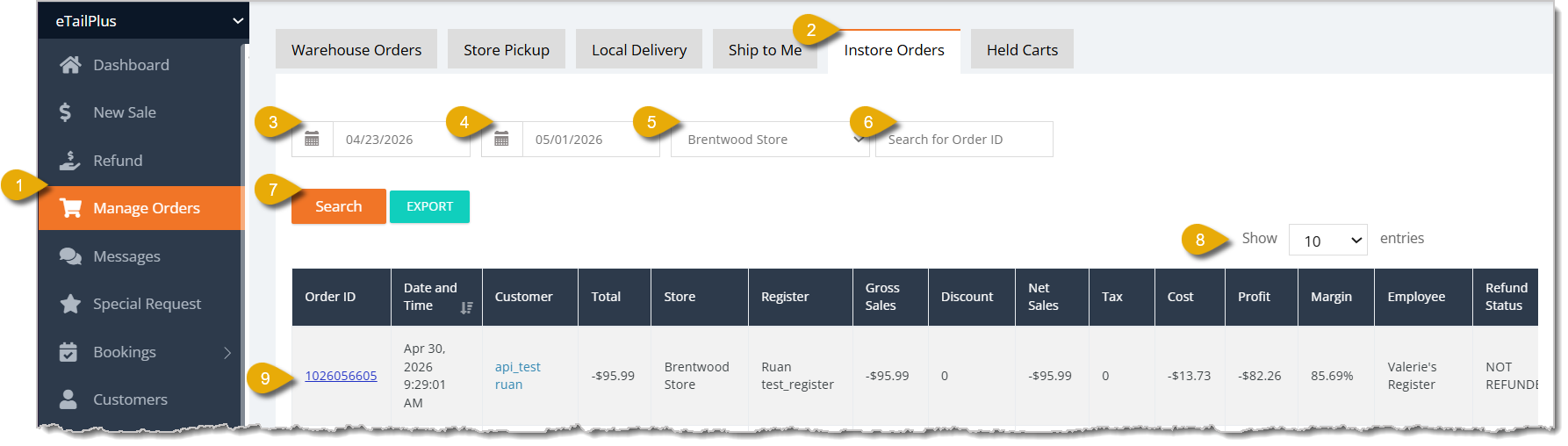
- Click on Manage Orders in the main menu.
- Click on the In-Store Orders tab.
- You can enter the Start Date to filter transactions to a time period.
- You can enter the End Date to filter transactions to a time period.
- You can select the Store to filter transactions to ones that happened there.
- Click into the Search for Order ID bar to scan the receipt barcode, or enter the customer's name or order ID.
- Click on the Search button to find transactions according to your filters.
- You can select how many results will display per page.
- Click on the Order ID in the data table of the transaction you need.
- After you open the order, click on the Exchange or Refund button, depending on what the customer is requesting.
To see how to process an exchange, read the Process an Exchange section below. For refunds, read the Process a Refund section.
Process a Refund
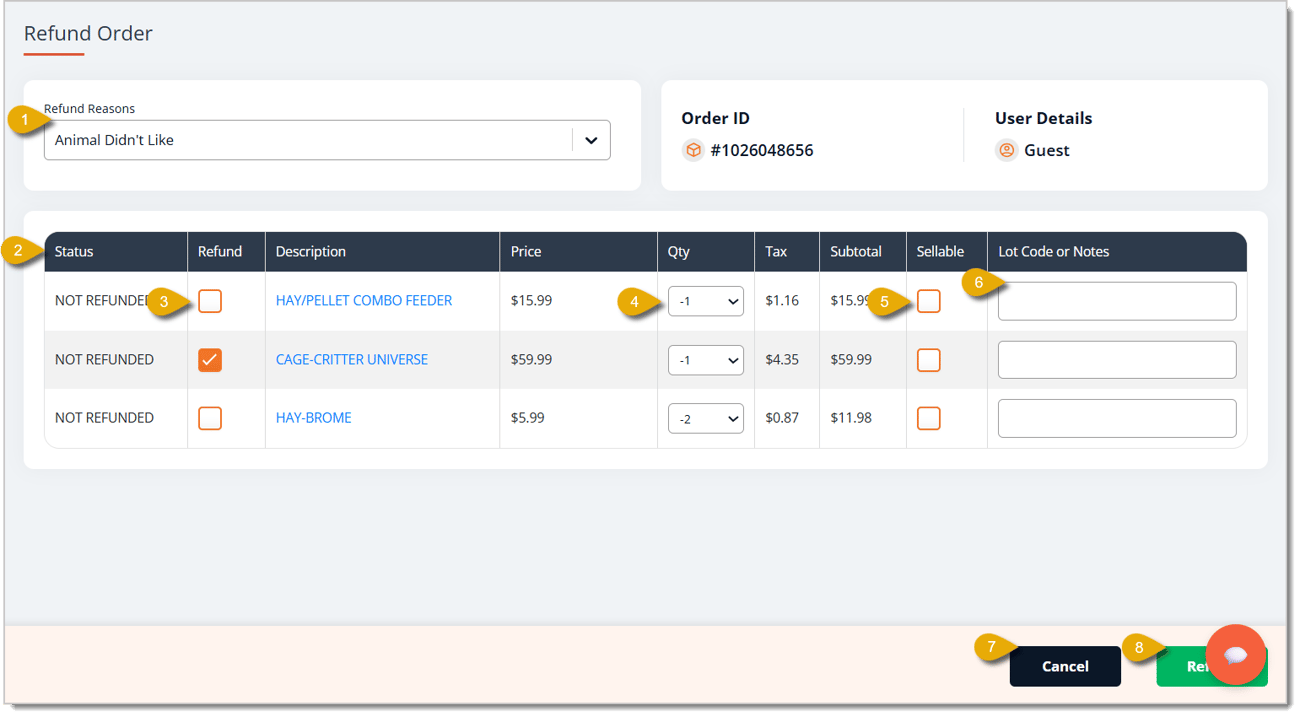
- Select the Reason for the Refund from the drop-list.
- View the Status of the exchange/refund to make sure it has not already been exchanged or refunded.
- Check the box under Refund for each item the customer wants to refund.
- Select from the drop-list the Quantity of the item the customer wants to return. Note that for exchanges and refunds, this will be a negative value.
- Check the box for Sellable if the item is able to go back up for sale.
- Enter the Lot Code or Notes for the item, if needed.
- You can cancel the refund by clicking on Cancel on the bottom of the window.
- Click on Refund in the bottom right when you're ready to process the refund. This will open the Refund Payment window.
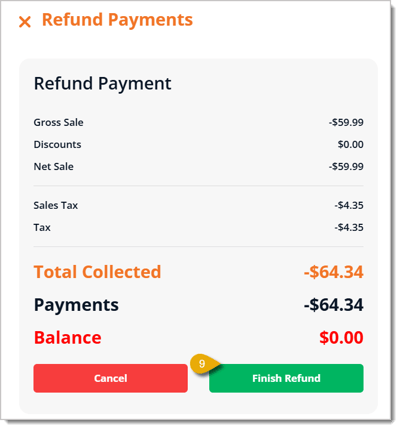
- Select how the refund will be paid to the customer, and click on Finish Refund. You'll be directed to the Receipt Page.
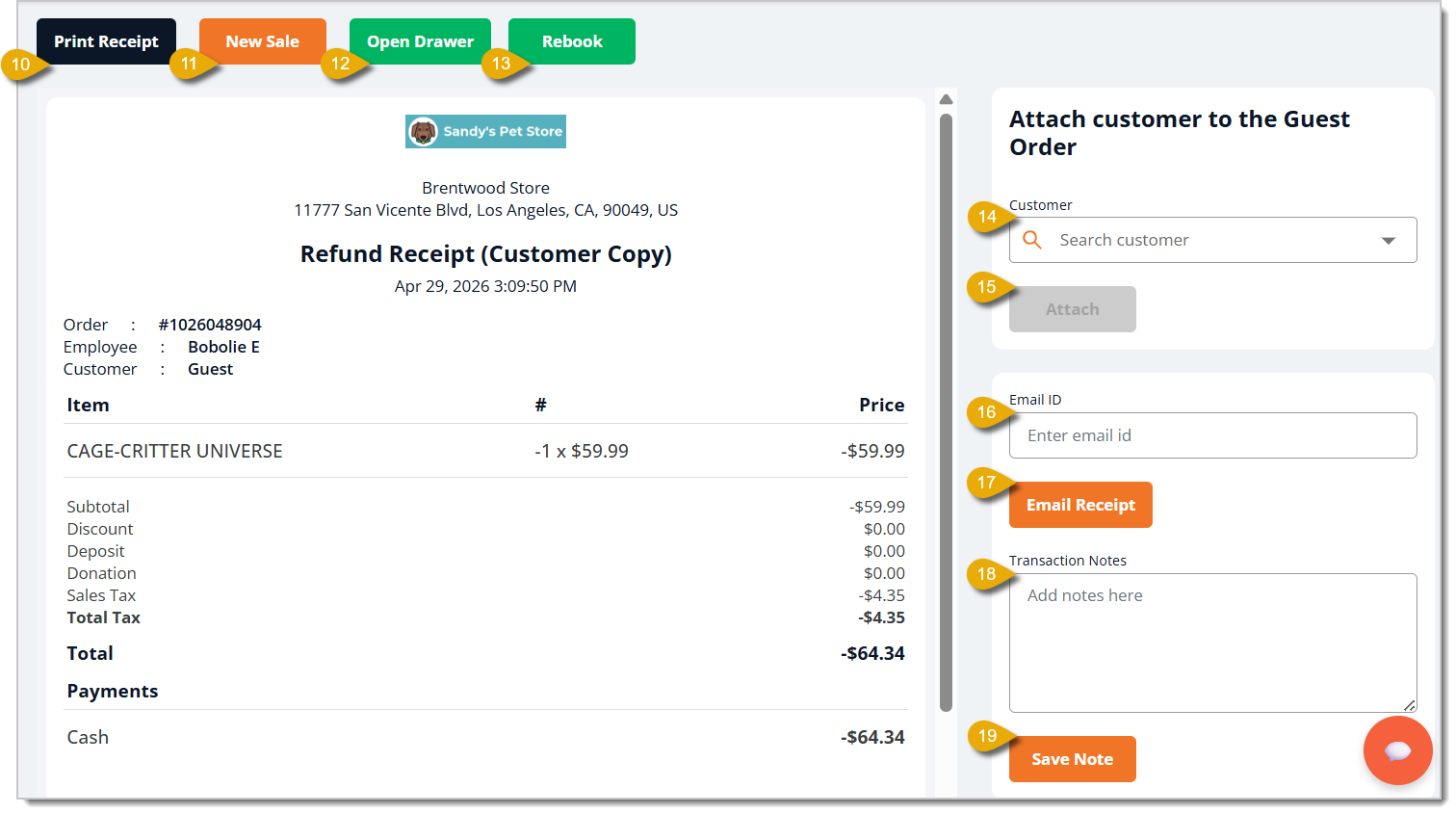
- On the receipt page, you can click to Print the Receipt for the customer.
- If you're finished with this page, you can start a New Sale.
- If the customer is getting their refund in cash, click on Open Drawer to access the cash register drawer.
- If the refund was for an appointment, you can click on Rebook to reschedule it, if needed.
- If the transaction was a guest transaction, but the customer wants to attach it to their existing store profile, you can Search for the customer by entering their name.
- After selecting the customer's name, click on Attach to add the transaction to their record.
- If the customer wants their receipt emailed to them, enter their email address here.
- Click on Email Receipt after entering the email address to send the receipt.
- Enter Transaction Notes, if needed.
- Click on Save Note to add the note.
Process an Exchange
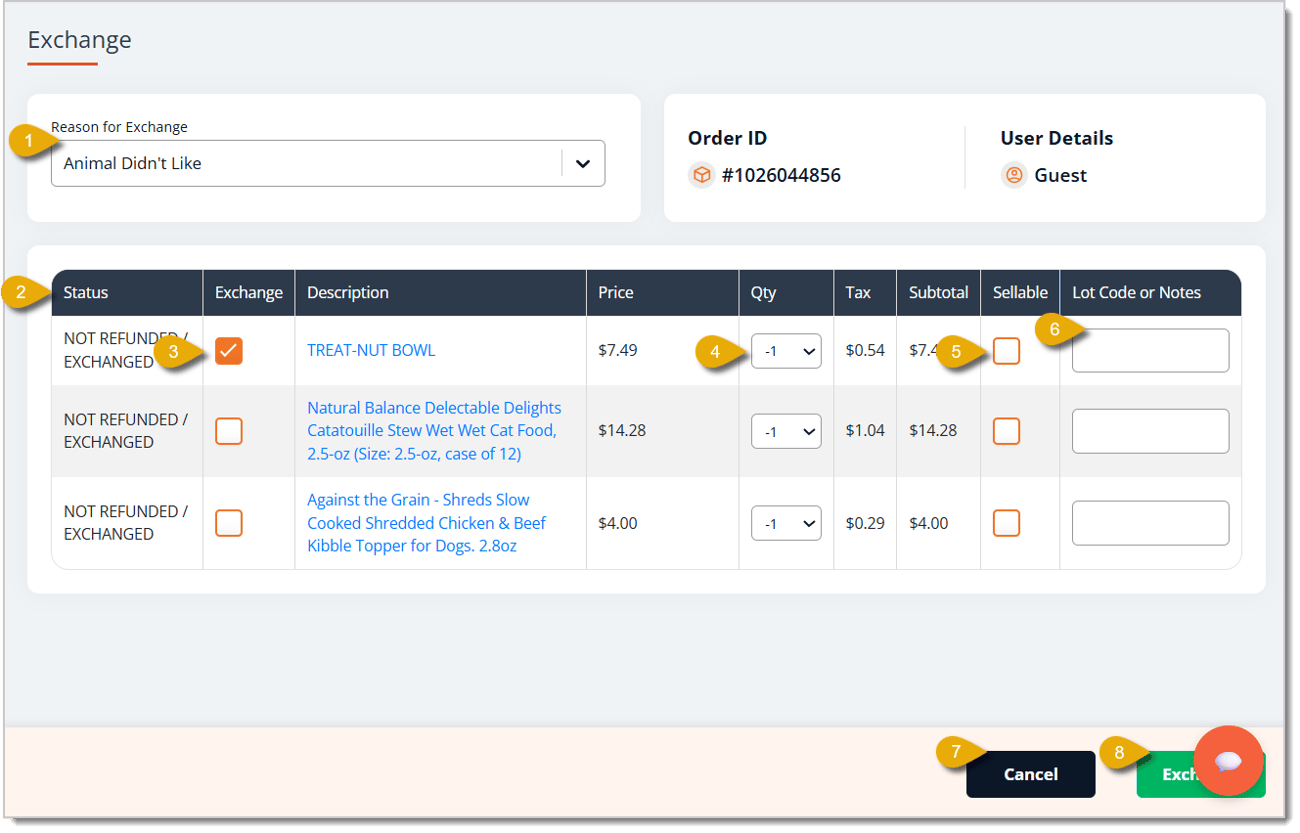
- Select the Reason for the Exchange from the drop-list.
- View the Status of the exchange/refund to make sure it has not already been exchanged or refunded.
- Check the box under Exchange for each item the customer wants to exchange.
- Select from the drop-list the Quantity of the item the customer wants to exchange. Note that for exchanges and refunds, this will be a negative value.
- Check the box for Sellable if the item is able to go back up for sale.
- Enter the Lot Code or Notes for the item, if needed.
- You can cancel the exchange by clicking on Cancel on the bottom of the window.
- Click on Exchange in the bottom right when you're ready to process the exchange. This will open the New Sale Screen.
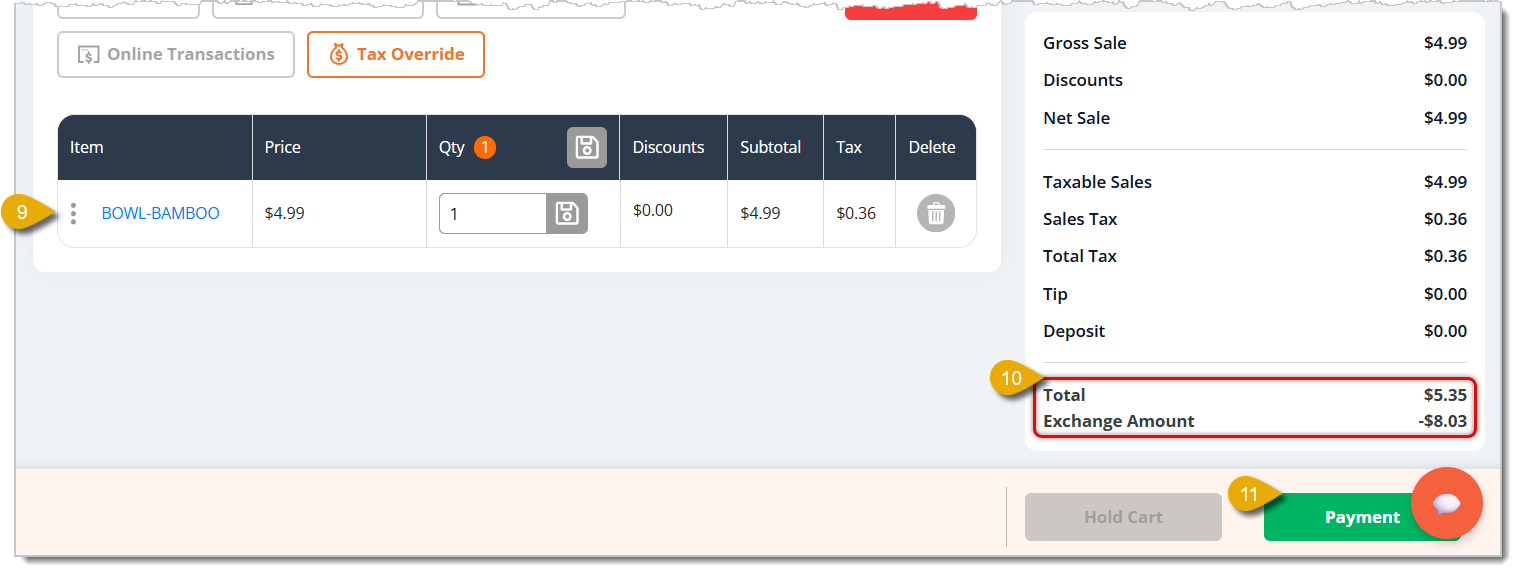
- Add the item(s) the customer wants in exchange for the returned item. You can do so by scanning the new item, adding it from Quick Select, or searching for it by name or UPC.
- After adding the item, you can view the Total dollar amount for the item(s) the customer wants in exchange. Below the Total, you can view the Exchange Amount.
- Click on Payment. This will open the Refund Payment window.
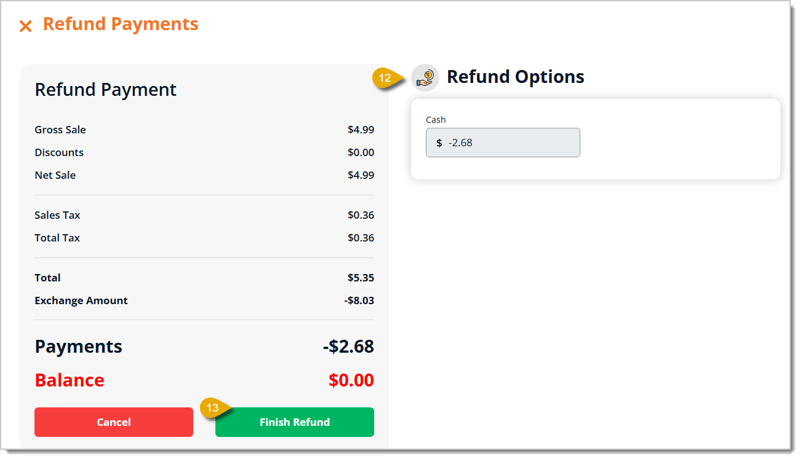
- On the right, you will see the customer's refund payment options, like cash in the image above. If there is more than one, you can enter the amount for each.
- Click on Finish Refund. Once the exchange is complete, you'll be redirected to the receipt page.
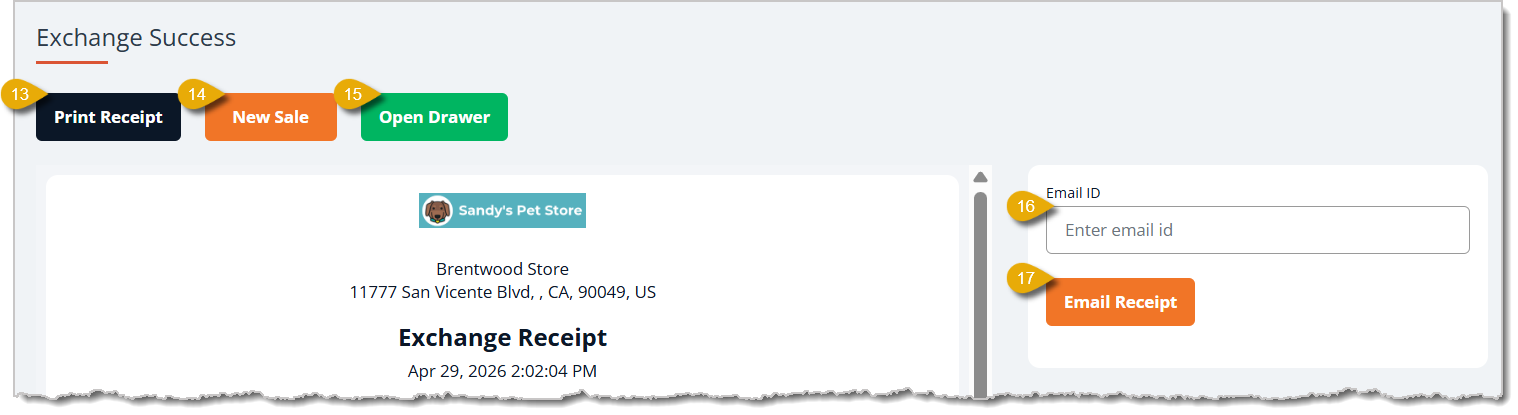
- On the receipt page, you can click to Print the Receipt for the customer.
- If you're finished with this page, you can start a New Sale.
- If the customer is getting their refund in cash, click on Open Drawer to access the cash register drawer.
- If the customer wants their receipt emailed to them, enter their email address.
- Click on Email Receipt after entering the email address to send the receipt.
 Boss Quote
Remind your human understands that the goal of retail is for people called customers to pay the store money and for the store to keep it. Even so, sometimes, you have to give the money back, usually if they got the wrong thing and their pet let them know by rejecting it. Your human needs to understand how all that works so they can get the pet the right thing, if possible. Time for my next nap; don't let your human slack off on this!
— Adrian, Wenatchee, WA
Related Articles
Register Tour
Cashier Training
Working with Products in Transactions
Reprint a Customer Receipt
How to Void a Transaction
Frequently Asked Questions
Q: A customer wants to return one item, but they already got a refund on another item from the same order. Can I process it?
A: No. Refunds and returns can't be performed on an order that has already had one. If a customer bought two items in a single order and one was already refunded, the other can't be refunded or returned afterward.
Q: Why can't my employee process a refund?
A: Their Role needs the right permissions. Go to Admin & Crews > Roles, select the Role, click Edit, and in the Store section check Issue Refunds. To allow refunds on orders without receipts, also check Adhoc Refund to Cash and Adhoc Refund to Store Credit, then click Save.
Q: I searched a Receipt ID but no order came up. Why?
A: Receipt ID search only finds orders placed within the past 3 months. For older transactions, try the Product, Customer, or Transaction Date tab instead.
Q: What should I do if the refund amount is different from what the customer originally paid?
A: Use Custom Refund instead of the standard Refund button. A window will open where you can enter the refund amount and indicate whether the refund is taxable, then click Refund.
Q: What does the Sellable checkbox do?
A: Checking Sellable returns the item to your inventory so it can be sold again. Leave it unchecked if the item can't go back up for sale — for example, if it's damaged or opened.
Q: I have a question, but I can't find my answer here. How do I get more assistance?
A: You can ask any question at the number listed here. Contact our support team at (323) 370-0738 for the U.S. and (888) 370-2363 for Canada.







 Apr 29, 2026
Is this page helpful?
×Help us improve our articles