






Holding and Resuming Transactions
Sometimes you have to put transactions on hold so the customer can come back later to complete it. T
 May 19, 2026
Occasionally you'll need to print a transaction receipt after the fact. Whatever the reason, this article shows you the easiest ways to print out receipts. Take a look!

The eTailPet system has several places you can print a receipt. Here are the use cases and steps for printing:
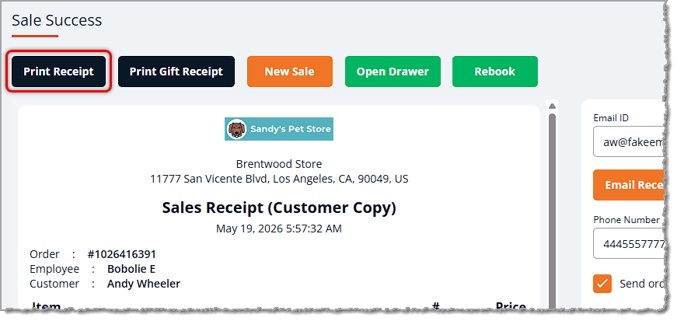
If you're still on the Sale Success page, click the Print Receipt button in the upper left.
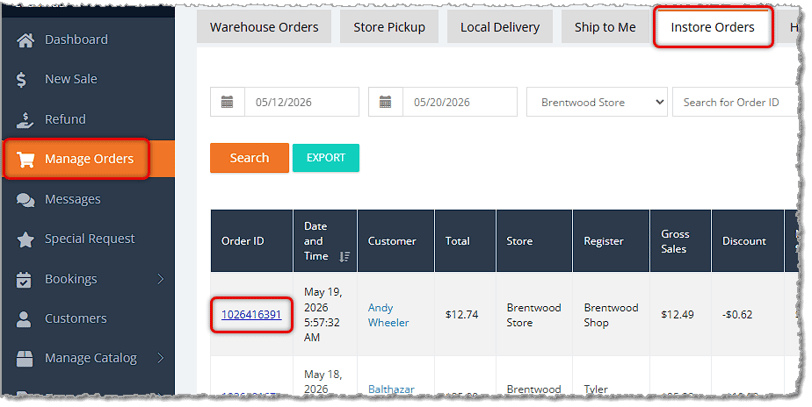
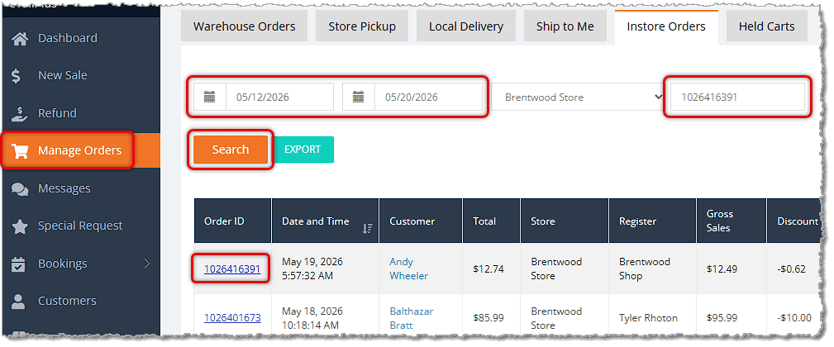
The fastest way is to go to Manage Orders and enter your PIN. The transaction you want will be at the top of the list, as pictured below with the example transaction from the previous scenario. Make sure you're on the Instore Orders tab. Find the Order ID on the left and click on it to open the transaction:
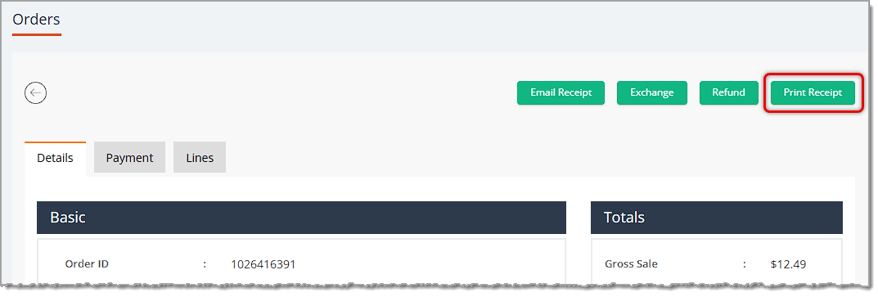
The transaction will load for you on the Orders page. Click the Print Receipt button in the upper right.
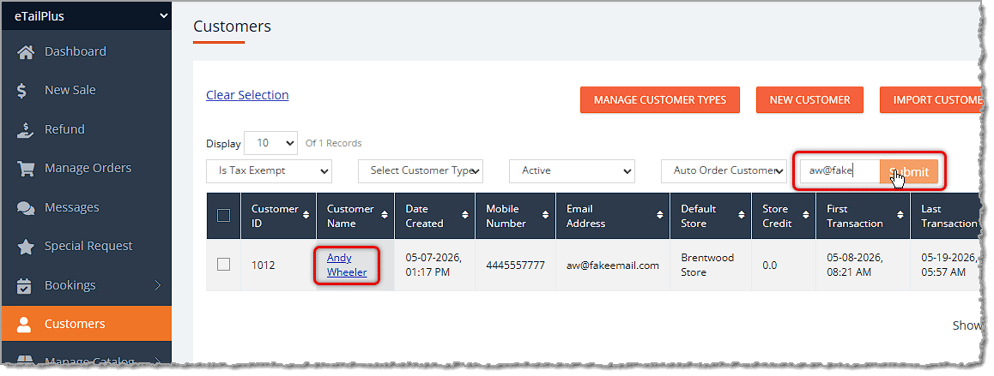
If you want to look up a transaction that previously happened, in the main menu on the left click on Customers and enter your PIN. On the Customers page, use the Search area to search for the customer, and click Submit to load matches. Click on the customer's name to open their Customer Page.
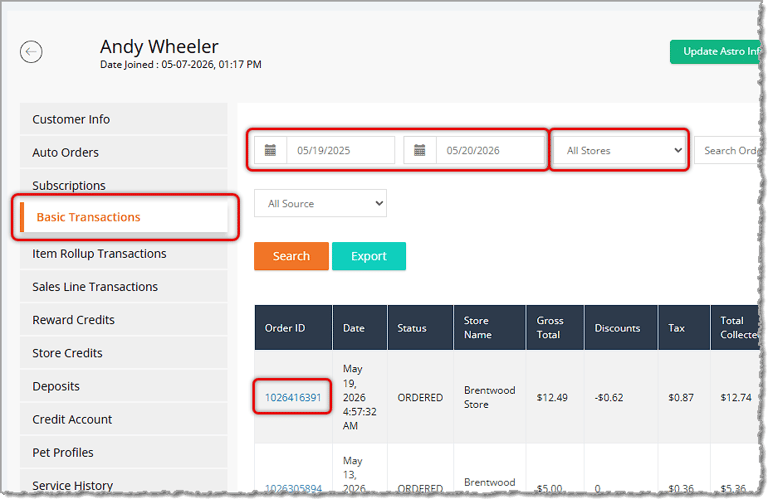
The customer's page will load with their full details. If the customer knows the date and approximate time of the transaction, click on the Basic Transactions tab on the left. You'll see all of the transactions the customer has had with the store, with the most recent at the top. You can use the Date and Store filters at the top, or enter the Order ID if you know it. Find the correct transaction and click on its Order ID.
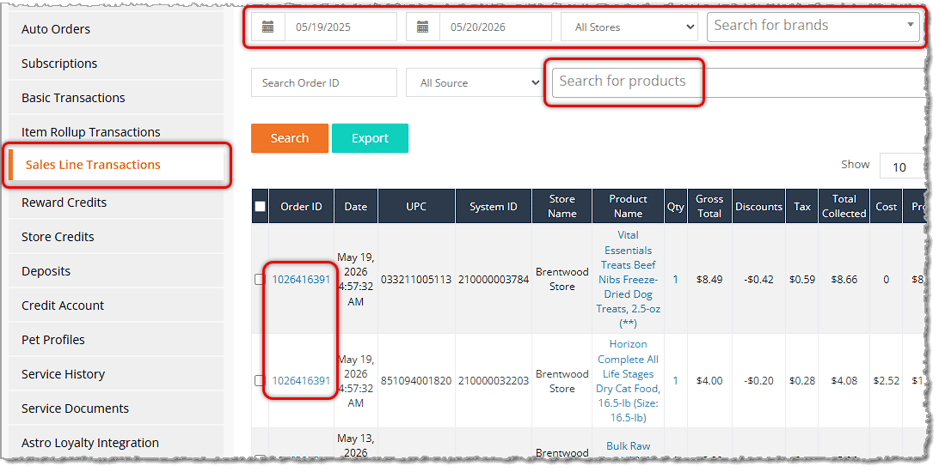
If the customer knows the items in the transaction, click on the Sales Line Transactions tab on the left. All items they've purchased will be listed with the most recent at the top. In our example transaction, there were two items. In the example below, the top two items share the same Order ID. Work with the customer to find the right Order ID and click on it.
The transaction will load for you on the Orders page, as shown in the previous scenario. Click the Print Receipt button in the upper right.
If the customer has the Order ID, go to Manage Orders in the main menu on the left. You should be on the Instore Orders tab. If the transaction happened more than a week ago, you'll need to use the Date filters to expand the date range. Enter the Order ID in the Search area on the right, then click the Search button. If it's a valid Order ID, it will be the only result. Click on the Order ID in the data table to load the transaction into the Order page. In the upper right, click on the Print Receipt button, as pictured previously.
Boss Quote
"Obviously you need to instruct your human that the Manage Orders page has the most flexible ways to find transactions and reprint receipts. Make sure they print it extra long and let it dangle off the side of the register for a couple of whiles so you can get in some pawing practice."
— Adrian, Wenatchee, WA
Q: I already left the Sale Success page. Can I still print the receipt?
A: Yes. Open the transaction from Manage Orders or from the customer's page under Customers, then click the Print Receipt button in the upper right of the Orders page.
Q: What's the fastest way to reprint the most recent receipt?
A: Go to Manage Orders and enter your PIN. On the Instore Orders tab, the most recent transaction is at the top of the list. Click its Order ID, then click Print Receipt.
Q: A customer wants a receipt but doesn't know the date of the sale. How do I find it?
A: Open the customer's page and click the Sales Line Transactions tab. It lists every item they've purchased, with the most recent at the top. Find the right item and click its Order ID to open the transaction.
Q: I searched Manage Orders for an Order ID, but nothing came up. What should I do?
A: Manage Orders shows the last 7 days by default. If the sale happened more than a week ago, use the Date filters to expand the date range, then search again.
Q: I have a question, but I can't find my answer here. How do I get more assistance?
A: You can ask any question at the number listed here. Contact our 24/7 support team at (323) 370-0738 for the U.S. and (888) 370-2363 for Canada.
Is this page helpful?
×Help us improve our articles