Working With Products in Transactions

Apr 24, 2026Apr 24, 2026

The eTailPet New Sale Screen makes it easy to handle products in transactions. This article will show you how to add items, remove items, and change item quantities in transactions, so read on to see how simple we've made it for you!

Image of a cartoon sloth.
Boss Quote

"We know this is a lot of information, so we recommend you take things slowww..."

— Solomon, Atlanta, GA

Here is everything this article covers; each section is linked for your convenience:


Add Items to Transactions in New Sale

To work with these methods, you need to be logged into your Register Login and on the New Sale page.

Method One: Scan Items

One way to add items to transactions is to scan their barcodes. Scanning an item will automatically enter the product into the transaction. Any standard scanner will work, as long as it is compatible with all of your store's other devices. Read our article on Hardware Requirements linked below in Related Articles for examples of barcode scanners.

Method Two: Quick Select

For things that don't have scannable barcodes, such as donations, you can use Quick Select. Here is how to add an item with Quick Select:

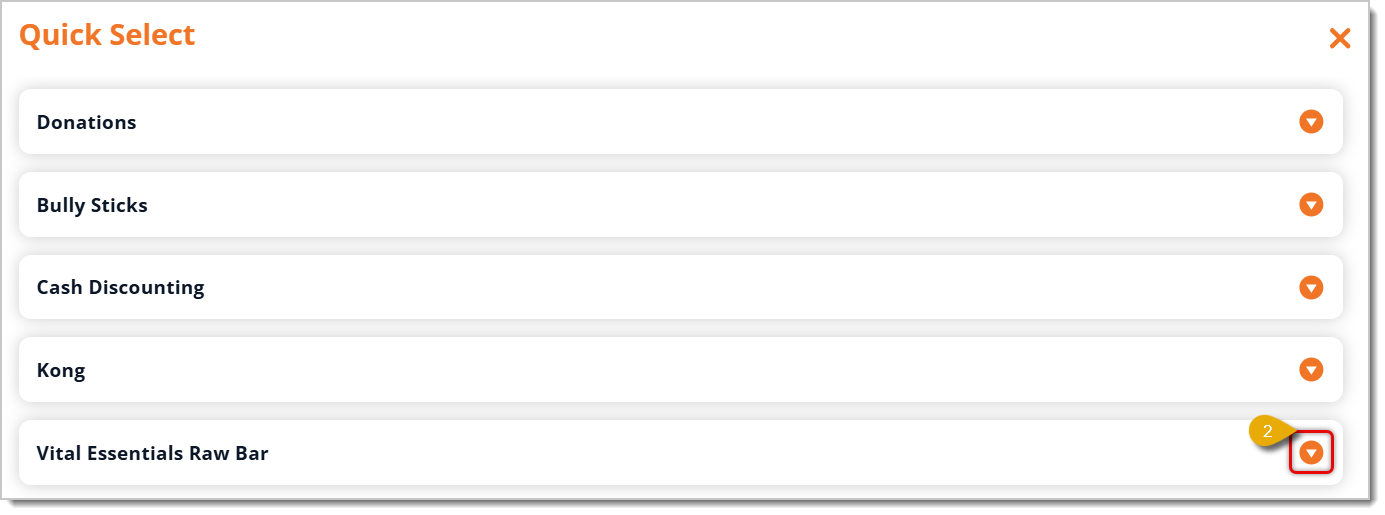
  1. Click on Quick Select at the top of the New Sale. Image highlighting the Quick Select button in the eTailPet Register.
  2.  Click on the Arrow button next to the category to view all items in it.
    Image highlighting the Arrow button in the Quick Select area of the eTailPet Register.
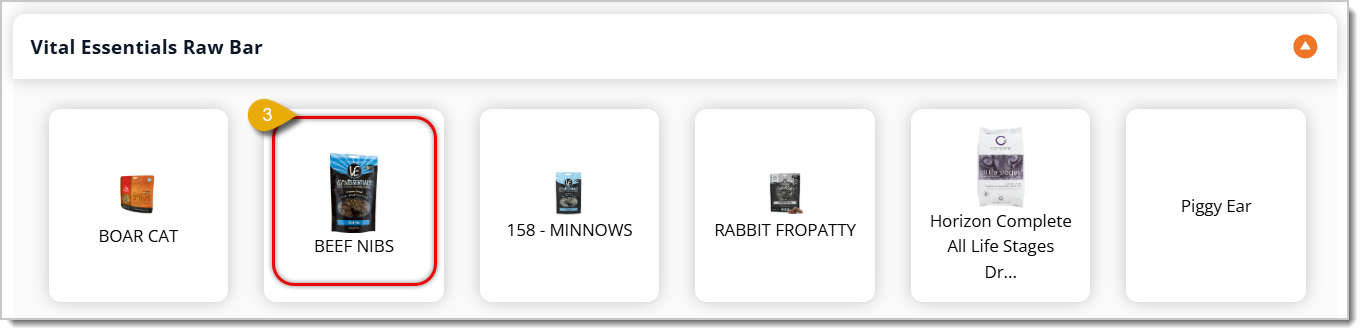
  3. Click on the item you need. This will add it to the transaction.
    Image highlighting the product selection step in the Quick Select area of the eTailPet Register.
    Image highlighting the product added to a transaction using Quick Select in the eTailPet Register.

Method Three: Search For Items

If a barcode isn't scannable, you can Search for the item in the New Sale. Here's how to Search:
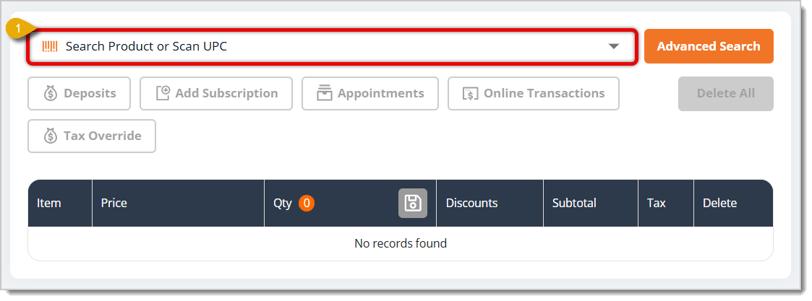
  1. Enter the name of the item in the Search bar in the upper part of the New Sale page. 
    Image highlighting the Search bar in the eTailPet Register.
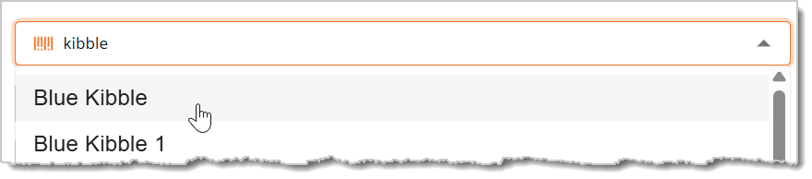
  2. Select the item you need from the drop-list of matching results.
    Image showing a matching result for the term "Kibble" from the Search bar.
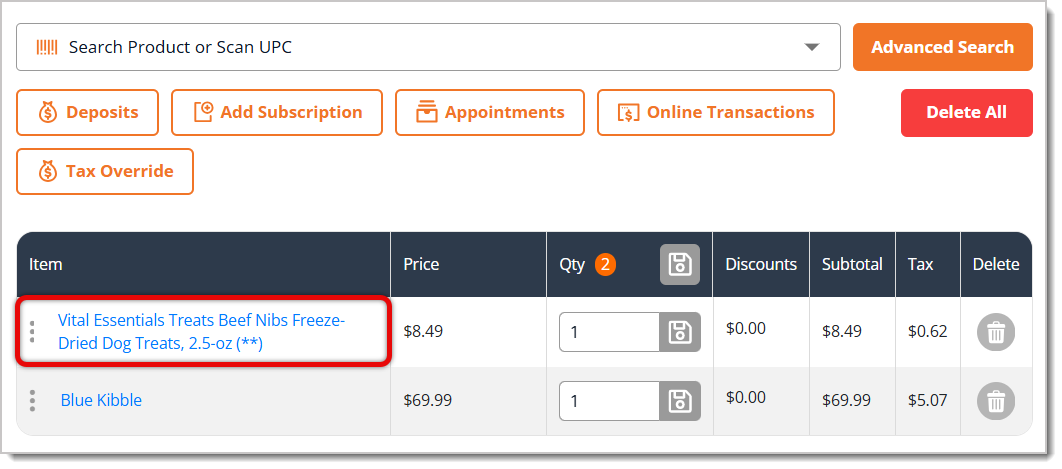
  3. Once selected, the item will be added to the transaction.
    Image showing an item from the Search bar (Blue Kibble) added to a transaction.

Method Four: Advanced Search

If you need to search for multiple items, we recommend using Advanced Search. Click on the Advanced Search button directly next to the Search bar.

Image highlighting the Advanced Search button in the eTailPet Register.

Here is everything you can use and view in Advanced Search to find the items you need:
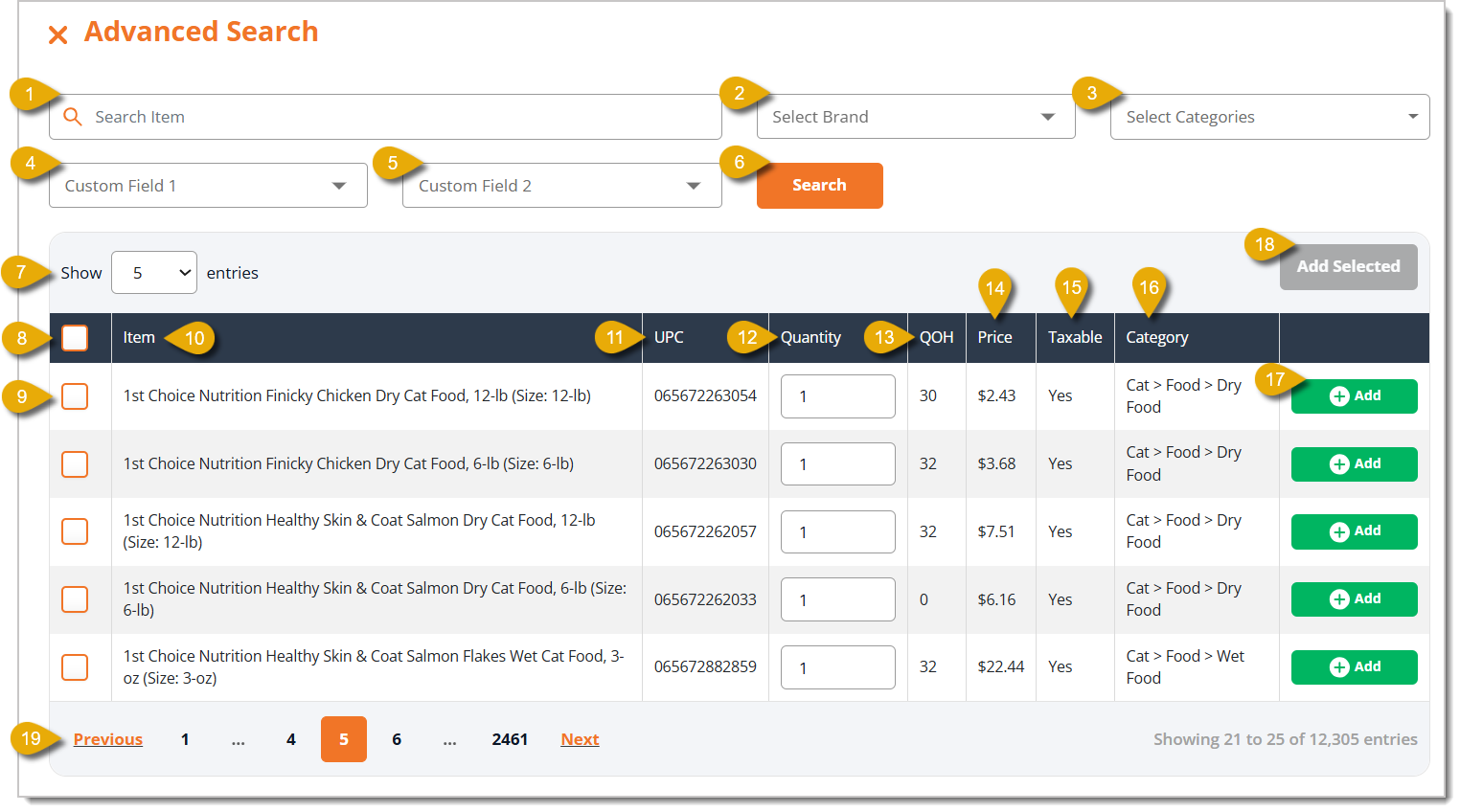
Image of the Advanced Search window in the eTailPet Register.

  1. Search Item — Enter the name of the item(s) you need.
  2. Select Brand — Select the Brand of the item(s) from the drop-list to filter your results.
  3. Select Categories — Select the Category of the item(s) from the drop-list to filter your results.
  4. Custom Field 1 — If you've configured custom fields, you can select one from the drop-list to filter your results.
  5. Custom Field 2 — If you're configured custom fields, you can select a second one from the drop-list to filter your results.
  6. Search — Click on this button to load product results that match any filters you've set.
  7. Show Number of Entries — Select how many entries of products you want to see per page. Options are 5, 10, 50, and 100.
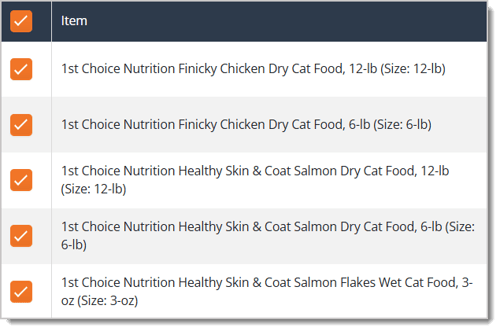
  8. Check All Items — You can check the box at the top in the column headers to select all items displayed on the current page.
    Image showing all page items selected in the Advanced Search area of the eTailPet Register.
  9. Checkbox — You can individually select items by checking the box next to an item name.
  10. Item Name — In this column, you can view the Item Name.
  11. UPC — In this column, you can view the UPC of each item.
  12. Quantity — In this column, you can change the Quantity of an item that you'll add to the transaction. Enter a number in the Quantity cell for the individual item you need.
  13. Quantity On Hand — In this column, you can view the quantity you currently have in stock for each item.
  14. Price — In this column, you can view the Price of the item.
  15. Taxable — In this column, you can view whether or not the item is marked as Taxable.
  16. Category — In this column, you can view the Category of the item.
  17. Add — Click on the Add button for an item to add just that item to the transaction.
  18. Add Selected — If you have selected multiple items using the checkboxes, you can click on the Add Selected button to add all of those items to the transaction.
  19. Previous / Next — Navigate between pages of items to find what you need by clicking on Previous or Next. You can also click on the Page Numbers in between these buttons to skip to a page.

Method Five: Add Items from a Customer's Purchase History

If a customer wants to repeat a past transaction with the same items, you can pull it from their purchase history. This is helpful if the transaction consisted of multiple items that were not scannable. Note that this is only possible for existing customers who have memberships at your store. Here's everything you should do for this method:
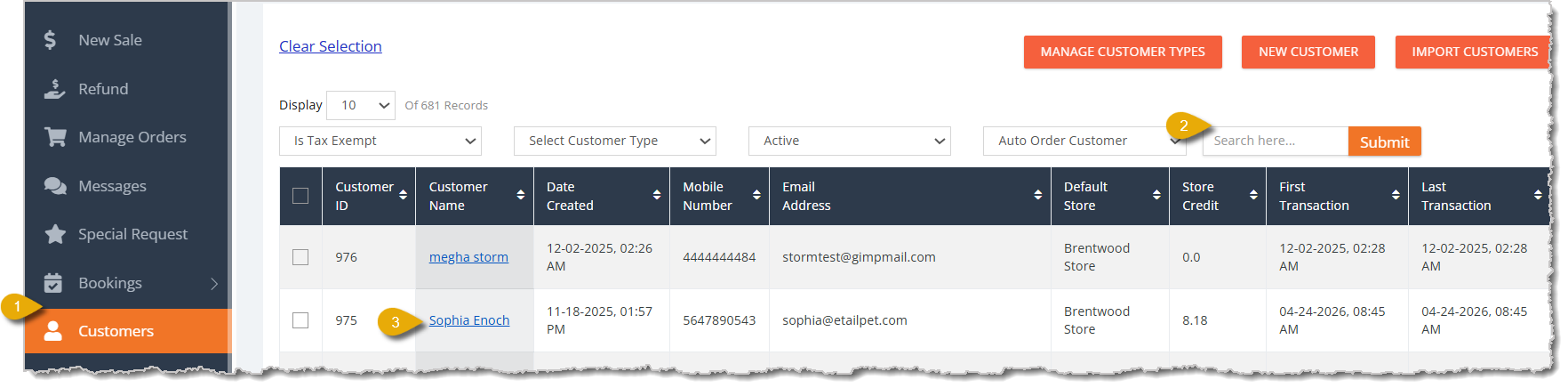
Image showing steps to reach the Customers area and open a customer's profile in the eTailPet Dashboard.

  1. In the eTailPet Dashboard, click on Customers from the main menu.

  2. Search for the customer by entering their name, then clicking the Submit button.

  3. Click on the Customer Name you need to open their profile.

  4. In the Customer's profile, click on Sales Line Transactions in the main menu to open their transaction history.
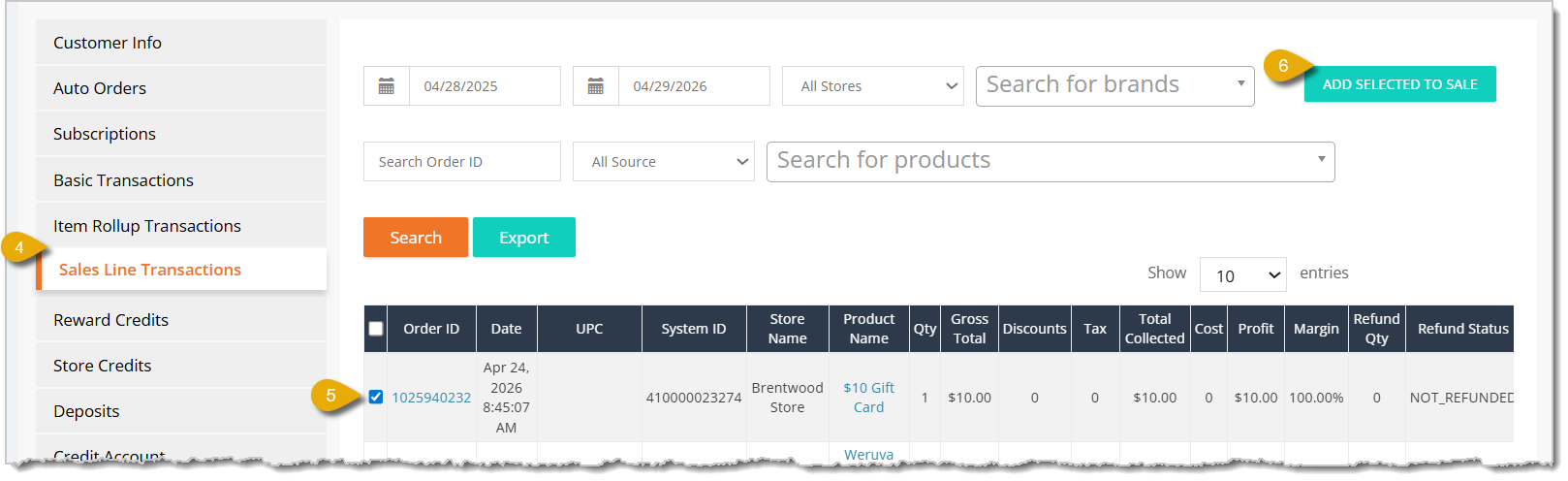
    Image of the Sales Line Transactions page in the Customers area of the eTailPet Dashboard.

  5. Select the transaction you need by checking its box.

  6. Click on Add Selected to Sale in the upper right.

This will redirect you to the New Sale page, where the past transaction's items will automatically be added. However, if you have a current incomplete sale with items, a window will ask you if you want to keep the current cart, merge carts, or use the saved cart you were loading. Select the option you want and click on Continue, then proceed with the transaction as normal.
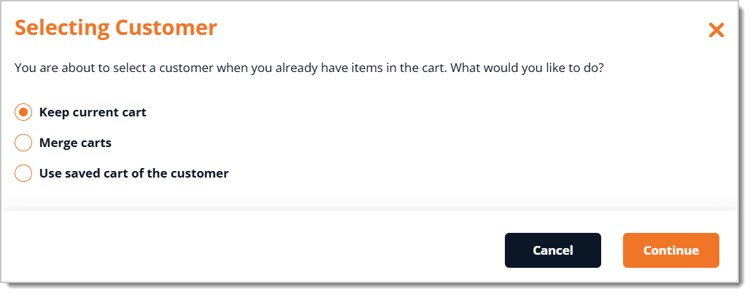
Image of a window in the eTailPet Register asking if you want to Keep current cart, Merge carts, or Use saved cart of the customer.


Delete Items from Transactions

To remove an item from a transaction, you can click on the Trash Can Icon on the right of the item. This is located under the Delete column.
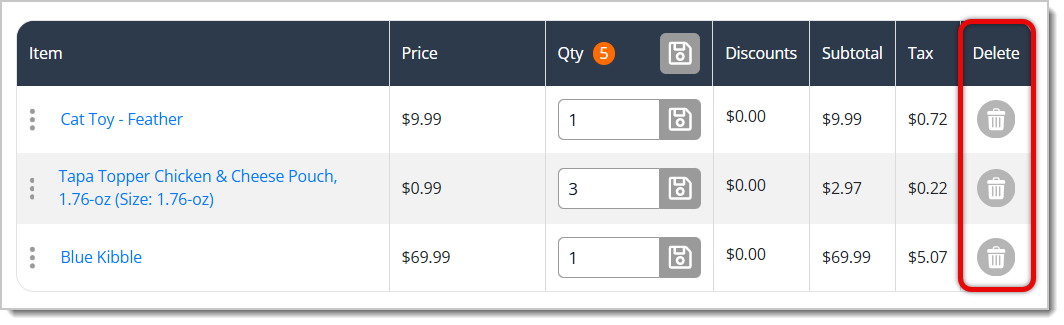
Image highlighting the Delete column for transaction items in the eTailPet Register.

If you want to start the transaction over, you can also click on the Delete All button above the transaction items.
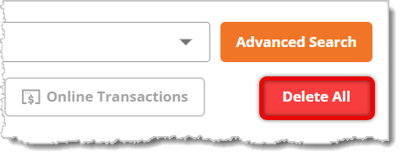
Image highlighting the Delete All button in the eTailPet Register.


Change the Quantity of Items in Transactions

Here is everything you can do to change the quantity of an item in a transaction:
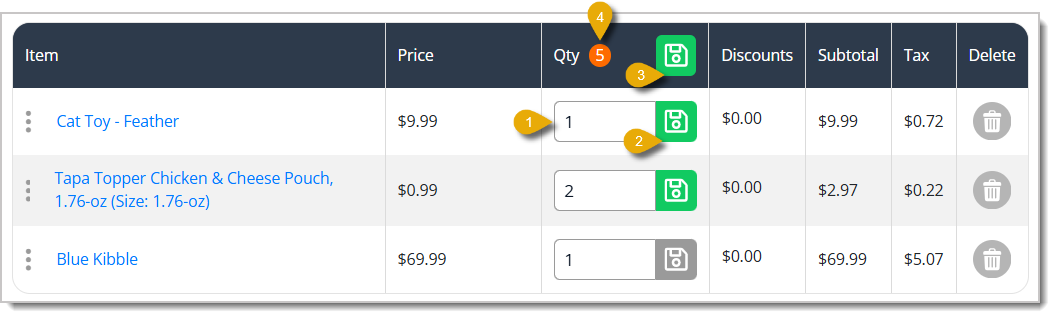
Image highlighting the steps and functions to change the quantity of an item in the eTailPet Register.

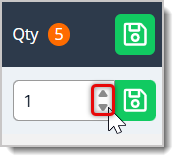
  1. Under the Quantity column, you can change the quantity for an item by entering a number from your keyboard. You can also hover your cursor over the Quantity field to display Arrows. Each click on the Up arrow will increase the quantity by one, and each click on the Down arrow will decrease the quantity by one.
    Image highlighting the arrow buttons that help you change the quantity of an item in a transaction in the eTailPet Register.
  2. After editing the Quantity, click the Save button on the right to update the amount.
  3. If you've edited the Quantities of multiple items, you can click the Save button to the right of the Column Name (Quantity) to update all quantity changes.
  4. You can see the total number of items in the transaction next to the Column Name for Quantity.


Edit Prices in Transactions

In New Sale, you can only edit prices for items that have variable prices. To learn how to mark items for variable pricing, click here to view the article about the Product Details Page. 

Enter the price for the item under the Price column. Then click on the Save button on the right of the new price to update it.

Image highlighting the editable price of an item in the eTailPet Register.


Tax Overrides in Transactions

If you've configured sales taxes for your products, you can later edit tax rates in transactions from a New Sale. Here is how to edit them:
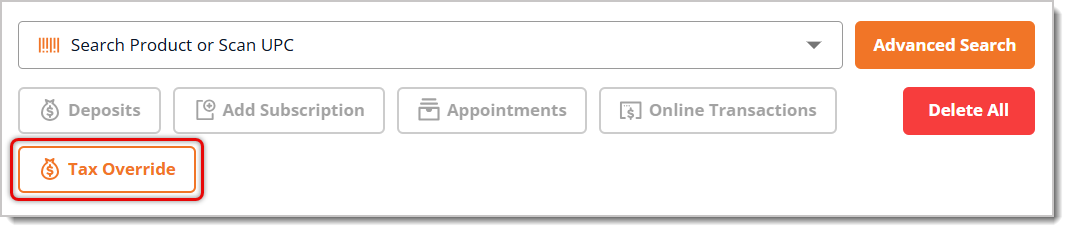
Image highlighting the Tax Override button in the eTailPet Register.

  1. Click on Tax Override. This will open a new window.
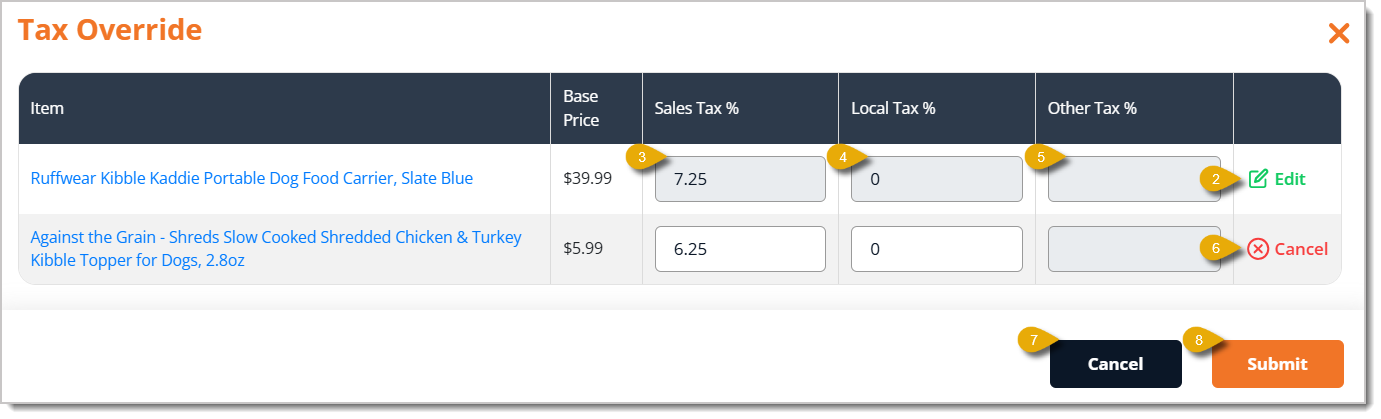
    Image of the Tax Override window in the eTailPet Register. Numbers in this image highlight fields.

  2. Click on Edit on the far right of each item to which you want to apply tax overrides.
  3. You can edit the Sales Tax Percentage.
  4. You can edit the Local Tax Percentage.
  5. You can view Other Tax Percentage, but cannot edit it in this window.
  6. If you've already clicked on Edit for an item, the Cancel button will replace the Edit button. Click on this to cancel changes to the individual item.
  7. You can click on Cancel on the bottom of the window to cancel all changes you've made.
  8. Click on Submit on the bottom right of the window to update changes you've made.

The values in the Tax column of the transaction will update according to your submitted changes.
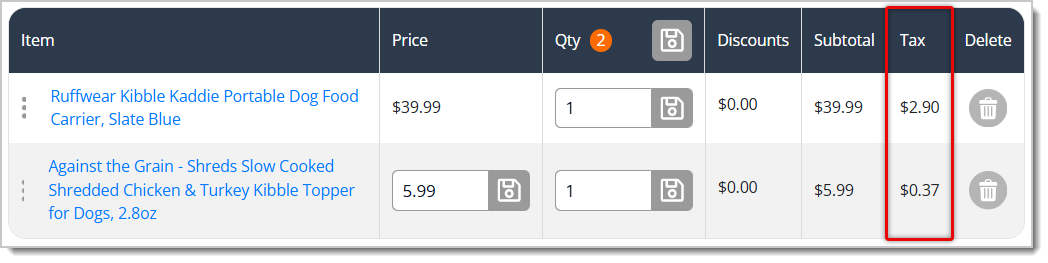
Image highlighting the Tax column in the eTailPet Register.


Related Topics

Hardware Requirements

New Sale Tour

Holding and Resuming Transactions

Refunds and Returns

How to Clear the Cart


Frequently Asked Questions

Q: Why can't I edit the price of an item in my transaction?

A: Prices can only be edited in New Sale for items that have been marked for variable pricing. If the Price field isn't editable, the item needs to be configured for variable pricing first. See the Product Details Page article for instructions.


Q: I changed the quantity on an item, but the transaction total didn't update. What happened?

A: Quantity changes aren't applied until you save them. Click the Save button to the right of the item to update that line, or the Save button next to the Quantity column name to apply changes to all edited items at once.


Q: Can I add multiple items to a transaction at the same time?

A: Yes. Use Advanced Search, check the box next to each item you need (or check the box in the column header to select everything on the page), then click Add Selected. You can also set a quantity for each item in the Quantity column before adding them.


Q: I loaded items from a customer's purchase history, but I already had items in the cart. Will I lose them?

A: No. A window will appear asking whether you want to keep the current cart, merge carts, or use the saved cart. Choose merge carts to keep both sets of items, then click Continue.


Q: Why can't I edit the Other Tax Percentage in the Tax Override window?

A: Other Tax Percentage is view-only in the Tax Override window. Only Sales Tax Percentage and Local Tax Percentage can be edited there.


Q: I have a question, but I can't find my answer here. How do I get more assistance?

A: You can ask any question at the number listed here. Contact our support team at: (323) 370-0738 for the U.S. and (888) 370-2363 for Canada. 

Need Help?

Can't quite find the answer you're looking for? Our support team is just a call away.