The eTailPet products have pages listing all details in themed tabbed pages. This article shows you how to use each tab and where to find what you need. Take a look!
 In this article, you'll learn the following:
Product Details Tab
Vendor Details Tab
Inventory Tab
History Tab
Sales Tab
Purchase Order Tab
Warehouse Order Tab
Accessing Product Details
-
To get to a Product Details page, open the Manage Catalog menu on the left.
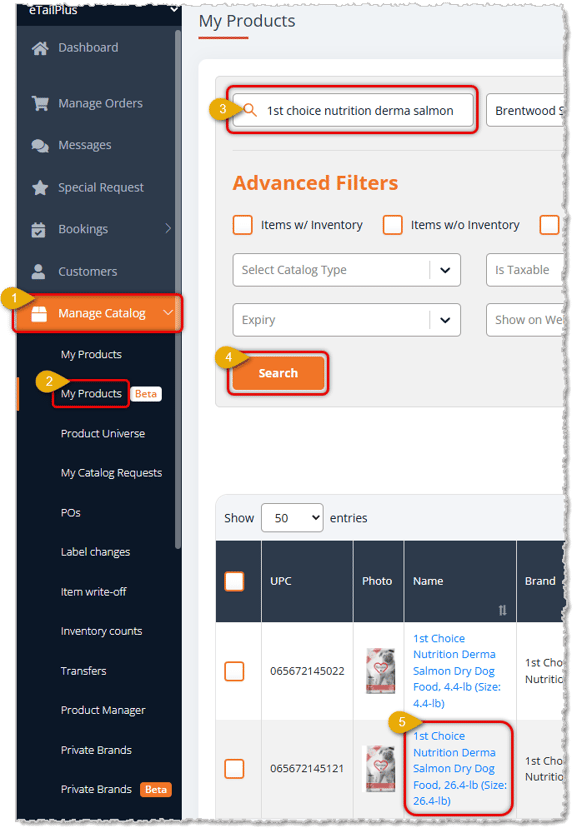
- Click on My Products.
- Use the Search field and Filters to find the product you want.
- Click the Search button.
- Click the product Name to open the Product Details page, as pictured below.
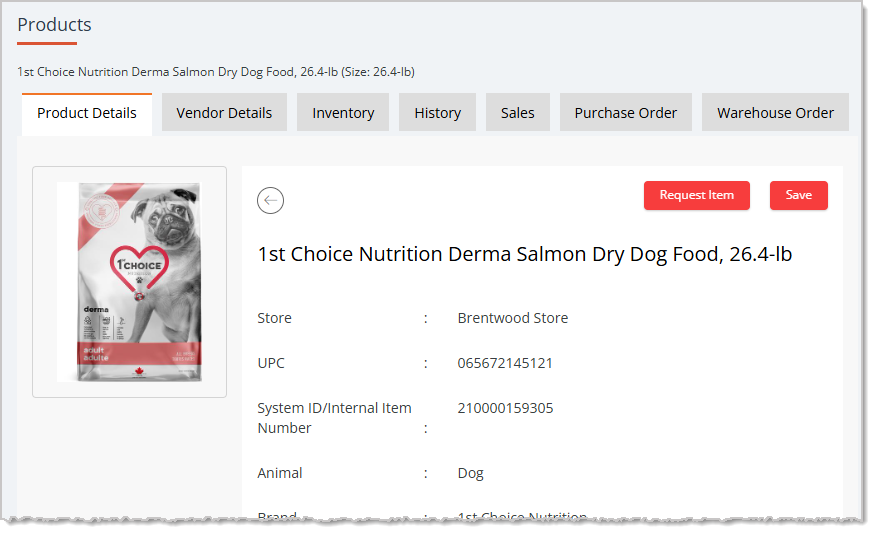
Product Details Tab
Here are the different areas you can configure for your product on the Product Details tab:
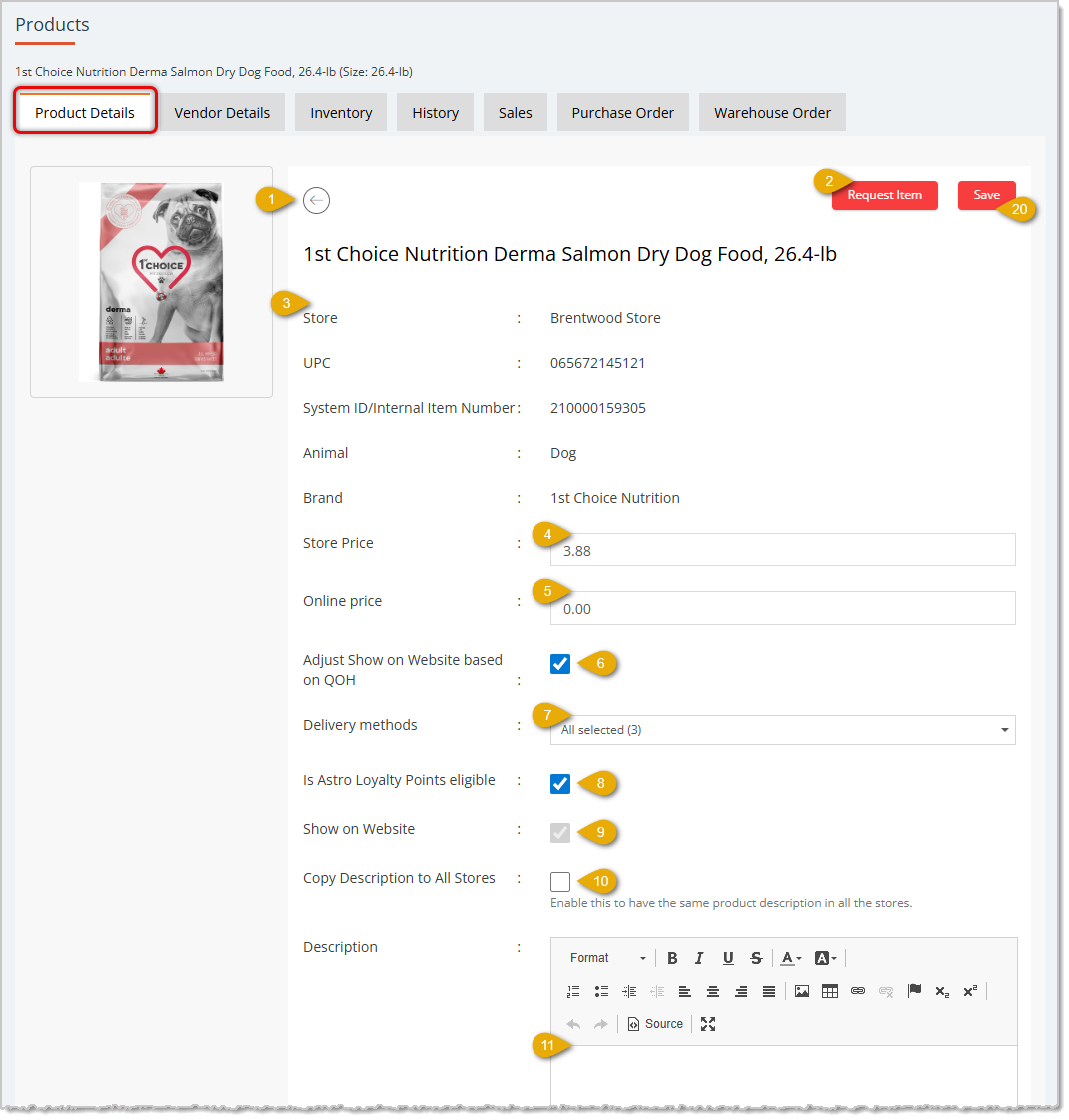
- Back Button — Click this button to go back to the My Products page.
- Request Item — Click this button to start a Special Request for the item for a customer. Click here for full details on Special Requests.
- Product Details — Details in this area come from the Product Universe Catalog or from the Store and are not editable; they are here for reference. They include the Store name, UPC, System ID (internal eTailPet identification number), Animal type, and the Brand.
- Store Price — You can add or adjust the Store Price for the item here.
- Online Price — You can add or adjust the Online Price for the item here.
- Adjust Show on Website Based on QOH — Check this box if you want to automate the display of this item on your website based on whether or not you have Quantity on Hand (QOH). For this example product, with its box selected and no items in inventory, it won't display on the website until inventory is added. Notice that the Show on Website checkbox in #9 below is grayed out because with this setting on, it is no longer manually adjustable.
- Delivery Methods — By default, products added from the Product Universe will have all active delivery methods selected, as pictured here. You can manually adjust these as needed for the product.
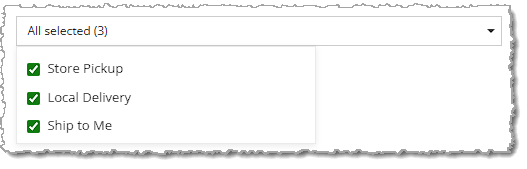
- Astro Loyalty Points Eligibility — By default, this is selected for all items. Deselect this box if you don't want to give customers Astro Loyalty Points when they purchase the item.
- Show on Website — If you have not automated this function based on the item's Quantity on Hand as described in #6 above, you can adjust this setting. By default, items will be visible on your website, but if you don't want to sell this item online, deselect the checkbox.
- Copy Description to All Stores — If you write a Description (explained in #11 below) that you want to use for this item across all your stores, check this box. By default, this box is not checked.
- Description — You can craft a marketing masterpiece using the Description editor if you want to sell the item online. Add images, embed videos, and include as much purchase-influencing text as you might need to make the item irresistible to your online customers.
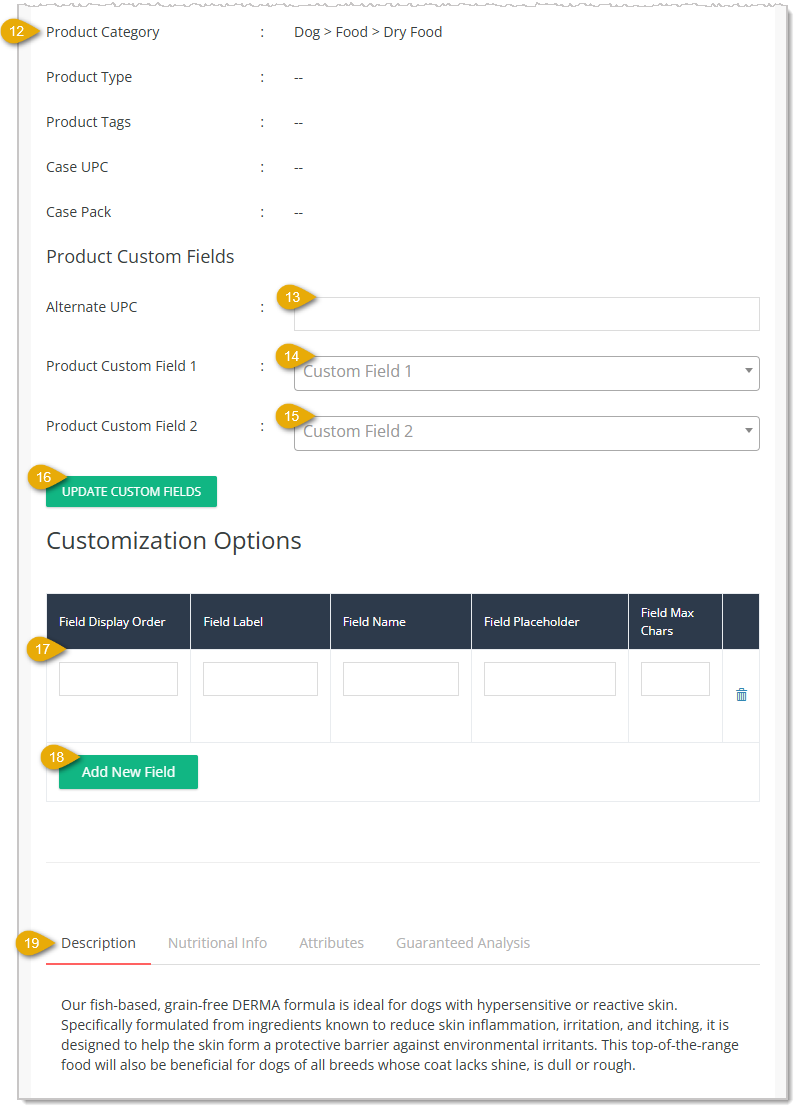
- Product Details — Details in this area come from the Product Universe Catalog or from the Store and are not editable (as with #3 above); they are here for reference. They include the Product Category path, Product Type, Product Tags, Case UPC, and the Case Pack quantity.
- Alternate UPC — If there is a separate UPC or other code for the item, you can scan it in or manually enter it here. A code saved here will be an alternate lookup option for the item.
- Product Custom Field 1 — You can use Custom Fields to tag the product for reporting or analytics. This is entirely for internal use and is not anything your customers see. For example, customers don't really need to know if a product is seasonal or not, so you could create a Custom Field to label the item as seasonal, as in the example below.
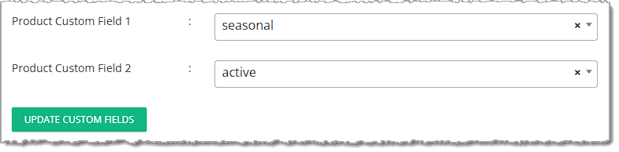
- Product Custom Field 2 — You can have up to two Custom Fields for your products. For example, if this was a product for 'active' pets, you could label it active as we did in the example above. Both of these fields will be searchable in the reporting and in your analytics if you need to look up sales data or traffic to web pages based on the details.
- Update Custom Fields — If you set anything in your Custom Fields, click the Update Custom Fields button to save that information to the system. You'll see a success confirmation pop up in the upper right.
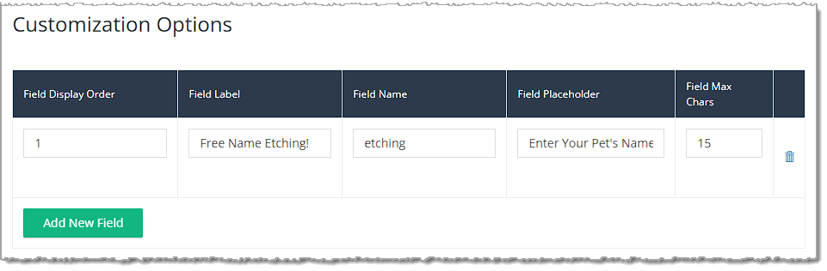
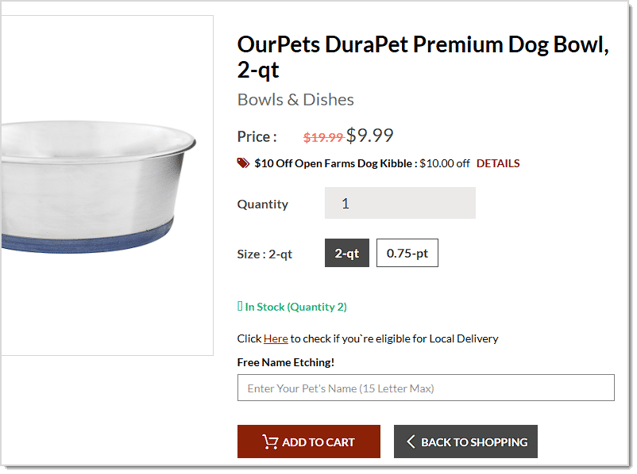
- Customization Options — You can create custom fields where your customer can give you their preference on something you customize about the product, such as embroidering letters onto a pet pillow, or etching a pet's name onto a steel bowl. You can do multiple fields if needed; here is an example with that bowl etching service:
A field like that would look like this on your online store:
Here is how to format what you put in the fields:
- Field Display Order — Enter the number 1 for the first field, 2 for the second, and so on.
- Field Label — This is the title above the field. Enter it as you want it to appear on the page, as in the example Free Name Etching! above.
- Field Name — This is an internal label for the field. Enter text all in lowercase. If there are multiple words, don't use spaces and separate words with underscores as in this example: field_name.
- Field Placeholder — This is the gray starter text the field will have before the customer enters their preference. This text should serve as instructions on what the customer should enter, as in the example above: Enter Your Pet's Name (15 Letter Max).
- Field Max Characters — Enter the maximum number of characters a customer can enter into the field. Please note, in the example above, the (15 Letter Max) was manually written into the Field Placeholder and does not automatically display. If you don't mention the max number of characters, the field will still restrict how many can be entered. Please note that the characters include spaces and punctuation.
- Add New Field — If you are creating more than one customized option field, click this button to add another row to the Customized Options table.
- Product Information — The product may have information populated in this area by the Product Universe. Different types of products may have different tabs, but here are examples from this dog food product. Pictured above is the Description Tab, which contains a manufacturer description of the item. The Nutritional Info Tab provides nutritional details from the brand. The Attributes Tab provides information such as dimensions or size. The Guaranteed Analysis Tab is for food items and gives information about the percentage of daily allowance the product provides per serving to the pet.
- Save — When you're finished configuring your Product Details tab, scroll to the top of the page and in the upper right, click the Save button to update the system with your changes.
Please Note: Information you enter here will only affect your saved version of the product. The Product Universe does not update with these changes.
Vendor Details Tab
The Vendor Details tab allows you to set default costs for the vendor or vendors from which you order the product. Here are the functions of the tab:
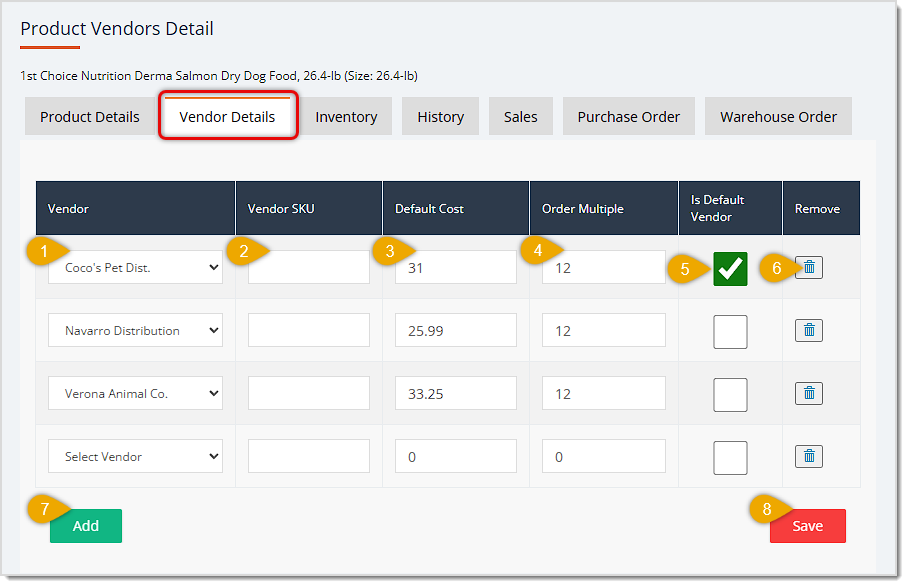
- Vendor — Use the Select Vendor drop-list to choose a saved vendor from the list for the product. You can set as many as you need.
- Vendor SKU — If the vendor has a unique identifier they want you to use on Purchase Orders, enter that code here. Whenever you add the product to a PO, the system will populate this code for the vendor.
- Default Cost — Enter the dollar amount for what you pay per unit or case (see #4 below) from the vendor by default. As costs increase on Purchase Orders, you will be able to update this cost automatically.
- Order Multiple — Enter the quantity by which you order the item. If you order in single units, leave this field set at one. If you order by the case, enter the case quantity for the item here. Your Default Cost should correlate with this amount, so if you order by cases of 12, you would enter the cost you pay for each case.
- Default Vendor — Check this box for the vendor you will use as the primary vendor for the product (the one you will usually order this product from).
- Remove — Click the Trashcan Icon to remove the vendor from this product. This does not delete the vendor from the system. If you removed the wrong one, you can always add the vendor again.
- Add — Click this button to add another vendor row to the table so you can configure another vendor for the product.
- Save — Click this button after you have finished making changes in this tab for your vendors.
Inventory Tab
The Inventory tab allows you to set quantities, pricing, and ordering details for the item for your stores. Here are the functions of the tab:
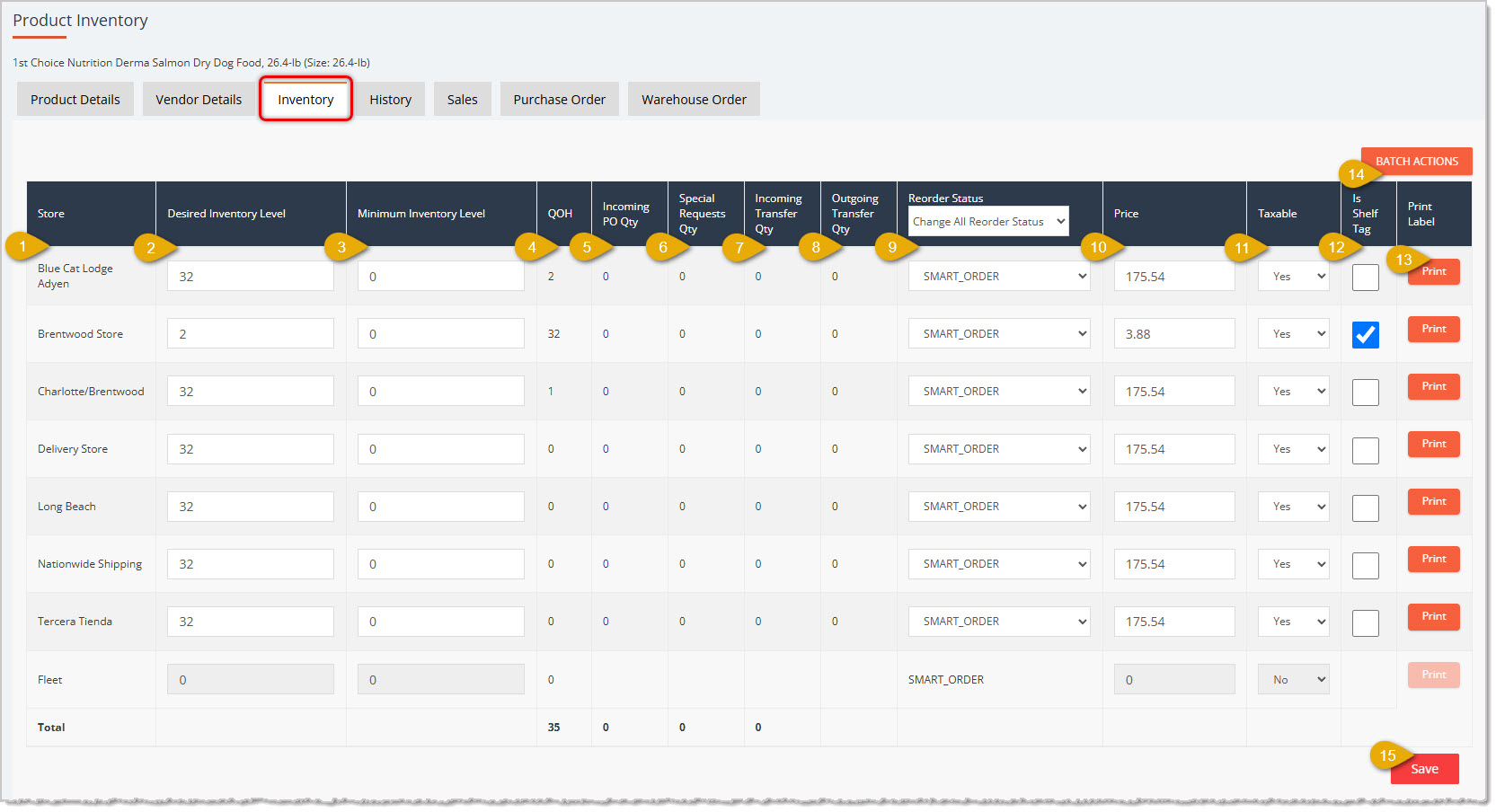
- Store — Each of the stores you have saved in the system will be listed here, and you will be able to configure inventory details for each.
- Desired Inventory Level (DIL) — This is the amount you want in stock after receiving a Purchase Order shipment from the vendor.
- Minimum Inventory Level — Enter the quantity at which you will want to reorder more inventory for the item. When the item is reduced to this level of inventory quantity and you do a Purchase Order, you will be able to automatically add the item to the order in the quantity you need to get to your Desired Inventory Level. The Smart Order system uses this for its ordering calculations, as does the Desired Inventory Level method of Purchase Order item quantity calculation.
- Quantity on Hand (QOH) — This is the quantity of the item each store currently has on hand.
- Incoming PO Quantity — If this item is already on a Purchase Order that is in process, that quantity will appear here.
- Special Requests Quantity — If there have been Special Requests for the item from customers, that quantity of the items will appear here.
- Incoming Transfer Quantity — If you have multiple stores and this item is being transferred from one store to another, the quantity coming into a store will appear here.
- Outgoing Transfer — If you have multiple stores and this item is being transferred from one store to another, the quantity going out of a store will appear here.
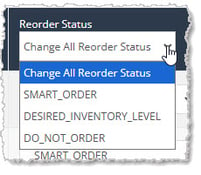
- Reorder Status — If you need to change the reorder status for the item for all of your stores, you can do so using this drop-list in the Inventory data table header. Statuses include Smart Order (this will use the Smart Order system and is best to wait to use until you have reordered a product five times), Desired Inventory Level (this will compare the current Quantity on Hand with your Desired Inventory Level and will order a quantity to bring you to the DIL), or Do Not Order (use this if you will not be reordering the item again in the near future).
- Price — By default, the Catalog price for the item will be in this field, or if it is a Private Product, it will be whatever Price you originally entered. You can edit this amount as needed. When you do a Purchase Order, you have the option of adjusting Price based on the Margin you want, so this value can change automatically as well.
- Taxable — By default all products are Taxable, but if this one is not, you can adjust that here.
- Is Shelf Tag — When you print labels for an item, if you will be printing a Shelf Tag instead of a price tag for an individual item, check this box.
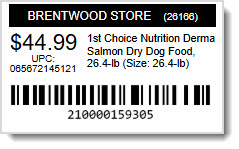
- Print Label — Click this button to print a shelf label for the item or to print multiple labels for individual items, if needed, depending on how the Shelf Tag checkbox is configured for the store. Below is an example of a Shelf Tag. Please note the barcode on the tag is for the product's System ID. Individual product labels have the UPC as the barcode for scanning at checkout.
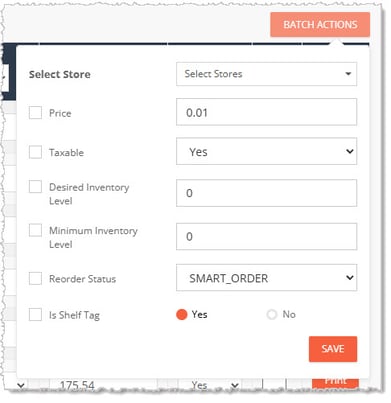
- Batch Actions — If you want to apply data changes to multiple areas of the product to one or more stores at once, click this button to open the Batch Actions drop-list. You can select as many Stores as you like. You can check the boxes for Price, Taxable, Desired Inventory Level, Minimum Inventory Level, Reorder Status, and Is Shelf Tag and set them for all selected stores however you configure them here.
- Save — If you are finished making changes or adding or removing inventory (see numbered items below), click the Save button to update the system with your changes.
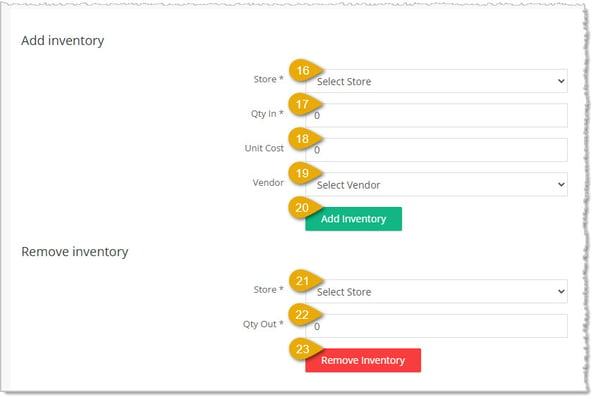
Add Inventory Functions — Use the functions described below to add inventory for this item to the store you select.
- Store* — Choose the Store to which you will be adding inventory from the drop-list.
- Quantity In* — Enter the Quantity of the item you are adding to the store.
- Unit Cost — Enter your per-Unit Cost for the item in this field. While this is not a required field, we strongly encourage you to track Cost for your items as a best practice for inventory management.
- Vendor — Select the Vendor from which you ordered the inventory.
- Add Inventory — Click this button to add the inventory you have configured with the controls described above. The Quantity on Hand for the store in the Inventory data table above will be updated with the new Quantity immediately and you'll see a success notification pop up in the upper right of the page. Price and Taxable will also be updated shortly by the system, if appropriate.
Remove Inventory Functions — Use the functions described below to remove inventory for this item from the store you select.
- Store* — Choose the Store from which you will be removing inventory.
- Quantity Out* — Enter the Quantity of the item you are removing from the store.
- Remove Inventory — Click this button to remove the inventory you have configured with the controls described above. The Quantity on Hand for the store in the Inventory data table above will be updated with the new Quantity immediately and you'll see a success notification pop up in the upper right of the page. Price and Taxable will also be updated shortly by the system, if appropriate.
Be sure to click the Save button on the right for any changes you make on the Inventory tab.
* Required Field
History Tab
The History tab allows you to see quantity changes and the transactions or system events that caused them for the product. You are also able to see Price changes that you did for the item. Here are the functions of the tab:
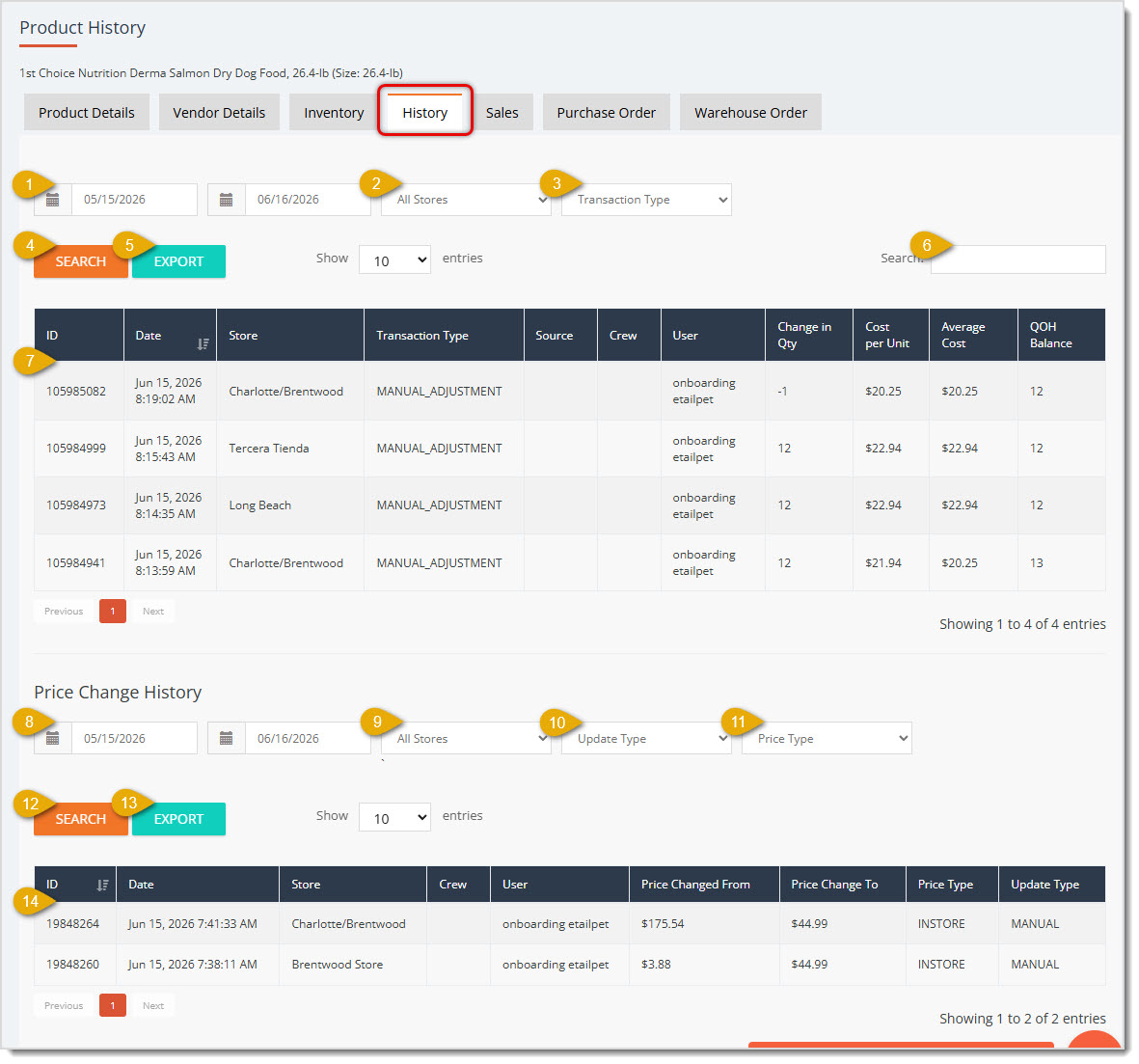
Product Quantity Change History
- Date Range — By default, the page will show the last 30 days of changes to the item's inventory, but you can use the From Date and To Date fields to view a different date range if needed.
- Stores — By default, you'll see changes to the item inventory for All Stores, but you can click this drop-list to select a single store if needed.
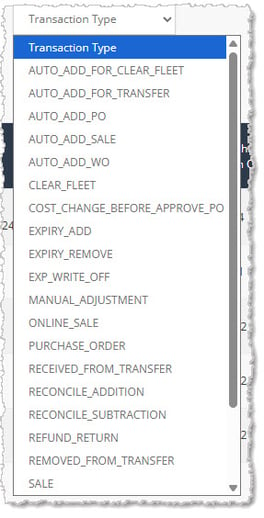
- Transaction Type — By default, you'll see changes that occurred in All Transaction Types, but you can click this drop-list to select a single transaction or event type if you need. The full list of Transaction Types includes Auto Add for Clear Fleet, Auto Add for Transfer, Auto Add PO, Auto Add Sale, Auto Add Work Order, Clear Fleet, Cost Change Before PO Approval, Expiry Add, Expiry Remove, Expiry Write Off, Manual Adjustment, Online Sale, Purchase Order, Received from Transfer, Reconcile Addition, Reconcile Subtraction, Refund Return, Removed from Transfer, Sale, Vendor Return, Warehouse Order, Write Off, and Online Return.
- Search Button — If you make changes to the Date Range or either of the filters, click the Search Button to load the results in the Product History data table.
- Export — Click this button to download a CSV spreadsheet file of the data that is currently loaded in the Product History data table across all pages.
- Search — If you have a lot of changes displaying, you can use the Search field to find the transaction or event you want. Enter your search text and hit your Enter key on your keyboard to load the matching results.
- Data Table — The Product History Data Table shows you details about every transaction or event that modified inventory quantities for your reference. The table includes columns for the transaction ID, Date, Store, Transaction Type, Source, Crew, User, Change in Quantity, Cost per Unit, Average Cost, and Quantity on Hand Balance after the adjustment.
Price Change History
- Date Range — By default, the Price Change History data table will show the last 30 days of changes to the item's Price, but you can use the From Date and To Date fields to view a different date range if needed.
- Stores — By default, you'll see changes to the Price for All Stores, but you can click this drop-list to select a single store if you need.
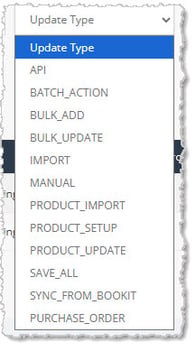
- Update Type — By default, you'll see changes that occurred in All Update Types, but you can click this drop-list to select a single update type if you need. The full list of Update Types includes API, Batch Action, Bulk Add, Bulk Update, Import, Manual, Product Import, Product Setup, Product Update, Save All, Sync from Bookit, and Purchase Order.
- Price Type — By default, you'll see Price changes to the item for both Price Types, but you can click this drop-list to select either In-Store or Online if you need.
- Search — If you have a lot of changes displaying, you can use the Search field to find the price change you want. Enter your search text and hit your Enter key on your keyboard to load the matching results.
- Export — Click this button to download a CSV spreadsheet file of the data that is currently loaded in the Price History data table across all pages.
- Data Table — The Price History Data Table shows you details about every price change to the item within your chosen date range for your reference. The table includes columns for the transaction ID, Date, Store, Crew, User, Price Changed From, Price Changed To, Price Type, and Update Type.
Sales Tab
The Sales tab allows you to see sales details for the product for your chosen date range. Here are the functions of the tab:
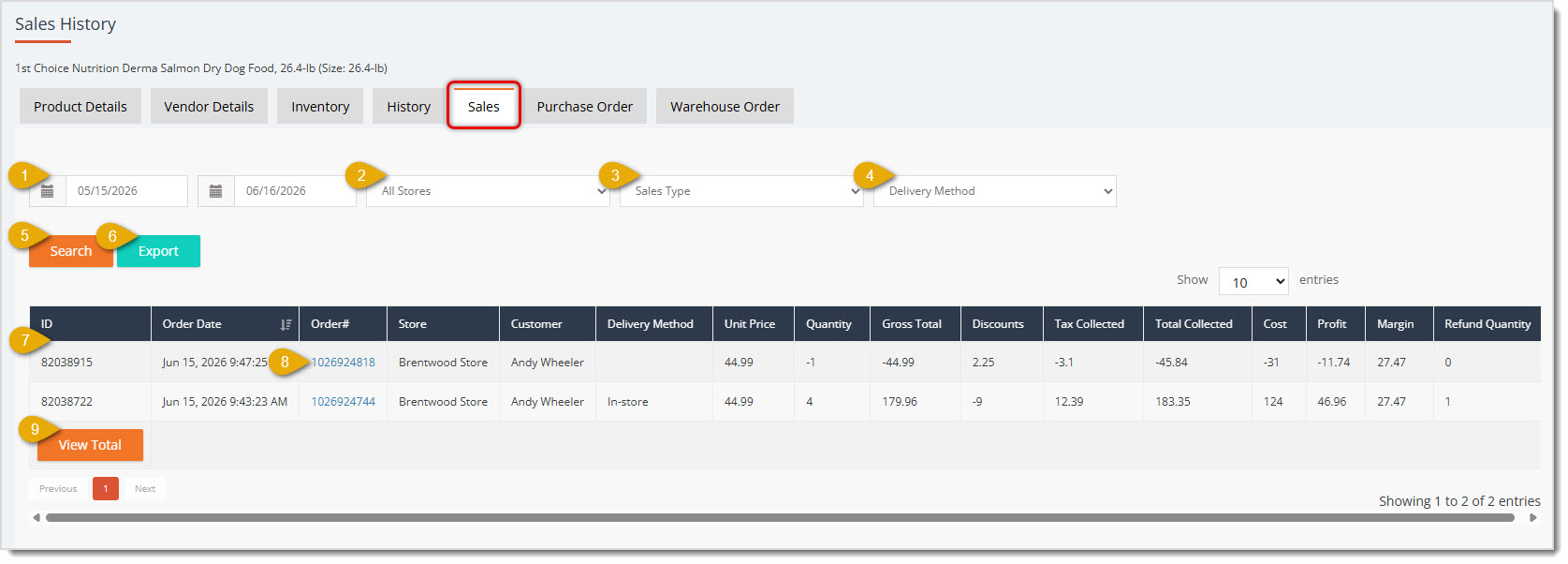
- Date Range — By default, the page will show the last 30 days of sales for the item, but you can use the From Date and To Date fields to view a different date range if needed.
- Stores — By default, you'll see sales for the item for All Stores, but you can click this drop-list to select a single store if needed.
- Sales Type — By default, you'll see sales for the item for both Sales Types, but you can click this drop-list to select either In-Store or Online if needed.
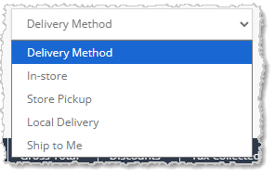
- Delivery Method — By default, you'll see sales for all Delivery Methods, but you can click this drop-list to select a single method if you need. Delivery Methods include In-Store, Store Pickup, Local Delivery, and Ship to Me.
- Search — If you have a lot of sales displaying, you can use the Search field to find the one you want. Enter your search text and hit your Enter key on your keyboard to load the matching results.
- Export — Click this button to download a CSV spreadsheet file of the data that is currently loaded in the Sales History data table across all pages.
- Data Table — The Sales History Data Table shows you details about every sale of the item within your chosen date range for your reference. The table includes columns for the transaction ID, Order Date, Order Number, Store, Customer, Delivery Method, Unit Price, Quantity, Gross Total, Discounts, Tax Collected, Total Collected, Cost, Profit, Margin, and the Refund Quantity, if any.
- Order Link — You can click the Order Number to open the full Order Details. Please note, this will take you away from the Sales Details tab, so to go back, use the Back button on your browser.
- View Total — If you click the View Total button, the data table will display a row showing totals of the Quantity, Gross Total, Discounts, Tax Collected, Total Collected, Cost, Profit, Margin (averaged), and Refund Quantity columns.

Purchase Order Tab
The Purchase Order tab allows you to see PO details for the product for all of its history in the system. Here are the functions of the tab:
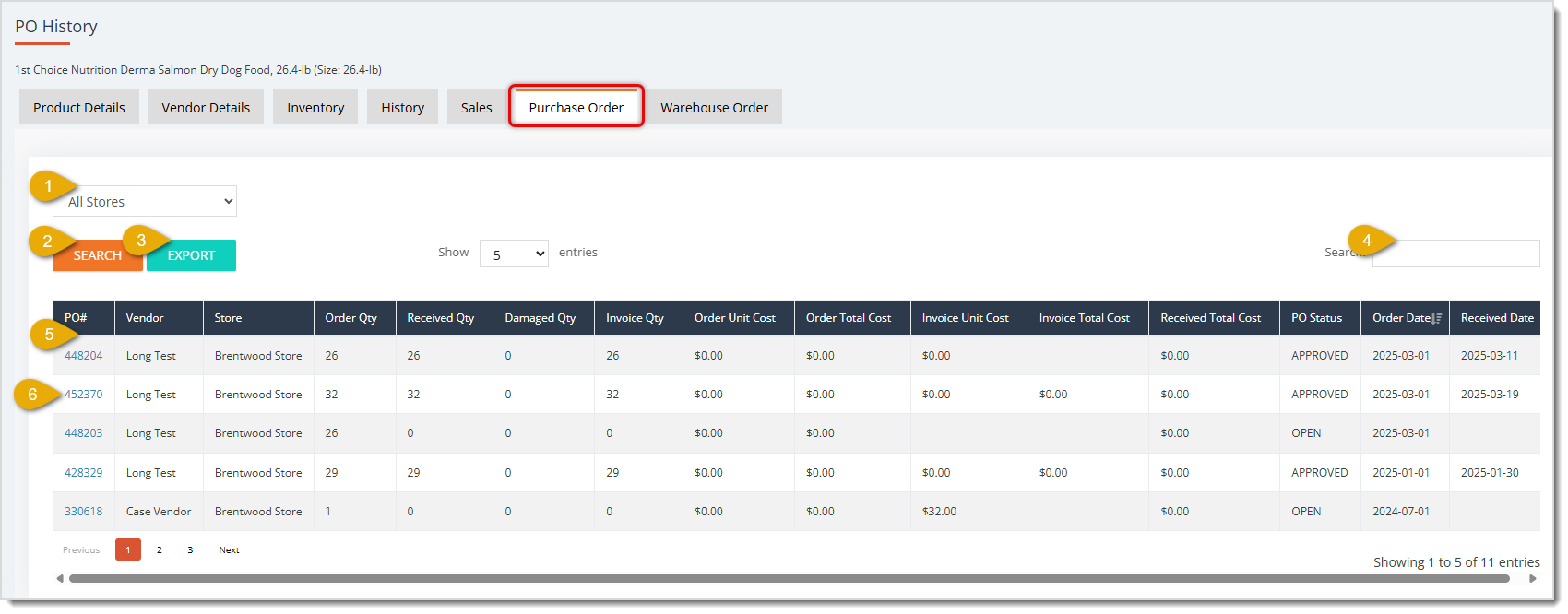
- Stores — By default, you'll see Purchase Orders for the item for All Stores, but you can click this drop-list to select a single store if you need.
- Search Button — If you change the Stores filter, you can click the Search Button to update the Data Table to only show purchase orders for that store.
- Export — Click this button to download a CSV spreadsheet file of the data that is currently loaded in the Purchase Order data table across all pages.
- Search — If you have a lot of purchase orders displaying, you can use the Search field to find the one you want. Enter your search text and hit your Enter key on your keyboard to load the matching results.
- Data Table — The Purchase Order Data Table shows you details about every purchase order including the item for your reference. The table includes columns for the transaction's Purchase Order Number, Vendor, Store, Order Quantity, Received Quantity, Damaged Quantity, Invoice Quantity, Order Unit Cost, Order Total Cost, Invoice Unit Cost, Invoice Total Cost, Received Total Cost, PO Status, Order Date, and Received Date.
- Purchase Order Link — You can click the Purchase Order Number to open the full Order Details. Please note, this will take you away from the Purchase Order tab, so to go back, use the Back button on your browser.
Warehouse Order Tab
The Warehouse Order tab allows you to see PO details for the product for all of its history in the system. Here are the functions of the tab:
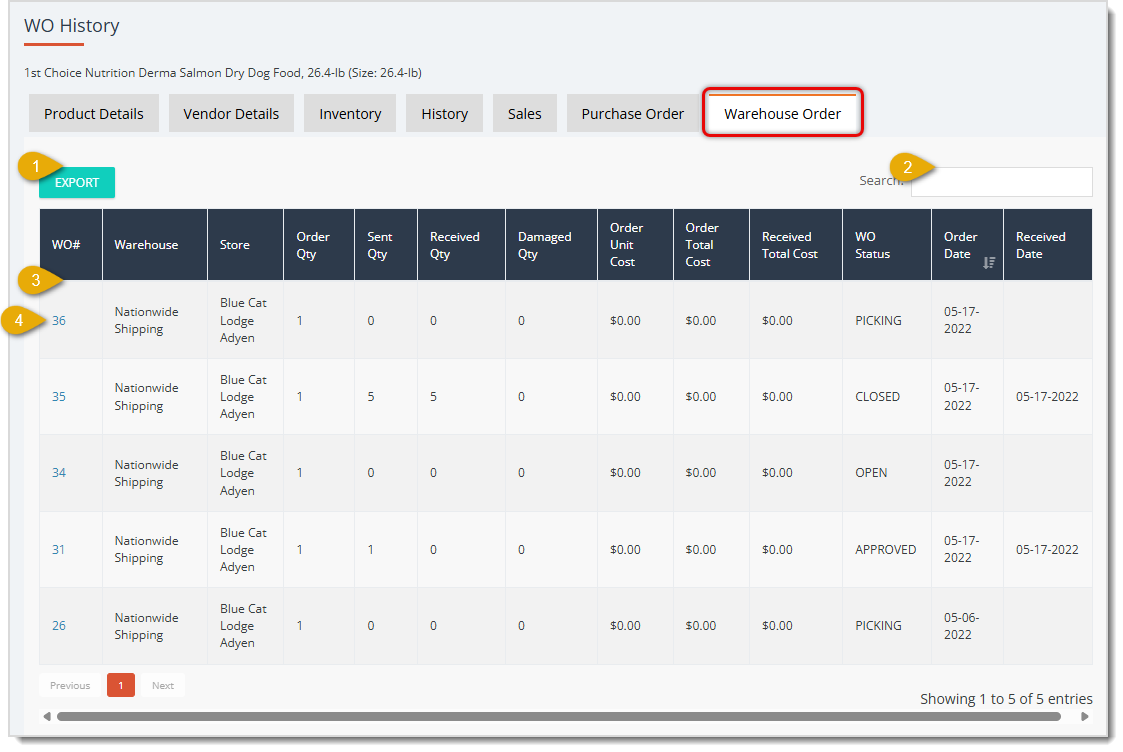
- Export — Click this button to download a CSV spreadsheet file of the data that is currently loaded in the Warehouse Order data table across all pages.
- Search — If you have a lot of warehouse orders displaying, you can use the Search field to find the one you want. Enter your search text and hit your Enter key on your keyboard to load the matching results.
- Data Table — The Warehouse Order Data Table shows you details about every warehouse order including the item, for your reference. The table includes columns for the transaction Warehouse Order Number, Warehouse, Store, Order Quantity, Sent Quantity, Received Quantity, Damaged Quantity, Order Unit Cost, Order Total Cost, Received Total Cost, WO Status, Order Date, and Received Date.
- Warehouse Order Link — You can click the Warehouse Order Number to open the Warehouse Orders tab of the Manage Orders page. Please note, this will take you away from the Warehouse Order tab, so to go back, use the Back button on your browser.
 Boss Quote
Make sure your human understands the need to double-check that they have saved their changes before leaving a Product Details tab. Foolish, forgetful humans. Also make sure your human remembers my fluffing and primping time this afternoon. I'm looking positively frumpy.
— Miss Wiggums, Rumford, ME
Related Topics
My Products Overview
Adding and Importing Products
Private Products
Product Universe
Product Vendors
Product Batch Actions
Printing Product Labels
Purchase Orders
Warehouse Orders
Frequently Asked Questions
Q: How do I open a product's Product Details page?
A: Open the Manage Catalog menu on the left and click My Products. Use the Search field and Filters to find the product you want, then click the Search button. Click the product Name to open the Product Details page.
Q: How do I save my changes to a product, and do they update the Product Universe?
A: On the Product Details tab, scroll to the top of the page and click the Save button in the upper right. On the Vendor Details tab, click Save after you finish your vendor changes. On the Inventory tab, click the Save button for any changes you make. The information you enter only affects your saved version of the product. The Product Universe does not update with these changes.
Q: Why is the Show on Website checkbox grayed out?
A: The Adjust Show on Website Based on QOH box is checked. With that setting on, the Show on Website checkbox is no longer manually adjustable. With the box selected and no items in inventory, the item won't display on the website until inventory is added. To adjust Show on Website yourself, don't automate it based on Quantity on Hand.
Q: How do I set up a customization option, like etching a pet's name on a bowl?
A: Use the Customization Options area of the Product Details tab. Enter a Field Display Order (1 for the first field, 2 for the second, and so on) and a Field Label, which is the title above the field as customers see it. For the Field Name, enter text all in lowercase with no spaces, and separate multiple words with underscores (for example, field_name). The Field Placeholder is the gray starter text that tells the customer what to enter. For Field Max Characters, enter the maximum number of characters, including spaces and punctuation. If you want the maximum shown to customers, write it into the Field Placeholder yourself, because it doesn't display automatically. Click Add New Field to add another row, and then click Save at the top of the page.
Q: How do I add or remove inventory for a product?
A: Use the Add Inventory and Remove Inventory functions on the Inventory tab. To add, choose the Store from the drop-list and enter the Quantity In. Both are required. Unit Cost isn't required, but tracking Cost is a best practice for inventory management. Select the Vendor, then click Add Inventory. To remove, choose the Store and enter the Quantity Out. Both are required. Then click Remove Inventory. The Quantity on Hand updates immediately and you'll see a success notification in the upper right. Price and Taxable will also be updated shortly by the system, if appropriate. Be sure to click the Save button for any changes you make on the Inventory tab.
Q: How do I set up vendors for a product?
A: Go to the Vendor Details tab. Use the Select Vendor drop-list to choose a saved vendor, and enter the Vendor SKU if the vendor has a unique identifier for Purchase Orders. Enter the Default Cost and the Order Multiple. Leave Order Multiple at one if you order single units. If you order by the case, enter the case quantity, and make your Default Cost the price you pay per case. Check Default Vendor for the primary vendor. Click Add to set up another vendor, then click Save. The Trashcan Icon removes a vendor from this product only. It does not delete the vendor from the system.
Q: Where can I see a product's past quantity and price changes?
A: Use the History tab. It has a Product Quantity Change History section and a Price Change History section. By default, each shows the last 30 days, and you can use the From Date and To Date fields to view a different range. You can also filter by store, Transaction Type (quantity changes), Update Type or Price Type (price changes). If you change the Date Range or filters in the quantity section, click the Search Button to load the results. You can also click Export to download a CSV file of the loaded data.
Q: I have a question, but I can't find my answer here. How do I get more assistance?
A: You can ask any question at the number listed here. Contact our support team at: (323) 370-0738 for the U.S., and (888) 370-2363 for Canada.
Q: I have a question, but I can't find my answer here. How do I get more assistance?
A: You can ask any question at the number listed here. Contact our support team at: (323) 370-0738 for the U.S., and (888) 370-2363 for Canada.







 Jun 02, 2026
Is this page helpful?
×Help us improve our articles