Product Universe

Jun 05, 2026Jun 05, 2026

The Product Universe has over 180,000 products and we are constantly adding more. This article describes how to use the Product Universe with your store Catalog in the eTailPet system. Take a look!

mattie - product universe


Using the Product Universe

The Product Universe catalog includes over 180,000 pet-related products from a wide variety of vendors, with more being added every day. Listings include all the data and photos you need to get started with managing your own custom product catalog. You will select products to include in your My Products list from the Product Universe either directly through Manage Catalog > Product Universe or by importing the UPCs into the My Catalog area and matching them.

These products go into your Public catalog. You can further customize all of your Public products to add more information if you desire. You will also be able to set up your Vendor, Cost, and Retail Pricing for each product in your catalog. Click here to learn more about setting up vendors and cost in your catalog.

Please Note: On the Product Universe page, if there are products not in the catalog, you can click the Request Changes button pictured below to request that the Product Universe team adds the items you want. 

You can add products to your Catalog from the Product Universe manually using the following steps:
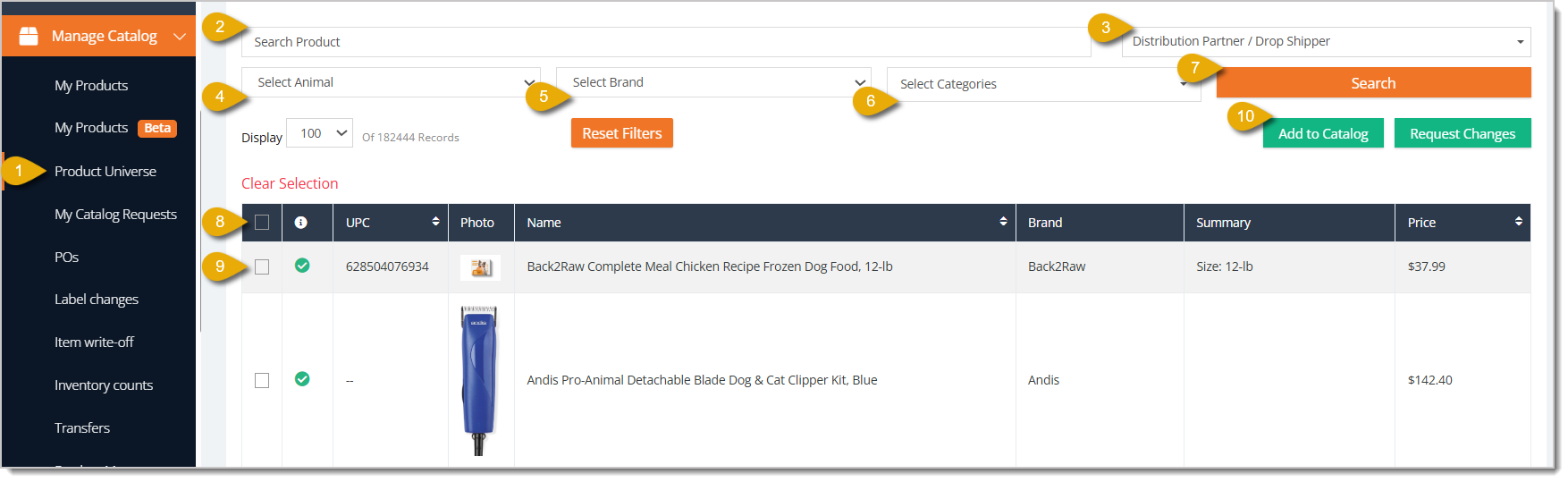
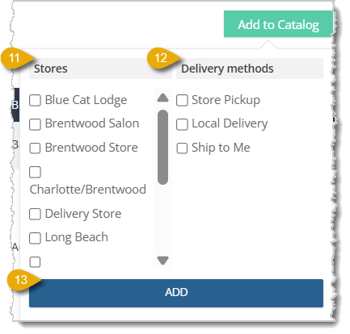
Image with numbers highlighting how to add products to a catalog in eTailPet.

  1. Go to Manage Catalog > Product Universe.
  2. You can Search for a product by entering its name or UPC.
  3. You can select a Distribution Partner / Drop Shipper from the drop-list to filter products that come from the distribution partner or drop shipper.
  4. You can select an Animal from a drop-list to filter products down to ones for certain animals.
  5. You can select a Brand from a drop-list to filter products down to ones from certain brands.
  6. You can select a Category from a drop-list to filter products down to ones for certain categories.
  7. Click on Search to pull results for products that match your filters.
  8. Click on the Checkbox in the column header of the data table to select all products displayed on the page.
  9. Click on the Checkbox next to an individual item to select or unselect just that item.
  10. Click Add to Catalog towards the upper right. A small window will pop up.
    Image with numbers 10 to 12 showing how to add an item to the catalog.
  11. Select the Stores this item is sold at by checking their boxes.
  12. Select the Delivery Methods for this item by checking their boxes.
  13. Click the Add Button. The item will load automatically into the Product Manager page for you, where you'll see that it's been added to your Catalog and where you can add further details as needed.
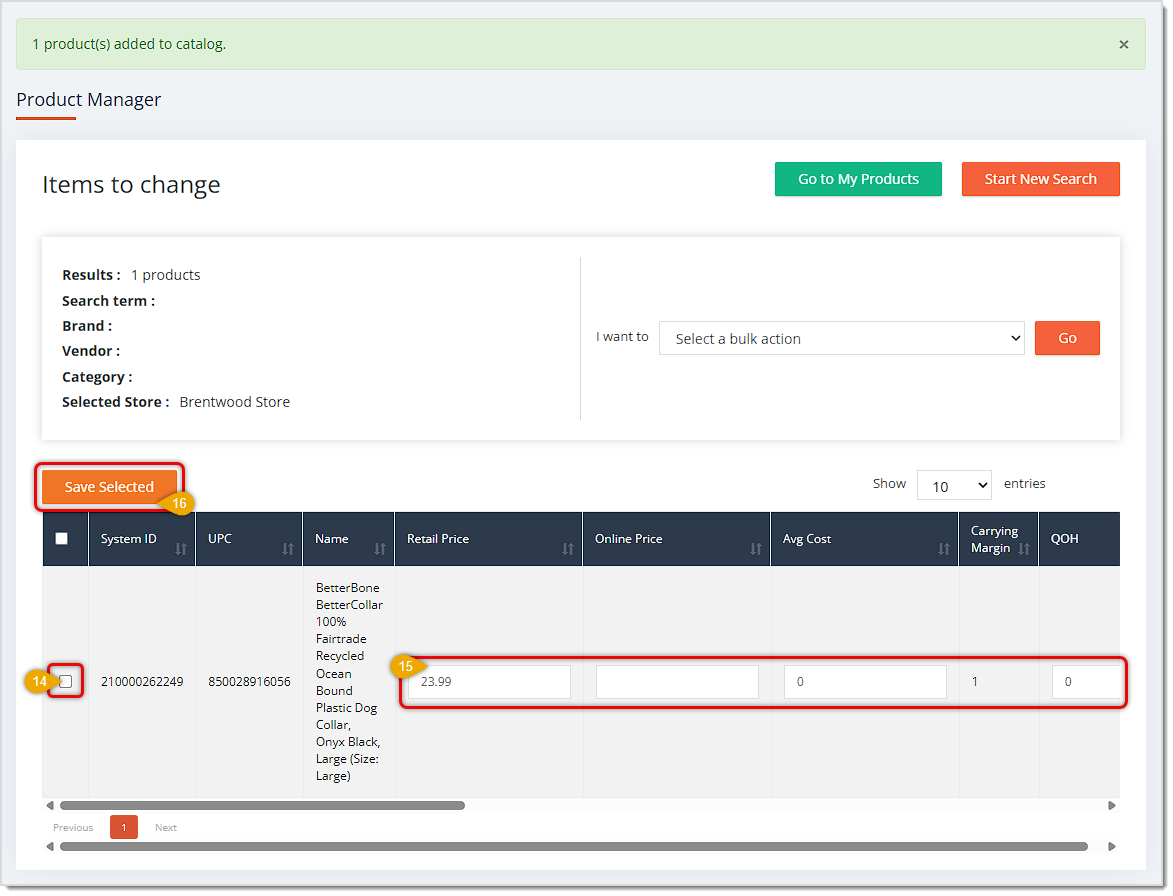
    Image showing the edit options on the Product Manager page for a newly added catalog item in the eTailPet system.
  14. If you plan to adjust details for the product, check the box on the far left for the item.
  15. In each line item, you're able to edit the following data points: Retail Price, Online Price, Average Cost, Quantity on Hand, Vendor SKU, Vendor Cost, Order Multiple, Desired Inventory Level (DIL), Minimum Inventory Level (MIL), Reorder Method, Taxable, and you can check to queue the item to print a Shelf Tag.
  16. If you are only working with one item, you can click the Save button on the far right of the line item to save your changes (not pictured). If you are working with multiple items, you can click the button on the left to Save Selected.


Oliver the Owl warning users about changing Private products that become available in the Product Universe.Boss Quote
Your human needs to be made aware that sometimes your Private Products get added to the Product Universe. You can convert those products to Public products easily, which can give them better product data from the catalog. Keep an eye out for changes like that! Now leave me. Time for me to rest up for tonight's big hunt.

— Oliver, Dubuque, IA


Related Topics

Quick Start: How to Set Up Inventory for Your Store

Adding and Importing Products

My Products Overview

Request a Catalog Addition or Change

Private Products


Frequently Asked Questions

Q: I have a question, but I can't find my answer here. How do I get more assistance?

A: You can ask any question at the number listed here. Contact our support team at: (323) 370-0738 for the U.S., and (888) 370-2363 for Canada.

Need Help?

Can't quite find the answer you're looking for? Our support team is just a call away.