






Export Products
In the eTailPet system, you can easily export your product data as a CSV or XLSX file. If you want t
 May 13, 2026
🖨️Shelf labels indicate product names and their prices to your customers on your shelves, so it's important to make these labels clear and easy to read. The eTailPet system makes printing shelf labels a seamless process that takes just a few clicks. See for yourself how to print your own shelf labels!

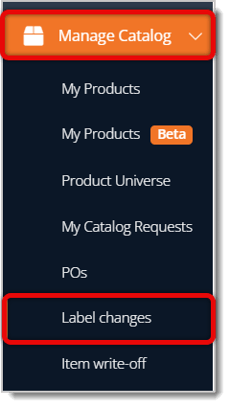
First go to Manage Catalog > Label Changes from the eTailPet main menu on the left.
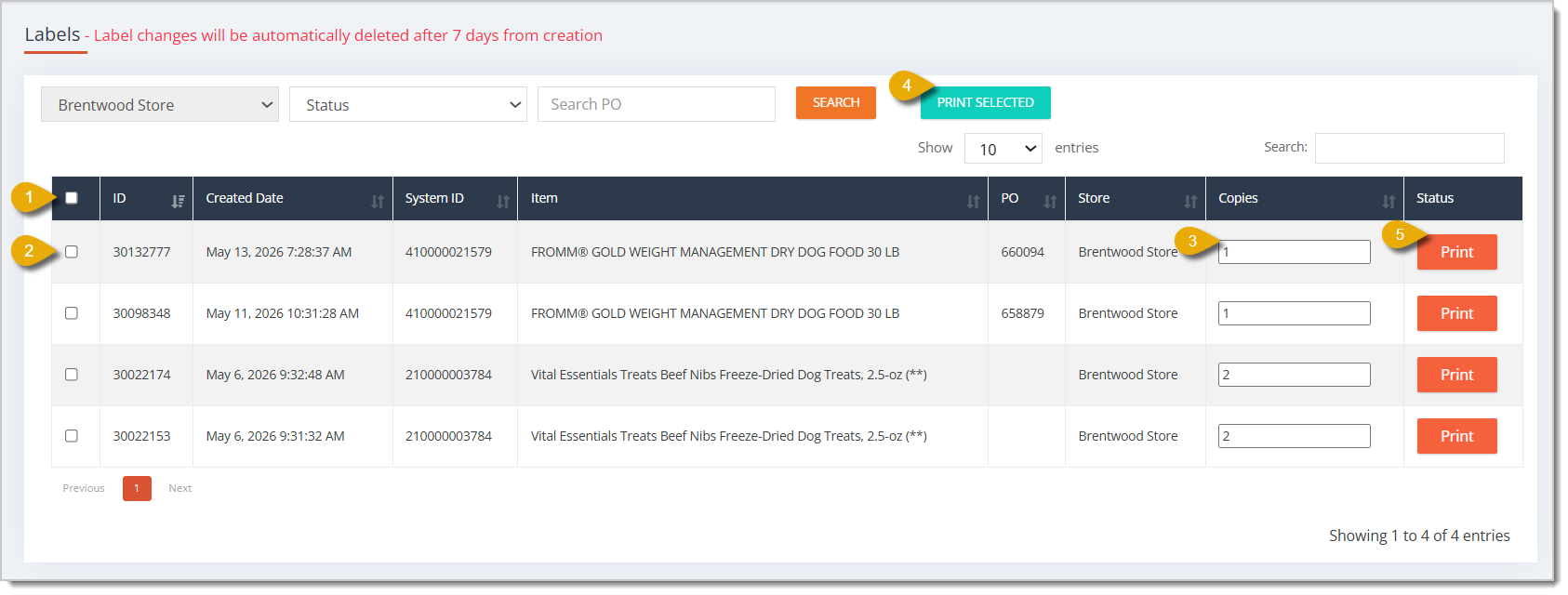
Here is everything you can do in the Label Changes area to find the product labels you need and print them:
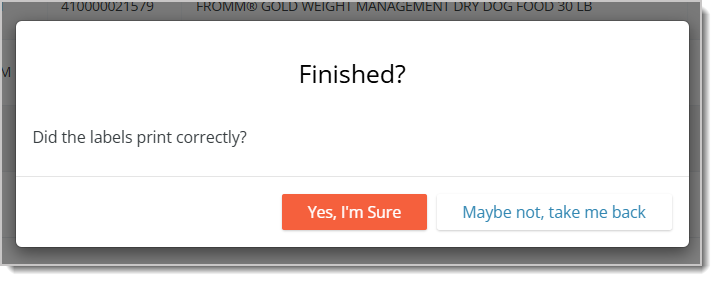
When you click on Print or Print Selected, you'll be prompted to preview the label and print it. After that, a window will ask you to confirm that the printing job was successful. Click on Yes, I'm Sure to finish.
After confirming you printed the labels, the products that were printed will have gray Print buttons.

Another way to print product labels is from the My Products area. Here's how to do that:
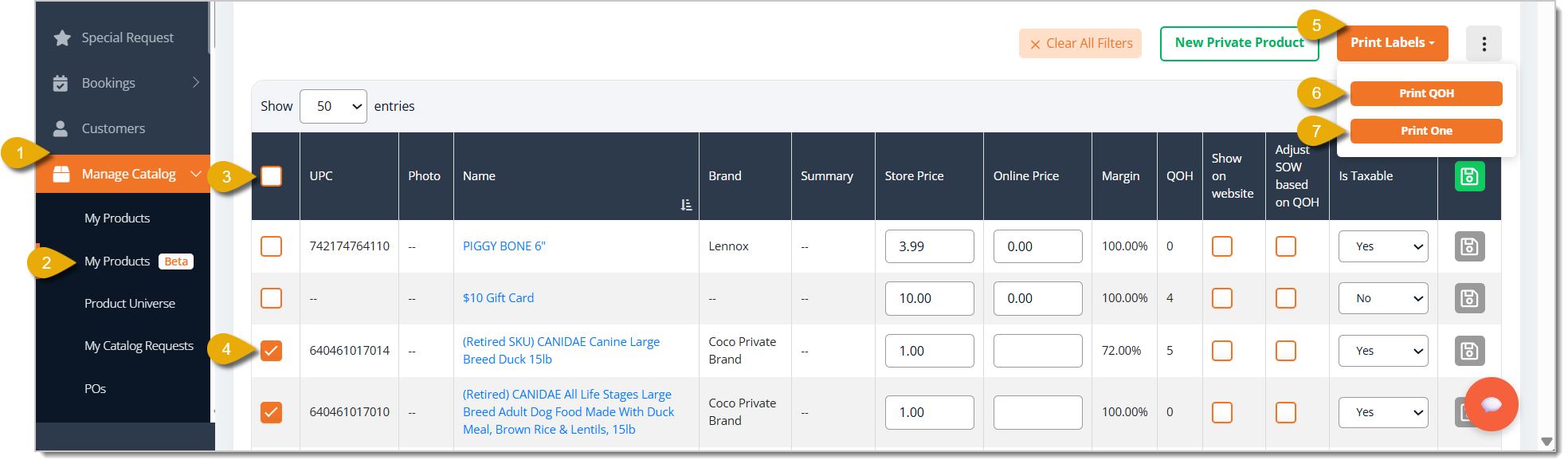
When you click on either Print button, you'll be prompted to preview the label and print it. After that, a window will ask you to confirm that the printing job was successful. Click on Yes, I'm Sure to finish.
Q: What's the difference between Print Quantity on Hand and Print One?
A: Print Quantity on Hand prints one label for every unit you have in stock — 15 in stock means 15 labels. Print One prints a single label per selected item, no matter how much stock you have.
Q: How do I know if I already printed a label for a product?
A: In Label Changes, the Print button turns gray for any product once you confirm its label printed successfully.
Q: Can I print more than one copy of the same label?
A: Yes. In Label Changes, enter the number of copies you want in the Copies field before you print.
Q: Can I print a label for just one product instead of a whole batch?
A: Yes. In Label Changes, click the Print button next to that product's entry. In My Products, check just that one product's box before printing.
Q: I have a question, but I can't find my answer here. How do I get more assistance?
A: You can ask any question at the number listed here. Contact our support team at (323) 370-0738 for the U.S. and (888) 370-2363 for Canada.
Is this page helpful?
×Help us improve our articles