Label Changes

May 13, 2026
💻Product labels are automatically generated by the eTailPet system whenever you make changes to product information, like adding a new product to your catalog or editing the price of a product. You can access and print these new labels by going to the Label Changes area in the eTailPet Dashboard. Read on to see everything you can do in this area!
🐱Please Note: Label changes are automatically deleted by the system seven days after creation. This automatic deletion happens regardless of the current label status. Label changes will not occur for damaged products received on a Purchase Order.
Shelf Label Breakdown
Here is what each component in a shelf label means:
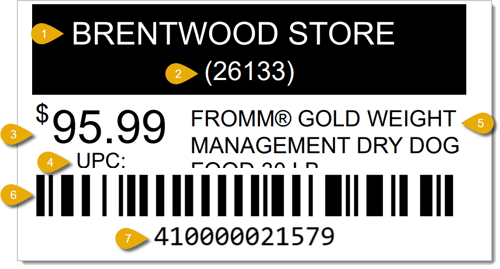
- Store Name
- Date of Printing (Example in image: 133rd day of 2026)
- Price
- UPC (Cut off in the image above)
- Item Description
- Barcode
- Product System ID
Label Changes Area
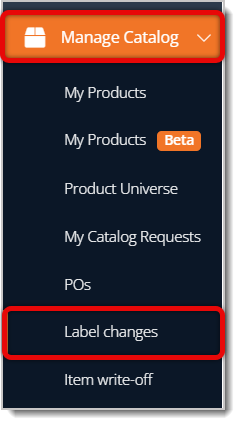
To access the Label Changes area, go to Manage Catalog > Label Changes.
This is what each function in the Label Changes area does to help you find products and print their labels:
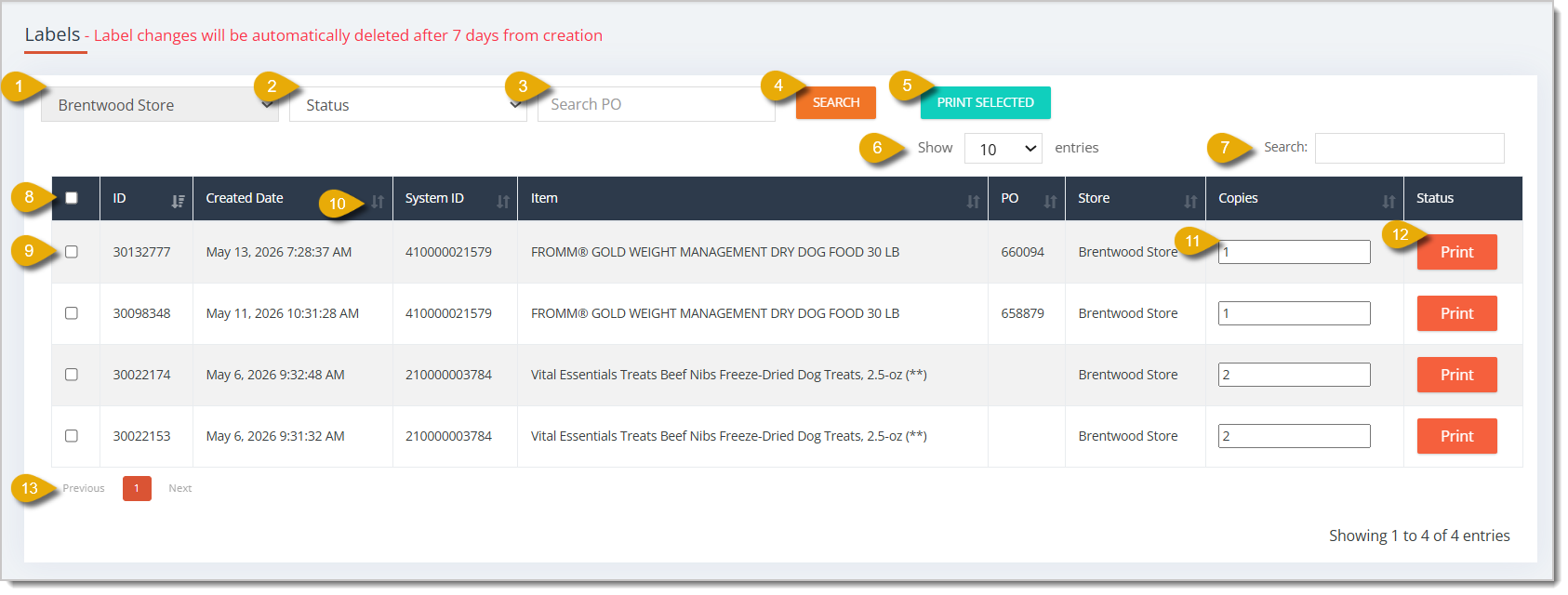
- Store Filter — Select a store from the drop-list to filter the products to ones at a specific store.
- Status Filter — Select a status from the drop-list to filter the products to ones with a specific Print Status. Options here are Done and To Print.
- Search Purchase Order — Enter a Purchase Order ID Number here to search for products from a specific Purchase Order.
- Search Button — Click on this button to find products that match your configured filters.
- Print Selected — Click on Print Selected to print all selected items. Read numbers 8 and 9 to see how you can select items.
- Show Entries Per Page — You can select from a drop-list how many entries will display per page in the table.
- Search — Enter an Order ID, System ID, or Item Description in this search field, then hit enter on your keyboard to find matching results.
- Select All — You can click on the Checkbox in the column header to select all entries displayed on the page.
- Select — You can click on an individual product's Checkbox to select the product.
- Column Sort — You can sort the data according to a column by clicking on the Arrows Icon. Click once to sort, or click again to reverse the sort.
- Copies — You can enter how many copies of shelf labels you want to print for the selected item.
- Print — Click on the Print button on the right of an individual entry to print the shelf label for that item.
- Page Navigation — If your label changes span multiple pages, you can use the Previous or Next buttons to navigate pages. You can also click on Page Numbers to skip pages.
Related Topics
Printing Product Labels
Private Products
Product Batch Actions
Frequently Asked Questions
Q: What happens if I don't print a label within 7 days?
A: The system automatically deletes the label change after 7 days, no matter what its print status is. You'd need to make another edit to that product to generate a new label change.
Q: How can I tell which labels I still need to print?
A: Use the Status Filter and select To Print. That narrows the table to labels you haven't printed yet.
Q: I have a question, but I can't find my answer here. How do I get more assistance?
A: You can ask any question at the number listed here. Contact our support team at (323) 370-0738 for the U.S. and (888) 370-2363 for Canada.
In the eTailPet system, you can easily export your product data as a CSV or XLSX file. If you want t
😸You can use Batch Actions to edit details for a group of data so you don't have to manage records
🖨️Shelf labels indicate product names and their prices to your customers on your shelves, so it's i







Is this page helpful?
×Help us improve our articles