😸You can use Batch Actions to edit details for a group of data so you don't have to manage records one at a time. For example, if you wanted to make multiple items available on your ecommerce website, you can select a group of products and use the Batch Action menu. See for yourself how convenient we've made it for you!

Batch Actions are available when you go to Manage Catalog > My Products.
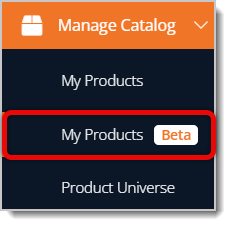
Search for Products and Use Filters
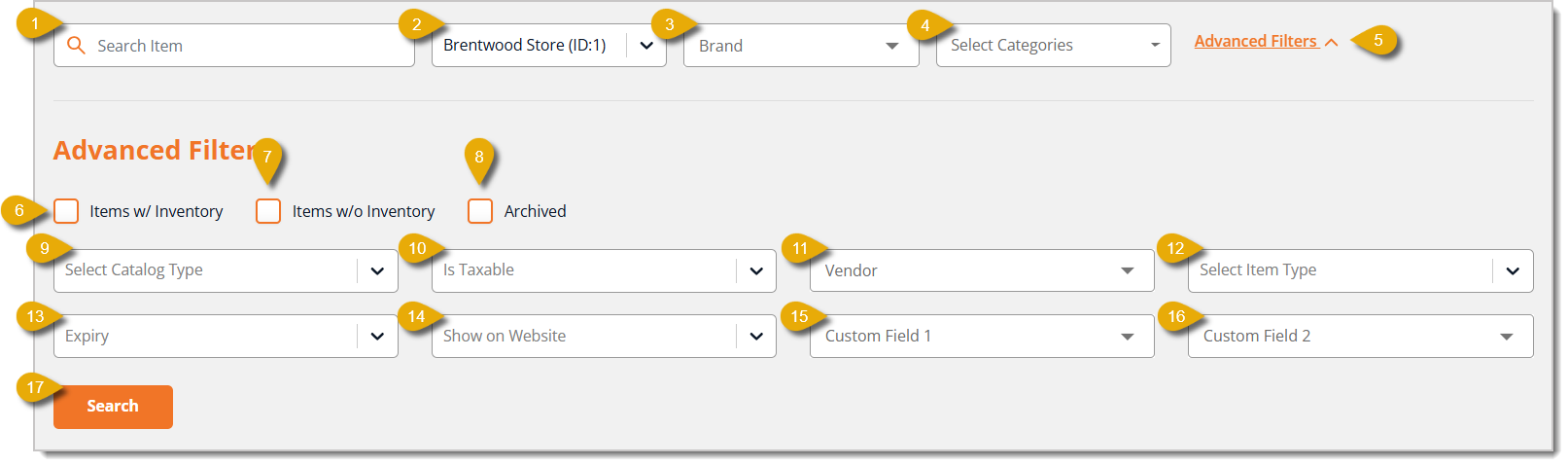
You should first use the Search bar or filters to find the products you want to edit in bulk.
-
Search Item — Enter the name of the item or items you need.
-
Store Filter — Select the store the items are being sold at from the drop-list.
-
Brand Filter — Type in and select the brand name of the items you need from the drop-list.
-
Select Categories — Select the categories of the items you need by checking their respective boxes. You can select more than one category.
-
Advanced Filters — Click on Advanced Filters to the right of the regular filters to expand the Advanced Filters menu.
-
Items with Inventory — Check this box to only view items that you have in stock.
-
Items without Inventory — Check this box to only view items that you do not have in stock.
-
Archived — Check this box to view items that you've archived.
-
Select Catalog Type — Select Private or Public.
-
Is Taxable — Select Yes or No depending on whether or not the item is taxable.
-
Vendor — Type in a Vendor name and select the one you need to view items sold only by the selected Vendor.
-
Select Item Type — You can specify the item type, like donations, tips, or gift cards, if needed.
-
Expiry — Select Yes or No depending on whether or not you want to view items that have expiry dates.
-
Show on Website — Select Yes or No depending on whether or not you want to view items that are displayed on your store's ecommerce website.
-
Custom Field 1 — This is a custom field you can configure yourself as a filter.
-
Custom Field 2 — This is a custom field you can configure yourself as a filter.
- Search Button — Click on the Search Button to pull results for items that match your filters.
Open Batch Actions
After you've submitted your filters and have your results, you can use Batch Actions. Here is how to access the Batch Actions:
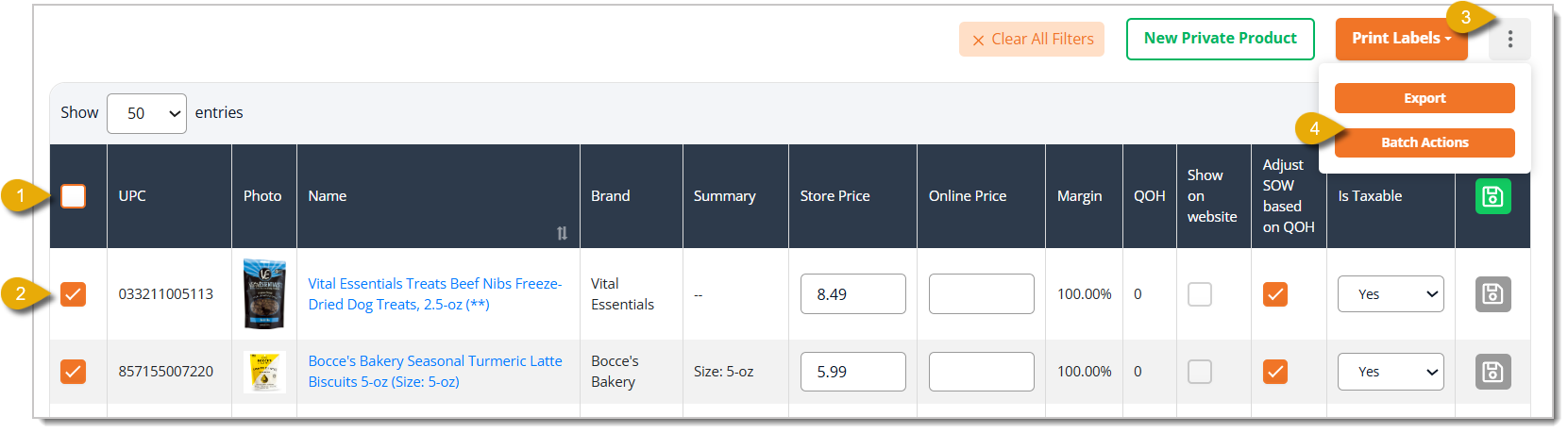
- You can select all products displayed on the page at once by clicking on the checkbox in the column header.
- You can alternatively select products one by one by clicking on their corresponding checkboxes.
- Click on the Three-Dot Stack button on the far right. This will open the Action menu.
- Click on the Batch Actions button. This will open a window with your Batch Actions options.
Use Batch Actions
Here is everything you can do with your Batch Actions:
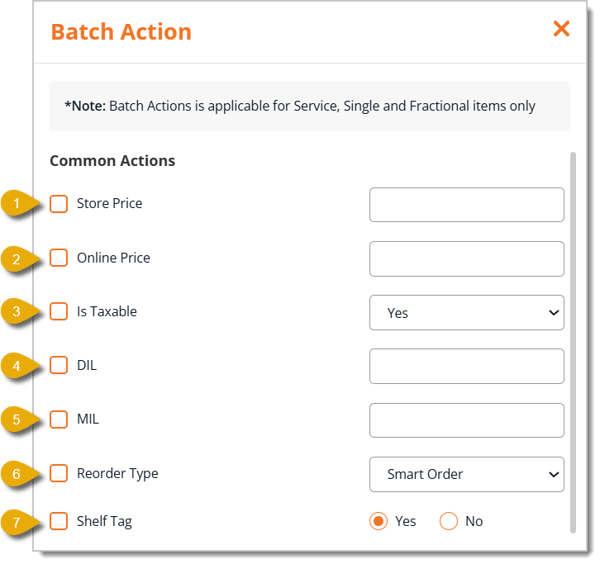
- Store Price — Check this box if you want to change the in-store prices for all selected items. Then enter the Price in the field on the right. Only use numerals and decimal points in this field; do not include dollar signs, symbols, or text.
- Online Price — Check this box if you want to change the online prices for all selected items. Then enter the Price in the field on the right. Only use numerals and decimal points in this field; do not include dollar signs, symbols, or text.
- Is Taxable — Select Yes or No from the drop-list to indicate if the selected items are taxable or not.
- Desired Inventory Level (DIL) — For restocking purposes, you can check this box and enter the amount of inventory you want for the selected items, including stock on the shelves and backstock.
- Minimum Inventory Level (MIL) — You can check this box and enter a minimum quantity threshold for all selected items. When your quantity on hand of these items reaches or falls below this threshold, the system will reorder the items to fulfill the Default Inventory Level.
- Reorder Type — Check this box if you want to change how the selected items are reordered. Select from the drop-list how you want items restocked. Your options are:
- Smart Order — You choose how much inventory you will reorder. This is the best choice for most products that you want to order based on demand.
- Desired Inventory Level — The amount of the selected items gets reordered based on the Desired Inventory Level you set in number 4. Use this for products you want to keep at a certain level at all times.
- Do Not Order — This will mark the selected items as ones that will not be reordered. Use this for products you don’t want added to a Purchase Order, like seasonal or one-time purchase items.
- Shelf Tag — Check this box and select Yes or No to indicate if you want the selected items to be added to the Shelf Tag print queue.
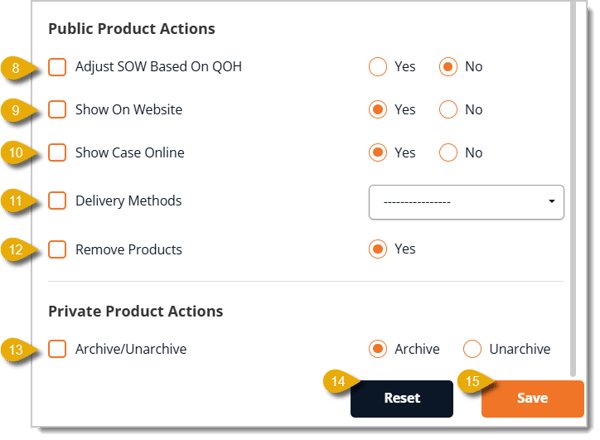
- Adjust Show on Website Based on Quantity on Hand — Check this box to change whether or not the selected items will display on your ecommerce website according to how much is in your inventory. If you select Yes, the selected products will only appear on your online store if they have quantity available for sale. Click on No to make it so items will display on your website even if you don't have any in stock.
- Show on Website — Check this box to change whether or not the selected items will display on your ecommerce website for purchase. Click on Yes to show the items, or No to hide them.
- Show Case Online — Check this box to change whether or not the selected items are available to buy as a case on your ecommerce website. For example, if you click on Yes, a customer could buy either a singular can of cat food or an entire case of 24 cans online. If you click on No, a customer would only be able to buy singular cans, so they would have to add 24 individual cans to their cart.
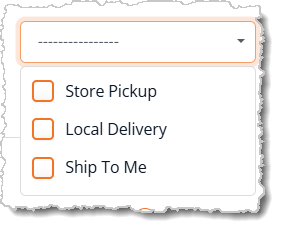
- Delivery Methods — Check this box to change how customers can get the selected items. Options are Store Pickup, Local Delivery, and Ship to Me. Check boxes for each delivery method you want to enable; you can check more than one box.
- Remove Products — Check this box to remove the selected items from your catalog.
- Archive / Unarchive — Check this box to archive or unarchive the selected items from your catalog. You can make items private so they're not part of your UPC records, but you cannot remove them because it would interfere with reports and sales data. Instead, you can archive items so they are not part of your private catalog but stays in your sales data. Click on Archive or Unarchive on the right.
- Reset — If you want to clear out these batch actions and start over, click on the Reset button.
- Save — Click on Save to apply the batch actions and update the selected items.
Related Topics
My Products Overview
Product Universe
Change or Remove Products
Frequently Asked Questions
Q: What's the difference between archiving an item and removing it?
A: Removing deletes the item from your catalog entirely. Archiving pulls it out of your private catalog but keeps it in your sales data, so your reports stay intact. Use archive for items you might bring back later.
Q: What's the difference between Desired Inventory Level and Minimum Inventory Level?
A: Minimum Inventory Level is the threshold that triggers a reorder. Desired Inventory Level is the target amount you want on hand after that reorder happens.
Q: Will Batch Actions overwrite fields I don't check?
A: No. Only the boxes you check get applied to your selected items. Anything left unchecked stays as it was.
Q: Can I undo a Batch Action after I click Save?
A: There's no automatic undo. Double-check your selected items and settings before you click Save, especially for actions like Remove Products.
Q: I have a question, but I can't find my answer here. How do I get more assistance?
A: You can ask any question at the number listed here. Contact our support team at (323) 370-0738 for the U.S. and (888) 370-2363 for Canada.







 May 11, 2026
Is this page helpful?
×Help us improve our articles