






How to Clear the Cart
If a customer changes their mind and doesn't want to complete a transaction, you can easily clear it
 May 21, 2026
Use the Product Manager dashboard in eTailPet to update data points like product prices, costs, Vendors, and more. This article will show you how to edit product details and even remove them if they'll no longer be part of your inventory, so read on to learn to manage your product data!

To access the Product Manager and change products, go to Manage Catalog > Product Manager > Change or Remove Things on My Items. Each function is highlighted in the image below.
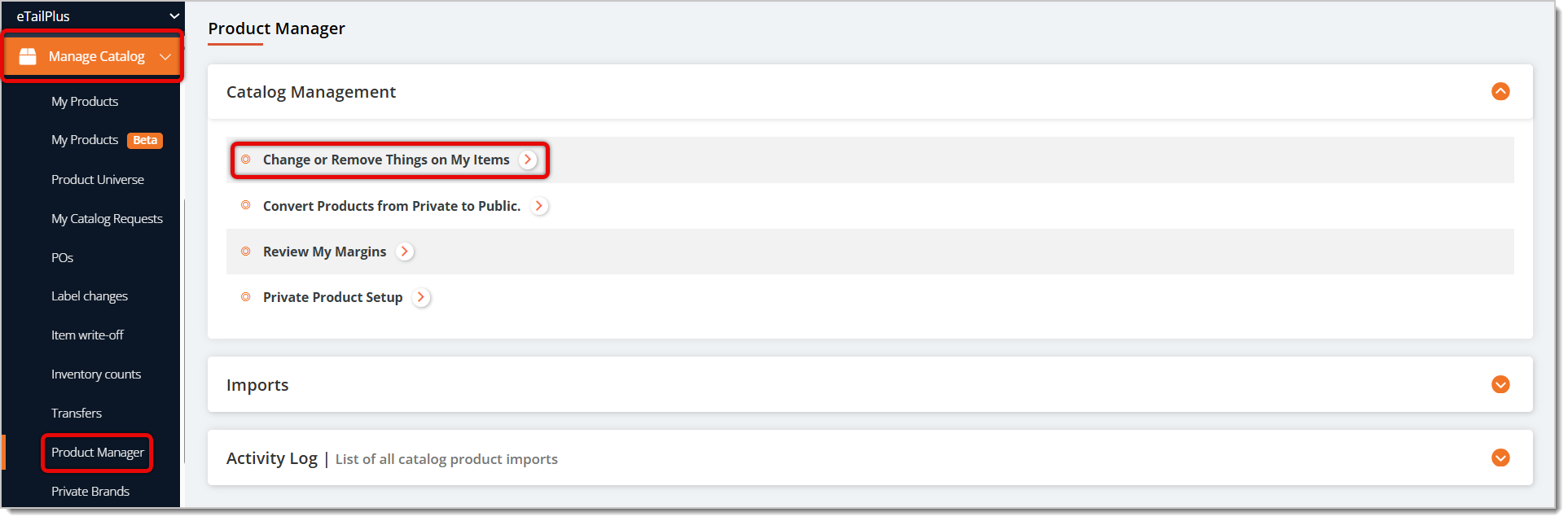
You can change products by finding them with filters, then performing bulk actions on them. These actions will apply to all items you've selected. When you click on Change or Remove Things on My Items, you'll be directed to the Find Items to be Changed form, where you can set up filters to select items for bulk actions. Here is how to search for items using this form:
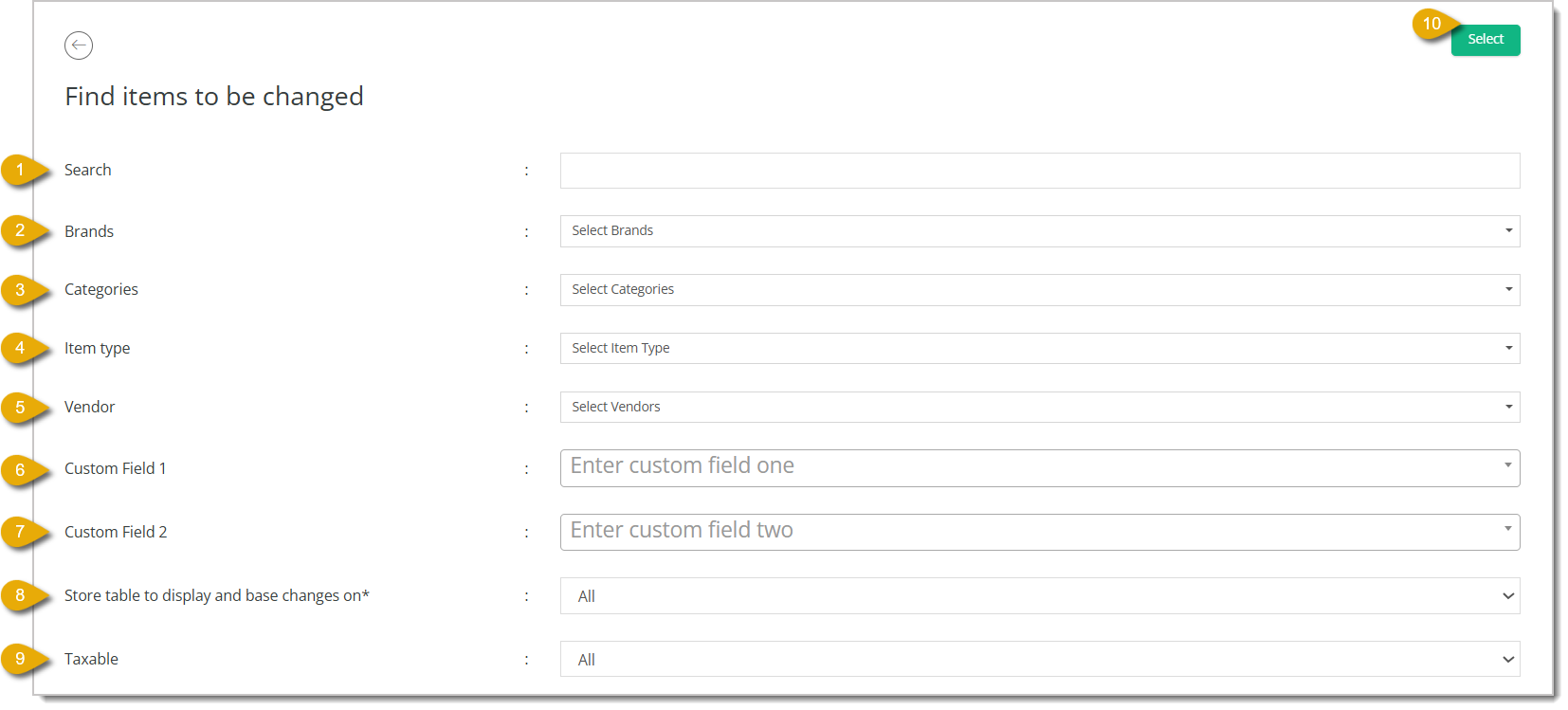
After you've pulled results for products that match your filters, you can perform Bulk Actions.
🐱Please Note: You cannot undo bulk actions, so be sure to double-check your items before you apply an action.
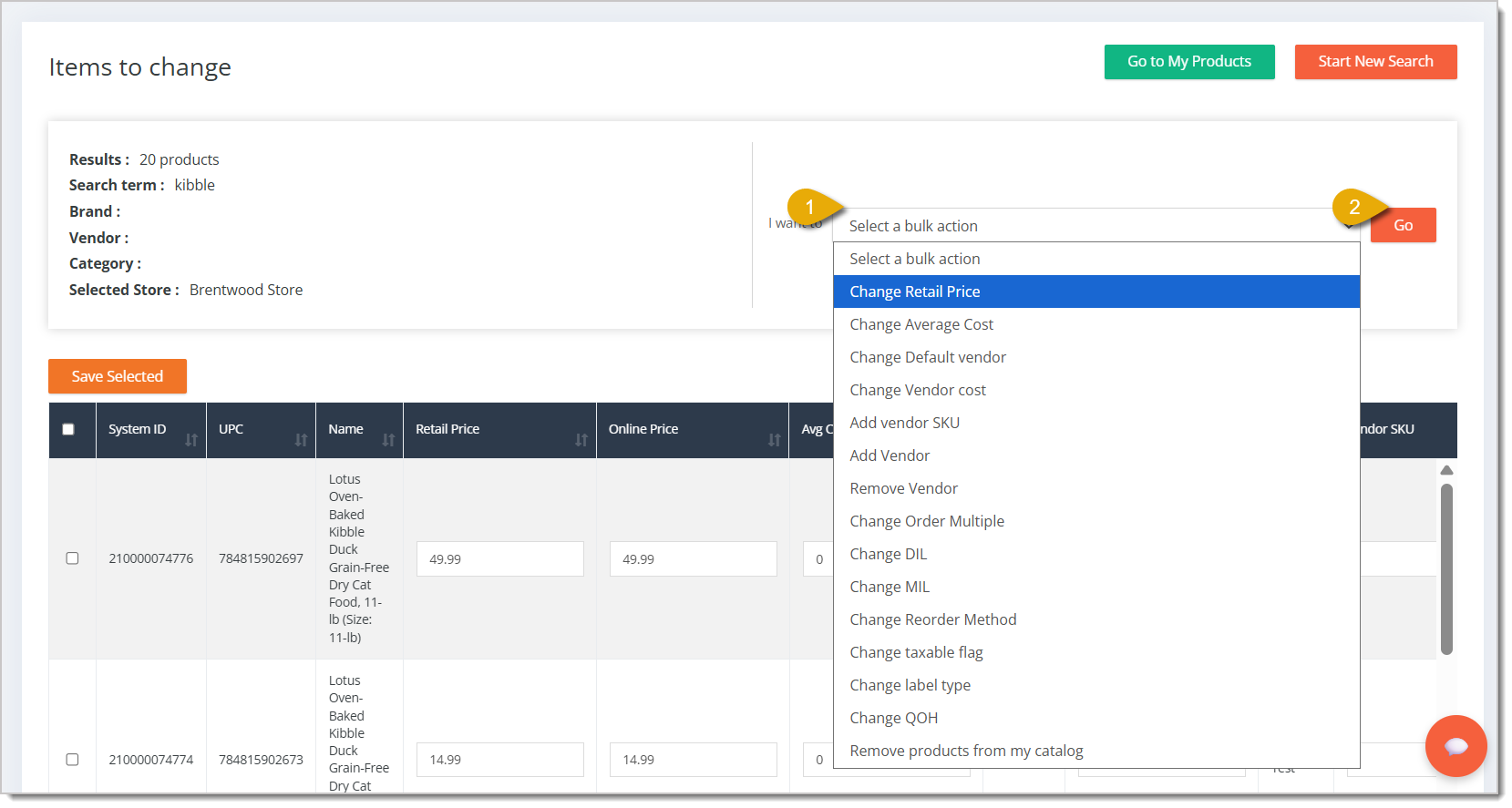
Use this action to change the retail Price of all items from the results list, meaning the prices your customers pay for these items. Each field and function of the Change Retail Price action window is explained below:
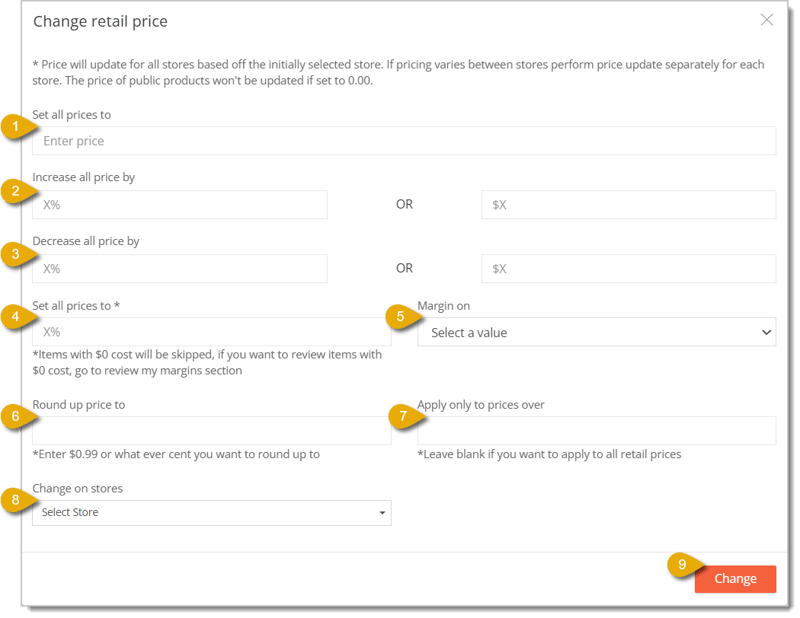
Set All Prices To — If you want to set the prices of all items from the results list to the same price, enter the dollar amount here.
Increase All Prices By — If you want to increase the prices from the results list according to a set amount, you can enter the percentage increase on the left, or set a dollar amount increase on the right.
Decrease All Prices By — If you want to decrease the prices from the results list according to a set amount, you can enter the percentage decrease on the left, or set a dollar amount decrease on the right.
Set All Prices To — Mark up the prices from the results list based on a margin you select. Set the margin in Margin On, which is explained more below.
Margin On — You can choose whether to mark up the margin based on your Vendor Cost or based on average cost. Vendor Cost is the per unit cost from the default Vendor. Average Cost is the average unit cost for all purchased units
Round Up Prices To — Enter a dollar amount to round up all prices according to that amount. For example, if you enter 0.99 here, an item's price could be rounded up to $5.99.
Apply Only to Prices Over — If you choose to round up prices, you can apply that roundup to items over a certain price by entering that dollar amount here. For example, if you enter $5 in this field, the roundup would only apply to prices over $5.
Change on Stores — Select from the drop-list which store or stores to which this price change will apply.
Change — After you've configured your price change settings, click on the Change button in the bottom right to update all prices in the results list. Once your change is saved, you can do further Bulk Actions if needed. Please Note: You cannot undo bulk actions, so be sure to double-check your items before you apply an action.
Use this action to change the average costs of all items from the results list, meaning the costs your store pays Vendors to stock these items.
Please Note: Changing the average cost requires the system to remove all Quantity on Hand and add it back in at the selected cost. This process may take some time. If you sell an item while this process is happening, your Quantity on Hand count may be a little off. If you are doing this for more than 200 items, we recommend performing this action after you've closed your store.
Each field and function of the Change Average Cost action window is explained below:
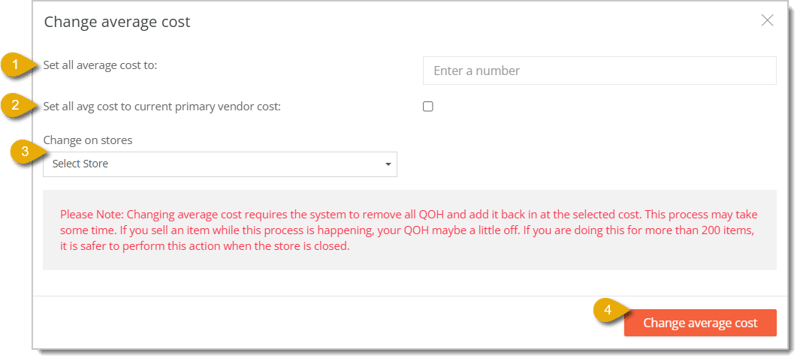
Set All Average Costs To — Enter a dollar amount here to change the average costs of all items in the results list.
Set All Average Costs to Current Primary Vendor Cost — If the primary Vendor for the products has changed their costs, you can check this box to match the average costs of the items to the current cost from the Vendor.
Change on Stores — Select a store or multiple stores to which this change in average cost will apply.
Use this action to change the default Vendor for the items from the results list. Each field and function of the Change Default Vendor action window is explained below:
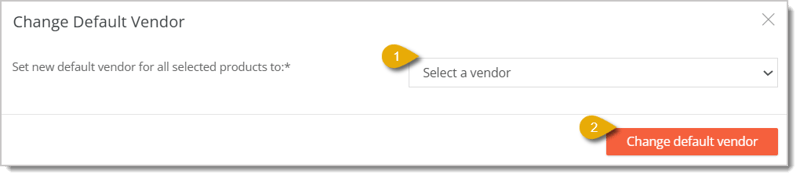
Set New Default Vendor for All Selected Products To — Select from the drop-list the new default Vendor for the items in your results list.
Use this action to change the Vendor Costs for the items from the results list. However, this method will not open a window, and you will instead have to do one of two methods:
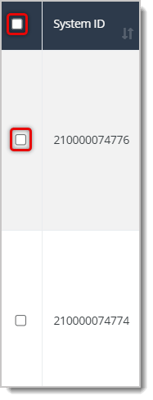
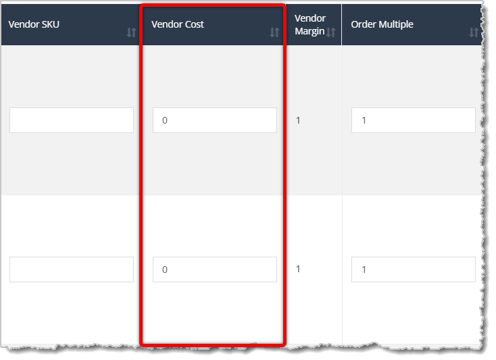
Manually update the costs in the Vendor Cost column of the data table.
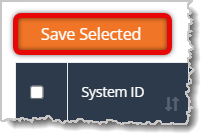
Select Change Vendor Cost in the bulk actions drop-list.
Export the data of your results list by clicking on the Export button above the data table.
Change your costs in the spreadsheet and save the file.
Import the file using the Import button above the table.

Use this action to change the Vendor SKUs for the items from the results list. However, this method will not open a window, and you will instead have to do one of two methods:
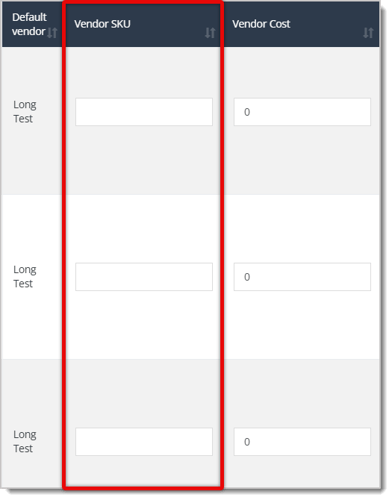
Select Change Vendor SKU in the bulk actions drop-list.
Export the data of your results list by clicking on the Export button above the data table.
Change your SKUs in the spreadsheet and save the file.
Import the file using the Import button above the table.
Use this action to add Vendors for all items from the results list. Each field and function of the Add a Vendor to Products action window is explained below:
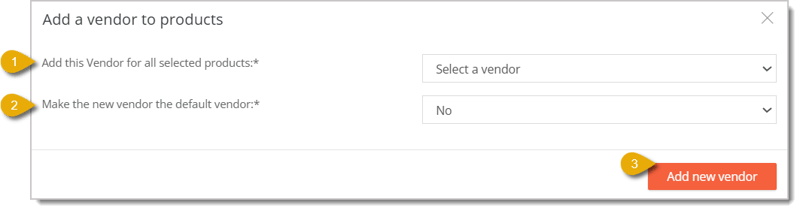
Add This Vendor for All Selected Products — Select the Vendor you want to add for the items in the results list. This field is required to apply the bulk action.
Make the New Vendor the default Vendor — Select an option for whether or not this new Vendor will become the default Vendor for the items in your results list. This field is required to apply the bulk action.
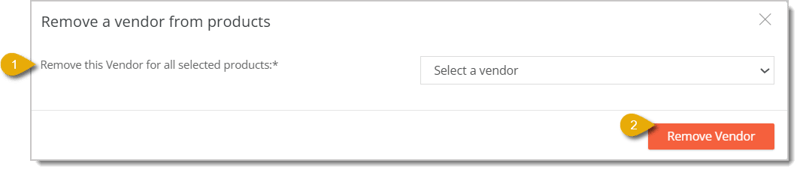
Use this action to remove a Vendor for all selected items from the results list. Each field and function of the Remove a Vendor from Products action window is explained below:
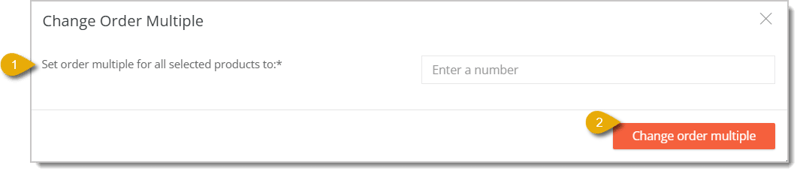
Use this action to update the "Order in Multiple" numbers for the items from the results list. Order Multiple is the required number of multiples you need to order a product. For example, if you're ordering a can of dog food, you might be required to order 12 of them at a time.
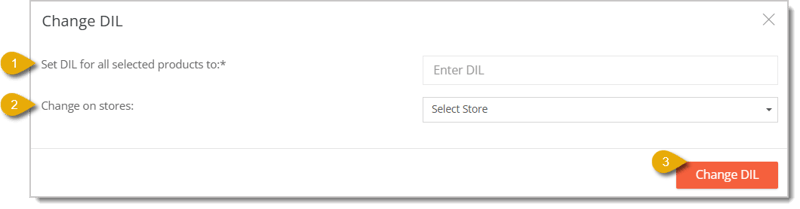
The Desired Inventory Level (DIL) refers to the amount you want of an item in stock. This means that when you reorder units of a product, the eTailPet system can automatically set a reorder amount to fulfill the DIL when you make a Purchase Order.
Use the Change Desired Inventory Level bulk action to set the DIL for multiple products at once. Please Note: This action will apply to all products in the results list. If you'd like to change the DIL for these products at different numbers, you should instead change them in the table under the DIL column.
The Change DIL window is explained more below:
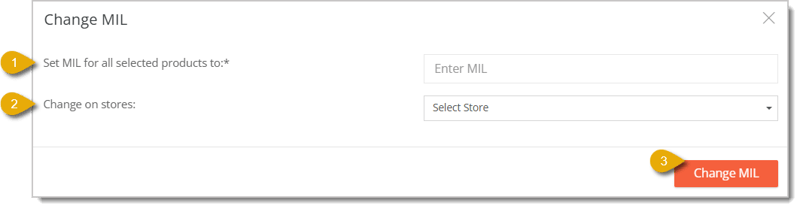
The Minimum Inventory Level (MIL) refers to the minimum amount you want a product's inventory to reach; after it reaches your specified MIL, the eTailPet system will add the product to a Purchase Order for reordering.
Use the Change Minimum Inventory Level bulk action to set the MIL for multiple products at once. Please Note: This action will apply to all selected products in the results list. If you'd like to change the MIL for these products at different numbers, you should instead change them in the table under the MIL column.
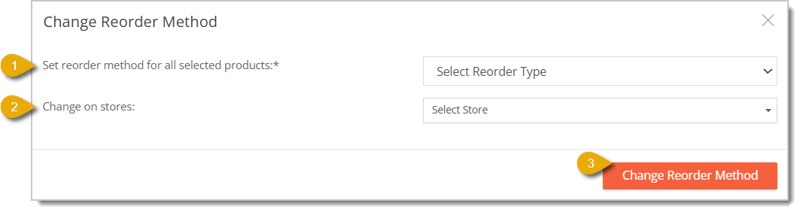
Use this action to update the Reorder Method for the products in the results list. You can do this for one or more stores. Your reorder method options are explained more below:
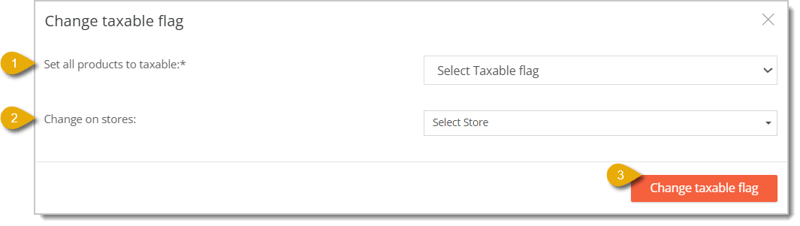
Use this action to update the Taxable Flag for the selected products in the results list. You can do this for one or more stores. This window is explained more below:
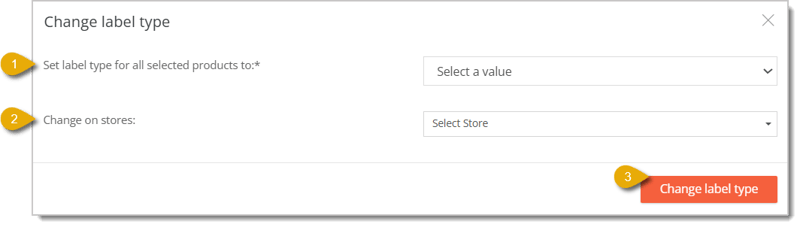
Use this action to update the Label Type for the selected products in the results list. You can do this for one or more stores. This window is explained more below:
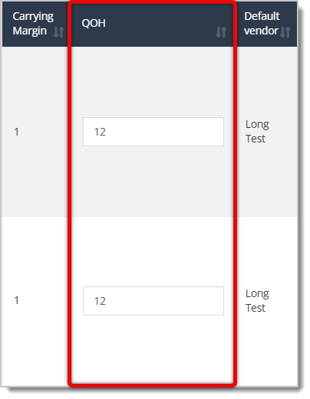
😸Please Note: When updating your QoH in this area, you have to make sure your products have a Default Cost as in the example below. If you add inventory without first setting a Default Cost, your Average Cost will become zero. This can impact your accounting and make the CoGS data inaccurate.
Use this action to change the Quantity on Hand for all items from the results list. However, this method will not open a window, and you will instead have to do one of two methods.
Select Change QoH in the bulk actions drop-list.
Export the data of your results list by clicking on the Export button above the data table. This is highlighted in the image below.
Change the values in the Quantity column of the spreadsheet and save the file. Make sure to use whole numbers.
Import the file using the Import button above the table. This is highlighted in the image below.
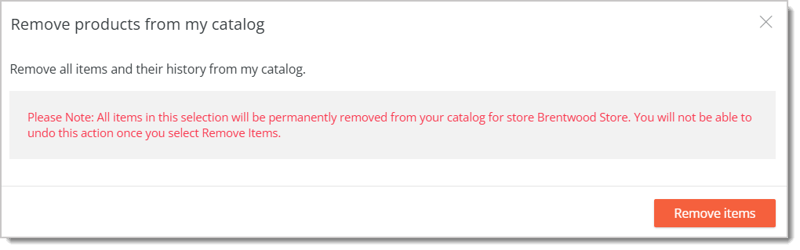
Use this action to permanently remove the selected items in your results list from your Catalog. This will also remove the history of these items. Note that this action applies just to the products at the store you selected in the Find Items to be Changed area.
🐱Please Note: You CANNOT undo this action. Double-check the items you are removing with this action. If you want to keep the product's historical data, like for sales reports, we recommend instead Archiving them.
After opening the Remove Products From My Catalog window, click on the Remove Items button in the bottom right once you're sure this is the action you want.
Q: Can I undo a bulk action if I make a mistake?
A: No. Bulk actions can't be undone, so double-check your filtered results before applying one.
Q: What's the difference between removing products and archiving them?
A: Removing deletes the product and its history permanently. If you want to keep historical data like sales reports, archive the product instead.
Q: Is there a downside to changing Average Cost for a lot of items at once?
A: Yes. The system removes and re-adds your Quantity on Hand at the new cost, which takes time. For 200+ items, do this after you close the store to avoid inventory count issues from sales during the process.
Q: I'm new to eTailPet — should I set products to Smart Order right away?
A: You can set the reorder method to Smart Order now, but wait 4 to 6 weeks before running a Purchase Order with it. The system needs that time to gather sales data before it can adjust your DIL accurately.
Q: What does the "Other" option mean for the Taxable Flag?
A: Other applies a different tax rate than your primary rate, but only for in-store purchases, not online.
Q: I have a question, but I can't find my answer here. How do I get more assistance?
A: You can ask any question at the number listed here. Contact our support team at (323) 370-0738 for the U.S. and (888) 370-2363 for Canada.
Is this page helpful?
×Help us improve our articles