






Export Products
In the eTailPet system, you can easily export your product data as a CSV or XLSX file. If you want t
 Jun 25, 2026
QOH stands for Quantity On Hand, and it represents your current inventory level for a product in one of your stores. The QOH field is store-specific and the system tracks it individually for each of your locations. Maintaining an accurate QOH is important because this data will help you maintain good inventory stock levels and avoid over- or under-ordering. This article explains where you can find QOH data for your items and different ways you can adjust or update it. Take a look!
QOH is inventory that you have purchased and received into your store and however many of them you have left after sales. These are products that you physically have on hand and don't include quantities that are on order.
COG (Cost of Goods) is the dollar amount in total Unit Cost that you paid for the inventory when you received it. In the eTailPet system, the COGS (Cost of Goods Sold) is calculated by averaging the unit cost of the goods over time for the quantities that sold.
Example:
Purchase 1: 4 bags of cat food at a Cost of $5.00 each = $20
Purchase 2: 3 bags of cat food at a Cost of $6.00 each = $18
Total Purchases: (4 + 3 bags = 7 bags) at ($20 + $18 = $38)
Average Unit Cost: $38 / 7 bags = $5.43
Like the example above, as you continue to purchase more of the item, the Average Unit Cost will continue to adjust. This is important because it helps you track your profit by comparing COGS to Sales.
Whenever you adjust your QOH, you will need to include the Cost that you paid for it so that your COGS continues to be accurate.
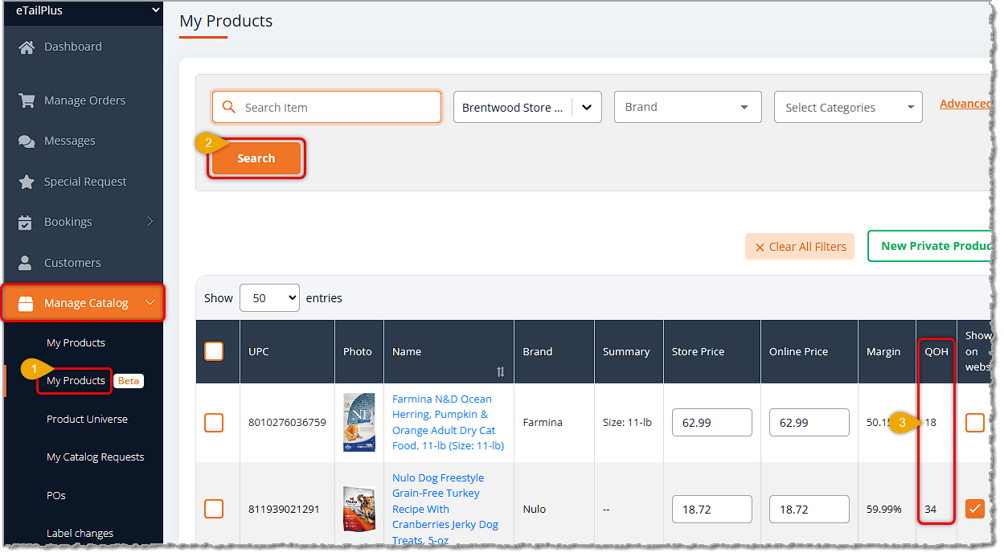
Follow these steps to see an item's current Quantity on Hand for the store you are currently viewing in the Dashboard:
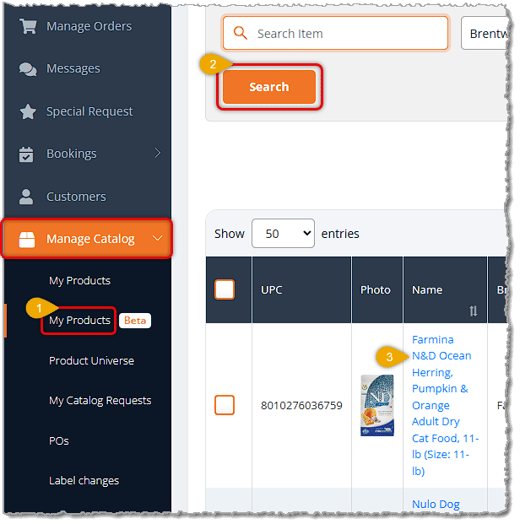
If you need to view the QOH quantities for all of your stores for the item, use these steps:
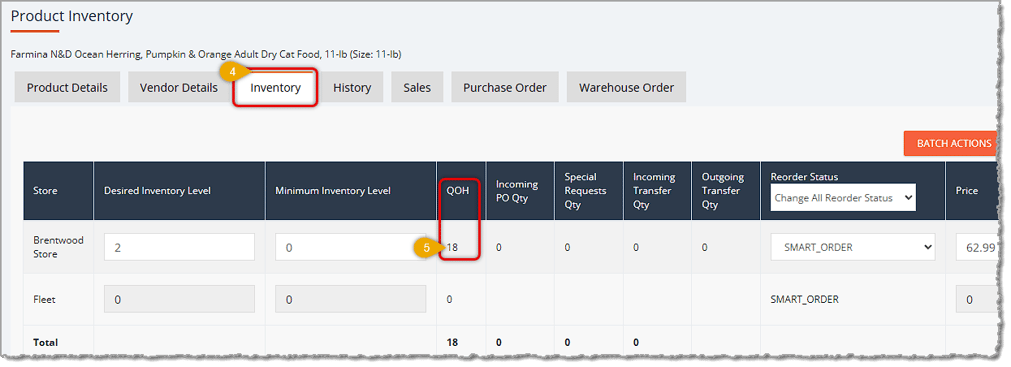
From the same area on the Inventory tab, you are able to make manual adjustments to Quantity on Hand for the item. You have an area for Adding Inventory or Removing Inventory. Here is how to work with these tools:
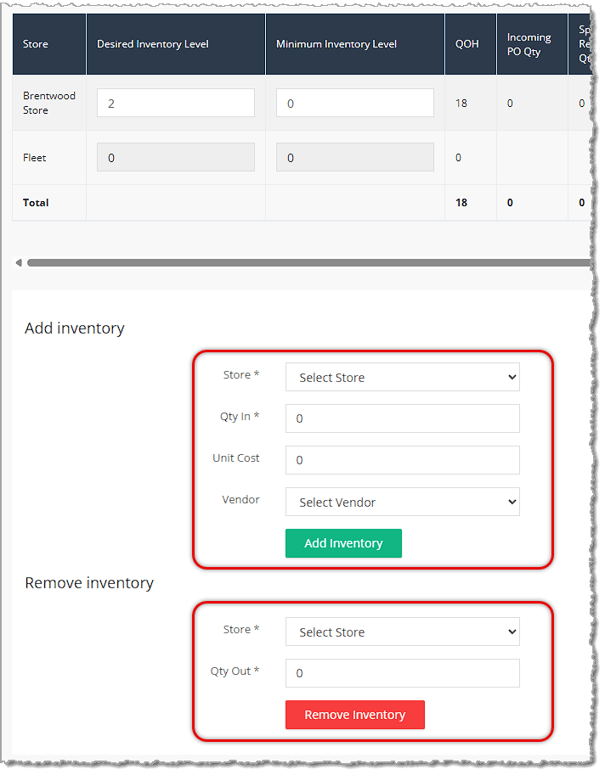
image needs alt text
Add Inventory — Here is how to work with the Add Inventory area:
*Required item in order to add the inventory.
Remove Inventory — Here is how to work with the Remove Inventory area:
*Required item in order to add the inventory.
You are able to import data for QOH for products in bulk from the My Products page. You can adjust the QOH for multiple products and multiple stores all at once using an import. To get started, go to Manage Catalog > My Products.
⚠️Please Note: The Quantity on Hand import overwrites the existing QOH. It doesn't add or remove units; it simply overwrites the current QOH with the values you import. Double check your values before importing!
Go to Manage Catalog > My Products > Import Product Inventory > Export Sample File.
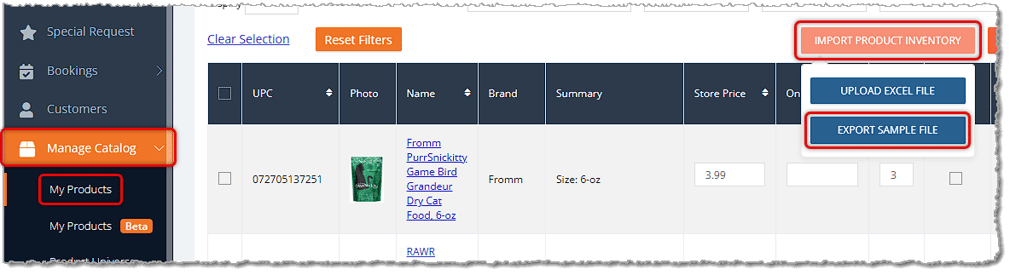

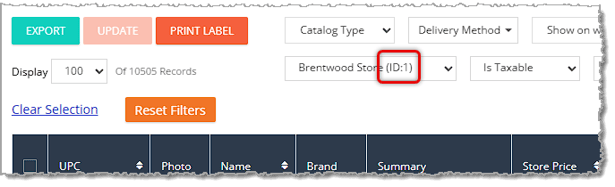
Go to Manage Catalog > My Products > Import Product Inventory > Upload Excel File. You'll be able to select the file and and once it has uploaded, you'll see a success notification pop up. It's a good idea to double check your updates and make sure the data is as you want.
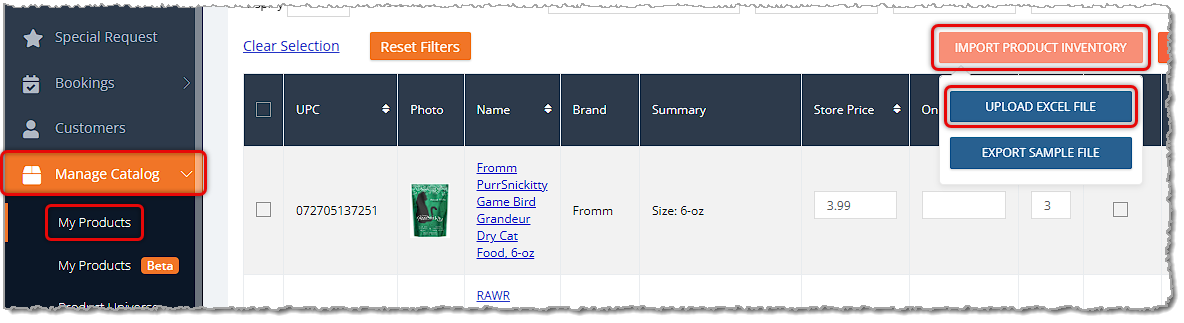 image needs alt text
See the link below for the article on Importing Products Best Practices & Troubleshooting for full details on Importing.
Importing Products Best Practices and Troubleshooting
Q: I have a question, but I can't find my answer here. How do I get more assistance?
A: You can ask any question at the number listed here. Contact our support team at: (323) 370-0738 for the U.S., and (888) 370-2363 for Canada.
Is this page helpful?
×Help us improve our articles