The Product Manager page gives you ways to make bulk changes to your items, import items in bulk, and view activity logs of your imports. This article will show you what every part of the Product Manager page is for and how to use them. Take a look!

The Product Manager page has areas for Catalog Management, Imports, Activity Log, and Imports for Data Migration. We have detailed each area below for you.
Catalog Management
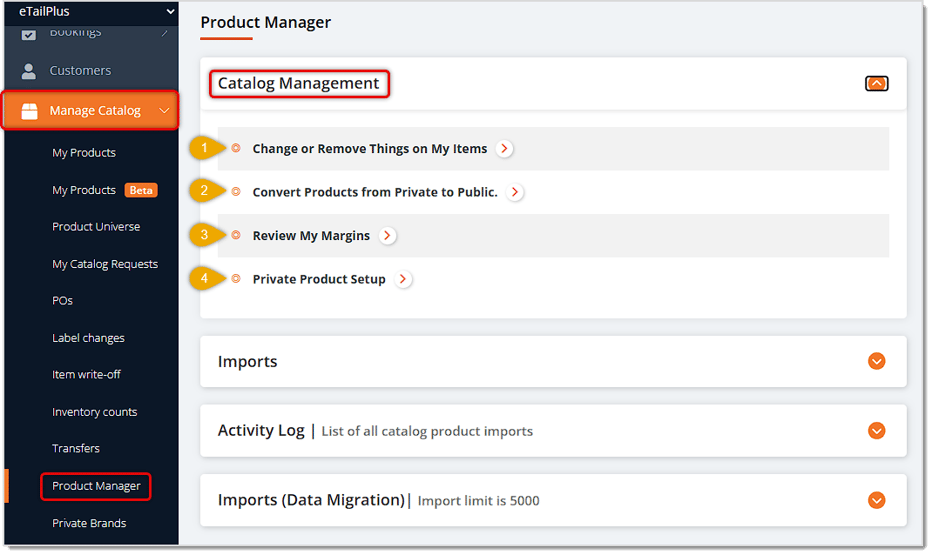
You can get to this part of the system by clicking the Manage Catalog area of the main menu on the left and going to Product Manager, as pictured below.
-
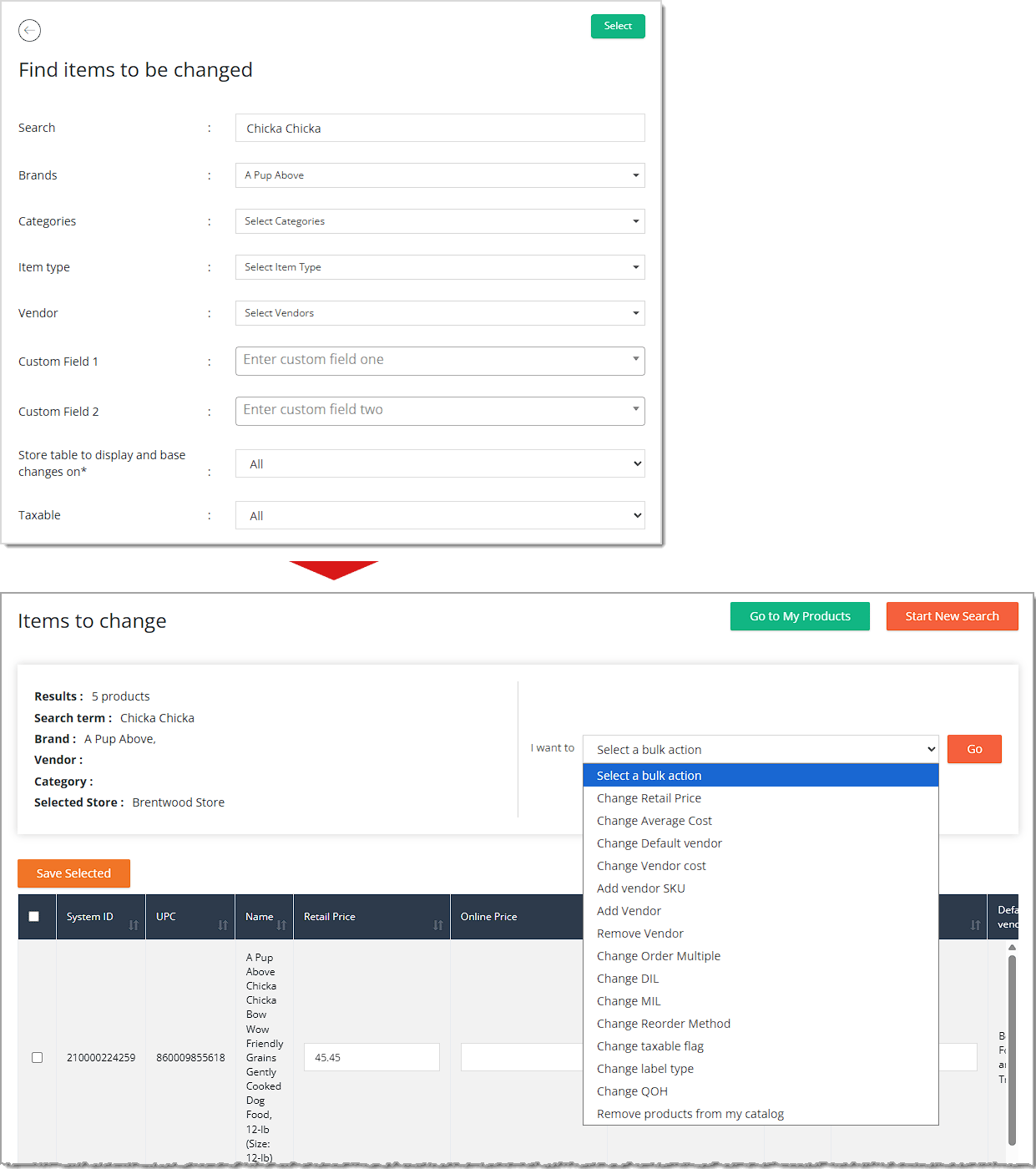
Change or Remove Things on My Items — Click this link to search for and edit product data in bulk for items you have in your Catalog. Start by using the search and filters to find the items you want to change, then you are able to do bulk edits on them in a wide variety of data areas, as pictured below. You can find full details on this process in the Change or Remove Products article.
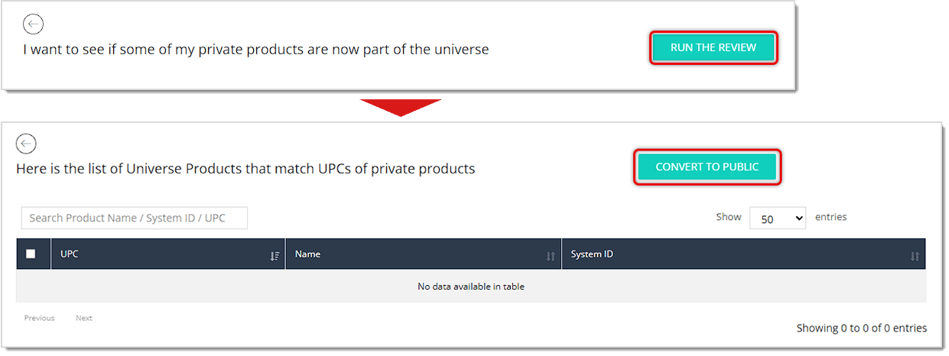
- Convert Products from Private to Public — If you have Private Products in your Catalog that have been added to the Product Universe, this area allows you to change them to Public products for broader usability. Click this specify what link link to start the Review process to see which of your Private Products, if any, have been added to the Product Universe. After clicking to initiate the Review, you'll see any products that have been added, and you can click the button to Convert to Public. Converting your Private products to Public ones and requesting that your Private products be added to the Product Universe is valuable because Public Products accept store-level changes via Store Price and Online Price; Private products require updates through the Inventory tab. Public products also don't require you to manage Categories, UPCs, Images, etc., since those fields are updated globally from the Product Universe. You can find full details on the conversion process in the Convert Products article. Here is how to request to have a product added to the Product Universe.
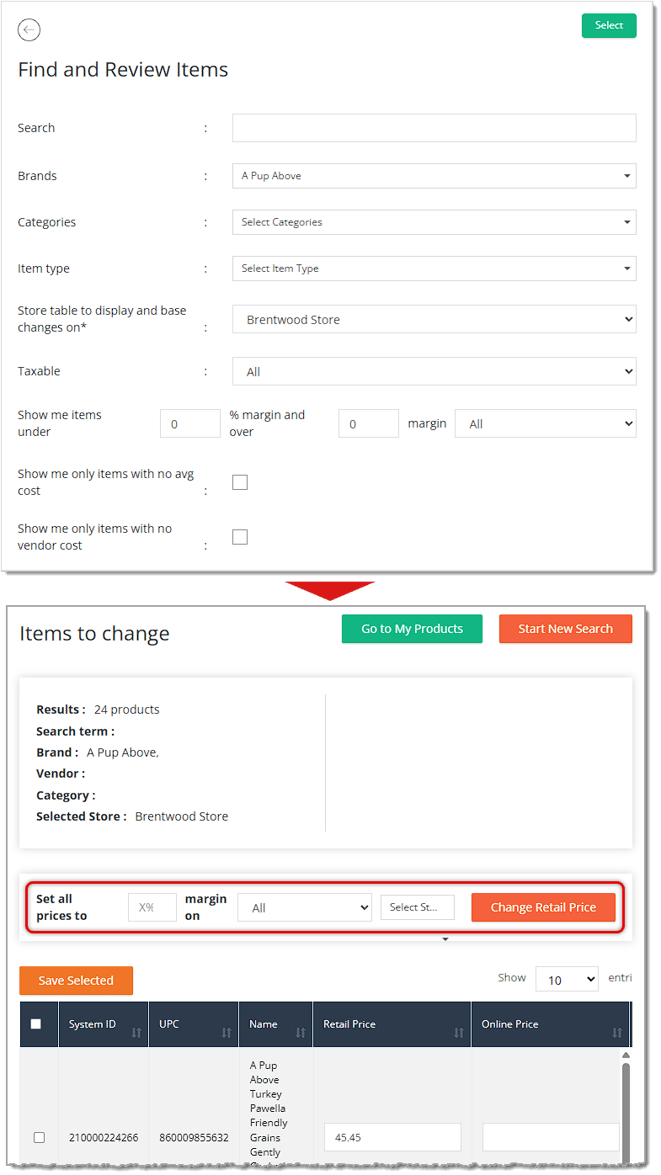
- Review My Margins — If you set your pricing for items based on a desired profit Margin, you can use this area of the Product Manager to set pricing for items in bulk. You'll find the items you want, search for items that don't currently meet your desired Margin, and set pricing based on the margin you want to as many items as needed. You can find full details on this process in the Change or Remove Product article. this links to a different article
- Private Product Setup — If you need to change Brands or Categories for your Private Products in bulk, you can use this area of the Product Manager. First you'll find the items you want, select the ones you want to change, and set the Brands and Categories you want for as many items as needed. You can find full details on this process in the Private Product Setup article.
Imports
The Imports area of the Product Manager page allows you to import in bulk for a variety of different product and data types.
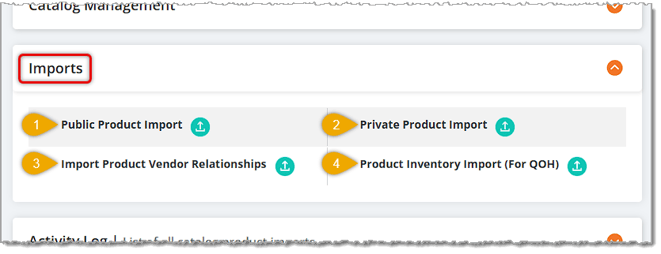
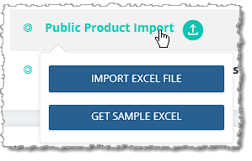
- Public Product Import — If you need to add items in bulk from the Product Universe to your store's Catalog, you can use this area of the Product Manager. Use this area if you already have a spreadsheet with the data you want to upload. If you need to find the products you want to add, you should instead work from the Product Universe page, where you can search for the items you want and add them in bulk to your catalog. For this spreadsheet area, you will want to first Get Sample Excel file, and then move your product data into the spreadsheet and Import Excel File. This area is typically for smaller numbers of products, but in the Imports (Data Migration) area, you can import up to five thousand items at once. You can find full details on this process in the Adding and Importing Products article.
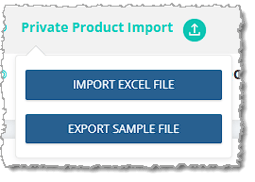
- Private Product Import — If you need to add items in bulk that are not yet in the Product Universe to your store's Catalog, you can use this area of the Product Manager. Use this area if you already have a spreadsheet with the data you want to upload. For this spreadsheet area, you will want to first Export Sample File, and then you move your product data into the spreadsheet and Import Excel File. This area is typically for smaller numbers of products, but in the Imports (Data Migration) area, you can import up to five thousand items at once. You can find full details on this process in the Adding and Importing Products article.
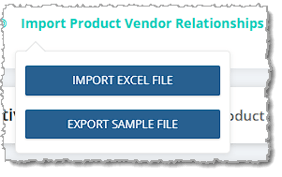
- Import Product Vendor Relationships — If you need to update or add vendor-related data in bulk for your store's Catalog, you can use this area of the Product Manager. Use this area if you already have a spreadsheet with the products you want to change. You are able to add or adjust the Vendor, Vendor SKU, Default Cost, Order in Multiples quantity, and Is Default Vendor for the items. For this spreadsheet area, you will want to first Export Sample File, and then you move your product data into the spreadsheet and Import Excel File. This area is typically for smaller numbers of products, but in the Imports (Data Migration) area, you can import up to five thousand items at once. You can find full details on this process in the Adding and Importing Products article.
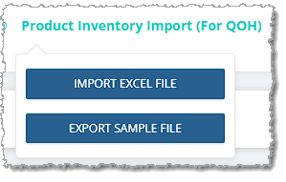
- Product Inventory Import for Quantity on Hand — If you need to update or add Quantity on Hand and Unit Cost data in bulk for your store's Catalog, you can use this area of the Product Manager. Use this area if you already have a spreadsheet with the products you want to change. For this spreadsheet area, you will want to first Export Sample File, and then you move your product data into the spreadsheet and Import Excel File. This area is typically for smaller numbers of products, but in the Imports (Data Migration) area, you can import up to five thousand items at once. You can find full details on this process in the Adding and Importing Products article.
Activity Log
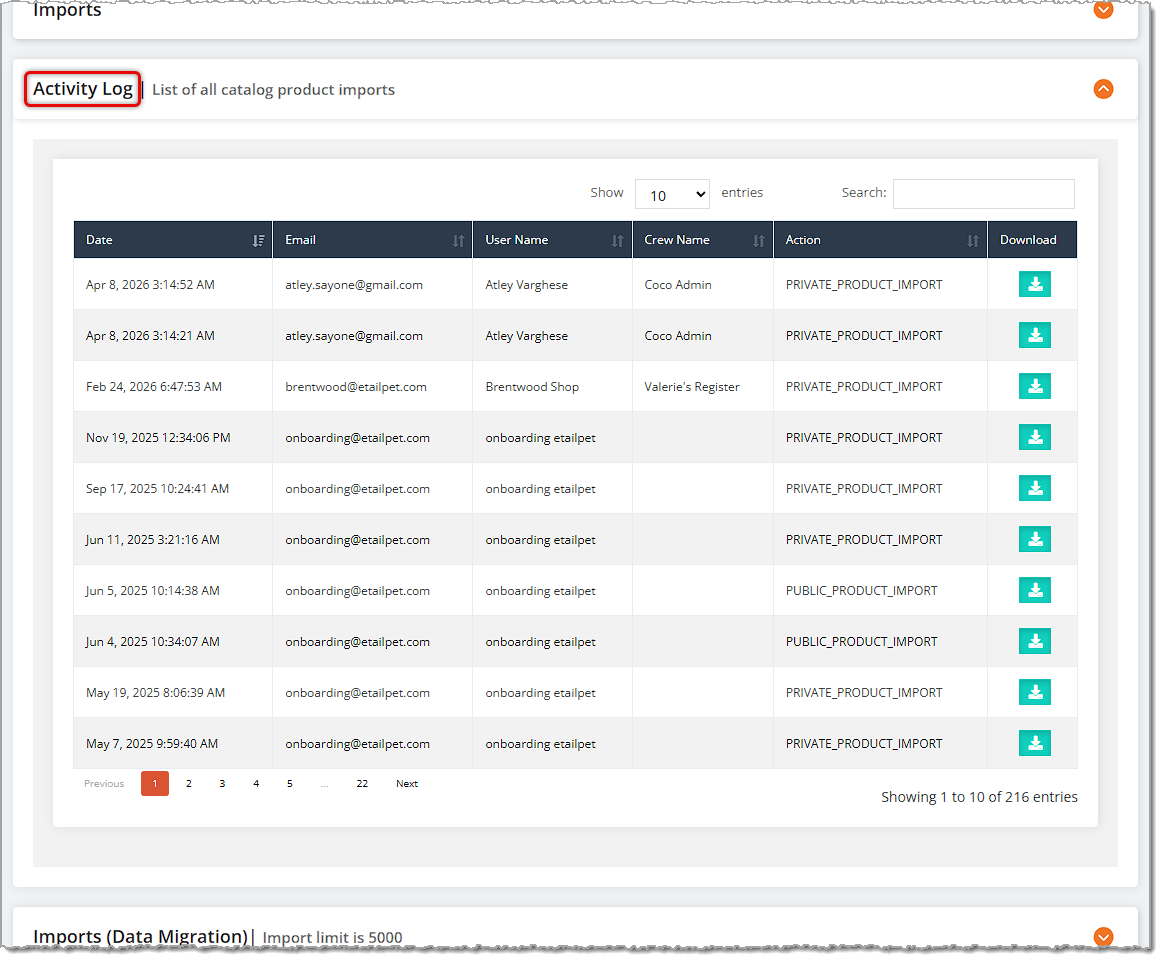
The Activity Log area of the Product Manager page shows you all product import events that have happened for your Catalog for all of your stores. You are able to Search the list for the import you want. You can also click to Download an Excel file of the data that was uploaded.
Imports (Data Migration)
The Imports (Data Migration) area of the Product Manager page allows you to import in bulk for a variety of different product and data types. This area is exactly like the Imports area described above except you can upload large data files with up to 5,000 items.

Boss Quote
Remind your human that it's faster to make changes to items in bulk than one at a time. They can save hours of work that way, and that time can be used for more constructive things. Like back rubs. I now require my back rub.
— Nubbins, Hazard, KY
Related Topics
Private Products
Private Product Setup
Private Product Item Types and Price Types
Batch Cost and Price Updates
Importing Products Best Practices and Troubleshooting
Product Universe
My Products Overview
Request a Catalog Addition or Change
My Catalog Requests
Export Products
Frequently Asked Questions
Q: I have a question, but I can't find my answer here. How do I get more assistance?
A: You can ask any question at the number listed here. Contact our support team at (323) 370-0738 for the U.S. and (888) 370-2363 for Canada.







 Jun 17, 2026
Is this page helpful?
×Help us improve our articles