






Export Products
In the eTailPet system, you can easily export your product data as a CSV or XLSX file. If you want t
 May 26, 2026
📈 Use the eTailPet Product Manager to review product margins, check items that do not have average costs, or find items without Vendor costs. This article will show you how to access the Product Manager and perform these actions. Click here for an article about changing or removing items in the Product Manager instead.
The Product Manager allows you to review your store's pricing so you can make informed decisions and get the most out of your data.
Please Note: You can also change the pricing of multiple items using bulk actions, which are outlined in the Change or Remove Items article.
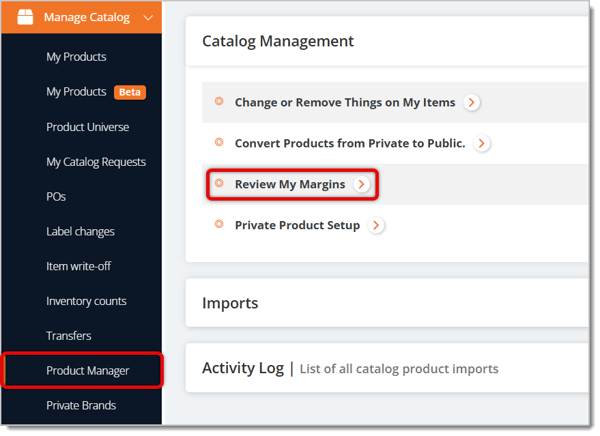
To start, go to Manage Catalog > Product Manager > Review My Margins. You'll be redirected to the Find and Review Items menu, where you can pull a list of certain Products according to filters.
Here is everything how to use the Find and Review Items page: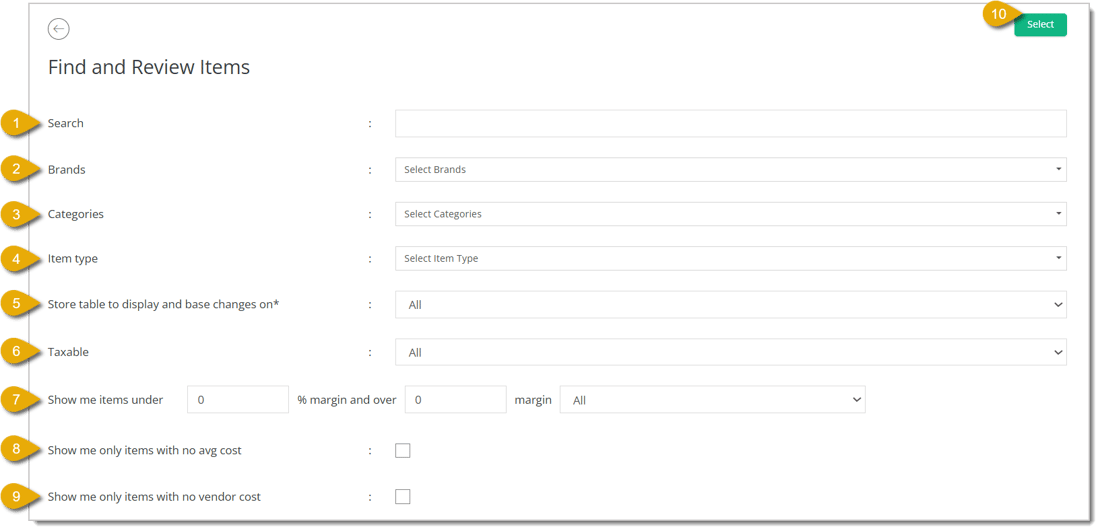
🐱 Please Note: The eTailPet will find products as long as there are at most 1,000 products that match the filters. If you do not narrow your filters down enough and the results amount to over 1,000, you will encounter an error message.
Once you click Select, you will be automatically directed to the Items to Change area.
The Items to Change menu will show your Carrying Margins for all product results in a table. Margin is calculated by:
Net Profit / Revenue = Margin
Revenue: Dollar amount sold according to the retail price for the product (if you sell two items priced at $5 each, your revenue would be $10)
Net Profit: Revenue minus Unit Cost and Discount; Revenue - (Unit Cost + Discount) = Net Profit
Each item's Carrying Margin in the table is shown as a percentage in decimal points (for example, 0.9 in the table is 90%). The only difference between Margin and Carrying Margin is that Carrying Margin applies to Quantity on Hand. Items with zero Quantity on Hand will always have a Carrying Margin of 1, or 100%.
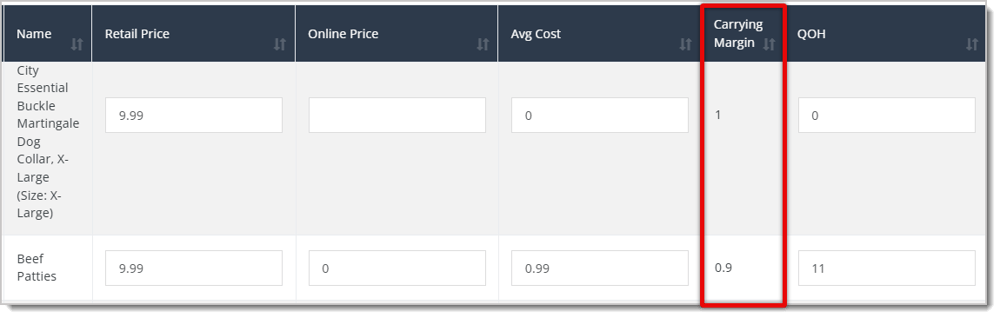
In the table showing your Products, you can edit details for individual products. If you want to instead edit these details in bulk, read our Change or Remove Items article. This is every detail you can change in the table:
Retail Price — In this column, you can update the Retail Price of an item.
Online Price — In this column, you can update the Online Price of an item.
Average Cost — In this column, you can update the Average Cost of an item.
Quantity on Hand (QOH) — In this column, you can update the Quantity you have in stock for an item.
Vendor SKU — In this column, you can update the Vendor SKU of the item.
Vendor Cost — In this column, you can update the Vendor Cost for the item.
Order Multiple — In this column, you can update the "order in multiple" numbers for the item. Order Multiple is the required number of multiples you need to order a product. For example, if you're ordering a can of dog food, you might be required to order 12 of them at a time.
Desired Inventory Level (DIL) — In this column, you can update the Desired Inventory Level (DIL), which refers to the amount you want of an item in stock. This means that when you reorder units of a product, the eTailPet system can automatically set a reorder amount to fulfill the DIL when you make a Purchase Order.
Minimum Inventory Level (MIL) — In this column, you can update the Minimum Inventory Level (MIL), which refers to the minimum amount you want a product's inventory to reach; after it reaches your specified MIL, the eTailPet system will add the product to a Purchase Order for reordering.
Reorder Method — In this column, you can update the Reorder Method using the drop-list. Your options are:
Taxable — In this column, you can update the Taxable flag. Your options are:
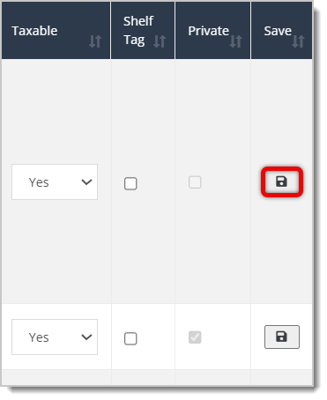
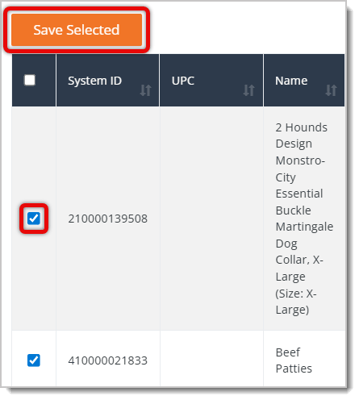
Make sure to save any changes you've made to product details. You can do so by either selecting multiple products in the table or clicking on the Save button that is on the far right of each item's entry.
To save the edits for one product, scroll to the far right of the table until you see the Save button in its entry.
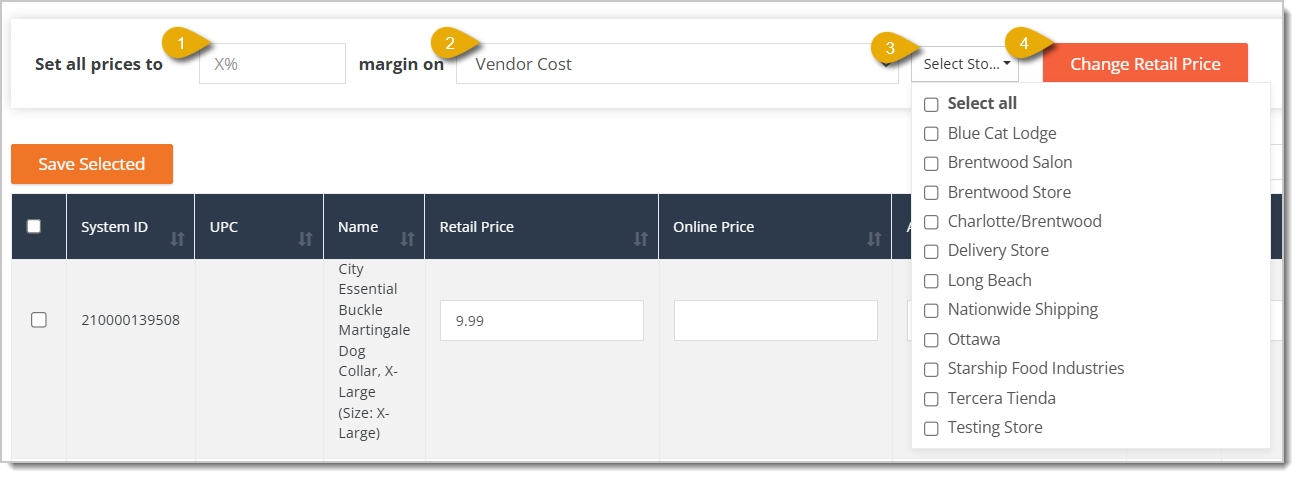
After reviewing your margins, you can change the retail pricing according to a percentage margin, which is based on either Vendor Cost or Average Cost. Any Price changes you do here will apply to ALL products in the table whether they are selected or not. Here is how:
Q: What's the difference between Margin and Carrying Margin?
A: They're calculated the same way, but Carrying Margin factors in Quantity on Hand. Items with zero QOH always show a Carrying Margin of 100%.
Q: Why does an item show a Carrying Margin of 0?
A: This usually means the item doesn't have a retail price set. Add one to fix the margin calculation.
Q: Is there a limit to how many products I can review at once?
A: Yes, 1,000. If your filters pull more than that, you'll get an error and need to narrow your search.
Q: If I only select a few products, will Change Retail Price only affect those?
A: No. Change Retail Price applies to every product in your results table, whether you've selected it or not.
Q: Can I set retail prices based on Vendor Cost if an item has no Vendor Cost?
A: No, you'll need to set a Vendor Cost first. Use the Show Me Only Items With No Vendor Cost filter to find items that are missing one.
Q: I have a question, but I can't find my answer here. How do I get more assistance?
A: You can ask any question at the number listed here. Contact our support team at (323) 370-0738 for the U.S. and (888) 370-2363 for Canada.
Is this page helpful?
×Help us improve our articles