






Export Products
In the eTailPet system, you can easily export your product data as a CSV or XLSX file. If you want t
 May 13, 2026
💲The eTailPet system allows you to add and update vendor-specific unit costs, as well as your store's retail prices. This article will provide an overview of how to set up vendor accounts, update vendor costs, and change retail prices, so keep reading to see how to do all of that yourself!

😸Please Note: This article gives an overview of working with products on the My Products page and the Product Vendors page to update Price and Cost. If you want to learn about updating price and cost using the Private Product Setup page, click here.
Click a link in the list below to jump to a section.
If you need to add your Vendors to the system, you can learn how to do so here.
Vendor Contacts are accessible through My Products > Product Vendors, where you can view vendor names, vendor IDs, and contact information.
My Products includes your customized Product Universe catalog and Private Products. Most products will have a default Price. Please read this article for more information on setting up your catalog: Adding Products
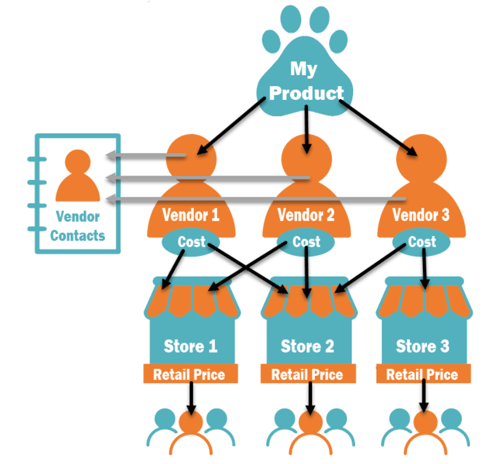
Vendor Cost includes the cost a store will pay from a vendor for a product. More than one vendor can sell the same product, and each may have a different cost for each store.
Retail Price can be applied differently by store. Since the system is designed for multiple stores, you can set up the retail Price to be unique for each store, if needed. When you set a retail Price for a store, it overrides the default retail Price that is tied to the product from the Product Universe.
When a Vendor updates their prices, you will also need to update the costs in the eTailPet system. You can do so manually or import a file to update costs.
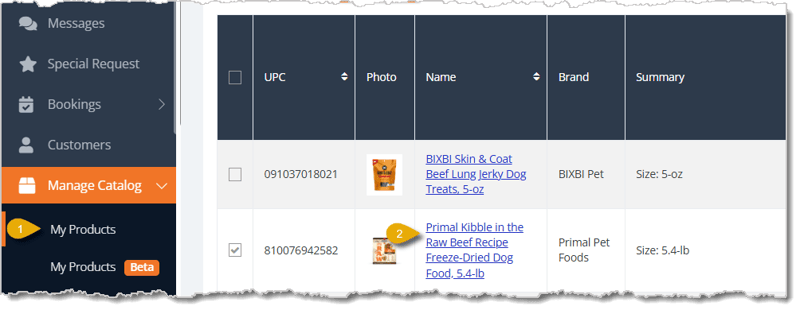
Step 1: Export Vendor Template File
In order to import Vendor Costs so you can update them, you first need to download the import template file. Here's where you can download a sample file:
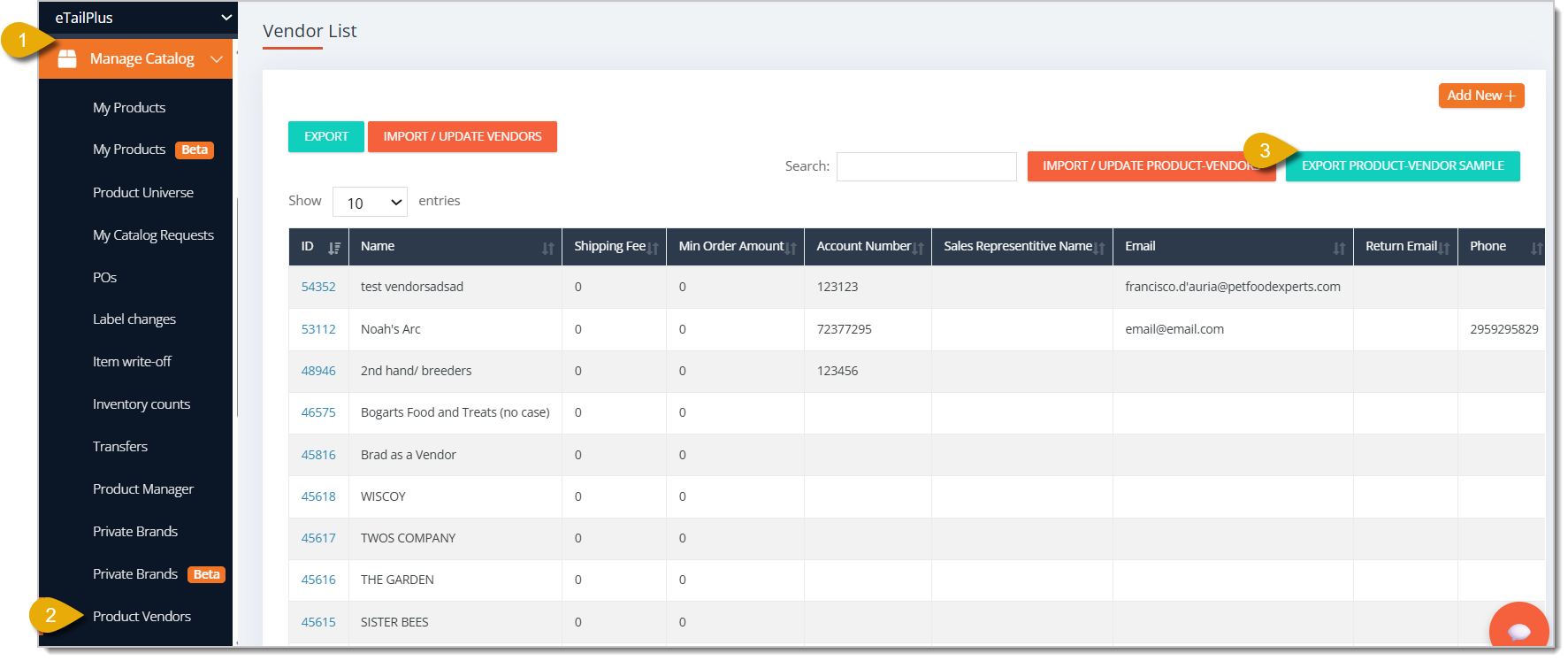
Step 2: Fill Out the Vendor Import Template
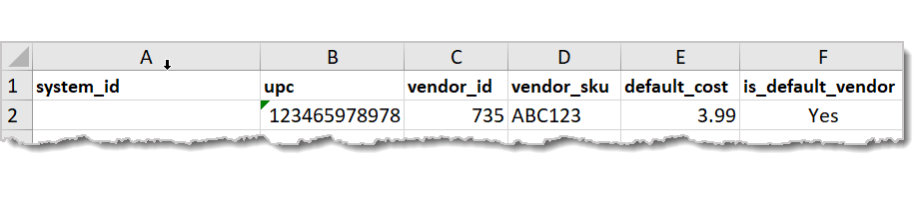
Open the file so you can edit information in the default_cost column and any other columns as needed. Make sure to save your changes. Here is an example of how the template's columns look in Microsoft Excel:
Step 3: Import the Vendor Template
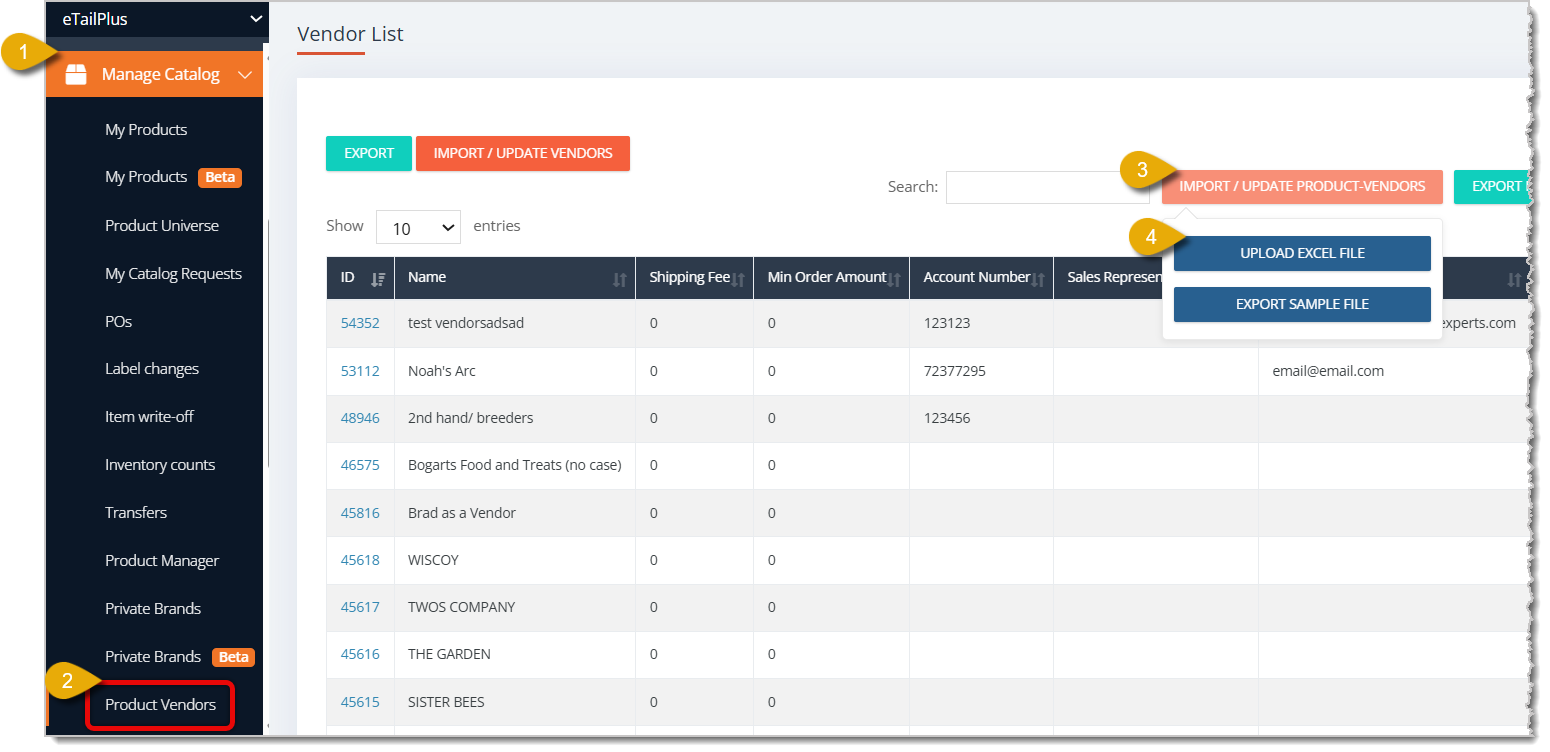
After you've finished filling out the Vendor template, you can upload it into the eTailPet system. Here's how:
You can use the Product Manager in the eTailPet system to apply bulk changes to product costs.
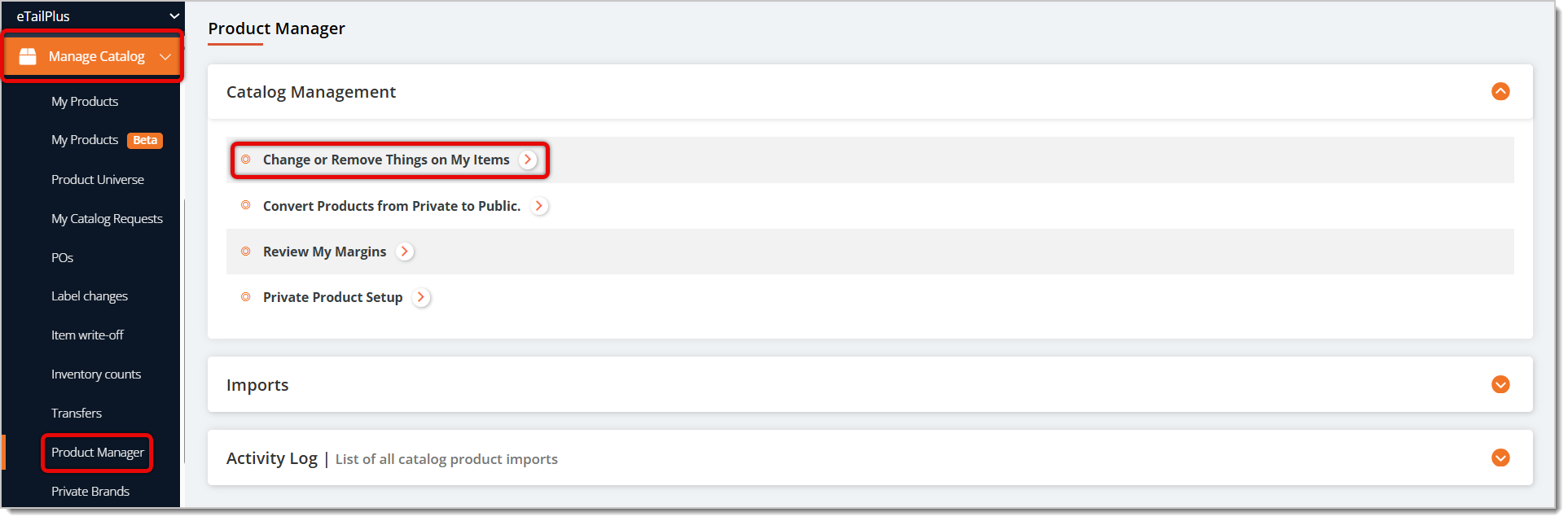
To access the Product Manager, go to Manage Catalog > Product Manager > Change or Remove Things on My Items. Each function is highlighted in the image below.
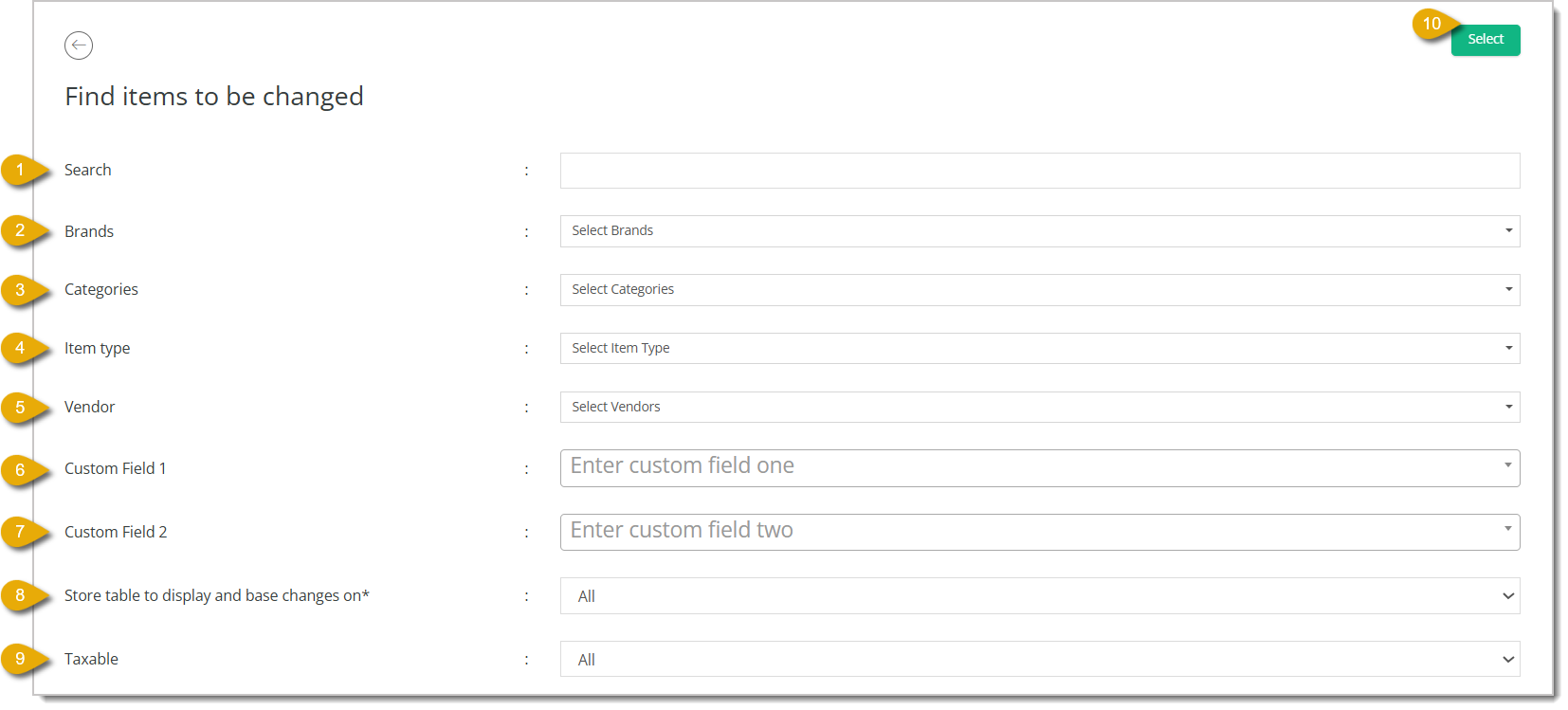
You can change products by finding them according to filters, then performing bulk actions using a drop-list. These actions will apply to all items you've selected. When you click on Change or Remove Things on My Items, you'll be directed to the Find Items to be Changed form, where you can set up filters to select items for bulk actions. Here is how to search for items using this form:
Once you're redirected to your list of filtered products, you have two methods to apply changes: manually or by import. Both are explained below.
Method One: Manually Update Costs in Product Manager
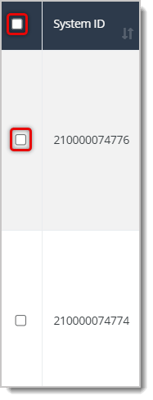
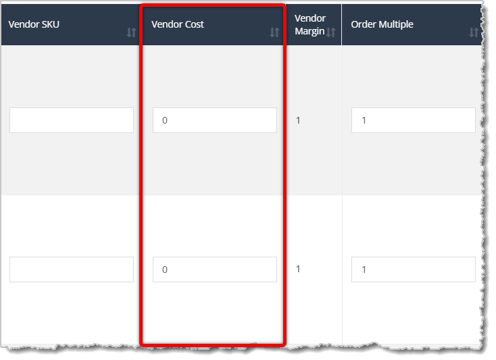
Manually update the costs in the Vendor Cost column of the data table.
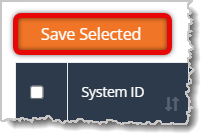
Method Two: Update Costs by Importing in Product Manager
Select Change Vendor Cost in the bulk actions drop-list.
Export the data of your results list by clicking on the Export button above the table.
Change your costs in the spreadsheet and save the file.
Import the file using the Import button above the table.

Like the Vendor costs, you can update your store's prices manually, or you can import them in a file. This works for Public and Private products.
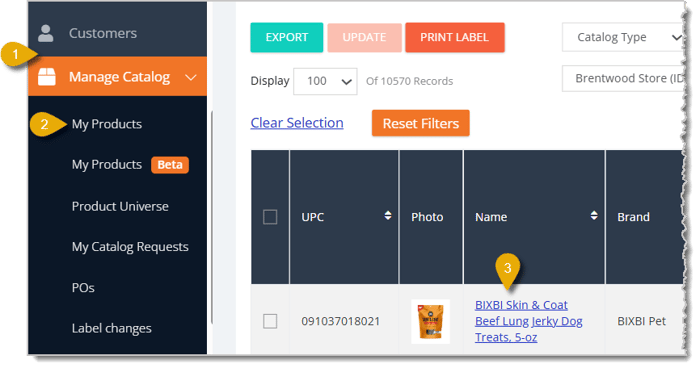
Click on Manage Catalog in the main menu.
Click on My Products.
Click on the Item Name in the data table.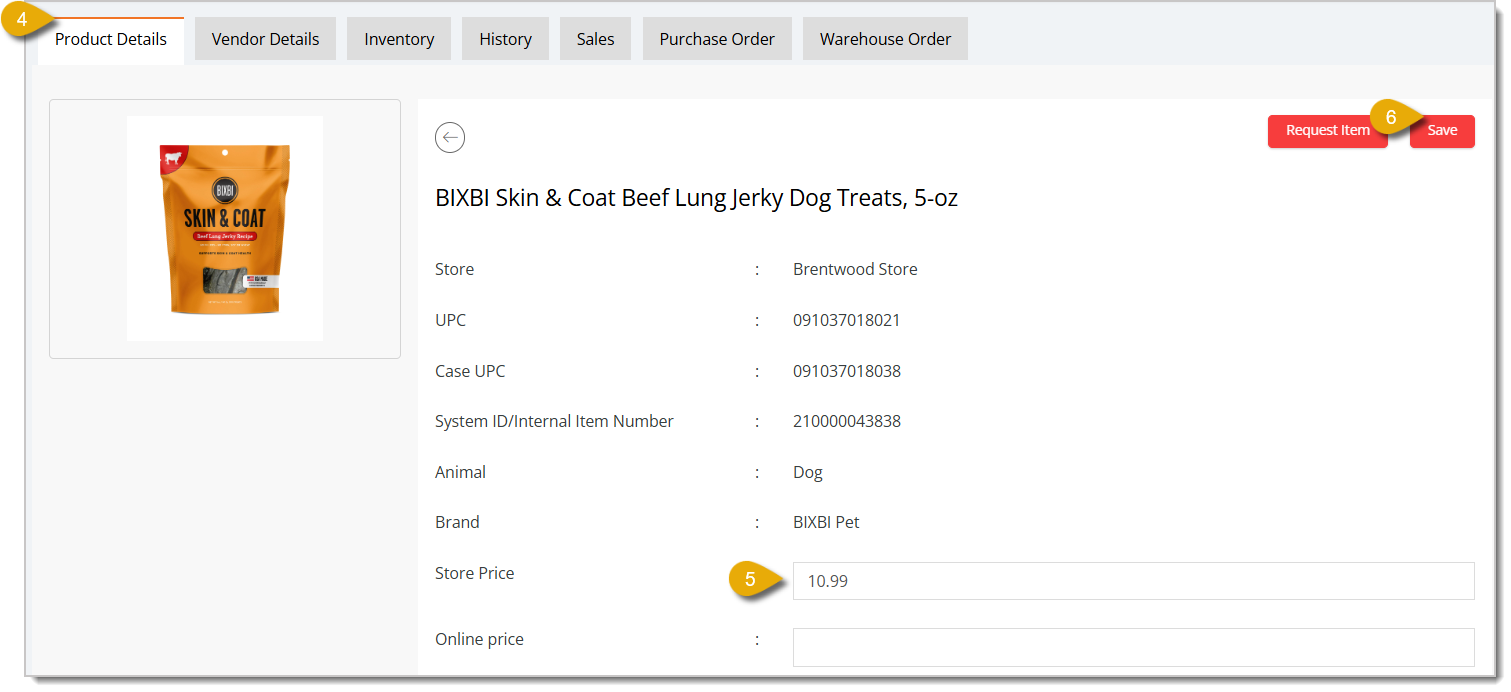
Click on the Product Details tab.
In the Store Price field, update the retail price.
You can also update prices by uploading a spreadsheet. Here's how:
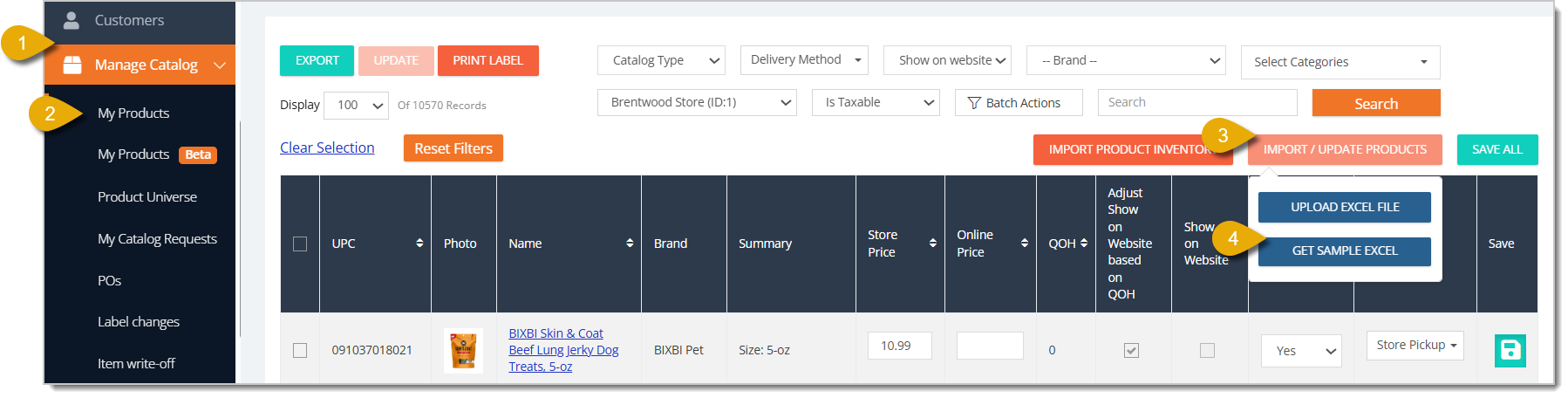
Click on Manage Catalog in the main menu.
Click on My Products.
Click on Import / Update Products. A drop-list will open for you.
Click on Get Sample Excel.
Save the template spreadsheet file to your device.
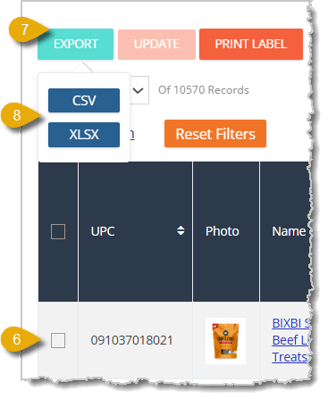
If you need a list of product UPCs, you can select products by clicking on the Checkboxes.
Use the Export button to export them in a file.
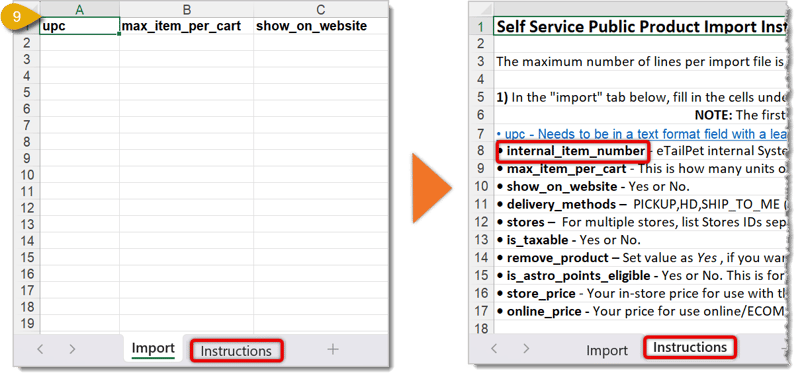
You only need to fill out the columns for upc (or internal item number, like in step 9), price, and stores. Please Note: This applies only to UPDATING prices. If you're adding new products via import, read our article on Adding and Importing Products linked below.
You can use the Product Manager of the eTailPet system to apply bulk price changes to your products.
To access the Product Manager, go to Manage Catalog > Product Manager > Change or Remove Things on My Items.
You'll be directed to the Find Items to be Changed form, where you can set up filters to select items for bulk actions. Here is how to search for items using this form:
Once you're redirected to your list of filtered products, select products you want to change prices for by checking boxes on the left. You can also check the box in the column header to Select All or Deselect All. Above the product list, where it says I want to, select Change Retail Price from the drop-list. Click the Go button to open another window where you'll configure the price change.
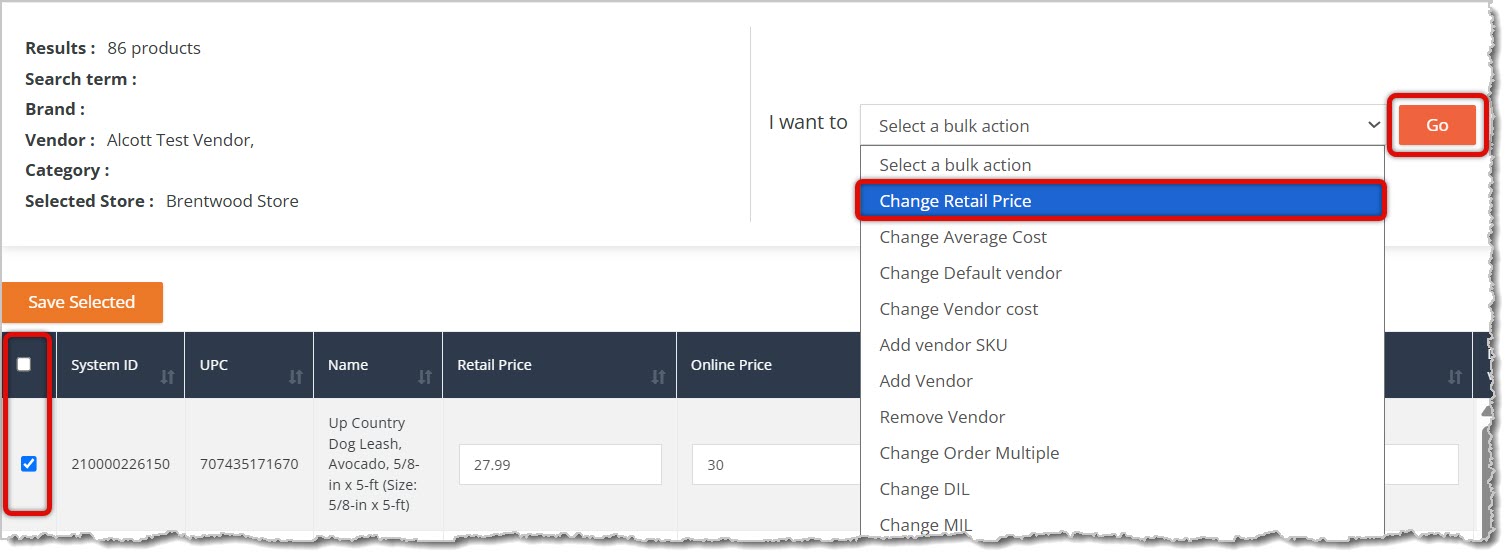
Use this action to change the retail prices of all selected items from the results list, meaning the prices your customers pay for these items. Each field and function of the Change Retail Price action window is explained below:
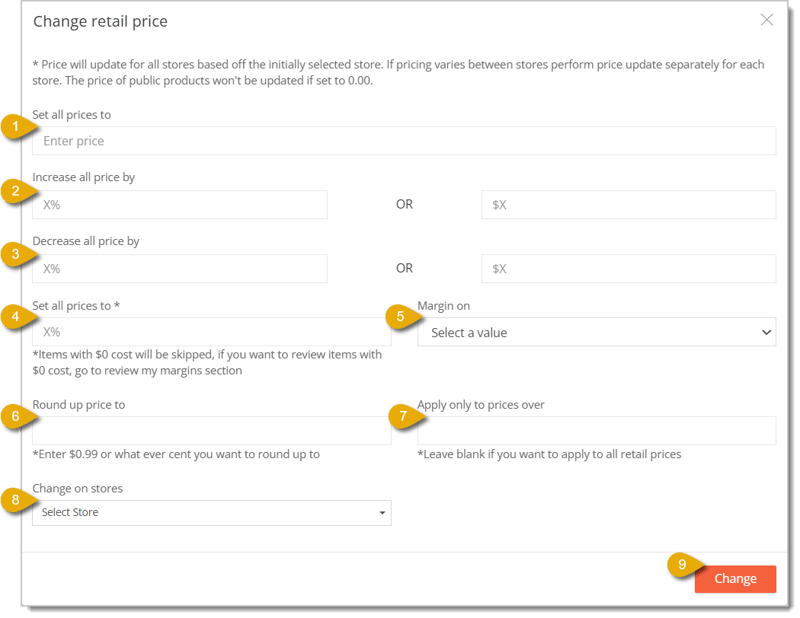
Set All Prices To — If you want to set the prices of all items from the results list to the same price, enter the dollar amount here.
Increase All Prices By — If you want to increase the prices from the results list according to a set amount, you can enter the percentage increase on the left, or set a dollar amount increase on the right.
Decrease All Prices By — If you want to decrease the prices from the results list according to a set amount, you can enter the percentage decrease on the left, or set a dollar amount decrease on the right.
Set All Prices To — Mark up the prices from the results list based on a margin you select. Set the margin in Margin On, which is explained more below.
Margin On — You can choose whether to mark up the margin based on your Vendor Cost or based on average cost. Vendor Cost is the per unit cost from the default Vendor. Average Cost is the average unit cost for all purchased units
Round Up Prices To — Enter a dollar amount to round up all prices according to that amount. For example, if you enter 0.99 here, an item's price could be rounded up to $5.99.
Apply Only to Prices Over — If you choose to round up prices, you can apply that roundup to items over a certain price by entering that dollar amount here. For example, if you enter $5 in this field, the roundup would only apply to prices over $5.
Change on Stores — Select from the drop-list which store or stores to which this price change will apply.
Change Button — After you've configured your price change settings, click on Change in the bottom right to update all prices in the results list. Please Note: You cannot undo bulk actions, so be sure to double-check your items before you apply an action.
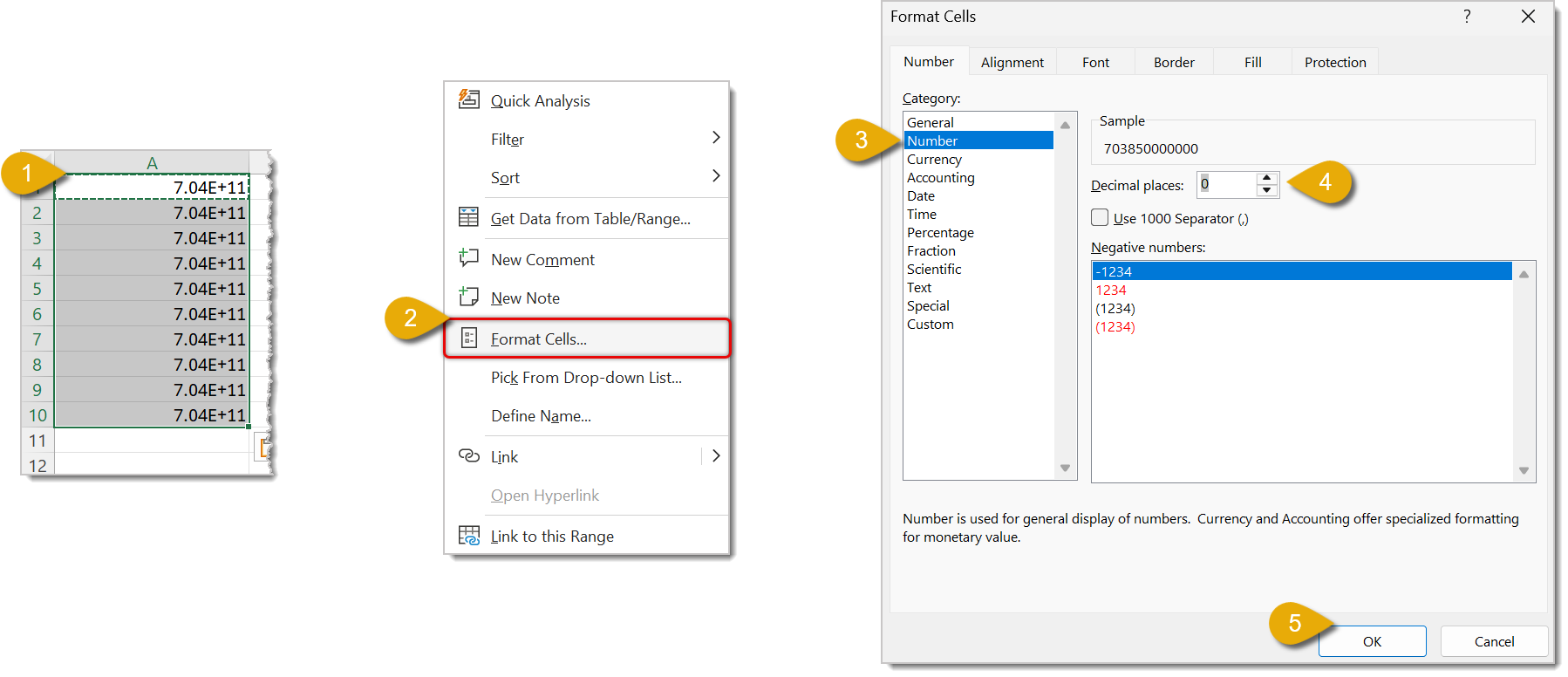
If your Product or System ID appears to have a Plus Sign symbol (+) in it, then Microsoft Excel has formatted it as scientific notation. This will cause issues with the import process, so these need to be reformatted.
Excel often removes leading zeroes from a number. Since UPC is usually a 12-digit number, we can use a formula to make sure they are not deleted.
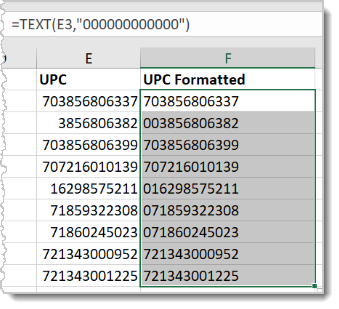
🐱Please Note: If any of your UPC rows are blank, this formula will fill it in with 12 zeroes, i.e. 000000000000. Be sure you don’t include all zeroes when you copy the formatted UPCs to the correct column.
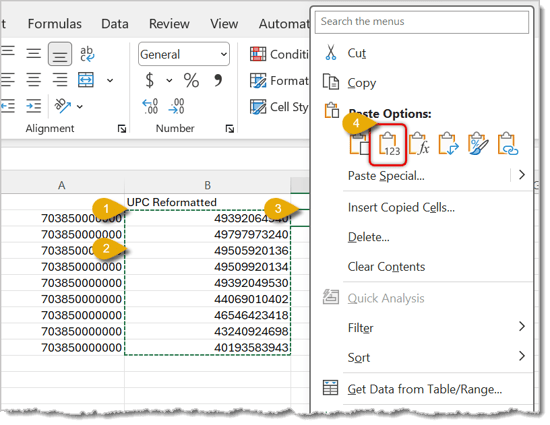
In order to avoid having any formulas in your import sheet, you need to make sure they're converted to text.
Q: What's the difference between Vendor Cost and Retail Price?
A: Vendor Cost is what your store pays a vendor for a product. Retail Price is what you charge customers. Retail Price can be set per store and overrides the product's default price when you do.
Q: Can I have more than one vendor for the same product?
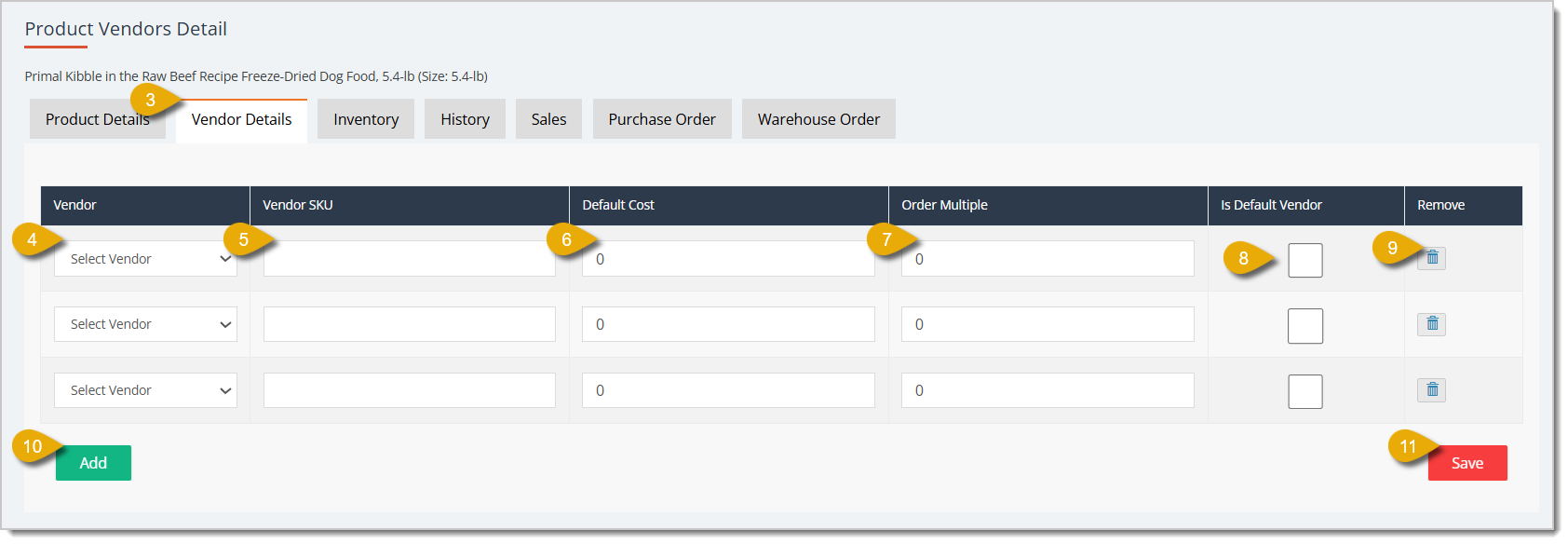
A: Yes. Add each vendor under the Vendor Details tab for that product, then check Is Default Vendor for the one you want to use by default.
Q: Do I need both a System ID and a UPC to import vendor costs?
A: No, just one. Include either system_id or upc in your import file, not both, and make sure whichever one you use is formatted correctly (see the Excel tips section).
Q: Why does my Product or System ID show a plus sign after I open it in Excel?
A: Excel automatically converts long numbers to scientific notation. Reformat the column as a Number with 0 decimal places to get the actual ID back.
Q: Can I set different retail prices for the same product at different stores?
A: Yes. When importing, add a separate line for each store ID and price. To update manually, edit the Store Price field on that product for each store.
Q: I have a question, but I can't find my answer here. How do I get more assistance?
A: You can ask any question at the number listed here. Contact our support team at (323) 370-0738 for the U.S. and (888) 370-2363 for Canada.
Is this page helpful?
×Help us improve our articles