Private Product Setup

Jun 02, 2026
The eTailPet system allows you to adjust Categories and Brands for your saved Private Products using the Product Manager. This can be very useful when working with large numbers of products that all need the same brand or category. This article will show you how to use the Private Product Setup area of the Product Manager page. Take a look at what you can do!
Getting Started With Private Product Setup
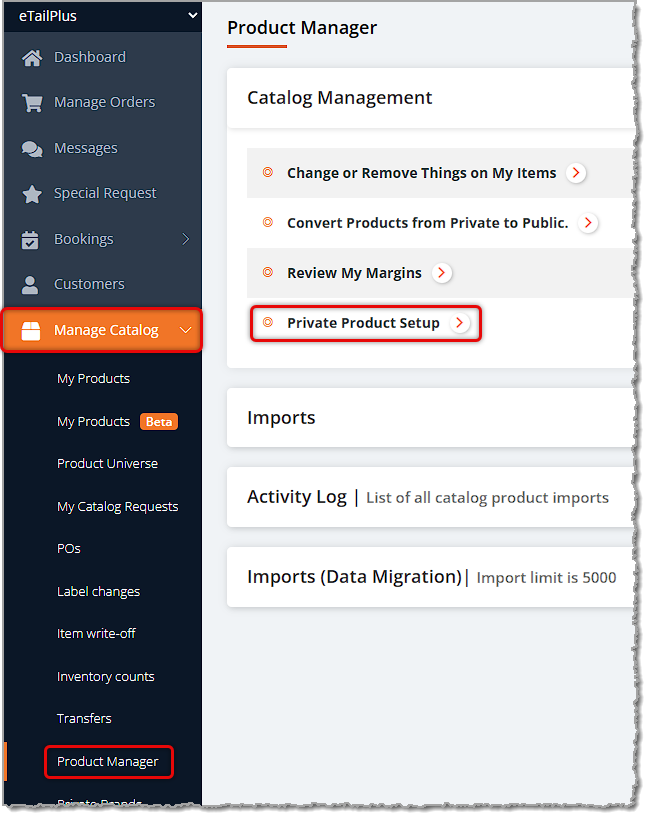
You can work with your Private Product Setup in the Manage Catalog part of the main menu. Click the Product Manager in that menu, and find Private Product Setup on the page to click on it.
On the Product Manager page for Private Product Setup, you have multiple ways to find the items that need changes to Brands or Categories. In the next section, you will learn how to adjust the products individually or in bulk. Here is how to find your products:
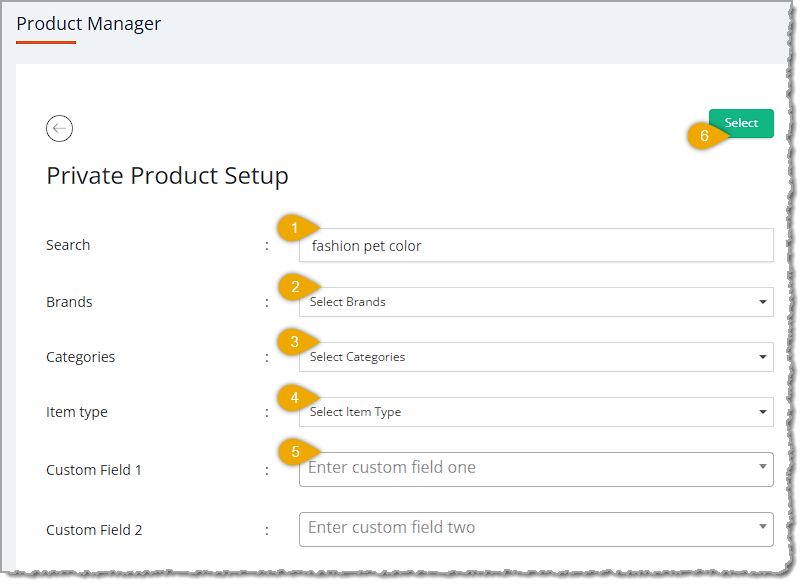
- Search — You can use the Search area to find groups of products by name, as in the example above.
- Brand — If the products you want already have a Brand, you can select one or more saved Brands from this drop-list. You are able to Search for the brand(s) you want. Check the box(es) for the Brand(s) you want.
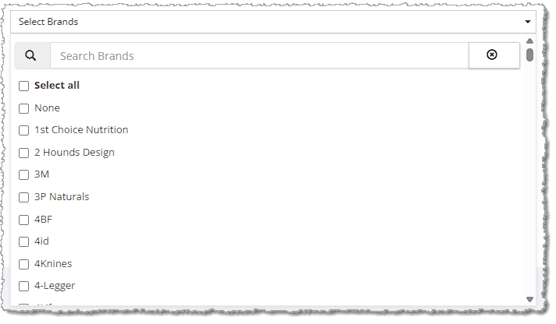
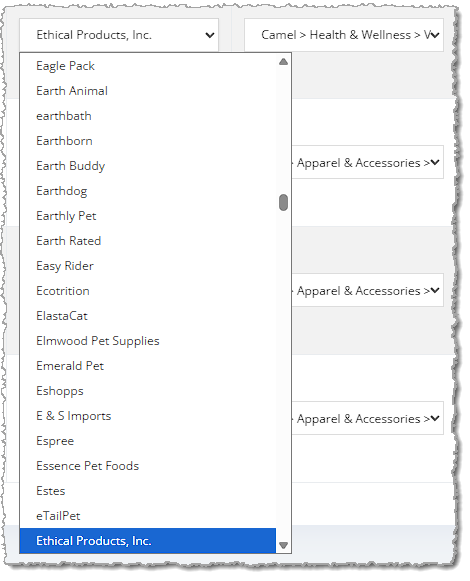
- Categories — If the products you want already have a Category, you can select one or more saved Categories from this drop-list. You are able to Search for the Category or Categories you want. Check the box(es) for the ones you want. This function is exactly like the Brand search pictured above.
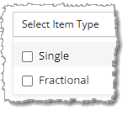
- Item Type — By default, all Item Types will come up in searches. If you want to filter for one or more types, you can use the checkboxes to select what you want.
- Custom Fields — If you have set up any Custom Fields that you're using for Private Products, you can search for up to two of them to find the products you want.
- Select — Click the Select button when you're ready to load the selected products.
Item Changes in Private Product Setup
Here is how to make the changes to Categories or Brands for your Private Products:
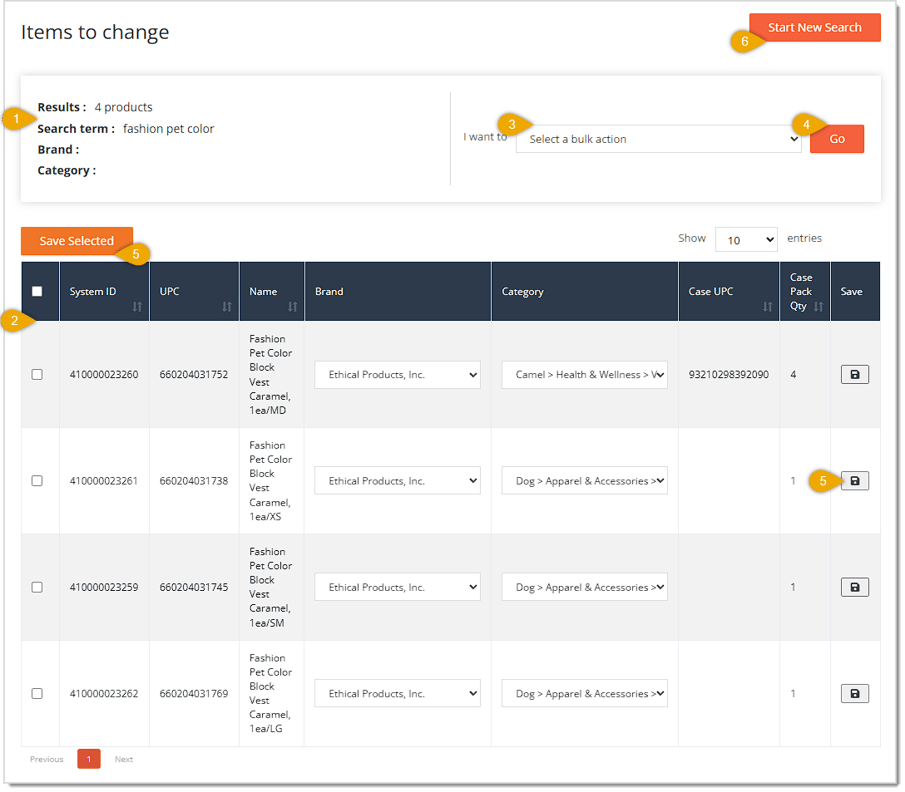
- Search Details — The details of the search display here for your reference. You'll see how many Results the system found, the Search Term you used, if any, and the Brands or Categories you used, if any.
- Item Selection — You can use the Select All Checkbox in the header of the table or the individual Line-Item Checkboxes to select the item(s) you want to change.
- Change Brand or Category — If you have selected several items, you can set the Brand or Category for all of them at once in the Select a Bulk Action area. If you only need to make adjustments to one product at at a time, you can use the Brand and Category drop-lists for the line items to make those changes.
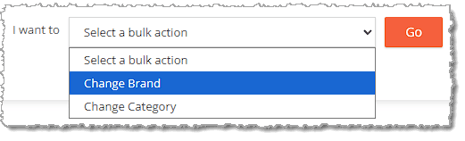
- Apply Bulk Adjustment — You can click the Go button (pictured above) to choose the Brand or Category you want to apply to the selected products. Make your selection from the drop-list, then click the Change Brand (shown below) or Change Category button, respectively.
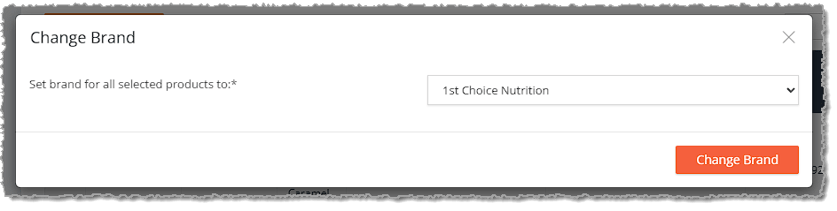
- Save Selected — After you have made the changes you want in bulk, click the Save Selected button to save the changes to the system. If you have made individual line-item adjustments, the Save button on the far right of the line items will be active. Click on the Save button(s) to save those changes. In both cases, you'll see a success notification pop up in the upper right.
- Start New Search — Click the Start New Search button to go back to the item search page to select products.

Boss Quote
Remind your human that it's faster to make changes to items in bulk than one at a time. They can save hours of work that way, and that time can be used for more constructive things. Like back rubs. I now require my back rub.
— Nubbins, Hazard, KY
Related Topics
Adding and Importing Products
Private Products
Private Product Item Types and Price Types
Product Batch Actions
Product Manager
Frequently Asked Questions
Q: I have a question, but I can't find my answer here. How do I get more assistance?
A: You can ask any question at the number listed here. Contact our support team at: (323) 370-0738 for the U.S., and (888) 370-2363 for Canada.
In the eTailPet system, you can easily export your product data as a CSV or XLSX file. If you want t
😸You can use Batch Actions to edit details for a group of data so you don't have to manage records
🖨️Shelf labels indicate product names and their prices to your customers on your shelves, so it's i







Is this page helpful?
×Help us improve our articles