🐟 Your store will, of course, need products in its catalog to sell. Recording products in the eTailPet system is also important because it can help you track sales and make evidence-based decisions. This article is an overview of how to create and edit your product catalog in the eTailPet system, so you'll learn to add, import, and remove products from your catalog. Read on to learn how to add to your catalog!

Backing Up Your Catalog
We recommend first creating a backup file of your products in eTailPet before you start working on or editing your catalog. If something goes wrong, you can still restore your catalog using the backup file. Here is how to back up your existing products:
-
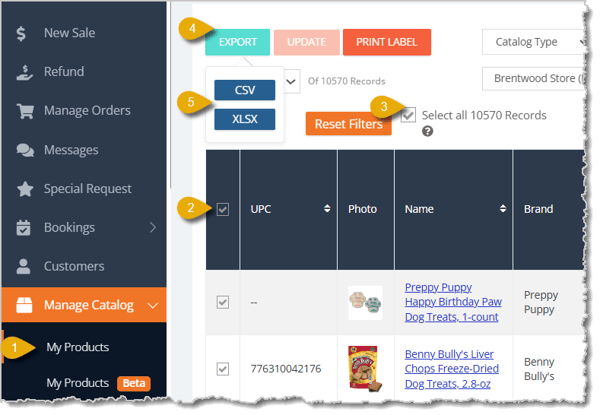
Go to Manage Catalog > My Products.
-
Click on the Checkbox that's in the column header of the product table to select all products.
-
A checkbox will appear for you to Select All Records above the product table. Check this box to select every product record.
-
Click on the Export button above the table.
-
You can save your file in either CSV or XLSX format by clicking on the corresponding button.
-
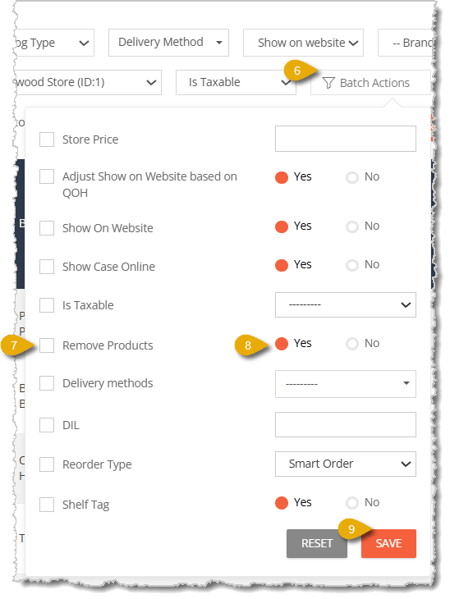
From here, you can also clear out your entire catalog so you can upload a new product file. To do so, click on Batch Actions above the table.
-
Check the box for Remove Products.
-
Click on Yes next to Remove Products.
-
Click on Save. Please Note: You can't undo this action, so be sure to have a backup file.
Adding Products to your Catalog from Product Universe
You can add products from the Product Universe by either manually adding them or importing them from a spreadsheet. Both methods are covered below.
Manually Add Products to your Catalog from Product Universe
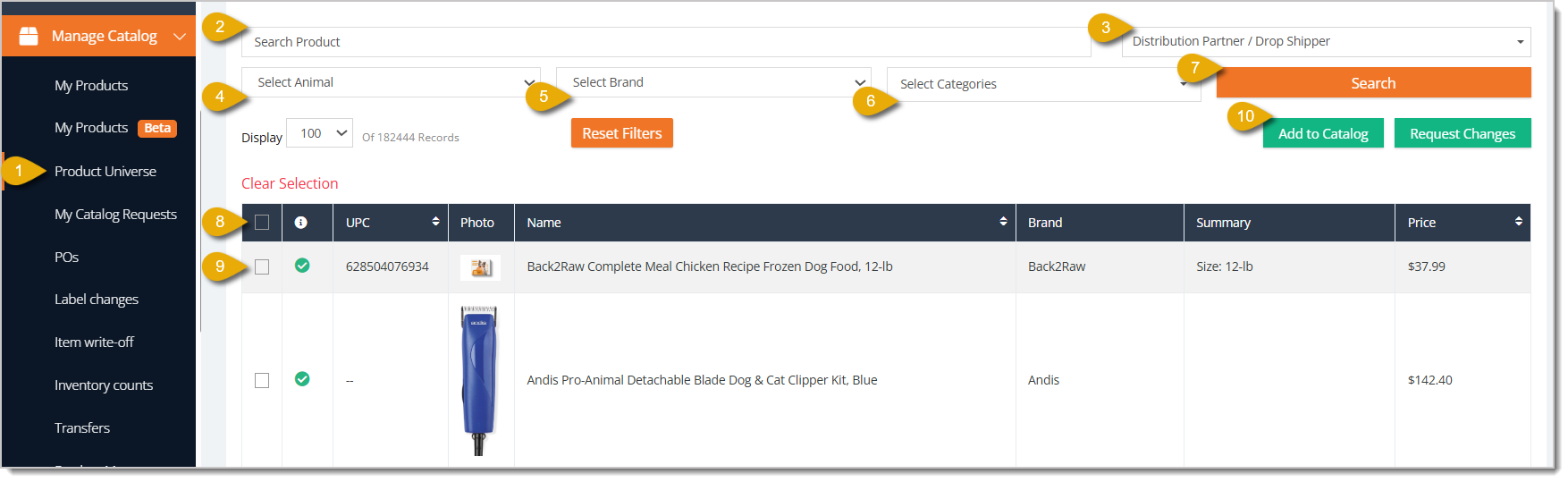
- Go to Manage Catalog > Product Universe.
- You can Search for a product by entering its name or UPC.
- You can select a Distribution Partner / Drop Shipper from the drop-list to filter products that come from the distribution partner or drop shipper.
- You can select an Animal from a drop-list to filter products down to ones for certain animals.
- You can select a Brand from a drop-list to filter products down to ones from certain brands.
- You can select a Category from a drop-list to filter products down to ones for certain categories.
- Click on Search to pull results for products that match your filters.
- Click on the Checkbox in the column header of the data table to select all products displayed on the page.
- Click on the Checkbox next to an individual item to select or unselect just that item.
- Click Add to Catalog towards the upper right. A small window will pop up.
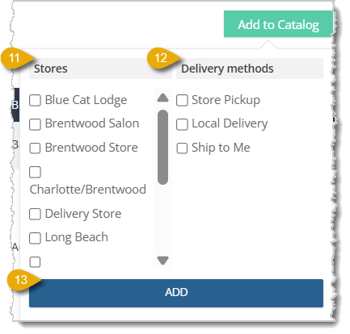
- Select which Stores this item is sold at by checking their boxes. You must make a selection here for the product to be added.
- Select the Delivery Methods for this item by checking their boxes. You must make a selection here for the product to be added.
- Click the Add Button. The item will load automatically into the Product Manager page for you, where you'll see that it's been added to your Catalog and where you can add further details as needed.
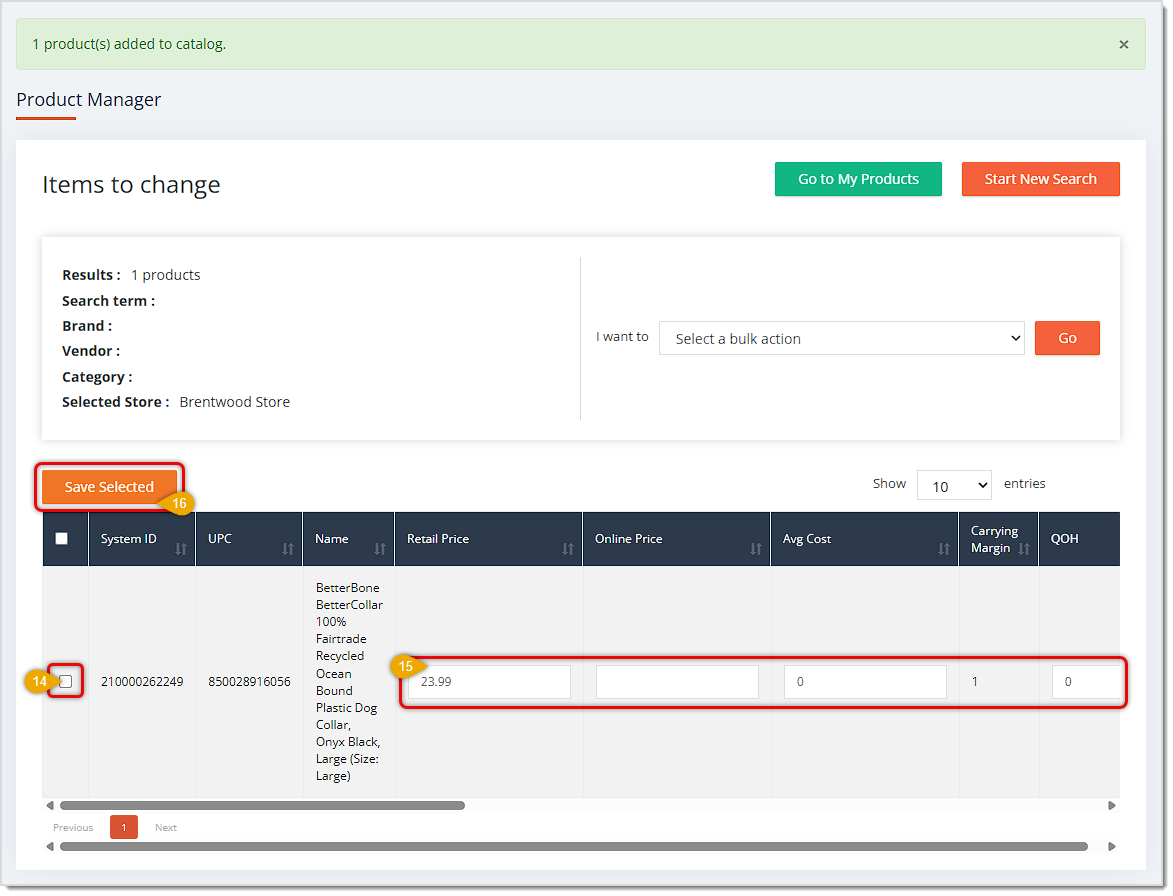
- If you plan to adjust details for the product, check the box on the far left for the item.
- You are able in each line item to edit the following data points: Retail Price, Online Price, Average Cost, Quantity on Hand, Vendor SKU, Vendor Cost, Order Multiple, Desired Inventory Level (DIL), Minimum Inventory Level (MIL), Reorder Method, Taxable, and you can check to queue the item to print a Shelf Tag.
- If you are only working with one item, you can click the Save button on the far right of the line item to save your changes (not pictured). If you are working with multiple items, you can click the button on the left to Save Selected.
Add Products to your Catalog by Importing a File
You can import a file containing your product details to add products to the catalog. Here is how:
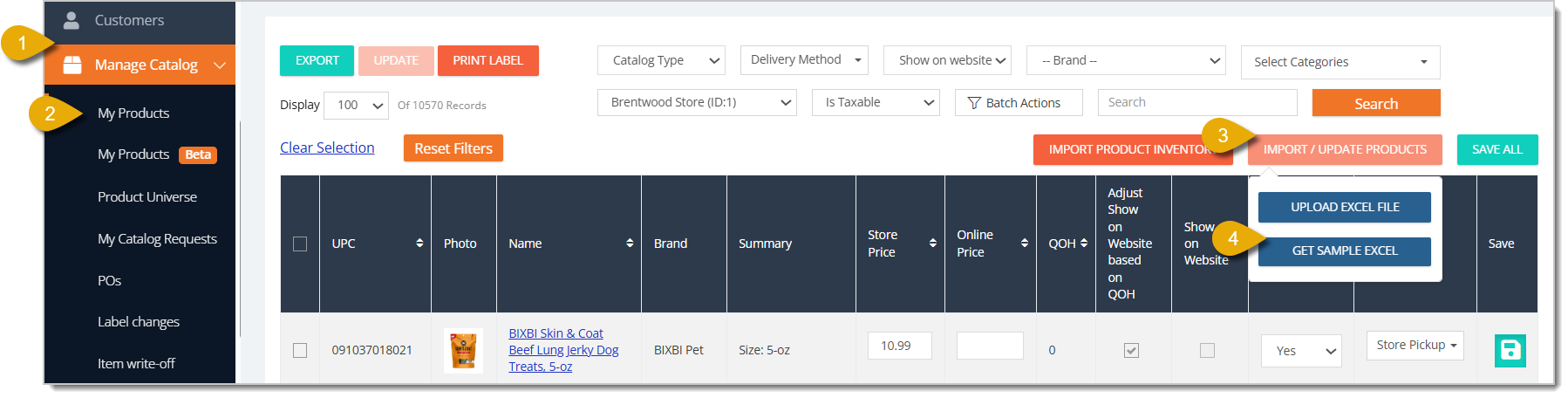
- Go to Manage Catalog.
- Click on My Products.
- Click on Import / Update Products.
- Click on Get Sample Excel.
- Save the sample template to your device.
- Fill out the template with product information in Microsoft Excel. Here is what each column should have:
- UPC - Make sure leading zeroes are present (See Tip at the end of the article for formatting UPCs)
- max_item_per_cart - This is the maximum quantity a customer can place in cart at one time.
- price - Enter the product's retail Price.
- show_on_website - Enter Yes or No depending on whether or not you want the item shown on your ecommerce website.
- delivery_methods - Enter PICKUP, HD (Home Delivery), or SHIP_TO_ME to indicate the delivery methods for the item. To enter more than one, separate the codes by comma (i.e. PICKUP, SHIP_TO_ME, HD).
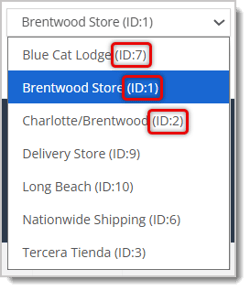
- stores - Enter Store IDs to indicate the stores at which the item will be sold. Separate Store IDs by comma. To find your Store IDs, go to Manage Catalog > My Products > Store. The Store ID is located next to the store name, as pictured below. If you need to set different retail prices for multiple stores, include a separate line for each store with the store ID in column F.
- is_taxable - Enter Yes or No depending on whether or not the item is taxable.
- remove_product - If this is an existing item in your catalog and you want to remove it, enter Yes. If you don't want to remove it, leave this field blank.
- is_astro_points_eligible – Enter Yes or No depending on whether or not the item is eligible to earn Astro Points. Also, if you are not enrolled in Astro Loyalty Points rewards program, then put No. If you are, you can designate each item's eligibility yourself.
- DIL (Desired Inventory Level) - Enter the number you want to ideally have in stock for each item. This is very helpful when you are just getting started with the eTailPet system.
- reorder_type - Your options to enter in this column are: SMART_ORDER or DESIRED_INVENTORY_LEVEL or DO_NOT_ORDER. Smart Order means the eTailPet system will use your sales data to automatically set a DIL, meaning the DIL changes according to demand. Desired Inventory Level will make a Purchase Order with items, and the reorder quantity will be enough to reach the amount you specify in the DIL column. Do Not Order means you do not want to reorder this item.
- is_shelf_tag - Enter Yes or No. Yes will produce only one label when price updates occur. No will produce one label for each unit of the item you have on hand when price updates occur or inventory is added.
- Review your spreadsheet before you import it and make sure any formulas are converted to text. View the Tips section below to see how to convert formulas to text in Excel.
- Go to My Products.
- Click Import / Update Products.
- Click UPLOAD EXCEL FILE.
- Upload your file.
Adding Private (In-Store Only) Products
Any products that are not in the Product Universe can be added to your Private Products catalog. These will be available for sale in-store only. You can add Private Products manually or import a file.
Add Private Products Manually
-
Go to Manage Catalog > My Products.
-
Click on the New Private Product button in the upper right to open the New Private Product form.
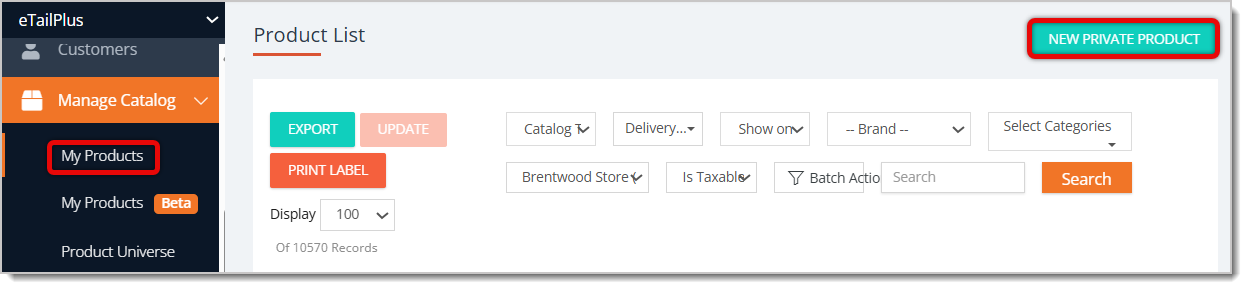
Here is how to fill out each field in the form:
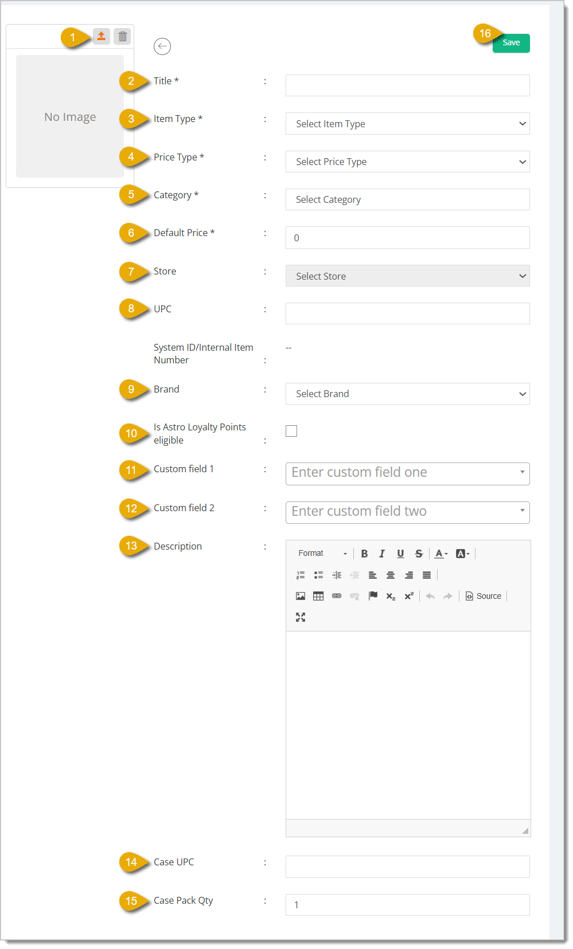
- Upload Image — Click on the Upload icon above the image to upload a picture of the product for internal records.
- Title* — Enter the Title of the product.
- Item Type* — Select the Item Type of the product.
- Price Type* — Select the Price Type of the product.
- Category* — Select the Category of the product.
- Default Price* — Enter the normal retail Price for the product.
- Store — Select the Store the product will be sold at from the drop-list.
- UPC — Enter the UPC of the product.
- Brand — Select from the drop-list the Brand of the product.
- Is Astro Loyalty Points Eligible — Check this box if you want the Private Product to be eligible for earning Astro Loyalty Points.
- Custom Field 1 — If you configured a custom field, select your options here.
- Custom Field 2 — If you configured a custom field, select your options here.
- Description — Enter a Description of the item in the text box.
- Case UPC — If you want to sell the product in cases, enter the UPC for the case as a product.
- Case Pack Quantity — If you want to sell the product in cases, enter how many units of the product are in one case.
- Save — After you've filled out the necessary details for the Private Product, be sure to click on the Save button in the top right of the form.
* Required Field
Import Private Products
Here is how to import your Private Products:

- Go to Manage Catalog > My Products.
- In the Catalog Type drop-list, select Private.
- Click the Search button. The results in the products table will now show only Private Products.
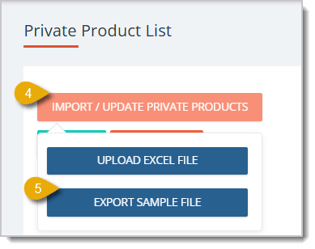
- Click on Import / Update Private Products.
- Click on Export Sample File.
- Fill out the spreadsheet with the necessary information for each Private Product. Here is what each column should have:
- UPC - Make sure leading zeroes are present (See the Tips section at the end of the article to learn how to format UPCs).
- max_item_per_cart - This is the maximum quantity a customer can place in cart at one time.
- price - Enter the product's retail Price.
- show_on_website - Enter Yes or No depending on whether or not you want the item shown on your ecommerce website.
- delivery_methods - Enter PICKUP, HD (Home Delivery), or SHIP_TO_ME to indicate the delivery methods for the item. To enter more than one, separate the codes by comma (i.e PICKUP, SHIP_TO_ME, HD).
- stores - Enter Store IDs to indicate the stores at which the item will be sold. Separate Store IDs by comma. To find your Store IDs, go to Manage Catalog > My Products > Store. The Store ID is located next to the store name, as pictured below. If you need to set different retail prices for multiple stores, include a separate line for each store with the store ID in column F.
- is_taxable - Enter Yes or No depending on whether or not the item is taxable.
- remove_product - If this is an existing item in your catalog and you want to remove it, enter Yes. If you don't want to remove it, leave this field blank.
- is_astro_points_eligible – Enter Yes or No depending on whether or not the item is eligible to earn Astro Points. Also, if you are not enrolled in Astro Loyalty Points rewards program, then put No. If you are, you can designate each item's eligibility yourself.
- DIL (Desired Inventory Level) - Enter the number you want to ideally have in stock for each item. This is very helpful when you are just getting started with the eTailPet system.
- reorder_type - Your options to enter in this column are: SMART_ORDER or DESIRED_INVENTORY_LEVEL or DO_NOT_ORDER. Smart Order is for items you want to reorder yourself. Desired Inventory Level will make a Purchase Order with items, and the reorder quantity will be enough to reach the amount you specify in the DIL column. Do Not Order means you do not want to reorder this item.
- is_shelf_tag - Enter Yes or No. Yes will produce only one label when price updates occur. No will produce one label for each unit of the item you have on hand when price updates occur or inventory is added.
- Review your spreadsheet before you import it and make sure any formulas are converted to text. View the Tips section below to see how to convert formulas to text in Excel.
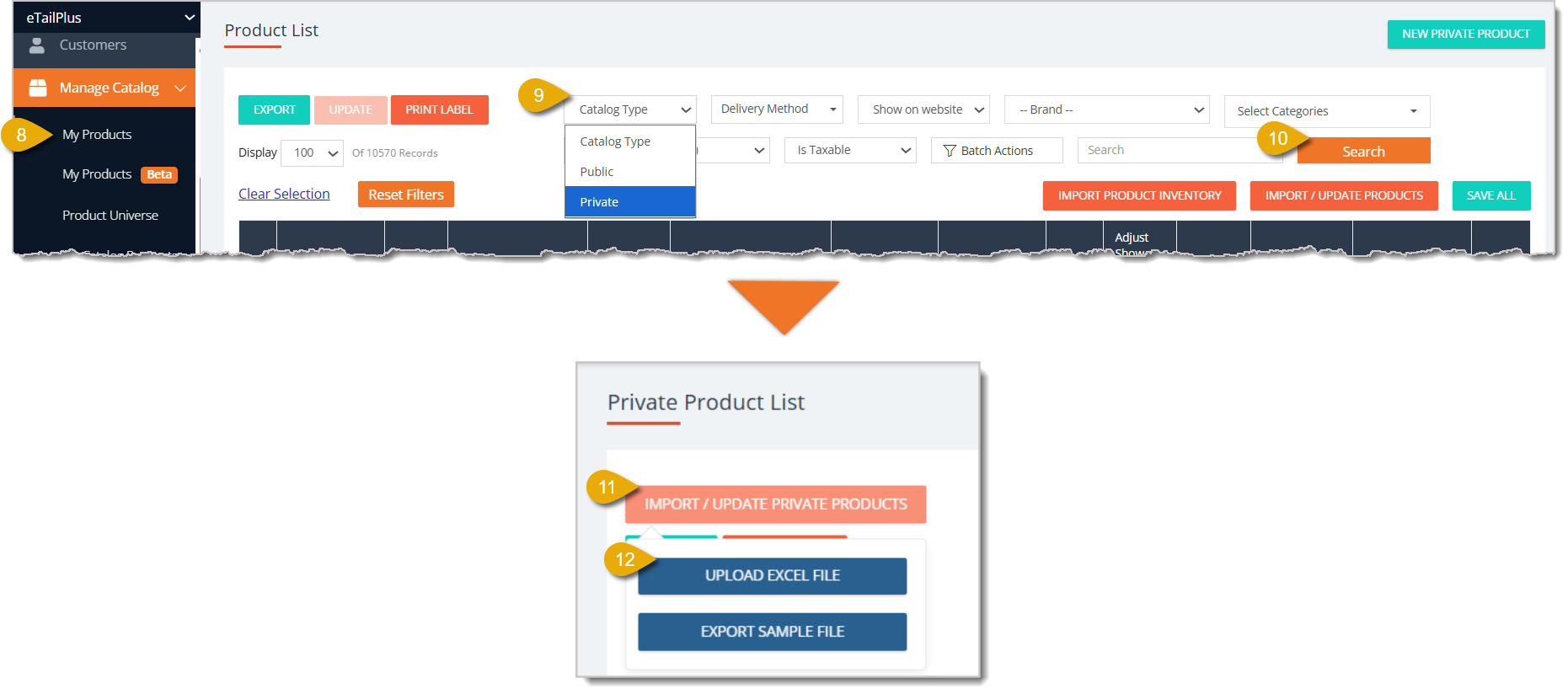
- Go back to Manage Catalog > My Products.
- In the Catalog Type drop-list, select Private.
- Click the Search button. The results in the products table will now show only Private Products.
- Click Import / Update Private Products in the upper left.
- Click Upload Excel File.
- Upload your file.
Once the import is finished, you will receive an emailed report showing which products were successfully imported.
Tips for Working with Import Files
Reformat Scientific Notation in Excel
If your Product or System ID appears to have a Plus Sign symbol (+) in it, then Microsoft Excel has formatted it as scientific notation. This will cause issues with the import process, so these need to be reformatted.
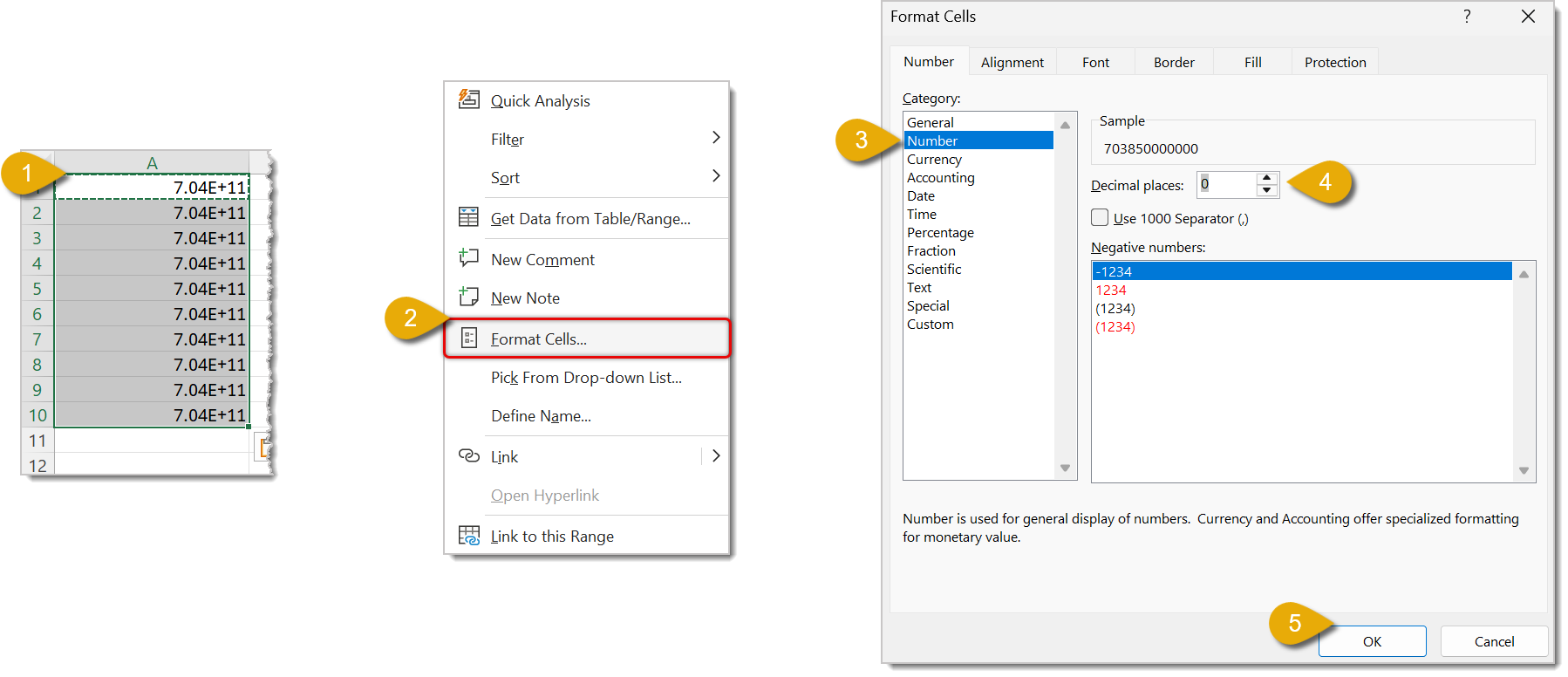
- Highlight the cells or column that you will reformat.
- Right-click inside the highlighted cells and click on Format Cells.
- Under Category, click on Number.
- Set the Decimal Places to 0.
- Click OK.
Format UPCs to Avoid Missing Leading Zeros in Excel
Excel often removes leading zeroes from a number. Since UPC is usually a 12-digit number, we can use a formula to make sure they are not deleted.
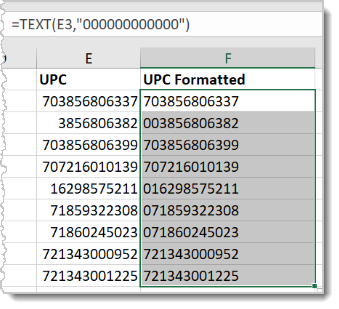
- Insert a blank column next to the UPC column to create a temporary workspace where you can add the leading zeroes
- In the first row of the temporary column, in the cell adjacent to the first UPC row, enter the following formula:
=text(A2, “000000000000”)
- Replace A2 with the cell where the first adjacent UPC is found. In the image above, for example, the formula uses E3 instead of A2. “000000000000” is 12 zeroes to represent the 12-digit UPC number.
- Copy and past the formula into the temporary column.
- Copy and paste the corrected UPCs from the temporary column back to the UPC column. Be sure to right-click and paste values only. (See instructions in the Change Formulas to Text section below).
🐱Please Note: If any of your UPC rows are blank, this formula will fill it in with 12 zeroes, i.e. 000000000000. Be sure you don’t include all zeroes when you copy the formatted UPCs to the correct column.
Change Formulas to Text
In order to avoid having any formulas in your import sheet, you need to make sure they're converted to text.
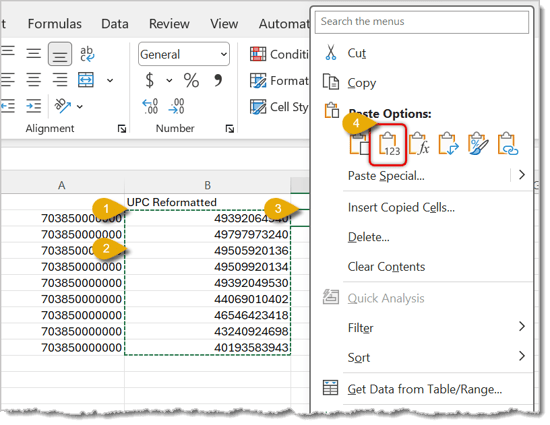
- Highlight the cells you want changed to text.
- Copy the cells.
- Right-click in the cell where you will paste the cells.
- Click the clipboard icon with 123 in it to paste only values only. This removes formatting and pastes text.
Related Topics
Private Products
Private Product Setup
Private Product Item Types and Price Types
Batch Cost and Price Updates
Importing Products Best Practices and Troubleshooting
Product Universe
Request a Catalog Addition or Change
My Catalog Requests
Export Products
Frequently Asked Questions
Q: What's the difference between a Product Universe item and a Private Product?
A: Product Universe items come from the shared eTailPet catalog. Private Products are ones you create yourself for items not in the Product Universe, and they're only available for sale in-store.
Q: Can I undo it if I accidentally remove all my products with Batch Actions?
A: No, this action can't be undone. Always export a backup file of your catalog before running a bulk Remove Products action.
Q: How do I remove just one product using an import file instead of Batch Actions?
A: Enter Yes in the remove_product column for that item's row. Leave the field blank for any product you want to keep.
Q: What's the difference between the three Reorder Type options?
A: Smart Order lets the system adjust reorder amounts based on sales demand. Desired Inventory Level reorders up to the DIL you set. Do Not Order skips reordering for that item entirely.
Q: What does the is_shelf_tag setting control?
A: Yes prints just one label when the price changes. No prints one label for every unit you have on hand whenever the price updates or you add inventory.
Q: I have a question, but I can't find my answer here. How do I get more assistance?
A: You can ask any question at the number listed here. Contact our support team at (323) 370-0738 for the U.S. and (888) 370-2363 for Canada.







 May 18, 2026
Is this page helpful?
×Help us improve our articles