





Importing Products Best Practices and Troubleshooting

May 13, 2026May 13, 2026

💻This article explains best practices for preparing your data import into the eTailPet system. These include what you can and cannot edit in your import file if you're working from our template, as well as specific formatting instructions for data.

heston - importing products best practices and troubleshooting

Preparing your Import Template

What can I change about the template?

  • File Name
  • Paragraph Formatting (left align, center, right align)
  • Highlight Colors (Colors like yellow, blue, etc. are fine)
  • Freeze Top Row
  • Worksheet Tab
    • If the tab does not show Import, change it so it does.

What can I NOT change in the template?

  • Headers
    • Do not change the text.
    • Do not change the order of the columns.
  • Columns
    • Do not delete any columns.


Reformat Scientific Notation in Excel

If your Product or System ID appears to have a Plus Sign symbol (+) in it, then Microsoft Excel has formatted it as scientific notation. This will cause issues with the import process, so these need to be reformatted.
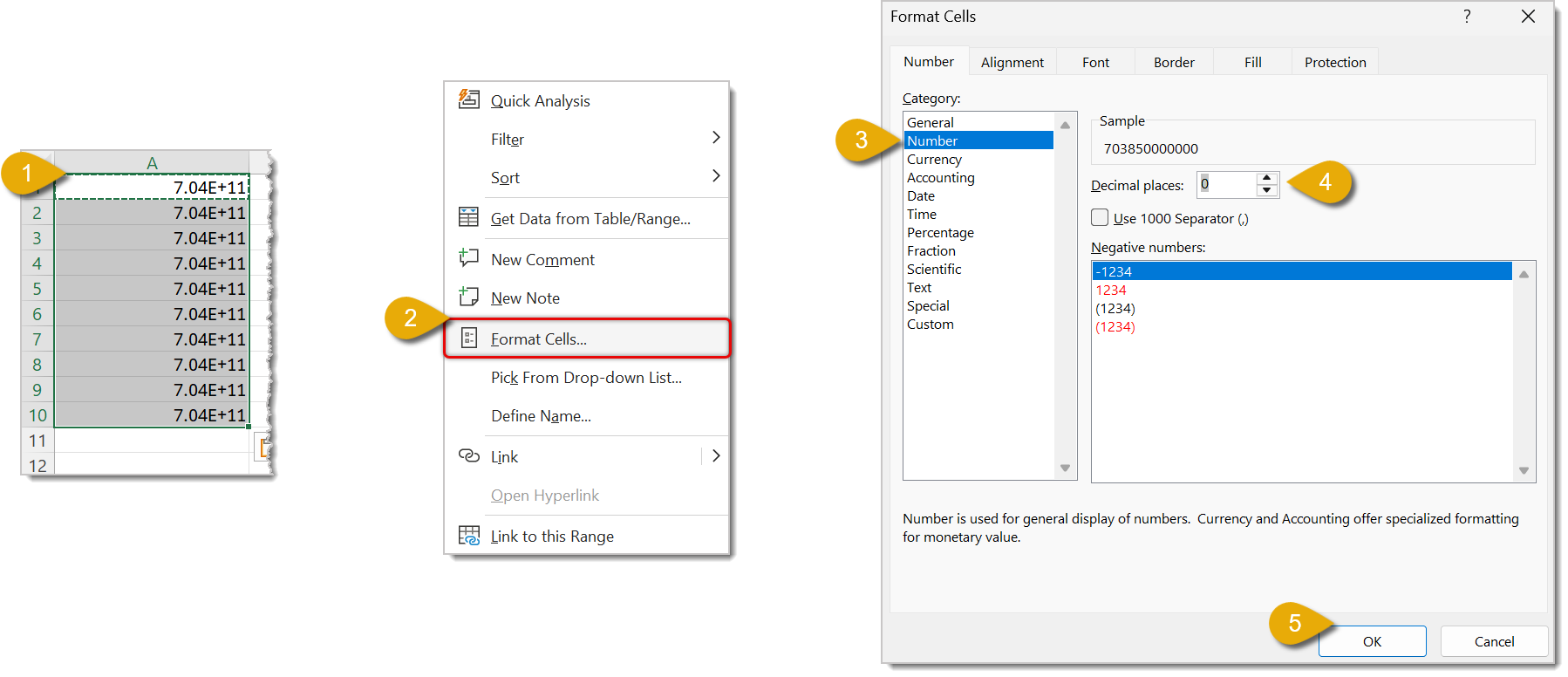
Image with numbers highlighting how to reformat scientific notation in Microsoft Excel.

  1. Highlight the cells or column that you will reformat.
  2. Right-click inside the highlighted cells and click on Format Cells. 
  3. Under Category, click on Number.
  4. Set the Decimal Places to 0.
  5. Click OK.


Format UPCs to Avoid Missing Leading Zeros in Excel

Excel often removes leading zeroes from a number. Since UPC is usually a 12-digit number, we can use a formula to make sure they are not deleted.
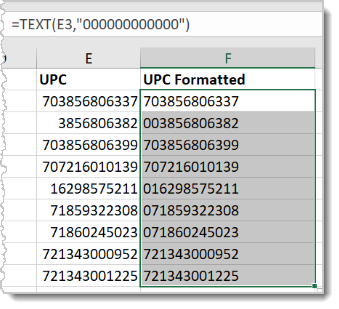
Image of an example of UPCs that have been reformatted in Microsoft Excel.

  1. Insert a blank column next to the UPC column to create a temporary workspace where you can add the leading zeroes
  2. In the first row of the temporary column, in the cell adjacent to the first UPC row, enter the following formula:
    =text(A2, “000000000000”)
    • Replace A2 with the cell where the first adjacent UPC is found. In the image above, for example, the formula uses E3 instead of A2. “000000000000” is 12 zeroes to represent the 12-digit UPC number.
  3. Copy and past the formula into the temporary column.
  4. Copy and paste the corrected UPCs from the temporary column back to the UPC column. Be sure to right-click and paste values only. (See instructions in the Change Formulas to Text section below).

🐱Please Note: If any of your UPC rows are blank, this formula will fill it in with 12 zeroes, i.e. 000000000000. Be sure you don’t include all zeroes when you copy the formatted UPCs to the correct column.


Change Formulas to Text

In order to avoid having any formulas in your import sheet, you need to make sure they're converted to text.
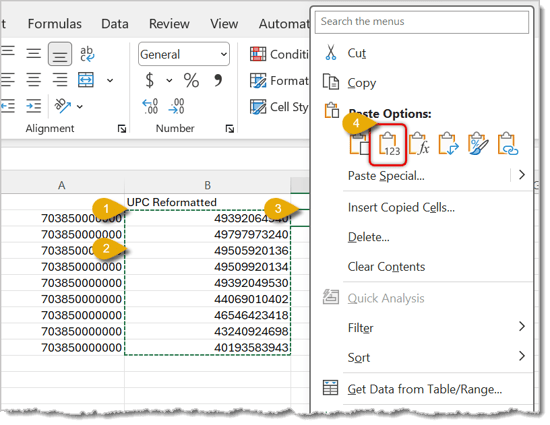
Image of the steps to reformat formulas to text in Microsoft Excel.

  1. Highlight the cells you want changed to text.
  2. Copy the cells.
  3. Right-click in the cell where you will paste the cells.
  4. Click the clipboard icon with 123 in it to paste only values only. This removes formatting and pastes text.


Related Topics

Batch Cost and Price Updates

Adding and Importing Products

Product Universe

Export Products

Private Product Setup


Frequently Asked Questions

Q: Can I reorder or rename the columns in the import template?

A: No. Keep the headers and column order exactly as they are, and don't delete any columns. You can still rename the file itself and adjust formatting like alignment or highlight colors.


Q: Why do some of my UPCs import as all zeroes?

A: This happens if you used the leading-zero formula on a blank UPC row. The formula fills empty cells with 12 zeroes, so double-check for blanks before copying the formatted UPCs back over.


Q: Why does my import fail even though the numbers look right in Excel?

A: Check for leftover formulas in your cells. Paste values only (the clipboard icon with 123) to convert formulas to plain text before you import.


Q: I have a question, but I can't find my answer here. How do I get more assistance?

A: You can ask any question at the number listed here. Contact our support team at (323) 370-0738 for the U.S. and (888) 370-2363 for Canada.

Need Help?

Can't quite find the answer you're looking for? Our support team is just a call away.