When you submit requests to the eTailPet Support Team for catalog changes or additions, you can view the status of your requests in My Catalog Requests. This article will show you how to access the page and see more details about your requests. See your requests for yourself!

View My Catalog Requests
Access the My Catalog Requests by going to Manage Catalog > My Catalog Requests. Here is everything you can do in this area:
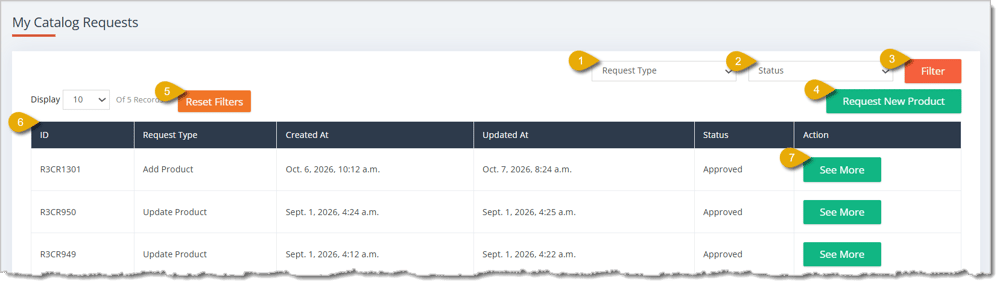
- Request Type Filter — Select a request type (Update Product or Add Product) from this drop-list to filter your catalog request list to just that type.
- Status Filter — You can filter requests by Status by selecting one from the drop-list. This is what each Status means:
- Drafted — You have not yet submitted your request.
- Submitted — Your request has been submitted, but the Support Team has not reviewed it yet.
- In Review — Your request is being reviewed by the Support Team.
- Rejected — Your request was rejected.
- Accepted — Your request was accepted.
- Limited Approval — Your request was partially accepted, but there are limits.
- Filter Button — After setting any filters, click on this button to load matching results in the catalog request list.
- Request New Product — Click on this button to open the Request New Product form so you can submit a new product request. For more information on this form, view the section Request a New Product below.
- Reset Filters — If you've set filters, you can click on the Reset Filters button to clear them out.
- Data Table — This is where you'll see details about each of your requests. Columns display each request's ID, Request Type, Created At date and time, Updated At date and time, and Status, as well as an Action column where you can click on See More (described in #7 and #8 below).
- See More — In the Action column, you can click on See More for a specific request.
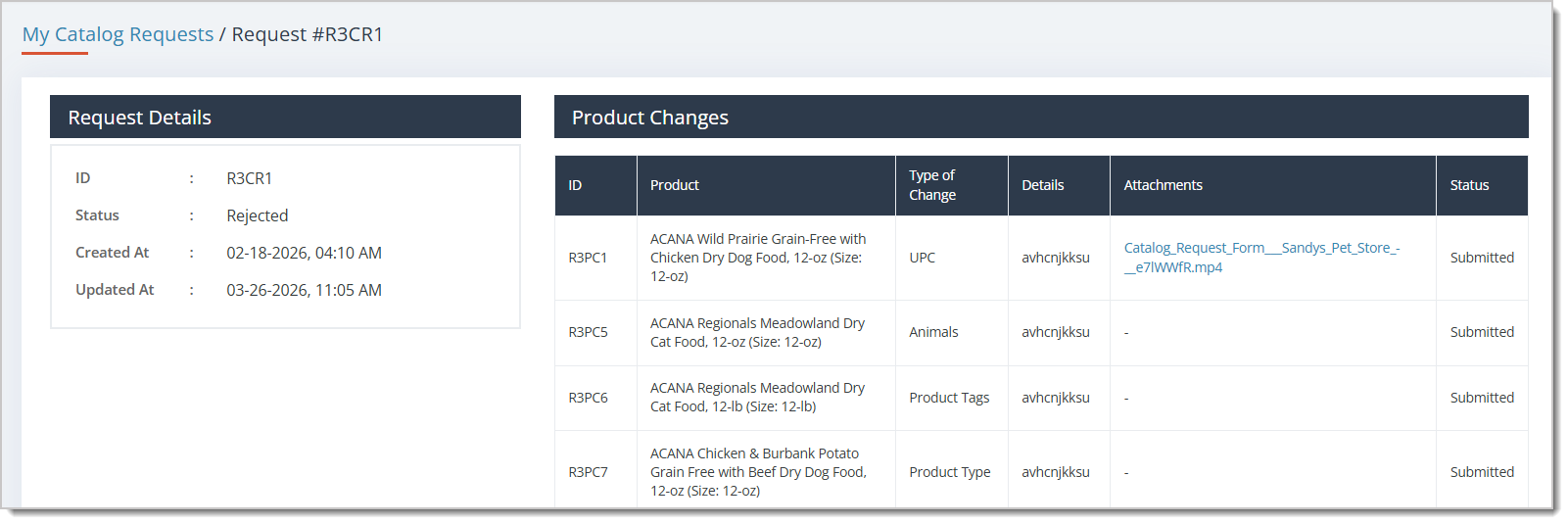
- If you have clicked to See More, the full details of the request will open for you in a new page. Here, you can see the Request's ID, Status, Created Date, and Updated Date in the table on the left. A table on the right shows each product change you've requested. The table shows the Request ID, Product Name, Type of Change, Attachments (if any were included), and the Status of each individual request.
Request a New Product
When you click on the Request New Product button, you'll be redirected to the Request New Product form. Here, you'll enter the details of the product you're requesting. If you want to update an existing product in the catalog, you can also do so in this form, which is described more below. Here's everything to fill out in this form:
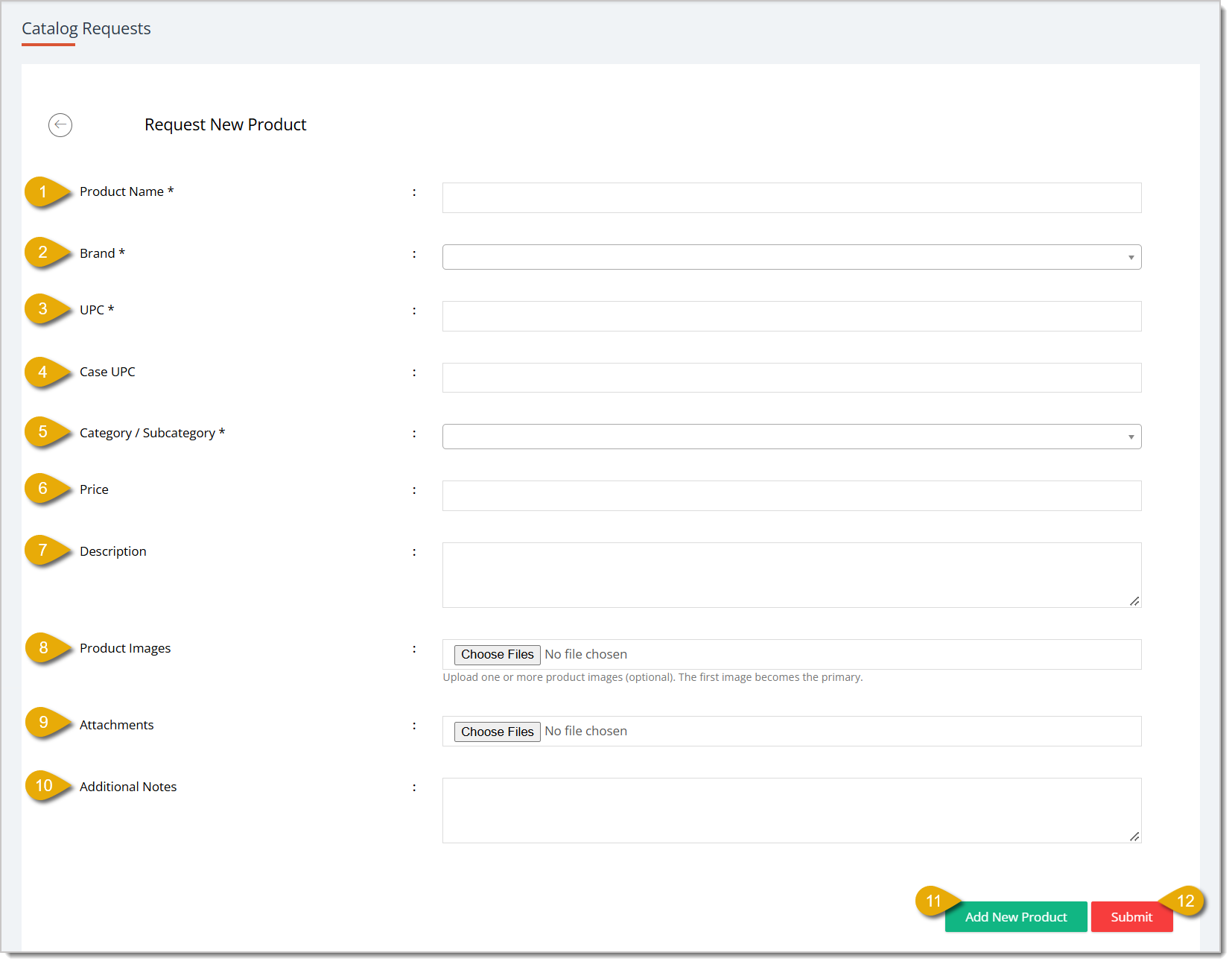
- Product Name* — Enter the name of the product.
- Brand* — Enter the product's brand.
- UPC* — Enter the product's UPC.
- Case UPC — If you want to sell this product by the case, enter the UPC of the case here.
- Category/Subcategory* — Select the category or subcategory the requested product would go in from this drop-list.
- Price — Enter the retail price you're requesting for the product.
- Description — If needed, you can enter a description of the product.
- Product Images — Click on Choose Files to upload images for the product from your device. You can load more than one image, but the first image you upload will be the primary one for your website.
- Attachments — Click on Choose Files to upload any files you want attached to the product for your website.
- Additional Notes — You can add additional notes about the product in your request, if needed.
- Add New Product — If you want to add another product to your request, you can click this button to do so.
- Submit — If you want to submit your product request, click on this button.
Request a Product Update
Tips for Catalog Requests
If your request is rejected, there is a good reason. Not all vendors can supply what they make, no matter how amazing it may be, in a nation-wide venue like the Product Universe, and while we wish we could add all the products you request to it, we have to be careful to offer things that can be readily supplied on a larger scale. Here are some guidelines to keep in mind when considering a Catalog Request:
The following items will be rejected:
- Discontinued UPCs
- Requests with Incomplete Information
- Non-Pet Related Products
- Unverifiable Products
- Live Enimals (except for feeders)
- Cannabis, Hemp & CBD Products (due to the current federal legality status)
Here are some tips for making your submission more likely to succeed:
- Check the Product Universe First: Your product may already exist, even if it doesn’t have a UPC match.
- Include All Required Information: Product Name, UPC, Size, Selling Price, Brand, and at least one product image.
- Images Matter: Images must be .jpg or .png and no larger than 1MB each.
- More Product Details = A Better Catalog: When available, include ingredients, descriptions, and nutritional information such as protein, fat, fiber, and moisture.
- Prioritize Your Best Sellers: Most retailers generate the majority of their revenue from a relatively small number of products, so focus requests on your highest-value products first.
Related Topics
Request a Catalog Addition or Change
Adding and Importing Products
Change or Remove Products
My Products Overview
Batch Cost and Price Updates
Product Universe
Frequently Asked Questions
Q: I have a question, but I can't find my answer here. How do I get more assistance?
A: You can ask any question at the number listed here. Contact our support team at (323) 370-0738 for the U.S. and (888) 370-2363 for Canada.







 May 19, 2026
Is this page helpful?
×Help us improve our articles