The eTailPet POS has a product catalog with over 180,000 products with images and descriptions that you can select and use in your own catalog setup. This collection of products is called the Product Universe. In the system these products are stored in your Public type catalog. You can also set up any product manually using the Private type catalog. This article gives an overview of the My Products page and the tabs inside each product listing. Take a look!
In this article, you'll learn the following:
Catalog Overview
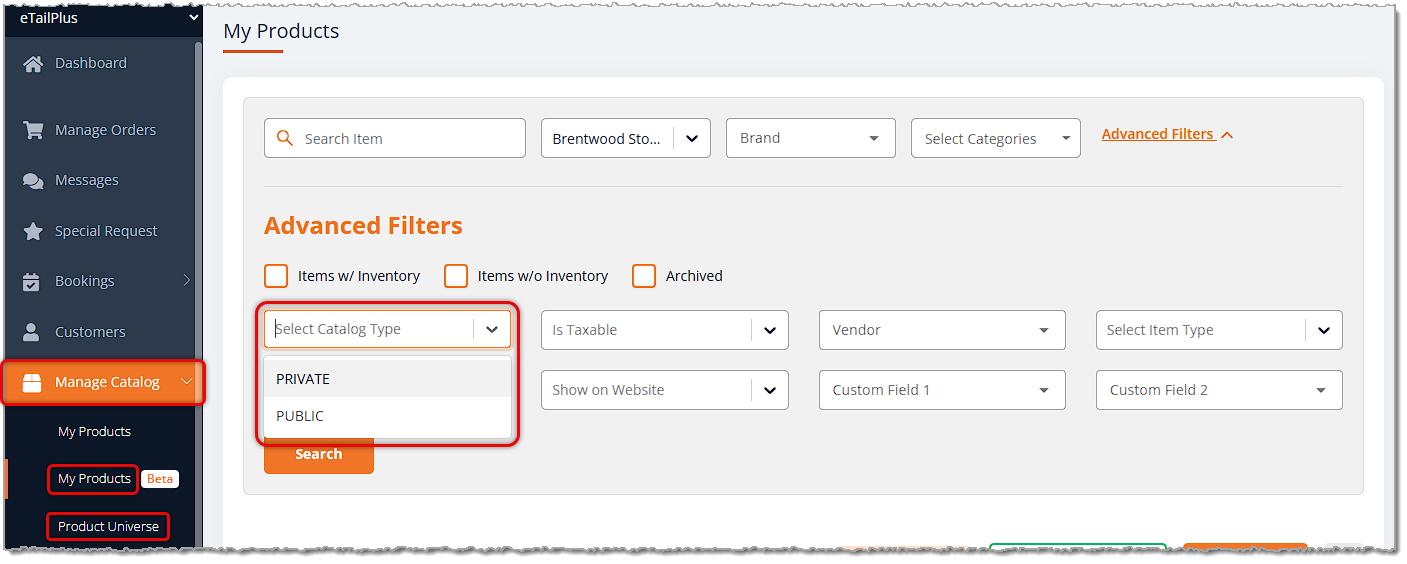
You can work with your products in the Manage Catalog part of the main menu. Your store catalog is kept in two primary areas in that menu; My Products is where you can find products that are Public and Private. The Product Universe is the master eTailPet catalog we are constantly updating.
The Product Universe
The Product Universe is a huge catalog that includes over 180,000 pet-related products from a wide variety of vendors, with more being added every day. These already include the data and photos you need to get started with managing your store's product catalog. You will select products to include in your My Products list from the Product Universe either directly through Manage Catalog > Product Universe or by importing the UPCs into your My Products list and matching them. Click here to learn more about adding and importing items to your public catalog.
These products are in your Public catalog type, and are available for sale in-store and through your website. All of your public products can be further customized by you to add more information if you desire. You will also be able to set up your vendor, cost, and retail pricing details for each product in this catalog. The link above includes steps on how to add Vendor, Vendor Cost, Vendor SKU, and Retail Prices to your products using the Product Manager.
Private Products
You may have some products that you sell in your store that can’t be found in the Product Universe. For example, you might provide grooming services, daycare, or local items. You can easily add these to your POS by creating them as Private Products. These products will only be available for sale in-store and will not appear in your online catalog. Click here to learn more about adding and importing products into your Private Products catalog.
For some products that are not currently available in the Product Universe catalog, you can submit a Catalog Request to see if they can be added.
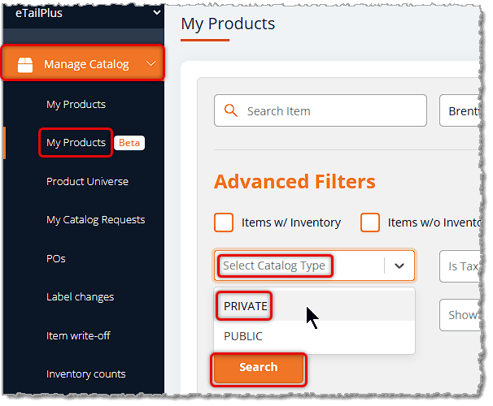
To access your Private Products page, go to Manage Catalog > My Products. In the Advanced Filters area, click to open the Catalog Type filter and select Private. Then click the Search button to load your Private Catalog.
Please Note: If products are later added to the Product Universe that you originally set up as private products, you will need to first archive the private products in order to avoid duplicate UPCs in your catalog. Click here to learn more about archiving a private product and merging it with a public product.
The My Products Page
The My Products page gives you many ways to find and work with the products in your store's catalog. Here are the functions of the page:
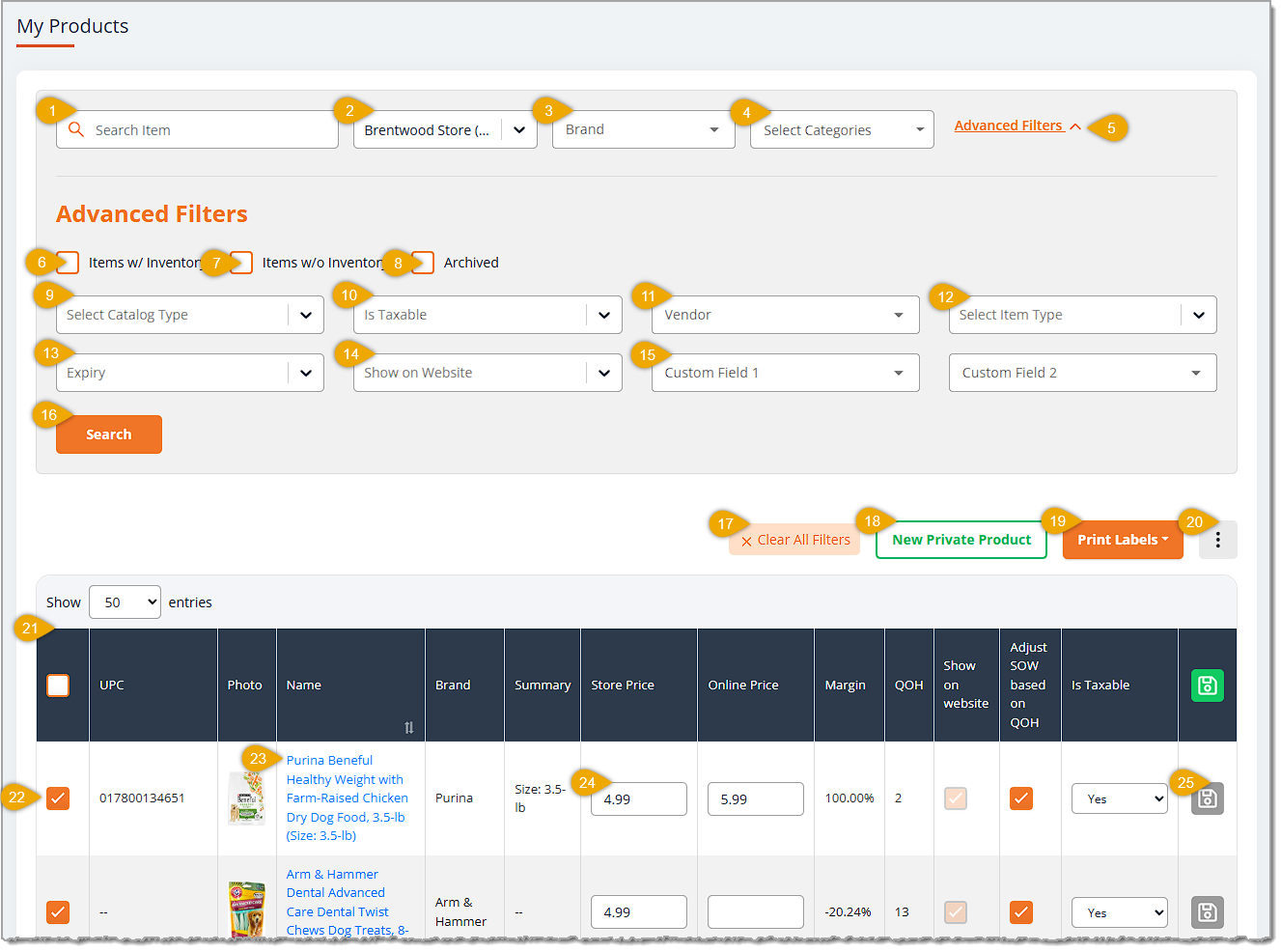
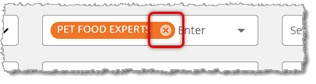
Search and Filters - Please note that once you have selected a filter, you will see your selection in that area along with an X button you can use to clear it, if needed.
- Search Item — You can scan in a UPC barcode for a product here or enter text about the item to search for it.
- Store — If you have multiple stores, you can use this filter to select which store's catalog you wish to view. After selecting one, you can search again to filter for others until you have the Brands loaded that you want.
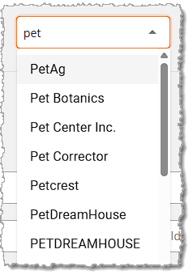
- Brand — Click this filter to enter search text for the brand you want. After entering three or more characters, the filter will begin finding matches. Click on the brand you want. This is one of the core filters and is always in view.
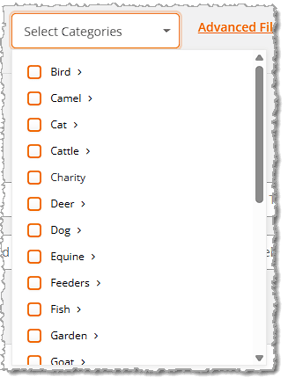
- Categories — Click this filter to select as many Categories as you'd like to view. Check the boxes for the ones you want. This is one of the core filters and is always in view.
- Advanced Filters — By default, the My Products page loads with this area closed. You can click on the Advanced Filters link to expand and open the area to have access to the filters listed below.
- Items With Inventory — Check this box to view only items that have a Quantity on Hand of 1 or more.
- Items Without Inventory — Check this box to view only items that have no Quantity on Hand.
- Archived — Check this box to view only items that have been Archived. The Archived product status is similar to Deleted, but it is not a permanent deletion.
- Select Catalog Type — Click to open this drop-list if you need to change the Catalog Type from Public products (default) to Private. You'll have the same option after changing to the Private Catalog.
- Is Taxable — Click to open this filter and change the view from the default of Yes (taxable) to either No (not taxable) or Other (situationally taxable) items.
- Vendor — Click to search for one of your Vendors (similar to the Brand filter above in #3). Enter search text and the system will begin populating matches after you enter three or more characters. Click on the Vendor you want to filter to only products associated with that Vendor.
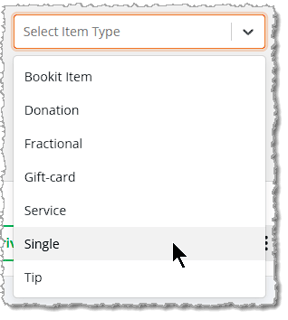
- Select Item Type — Click to select the Item Type you want to view. Choices include Appointment, Donation, Fractional, Gift-Card, Service, Single (default), and Tip.
- Expiry — By default, items with and without Expiration Dates will display. Click to open this filter and restrict the items to those with expirations (Yes) or those without (No).
- Show on Website — By default, items that appear on the website and that are only in-store will display. Click to open this filter and restrict the items to those that Show on Website (Yes) or those that do not (No).
- Custom Fields — If you have saved product Tags or if you've saved labels in product Custom Fields, such as 'Seasonal,' you can enter one to filter for items with that tag or custom label. If you need to do more than one, use the second Custom Field.
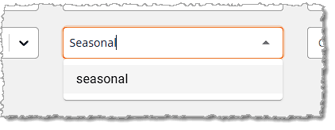
- Search Button — Click the Search button to load matching results.
Page Functions
- Clear All Filters — Click this button to remove all filters and reset the page to the default view of all Public products.
- New Private Product — Click this button to create a new product not in the Product Universe that will be part of your Private product catalog. There are a lot of options in configuring a new product and you can find all details by clicking here.
- Print Labels — If you need to print labels for products or just update shelf tags, first select all of the products you need by clicking the checkboxes on the far left. Then click the Print Labels button and you can either print a label for each of the Quantity On Hand (Print QOH) that you have, or you can Print One label for each selected product.
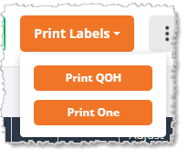
- Action Menu — You can open the Action Menu for My Products by clicking the Three-Dot button on the far right.
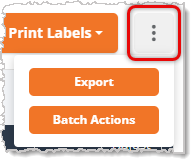
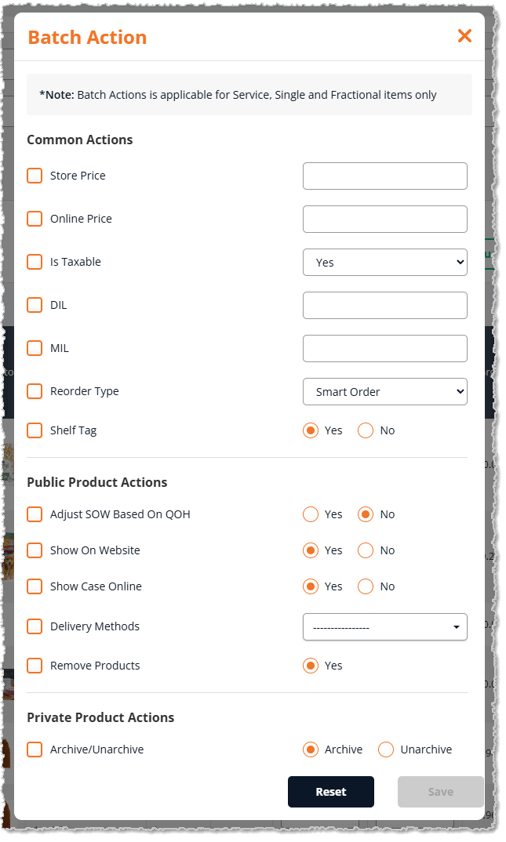
If you have selected product checkboxes, the Export and Batch Action buttons will be active for you. Click the Export button to have the system email you an Excel file of the data for the selected products. Click the Batch Actions button to open the Batch Action window and do bulk edits or actions on the selected products. For full details on what you can do with the Export function, click here, and for full details on Batch Actions, click here.
Data Table
- Data Table — Here are the functions for working with your My Products Data Table:
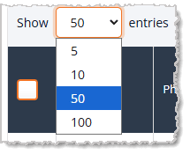
- By default, the Data Table will display the first 50 items, but you can use the Show Entries control in the upper left to adjust that quantity.
- In the Data Table header row, you can click the checkbox to Select All or click again to Deselect All.
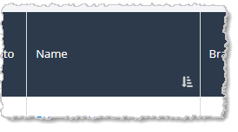
- You can also Sort the table by clicking the Name column header, or Reverse-Sort by clicking it again.
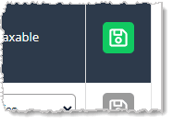
- On the far right, you can click the Update All button in the header row to save updates to all products in the data table to which you have made edits.
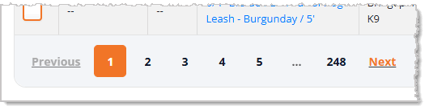
- At the bottom of the table, you can use the Navigation Controls to move between the pages of items in the lower left.
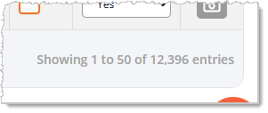
- In the lower right, you can see which products are displaying out of the total number you have filtered to display on the page.
- Select Item — You can check the box for an item on the far left to select it for print or batch actions.
- Product Link — The Name of each product is a link you can click to open its full details. For more information on working in that window, see the section below on Product Detail Page Tabs.
- Editable Product Data Fields — Several of the fields in the Data Table are editable for you. These include Store Price, Online Price, Show on Website (SOW; this is only active for Public products set to be available online), Adjust SOW Based on QOH (If there is no Quantity on Hand, the Show On Website will automatically deactivate), and Is Taxable.
- Update Item — You can click the Update Item on the far left if you need to update changes you made to an individual product. If you have made changes to multiple items you need to save, you can click the Update All Items button in the header row of the Data Table.
 Boss Quote
Be firm with your human about double-checking product edits before they update product prices, website visibility, or taxability from the My Products page. Their capacity for failure is nearly as profound as their lack of providing catnip when needed.
— Felicity, Scranton, PA
Product Details Page
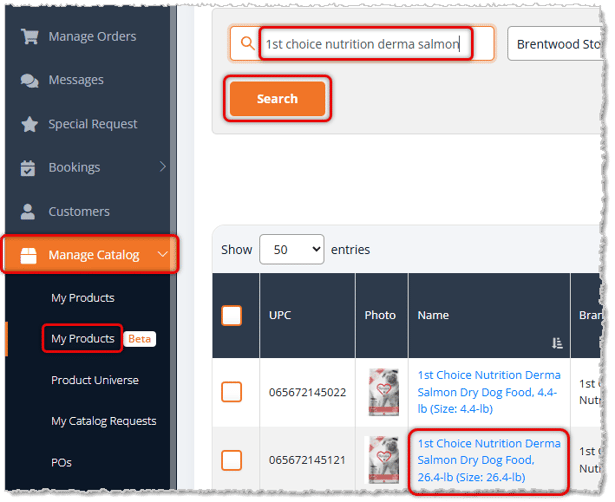
You can see and edit full product details by opening the My Catalog area of the main menu on the left and clicking My Products. Find the product you want and click on its name.
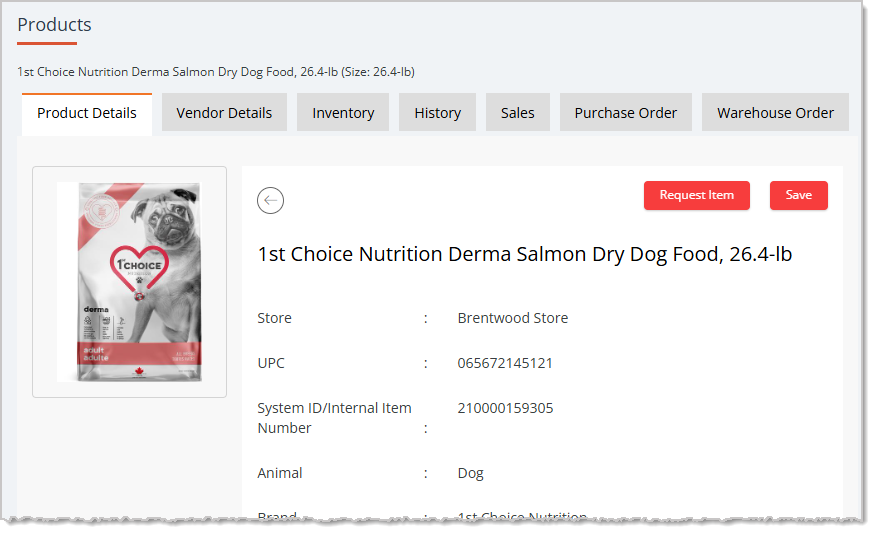
Depending on your configuration, you will have six or seven tabs of information for the product. These include Product Details, Vendor Details, Inventory, History, Sales, Purchase Order, and if you have set up a Warehouse location, a Warehouse Order tab. For full details on this page and all tabs, click here to view the Product Details Page article.
Related Topics
Adding and Importing Products
Private Products
Product Universe
Product Vendors
Export Products
Product Batch Actions
Printing Product Labels
Product Details Page
Frequently Asked Questions
Q: What's the difference between Public and Private catalog types?
A: Products from the Product Universe are stored as Public type and are available for sale both in-store and on your website. Private type products are ones you set up yourself and are not available for you to sell online.
Q: I have a question, but I can't find my answer here. How do I get more assistance?
A: You can ask any question at the number listed here. Contact our support team at: (323) 370-0738 for the U.S., and (888) 370-2363 for Canada.







 May 28, 2026
Is this page helpful?
×Help us improve our articles