Quick Start: How to Set Up Inventory for Your Store

May 26, 2026May 26, 2026

One of the first things you'll need to do in the eTailPet system is to start loading your products into your catalog. In this article you will learn how to load products into the catalog and use the Product Manager to quickly populate all of your product data (such as retail Price, Vendor, and vendor Cost). Time to get started!

Artistic collage of illustrations of pet store goods around a laptop for eCommerce.

In this article, you'll learn how to do the following steps (click on a link to jump to its section):

Step 1: Load Products

Step 2: Set Up Vendors

Step 3: Set Up Costs and SKU Codes

Step 4: Set Up Retail Prices


flamenca - adding and importing products


Master Product Spreadsheet Template

If you prefer to load your products by spreadsheet upload, you can use the Master Product Template. This can be an extremely useful tool whether you have a few hundred products or thousands. This template has columns for required data, UPCs, and Store IDs. If you want to upload other data, such as retail prices, vendors, and costs at the same time, you can also do so with this spreadsheet.

If you feel overwhelmed by the idea of putting all of that into a spreadsheet, you can skip ahead to Step 1 and use whatever method works best for you to get started loading your products. There are four steps for getting your products set up in the eTailPet system. Full details on each are below.


Step 1: Load Products

You have several methods you can choose to load your products into the Catalog. If you are already live with the eTailPet e-commerce website, you already have a catalog for goods you sell online. If you are new to eTailPet, you can either add products directly from the Product Universe, or you can create a spreadsheet and import them. If you have Private Products that are not found in the Product Universe, you can add them manually or import them. You can also create a Catalog Request to have products added to the Product Universe.


eTailPet E-Commerce Website

If you have already been using the eTailPet e-commerce system then you are already halfway there. You’re already familiar with the Product Universe, and you already have an online Catalog set up. If you have more products you need to add, then choose one or more of the following methods in this section to get the rest of your products added. Otherwise, you’re ready to move to Step 2.


Product Universe

The eTailPet Product Universe catalog has over 180,000 products ready for you to use in your store or online catalog. Go to Manage Catalog > Product Universe.
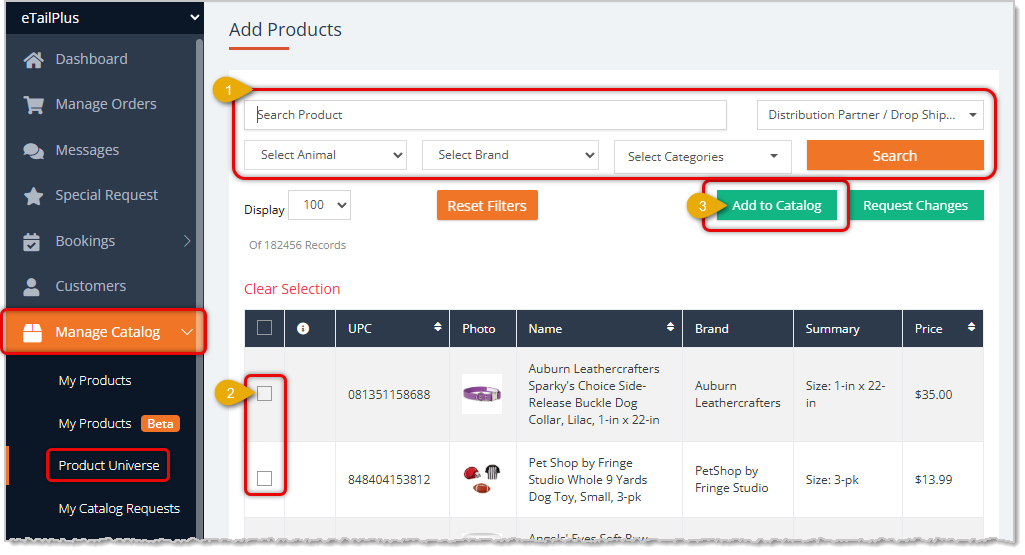
Image showing the Product Universe page of the Manage Catalog area of the eTailPet system with steps for adding products to the catalog highlighted.

  1. You can filter by brand, animal, or category, or you can use the Search field to search by keyword. Click the Search button when you have the filters set the way you want. You can also use the Search field with your scanner to scan in a barcode, then click to Search for the product.
  2. Check the boxes on the left for the products you want to add to your catalog.
  3. Click the Add to Catalog button when you're done selecting items and the system will add them to your store's Catalog.

You can probably get most of your products added to your Catalog this way. You can add anything that you don’t find here as Private Products (see below).


Import Products

If you have a large inventory of products, it might be more efficient to Import them. Since we are going to be using Product Manager to add all of the details, the only required fields for the spreadsheet will be the UPC and Store ID; you can leave the others blank. If you would rather import all of your data using the import template, click here for full instructions.

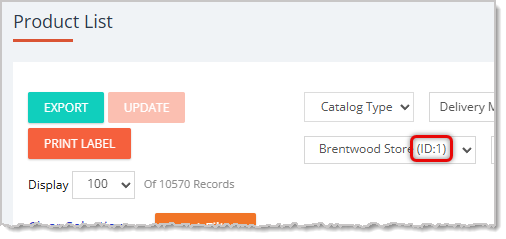
Image showing how to enter data for UPC codes and Stores in the Master Product Template spreadsheet for the eTailPet system..

  1. Go to Manage Catalog > My Products > Import/Update Products > Get Sample Excel, then open the downloaded file. Please note that you should not change any of the column header names in Row 1. The spreadsheet needs to remain in Excel Worksheet format, and there is an Instructions tab at the bottom for details on how to load the data.
  2. Add your UPCs to column A of the template. See the note below about preserving any leading zeroes in your UPC codes; by default, Excel will remove them.
  3. Add your Store IDs to column F, the stores column of the template.
    1. The Store ID can be found the My Products page next to the Store Name, as pictured below.
      Image showing a Store ID highlighted on the My Products page in the Manage Catalog area of the eTailPet system.
    2. For multiple stores, in the Store ID cell for each product, separate each Store ID with a comma and no spaces, as shown in column F of the example spreadsheet image above.
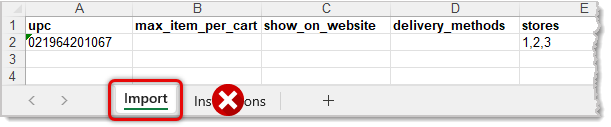
      NOTE: Make sure that the import template tab is named “Import,” and delete the Instructions tab before importing.
      Image showing how the Import tab should be named and how the Instructions tab should be deleted before importing products via spreadsheet into the eTailPet system.
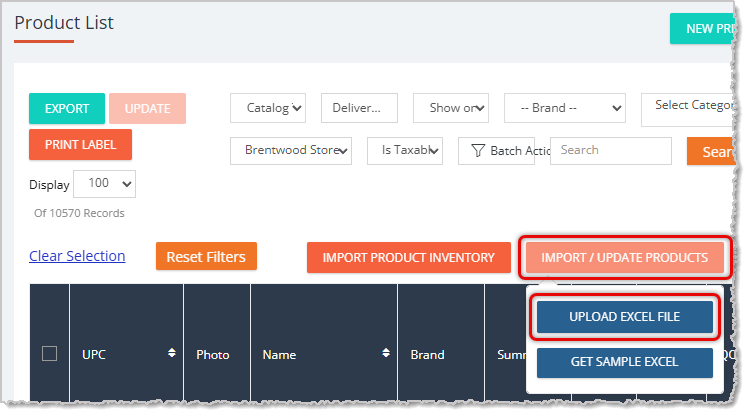
  4. Go to Manage Catalog > My Products > Import/Update Products > Upload Excel File and select your file to upload.
    Image showing Upload Excel File button highlighted on the My Products page in the Manage Catalog area of the eTailPet system.
  5. Check your email for the import report the system will send you after the upload. The last column of the report will tell you if the system found a matching UPC in the Product Universe. You can add any products that were not imported because they were not in the Product Universe as Private Products.

💡Pro Tip: Here are some tips for best practices when working with spreadsheet data:


Private Products

Any UPC that you don't find a match for in the Product Universe is one you can add as a Private Product. You can sell Private Products through your POS but they will not display on your e-commerce website. Because you are going to use the Product Manager to add all of the other information, you only need to initially add a few details to your Private Products. You can add Private Products manually or by importing them.
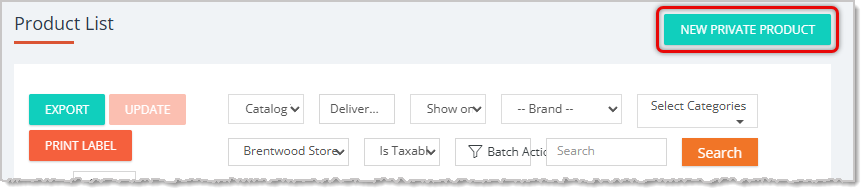
Image showing New Private Product button highlighted on the My Products page in the Manage Catalog area of the eTailPet system.

To manually add new Private Products, go to Manage Catalog > My Products and click the New Private Product button in the upper right, as pictured above.
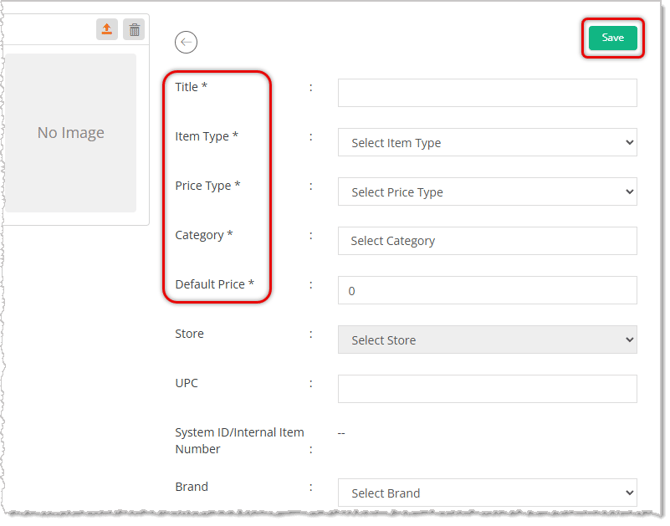
Image showing required fields and Save button highlighted on the New Private Product page of the eTailPet system.

Fill in the required details highlighted above (Title, Item Type, Price Type, Category, and Default Price) and click the Save button in the upper right. You can leave the Default Price as $0 for now as we will be adding that later. Click here for full instructions on adding Private Products manually.
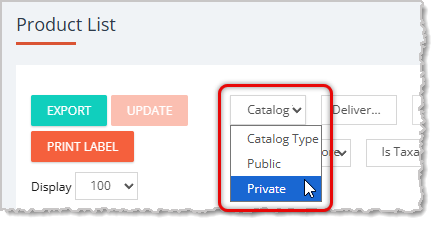
Image showing Catalog type filter highlighted on the My Products page in the Manage Catalog area of the eTailPet system.

To import new Private Products, first download the template if you don't already have it saved. Under Manage Catalog > My Products, in the Catalog filter, set the type to Private, then click the Search button on the right (not pictured). Refer to the image above.
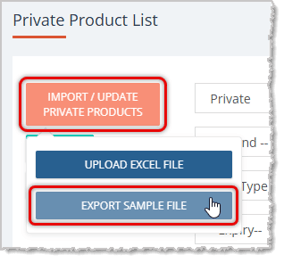
Image showing Export Sample File button highlighted on the Private Product List page in the Manage Catalog area of the eTailPet system.

The page will update to the Private Product List. Click the Import/Update Private Products button and click Export Sample File in the drop-list.

Image showing how to enter data for UPC codes, product name, and price type in the Master Product Template spreadsheet for the eTailPet system..

Open the Excel file. For all items, you'll need to add the UPC, Product Name,  Price Type, and Default Price. The Default Price can be 0 for now because we will be updating the price later. Please see the note above about preserving leading zeroes in Excel if you're not familiar with Excel (if you're familiar, you'll Format Cells for column A to the Text format before pasting or scanning in your UPCs). If you would prefer to upload all of the information on the template, click here to learn more.


Step 2: Set Up Vendors

Go to Manage Catalog > Product Vendors to open the Vendor List Page.
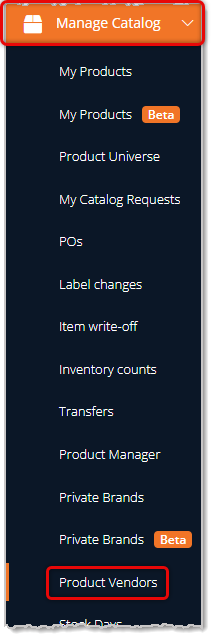
Image showing the Product Vendors link in the Manage Catalog area of the main eTailPet system menu.

On the Vendor List page, click the Add New button in the upper right.
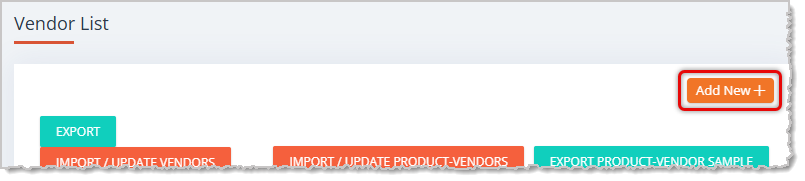
Image showing the Add New button on the Vendor List page of the eTailPet system.

Add a new record for each of the Vendors from whom you will be purchasing inventory. There are three required fields: Name, Shipping Fee, and Minimum Order Amount. You can leave the last two at their default $0 values, if needed. Click here for more detailed instructions on loading Product Vendors.
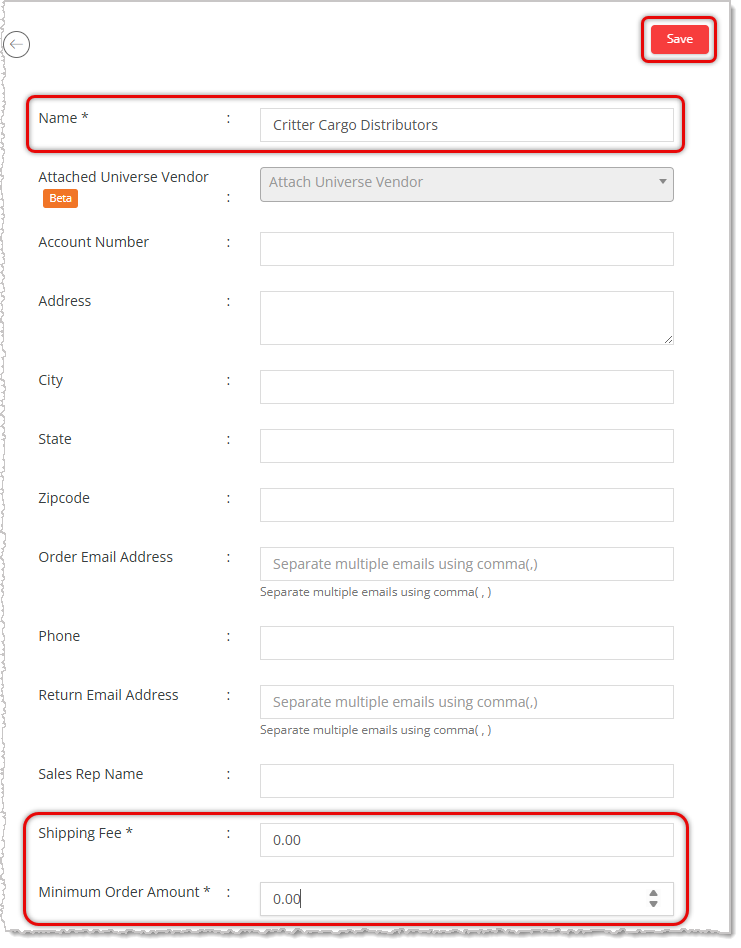
Image showing the required fields on the add new vendor page of the eTailPet system.

Next, go to Product Manager and add Vendors to all of your Products:
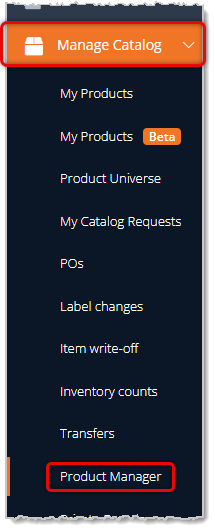
  1. Go to Manage Catalog > Product Manager.
    Image showing the Product Manager link in the Manage Catalog area of the main eTailPet system menu.
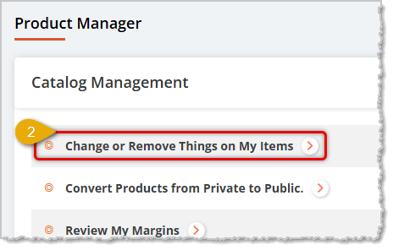
  2. Click the Change or Remove Things on My Items link in the Catalog Management area near the top of the page.
    Image showing the Change or Remove option on the Product Manager page of the eTailPet system.
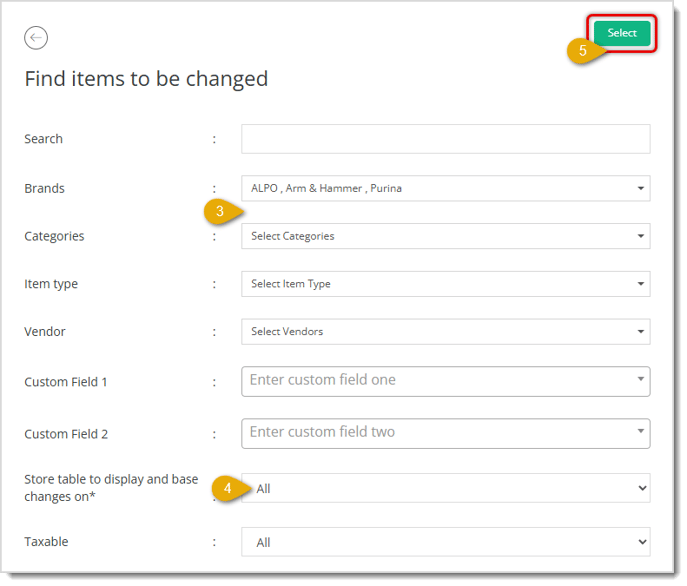
  3. Select one or more Brands or Categories your first Vendor supplies, or use keywords to Search and select a group of products provided by the Vendor.
    Image showing the Find Items steps of Change or Remove Things on My Items for products in the Product Manager of the eTailPet system.
  4. Select a store from the Store Table to Display and Base Changes On drop-list; you cannot leave it at the default All option.
  5. Click the Select button in the upper right.

You'll see products matching your selection load in the data table. You will use the Batch Actions area to add one of your vendors to the products you selected. Follow these steps:
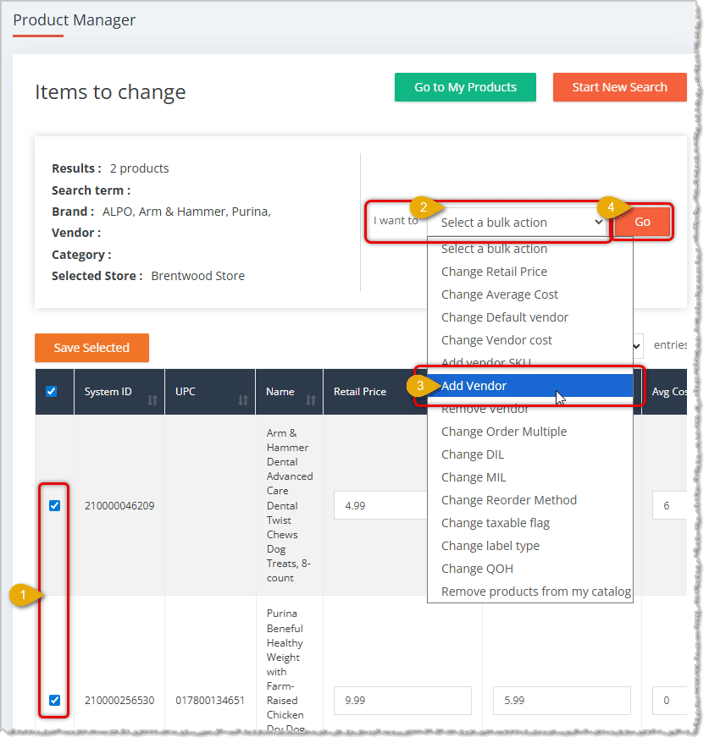
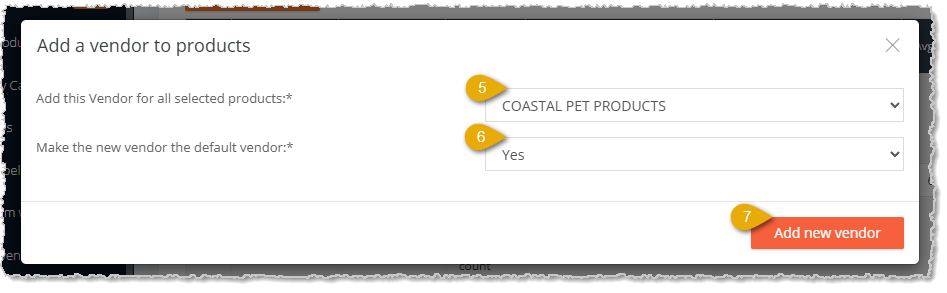
Image showing steps to add a vendor to selected products in bulk on the Product Manager page of the eTailPet system.

  1. Check the boxes for the products to which you want to add to the same single vendor. You can click the checkbox in the header to Select All or Deselect All, if needed.
  2. Click the Bulk Actions area to open the drop-list.
  3. Select Add Vendor from the list.
  4. Click the Go button.
    Image showing vendor selection and default configuration options when adding a vendor in bulk to products in the eTailPet system.
  5. In the window that opens, pictured above, click to select the Vendor from the drop-list. If you have a lot of vendors, you can hit a letter key on your keyboard to jump to that part of the alphabetized list.
  6. If you want to make the vendor the Default Vendor for all selected products, choose Yes in this area. If not, leave it at the default No option.
  7. When you're ready, click the Add New Vendor button in the lower right. The window will close, and you'll see a confirmation of the success of the bulk add vendor action in the upper right of the page. You'll be sent an email with details about what was saved to your products.
    Image showing the success notification for bulk updating vendor for products in the eTailPet system.

Repeat these steps for all of your vendors. 

Adrian quote about using export and import functions.
Boss Quote

Inform your human that the fastest way to get inventory into the system is using the Export and Import functions in My Products. Learning how to work with spreadsheets is something even their simple minds can do. Also make sure they let you sit on their lap while they work. Be sure to sink your claws into their lap every once in a while to keep them in their place.

— Adrian, Wenatchee, WA


Step 3: Set Up Costs and SKU Codes

In this step, you'll learn how to use the Product Manager to set Costs and add SKUs to your products in bulk. Follow these steps:

  1. Go to Manage Catalog > Product Manager.
    Image showing the Product Manager link in the Manage Catalog area of the main eTailPet system menu.
  2. Click the Change or Remove Things on My Items link in the Catalog Management area near the top of the page.
     Image showing the Change or Remove option on the Product Manager page of the eTailPet system.
  3. Select one or more Brands or Categories for products to which you want to add Vendor Costs or Vendor SKU codes, or use keywords to Search and select a group of products you want.
    Image showing the Find Items steps of Change or Remove Things on My Items for products in the Product Manager of the eTailPet system.
  4. Select a store from the Store Table to Display and Base Changes On drop-list; you cannot leave it at the default All option.
  5. Click the Select button in the upper right.

You'll see products matching your selection load in the data table. You will use the Batch Actions area to add Vendor Cost or Vendor SKU data to the products you selected. Follow these steps:
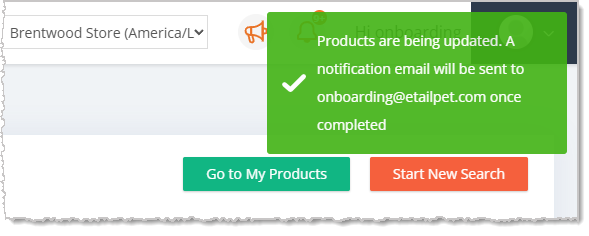
Image showing steps to add vendor cost or vendor SKU data to selected products in bulk on the Product Manager page of the eTailPet system.

  1. Check the boxes for the products to which you want to add Vendor Cost or Vendor SKU data. You can click the checkbox in the header to Select All or Deselect All, if needed.
  2. Click the Bulk Actions area to open the drop-list.
  3. Select either Change Vendor Cost or Change Vendor SKU from the list.
  4. Click the Go button.
    Image showing steps to edit vendor cost in bulk to products in the eTailPet system.
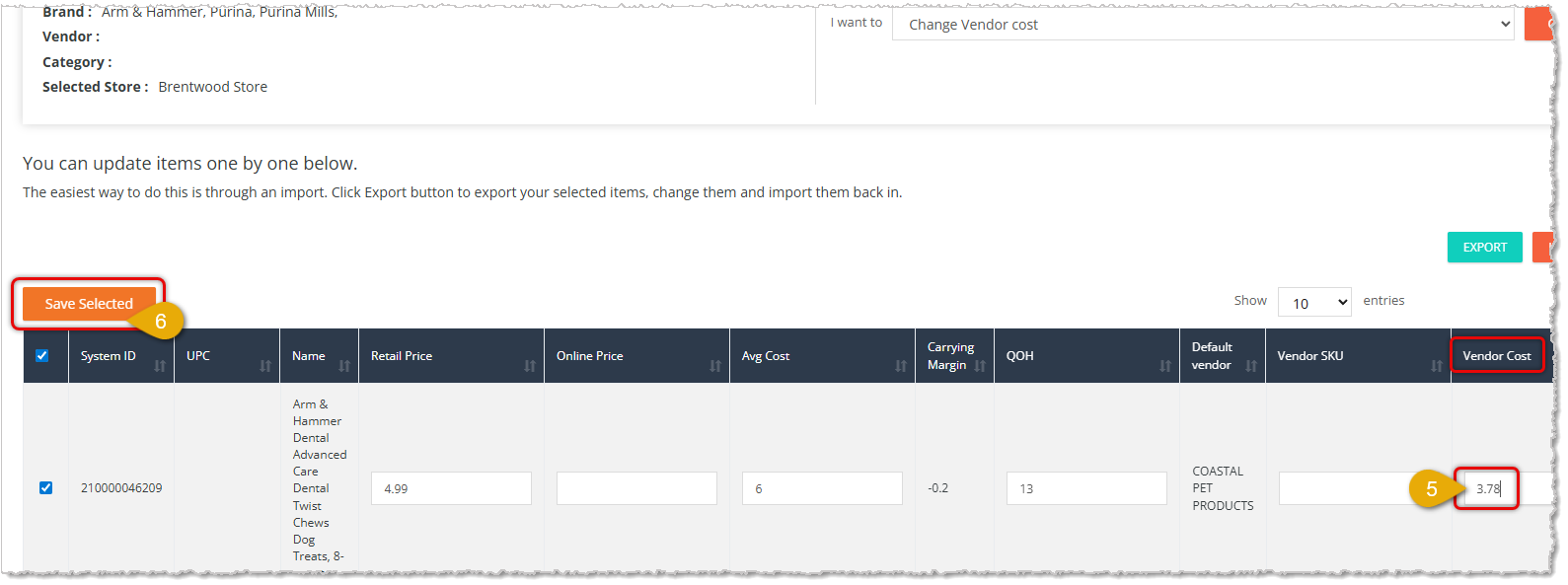
  5. On the Product Manager page, in the case of updating Vendor Cost, you'll see a Vendor Cost column in the data table. You can edit item Vendor Costs for each of the selected products in turn.
  6. When you're ready, click the Save Selected button on the left. You'll see a success message pop up in the upper right of the screen.
    Image showing the success notification for bulk updating vendor cost for products in the eTailPet system.

Repeat the steps above for Vendor SKU data.


Step 4: Set Up Retail Prices

In this step, you'll learn how to use the Product Manager to set Retail Prices for your products in bulk. Follow these steps:

  1. Go to Manage Catalog > Product Manager.
    Image showing the Product Manager link in the Manage Catalog area of the main eTailPet system menu.
  2. Click the Change or Remove Things on My Items link in the Catalog Management area near the top of the page.
    Image showing the Change or Remove option on the Product Manager page of the eTailPet system.
  3. Select one or more Brands or Categories for products to which you want to add Retail Prices, or use keywords to Search and select a group of products you want.
    Image showing the Find Items steps of Change or Remove Things on My Items for products in the Product Manager of the eTailPet system.
  4. Select a store from the Store Table to Display and Base Changes On drop-list; you cannot leave it at the default All option.
  5. Click the Select button in the upper right.

You'll see products matching your selection load in the data table. You will use the Batch Actions area to add Retail Price data to the products you selected. Follow these steps:
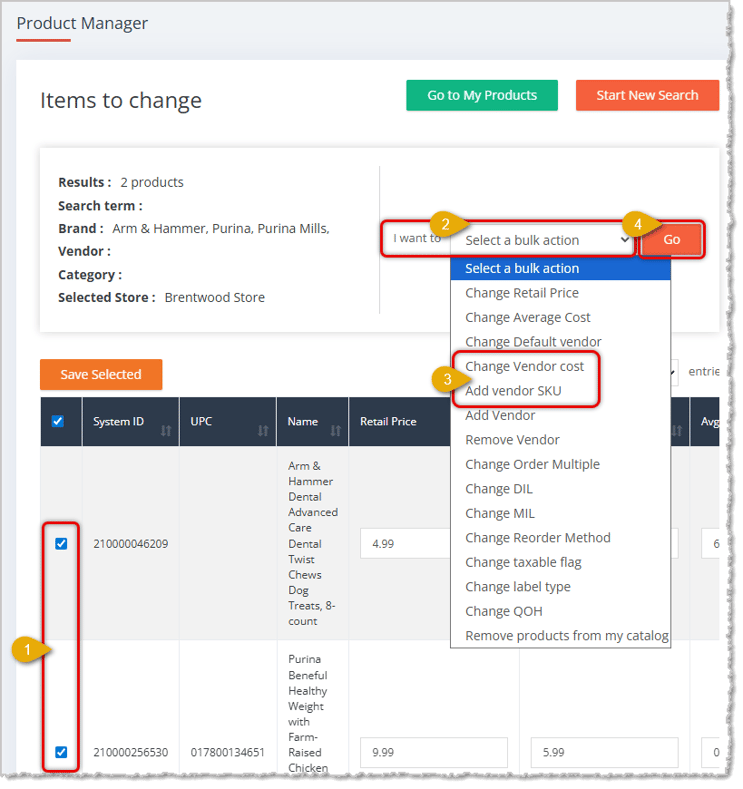
Image showing steps to add retail price data to selected products in bulk on the Product Manager page of the eTailPet system.

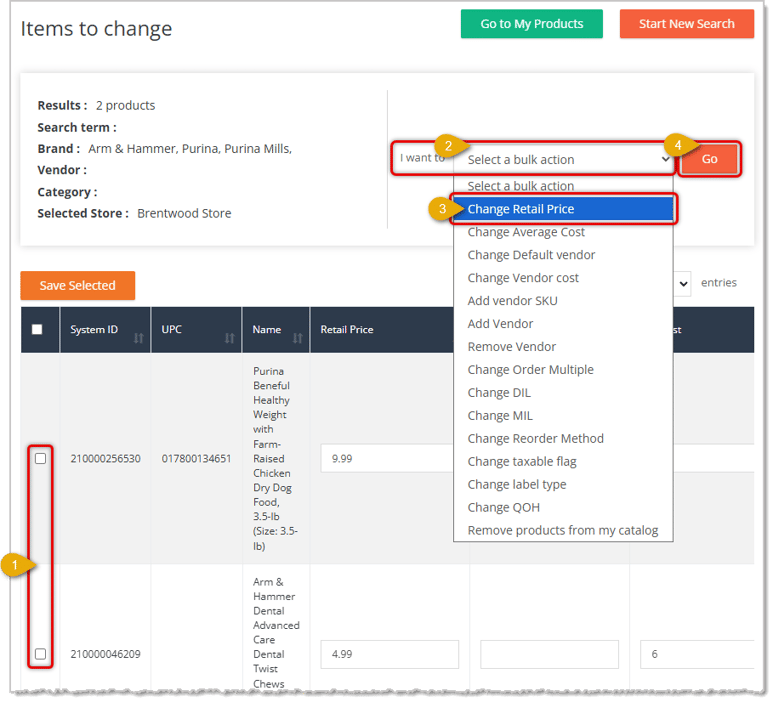
  1. Check the boxes for the products to which you want to add Retail Price data. You can click the checkbox in the header to Select All or Deselect All, if needed.
  2. Click the Bulk Actions area to open the drop-list.
  3. Select Change Retail Price from the list.
  4. Click the Go button. The Change Retail Price window will open.
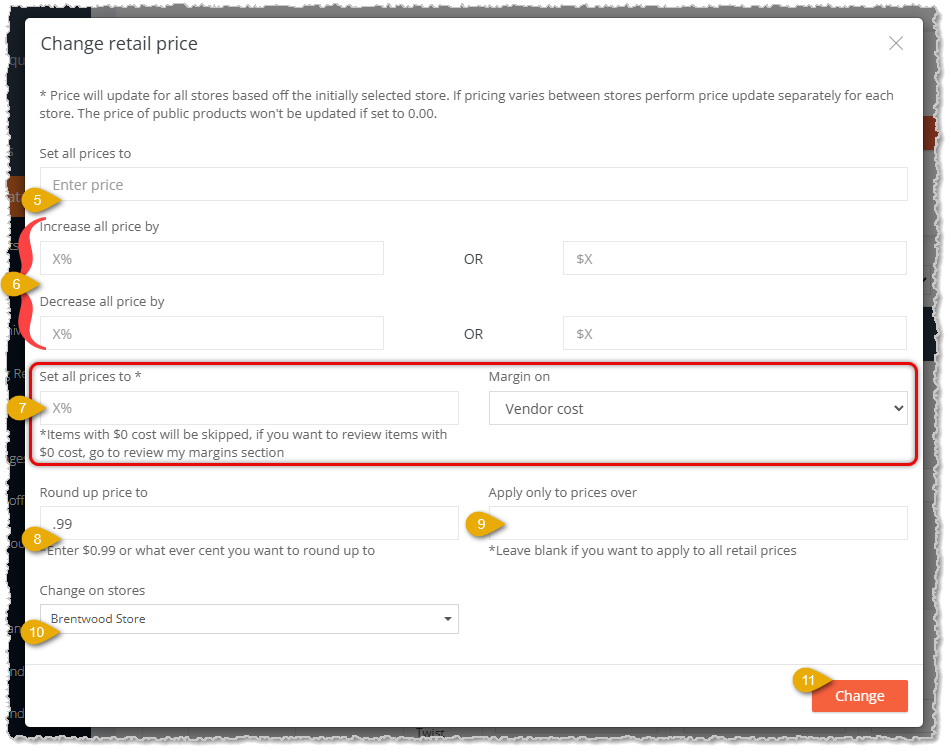
    Image showing the Change Prices window of Bulk Actions in the eTailPet system.
  5. Set All Prices To Fixed Price — If the products you selected will all use the same Retail Price, enter that price in this field.
  6. Increase or Decrease All Prices — If you want to increase or decrease Retail Prices for products that are already saved, you can do so either as a percentage of the saved Retail Price or as a dollar amount increase or decrease in this area.
  7. Set All Prices To Percentage of Margin — If you want to set your Retail Prices to a percentage of your Margin on either Vendor Cost or Average Cost, enter the Percentage and choose what the Margin will be based on.
  8. Round Up Price To — When using either #6 or #7 above, resulting prices might be strange amounts, such as $4.71. If you want  your prices to round up to a specific amount of cents after each dollar amount, enter the amount in cents you want.
  9. Apply Only to Prices Over — If you don't want your price changes to apply to lower-priced items, you can set the amount threshold over which your Retail Price changes will apply in this field.
  10. Store — Set the Store for which you want your Retail Price changes to be applied.
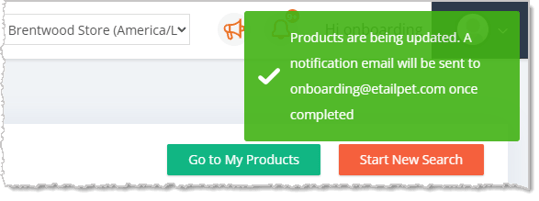
  11. When you're ready, click the Change button on the left. You'll see a success message pop up in the upper right of the screen. You'll receive an email with details about the changes you saved.
    Image showing the success notification for bulk updating Retail Price for products in the eTailPet system.

Repeat the above steps for all products that need Retail Prices added for other categories or brands.

Heston the Hummingbird - Advice on taking care with bulk edits in the eTailPet system.


Related Topics

My Products Overview

Adding and Importing Products

Private Products

Product Universe

Product Vendors

Product Manager

Spreadsheet Tips and Tricks


Frequently Asked Questions

Q: What if a product isn't in the Product Universe?

A: Add it as a Private Product, either manually or by import. You can also submit a Catalog Request to the support team to have it added to the Product Universe.


Q: What are Private Products?

A: Products not found in the Product Universe that you add yourself. You can sell them through your POS, but they won't display on your e-commerce website.


Q: Where do I find my Store ID?

A: You can find it in the My Products page, next to the Store Name. 

Image showing a Store ID highlighted on the My Products page in the Manage Catalog area of the eTailPet system.


Q: I have a question, but I can't find my answer here. How do I get more assistance?

A: You can ask any question at the number listed here. Contact our support team at: (323) 370-0738 for the U.S., and (888) 370-2363 for Canada.

Need Help?

Can't quite find the answer you're looking for? Our support team is just a call away.