






Export Products
In the eTailPet system, you can easily export your product data as a CSV or XLSX file. If you want t
 May 27, 2026
💻 While you can manually input data into the eTailPet system for almost every process, you can input your data using spreadsheets and import the file to update it. This article shows you a number of tips and tricks you can use while filling out a spreadsheet to make the process easier.
🐱 Please Note: These tips are based solely on Microsoft Excel. The actions in this article may differ in Google Sheets and other spreadsheet software. The following videos were not created by eTailPet and are only linked for your convenience. Also note that eTailPet does not offer support for Excel or any other spreadsheet software.

Generally, you can use copy and paste as shortcuts to avoid manually typing in repeating data. Three easy keyboard shortcuts to know are:
You can refer to the video below to learn other ways to copy, cut, and paste data in a spreadsheet.
This video provides an overview about inserting, deleting, and changing the size of rows and columns. Even if you have plenty of experience with Excel, you still might learn a tip or two from this video!
You can use spreadsheet software to round up your retail prices to 99 cents. For example, if a product's price is $13.50, you can round that up to $13.99. This video shows you how to round up prices for multiple products all at once.
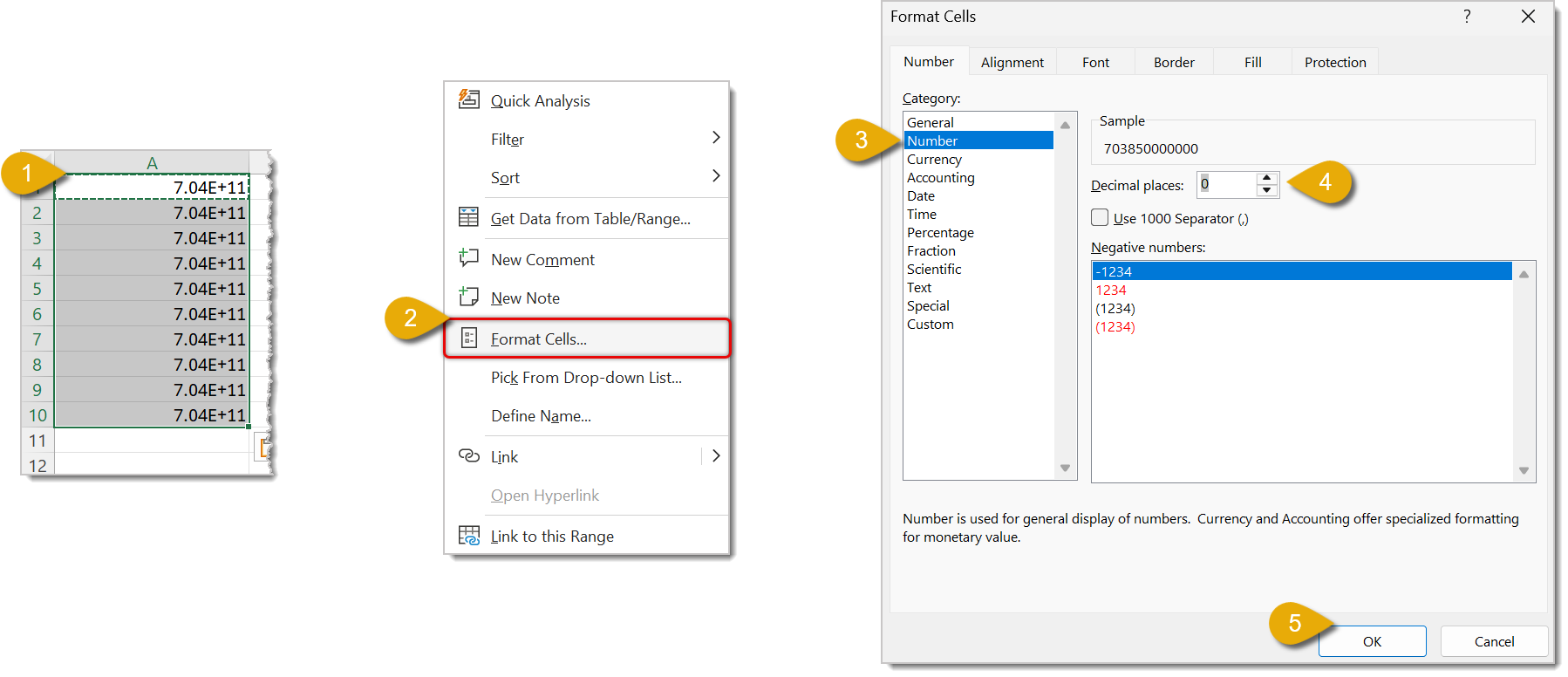
When you open a CSV spreadsheet in Microsoft Excel, it deletes leading zeros and changes any digit greater than 12 to scientific notation. Here's how to reformat scientific notation and format UPCs to include leading zeroes.
If your Product or System ID appears to have a Plus Sign symbol (+) in it, then Microsoft Excel has formatted it as scientific notation. This will cause issues with the import process, so these need to be reformatted.
Since UPC is usually a 12-digit or 13-digit number, we can use a formula to make sure leading zeros are not deleted.
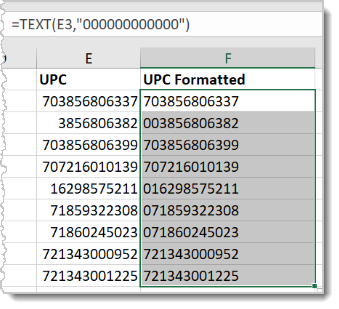
🐱Please Note: If any of your UPC rows are blank, this formula will fill it in with 12 zeroes, i.e. 000000000000. Be sure you don’t include all zeroes when you copy the formatted UPCs to the correct column.
If you prefer to save yourself the trouble of reformatting scientific notation after you've opened your file, you can take a few extra steps before opening it. This video guides you through the process:
You can use Auto Fill to quickly input data into your spreadsheet without copying and pasting. The video below shows you how to use Auto Fill:
Use Flash Fill to quickly clean up your data so you don't have to use more involved actions like retyping, creating formulas, or searching and replacing. Watch the video below to find out how you can use Flash Fill!
You can use VLookup to search for data across columns. While the eTailPet system makes it possible for you to not need this technique, using VLookup in your spreadsheet can potentially save you time.
XLookup is a newer version of VLookup available in Microsoft Office 365. If you've used VLookup before, XLookup is more intuitive. While the eTailPet system makes it possible for you to not need this technique, using XLookup in your spreadsheet can potentially save you time.
Importing Products Best Practices and Troubleshooting
Quick Start: How to Set Up Inventory for Your Store
Q: I have a question, but I can't find my answer here. How do I get more assistance?
A: You can ask any question at the number listed here. Contact our support team at (323) 370-0738 for the U.S. and (888) 370-2363 for Canada.
Is this page helpful?
×Help us improve our articles