






Export Products
In the eTailPet system, you can easily export your product data as a CSV or XLSX file. If you want t
 May 19, 2026
Add, view, and edit the Vendors you order products from in the eTailPet system in the Product Vendors area. You can import and export spreadsheets containing Vendor details, add new Vendors, search for existing Vendors, and more. Keep reading to find out how you can use this area so you can stay on top of your store's operations!

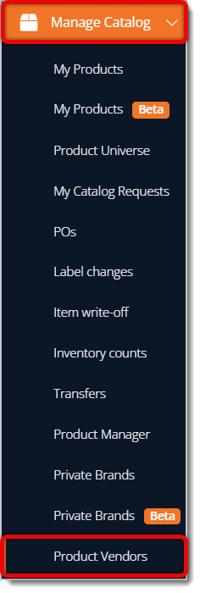
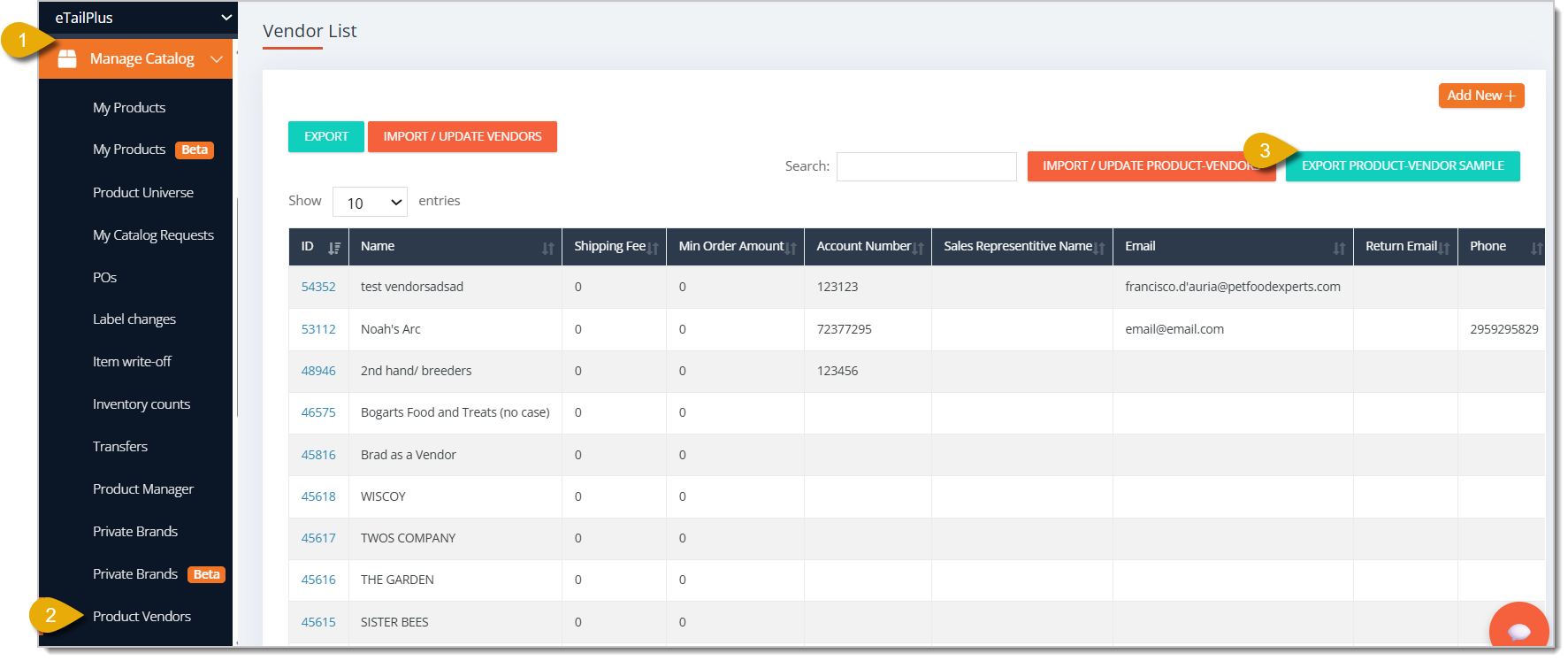
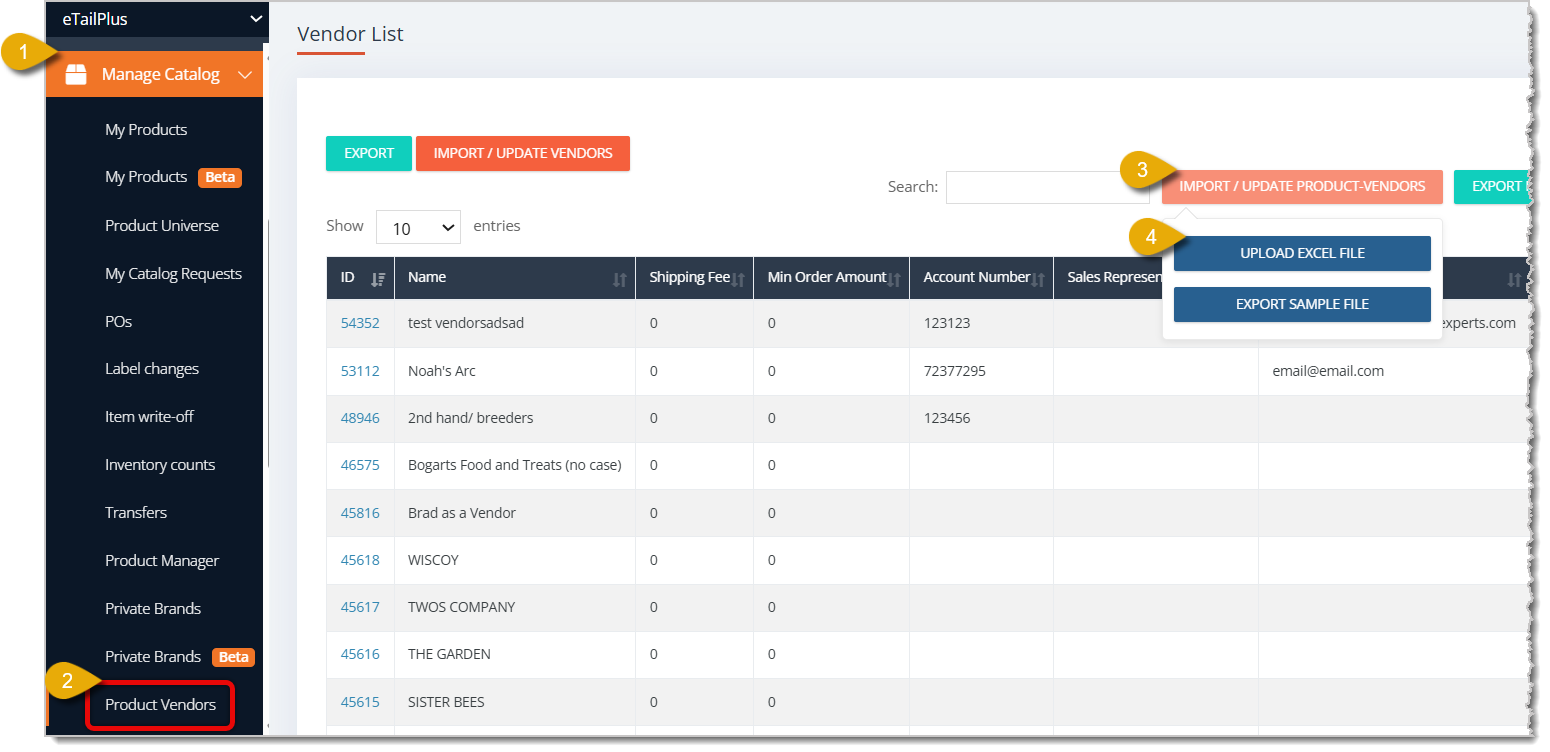
To access the Product Vendors area, go to Manage Catalog > Product Vendors in the main menu.
Here is everything you can use in the Product Vendors area to add new Vendors, search for existing Vendors, and import or export files containing Vendor details:
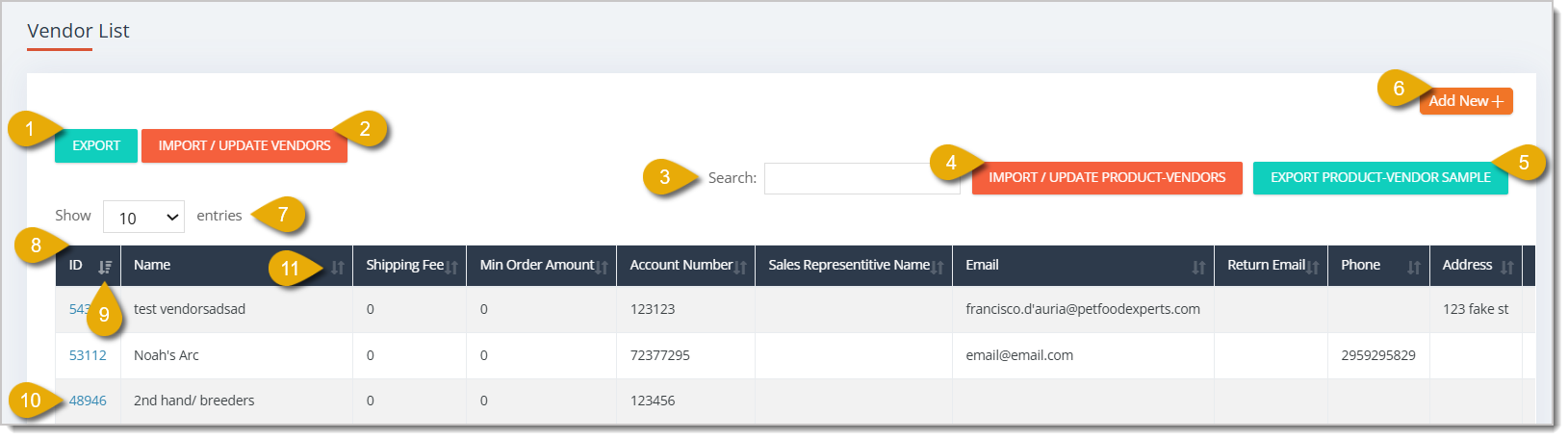
To add a New Vendor, click on Add New in the upper right.
If you want to edit a Vendor's details, select a Vendor by clicking on its ID in the data table, then click on Edit.
The Vendor Form will open for you. Here is everything in the Vendor Form that you can set up and use:
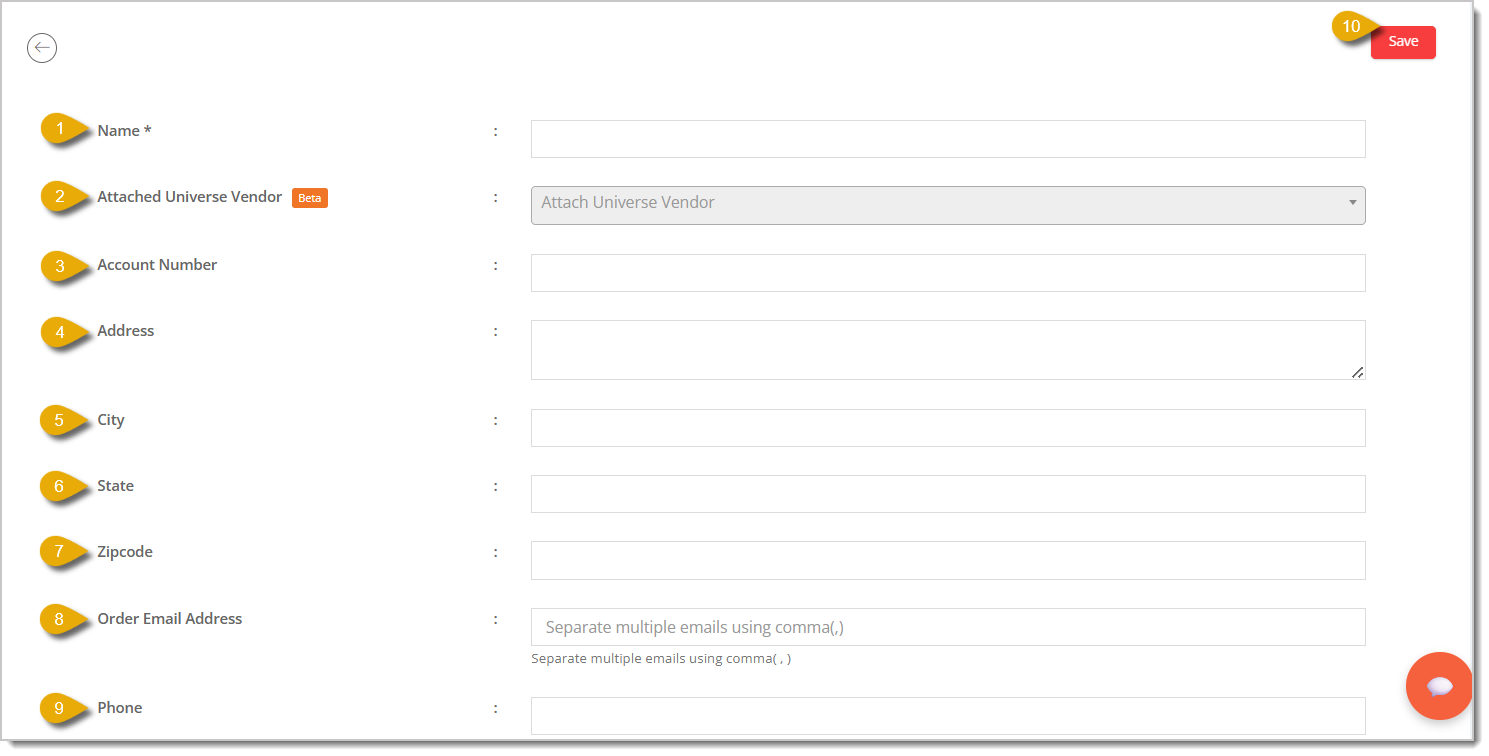
Name* — Enter the name of the Vendor.
Attached Universe Vendor (Beta) — This feature was not viable and will be removed in the future.
Account Number — Enter the Vendor's Account Number.
Address — Enter the Vendor's street address.
City — Enter the city in which the Vendor is based.
State — Enter the state in which the Vendor is based.
ZIP Code — Enter the ZIP Code in which the Vendor is based.
Order Email Address — Enter the Vendor's email address that they use to receive orders.
Phone — Enter the Vendor's phone number.
Sales Rep Name — Enter the name of the sales representative who is your point of contact for the Vendor (not necessarily the actual Sales Rep).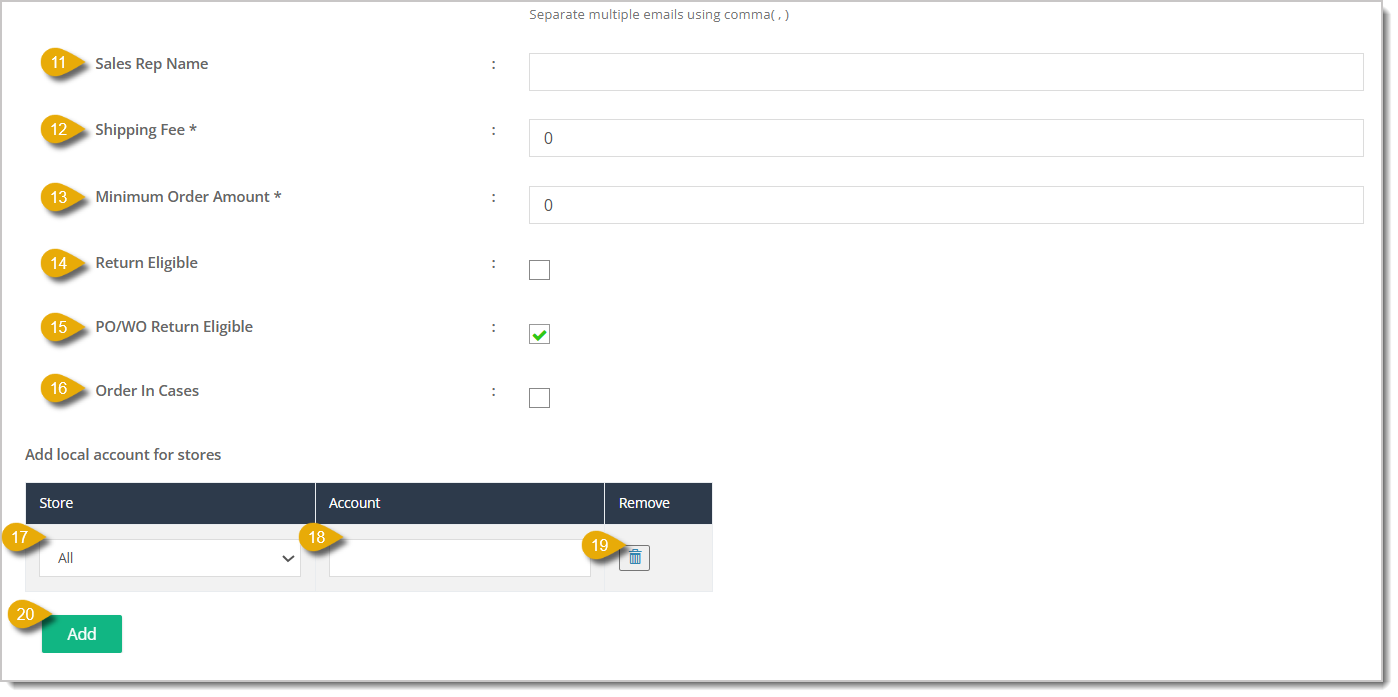
Shipping Fee* — Enter the dollar amount of the shipping fee you pay to get orders from the Vendor.
Minimum Order Amount* — Enter the minimum dollar amount your store has to spend to order from the Vendor.
Return Eligible — Check the box if items from the Vendor is eligible for returns.
Purchase Order / Work Order Return Eligible — Check the box if a Purchase Order or Work Order from the Vendor is eligible for returns.
Order In Cases — Check the box if you want to order from the Vendor in units of cases.
Store — You can add a local Vendor Account Number in this table for your reference. You can select All stores or a specific store from the drop-list.
Account — Enter the local Vendor's Account Number for the selected store.
* Required Field
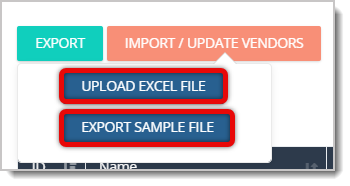
To import a file that will add or update Vendor records, click on Import / Update Vendors (this is not the same as Import / Update Product-Vendors, which is about the products Vendors carry).
You can click on Export Sample File to start with a template.
This is how to fill out each column of the file:
ID — Enter the Vendor's internal ID number.
Name — Enter the name of the Vendor. This field is required.
Shipping Fee — Enter the dollar amount of the shipping fee you pay to get orders from the Vendor. This field is required.
Minimum Order Amount — Enter the minimum dollar amount your store has to spend to order from the Vendor. This field is required.
Account Number — Enter the Vendor's Account Number with your store.
Sales Rep Name — Enter the name of the sales representative who communicates with you on behalf of the Vendor.
Email Addresses — Enter the Vendor's email address for purchase orders.
Return Email Addresses — Enter the Vendor's email address for requesting Vendor credits.
Phone — Enter the Vendor's phone number.
Address — Enter the Vendor's street address.
City — Enter the city in which the Vendor is based.
State — Enter the state in which the Vendor is based.
ZIP Code — Enter the ZIP Code in which the Vendor is based.
Return Eligible — Enter Yes if items from the Vendor are eligible for returns. If they are not, leave this blank.
Case Vendor — Enter Yes if you want to enable this vendor to convert products to cases of the product in your Purchase Orders. Leave blank if you don't have cases set up in your system.
Importing Product-Vendors (Products by Vendor) is different from normally importing vendors. With the Product-Vendors file, you will have Vendor records as well as the Product-Vendor relationships (which Vendors you order each product from).
Here is how to import a file of Product-Vendors (Products by Vendor):
Step 1: Export Vendor Template File
In order to import Vendor Costs so you can update them, you first need to download the import template file. Here's where you can download a sample file:
Step 2: Fill Out the Product Import Template
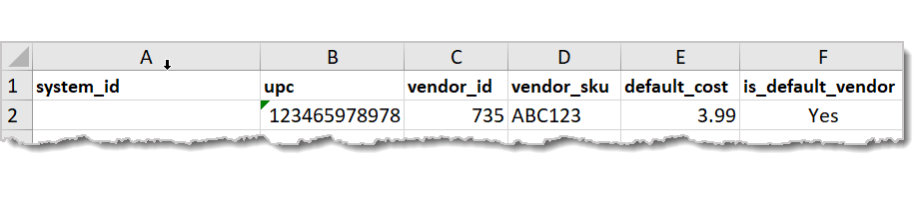
The Import tab of the spreadsheet contains product data you will be importing to properly associate each item with its Vendor. Open the file so you can edit information. Make sure to save your changes. Here is an example of how the import template's columns look in Microsoft Excel:
Step 3: Fill out Vendor Records
To update Vendor details or fill them out, click on the Vendors tab on the bottom of Microsoft Excel.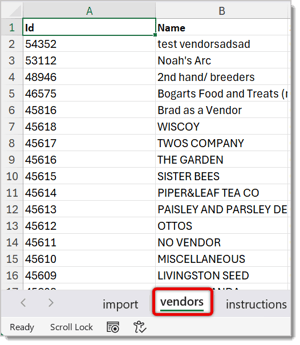
This is how to fill out each column of the file:
ID — Enter the Vendor's internal ID number.
Name — Enter the name of the Vendor. This field is required.
Shipping Fee — Enter the dollar amount of the shipping fee you pay to get orders from the Vendor. This field is required.
Minimum Order Amount — Enter the minimum dollar amount your store has to spend to order from the Vendor. This field is required.
Account Number — Enter the Vendor's Account Number with your store.
Sales Rep Name — Enter the name of the sales representative who communicates with you on behalf of the Vendor.
Email Addresses — Enter the Vendor's email address that they use to receive orders.
Return Email Addresses — Enter the Vendor's email address from which they will receive credits from you.
Phone — Enter the Vendor's phone number.
Address — Enter the Vendor's street address.
City — Enter the city in which the Vendor is based.
State — Enter the state in which the Vendor is based.
ZIP Code — Enter the ZIP Code in which the Vendor is based.
Return Eligible — Enter Yes if items from the Vendor are eligible for returns. If they are not, leave this blank.
Case Vendor — Enter Yes if you want to enable this vendor to convert products to cases of the product in your Purchase Orders. Leave blank if you don't have cases set up in your system.
Step 4: Import the Product-Vendors (Products by Vendor) Template
After you've finished filling out the Import template, you can upload it into the eTailPet system. Here's how:
Q: What's the difference between Import/Update Vendors and Import/Update Product-Vendors?
A: Import/Update Vendors only updates vendor contact and account details. Import/Update Product-Vendors does that too, plus which products you buy from each vendor and their costs.
Q: What does the Case Vendor field do?
A: Enter Yes to let that vendor convert products into cases on your Purchase Orders. Leave it blank if you don't use cases with that vendor.
Q: How do I delete a Vendor?
A: Click on the Vendor's ID in the data table. That takes you to a page where you can delete it or edit its details.
Q: Do I need to fill in both system_id and UPC when importing Product-Vendors?
A: No, just one. Leave the other blank, and make sure whichever one you use is formatted correctly to avoid import errors.
Q: Should I fill out the Attached Universe Vendor field?
A: No, this feature isn't functional and will be removed in a future update. Skip it when filling out the Vendor Form.
Q: I have a question, but I can't find my answer here. How do I get more assistance?
A: You can ask any question at the number listed here. Contact our support team at (323) 370-0738 for the U.S. and (888) 370-2363 for Canada.
Is this page helpful?
×Help us improve our articles