Counting your inventory is important because it is used to calculate one of your most crucial financial indicators, Cost of Goods Sold (COGS). Keeping accurate inventory counts also allows the Smart Ordering system to more accurately identify trends, preventing overstocking or understocking. Inventory counting also helps identify and prevent shrinkage, theft, and loss. This article describes how to run both kinds of Inventory Counting in the eTailPet system. See what you can do with it!
Inventory Counting Overview
⚠️Important Note: You'll need to be logged into the Register as an Administrator to run an Inventory Count. You may want to create a separate Register login if you plan to do your Inventory Count on a portable device. If you have questions, our support team can help you; see our contact information at the bottom of this article in the FAQs.
Inventory counting in the eTailPet system is easy to do because you don’t have to wait until your store is closed. You can create counts and scan products at any time without affecting sales or creating issues with your Quantity on Hand. It is easy to scan and count during times when retail traffic is slow because you can stop at any time and return to counting later.
eTailPet allows two different types of inventory counting: Free Count and Set Count. Each method can be effective for different circumstances.
- Free Count allows you to create a count and start scanning products from anywhere in your store. It is especially useful for scanning products in a geographical section of your store. For example, you might create a Free Count to count all the products on your Front Shelf. If you find you need to do an inventory of your entire store, this would probably be your best choice, moving from area to area and covering everything.
- Set Count allows you to create lists based on filters such as brand or vendor to use for counting products. This can be especially useful if you want to use cycle counts to continuously count items in your store. It allows you to keep track of what has been scanned and what hasn’t, and you can work out a plan to scan your entire inventory over a period of time.
Please Note: Inventory Counts are limited to 500 items at a time because longer lists tend to make the system run slower. If you need to count more items, please create additional counts.
Free Inventory Count
A Free Count simply creates a blank count, allowing you to add any items by scanning from anywhere. To run a Free Count, do the following steps:
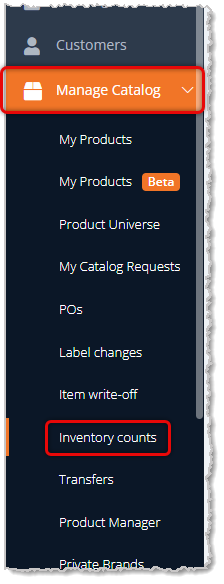
- Go to Manage Catalog > Inventory Counts.
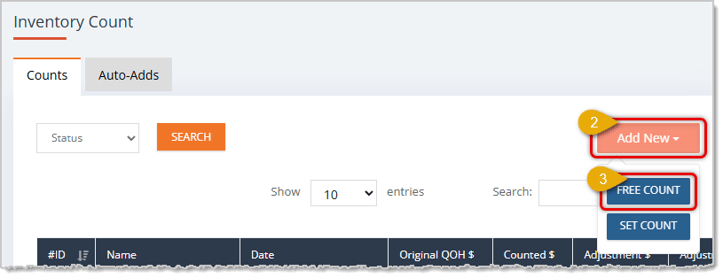
- In the upper right, click the Add New button.
- In the drop-list, click Free Count.
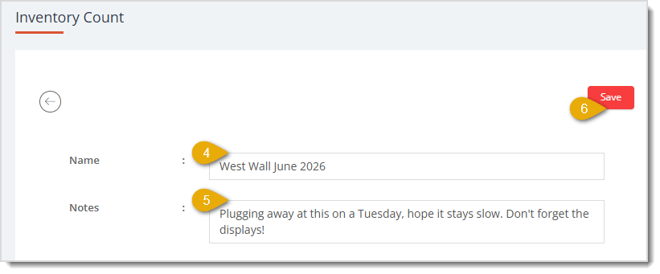
- On the initial Inventory Count page, enter the Name you want for the Free Count.
- If you enter Notes, you will have them on the next page for reference as you count.
- Click the Save button in the upper right when you're ready to proceed.
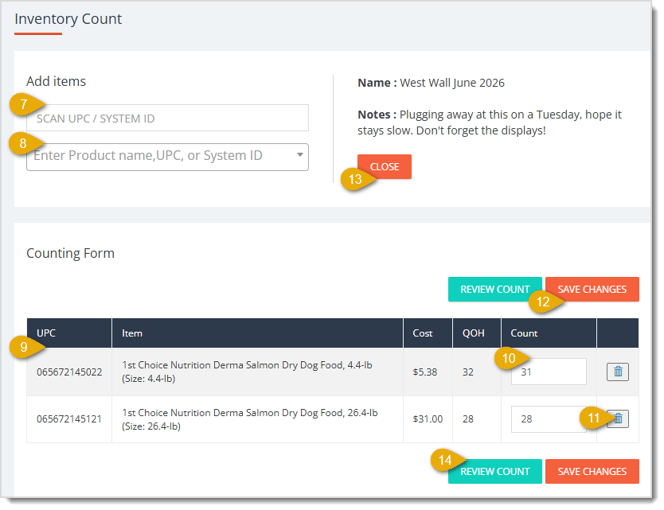
- You can add items by Scanning the UPC or System ID into this field. You'll hear a confirmation bell if you have audio connected, and you'll see the item appear in the table below. Scan the same code multiple times to increase the count, or you can manually enter the count as described in #10 below.
- You can add items by Manually Searching by Name, UPC, or System ID in this field. You'll hear a confirmation bell if you have audio connected, and you'll see the item appear in the table below.
- The Data Table will list the UPC, Item name, Cost, Quantity on Hand (QOH) and Count for each item for your reference.
- You can manually adjust the Count to the amount you need.
- If you need to remove an item, click the Trashcan Icon on the far right. If you accidentally remove the wrong one, you'll need to add it again.
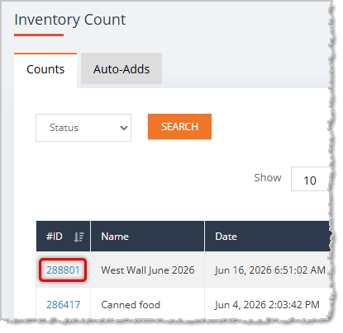
- At any time you can click the Save Changes button to save the count. You can save and return to the count and resume counting as many times as needed. Just return to Manage Catalog > Inventory Count, and find your count in the list; it should be at or near the top. Click on its Count ID Number on the left.
- If you decide you don't need to continue with the Free Count, you can click the Close button to close it out. A confirmation will pop up asking if you want to discard the count and close it. No items will be entered as counted if you proceed.
- When you have completed entering all the items you want to count, click the Review Count button to proceed.
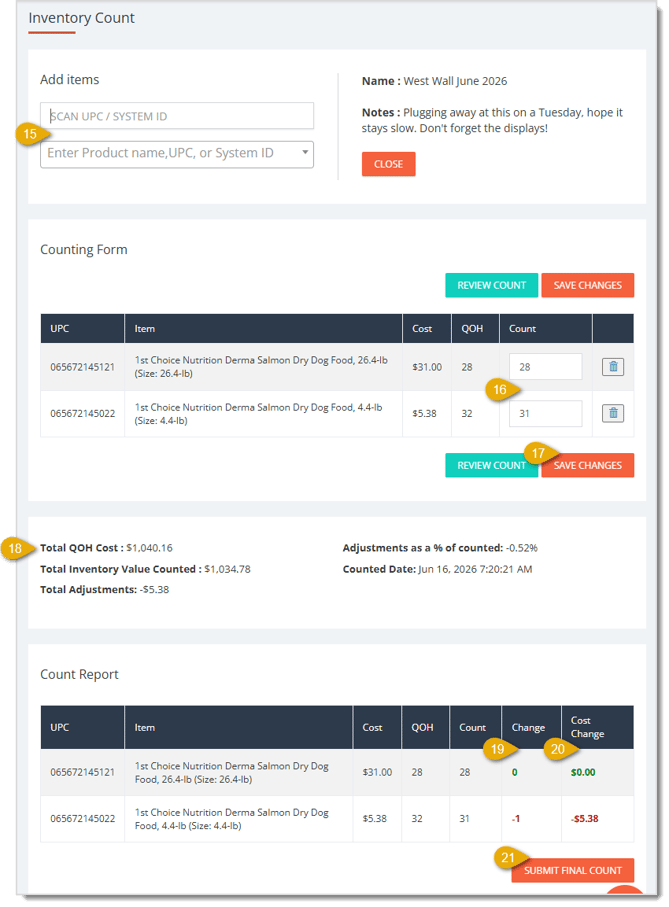
- When reviewing the Free Count, you still have the option of scanning in barcodes or manually adding items via search. You can also close the count and discard it, if needed.
- You can also still adjust counts of items as needed or remove them.
- You can click the Save Changes button to update and exit the count at any time. To get back to the review step, after reopening the count using the steps listed in #12 above, click the Review Count button once again and you'll be able to continue with your review.
- The Count Details area will display the following information for you for the items in the count: The Total Quantity on Hand Cost (the Cost of what the system has for QOH), the Adjustments as a Percentage of Counted (the percentile value out of the total counted of how many items were adjusted), the Total Inventory Value Counted (actual count vs. system's QOH count), the Counted Date and time, and the Total Adjustments to the counted dollar value.
- The Change column of the Count Report area will show you the difference, positive or negative, between the Quantity on Hand count in the system and your physical count of the actual inventory quantity. Identical counts and counts that are greater than the QOH will be in green, and counts that are less than the QOH will be in red, as pictured above.
- The Cost Change column of the Count Report area will show you the difference, positive or negative, between the Quantity on Hand Cost value of the inventory in the system and your physical count Cost value of the actual inventory quantity. Cost values for identical counts and counts that are greater than the QOH will be in green, and Cost values for counts that are less than the QOH will be in red, as pictured above.
- When you have finished your Free Count review and you're ready to complete the process, click the Submit Final Count button in the lower right of the page.
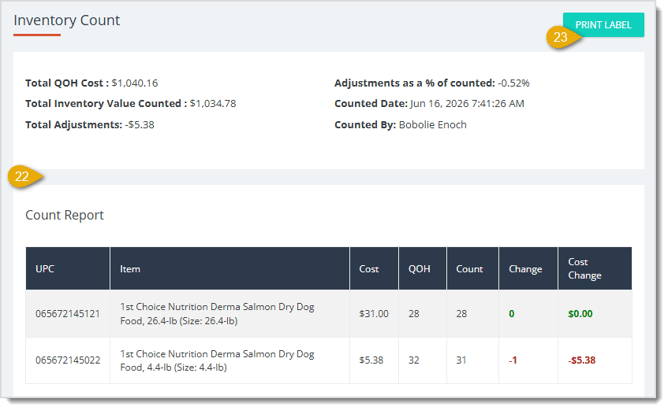
- The Count Details and Count Report will display for your reference, but the Inventory Count will no longer be editable at this point.
- If you need to, you can click the Print Label button in the upper right to print labels for any items in the count.
Set Inventory Count
A Set Count simply creates a list of items to be counted using filters for Vendor, Brands, and Categories. To run a Set Count, do the following steps:
- Go to Manage Catalog > Inventory Counts.
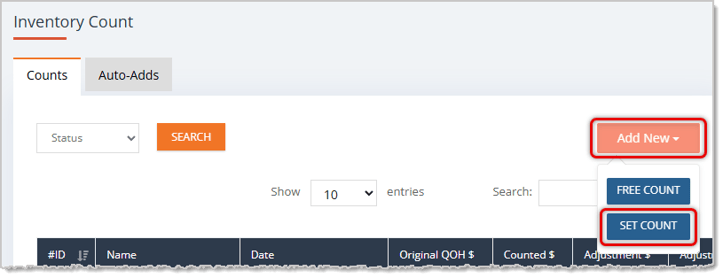
- In the upper right, click the Add New button as pictured above.
- In the drop-list click Set Count.
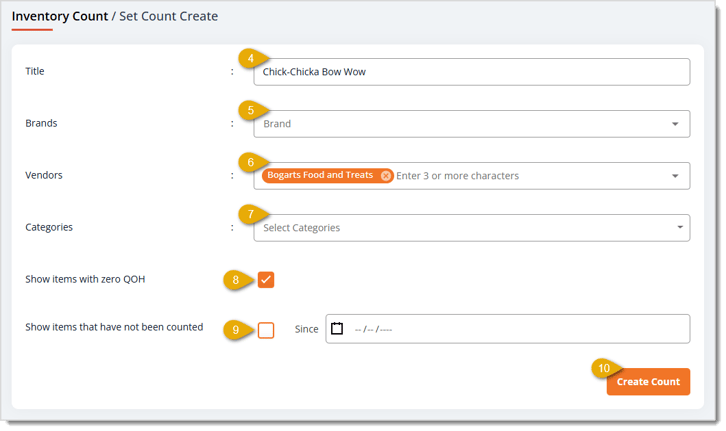
- On the initial Set Count Creation page, enter the Title you want for the Set Count.
- You can search for one or more Brands for the Set Count. The items that populate will be restricted to your selections.
- You can search for one or more Vendors for the Set Count. The items that populate will be restricted to your selections.
- You can search for one or more Categories for the Set Count. The items that populate will be restricted to your selections.
- If you want to include items the system sees as being out of inventory, click the checkbox to Show Items with Zero QOH (Quantity on Hand).
- If you only want to see items that haven't been counted since your last inventory count, check the box to Show Items That Have Not Been Counted. In the Since Date field, enter the date of that last inventory count.
- Click the Create Count button in the lower right when you're ready to proceed.
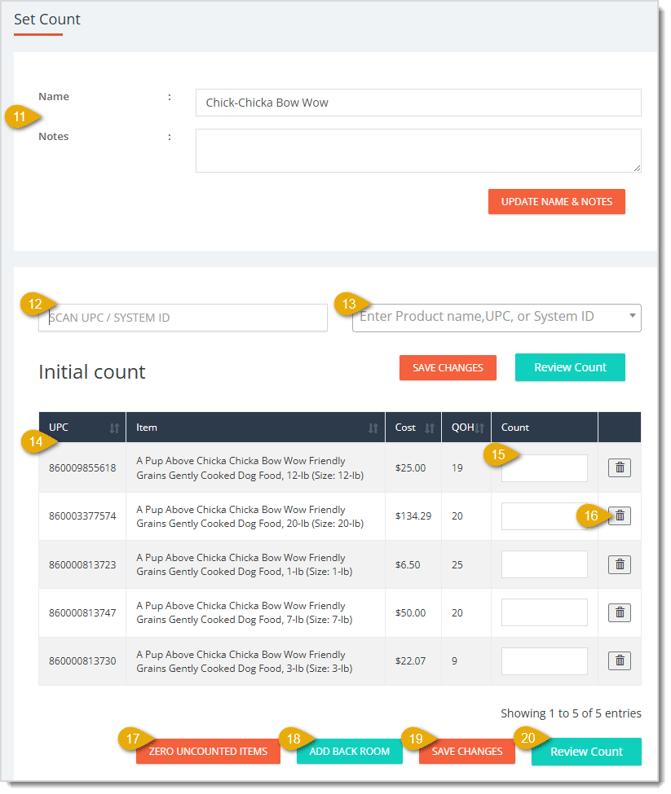
- On the Set Count page, you are able to update the Name or add Notes for your count.
- You can add items as needed by Scanning the UPC or System ID into this field. You'll hear a confirmation bell if you have audio connected, and you'll see the item appear in the table below. Scan the same code multiple times to increase the count, or you can manually enter the count as described in #13 below.
- You can add items by Manually Searching by Name, UPC, or System ID in this field. You'll hear a confirmation bell if you have audio connected, and you'll see the item appear in the table below.
- The Data Table will list the UPC, Item name, Cost, Quantity on Hand (QOH) and Count for each item for your reference.
- You can manually adjust the Count to the amount you need, or if you scan the item's barcode and continue scanning multiple times, each scan will add 1 to the count.
- If you need to remove an item, click the Trashcan Icon on the far right. If you accidentally remove the wrong one, you'll need to add it again.
- After you're done adding and counting items, if you see that there are any that do not have Count values entered, you can click the Zero Uncounted Items button to add 0 to the Count field for all of those items.
- If you have stock for the items you're counting in your back room, you can click the Add Back Room button. A page will load that will let you add inventory to the items for that area. You can also add additional items if needed. You can then click the Add Items button to return to the Set Count page.
- At any time, you can click the Save Changes button to save the count. You can save and return to the count and resume counting as many times as needed. Just return to Manage Catalog > Inventory Count, find your count in the list; it should be at or near the top. Click on its Count ID Number on the left.
- If you decide you don't need to continue with the Free Count, you can click the Close button to close it out. A confirmation will pop up asking if you want to discard the count and close it. No items will be entered as counted if you proceed.
- When you have completed entering all the items you want to count, click the Review Count button to proceed.
- When reviewing the Free Count, you still have the option of scanning in barcodes or manually adding items via search. You can also close the count and discard it, if needed.
- You can also still adjust counts of items as needed or remove them.
- You can click the Save Changes button to update and exit the count at any time. To get back to the review step, after reopening the count using the steps listed in #12 above, click the Review Count button once again and you'll be able to continue with your review.
- The Count Details area will display the following information for you for the items in the count: The Total Quantity on Hand Cost (the Cost of what the system has for QOH), the Adjustments as a Percentage of Counted (the percentile value out of the total counted of how many items were adjusted), the Total Inventory Value Counted (actual count vs. system's QOH count), the Counted Date and time, and the Total Adjustments to the counted dollar value.
- The Change column of the Count Report area will show you the difference, positive or negative, between the Quantity on Hand count in the system and your physical count of the actual inventory quantity. Identical counts and counts that are greater than the QOH will be in green, and counts that are less than the QOH will be in red, as pictured above.
- The Cost Change column of the Count Report area will show you the difference, positive or negative, between the Quantity on Hand Cost value of the inventory in the system and your physical count Cost value of the actual inventory quantity. Cost values for identical counts and counts that are greater than the QOH will be in green, and Cost values for counts that are less than the QOH will be in red, as pictured above.
- When you have finished your Free Count review and you're ready to complete the process, click the Submit Final Count button in the lower right of the page.
- The Count Details and Count Report will display for your reference, but the Inventory Count will no longer be editable at this point.
- If you need to, you can click the Print Label button to print labels for any items in the count.
 Boss Quote
Your human needs to understand that inventory quantities can quickly become inaccurate and they will need to occasionally do an Inventory Count to keep them up to date. Not everyone can look in all directions, but your human will need to keep their head on a swivel to keep their inventory numbers straight.
— Oliver, Dubuque, IA
Related Topics
Quick Start: How to Set Up Inventory for Your Store
Adding and Importing Products
My Products Overview
Request a Catalog Addition or Change
Private Products
Frequently Asked Questions
Q: I have a question, but I can't find my answer here. How do I get more assistance?
A: You can ask any question at the number listed here. Contact our support team at: (323) 370-0738 for the U.S., and (888) 370-2363 for Canada.







 Jun 16, 2026
Is this page helpful?
×Help us improve our articles