







Export Products
In the eTailPet system, you can easily export your product data as a CSV or XLSX file. If you want t
 Jun 05, 2026
Private products can be assigned an Item Type that will determine how the product is handled at checkout. This article describes how the different types are used in eTailPet POS. See how easy it can be!
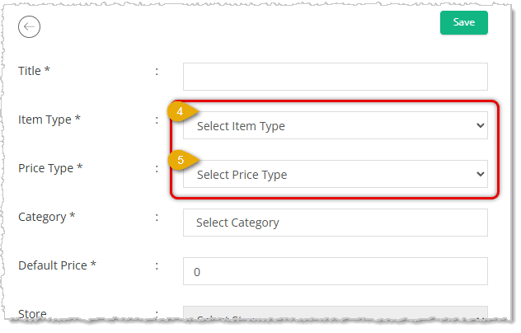
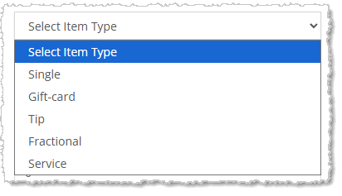
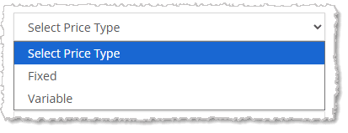
There are five Item Types: Single, Gift Card, Tip, Fractional, and Service. There are two Price Types: Fixed, and Variable. You are only able to configure these areas when you are creating a new Private Product. Here is how they work:
A product with the item type of Single will be sold individually as a single item. Single items can be set to the Price Type of Fixed or Variable.
When a gift card is added to the New Sale screen for purchase, the cashier will need to enter or scan the Gift Card code. After the sale is completed, the balance of the Gift Card along with the Gift Card code will be stored in Gift Cards. The Price Type can be Fixed or Variable.
In the eTailPet system, for a customer to give one of the store employees a tip, you will need to create a product for the tips for each employee that might receive them. Tips are set automatically to the price type of Variable. They should be labeled with the name of the person who would receive the tip so that payouts can be made to the correct person; for example, you might have a groomer named Jeremy, so you would create a product called Tips - Jeremy. The tip item must also be assigned to a single store.
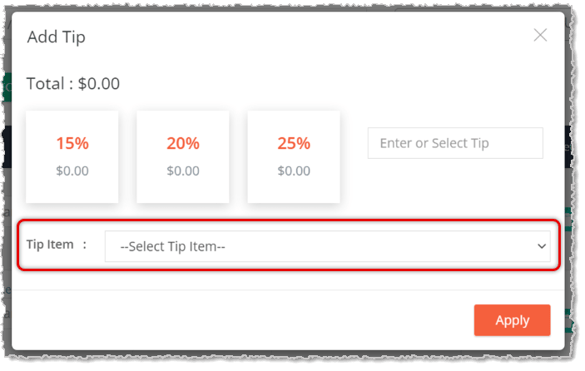
Tips are added to the sale using the Add Tip button rather than scanning or using Quick Select. The Add Tip window will open and you select the Tip Item for the appropriate employee from the highlighted drop-list shown below. Then you enter the Tip Amount with one of the fixed percentile buttons or by manually entering an amount.
A Fractional item is something that can be sold in pieces or by weight. The Price Type for Fractional Items can be Variable or Fixed.
Example: Bulk Cookies by the Pound — Fixed
1. Add a description that includes the base weight or amount.
2. Add the price for the base weight ($19.99 per pound in the example).
3. Set the Price Type to fixed.
At checkout, the cashier will weigh the item and add a fractional quantity in pounds up to 4 decimal places. (1.25 lbs in the example). The cart will automatically adjust the Price based on the fractional Quantity.

Example: Crickets by the Ounce — Variable
In this example, you sell crickets by the ounce, but you have three sizes of crickets. You could set up a product for each size and make it fixed (best choice if you want to track sales of each size). You could also set up one product and make the price variable.
1. Add a description that includes the base weight or amount.
2. Add the Price for the base weight of the best selling item ($6.99 in the example) or leave as 0.
3. Set the Price Type to Variable.
At checkout, the cashier will weigh the item and add a fractional quantity in ounces up to 4 decimal places (2.5 oz in the example below). The Price is variable so it can be adjusted to $6.99 for the medium-size crickets. The cart will automatically adjust the price based on the fractional quantity and variable price.
The Service item type is used for things that you offer as a service, such as grooming or pet boarding. You will notice that the available product tabs are slightly different from other Item Types once you set the Service type.
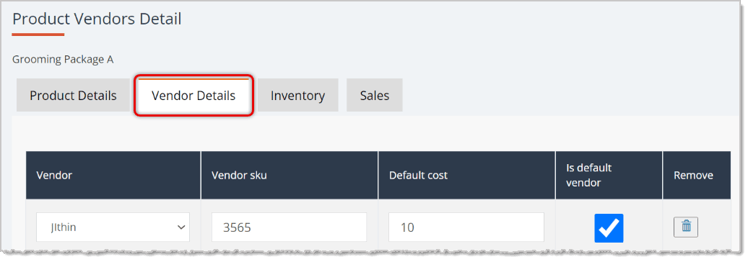
The Vendor Details tab is available in case you want to track any Costs that you have associated with the service. You can set yourself up as a Vendor for this, or if you have a third party in your store that provides the service, then you can set them as the Vendor.
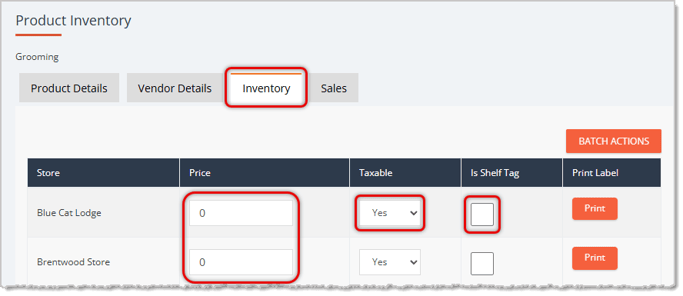
Even though you won’t be stocking inventory, you may have different prices for different stores.
The Inventory tab lets you set a Price for each Store location. You can also set it as Shelf Tag in case you want to print a barcode for scanning. The Taxable flag allows you to set whether or not to collect tax on this service.
All other tabs in the Service type function the same as other Item Types.
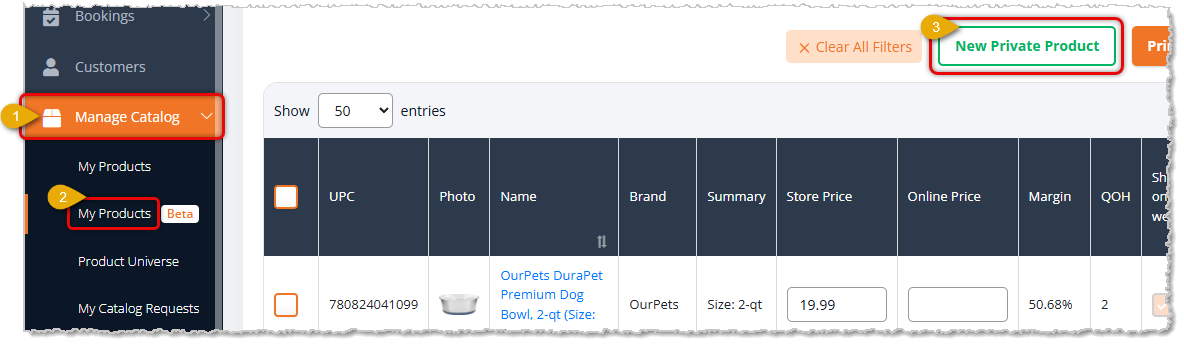
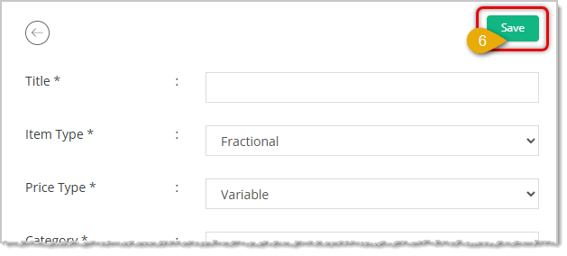
To set your Price Types and Item Types in a new Private Product, you need to do the following steps:
To get to a Product Details page, open the Manage Catalog menu on the left.
Boss Quote
Instruct your human that they must take care when configuring item types and price types for their private products. Double-check before saving or the item might not ring up correctly. Also make sure they occasionally drop a cricket or two for you to play with. That sounds fun.— Adrian, Wenatchee, WA
Q: I have a question, but I can't find my answer here. How do I get more assistance?
A: You can ask any question at the number listed here. Contact our support team at: (323) 370-0738 for the U.S., and (888) 370-2363 for Canada.
Is this page helpful?
×Help us improve our articles