Private Brands

Jun 01, 2026
The Private Brands area of the Manage Catalog menu allows you to create brands for your Private Products. You are able to use brands that are already in the Product Universe, so you don't need to add them again in this area. This article will show you how to add the brands you need for your Private Products. See how easy it is!
Create a Private Brand
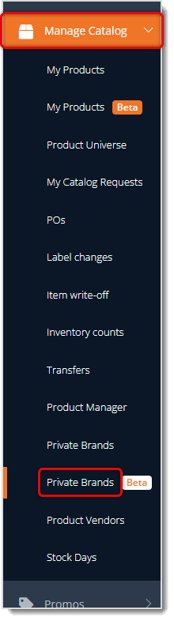
To begin working with Private Brands, in the main system menu on the left, go to Manage Catalog and click Private Brands near the bottom.
On the Brands page, you'll see any Private Brands you might have already added. Here are the functions of the page:
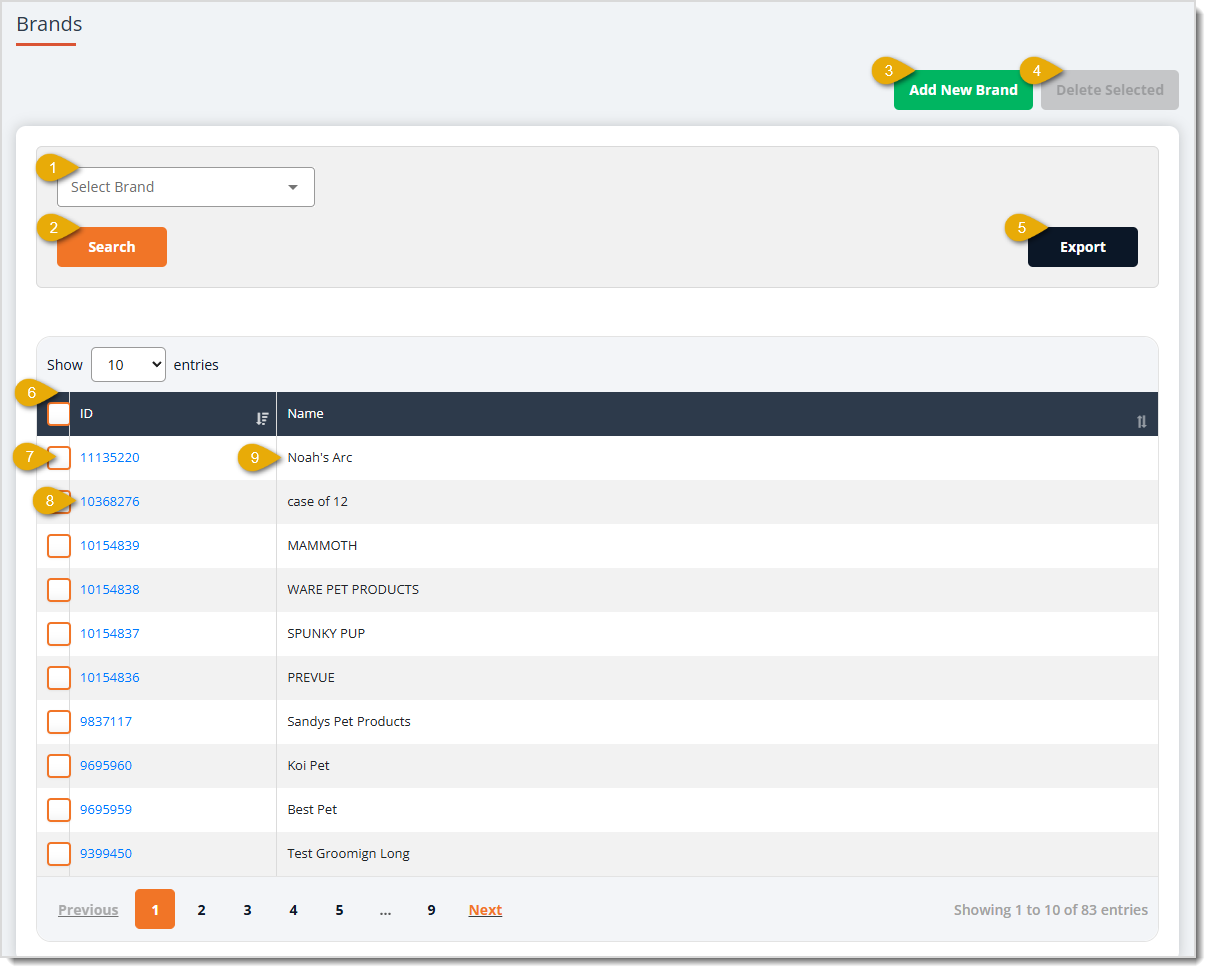
image needs alt text
- Select Brand — Click the drop-list to choose a Private Brand you have saved. If you choose a brand that's in the Product Universe and click Search, no results will be found since the table on this page displays only Private Brands.
- Search — After choosing the Private Brand you want from #1, click this button to load matches in the data table.
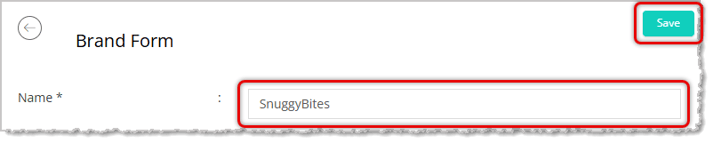
- Add New Brand — Click this button to create a new Private Brand. The Brand Form page will load. All you need to enter is the Name of the new brand. Click the Save button in the upper right when you're finished. You can add as many Private Brands as you need.
- Delete Selected — If you have selected one or more brands in the data table, this button will be active and you can delete them if you choose. You'll be asked to confirm deletion, and the brand will be gone forever, but it's pretty easy to recreate if needed (see #3 above).
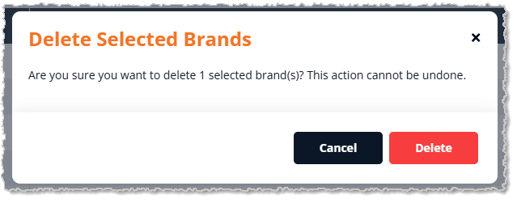
- Export — This function will export a CSV file with the names of all Private Brands you have saved, across all pages. This function ignores selected line items and exports all brands.
- Data Table — You can click the checkbox in the header row to Select All brands on the current page and click it again to Deselect All. The checkboxes are currently used only for the Delete Selected function in #4 above. By default, the Data Table will display the most recent Private Brands first and is sorted in descending order by the ID column. You can click that column header to reverse the sort. You can also sort or reverse-sort by the Name column. In the bottom left, you can navigate pages for your Private Brands, and in the lower right, you can see how many are currently displaying and how many total you have.
- Checkboxes — Click a checkbox on the left to select a Private Brand. The checkboxes are currently used only for the Delete Selected function in #4 above.
- Brand ID — The Brand IDs in this column are links to open so you can Edit the Private Brand. You can adjust the brand name as needed and Save, or you can Delete from the same page.
- Name — This column displays the Names of saved Private Brands.
That's it! It's important to get your Private Brands into the system so you can use them with your Private Products as you add them.
Adding a Private Brand to a Private Product
Follow these steps:
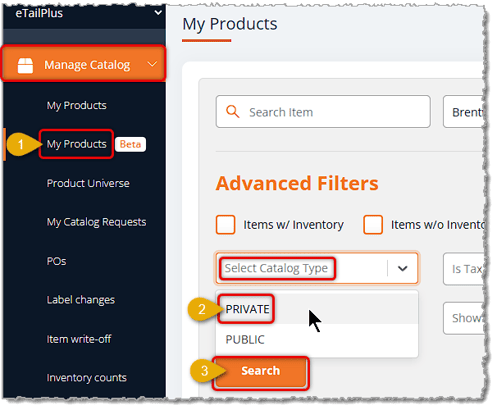
- To add a Private Brand to a Private Product, in the Manage Catalog menu on the left, go to My Products.
- In the Catalog Type filter, select Private.
- Click the Search button to load your Private Product catalog.
- Use the Filters and Search to find the product you want.
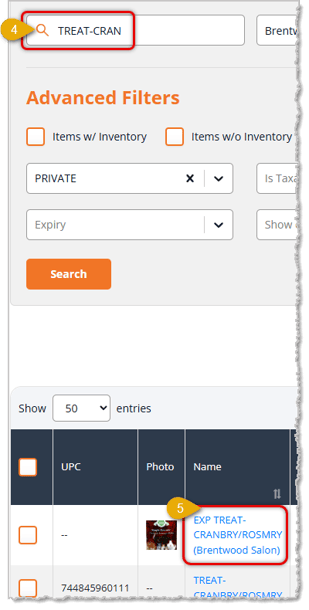
- Click on the product Name to open its full details page.
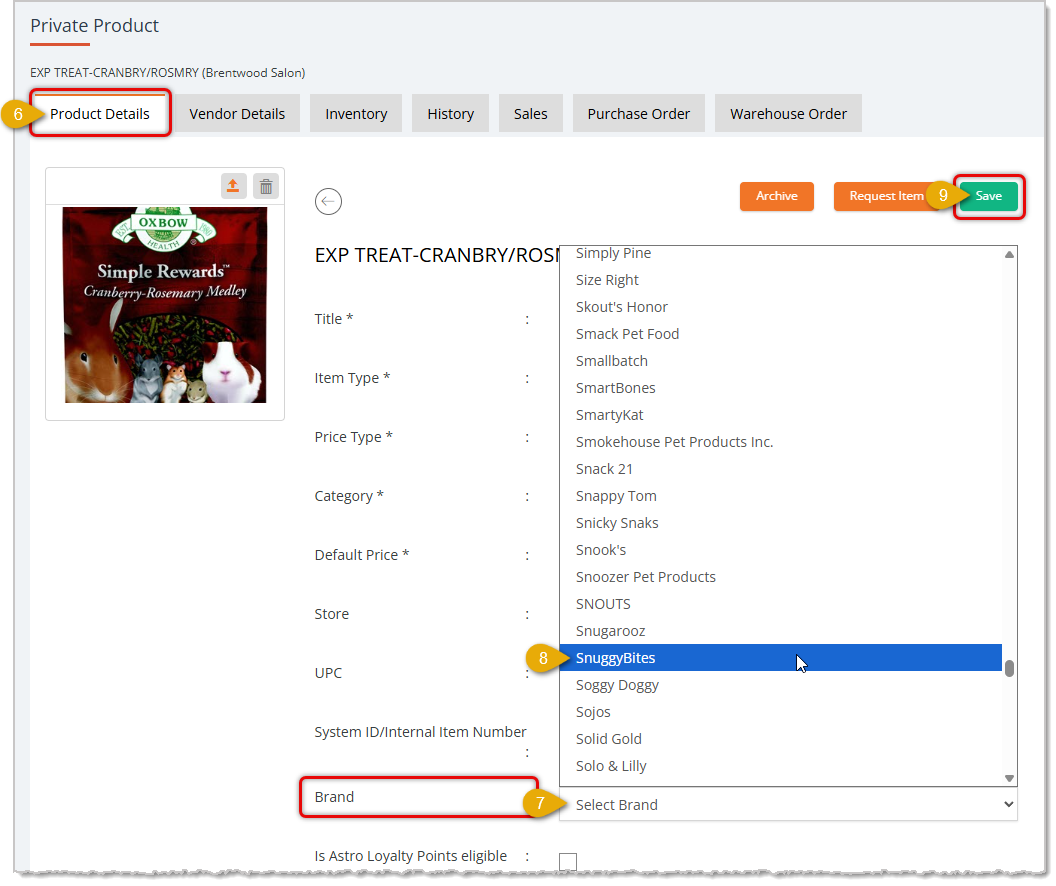
- By default, the Product Details tab should be active for you when the Private Product page loads.
- Find the Brand area and click Select Brand to open the drop-list.
- Find the Private Brand you want and click on it.
- After you're finished updating the product, click the Save button in the upper right. You'll see a confirmation of successful save in the upper right, and now the Brand is saved to the product.
Related Topics
Private Products
Private Product Setup
Private Product Item Types and Price Types
Product Details Page
Frequently Asked Questions
Q: I have a question, but I can't find my answer here. How do I get more assistance?
A: You can ask any question at the number listed here. Contact our support team at: (323) 370-0738 for the U.S., and (888) 370-2363 for Canada.
In the eTailPet system, you can easily export your product data as a CSV or XLSX file. If you want t
😸You can use Batch Actions to edit details for a group of data so you don't have to manage records
🖨️Shelf labels indicate product names and their prices to your customers on your shelves, so it's i







Is this page helpful?
×Help us improve our articles