






Export Products
In the eTailPet system, you can easily export your product data as a CSV or XLSX file. If you want t
 May 26, 2026
↩️ Converting private products into public ones is easy in the eTailPet Product Manager. This is important because it's best that whenever you submit a catalog request, you first set the product to private so you can sell it right away. Then, when a Private product in your catalog is added to the Product Universe, you'll have to convert private products to public and merge historical data from when the product was private. This article will detail how to convert your products so you can better manage them.
If a product is in both your Private and Public product catalogs, the eTailPet system will not know which one to add to a transaction in the New Sale screen. New products are added to the Product Universe often as well. Because of this, it's a good idea to first check which items need to be converted. Here is what to do:
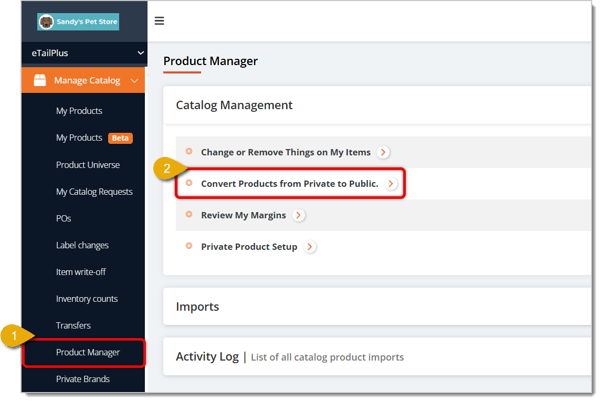


After you've run a Review of Private Products in step 1, you can convert any that appear in the table. Here's how to do the conversion:



Please Note: When an item is converted from Private to Public, Vendor details and the product’s history goes to the new public system. If a private item is on a Purchase Order, ordered, and then converted to a Public item, you can use the old Private product ID, along with the UPC barcode, to check in the order.
If you have an existing Private Product and add it as a new Public Product without converting, you may have issues accessing the Inventory tab on either Product since the system doesn't know which UPC to open. A common error message for this reads No Value Present, as shown below. To solve this issue, you'll have to remove the Public Product and convert the original Private Product as described above.

Here is how to remove the product:
Go to Manage Catalog > My Products.
Select the product you want to remove by clicking on its checkbox.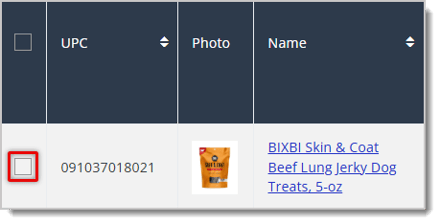
Click on Batch Actions above the data table, as highlighted in the image below.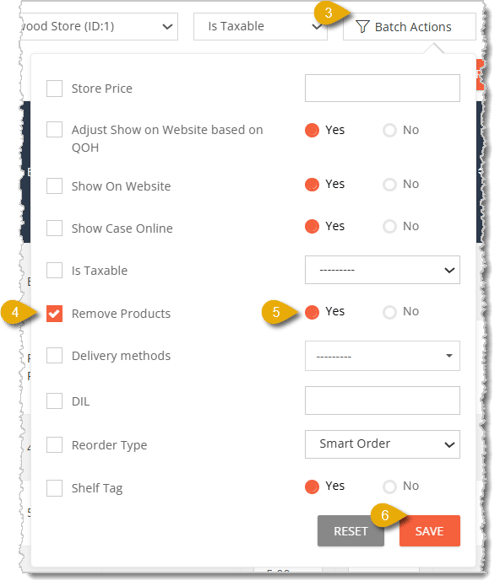
Check the box for Remove Products.
On the right of Remove Products, click on Yes.
Click on Save to remove the product from your Public Catalog.
After you've removed your Public Product, follow the steps outlined in the section Convert Private Products to Public Products above to convert the original Private Product to Public.
If your Private Product is not in the list described in the Convert Private Products to Public Products section above, you can archive it manually by following these steps:

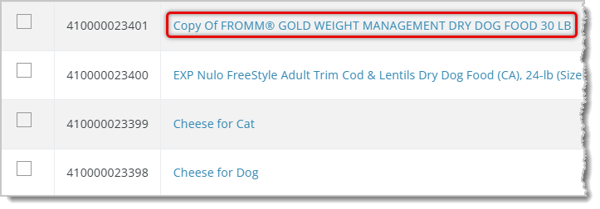
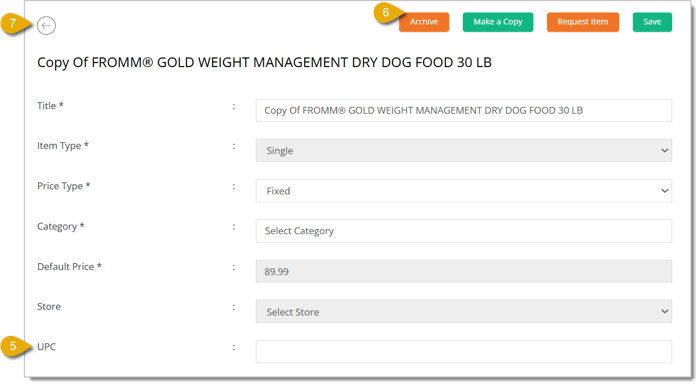

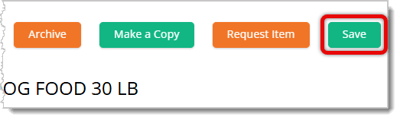
You now should be able to access the Inventory tab without encountering an error.
Request a Catalog Addition or Change
Q: Why do I need to convert a Private Product to Public instead of just leaving it as-is?
A: If the same product exists in both your Private and Public catalogs, the system won't know which one to ring up on the New Sale screen. Converting keeps it as one correct record.
Q: What happens to my vendor info and sales history when I convert a product?
A: Both carry over automatically. Vendor details and the product's history move over to the new public record.
Q: I ordered a private item on a Purchase Order and then converted it. How do I check it in?
A: Use the old Private product ID along with the UPC barcode to check in the order.
Q: What causes the "No Value Present" error, and how do I fix it?
A: It happens when the same product exists as both a Private and Public item without being converted. Remove the Public Product, then convert the original Private Product using the steps above.
Q: What if my Private Product doesn't show up in the conversion review list?
A: Archive it manually instead. Remove its UPC, archive the Private Product, then open and save the matching Public Product to resync it with the Product Universe.
Q: I have a question, but I can't find my answer here. How do I get more assistance?
A: You can ask any question at the number listed here. Contact our support team at (323) 370-0738 for the U.S. and (888) 370-2363 for Canada.
Is this page helpful?
×Help us improve our articles