The Purchase Order process, from creation to completion, is a complex one. This article walks you through your options at every step and shows you what to do. Take a look at what's here for you!
In this article you will learn the following steps:
Step One: Creation of the PO
Step Two: Configure Your PO Automation
Step Three: Complete Setup of Your PO
Purchase Order Items
Special Requests
Special Requests Reorders
Auto-Order Summary by Item for Seven Days in the Future
PO — Subscription
PO — Shortage
Sending the Purchase Order
Step Four: Check-In Purchase Order Items
Step Five: Review and Close the Finished Order
Step Six: Approve the Purchase Order
Step One: Creation of the PO
Purchase Order Status: Created
There are three ways you can create a PO:
- Stock Days — You can set the system to create a new PO on a certain day over a specified period. A blank new PO will appear in your list in the Created status on each of those Stock Days. Click here for full details on setting up Stock Days for vendor purchase orders.
- Special Requests — If a customer has a Special Request for inventory you would not normally order, once the transaction creating the Special Request is completed, the new blank PO will be in your list with a Created status. Click here for more details on creating Special Requests on the New Sale page.
- Manual PO Creation — On the Purchase Orders page you can click the New Purchase Order + button in the upper right to start a new PO. Here are your configuration options:
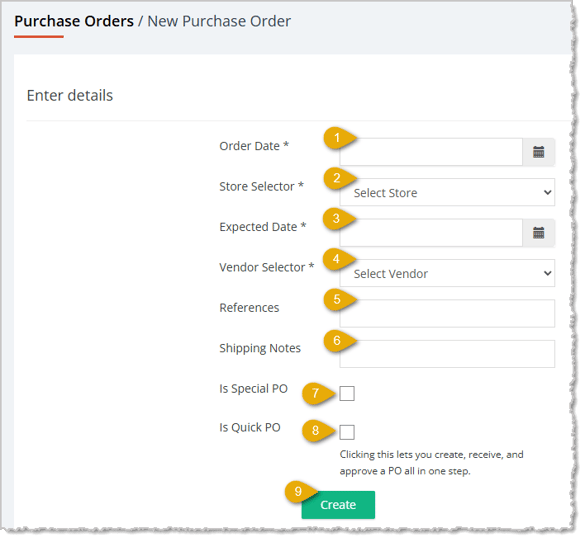
- Set the Order Date* for the date you are placing the order with the vendor.
- Select the Store* to which the order will be shipped.
- Set the Expected Date* for the delivery.
- Select the Vendor* from whom you're ordering.
- Enter any Reference notes you might have about the order for your team.
- Enter any Shipping notes you might have for the vendor.
- If the order is outside of your usual schedule for ordering from the vendor, check the box for Is Special PO.
- If the order was already placed and received outside of the eTailPet system, check the box for Is Quick PO and you'll be able to create, receive, and approve of the PO all at once to get the inventory quantities and costs in the system.
- Click the Create button when you have finished configuring the new PO.
Once you create the PO, it will be in your list with a Created status.
Step Two: Configure Your PO Automation
Purchase Order Status Progression: Created > Open
If you are manually creating a Purchase Order or if the order was created for a Stock Day, you will need to add items to the order. Special Requests for the vendor items will already have the items added in the proper quantities in the Special Requests section, but if you want to add other items to the order for the vendor, you can do so for those POs as well in this step.
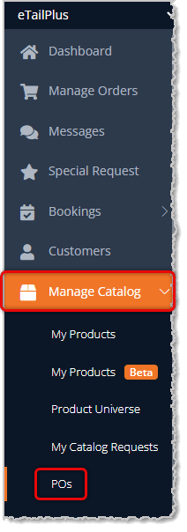
Start by opening the Manage Catalog area in the main menu on the left and going to POs.
On the Purchase Orders page, find the PO you want using the Search and the filters and click on its ID on the left.
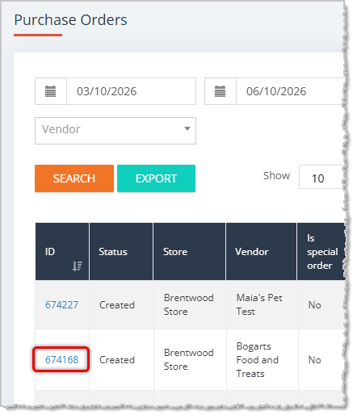
image needs alt text
There are three ways to add items to your Purchase Order:
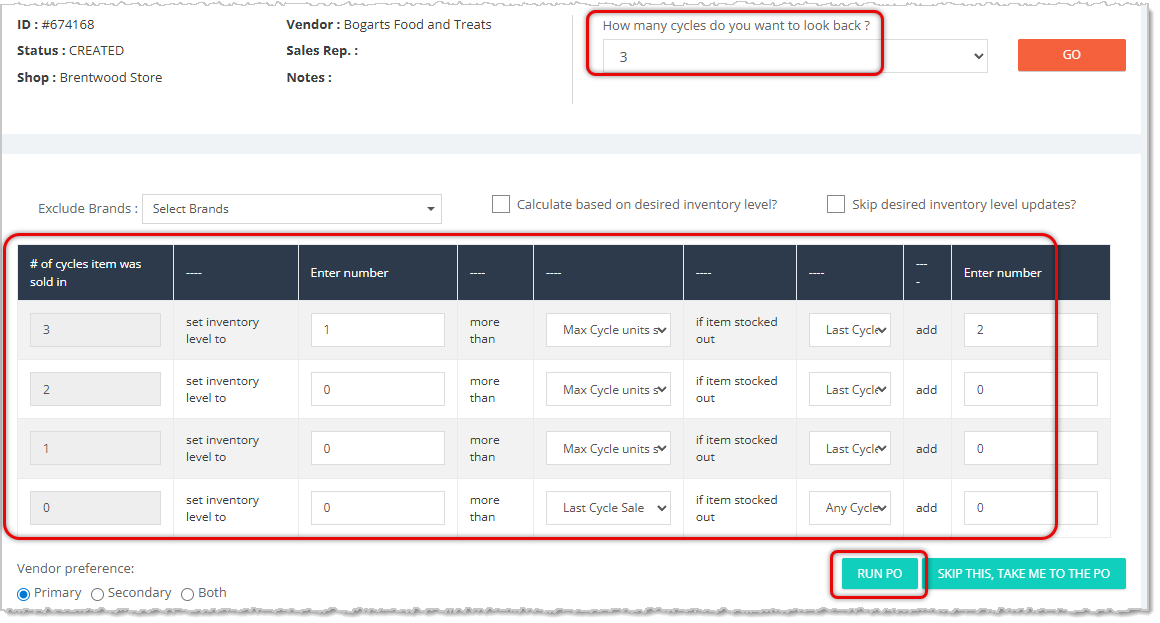
- Smart Order — You can configure the page for the Smart Order system to populate items and amounts. You need to set the number of Cycles the Smart Order will use (click the Go button if you change the number) and configure the rows in the data table for the Smart Order. If you don't want your Smart Order to include Desired Inventory Level calculations, check the box for Skip Desired Inventory Level Updates on the right. Once you have it configured, click the Run PO button. You can click here for full details on setting up Smart Ordering for a purchase order.
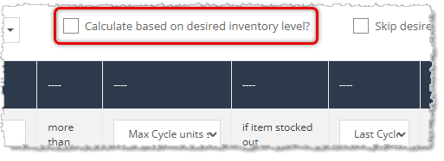
- Desired Inventory Level — You can base the items and quantities for your PO on the Desired Inventory Levels you've set for the items and the current Quantity On Hand for each item. Check the box for Calculate Based on Desired Inventory Level and then click the Run PO button. Click here for more details on Desired Inventory Level in your Purchase Orders.
- Manually Add Items — If you just want to start adding items to the PO for the vendor, in the lower right, click the Skip This, Take Me to the PO button. In the next section, you'll see how to add items.
Once you have completed any of the three options above, you'll be taken to the detail page for the Purchase Order where you can finish configuring it. The Purchase Order will then be in the Open status.
Step Three: Complete Setup of Your PO
Purchase Order Status Progression: Open > Ordered
On the Purchase Order detail page, you can finish configuring all details about the order before sending it to the vendor. There are six areas of the page detailed below for you.
Order Details and Footer
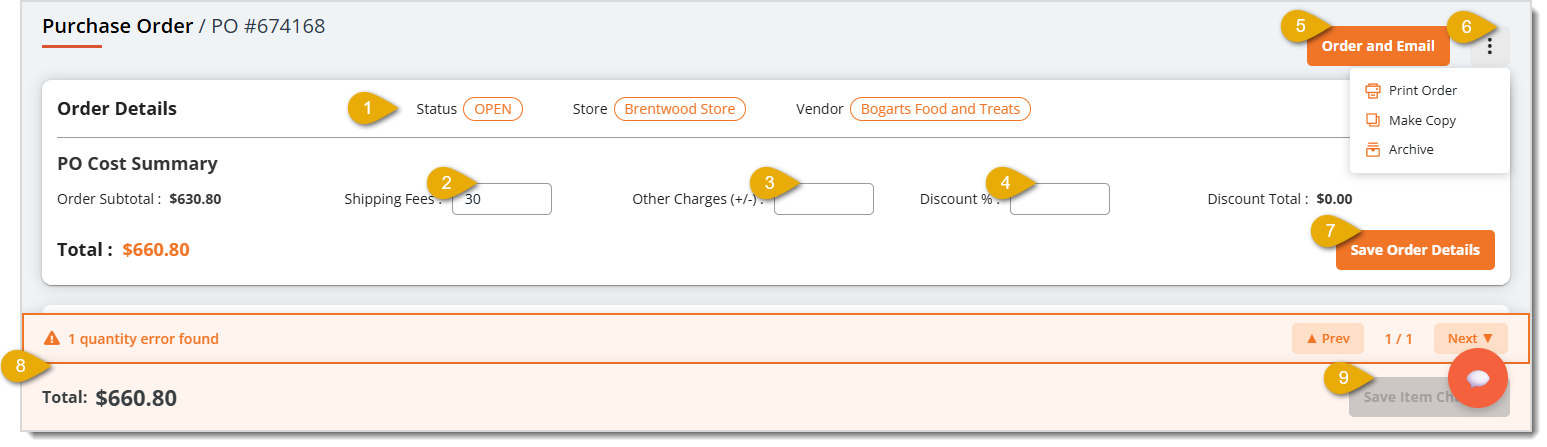
- Order Details — At the top of the page, you'll see the PO Number. This area also shows the order Status, Store, and Vendor for your reference.
- Shipping Fees — If you know what the freight or shipping charges will be for the order, you can enter that amount here.
- Other Charges — If there are other charges that will be added to the order by the vendor, enter the amount here.
- Discount Percentage — If you are receiving a discount on the order, enter the percentage here. Please note that this works only for percentage discounts that apply to all items in the order. If the vendor gives you a dollar amount off of the order, you can enter that as a negative value in the Other Charges field (e.g. a $50 discount would be entered as -50). Also, if you have a percentage off discount on specific items in the order, there is not a way to enter those for the items, but if you calculate the dollar amount for such discounts, you can enter it as a negative value in the Other Charges area.
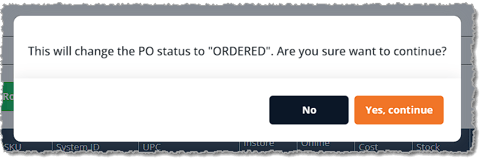
- Order and Email — This will be the final step in configuring your purchase order. You will click the Order and Email button after you have added all items and configured all other areas needed. The purchase order will proceed to the Ordered status, so it will be available to View, but not edit, on the Purchase Orders list page after clicking this button. Also, an email will be sent to the email saved for the vendor. A window will pop up for the email step, as pictured below. When you click Yes, Continue, the order will be in the Ordered status waiting for the vendor to begin shipping.
- Action Menu — Click the Three-Dot button to open the Action Menu. You can click the Print Order option to send the PO to your printer or to an Adobe Acrobat PDF file. You can click the Make Copy option to create a duplicate of the order for future use, or you can click the Archive option if you don't need the order anymore for whatever reason.
- Save Order Details — If you make any changes to the Order Details, click the Save Order Details button to update the order in the system.
- Footer — The Footer information and functions are always visible at the bottom of the screen. You'll see notifications about items or date, such as the quantity error message shown in the example above. You'll see the current Total for the order in the lower left. You also can use the Previous and Next navigation buttons if it's a large order with multiple pages of items. As with all pages in the system, you also have access to the system Chat button in the lower right.
- Save Item Changes — If you make adjustments to any of the items in the purchase order, the Save Item Changes button will become active and you can click it to update the changes.
Purchase Order Items
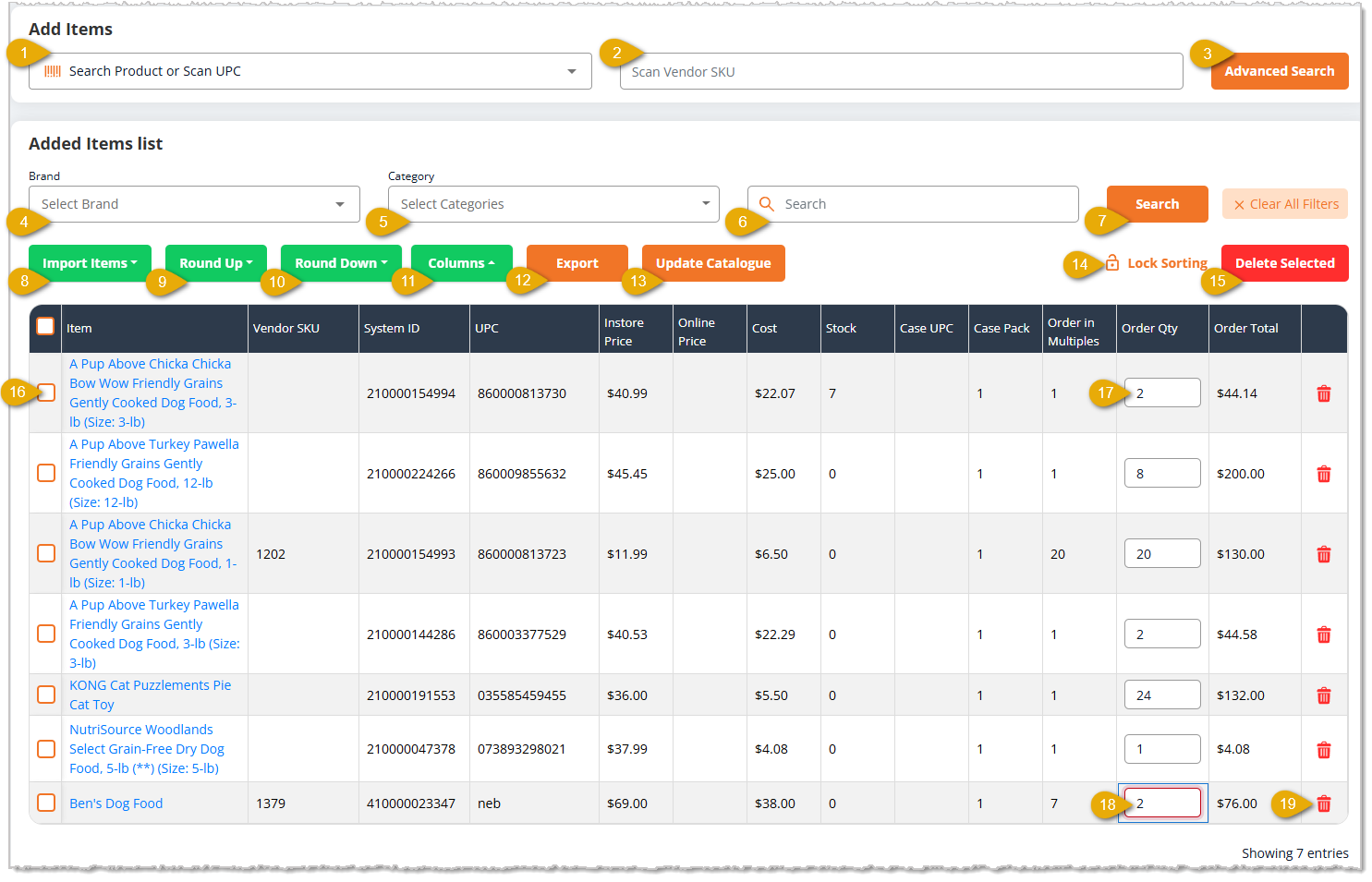
Add Items Functions
- Item Search — If you need to add an individual item, you can search for it here by keyword or scan in the UPC. You'll see matches in a drop-list and you can can click on the item you want.
- Scan Vendor SKU — If the item has a SKU used by the vendor, you can scan or enter it here. After entering the SKU, if you hit the Enter key on your keyboard, the item will be added to the PO if there is a match. You'll see a success or error message depending on what the system finds.
- Advanced Search — Click this button to open the Advanced Search panel. The panel will load all products associated with the Vendor in the Product Universe. Whenever you're done with this panel, you can click the X in the upper left to close it. The functions of the Advanced Search are listed below:
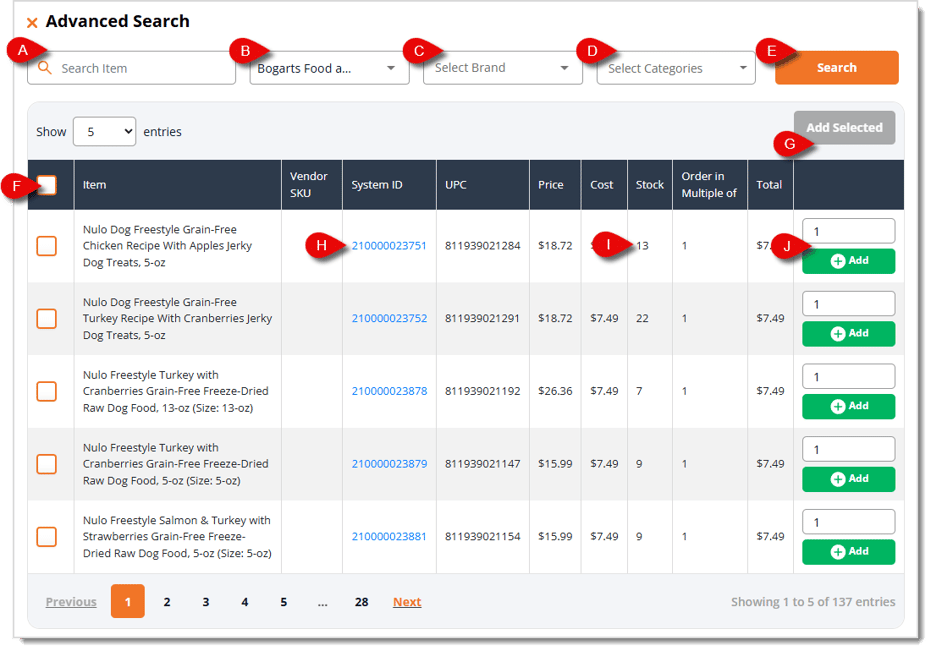
- Item Search — Search the vendor's products for the one you want. You can also scan in UPCs or Vendor SKU codes.
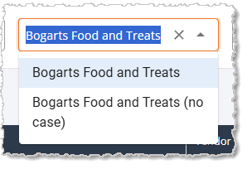
- Case / Individual — If you need to change to order by case or individual items for the vendor, you can switch using this filter.
- Brand — If you want to narrow your search to a specific brand carried by the vendor, you can search for the brand you want by clicking here.
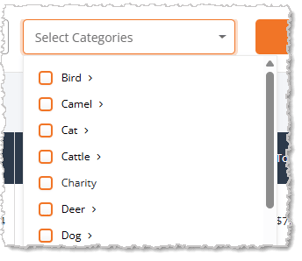
- Categories — Click to open this filter to limit the products to the Categories you select from the drop-list. You can check the boxes for as many as you need.
- Search — Click this button to find matches to search and filter changes.
- Item Selection — Check the boxes for items you want so you can add many at one time with the Add Selected button described below. You can click the check box in the header to Select All or click it again to Deselect All, if needed. It will select every item that displays on the current page, so if you need more, you can use the Show # Entries control on the left above the data table to display more items on the page.
- Add Selected — If you have selected items on the page you want to add to the purchase order, click this button when you're ready. You'll see a success notification pop up in the upper right, and the Advanced Search panel will remain open for further items you might need to add.
- System ID — Click this link to open the full product details in a new browser tab.
- Quantity on Hand — The current Quantity on Hand is listed for each item in the Stock column for your reference so you can make informed decisions on which items might need to be added.
- Add Item — For items you plan to add to the PO, you should set the Quantity to order in the field above the Add button. If you are just adding a single item from the page, you can click the Add button to do so. You'll see a success notification pop up in the upper right, and you will be able to continue working in the Advanced Search panel.
Added Items Functions
- Brand — If you want to narrow your search to a specific brand carried by the vendor, you can search for the brand you want by clicking here.
- Categories — Click to open this filter to limit the products to the Categories you select from the drop-list. You can check the boxes for as many as you need. This filter looks exactly like the image above from the Advanced Search panel's Categories filter.
- Search Field — If you need to work with a specific item you've added, you can enter search keywords or scan in a UPC or Vendor SKU and the page will load matching items.
- Search — Whenever you adjust a filter or enter search text for this area, you will click the Search button to update the data table with the results. You can also use the Clear All Filters button to reset the table to show all products for the vendor again.
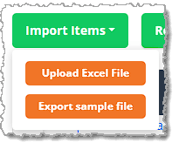
- Import Items — If you want to import items into the PO in bulk via spreadsheet, click on the Import Items button and click the Export Sample File button to download the Excel spreadsheet you'll need. Populate the spreadsheet with your item data (click here for spreadsheet tips and tricks for preparing data for upload). Once you're ready, in the Import Items drop-list, click the Upload Excel File button to load the items. The spreadsheet has only three columns, System ID (the internal code the system uses for the product), UPC, and Quantity (the quantity you want to order). UPCs need to be a full 12 digits and for each item, you'll need the System ID -OR- the UPC, not both.
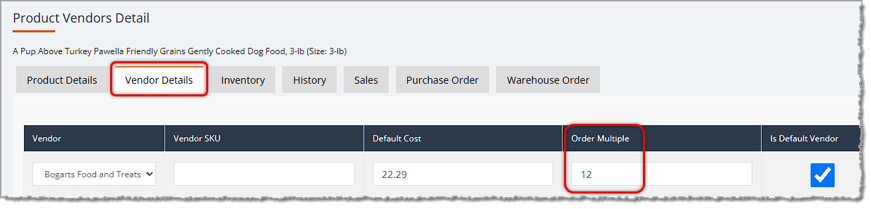
- Round Up — If you have set products to Order Multiples and the quantity being ordered for some items is less than the multiple, you can click the Round Up button and choose to round up to the nearest multiple quantity. For example, if an item on your order is something you normally order in multiples of 12 and the Smart Order feature set the quantity to 10 for this PO, you can click to Round Up so the quantity will round up to 12. When you click the Round Up button, you'll have the option of clicking to round up All items with saved Order Multiples, or only Selected items. Only items that have Order Multiples saved on the Vendor Details tab of the product will be able to do quantity rounding. You can also see a column for Order in Multiples quantity in the Added Items List data table.
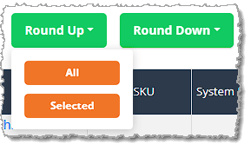
- Round Down — If you have set products to Order Multiples and the quantity being ordered for some items is more than the multiple, you can click the Round Down button and choose to round down to the nearest multiple quantity. For example, if an item on your order is something you normally order in multiples of 12 and the Smart Order feature set the quantity to 14 for this PO, you can click to Round Down and the quantity will round down to 12. When you click the Round Down button, you'll have the option of clicking to round down All items with saved Order Multiples, or only Selected items. Only items that have Order Multiples saved on the Vendor Details tab of the product will be able to do quantity rounding. You can also see a column for Order in Multiples quantity in the Added Items List data table.
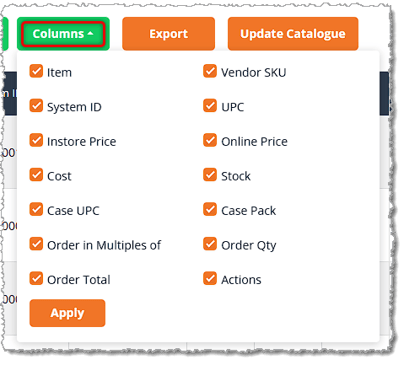
- Columns — If you don't need all the columns of the Added Item List data table, you can click this button and deselect any you choose. By default, all columns display and the table has columns for the Item name, Vendor SKU, System ID, UPC, In-Store Price, Online Price, Cost, quantity in Stock, Case UPC, Case Pack quantity, Order in Multiples quantity, Order Quantity, Order Total, and Actions.
- Export — You can click the Export button to download an Excel spreadsheet of all the items in the PO.
- Update Catalog — If you need to update Price or Cost information for the purchase order, you can click this button to open the Update Catalog panel. If you want to be sure you are using the most recent data, you can click the button to Show Latest Catalog Price & Cost, and the items will update. You are able to edit the In-Store Price, Online Price, and Vendor Cost for each item, if needed. If you match pricing for In-Store and Online, you can save time by clicking the Copy In-Store Price to Online Price button, which will populate the In-Store Prices to the Online Price column. If you want to set updated pricing based on Margins, you can click the Edit Gross Margin button and the In-Store Margin and Online Gross Margin columns will become editable. As you adjust a Gross Margin, the Price fields will automatically adjust for you.
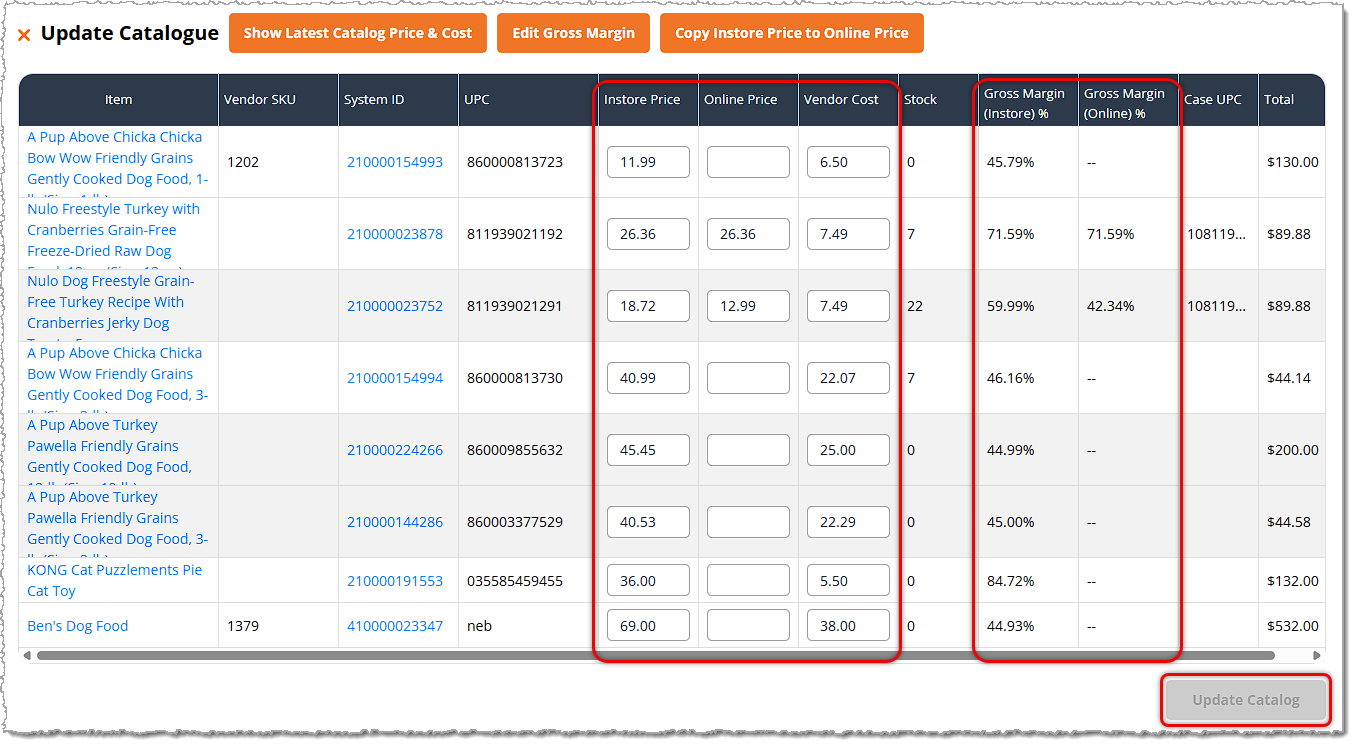
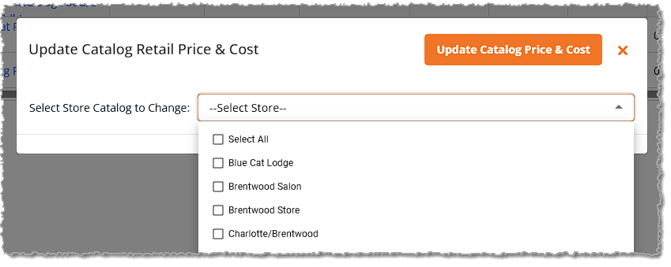
Once you have finished making your changes, click the Update Catalog button and you'll be prompted to Select Store Catalog to Change, as pictured below. After you make your selections, click the Update Catalog Price & Cost button to save the changes.
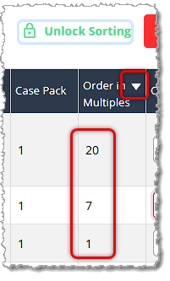
- Lock Sorting — By default, you can click at the top of any column of the Added Items List data table to Sort the items alphanumerically by that column, and click again to Reverse-Sort. If you click the Lock Sorting button, the data table will freeze and the sorting clicks will no longer function until you Unlock Sorting or reload the page.
- Delete Selected — If you have selected any items in the Added Items List using the checkboxes on the left, you can click the Delete Selected button to remove them from the Purchase Order. Please note, this does not delete the items from the catalog; it just removes them from the PO. You don't need to click a confirmation, and you'll just see a success notification pop up in the upper right. If you accidentally removed the wrong item, you can always search for it and add it again.
- Item Selection — Use the checkboxes on the left to select items for bulk actions such as Round Up, Round Down, or Delete Selected. You can use the checkbox in the header row to Select All items on the current page, or click it again to Deselect All.
- Order Quantity — If you need to, you can manually adjust the amount in the Order Quantity field.
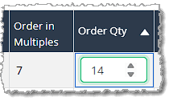
- Quantity Error / Success — If you enter a quantity that will not work for an item, as in the example below, the system will outline the Order Quantity field in red. For example, the item shown below has an Order Quantity of 1, which is less than the Order in Multiples of 7, so the system flagged it as an error. All such errors have notifications in the Footer area as well.
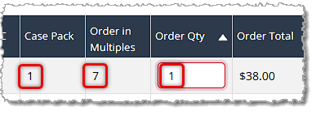
When we correct the quantity to at least one multiple of 7 in this example, the field will highlight in green and the error message will be removed.
- Remove Item — If you click the Trashcan Icon on the far left of a line item, you will remove it from the Purchase Order. Please note, this does not delete the item from the catalog; it just removes it from the PO. You don't need to click a confirmation, and you'll just see a success notification pop up in the upper right. If you accidentally removed the wrong item, you can always search for it and add it again.
Special Requests
You can click on the Special Requests area to expand it and view any Special Requests that might be needed for the vendor's items. Here are the functions of this area:
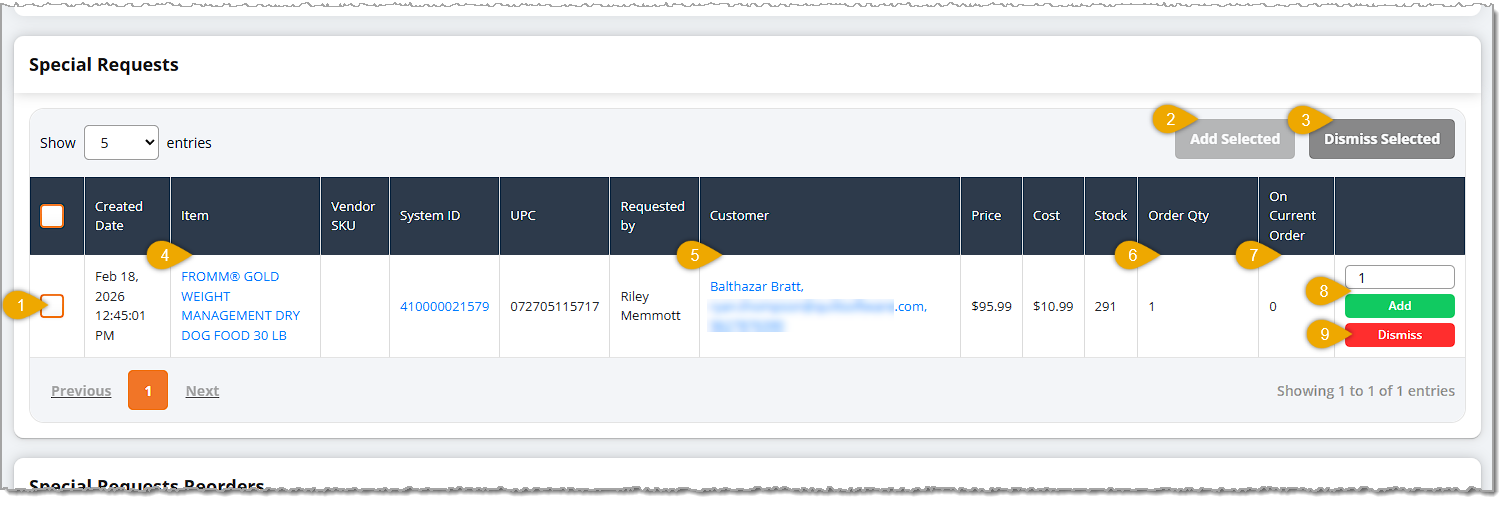
- Item Selection — Use the checkboxes on the left to select items for bulk actions such as Add Selected or Dismiss Selected. You can use the checkbox in the header row to Select All items on the current page, or click it again to Deselect All.
- Add Selected — If you have selected one or more items using the checkboxes on the left, you can click the Add Selected button to add them in the quantities you entered to the Purchase Order all at once.
- Dismiss Selected — If you won't be needing items for this PO that you've selected with the checkboxes on the left, you can click the Dismiss Selected button to remove them from this list. Whenever a new PO for the vendor is created, by default those Special Request items will be added to this area in that new PO.
- Item Link — You can click the Item name or the System ID for the item to open its Product Detail page in a new browser window.
- Customer — You can click the Customer name to open their details page in a new browser tab, if needed.
- Order Quantity — The original Quantity from the Special Request is displayed here for your reference.
- On Current Order — If the item has already been added to the current PO, the Quantity being ordered will be listed here for your reference.
- Add Item — You can enter a quantity into the Quantity field for the item, and if you click the Add button, the item will be added to the PO and the On Current Order quantity will adjust.
- Dismiss — If you won't be needing the item for this PO, you can click the Dismiss button to remove it from the Special Requests list. Whenever a new PO for the vendor is created, by default the Special Request item will be added to this area in that new PO.
Special Requests Reorders
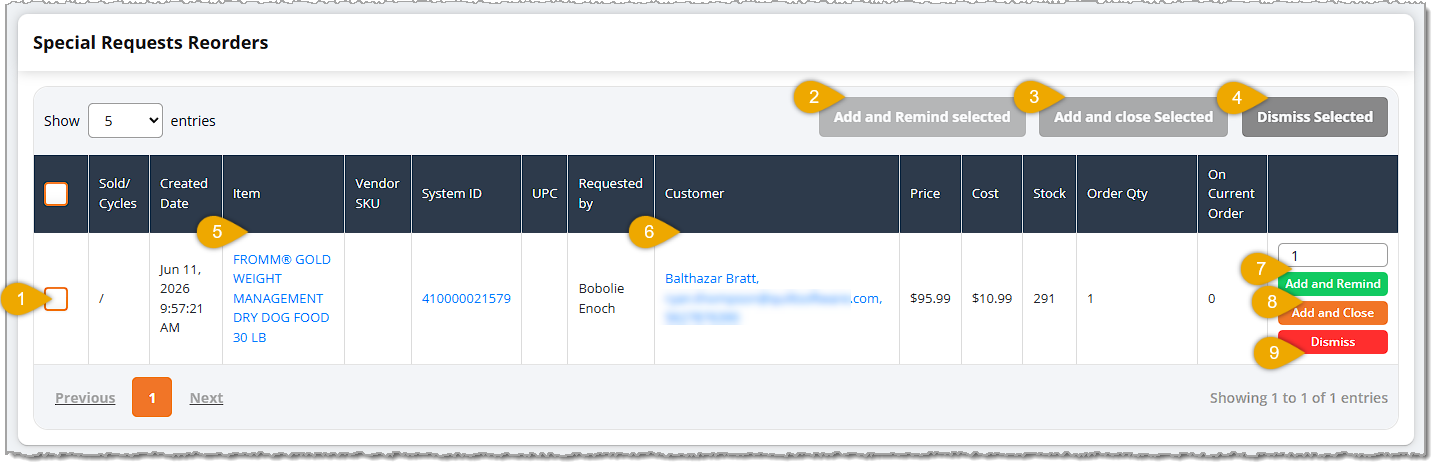
- Item Selection — Use the checkboxes on the left to select items for bulk actions such as Add Selected or Dismiss Selected. You can use the checkbox in the header row to Select All items on the current page, or click it again to Deselect All.
- Add and Remind Selected — If you have selected one or more items using the checkboxes on the left, you can click the Add and Remind Selected button to add them in the quantities you entered to the Purchase Order all at once. The system will also set a reminder for you that will appear in the Alarm Bell area at the top of the system when it is time to reorder again.
- Add and Close Selected — If you have selected one or more items using the checkboxes on the left, you can click the Add and Close Selected button to add them in the quantities you entered to the Purchase Order all at once. The system will also cease reordering the item(s) in future purchase orders.
- Dismiss Selected — If you won't be needing items for this PO that you've selected with the checkboxes on the left, you can click the Dismiss Selected button to remove them from this list. Whenever a new PO for the vendor is created, by default those Special Request Reorder items will be added to this area in that new PO.
- Item Link — You can click the Item name or the System ID for the item to open its Product Detail page in a new browser window.
- Customer — You can click the Customer name to open their details page in a new browser tab, if needed.
- Add and Remind Item — You can enter a quantity into the Quantity field for the item, and if you click the Add and Remind button, the item will be added to the PO and the On Current Order quantity will adjust. You will also be given a reminder in the Alarm Bell area when it's time to reorder the item again.
- Add and Close Item — You can click the Add and Close Item button to add the the item in the quantity you entered to the Purchase Order all at once. The system will also cease reordering the item in future purchase orders.
- Dismiss — If you won't be needing the item for this PO, you can click the Dismiss button to remove it from the Special Requests Reorders list. Whenever a new PO for the vendor is created, by default the Special Request Reorder item will be added to this area in that new PO.
Auto-Order Summary by Item for Seven Days in the Future
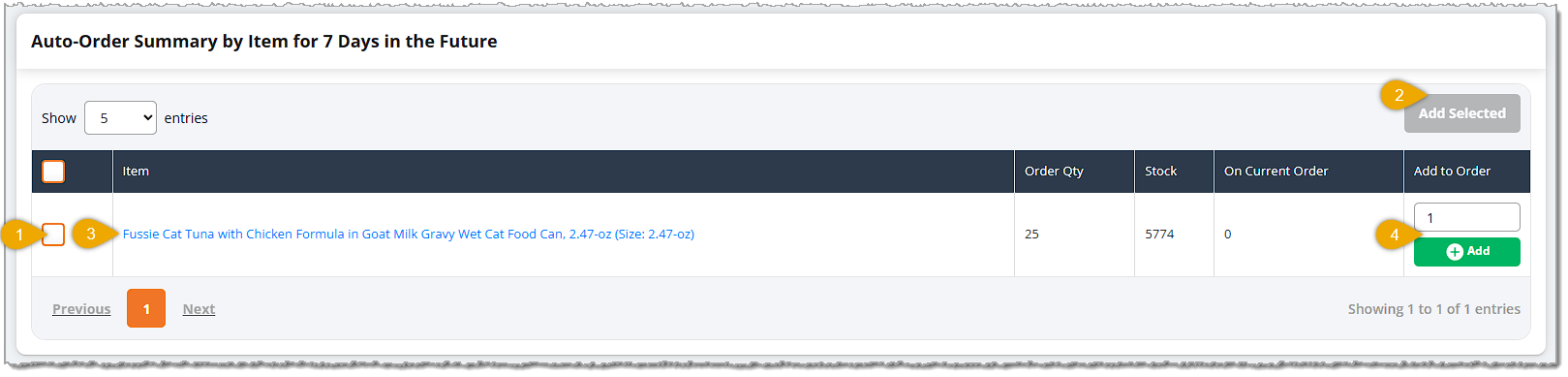
If customers have set up Auto-Orders for items from the PO's vendor (they have the option to do this when they complete an online order for an item), those items will appear in this section whenever you start a PO for the vendor seven days or less away from the Auto-Order date.
- Item Selection — Use the checkboxes on the left to select items to Add Selected. You can use the checkbox in the header row to Select All items on the current page, or click it again to Deselect All.
- Add Selected — If you have selected one or more items using the checkboxes on the left, you can click the Add Selected button to add them in the quantities you entered to the Purchase Order all at once.
- Item Link — You can click the Item name or the System ID for the item to open its Product Detail page in a new browser window.
- Add Item — You can enter a quantity into the Quantity field for the item, and if you click the Add button, the item will be added to the PO and the On Current Order quantity will adjust.
PO — Subscription
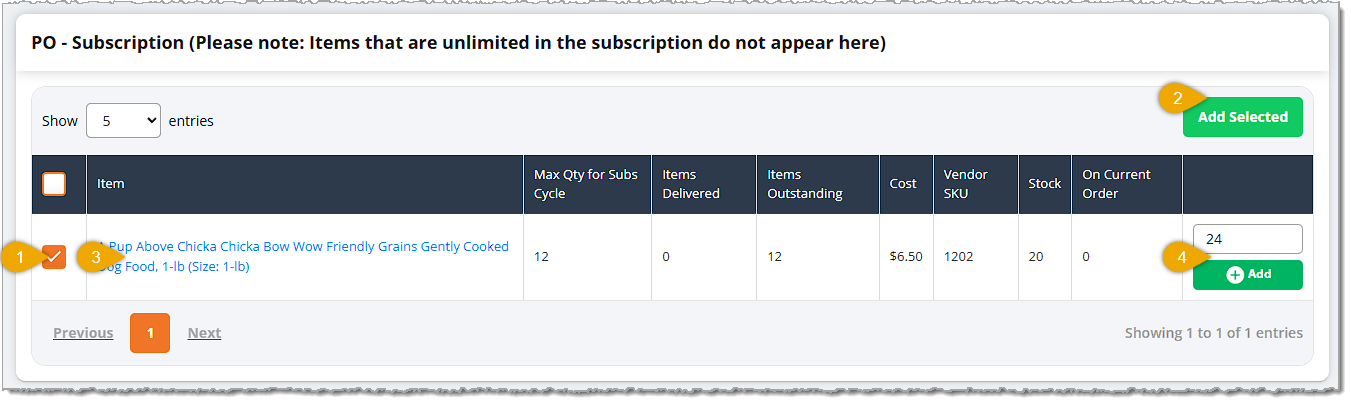
If you have an active Subscription Plan with customers that have started the subscription, and if there is an item in the plan from the PO's Vendor, that item will appear in this section.
- Item Selection — Use the checkboxes on the left to select items for Add Selected. You can use the checkbox in the header row to Select All items on the current page, or click it again to Deselect All.
- Add Selected — If you have selected one or more items using the checkboxes on the left, you can click the Add Selected button to add them in the quantities you entered to the Purchase Order all at once.
- Item Link — You can click the Item name or the System ID for the item to open its Product Detail page in a new browser window.
- Add Item — You can enter a quantity into the Quantity field for the item, and if you click the Add button, the item will be added to the PO and the On Current Order quantity will adjust.
PO — Shortage
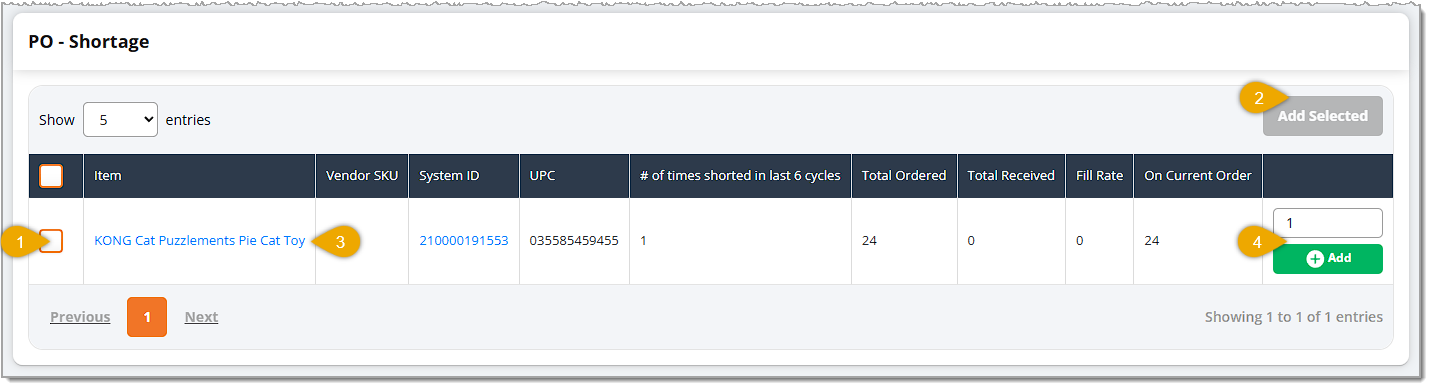
If there was a shortage of an item in a previous PO for the vendor, meaning all or part of the item's ordered quantity did not arrive in the shipment for whatever reason, the item and its unfulfilled quantity will appear in this section.
- Item Selection — Use the checkboxes on the left to select items to Add Selected. You can use the checkbox in the header row to Select All items on the current page, or click it again to Deselect All.
- Add Selected — If you have selected one or more items using the checkboxes on the left, you can click the Add Selected button to add them in the quantities you entered to the Purchase Order all at once.
- Item Link — You can click the Item name or the System ID for the item to open its Product Detail page in a new browser window.
- Add Item — You can enter a quantity into the Quantity field for the item, and if you click the Add button, the item will be added to the PO and the On Current Order quantity will adjust.
Sending the Purchase Order
The final action for this step in the Purchase Order process is to go back to the top of the page after you have configured all of the order areas and click the Order and Email button.
A window will pop up letting you know the Status of the PO. It will advance to Ordered and will ask if you want to continue. Click the Yes, Continue button to proceed.
Please Note: The system will send the order to the email address saved for the Vendor. If you don't want the email to be sent, you should keep the order in the current Open status until you're ready to send it.
Step Four: Check-In Purchase Order Items
Purchase Order Status Progression: Ordered > Check-In > Finished
When you receive the shipment from the vendor, you can move to the Check-In step. On the Purchase Orders list page (under Manage Catalog > POs), find the Purchase Order. It will initially be in Ordered status. On the far right, you'll see a Check-In button. Click that button to move to the Check-In step. The Purchase Order Check In page will open.

There are three major areas of the Purchase Order Check-In page; the first two are detailed below:
Order Details and Receive Items
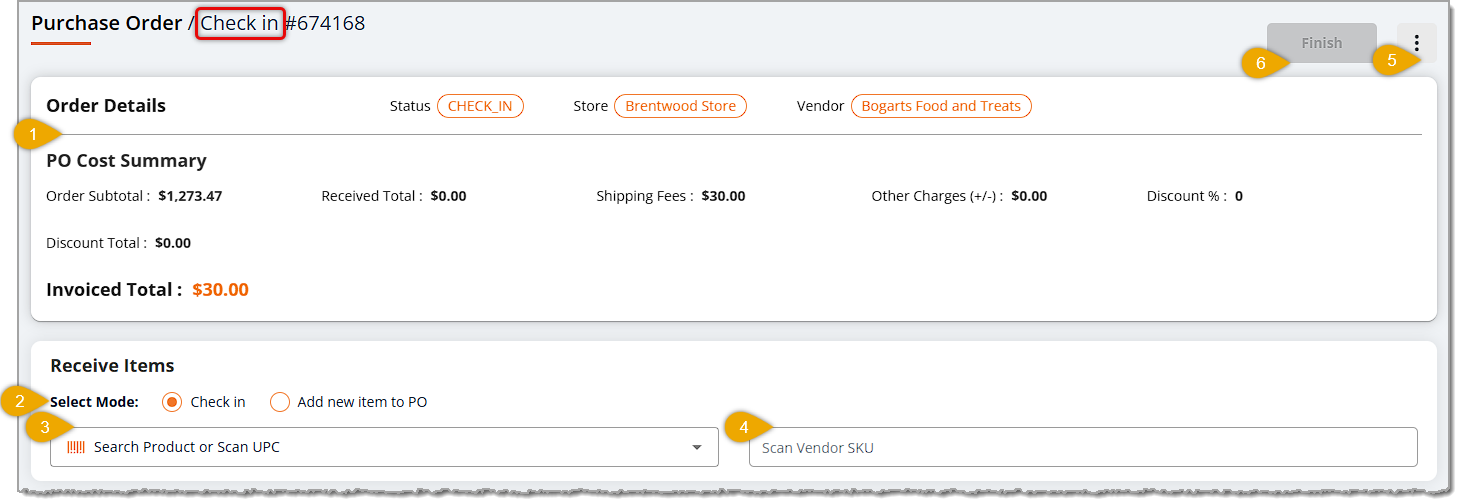
- Order Details — The top of the Purchase Order Check-In page gives you the PO Number, the Status, the Store name, the Vendor name, the Order Subtotal, the Received Total (this will dynamically update as you check-in items), the Shipping fees, Other Charges, if any, the Discount Percentage, and Discount Total. This information is here for your reference.
- Receive Mode — By default, the Receive Items area is in Check-In mode, which allows you to find items to start checking in. You can use the radio buttons to change the mode to Add New Item to PO if some unexpected items were sent in the shipment. Sometimes vendors substitute items or send additional items for whatever reason, and they use can use this mode to add them to the PO. You can then check them in along with the other items.
- Item Search — In Check-In mode, this area will search items in the order so you can check them in, in whatever order you pick them up out of the shipment. In Add New Item to PO mode, this will search the Vendor's items in Product Universe so you can add any that were included in the shipment you didn't originally order.
- Scan Vendor SKU — In Check-In mode, this area will search items with Vendor SKUs in the order so you can check them in, in whatever order you pick them up out of the shipment. In Add New Item to PO mode, this will search the Vendor's items in Product Universe so you can add any that were included in the shipment you didn't originally order.
- Action Menu — The Action Menu gives you the ability to Print the order, if needed.
- Finish — When you are finished checking in inventory, click this button in the upper right. The PO will move to the Finished status, and you will still be able to make changes to it, if needed.
The Ordered Items List for Check-In
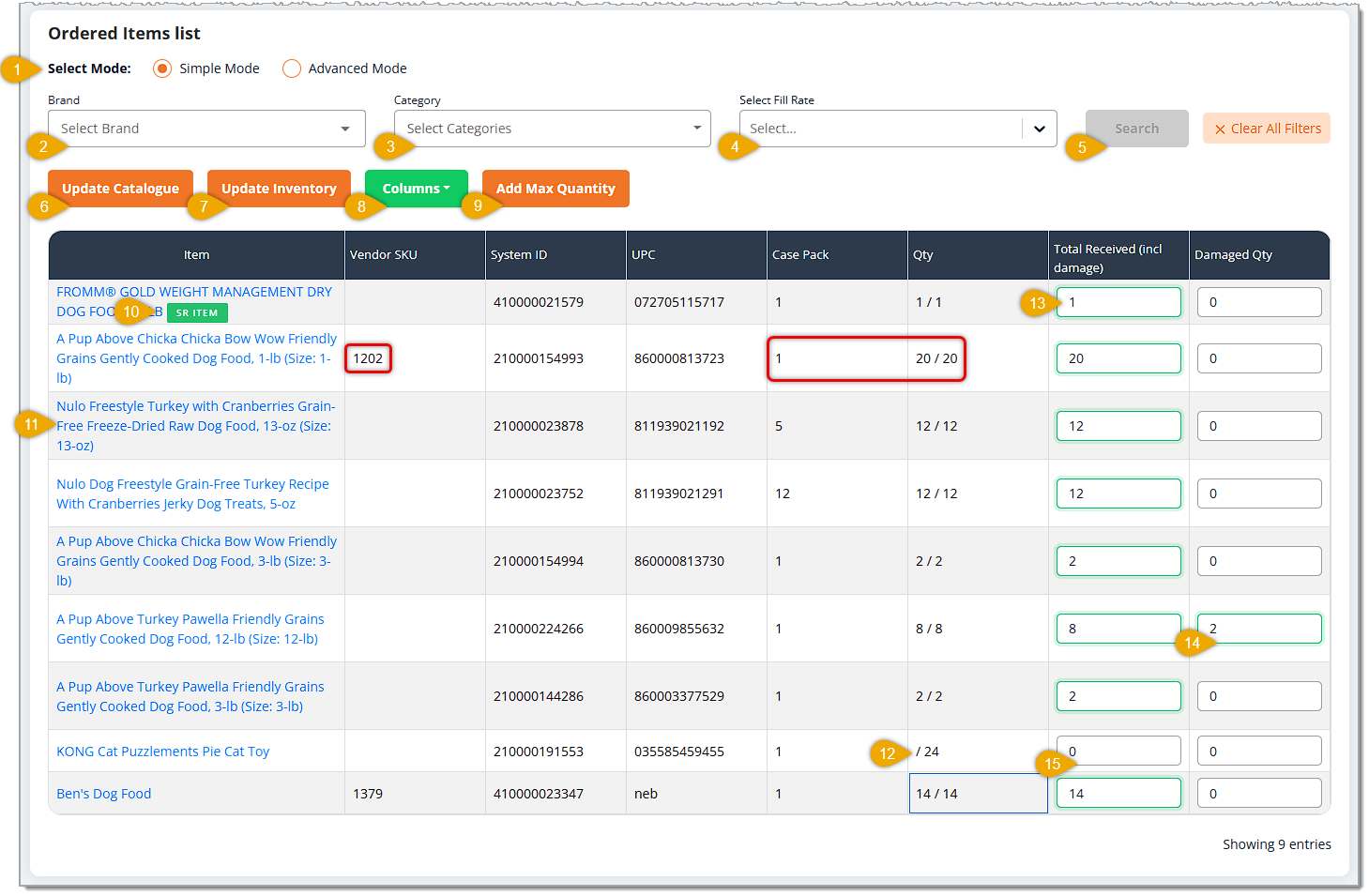
- Check-In Mode — By default, your Check-In mode will be Simple. This mode has columns in this area for the Item name, Vendor SKU, System ID, UPC, Case Pack quantity, item Quantity, Total Received quantity including damaged, and Damaged Quantity.
The Advanced Check-In mode adds columns for In-Store Price, Online Price, Unit Cost, Received / Invoice Cost, Invoice Quantity, Discounted Invoice Cost, Order Total, Received Total, Invoice Total, and a checkbox column for Needs Credit.

- Brand — Click this area to search for a Brand you are working on checking in.
- Category — Click this area to select whatever Categories you want for items you are checking in. You can select as many as you need.
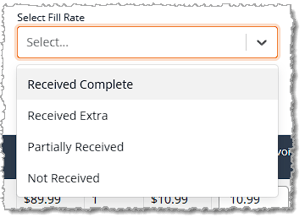
- Select Fill Rate — If you want to view different levels of how fully items in the order were received, you can click this drop-list and select from items that have been Received Complete, Received Extra (more than ordered were received), Partially Received, or Not Received. For example, as you're working, if you keep this filtered on Not Received, items will be hidden as you receive them so your list will get smaller as you go. This can be useful for large orders.
- Search — Whenever you adjust a filter or enter search text for this area, you will click the Search button to update the data table with the results. You can also use the Clear All Filters button to reset the table to show all products for the vendor again.
- Update Catalog — If you need to update Price or Cost information for the purchase order, you can click this button to open the Update Catalog panel. If you want to be sure you are using the most recent data, you can click the button to Show Latest Catalog Price & Cost, and the items will update. You are able to edit the In-Store Price, Online Price, and Vendor Cost for each item, if needed. If you match pricing for In-Store and Online, you can save time by clicking the Copy In-Store Price to Online Price button, which will populate the In-Store Prices to the Online Price column. If you want to set updated pricing based on Margins, you can click the Edit Gross Margin button and the In-Store Margin and Online Gross Margin columns will become editable. As you adjust a Gross Margin, the Price fields will automatically adjust for you.
Once you have finished making your changes, click the Update Catalog button and you'll be prompted to Select Store Catalog to Change, as pictured below. After you make your selections, click the Update Catalog Price & Cost button to save the changes.
- Update Inventory* — You will need to click the Update Inventory button before you'll be able to proceed to the Finished status. Inventory quantity changes must be saved in the system for the PO to be completed.
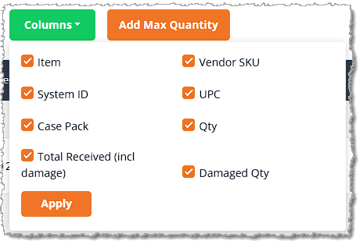
- Columns — Click here if there are columns in view in the Data Table that you don't need. By default, all are displayed, and you can use this control to hide or display whatever you need. Below is the Columns listing for the Simple Mode of Check-In; the Advanced Mode has more options.
- Add Max Quantity — Click this button to populate the Total Received column with the full amount ordered from the Quantity column for all items in the order at once.
- Special Request Item Flag — This indicator shows which items are from Special Requests and Special Request Reorders.
- Item Link — Click the Item name to open the Product Details page in a new browser window for your reference.
- Quantity — The Quantity column initially displays a slash and the original Quantity from the Purchase Order that was sent to the Vendor. As you enter quantities into the Total Received column, the numbers for what you actually received will appear in front of the slash. So you will see Quantity Received / Original Ordered Quantity for all items. For example, if we received a quantity of 12 for the shipment but we ordered 24, we'll see 12/24 here for that item.
- Total Received — Enter the Quantity of the item you received from the Vendor. You can use the Add Max Quantity button to add the full quantities ordered for each item all at once. If some of the items are damaged, you still need to enter the quantity received.
- Damaged — If some of the inventory was damaged, enter the quantity of damaged items in this column. Please note: If you wish to arrange for reconciliation on damaged inventory, there is a checkbox for that in the Advanced Mode of Check-In. See #18 below.
- Unreceived Inventory — If there were items that did not arrive with the shipment, you can decide if you want to wait for a follow-up shipment (some vendors end up splitting shipments for various reasons) or if you want to complete the PO and add them as Shortage inventory for the next PO for this vendor.
- Received Invoice Cost — You can use this field to enter updated vendor Cost for the item if that changed. You can compare what the Cost on the Invoice was with the Cost in the Unit Cost column to the left.
- Invoice Quantity — You can use this field to enter updated Invoice Quantity for the item if that changed. You can compare what the Quantity on the Invoice was with the Cost in the Quantity column to the left.
- Needs Credit — Check this box if there was damaged inventory in the shipment you need to reconcile with the vendor.
Once you complete checking in your items, make sure you have clicked the Update Inventory button to save those changes, then click the Finished button in the upper right. You'll be asked to confirm that you want to proceed to the Finished Status.
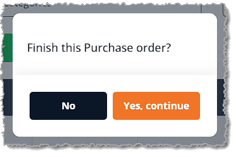
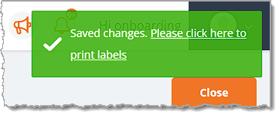
After you click Yes, Continue, the Success notification in the upper right will offer you the opportunity to Print Labels for the received inventory, if needed.
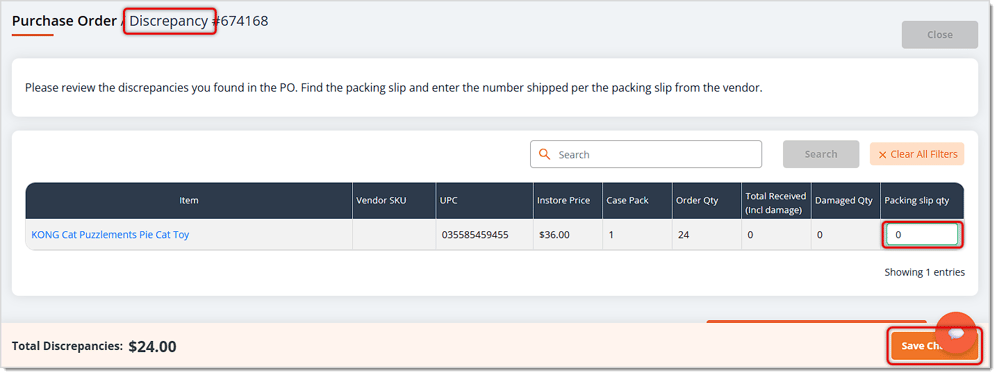
If there were Discrepancies in the order for inventory that was Short for one or more items, the system will list them for you as shown below. If you leave the Packing Slip Quantity at zero, the item will appear on the next PO for the vendor in the PO - Shortage section. Be sure to click the Save Changes button in the lower right if you made any changes.
If there were Special Request items in the order, the system will pop up a reminder for you with the information for each for your reference so you can fulfill the Special Requests. Click the Done button in the upper right when you're ready.

image needs alt text
Step Five: Review and Close the Finished Order
Purchase Order Status Progression: Finished > Closed
If you need to make last-minute changes, or if you're waiting for additional items in the order to ship, you can still make changes to the PO when it's in the Finished status. When you've finished everything needed for the order, click its ID on the Purchase Orders list page to open it.

Click the Purchase Order ID to open the PO. Click the Close button in the upper right when you're ready to close it out. The PO will move to the Closed status.

Step Six: Approve the Purchase Order
Purchase Order Status Progression: Closed > Approved
This step will be done by an Administrator, and it allows whatever changes the final data needed to be made by the Admin. This process is detailed in the Purchase Order Admin Approval article.

Boss Quote
Direct your human to pay attention to each step of the purchase order process. The details are important, and being human, they might forget something. The more they study and practice, the better chance they have of getting it right. Try to not make your human cry; they're so sensitive. They'll be all over it in no time. After they finish, send them over for my brushing and primping. That is all.
— Nubbins, Hazard, KY
Related Topics
Purchase Orders
Purchase Order Admin Approval
Stock Days
Desired Inventory Level
Smart Ordering
Case vs. Each Ordering
Case vs. Each Catalog
Frequently Asked Questions
Q: I have a question, but I can't find my answer here. How do I get more assistance?
A: You can ask any question at the number listed here. Contact our support team at (323) 370-0738 for the U.S. and (888) 370-2363 for Canada.







 Jun 11, 2026
Is this page helpful?
×Help us improve our articles