Welcome to the eTailPet System! As a crew member for your store, it's important that you learn the basics of working in the system. In this article you will learn how to do refunds, exchanges, and voids. You will also learn how to use some special functions, and how to close out your shift. Take a look!
These topics are in part 1 of this article series (clicking a link will open that topic in a new browser tab):
- Signing Into the System
- Clocking In
- Opening the Register
- What's New
- Customers in New Sale
- Adding Items to New Sale
- Discounts
- Astro Loyalty and System Rewards
- Completing a Sale
Here are the areas we cover in this article (clicking on any of these links will jump you down this page to that section):
- Special Requests
- Subscriptions
- Deposits
- Holding and Resuming Transactions
- Refunds, Returns, and Exchanges
- Voiding Transactions
- Working With Cash
- End of Shift
- Clocking Out
10. Special Requests
Special Requests are for items a customer requests that are not normally stocked in your store, or for a larger quantity than you usually keep on hand. Use this tool to create a Special Request Order for the customer or work with an existing one. You'll be able to use the Special Request tool after you load a customer into the New Sale. You can also use this tool to look up Special Requests from the customer that are active, on order, or in other order statuses.
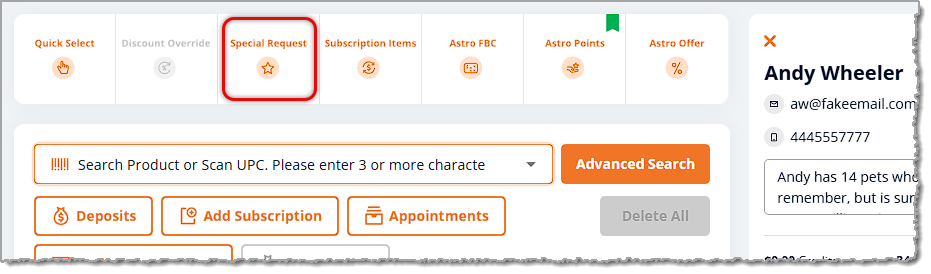
When you click the Special Request button, the Special Requests window will open.
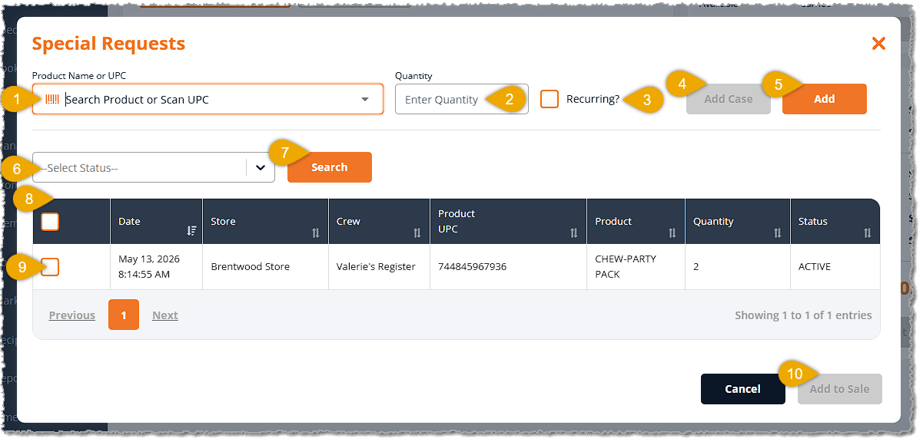
- Search or Scan — If you don't have an item barcode you can scan in here, search for the product by its title and brand. Click on it from the resulting drop-list.
- Quantity — Enter the quantity the customer wants. If they are ordering by the case, enter the number of cases.
- Recurring — Check this box if the customer wants to do the same Special Request on a regular recurring basis.
- Add Case — If the item is sold by the case, you'll have the option to set the Quantity of cases. When you click the Add Case button, they'll be added to the Special Request Item table.
- Add — If the item is sold as single units, after you've entered a Quantity, you can click the Add button to add the item to the Special Request Item table.
- Status Filter — If the customer has multiple items in their list, you can use this to view only the items with the status you want. Click to open the drop-list and filter for Active (items that are Active in the Special Request, but have not yet been ordered; you can let the customer know the item will be added to the next vendor order), In Stock, On Order, or Separated items (items that have been set aside for pickup of the Special Request).
- Search — If you are using the Status Filter, once you have made your selection, click the Search button to find items in the list of the status you chose.
- Special Request Items — This area holds all of the Special Request Items the customer has asked for, including items that have been in previous Special Requests that are recurring. It doesn't show nonrecurring items from previous Special Requests that were already fulfilled and purchased. In the Special Requests area of the main menu on the left side of the page, you can view items that were purchased previously and are not recurring. This area shows the Date and Time the item was added, the Store, the Crew member who added it, the Product UPC, the Product name, the Quantity requested, and the current Status of the item.
- Select Item for Special Request — Check this box if the customer wants to order the items now.
- Add to Sale — Click this button to add selected items to the transaction. The customer can either pay for them now, or you can take a Deposit where they pay part of the order according to your store policy for Special Request orders. See the section below on Deposits for details on how to do this. When you're ready, you can complete the sale in the normal way using the Payment button.

11. Subscriptions
If the customer already has one or more Subscriptions, you'll see them here. Click this button to open the Subscription Redemptions window where you can redeem subscription reward items. If the customer is making a new subscription, clicking this button will take you to the Create Subscription page to make them a new one. Subscriptions are often for yearly memberships in the store so the customer can get loyalty rewards and other benefits. Your store may also set up Subscriptions to have some kind of redeemable reward, such as a number of pet washes throughout the membership, as we'll see in our example below. You can see Subscription information in New Sale after adding a customer to the register. Here are the main areas we'll look at regarding Subscriptions:
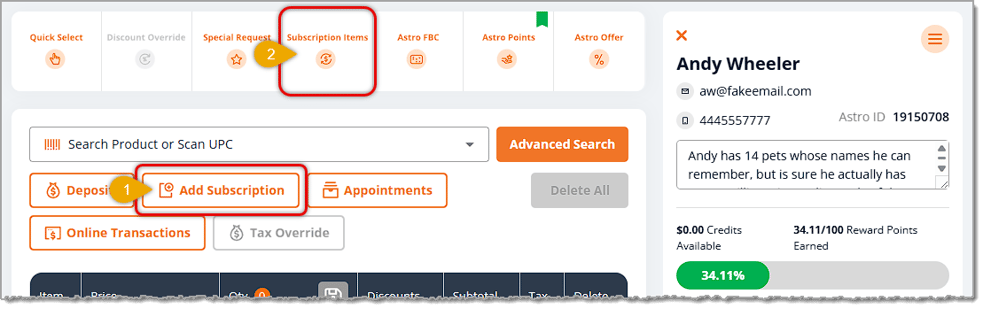
1. Add Subscription
If the customer doesn't have a subscription, you can add one using this button. When you click the button, the Create Subscription page will open with the customer already loaded in the lower left.
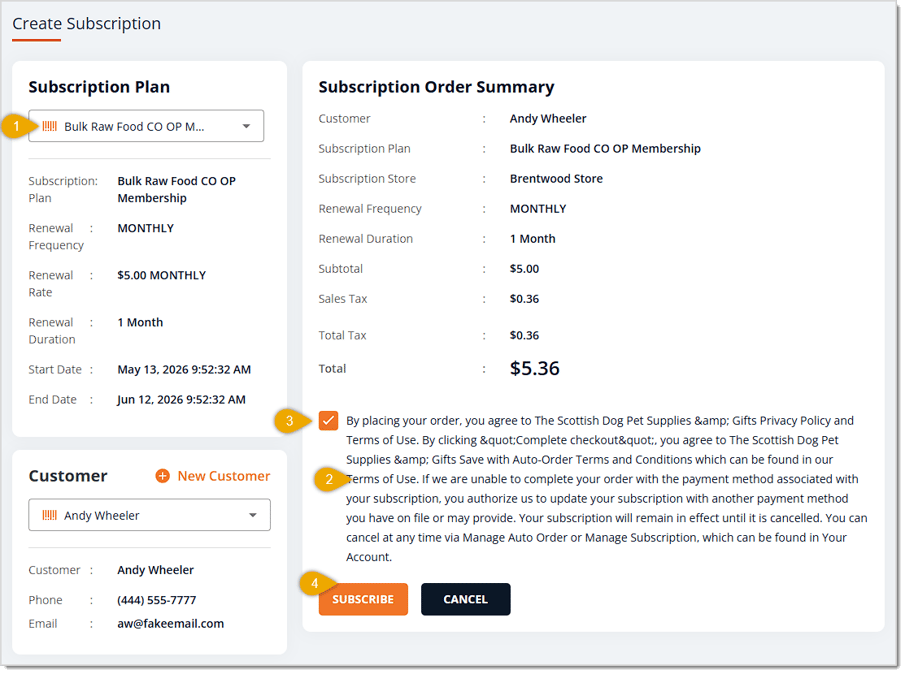
Here are the steps for adding the subscription:
- Click on the Subscription Plan drop-list and select the one you want.
- Make sure the customer understands the terms and conditions before you proceed.
- Check the box to verify the customer understands and accepts the terms and conditions.
- Click the Subscribe button. The Payment panel will open for you (you will not need to go back to New Sale to complete the subscription creation).
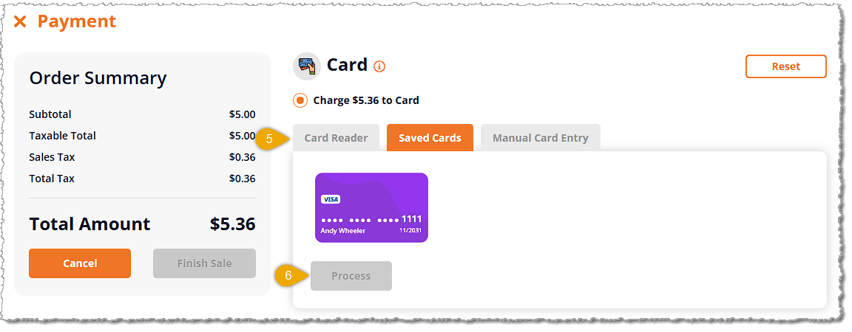
- Subscriptions must be paid for with credit or debit cards. Choose to scan a card with the Card Reader, use a Saved Card, or do Manual Card Entry if you're doing a phone order (not recommended). In our example, the customer wants to use his saved card, so you would click on the card thumbnail and the Process button will become highlighted.
- Click on the Process button to run a check on the card and place a hold on the funds. This will be the same for all three card tabs.
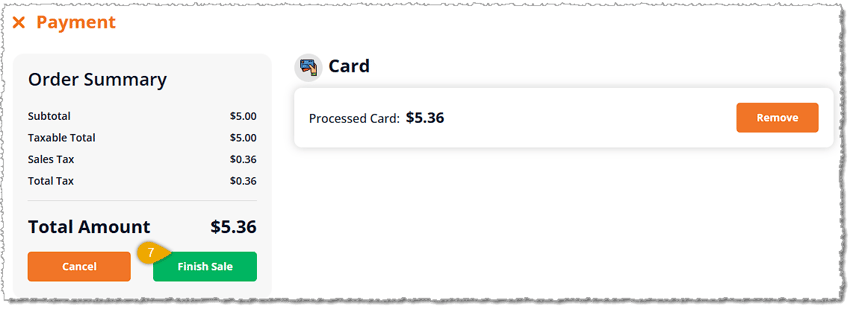
- Once the payment has processed and the Total Amount has been paid, the Finish Sale button will become active. Click the Finish Sale button to finalize the charge, complete the sale, and go to the receipt printing and Sale Success page (you can see details on these steps in the Completing a Sale section in part 1).
2. Redeem a Subscription Item
If the customer has an active subscription that offers items as part of the plan, click the Subscription Item button so the customer can redeem an item. For example, in this customer's subscription, they are allowed up to ten of the premium Dixons Dog Washes, or an unlimited number of the standard Ricks Dog Wash. In either case, enter the number of the items the customer is redeeming, and click the Redeem Now button. For items that have a limited quantity, the system will track how many the customer has used and display the number of used items, similar to what you would see with a punch card.
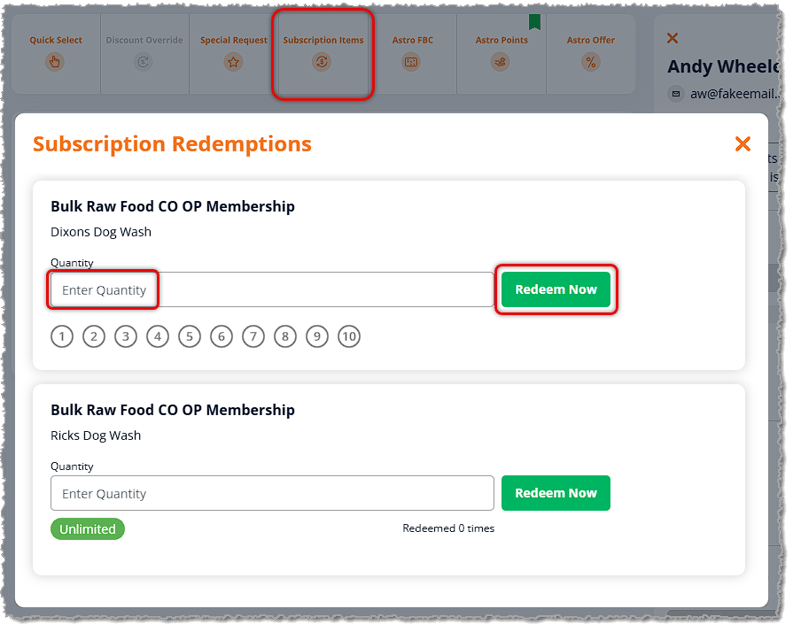
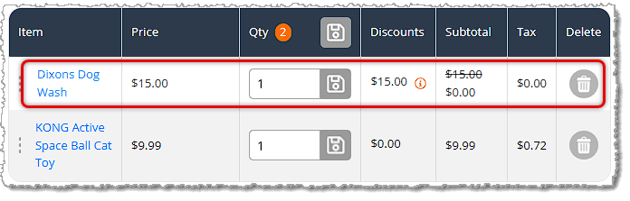
After clicking Redeem Now, the item will be added to the transaction with any discount applied, as shown below. You'll then be able to complete the transaction the normal way.
12. Deposits
If the customer has a Special Request or an Appointment that needs a deposit, click this button and you can take the deposit as a Percentage Off the item, a Dollar Amount Off the item, or as a Custom Amount Off the item. This allows the customer to pay the Deposit portion up front and the remaining amount later. In this example, we'll use a Special Request item. The Deposit will be tracked by the system for the customer, and when they finally pay for it (for example, after the Special Request item comes in or after the Appointment), the total amount will be reduced by the Deposit amount they paid. Here is how to take a Deposit:
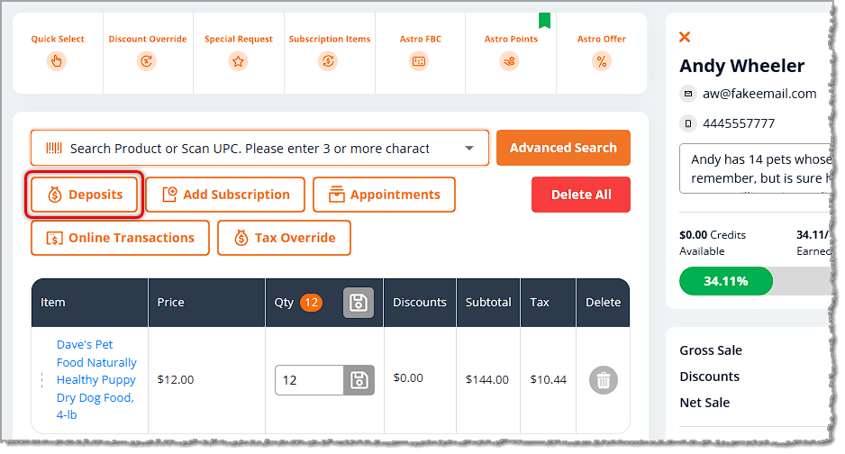
You'll need to have the customer loaded and they need to have either a Special Request or an Appointment.
 Boss Quote
Make sure your human understands if you have just created a Special Request for the customer and there is a line item for it at full price in the Register, you will need to remove that line item before completing the sale since they will only be paying the Deposit part of it up front. Otherwise, they would be paying for the full price of the item AND the deposit, and they will hate you. Like I hate not having my catnip mouse. Get me my mouse!
— Adrian, Wenatchee, WA
Here are the steps for taking a Deposit:
- Click the Deposits button. The Add Deposit Amount window will open with all available Special Request and Appointment items loaded.
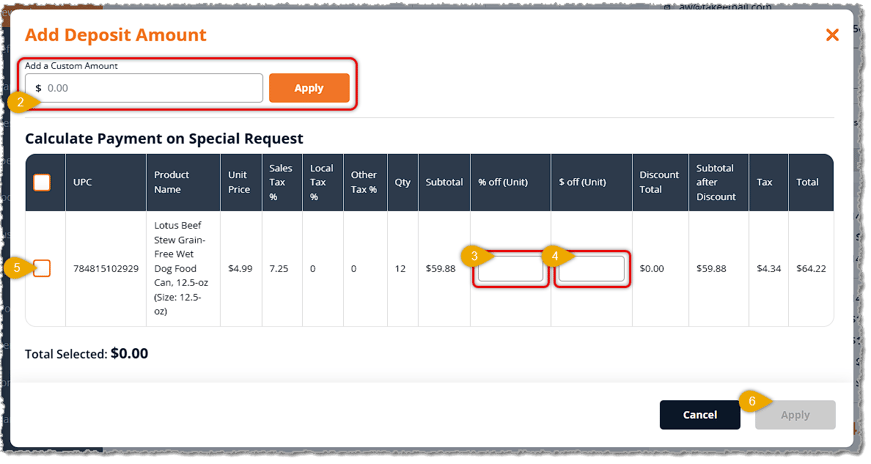
- To configure your Deposit, you can enter an amount in the Add a Custom Amount field. If you have an item selected (#5 below) and you click Apply in this area, the window will close and the deposit will be added as in #7 below.
- OR -
- You can enter a value into the % Off (Unit) column to set the Discount as a percentage of the line item's Subtotal. In the example above, if we enter 50, the system will take 50% of the item Subtotal, $29.94. When the Deposit is applied, you'll see that amount entered for the Deposit line item in the register.
- OR -
- You can enter a value into the $ Off (Unit) column to set the Discount as a flat dollar-amount off the item's Subtotal. In the example above, if we enter 30, the system will take $30 off the item's Subtotal. When the Deposit is applied, you'll see that amount entered for the Deposit line item in the register.
- Check the box(es) for whatever items you'll be doing deposits for, and you'll see the Apply button in the lower right become active.
- Click the Apply button. The window will close.
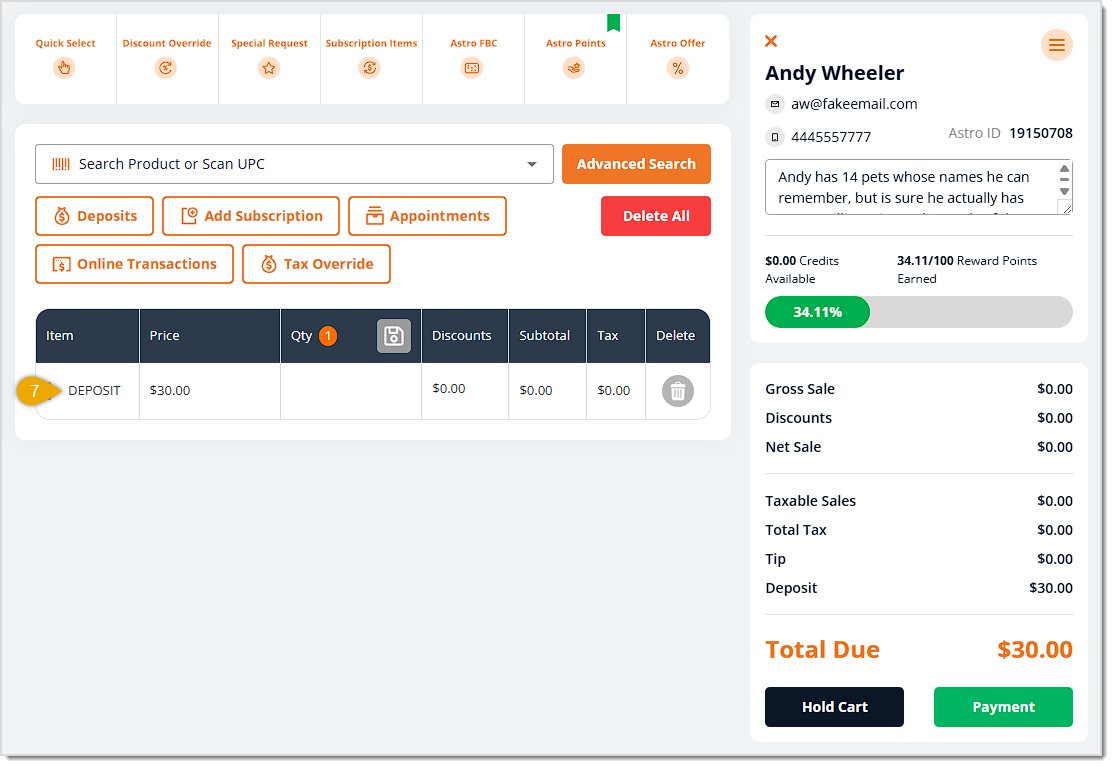
- You will see your Deposit line item in the Register, as pictured here. You can add other items to the transaction as needed and check out as normal.
13. Holding and Resuming Transactions
Hold a Cart
- Before you can hold a transaction, you should have already added a customer to the transaction. You can create a new customer on the right of the New Sale by clicking on the New Customer button, or you can Search for a customer in the search bar using their name, phone number, or email address, then select them in the drop-list.
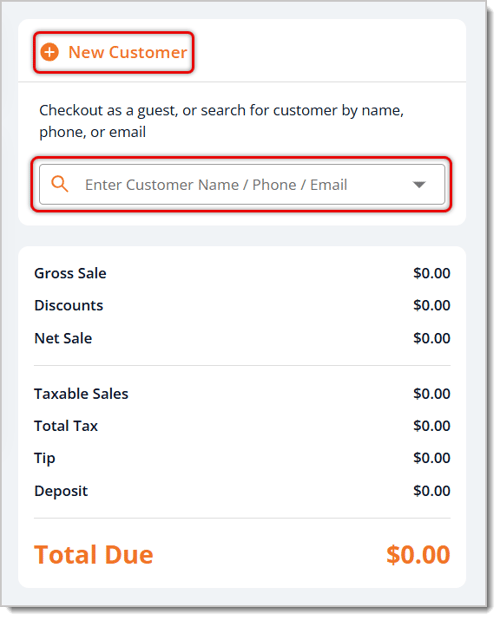
- Add items to the transaction by scanning their barcodes or searching for and selecting them.
- Click on Hold Cart on the bottom right of the New Sale.
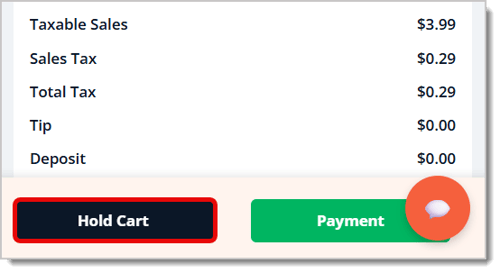
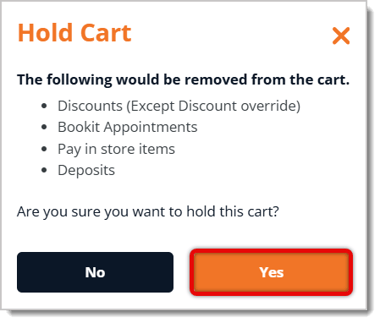
- A window will pop up noting that Discounts (not including discount overrides), Appointments, Pay In-Store Items, and Deposits will be removed from the cart. It will also ask you to confirm that you'd like to hold this cart. Click on Yes.
Resume a Held Cart
If the customer has a cart on hold, adding them back to the transaction will bring the cart back. This is the fastest method to Resume a held transaction. Follow these steps:
- In the upper right of the New Sale page, use the Search bar and enter the customer's name, phone number, or email address.
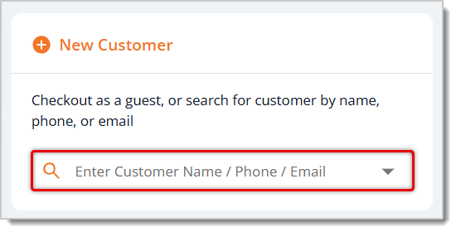
- Select the customer you need from the resulting drop-list. If the current transaction is clear, the held cart and its items will automatically load into the transaction.
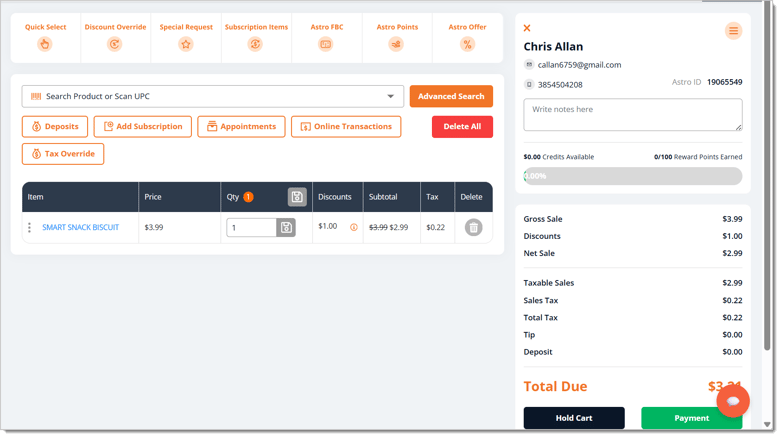
- Add items or details that were removed when the transaction got put on hold, like appointments or discounts.
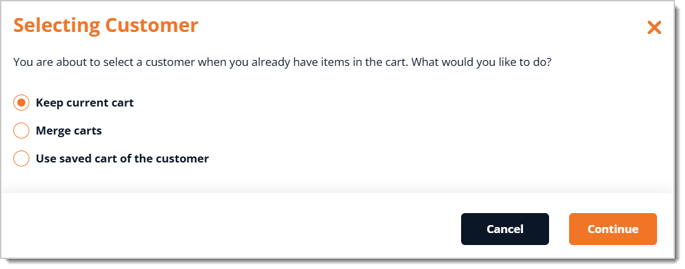
- If the current transaction has items already added to it, a window will pop up asking if you want to keep the current cart, merge carts, or use the saved (held) cart you're trying to load. Click on the option you need and then click Continue.
14. Refunds, Returns, and Exchanges
Sometimes customers will need to return or exchange items because a pet won't like something, or they might have gotten the wrong size or type. In this section, you'll learn what to do when the customer needs to bring something back. The first thing you need to do is look up the transaction, and if the customer has their receipt, the place to start is in the Refund area of the main system menu on the left. We will look at the two major tasks for this topic: 1) Looking Up the Transaction and 2) Processing the Refund, Return, or Exchange.
Looking Up the Transaction
Fastest Ways to Look Up Transactions:
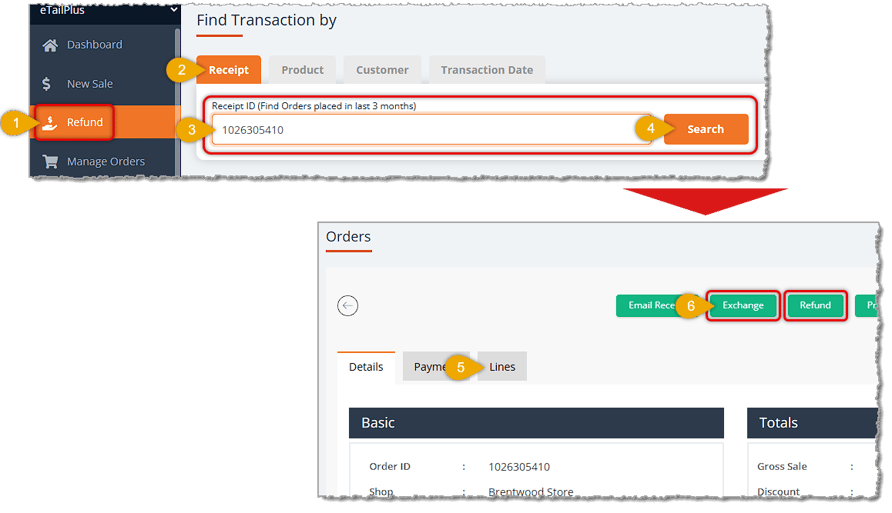
If You Have the Receipt:
- Go to Refunds in the main menu on the left.
- Enter Your PIN (not pictured: you'll be prompted to enter your PIN if you're coming from a different system area). The Find Transaction page will load with the Receipt tab open by default.
- Scan the Receipt Barcode into the Receipt ID Field.
- Click the Search Button. The Orders page will open with the transaction.
- On the Orders Page, Confirm You Have the Right Transaction. You can use the Lines tab to view items in the transaction.
- Click the Refund or the Exchange Button.
- Process the Refund or Exchange (Not pictured: see the section below on Processing the Refund, Return, or Exchange).
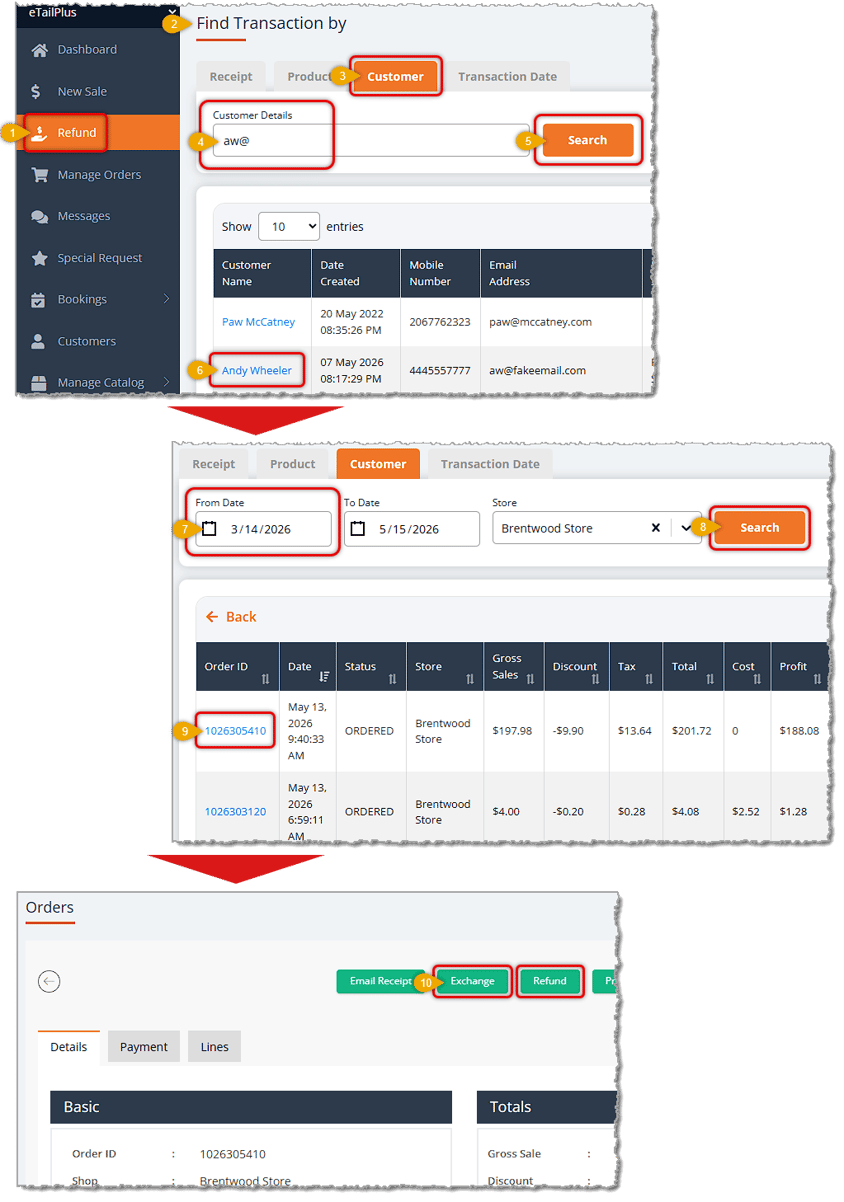
If You Don't Have the Receipt, But the Customer Was in the Transaction:
- Go to Refunds in the main system menu on the left.
- Enter Your PIN (not shown: if you're coming from another system area, you'll be prompted to enter your PIN). The Find Transaction page will load.
- Click the Customer Tab.
- Search for the Customer by Email, Name, or Phone (Enter at least 3 characters).
- Click the Search Button on the left. Matching customers will load in the table below the search.
- Click the Customer Name for the one you want.
- Adjust the Date Range, if needed (Default Range is the last two days).
- Click the Search Button if you adjusted the Date Range.
- Find the Transaction you need and Click the Order ID to open the Orders page for the Transaction. Confirm You Have the Right Transaction. You can use the Lines tab to view items in the transaction.
- Click the Refund or the Exchange Button.
- Process the Refund or Exchange (Not pictured: see the section below on Processing the Refund, Return, or Exchange).
Processing the Refund, Return, or Exchange
Process a Refund or Return
Once you've found the transaction and clicked the Refund button, the order will open in the Refund Order page. Here is how to process a Refund:
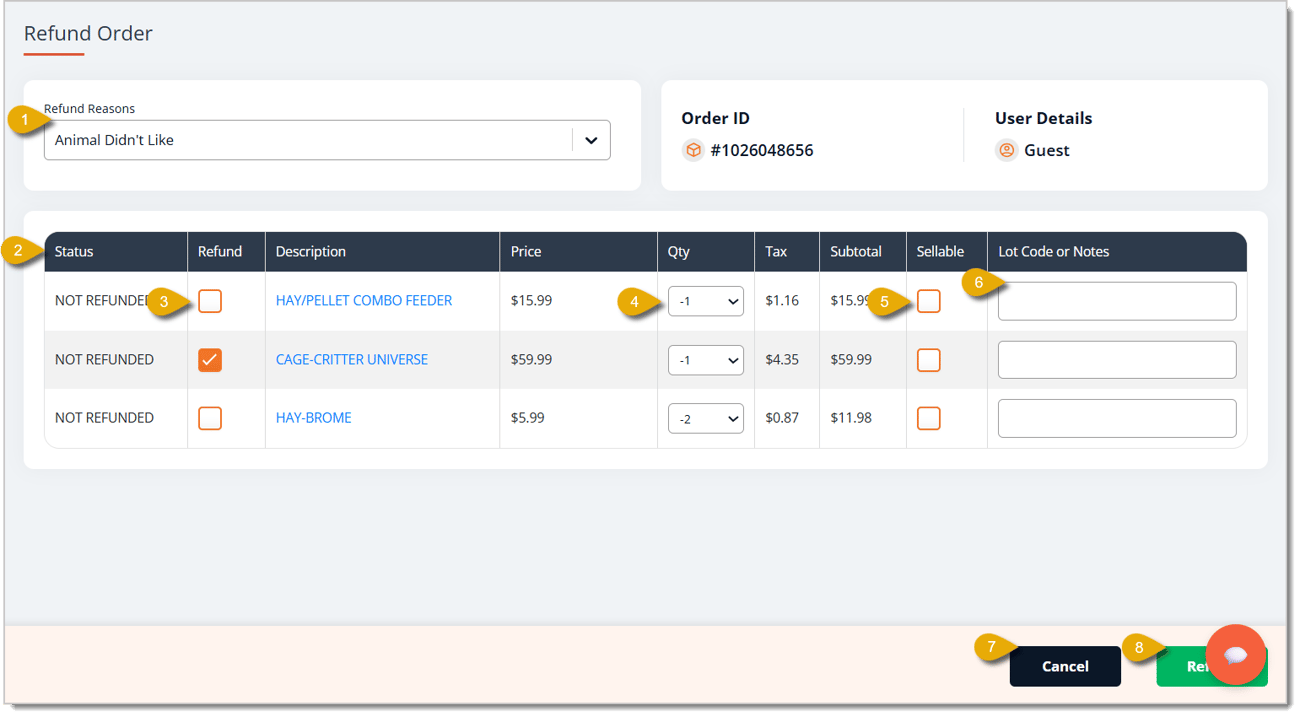
- Select the Reason for the Refund from the drop-list.
- View the Status of the exchange/refund to make sure it has not already been exchanged or refunded.
- Check the box under Refund for each item the customer wants to refund.
- Select from the drop-list the Quantity of the item the customer wants to return. Note that for exchanges and refunds, this will be a negative value.
- Check the box for Sellable if the item is able to go back up for sale.
- Enter the Lot Code or Notes for the item, if needed.
- You can cancel the refund by clicking on Cancel on the bottom of the window.
- Click on Refund in the bottom right when you're ready to process the refund. This will open the Refund Payment window.
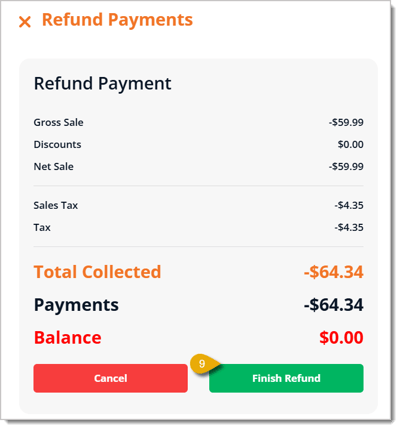
- You may be prompted to select how the refund will be paid to the customer, depending on how they paid originally (not shown). If so, make your selection and click on Finish Refund. The browser print window will open and after you print the receipt, the Sale Success page will load the receipt and customer information for you.
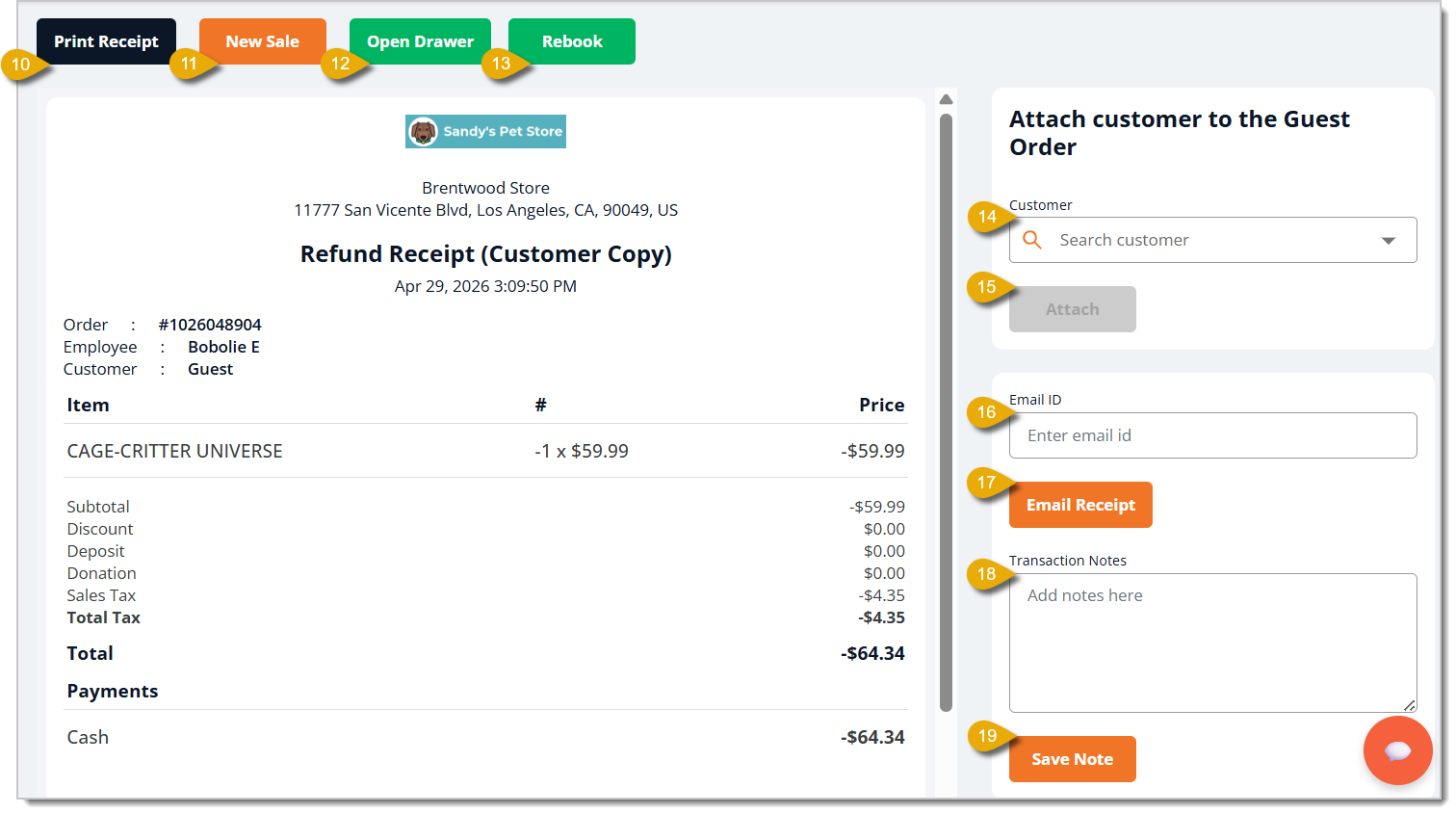
- On the Sale Success page, if you need another printed copy of the receipt, you can click to Print the Receipt.
- If you're finished with this page, you can start a New Sale.
- If the customer is getting their refund in cash, the cash drawer should have opened automatically for you when you printed the receipt. If you need access to the drawer for another reason, click on Open Drawer.
- If the refund was for an Appointment, you can click on Rebook to reschedule it, if needed.
- If the transaction was a guest transaction, but the customer wants to attach it to their existing store profile, you can Search for the customer by entering their name.
- After selecting the customer's name, click on Attach to add the transaction to their record.
- If the customer wants their receipt emailed to them and their email address is saved in the system, it will already be filled in here. If they want it sent to a different address, enter the email address here.
- Click the Email Receipt button when you're ready to send the receipt.
- Enter Transaction Notes, if needed.
- Click on Save Note to add the note.
Process an Exchange
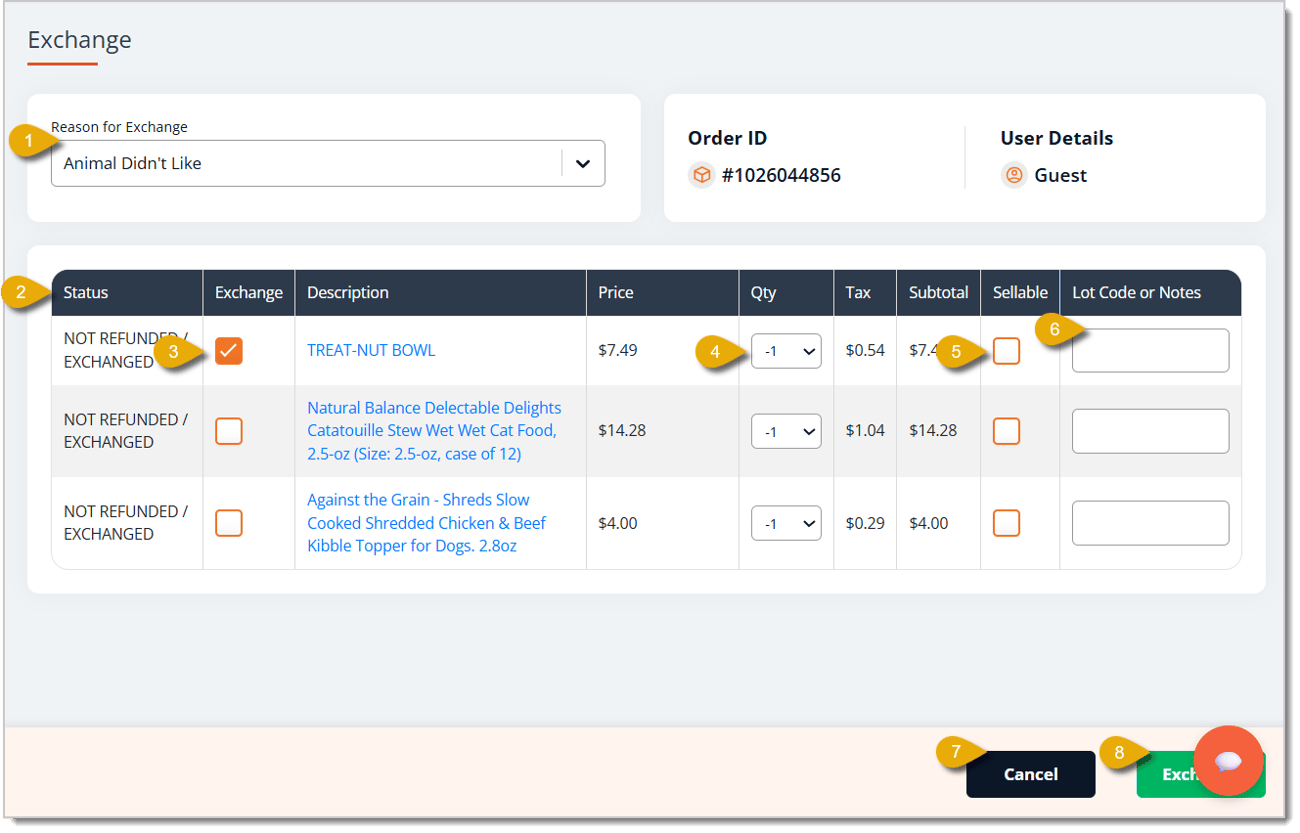
- Select the Reason for the Exchange from the drop-list.
- Confirm the Status of the exchange/refund to make sure it has not already been exchanged or refunded.
- Check the box under Exchange for each item the customer wants to exchange.
- Select from the drop-list the Quantity of the item the customer wants to exchange. Note that for exchanges and refunds, this will be a negative value.
- Check the box for Sellable if the item is able to go back up for sale.
- Enter the Lot Code or Notes for the item, if needed.
- You can cancel the exchange by clicking on Cancel on the bottom of the window.
- Click on Exchange in the lower right when you're ready to process the exchange. This will open the New Sale page.
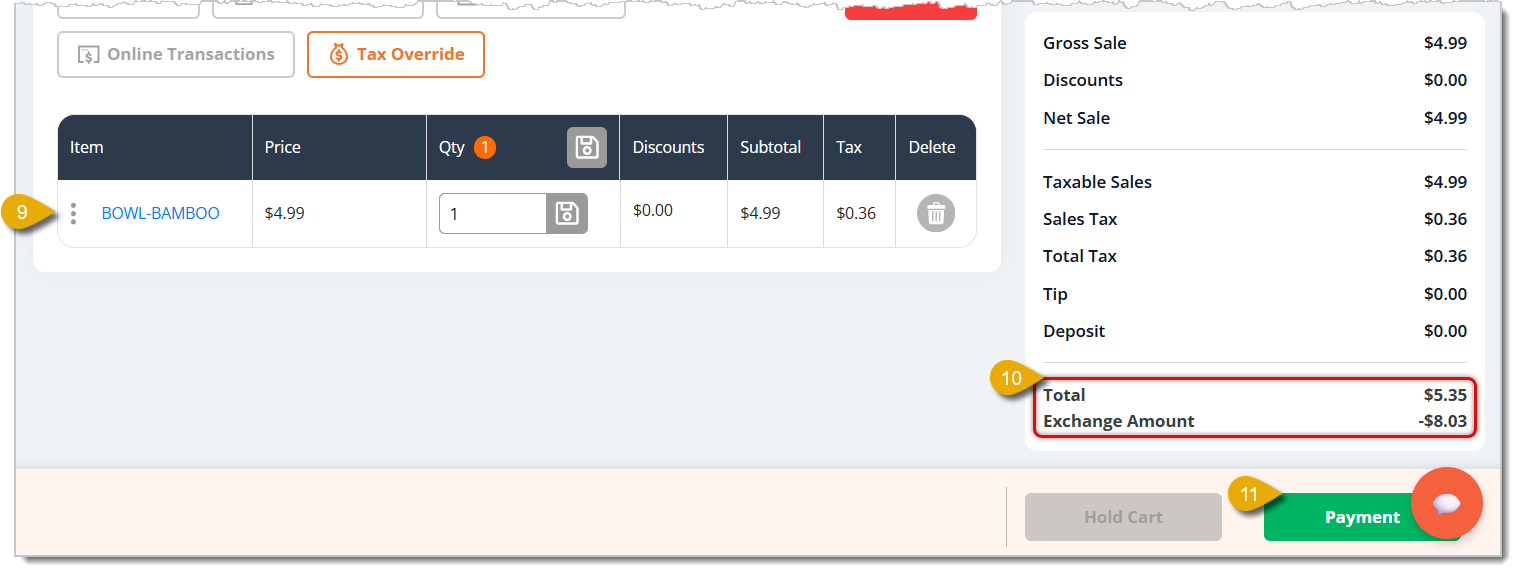
- Add the item(s) the customer wants in exchange for the returned item. You can do so by scanning the new item, adding it from Quick Select, or searching for it by name or UPC.
- After adding the item, you can view the Total dollar amount for the item(s) the customer wants in exchange. Below the Total, you can view the Exchange Amount.
- Click on Payment. This will open the Refund Payment window.
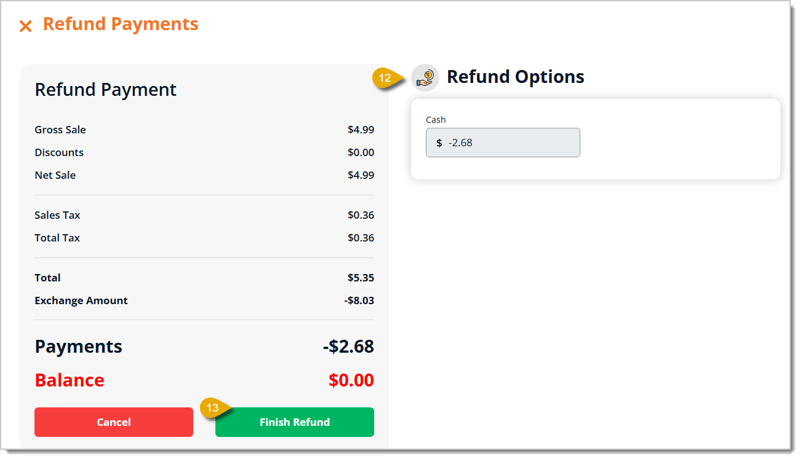
- On the right, you will see the customer's refund payment options, like cash in the image above. If there is more than one, you can enter the amount for each.
- Click on Finish Refund. Once the exchange is complete, you'll be redirected to the Exchange Success page.
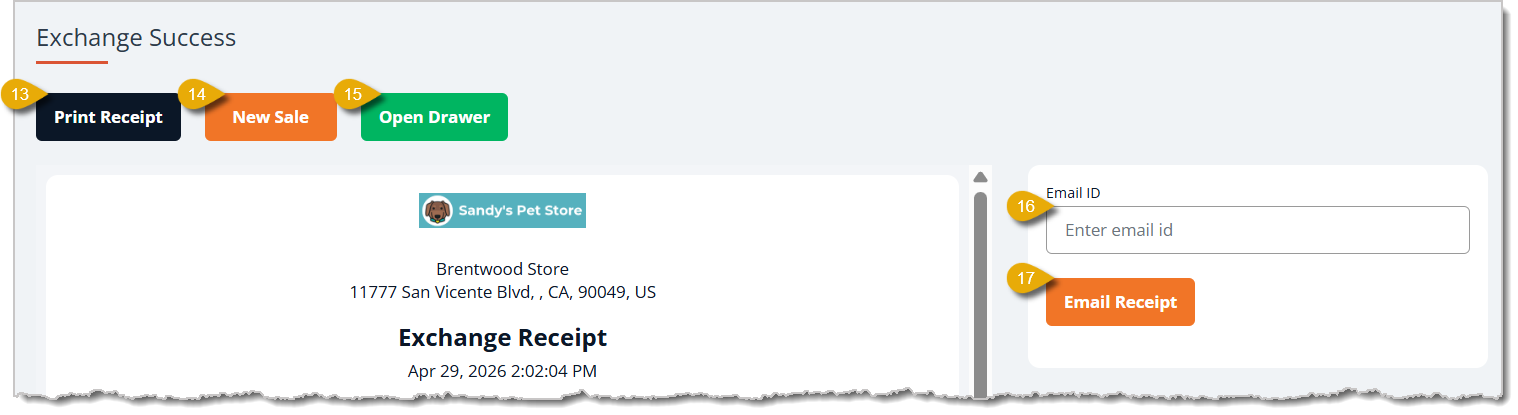
- On the Exchange Success page, you can click to Print the Receipt for the customer.
- If you're finished with this page, you can start a New Sale.
- If the customer is getting their refund in cash, the drawer will open automatically. If there is a different reason you need access to the drawer, click the Open Drawer button.
- If the customer wants their receipt emailed to them, enter their email address.
- Click on Email Receipt after entering the email address to send the receipt.
15. Voiding Transactions
You can use the Void button to reverse an entire completed transaction, if needed, or to just remove individual items. Depending on how your store has set permissions, you may need approval from a supervisor or manager to Void transactions. You can Void transactions or items in transactions that have moved to the Payment window. If payment has processed, such as in a card transaction, the payment will be reversed. Here is how it works:
- (Not Pictured) To void a transaction, you need to be in the Payment window for the transaction. If you haven't proceeded to Payment, you can just click the Delete All button in New Sale if you need to clear the Register, or you can click the Trashcan Icons on the far right for any of the items you need to remove.
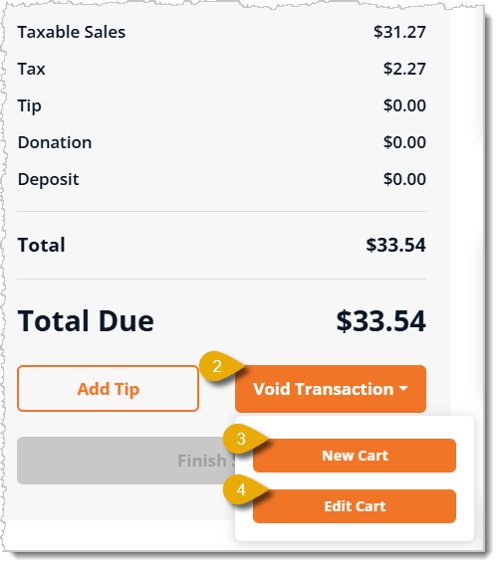
- Below the Total Due amount in the Payment window, click on Void Transaction.
- Click on New Cart to clear the transaction and start a new one. This will reverse any payments you might have taken and bring you back to the New Sale page.
- Click on Edit Cart to go back to the New Sale page. This will also reverse any payments you might have taken. The current cart's items will still be listed in the transaction so you can edit or remove them. You can also add more items, if needed. When you finish in New Sale and click to go back to Payment, you will have to start from scratch since any payments you did before will have been reversed. Processing a card only checks the card and places a hold on the funds. The charge is not finalized until you click the Finish Sale button.
 Boss Quote
Make sure your human knows that completed sales are reversed with a Refund and Voids are just for the Payment page. Also make sure they install an under-register fuzzy ball on a string for your batting and pawing practice. No slacking!
— Felicity, Scranton, PA
16. Working With Cash
As you work through your shift, occasionally you'll have reason to open the cash drawer. For example, you might need to pay your window washer cash from the drawer, you might have extra cash you need to withdraw for security reasons, or you might need to swap cash of one type for a bill or coin denomination that's running short. For these operations, you'll go to the Register area of the main system menu on the left. Here is how to do cash operations in the Register:
Swapping Cash
If you are swapping out cash in equal amounts (for example, if you need more ones, take out one $20 bill and add twenty $1 bills), you won’t need to record anything.
- Go to Register > Add > Enter your PIN.
- Click the Open Drawer button, then print the blank receipt.
- Swap out your cash in equal amounts and close the drawer.
For example, you might be running low on quarters. Your manager gives you a roll of quarters for the drawer (40 quarters = $10). You go to Register, click Add, enter your PIN, then click Open Drawer and print the blank receipt. You take out two $5 bills and empty the roll of quarters into the tray, then give the $5 bills to your manager.
Adding Cash
If you need to add more cash to your register (i.e., you need to add twenty ones, but are not taking out an equal amount of other bills/change) during the day while the register is already open, then you will need to record the amount added.
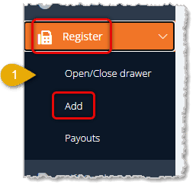
- In the main system menu on the left, click Register to open the menu, then click Add. You will be prompted to enter your PIN. The Add Register page will open.
- On the Add Register page, click the Open Drawer button in the upper right and print the blank receipt.
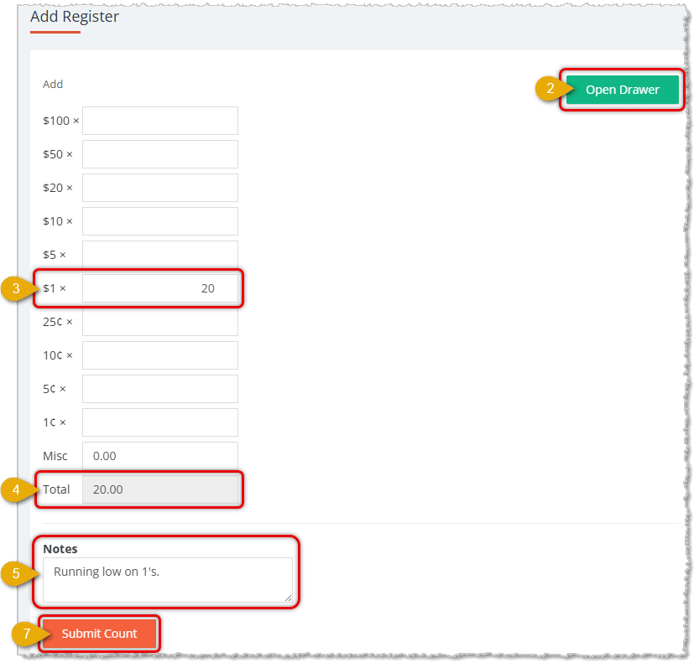
- Enter the Quantity of each bill and/or coin you are adding to the drawer.
- Check that the Total Amount is equal to the Value of the cash you added.
- Add Notes (it is a good practice to do this every time).
- Place the cash in the drawer and close it (not pictured).
- Click the Submit Count button. You're all set!
Cash Payout or Cash Deposit
You can make a cash payout at any time throughout the day for various reasons. Regardless of the reason, the procedure is the same.
- Petty cash reasons, such as paying a local vendor.
- Withdrawing extra cash during the day for safekeeping.
- Withdrawing cash at the End of Day for a final deposit.
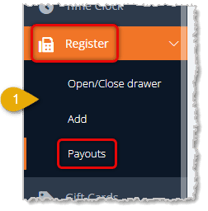
- In the main system menu on the left, click Register to open the menu, then click Payouts. You will be prompted to enter your PIN. The Payout Register page will open.
- Click Open Drawer to open the physical cash drawer and print the blank receipt.
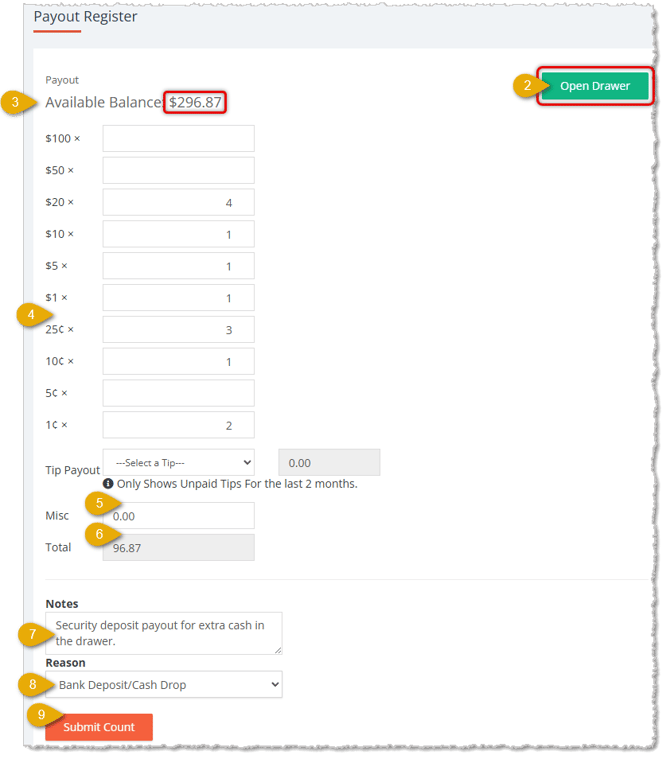
- If you are making a Payout for a Bank Deposit, you can use the Available Balance to know how much cash to withdraw for deposit so that you are leaving the correct cash in the drawer. The best practice for the deposit at the end of the day is to account for any discrepancies at this time. In this example, we are removing extra cash from the drawer and we want to leave $200 in the drawer, so we'll be removing $96.87.
- Enter the Quantity of each bill and/or coin you are withdrawing from the drawer.
- Use the Misc box to account for checks you're withdrawing for the bank deposit.
- Check that the Total amount is equal to the Value of the cash you are withdrawing. In this example, we removed bills and coins totaling $96.87.
- Enter a Note stating the reason for the withdrawal (it is a good practice to do this every time).
- Select a Reason from the drop-list (Expense or Bank Deposit/Cash Drop).
- Withdraw the cash (if you haven’t already), close the drawer, and click the Submit Count button. You'll be prompted to print a receipt of the Payout and you can also email it if your manager wants a copy.
17. End of Shift
At the end of the day, you will need to close your drawer and make a deposit that you'll leave in the drawer for the morning shift. If your shift is at the end of the day for the store, here is how to do your end-of-day deposit:
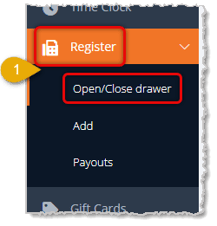
- In the main system menu on the left, click Register to open the menu, then click Open/Close Drawer. You will be prompted to enter your PIN. The Close Register page for your store will open.
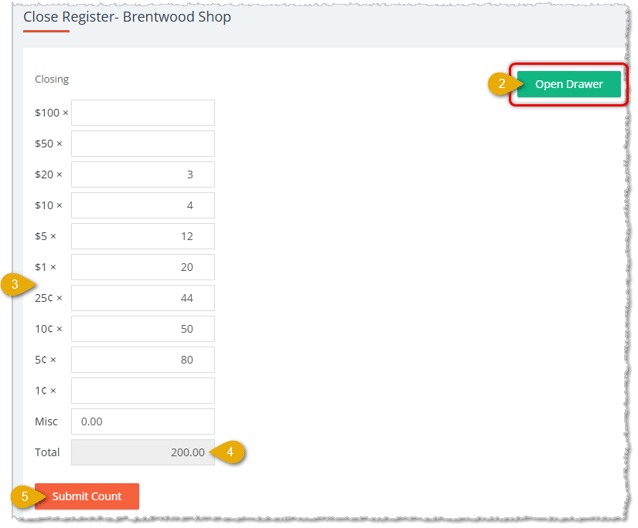
- Click the Open Drawer button in the upper right to open the physical cash drawer.
- Enter the Quantity of bills and/or coins that you are reserving to use for the next day, as in the example above.
- Check that the Total amount is equal to the Value of the cash you are reserving.
- Place the cash in a safe place (or leave it in the drawer and put the drawer in a safe place, depending on your store procedures) and click the Submit Count button.
Your manager will get an email with your count for the drawer and will compare that to his or her own count.
18. Clocking Out
Once you've done your drawer count, click on Time Clock in the main system menu on the left. You'll be prompted to enter your PIN. Find your time entry line for the day and click the Clock Out button. You'll enter your PIN again, then your clock-out time will display with your Hours Worked for the shift.
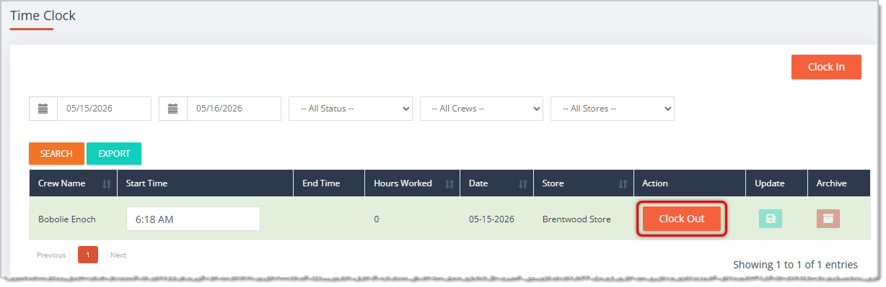
If someone else will be using your station for the next shift, just click on Time Clock again and don't enter your PIN to leave it for the next associate. Your work day is done! Great job!
Related Topics
Associate Training 1
New Sale Tour
Frequently Asked Questions
Q: How do I add a Special Request to a sale?
A: Load the customer into New Sale first, then click the Special Request button. Search or scan the product, enter the Quantity, and click Add (or Add Case if the item is sold by the case). Check Select Item for Special Request for the items the customer wants to order now, then click Add to Sale.
Q: How do I take a deposit on a Special Request or an Appointment?
A: Load the customer and click Deposits. Enter a custom amount, a % Off value, or a $ Off value, check the box for the item, and click Apply. If the Special Request is also in the register at full price, remove that line item before you finish the sale. Otherwise, the customer pays the full price and the deposit.
Q: What happens to discounts and appointments when I hold a cart?
A: Holding a cart removes Discounts (not including discount overrides), Appointments, Pay In-Store items, and Deposits. When you resume the cart by adding the customer back to the transaction, add those items and details again.
Q: How do I find a transaction for a refund if the customer doesn't have their receipt?
A: Go to Refund in the main menu and enter your PIN if prompted. Click the Customer tab and search by email, name, or phone (at least 3 characters). Click the customer's name and adjust the Date Range if needed, since it defaults to the last two days. Then click the Order ID to open the Orders page. Confirm it's the right transaction, then click Refund or Exchange.
Q: When do I use Void instead of Refund?
A: Use Void Transaction while you're still in the Payment window. Click New Cart to clear the sale and start over, or Edit Cart to go back to the editable New Sale page, where you can remove or add items before returning to Payment. Either choice reverses any payments you took. Completed sales are reversed with a Refund. Your store may require supervisor or manager approval to void.
Q: Do I need to record it when I swap or add cash in the drawer?
A: You don't need to record a swap in equal amounts, such as one $20 bill for twenty $1 bills. Go to Register > Add, enter your PIN, click Open Drawer, print the blank receipt, swap the cash, and close the drawer. If you add cash without taking out an equal amount, record it on the Add Register page: enter the quantity of each bill and coin, check the Total Amount, add notes, and click Submit Count.
Q: I have a question, but I can't find my answer here. How do I get more assistance?
A: You can ask any question at the number listed here. Contact our support team at (323) 370-0738 for the U.S., and (888) 370-2363 for Canada.







 May 08, 2026
Is this page helpful?
×Help us improve our articles