Welcome to the eTailPet System! As a crew member for your store, it's important that you learn the basics of working in the system. In this article you will learn how to sign in, how to use the New Sale register part of the system, and how to perform some core tasks as an Associate. Have fun exploring!
Here are the areas we'll cover in this article (clicking a link will jump you down the page to that section):
- Signing Into the System
- Clocking In
- Opening the Register
- What's New
- Customers in New Sale
- Adding Items to New Sale
- Discounts
- Astro Loyalty and System Rewards
- Completing a Sale
These topics are in part 2 of this article series (clicking a link will open it in a new browser tab for you):
- Special Requests
- Subscriptions
- Deposits
- Holding and Resuming Transactions
- Refunds, Returns, and Exchanges
- Voiding Transactions
- Working With Cash
- End of Shift
- Clocking Out

1. Signing Into the System
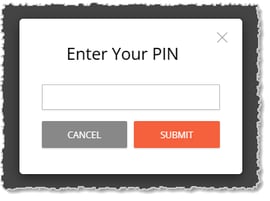
When you start your shift, the first thing you'll see in the system will be your PIN prompt. Ideally, you should memorize your PIN and keep a copy somewhere safe, out of public view. As you enter your PIN, you won't see the numbers and instead will see dots. Click the Submit button when you're done.
2. Clocking In
After entering your PIN, you'll be taken to the Time Clock page. Click the Clock In button in the upper right.
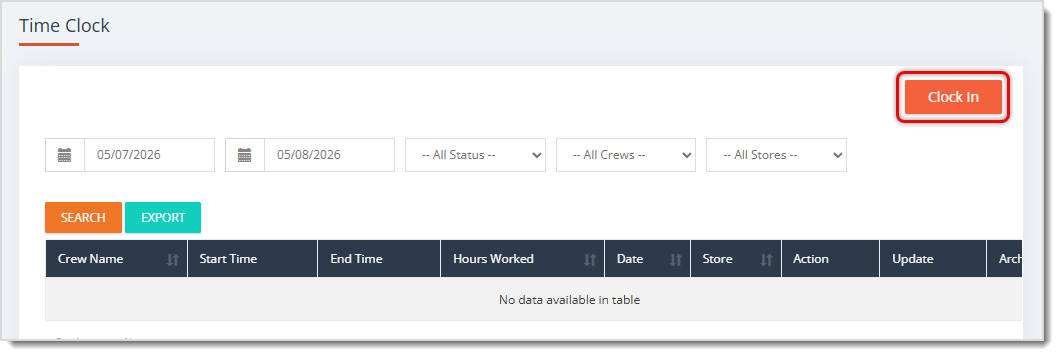
Your Clock In event will populate with details about when you clocked in, what store you're working in, and the day's date. Your manager can Update your details if needed. You'll come back here when it's time to Clock Out.

3. Opening the Register
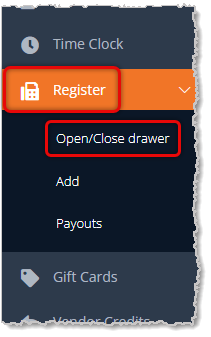
If you are on the first shift of the day, one of your tasks may be to open the Register. To do this, you'll go to Register in the main menu on the left and click to open Open/Close Drawer.
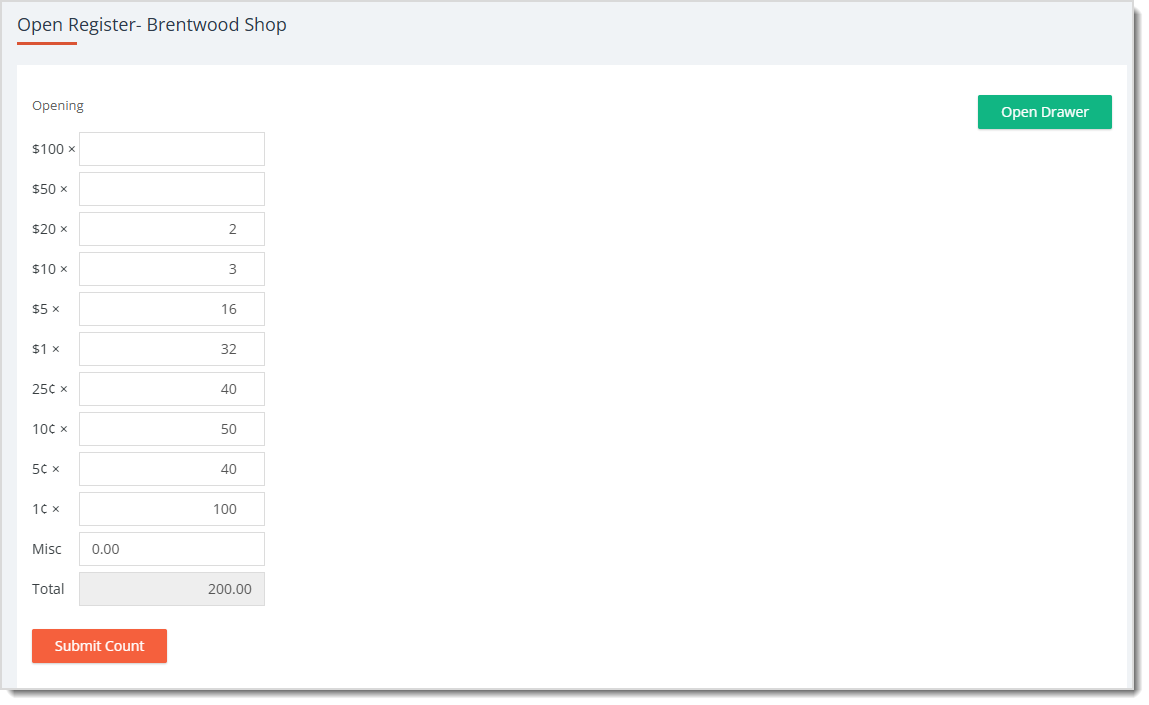
Many stores start with $200 in mixed bills (mainly small ones) and coins, as in our example below. Click the Open Drawer button in the upper right so you can add to your drawer. You have fields to enter the cash drawer count for bills and coins in your drawer. Double-check that the Total is what it should be, and when you're ready, click Submit Count to open the Register.
4. What's New
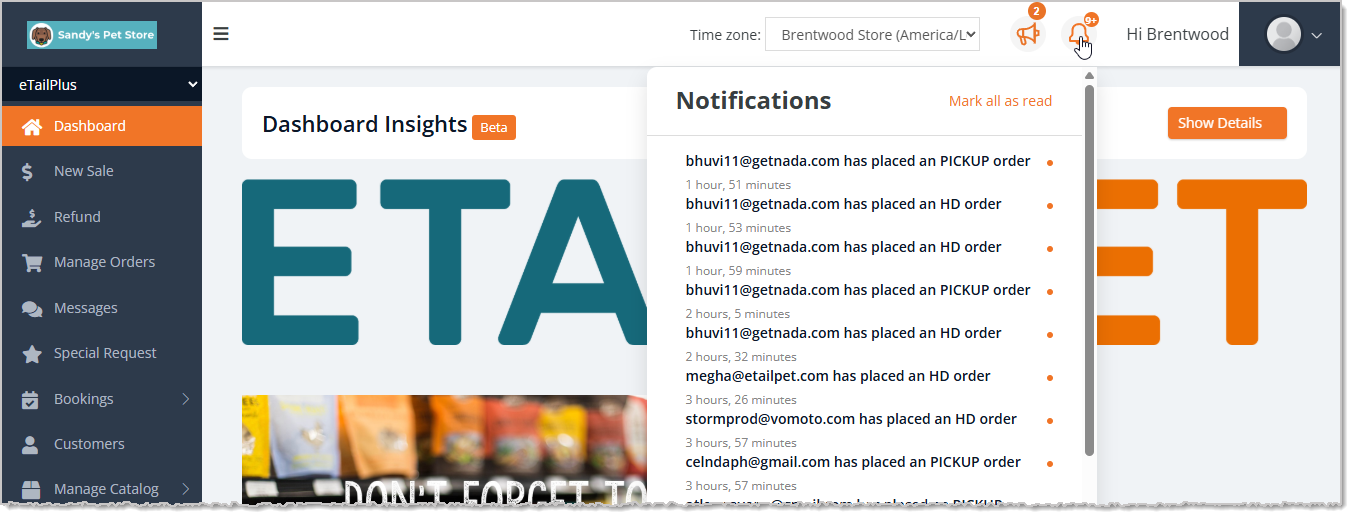
Depending on your duties, you might want to take a look at what's new, such as the Notifications on the main Dashboard page. There may be Pickup orders for you to prepare or other work to do. Open Notifications by clicking on the Bell Icon in the upper right.
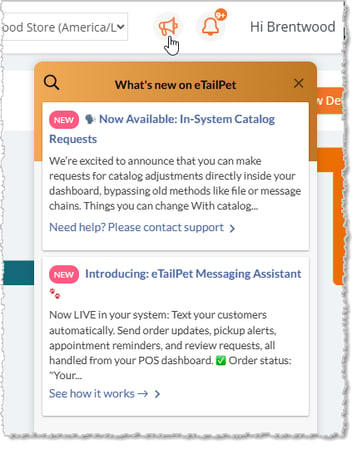
There may also be items in What's New about updated functionality in the eTailPet system. Click the Megaphone Icon to see what's new in the system.
5. Customers in New Sale
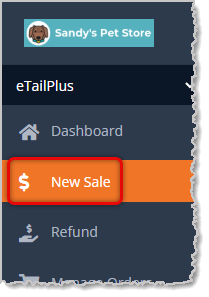
To start ringing up sales for customers, click on New Sale in the main menu on the left.
The first thing you'll do for each transaction is find the customer and add them to the transaction so they can earn their loyalty points if your store is using the Astro Loyalty program. The Customer Search area is on the right, as pictured below.
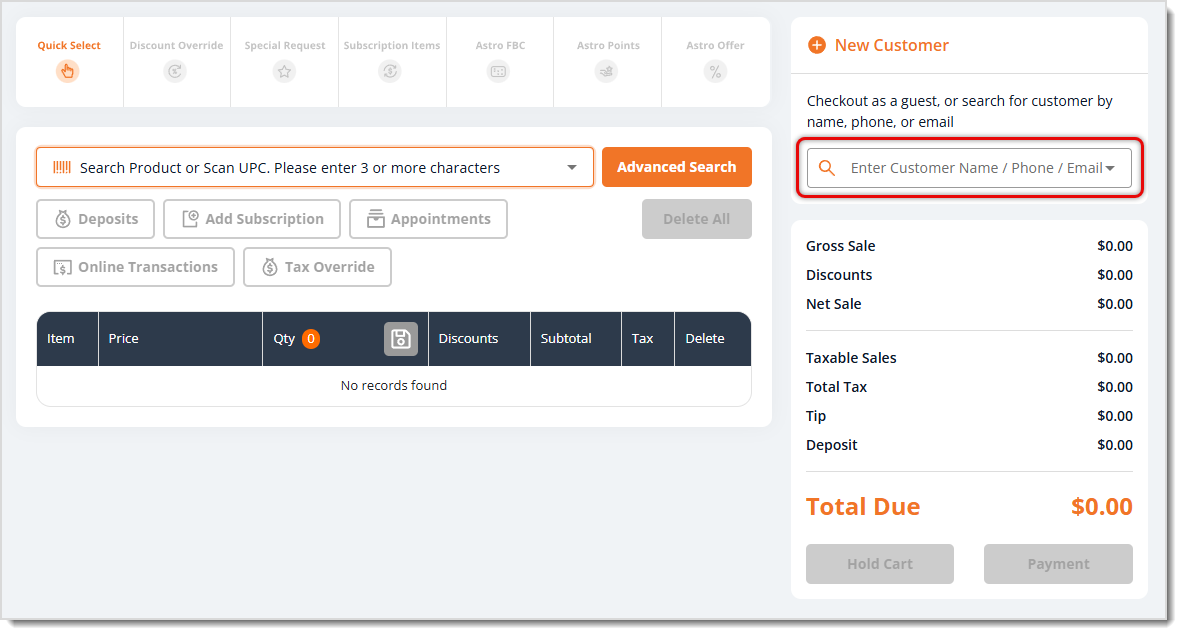
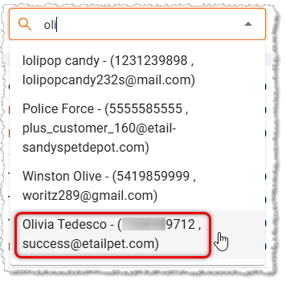
Since people can have the same name and similar phone numbers, the most accurate way to find the right person is by entering their email address. You can search in the Customer Search field and the system will find matches as you type, as in the example below.
If the customer isn't saved in the system, click the +New Customer button in the upper right, and you can add them.
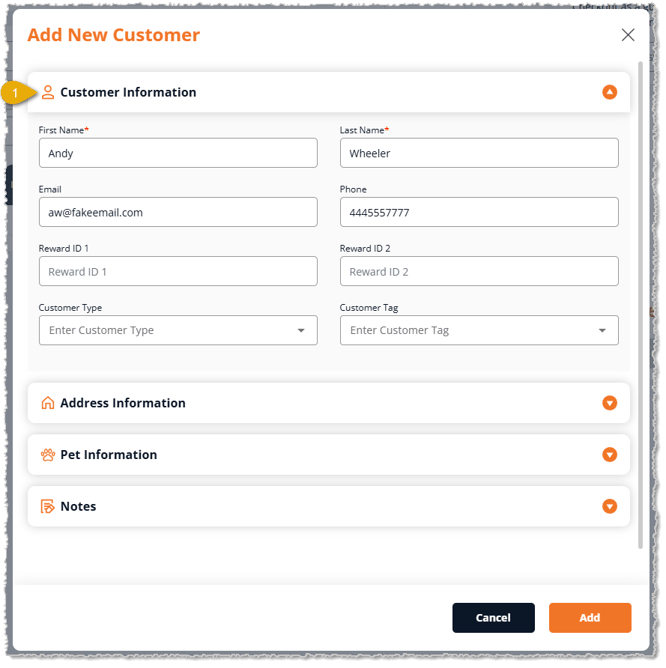
- In the Customer Information area, you'll need to enter the following:
- First Name* — Enter the customer's First Name.
- Last Name* — Enter the customer's Last Name.
- Email — While not required, it is highly recommended that you collect an email address for each customer.
- Phone — Enter the customer's mobile phone number.
- Reward ID — When the customer is enrolled in the Astro Loyalty program, the system will give them a Reward ID. You don't need to enter anything here now.
- Customer Type — Your pet store may have different kinds of Customer Types, such as Groomer, Pet Lover (fun name for a regular customer), Military, or some other type. If so, click this drop-list. You'll be prompted to enter your PIN, and then you can select the customer type from the list.
- Customer Tag — Your store may use Customer Tags for purposes such as differentiating Employee customer accounts from regular ones, classifying certain customers as Friend / Family, or more. If you need to add a Customer Tag, click to open the drop list and select the one you want. You may not have access to it, but new Customer Tags are added from the Customers area in the main menu on the left by clicking on the Customer Name. There is a Customer Tag field on that page (not pictured).
* Required field. You can't save the customer if this field is blank.
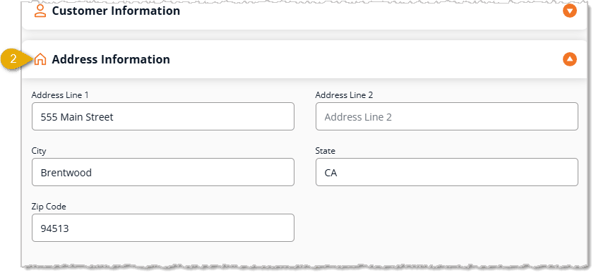
- Some customers will have Subscriptions that ship to their home address periodically. Others may want their address on file for e-commerce. In the Address Information area, you'll need to enter the home address the customer gives you.
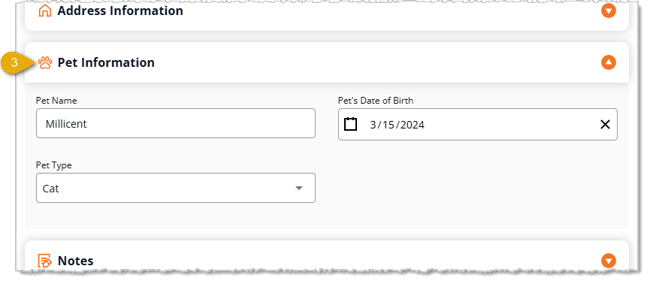
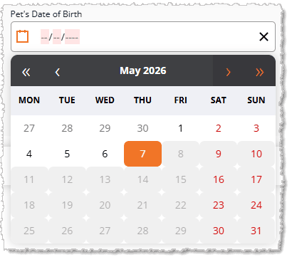
- If the customer plans to do services such as boarding, grooming, or training with the store, you'll need to have details about their pet. In the Pet Information area, enter the Pet Name, the Pet's Date of Birth, and the Pet Type. For the date of birth, you can either click on the Calendar Icon and browse for the date (use the double arrows for years and the single arrows for months), or you can enter the date directly into the field.
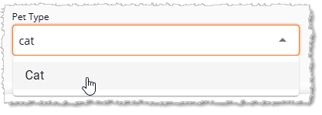
For the Pet Type, you can begin entering the pet type and matches will pop up below the field. Click on the one that fits your pet or enter a new one.

Boss Quote
The Pet Information is obviously the most important area in the customer profile. Make sure you get it right, or the customer might want to use you for a scratching post. Hmmm, that sounds nice...
— Miss Wiggums, Rumford, ME
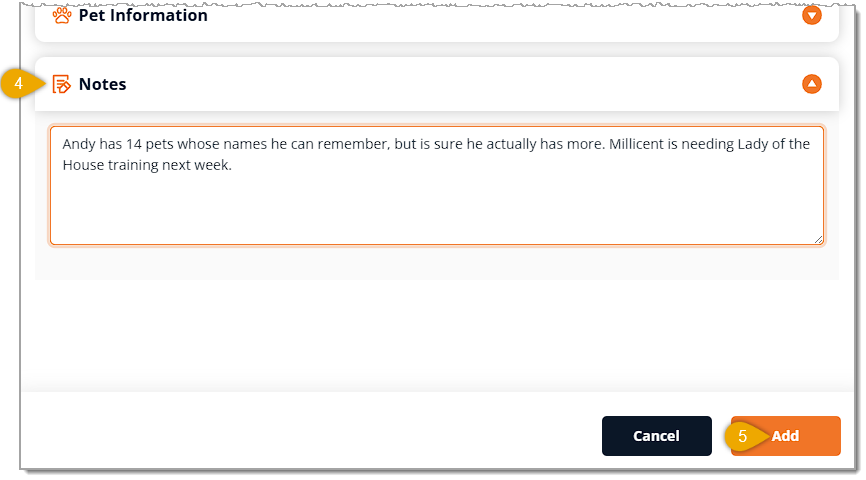
- If there are special considerations or details you need to keep for the customer, enter them in the Notes area. Be sure not to store sensitive information here such as card numbers or other highly personal details.
- When you've finished adding the customer's information, click the Add button in the lower right to save the new customer and add them to the transaction.
By default, once you add the customer, you'll see confirmations that the different customer areas you filled out were saved for the customer. The customer will become active in Astro Loyalty and the system will assign them an Astro ID. Here is what the customer looks like in New Sale:
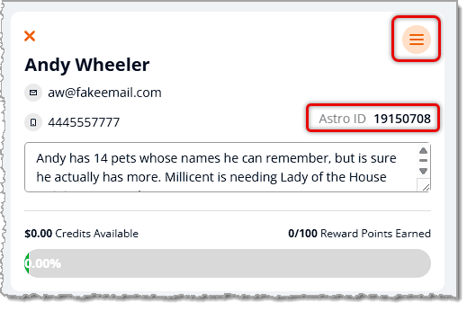
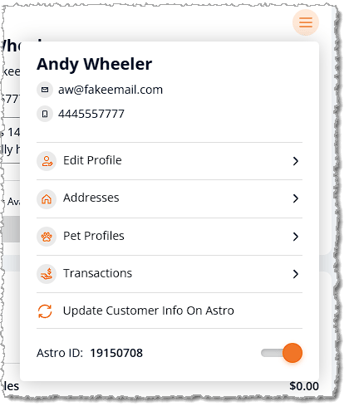
In the upper right, you can click on the Customer Actions icon (hamburger-stack icon) to do more with the customer. In the Customer Actions Menu, you can Edit Profile, manage the customer's Addresses and Pet Profiles, and you can view Transactions. When you're initially creating the customer, you can add their first pet, but in this area, you can add any number of pets if they have more than one they'd like to include. If you make adjustments to the customer's information, you can Update Customer Info on Astro. You can also deactivate or activate the customer's Astro account with the toggle in the lower right.
6. Adding Items to New Sale
There are several ways to add items to a transaction, whether you're adding products or payments for services, such as grooming appointments or online transaction payments. Here is how you can add line items to New Sale:
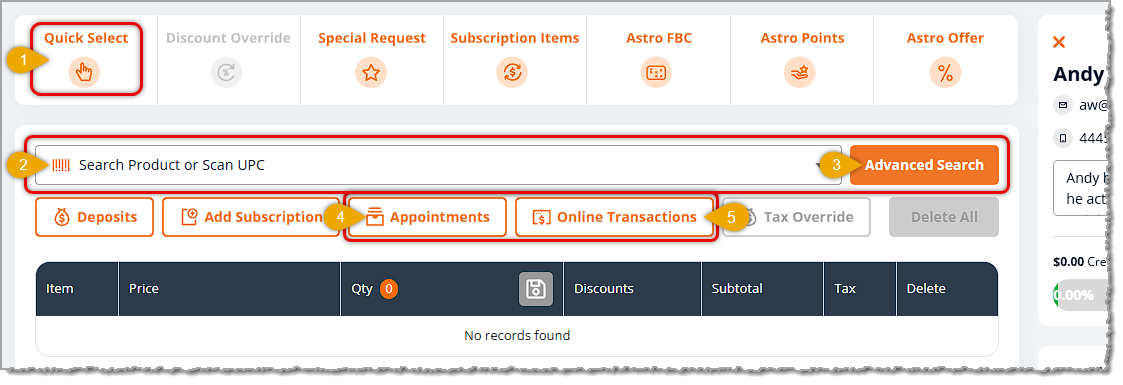
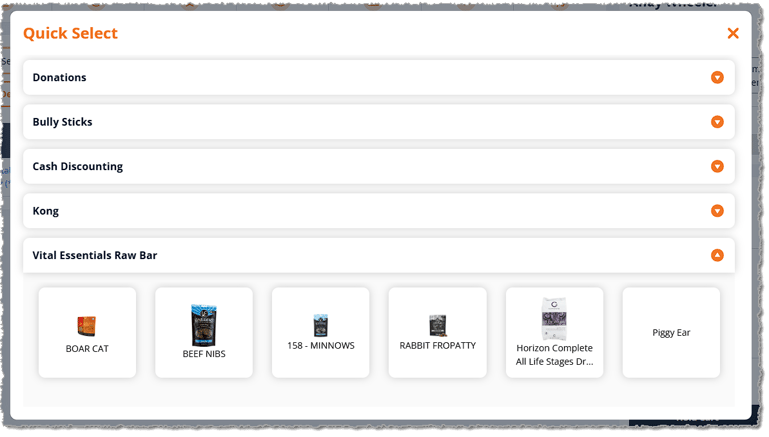
- Quick Select — The Quick Select tool allows you to add products to your New Sale register by clicking a button instead of scanning a barcode or entering keywords. You can customize this tool from the Content area in the main menu on the left. Quick Select is especially useful for items that don’t have a barcode.
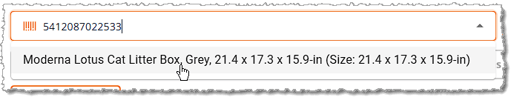
- Scan or Search — You can scan the barcode of a product and if a match is found in our Product Universe catalog, you can click on it and the item will be added to the cart. Searches work the same way: search for what you want, matches will display, and you can click on the product you want.
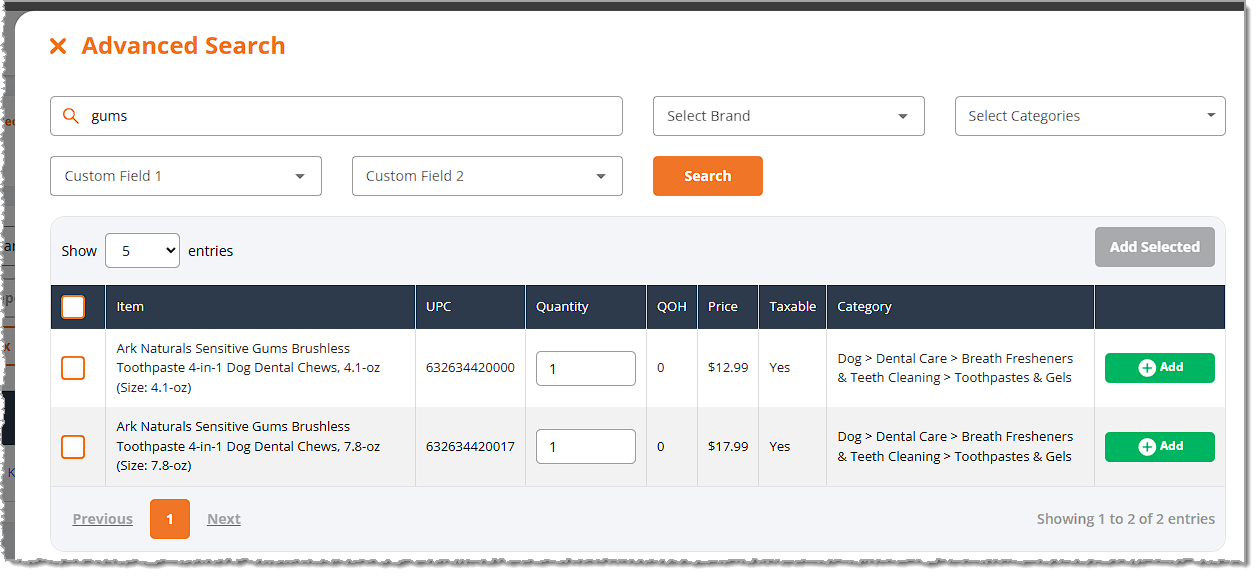
- Advanced Search — Click this button to open the Advanced Search window. You can search by entering text, and you can use Brand, Category, and Custom Field filters to narrow down your search to what you need. Click the Search button to load your search results. Check the boxes on the left and click the Add Selected button on the right to add multiple items to the transaction at once, or click the Add button on the far right to add individual items.
- Appointments — If the customer has completed Appointments that are ready to be paid for, click this button and you'll be able to add the payment to the cart.
- Online Transactions — If the customer was logged into the e-commerce website and completed a transaction using the Pay In-Store checkout option, you can click this button to add the amount to the cart.
Once the items are in the cart you'll be able to work with them further. The Transaction Items area lists all items added to the cart. You have several ways to work with the line items. Here are the tools in this area:
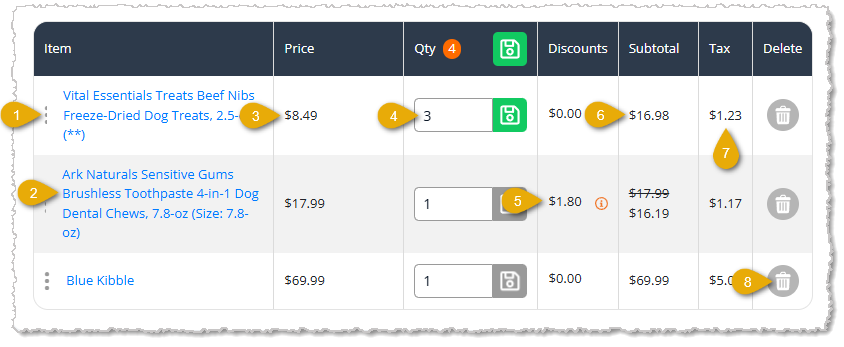
- Quantity on Hand & Cost — If you click on the Three-Dot Stack on the far left of a line item, you'll be prompted to enter your PIN. Once you've entered your PIN, you'll see the Quantity On Hand (QOH) for the item as well as its per-unit Cost the store pays the vendor.
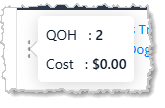
- Item — You can see the full Item Name in this column as it appears in My Products. If you click on the name, the item will open for you in a new browser tab so you can view its full details.
- Price — The unit Price for the item is listed in this column.
- Quantity — By default, when you add an item to the cart, the Quantity will be 1. You can click in this area to change the Quantity. If you make a change, the Save button will become highlighted. In addition, at the top of this column, the Total Item Quantity in the cart is displayed for you. Once you Save a quantity, the total will also update.
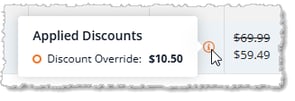
- Discounts — This column will list any discounted amounts that you have added with the Discount Override tool. In the example above, we applied a 10% discount to the item. If you hover over the
 info icon for the discount, you'll see details about the discount in a pop-up.
- Subtotal — This column calculates the subtotal for item price multiplied by quantity.
- Tax — The system-calculated Tax for each item displays in this column. If you do a Tax Override, the updated amount will appear here without any additional information. To view full Tax information for the items in the transaction you can click the Tax Override button above.
- Delete — You can click the Trashcan Icon on the far right of a line item to remove the item from the cart. Please note that there is no confirmation to complete the removal, so as soon as you click the icon, the item will be removed. If you accidentally remove an item you needed, there is no Undo function and you will need to add the item again and configure any discounts or related Astro Loyalty rewards.
7. Discounts
You can add manual discounts to a transaction using the Discount Override. You can also add discount Promo Codes after you've clicked the Payment button when the customer is ready to pay. You might see some discounts apply automatically when you add certain products or customer types to the New Sale. These automated discounts are called Price Slashes, and you won't need to do anything with them. They will just appear whenever the right conditions occur.
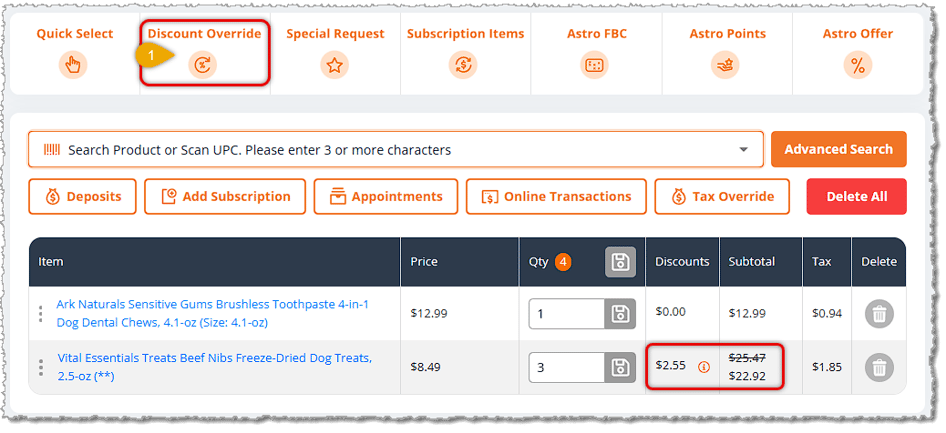
- Discount Override — Use the Discount Override tool to give the customer a percentage-off or dollar-amount-off discount on line items in a transaction. Clicking this button will open the Discount Override window where you can configure discounts.
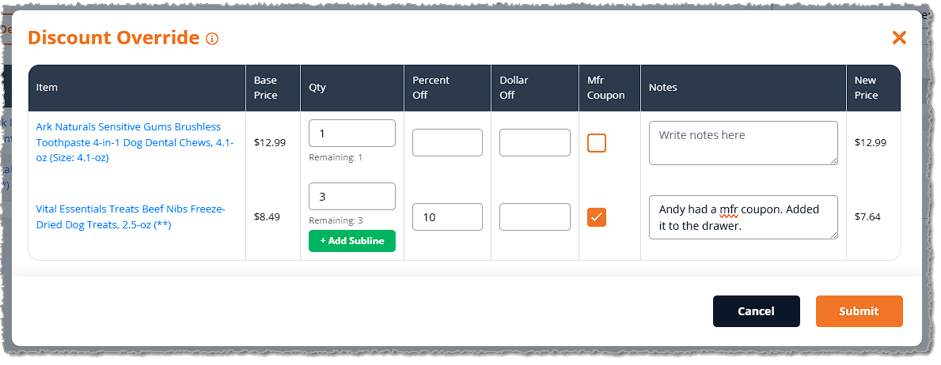
You can click the Item to open it in a new browser tab and view its full details. You can change the Quantity of an item, if you need. You can also add either a Percent Off or a Dollar Amount Off for an item. If the customer has a Manufacturer's Coupon for an item, you can check the Mfr Coupon box. Add Notes to line items with discounts, if needed. Click the Submit button when you're finished to apply the discounts in the New Sale.
- Promo Code — After you click the Payment button to begin completing the sale, you'll have the option to enter a Promo Code for a discount if the customer has one available.
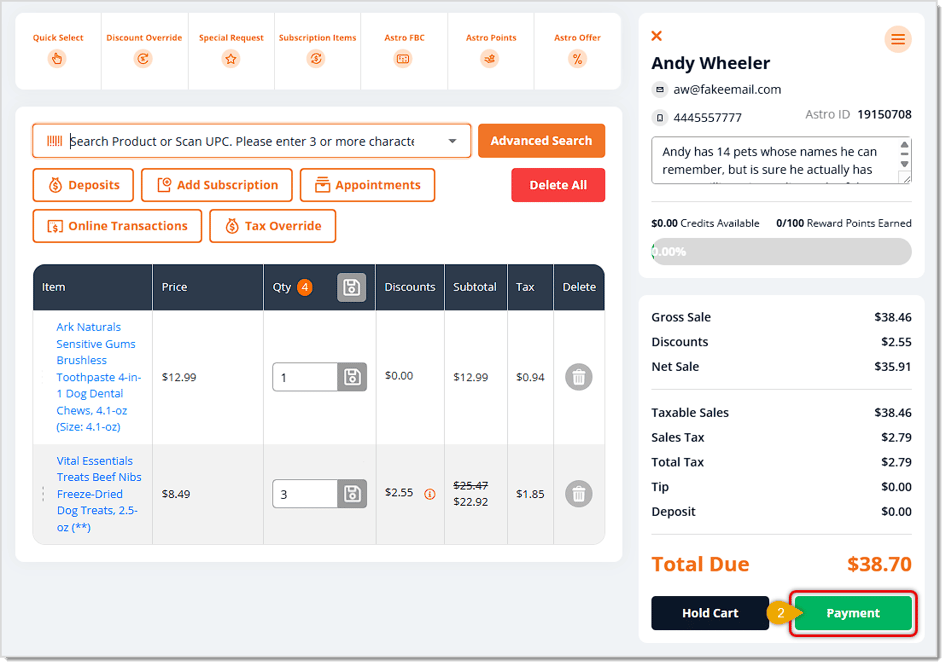
When you click the Payment button, if a customer is loaded into the transaction, you'll be asked if you want to check for Astro Loyalty offers. For details on how that works, see section #8 below on Astro Loyalty. When the Payment page loads, you'll see the Enter Promo Code field in the upper left.
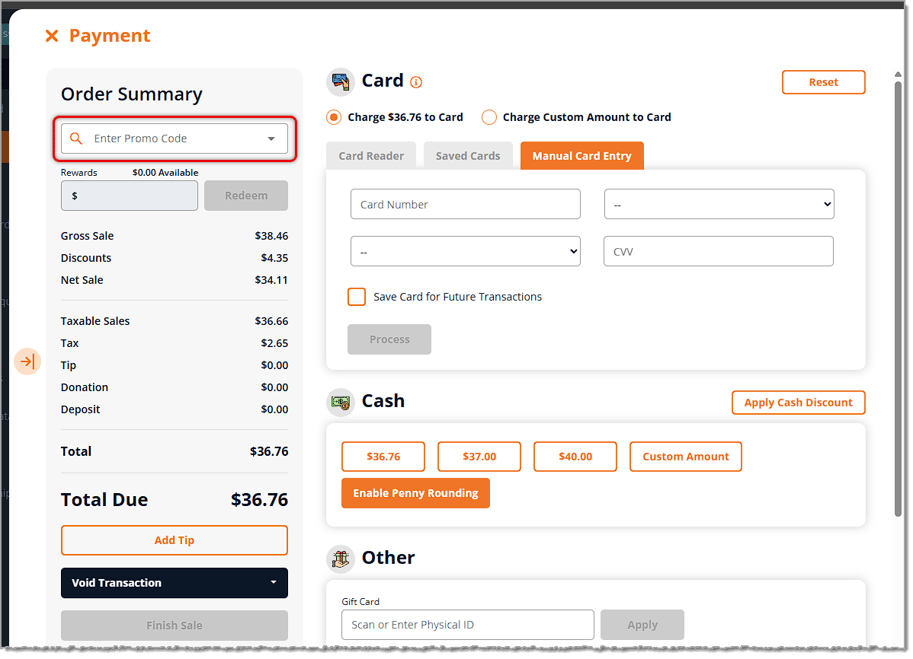
When you click the Enter Promo Code area, if you have saved Promo Codes in the system you'll see them in a drop-list like the one below.
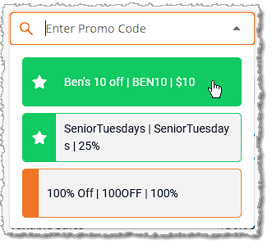
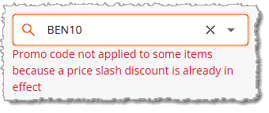
Click on the one you want and it will be applied to the transaction if the conditions are in place in the transaction. If the transaction doesn't meet the requirements of the promo code, the system will either partially apply it or will not apply it at all; you'll see the reason why in that area, as shown below. In our example, the promo code applied to only one of the items, which is the one that didn't already have a discount.
8. Astro Loyalty and System Rewards
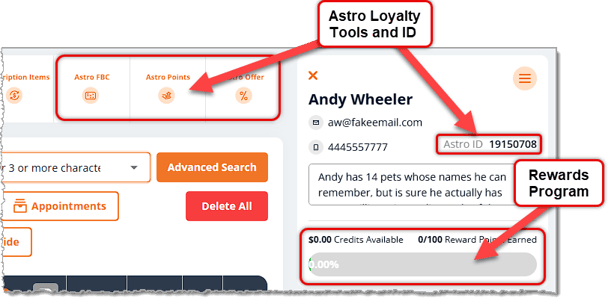
The eTailPet system has an active integration with Astro Loyalty for advanced and robust loyalty rewards and offers. There is also a System Rewards program that stores can use instead of Astro or along with Astro. You'll see which ones are active when you view a customer in New Sale, as pictured here:
Astro Loyalty
If the customer has Astro Loyalty active, there are three tools you can use:
- Astro FBC — If the customer is enrolled in the Astro Loyalty program, you can click this button to view their Astro FBC (Frequent Buyer Card) where you can find available coupons the customer can redeem.
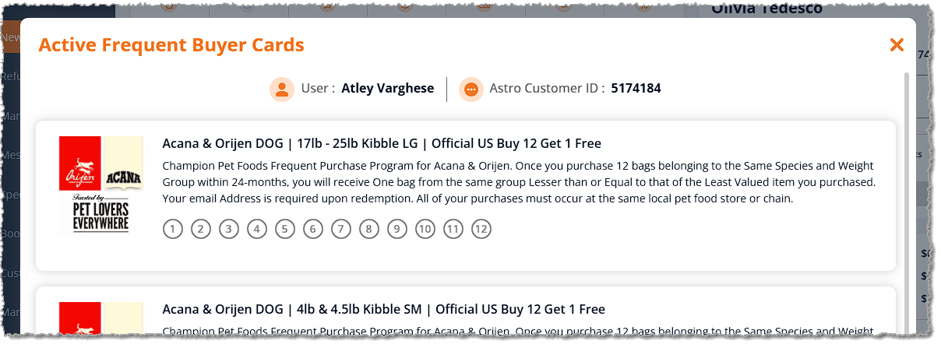
Active Frequent Buyer Cards will automatically get a “punch” for each item the customer purchases that matches the current offers, as pictured below. Once a card is full, you'll see a Redeem Now button that will allow the customer to redeem the offer.

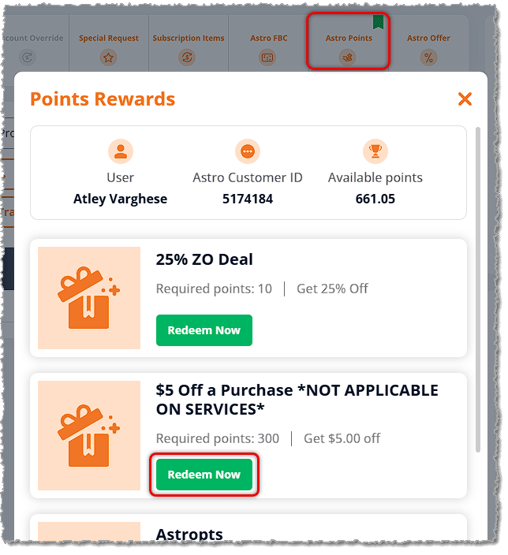
- Astro Points — Click the Astro Points button to open a window showing rewards the customer can use their Astro Points to redeem. You'll see the number of points the customer has earned as well as available rewards. Click the Redeem Now button for the reward the customer wants to apply to the transaction.
- Astro Offer — After you've added the items to the cart, you can click the Astro Offer button to see if there are rebates or any buy-get offers. For example, a buy-3-get-1-free offer might be available. You may have to adjust items in the cart to satisfy the offer requirements. You are also offered the chance to view available Astro Offers when you click the Payment button. When you click the Astro Offer button, you'll see this window advising you about these restrictions:
- Applying an Astro Offer will restrict certain cart changes until the sale is finished.
- Customers may not be able to participate in certain Astro Offers without a valid email address or street address.
- Astro Offers are not applicable to lines with sublines involved in a Discount Override.
- The Discount Override can be applied after an Astro Offer has been applied.
- When applying both an Astro FBC and an Astro Offer, you must apply the Astro FBC first, then the Astro Offer.
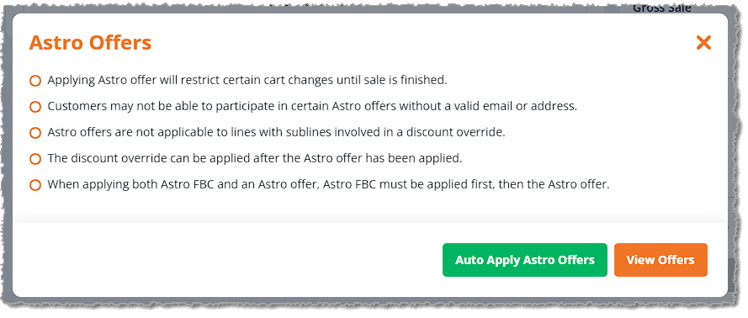
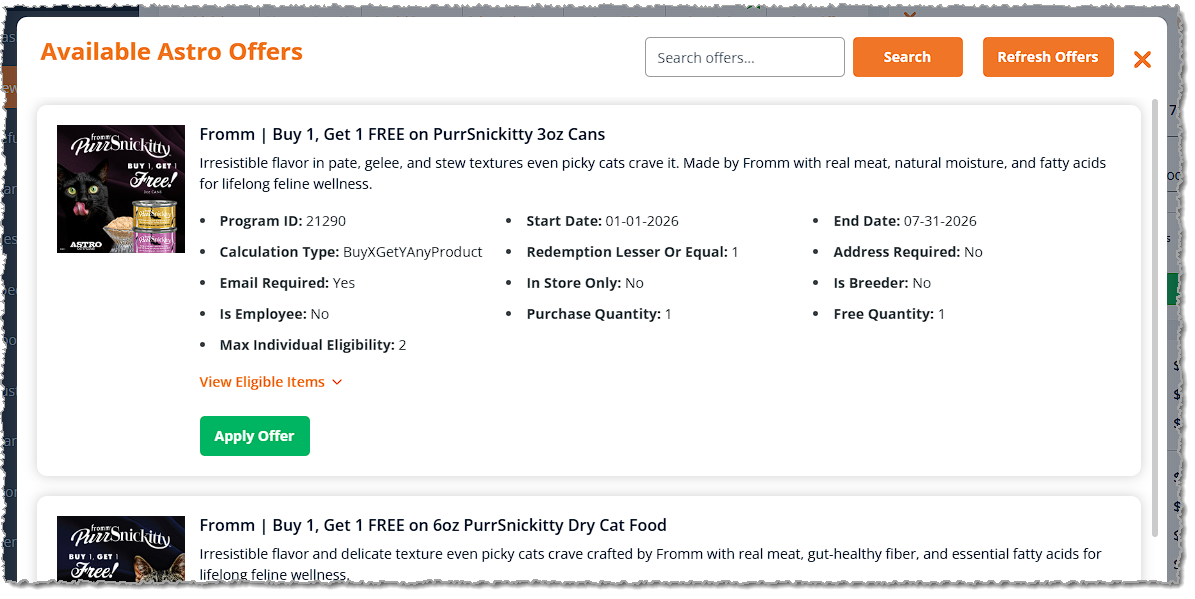
You can click to Auto Apply Astro Offers to just automatically apply offers the transaction might qualify for, or you can click to View Offers. In the Available Astro Offers window pictured below, if the customer has any of the related items in their cart in the necessary quantities, you can click the Apply Offer button to add the offer.

Boss Quote
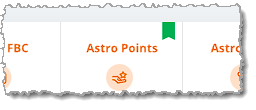
Make sure your human understands the cart will show you the customer has rewards available with a little ribbon. See the image below. The developers can't be bothered to animate it so it will fly around in enticing and pawable ways, but no humans are purrfect.
— Adrian, Wenatchee, WA
Below are some tips and best practices for Astro rewards and redemptions:
💡Pro Tip: Astro discounts (Astro FBC redemptions, Astro Offers, and Astro Points rewards) can be stacked with Price Slashes and Customer Type discounts, but they cannot be combined with Promo Codes. For example, Astro rewards can be combined with a Senior Discount for a customer set to the Senior customer type.
💡Pro Tip: Astro Frequent Buyer Card redemptions and Astro Offers can be stacked together in one transaction, but only if they are part of separate brand programs.
Example Scenario 1 — Can Be Stacked
Let's say the customer is enrolled in an Astro FBC program for Canidae dog food (buy 12 get 1 free, for example). If they're also enrolled in a Boss Dog dog food offer ($4 discount per item, for example), a customer can redeem both discounts in the same order. They will get a free bag of Canidae dog food, along with $4 off their Boss Dog dog food.
Example Scenario 2 — Cannot Be Stacked
Let's say the customer is enrolled in an Astro FBC program for Canidae dog food (buy 12 get 1 free, for example). If they're also enrolled in a Canidae dog food offer ($3 discount per item, for example), the customer cannot redeem both discounts in the same order. In this case, you would complete the second redemption in a separate transaction.
💡Pro Tip: Discounts that customers redeem through Astro are typically reimbursed by the manufacturer. For this reason, the tax collected for each transaction is calculated pre-discount. The customer will pay the tax on the item, but the manufacturer will pay for the item itself.
Example Scenario
- The customer’s cart contains Product A (price = $10)
- Tax Rate = 5%
- Astro FBC redemption applied to Product A, bringing the gross total to $0
- Taxable Total = $10 (calculated pre-discount because the discount is reimbursed by manufacturer)
- Tax Collected = $0.50 (5% tax rate multiplied by $10 product)
- Total Collected from the Customer for the Item = $0.50
System Rewards
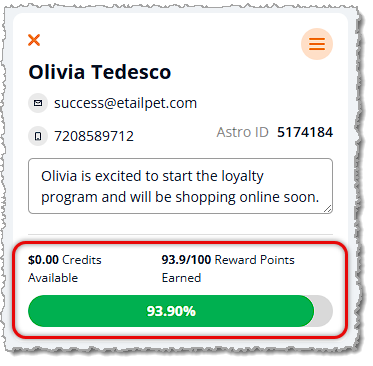
The system Rewards are a basic loyalty program where the customer earns points with purchases until they get to a target number of points, and then they earn a dollar-amount reward they can use in a future transaction. For example, Olivia, the customer below, needs just over six points to get to the 100-point goal and earn her reward. This all works automatically as the customer spends money, so you don't have to manage anything.
When the customer completes a transaction that puts them over that goal, on their receipt, you'll see that they have restarted a new Reward point amount toward their goal, as in the example below for Olivia.
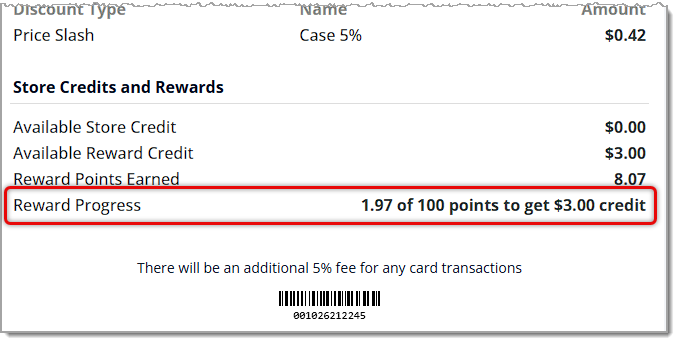
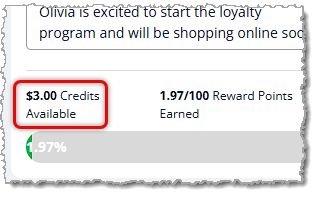
The next time you add the customer to a future transaction, you'll see they have Reward Credits available, as in Olivia's example.
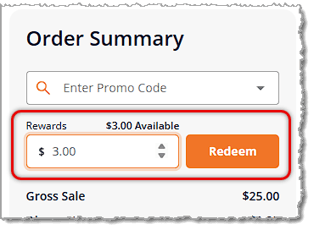
When you go to checkout for the customer, if they have Reward Credits, you can apply them to the sale in the upper left of the Payment window. Just enter the amount of available credits they want to use on this sale into the Rewards field and then click the Redeem button to apply the discount to the cart total.
9. Completing a Sale
Once you have all of the items and discounts in the New Sale register, when the customer is ready to check out, here is how you complete a transaction:
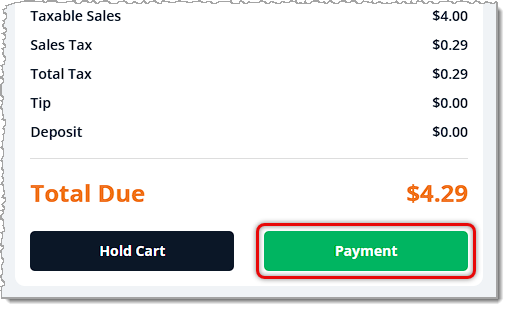
Payment — Click this button when the customer is ready to pay. If the customer is enrolled in Astro Loyalty, a window will pop up asking if you want to check for Astro rewards, and you can add rewards, if the customer wants. After that, you'll be able to complete the transaction in the Payment window. Please see the description of the Payment window functions below.
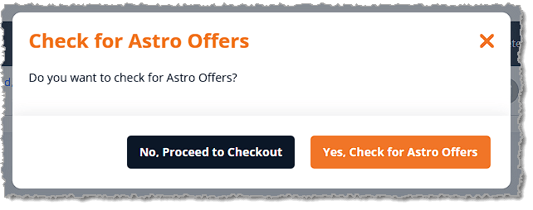
Make your choice and click the button you want. For Astro Offers, please see the section on Astro Loyalty linked above. When you're ready, you'll go to the Payment window. Here is what you can do in the Payment window to complete a transaction:
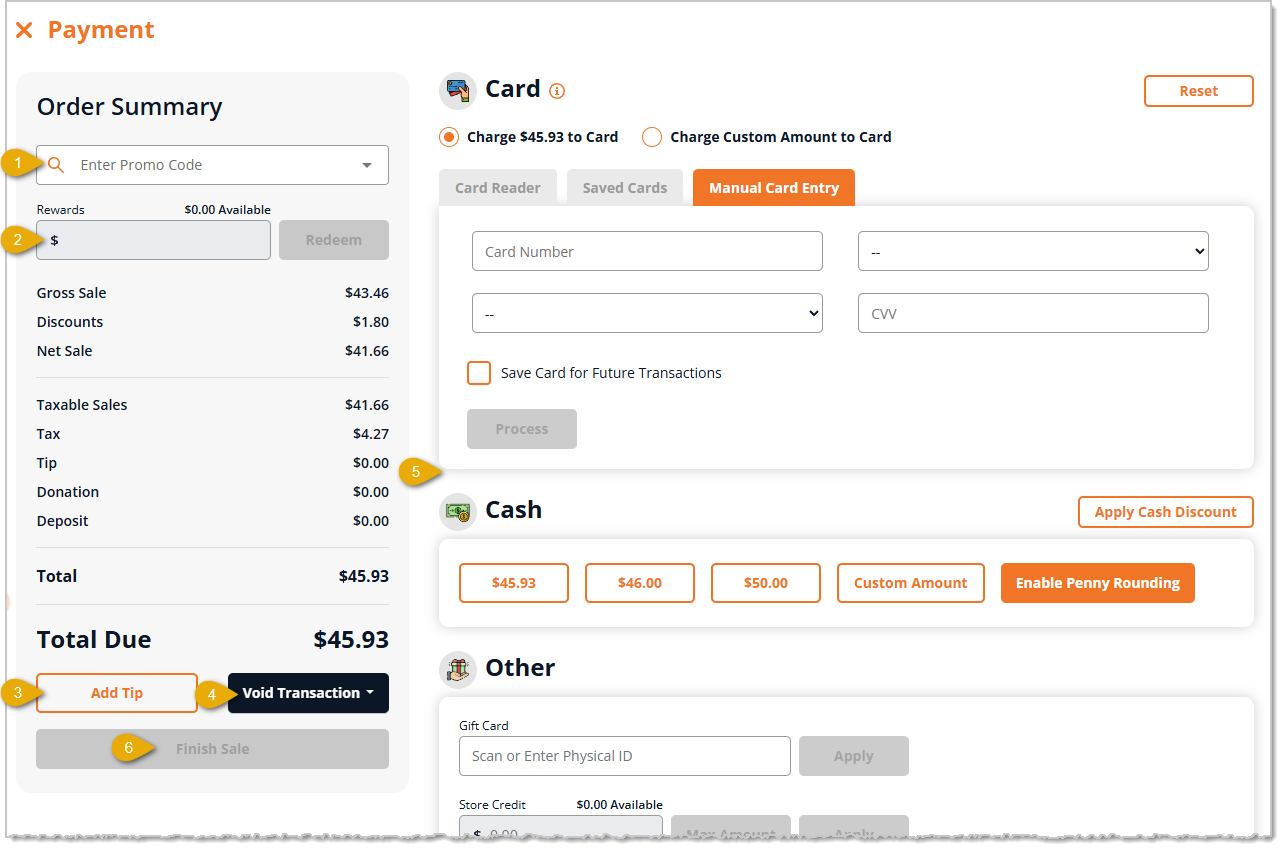
- Promo Code — If the customer has an available Promo Code, you can enter it here.
- Rewards — If the customer has available Rewards, you can apply some or all of that amount toward this transaction at the customer's preference.
- Add Tip — If the customer wants to add a Tip to the order, you can click this button to enter the amount.
- Void Transaction — Click this button if you need to Void the entire transaction and go to a New Cart or Edit Cart to void specific items.
- Payment Method — The customer can pay by Card, Cash, or Other, the last of which includes Gift Card, Store Credit, Customer Deposit, or Check.
- Finish Sale — Once the full Total Due has been paid, click this button to complete the sale. You'll be prompted to enter your PIN, and the receipt print window will open.
You'll see a browser print window to print the receipt. Once you're done, you'll see the Sale Success page with the following tools:
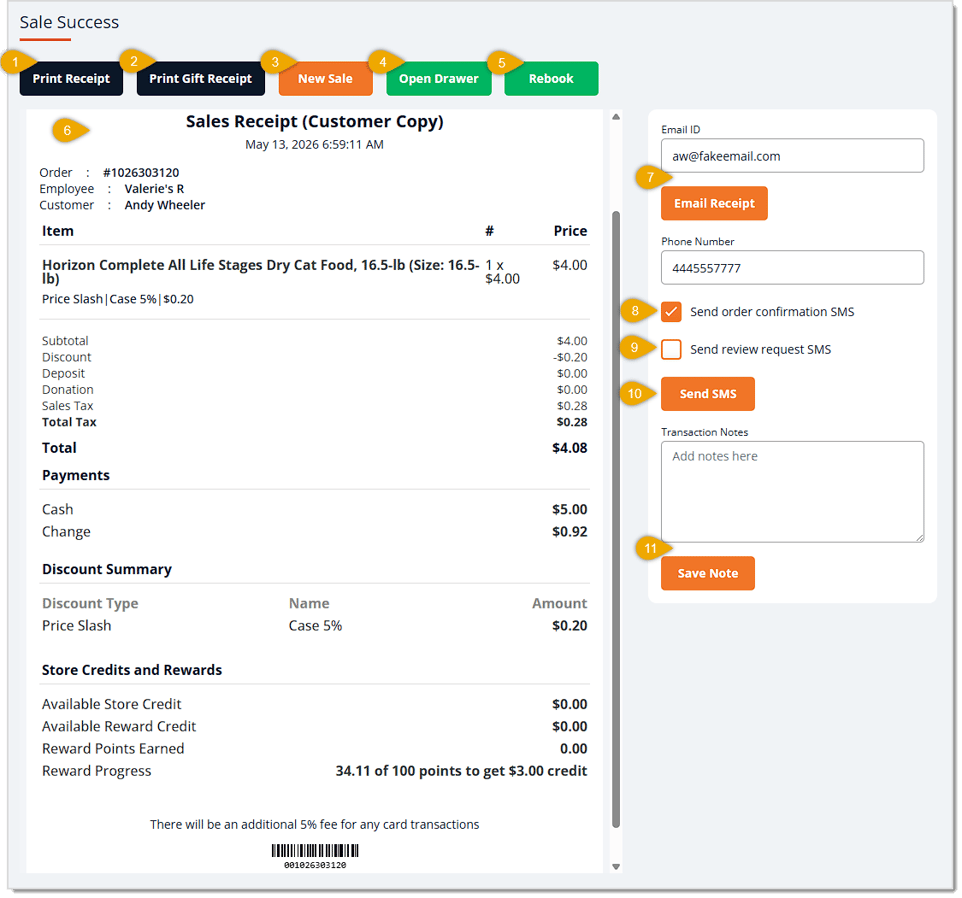
- Print Receipt — If you need another printed copy of the receipt, click this button.
- Print Gift Receipt — If the customer needs a Gift Receipt that's anonymous and doesn't include financial details, click this button.
- New Sale — You often won't need to do anything else on this page, and you can just click this button to start a New Sale.
- Open Drawer — The drawer will open automatically for you if you are taking cash payment, but if you need to open the drawer for another reason and it isn't already open, you can click this button. You'll be prompted to enter your PIN, and your system may be configured to print an event log whenever you open the drawer. Either way, the event will be logged in the system under your user account and the drawer will open.
- Rebook — If the customer needs to rebook an appointment, click this button to open the Appointments window and select their next Booking.
- Receipt View — The full details of the receipt you just printed will be visible in this viewer for reference. One of the most common things you might need to view is the Change due to the customer, as in the middle of our example above.
- Email Receipt — If the customer wants a copy of their receipt sent to their email, you can click this button. If their email is saved in the customer's account, it will already be populated here, but you can enter whatever email they prefer. Click the Email Receipt button when you're ready.
- Order Confirmation SMS — If the customer wants to receive SMS messages about this transaction, make sure their preferred mobile Phone Number is in that field. If they have one saved to their account it will already be populated. Check the box for Send Order Confirmation SMS if this is an order that needs to be confirmed by the customer. Please note, this will send a separate SMS message in addition to the receipt when you click the Send SMS button described below.
- Review Request SMS — Check this box if the customer verbally agrees to give you a review by SMS text message. This is good to do if the customer is having a great experience in your store with the transaction. Please note, this will send a separate SMS text message from the receipt, so it's good to notify the customer how many messages they'll be receiving. The customer will receive a review request with a link they can click on to give your store a review. There may be some incentive offered to the customer in that message; your manager will be able to advise you about that.
- Send SMS — Click this button to send the receipt to the customer via SMS text message to the Phone Number entered above. If you have either or both of the optional checkboxes checked in numbers 8 and 9 above, each of those will send an additional text message to the customer. Be sure to let them know what to expect.
- Transaction Notes — If you need to note some special circumstances or information about the transaction, enter the notes here and click the Save Note button so they can be viewed later, if needed.
That's it! You're all set and ready to start your next transaction!
Related Topics
Associate Training 2
New Sale Tour
Frequently Asked Questions
Q: What's the best way to find a customer in New Sale?
A: Search by email address. People can share the same name and have similar phone numbers, so email is the most accurate way to find the right person.
Q: Can a customer have more than one pet?
A: Yes. You can add the first pet when you create the customer. After that, open the Customer Actions Menu and go to Pet Profiles to add as many pets as the customer wants.
Q: Can I use a Promo Code with Astro rewards?
A: No. Astro discounts (Astro FBC redemptions, Astro Offers, and Astro Points rewards) can't be combined with Promo Codes. They can stack with Price Slashes and Customer Type discounts, such as a Senior Discount.
Q: Can I redeem an Astro FBC and an Astro Offer in the same transaction?
A: Yes, but only if they belong to separate brand programs. For example, a Canidae FBC and a Boss Dog offer can go in the same order. If both are for the same brand, complete the second redemption in a separate transaction. When you apply both, apply the Astro FBC first, then the Astro Offer.
Q: Why does a customer still pay tax on an item that's free with an Astro redemption?
A: Manufacturers typically reimburse Astro discounts, so the system calculates tax before the discount. The customer pays the tax, and the manufacturer covers the item. For example, a $10 item with a 5% tax rate and an Astro FBC redemption costs the customer $0.50 in tax.
Q: How do I send a customer their receipt by email or text?
A: On the Sale Success page, enter or confirm the customer's email and click Email Receipt, or enter or confirm their mobile Phone Number and click Send SMS. If you check Send Order Confirmation SMS or Review Request SMS, the customer gets an extra text for each one, so tell them what to expect.
Q: I have a question, but I can't find my answer here. How do I get more assistance?
A: You can ask any question at the number listed here. Contact our support team at (323) 370-0738 for the U.S., and (888) 370-2363 for Canada.







 May 06, 2026
Is this page helpful?
×Help us improve our articles