






Holding and Resuming Transactions
Sometimes you have to put transactions on hold so the customer can come back later to complete it. T
 May 05, 2026
Promo codes are a good way to get customers to visit your store or your ecommerce site. Read on to see how to apply promo codes in New Sale for in-person transactions!

🐱 Please Note: This article will cover how to apply a promo code to a customer's transaction on the Register. To learn how to create promo codes, read our Promo Codes article linked at the bottom.
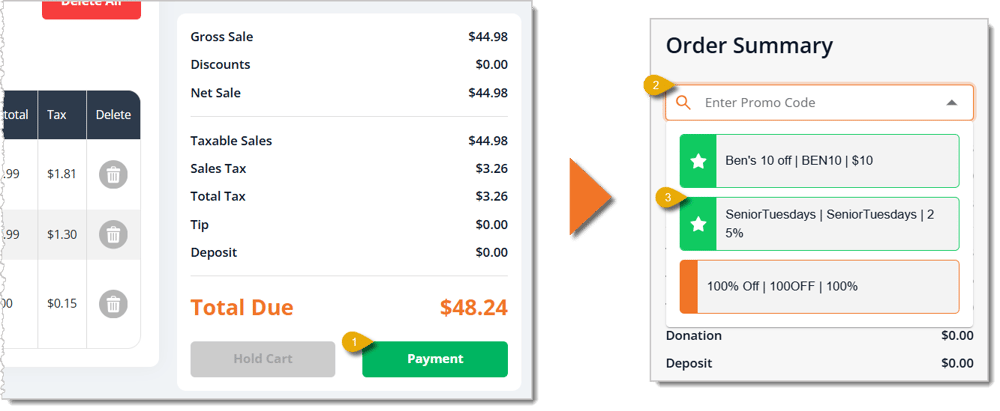
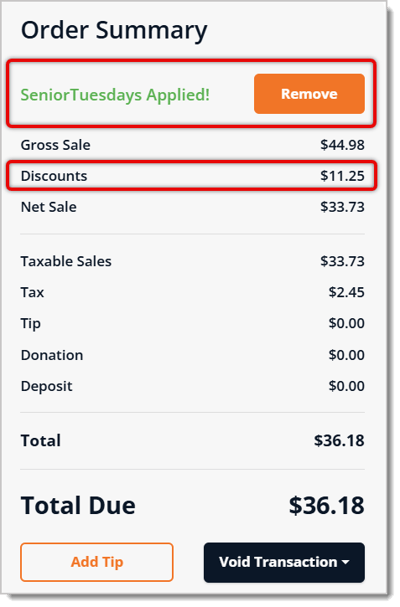
You can apply promo codes you've made to eligible items in New Sale. Here's how to do that:
How to Apply a Discount Override in New Sale
Q: I have a question, but I can't find my answer here. How do I get more assistance?
A: You can ask any question at the number listed here. Contact our support team at (323) 370-0738 for the U.S. and (888) 370-2363 for Canada.
Is this page helpful?
×Help us improve our articles