






Working With Products in Transactions
The eTailPet New Sale Screen makes it easy to handle products in transactions. This article will sho
 Apr 23, 2026
Sometimes you have to put transactions on hold so the customer can come back later to complete it. This article will show you how to place a sale on hold from the Register and use the Dashboard to resume it.
Boss Quote
"Feel free to tell a transaction, 'See you later, alligator!' You can come back to it anytime."
— Allen, Tallahassee, FL
🐱Please Note: You can only hold a transaction if you've added a customer to it. Guest transactions can't be held.
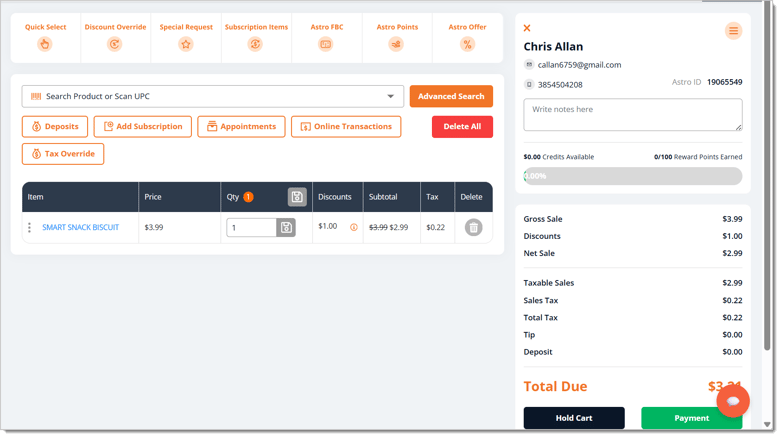
Before you can hold a transaction, you should have already added a customer to the transaction. You can create a new customer on the right of the New Sale page by clicking on the New Customer button, or you can Search for a customer in the search bar using their name, phone number, or email address, then select them in the drop-list.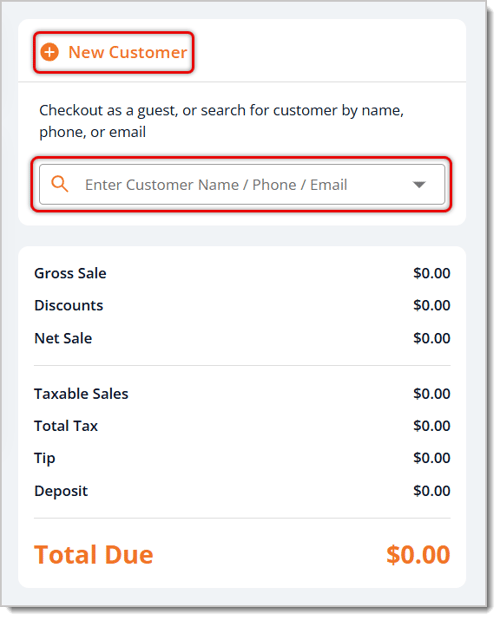
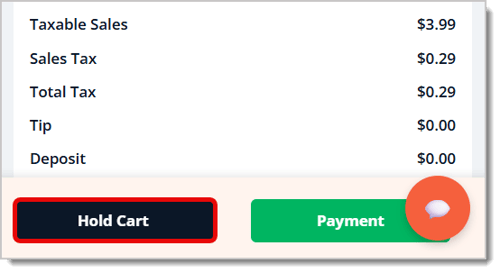
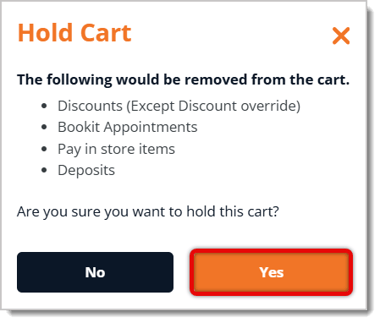
There are two ways you can add a held cart back into a transaction.
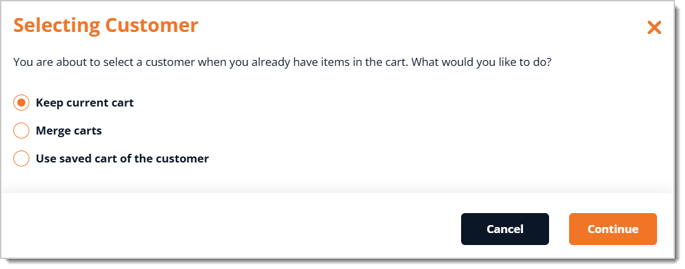
If the customer has a cart on hold, adding them back to a transaction will bring the saved cart back.
On the upper right of the New Sale, use the Search bar and enter the customer's name, phone number, or email address. 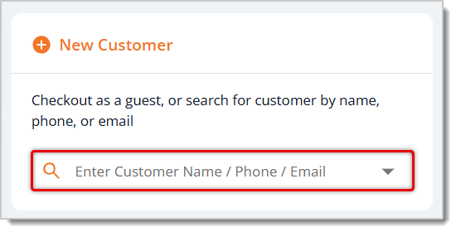
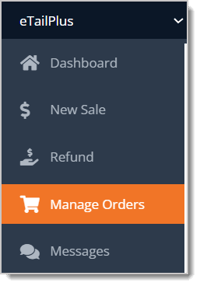
Click on Manage Orders from the Dashboard main menu.

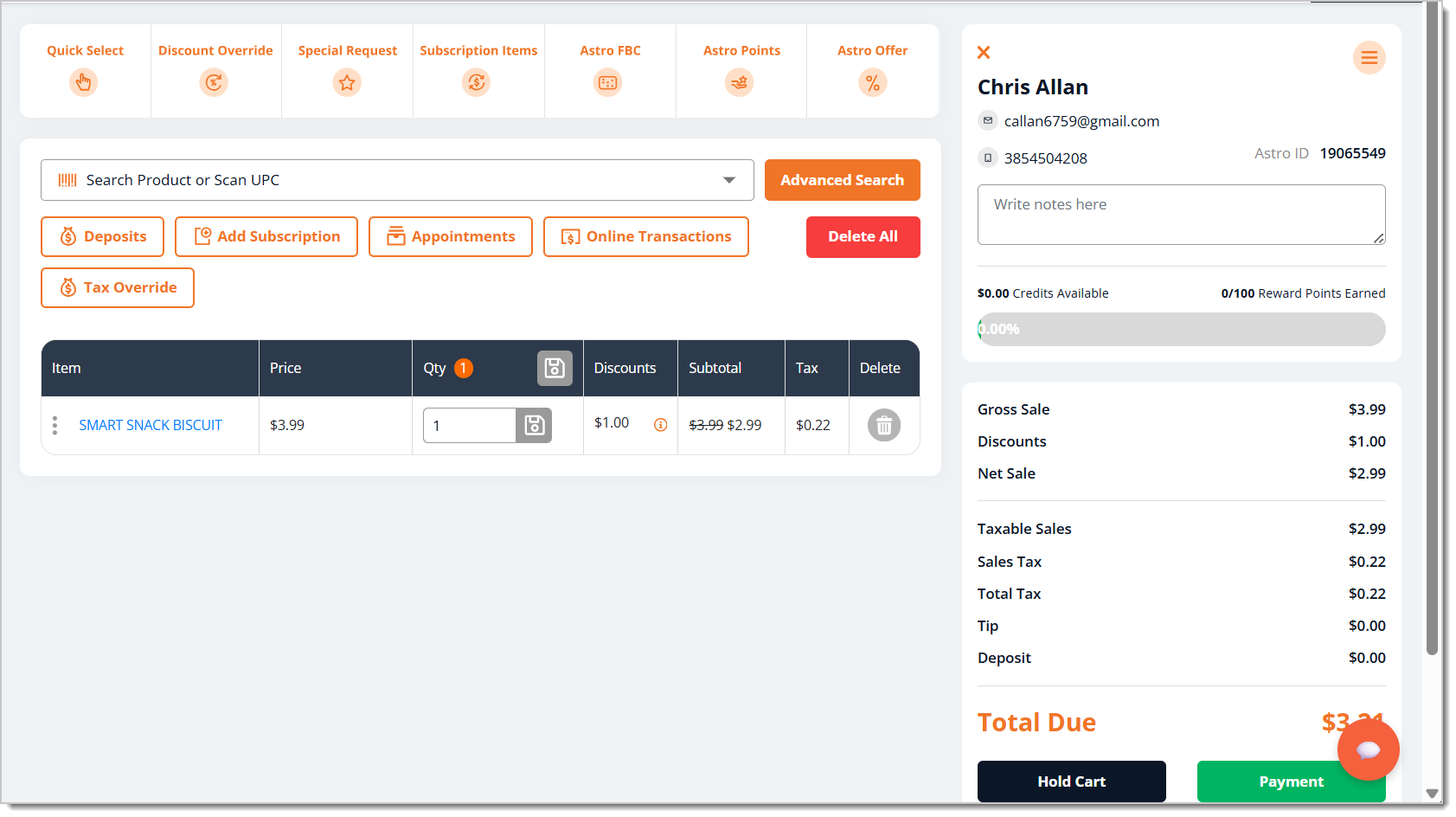

Working with Products in Transactions
Q: Why is the Hold Cart button not working for my transaction?
A: A transaction can only be held if a customer has been added to it. Guest transactions can't be held. Add a customer using the New Customer button or the customer Search bar on the right of the New Sale, then try holding the cart again.
Q: I resumed a held cart, but the discounts and appointments are gone. What happened?
A: Discounts (not including discount overrides), Bookit appointments, items that must be paid for in-store, and deposits are removed from the cart when it's placed on hold. You'll need to re-add those details after resuming the transaction.
Q: I already have items in the cart and need to load a customer's held cart. Will I lose the current items?
A: No. A window will appear asking whether you want to keep the current cart, merge carts, or use the saved cart. Choose merge carts to keep both sets of items, then click Continue.
Q: Where can I see all of the carts that are currently on hold?
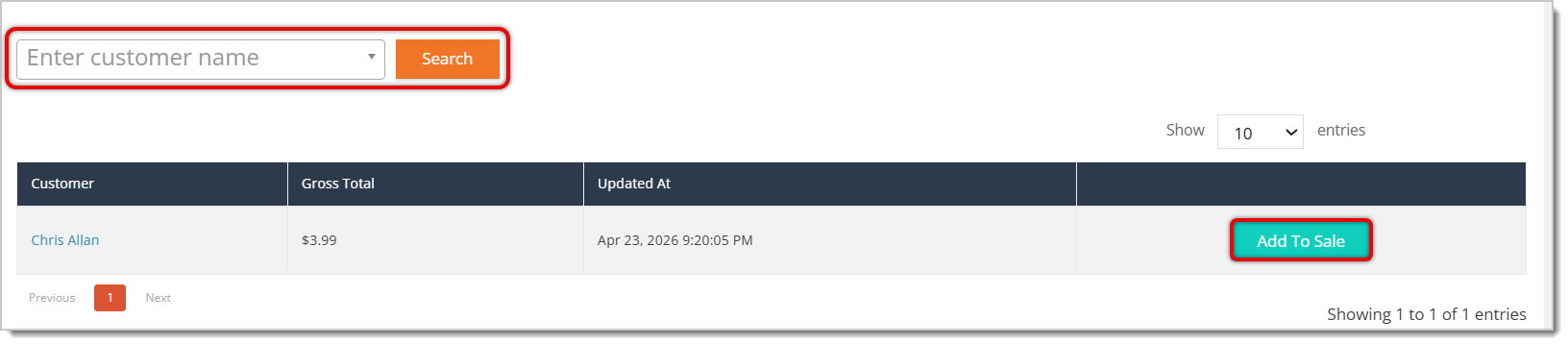
A: Click Manage Orders in the Dashboard main menu, enter your PIN, then open the Held Carts tab. You can search for a specific customer's cart by name, or click Add to Sale on any cart to resume it.
Q: I have a question, but I can't find my answer here. How do I get more assistance?
A: You can ask any question at the number listed here. Contact our support team at: (323) 370-0738 for the U.S. and (888) 370-2363 for Canada.
Is this page helpful?
×Help us improve our articles