The New Sale page is your system cash register, and we have gone to great lengths to make it as user-friendly and functional as possible. In this article you'll learn what the different areas of the page do and how to use them. Take a look!
💡Pro Tip: You can get to the New Sale page by using the keyboard Hotkey shortcut of Alt + 1 (hold down your Alt key and hit your 1 key at the same time, and the New Sale page will load for you).
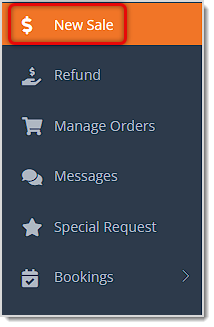
To get to your New Sale page, you need to use your Store login and in the main menu on the left, click on New Sale.
⚠️Please Note: Sales can only be made using your Register Store Login. If you get an initializing cart error when you first go to the New Sale page, CLICK HERE and follow the troubleshooting steps for the Error Initializing Cart.
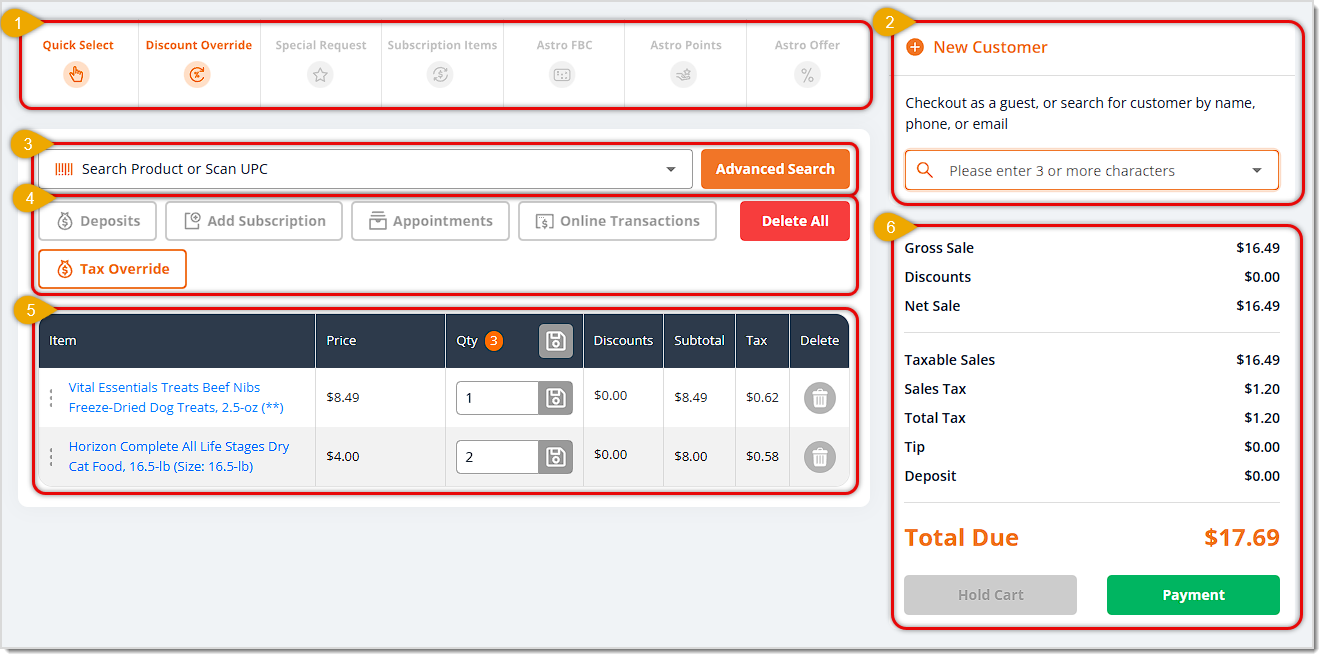
The eTailPet New Sale page has six major areas. You can click below to jump to a section:
- New Sale Tools
- Customer
- Search
- New Sale Functions
- Transaction Items
- Summary and Payment

1. New Sale Tools
The New Sale Tools area has controls for functions that let you add preselected products, work with special requests and subscription items, and manage the customer's Astro Loyalty account. Here are the tools in this area:

- Quick Select — The Quick Select tool allows you to add products to your New Sale register by clicking a button instead of scanning a barcode or entering keywords. You can customize this tool from the Content area in the main menu on the left. Quick Select is especially useful for items that don’t have a barcode.
- Discount Override — Use the Discount Override tool to give the customer a percentage-off or dollar-amount-off discount on line items in a transaction. Clicking this button will open the Discount Override window where you can configure discounts.
- Special Request — The Special Request is for items that a customer requests that are not normally stocked in your store, or to request a larger quantity than you usually keep on hand. Use this tool to create a Special Request Order for the customer or work with an existing one.
- Subscription Items — If the customer already has one or more Subscriptions, you'll see them here. Click this button to open the Subscription Redemptions window where you can redeem subscription reward items.
- Astro FBC — If the customer is enrolled in the Astro Loyalty program you can click this button to view their Astro FBC (Frequent Buyer Card) where you can find available coupons the customer can redeem.
- Astro Points — Click the Astro Points button to open a window showing rewards the customer can use their Astro Points to redeem. You'll see the number of points the customer has earned as well as available rewards.
- Astro Offer — After you've added the items to the cart, you can click the Astro Offer button to see if there are rebates or any buy-get offers. For example, a buy-3-get-1 free offer might be available. You may have to adjust items in the cart to satisfy the offer requirements.

Boss Quote
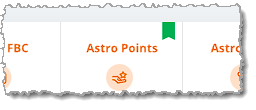
Make sure your human understands the cart will show you the customer has rewards available with a little ribbon. See the image below. The developers can't be bothered to animate it so it will fly around in enticing and pawable ways, but no humans are purrfect.
— Adrian, Wenatchee, WA
2. Customer
The Customer area allows you to add a customer to the transaction. You can either find a customer that is already saved in the system or create a new one. If you don't add a customer, the transaction will be Guest Checkout. Here are the tools in this area:
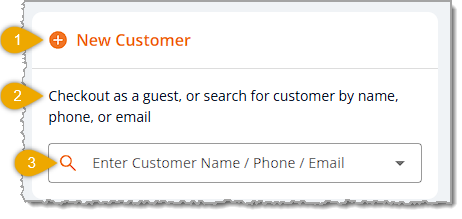
- New Customer — Click this button to create a new customer and add them to the transaction.
- Guest Checkout — If you don't find or create a customer, the transaction will use an anonymous Guest as the customer for checkout.
- Customer Search — Enter the customer's name, phone number, or email address and the system will provide matching results as you type, as in the example below. Click on the name you want in the results and the customer will load into the transaction.
Once you have a customer loaded, you'll see the following:
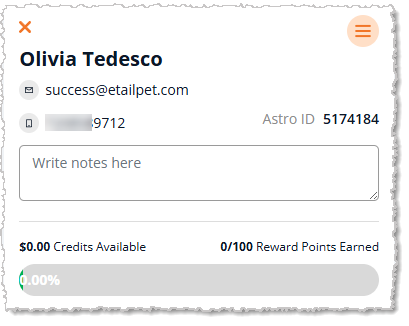
In this area, you can see the customer's contact info (email and phone), their Astro ID if they are enrolled, any Notes that you have saved for the customer, any Credits available, and the Reward Points the customer has earned. In the upper right, you can click on the hamburger-stack icon to open the Customer Action Menu:
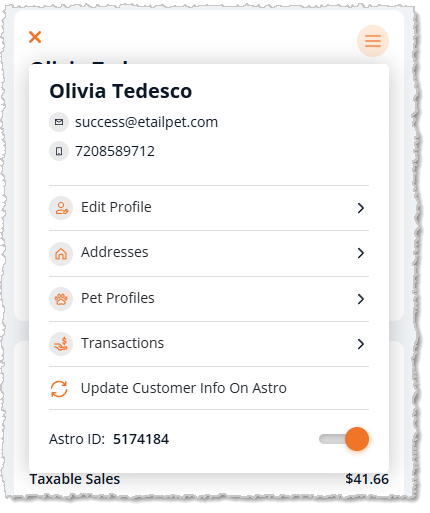
In the Customer Action Menu, you can Edit Profile, manage the customer's Addresses and Pet Profiles, and view Transactions. If you make adjustments to the customer's Astro Loyalty information, you can Update Customer Info on Astro. You can also deactivate or activate the customer's Astro account with the toggle in the lower right.
3. Search
The Search area allows you to scan in product barcodes to load products from our extensive catalog into the cart. You can also search by product name, or use advanced search tools to find what you want. Here are the tools in this area:

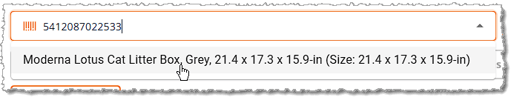
- Scan or Search — You can scan the barcode of a product and if a match is found in our Product Universe catalog, you can click on it and the item will be added to the cart. Searches work the same way: search for what you want, matches will display, and you can click on the product you want.
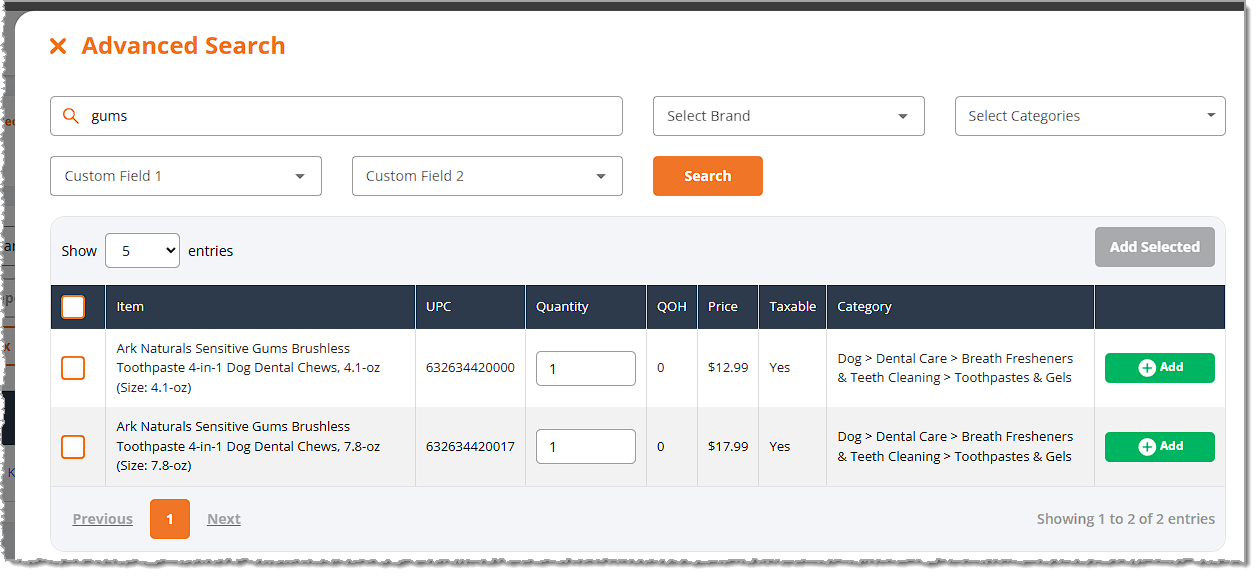
- Advanced Search — Click this button to open the Advanced Search window. You can search by entering text, and you can use Brand, Category, and Custom Field filters to narrow down your search to what you need.
4. New Sale Functions
The Register Functions area allows you a variety of tools for actions within the cart. Here are the tools in this area:

- Deposits — If the customer has a Special Request or an Appointment that needs a deposit, click this button and you can take the deposit as a Percentage-Off the item, a Dollar-Amount-Off the item, or as a Custom Amount Off the item.
- Add Subscription — If the customer is starting a new subscription, click this button and the Subscription window will open for you with the customer loaded. You can search for the subscription you want, take payment for it, and return to the cart once you're finished.
- Appointments — If the customer has completed Appointments that are ready to be paid for, click this button and you'll be able to add the payment to the cart.
- Online Transactions — If the customer was logged into the e-Commerce website and completed a transaction using the Pay In-Store checkout option, you can click this button to add the amount to the cart.
- Tax Override — If there is a need to adjust the Tax being charged on items in the cart, you can click this button. A window will open that allows you to adjust the taxes as needed, then you can click Submit to apply your adjustments and the cart will refresh with the new tax rates.
- Delete All — If you need to clear the cart of all items, click this button. The New Sale register will remove all items, but if a customer is loaded, the customer will remain.
⚠️Please Note: There is no confirmation step when you click the Delete All button. There is also no 'Undo' function for this action. If you accidentally delete all items, you will have to rebuild your transaction from scratch. The line items will be removed instantly, so use this function with care.
5. Transaction Items
The Transaction Items area lists all items added to the cart. You have several ways to work with the line items. Here are the tools in this area:
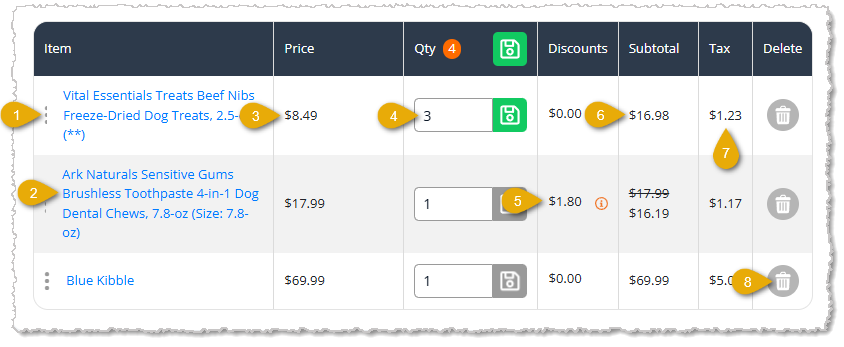
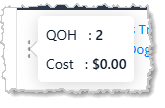
- Quantity on Hand & Cost — If you click on the Three-Dot Stack on the far left of a line item, you'll be prompted to enter your PIN. Once you've entered your PIN, you'll see the Quantity On Hand (QOH) for the item as well as the per-unit Cost the store pays from the vendor.
- Item — You can see the full Item Name in this column as it appears in My Products. If you click on the name, the item will open for you in a new browser tab so you can view its full details.
- Price — The unit Price for the item is listed in this column.
- Quantity — By default, when you add an item to the cart, the Quantity will be 1. You can click in this area to change the Quantity. If you make a change, the Save button will become highlighted. In addition, at the top of this column, the Total Item Quantity in the cart is displayed for you. Once you Save a quantity, the total will also update.
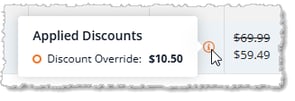
- Discounts — This column will list any discounted amounts that you have added with the Discount Override tool. In the example above, we applied a 10% discount to the item. If you hover over the
 info icon for the discount, you'll see details about the discount in a pop-up.
- Subtotal — This column calculates the subtotal for item price multiplied by quantity.
- Tax — This column shows the system-calculated Tax for each item. If you do a Tax Override, the updated amount will appear here without any additional information. To view full Tax information for the items in the transaction you can click the Tax Override button above.
- Delete — You can click the Trashcan Icon on the far right of a line item to remove the item from the cart. Please note that there is no confirmation to complete the removal, so as soon as you click the icon, the item will be removed. If you accidentally remove an item you needed, there is no Undo function and you will need to add the item again and configure any discounts or related Astro Loyalty rewards.
6. Summary and Payment
The Summary and Payment area itemizes all amounts, and it also provides the Total Due, as well as controls to hold or pay for the transaction. Here are the tools in this area:
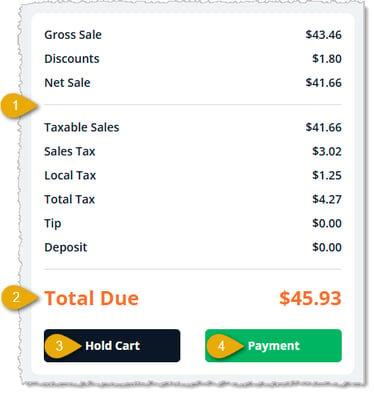
- Itemized Amounts — This area shows the Net Sale total after Discounts are subtracted from the Gross Sale. It also shows Taxable Sales and the different tax amounts, the Total Tax, any Tips, and any Deposits.
- Total Due — This area shows the Total Due the customer needs to pay.
- Hold Cart — If you have a customer loaded in the transaction, you can click this button to Hold Cart and pause the transaction. When they return, you can Resume the transaction automatically by loading the customer into an empty New Sale.
- Payment — Click this button when the customer is ready to pay. If the customer is enrolled in Astro Loyalty, a window will pop up asking if you want to check for Astro rewards, and you can add rewards, if the customer wants. After that, you'll be able to complete the transaction in the Payment window. Please see the description of the Payment window functions below.
Payment Window Functions
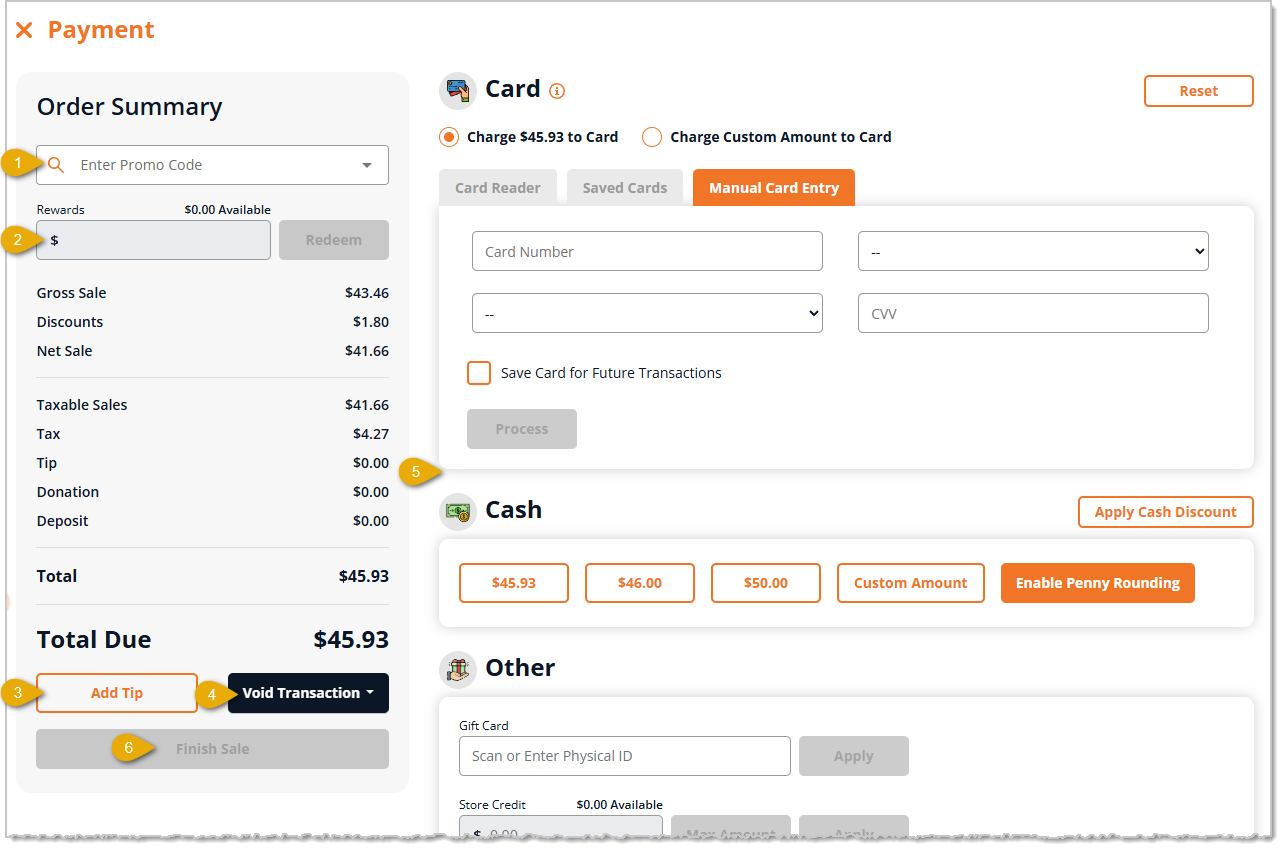
- Promo Code — If the customer has an available Promo Code, you can enter it here.
- Rewards — If the customer has available Rewards, you can apply some or all of that amount toward this transaction, at the customer's preference. This is part of the In-House Rewards program, which is separate from Astro Loyalty Rewards.
- Add Tip — If the customer wants to add a Tip to the order, you can click this button to enter the amount.
- Void Transaction — Click this button if you need to Void the entire transaction and go to a New Cart or Edit Cart to void specific items.
- Payment Method — The customer can pay by Card, Cash, or Other, the last of which includes Gift Card, Store Credit, Customer Deposit, or Check.
- Finish Sale — Once the full Total Due has been paid, click this button to complete the sale. You'll be prompted to enter your PIN, and the receipt print window will open.
Frequently Asked Questions
Q: Is there a keyboard shortcut to open New Sale?
A: Yes. Hold down your Alt key and press 1, and the New Sale page loads.
Q: What happens if I don't add a customer to the sale?
A: The transaction becomes a Guest Checkout, and the system uses an anonymous Guest as the customer.
Q: I clicked Delete All by mistake. Can I undo it?
A: No. Delete All has no confirmation step and no Undo, so the system removes the line items right away. You'll need to rebuild the transaction. If a customer was loaded, they stay in the sale.
Q: How do I see an item's Quantity on Hand and Cost?
A: Click the Three-Dot Stack on the far left of the line item and enter your PIN. The system then shows the item's Quantity On Hand (QOH) and the per-unit Cost the store pays the vendor.
Q: How do I pause a sale and finish it later?
A: Load a customer into the transaction, then click Hold Cart. When the customer returns, load them into an empty New Sale and the transaction resumes automatically.
Q: I get an "initializing cart" error when I open New Sale. What do I do?
A: Make sure you're logged in with your Register Store Login, because you can only make sales with that login. If the error continues, follow the troubleshooting steps for the Error Initializing Cart.
Q: I have a question, but I can't find my answer here. How do I get more assistance?
A: You can ask any question at the number listed here. Contact our support team at: (323) 370-0738 for the U.S., and (888) 370-2363 for Canada.







 May 04, 2026
Is this page helpful?
×Help us improve our articles