🐶 Paid membership programs can help your store get revenue on a regular basis, and you can use eTailPet to offer subscription plans to customers. The Subscriptions area is where you can add customers to subscription plans. You'll also view a list of all subscribers from a certain time period and can edit whatever is needed. See how to easy it is to set up subscribers!
Please Note: This article does not cover creating new membership plans. If you would like more information, click here to learn more about Plans.

Managing Subscriptions
To access the Subscriptions area, go to Memberships > Subscriptions.
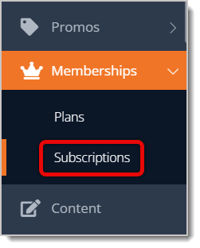
You'll be directed to the Subscriptions Listing area. Here is everything you can use on this page:
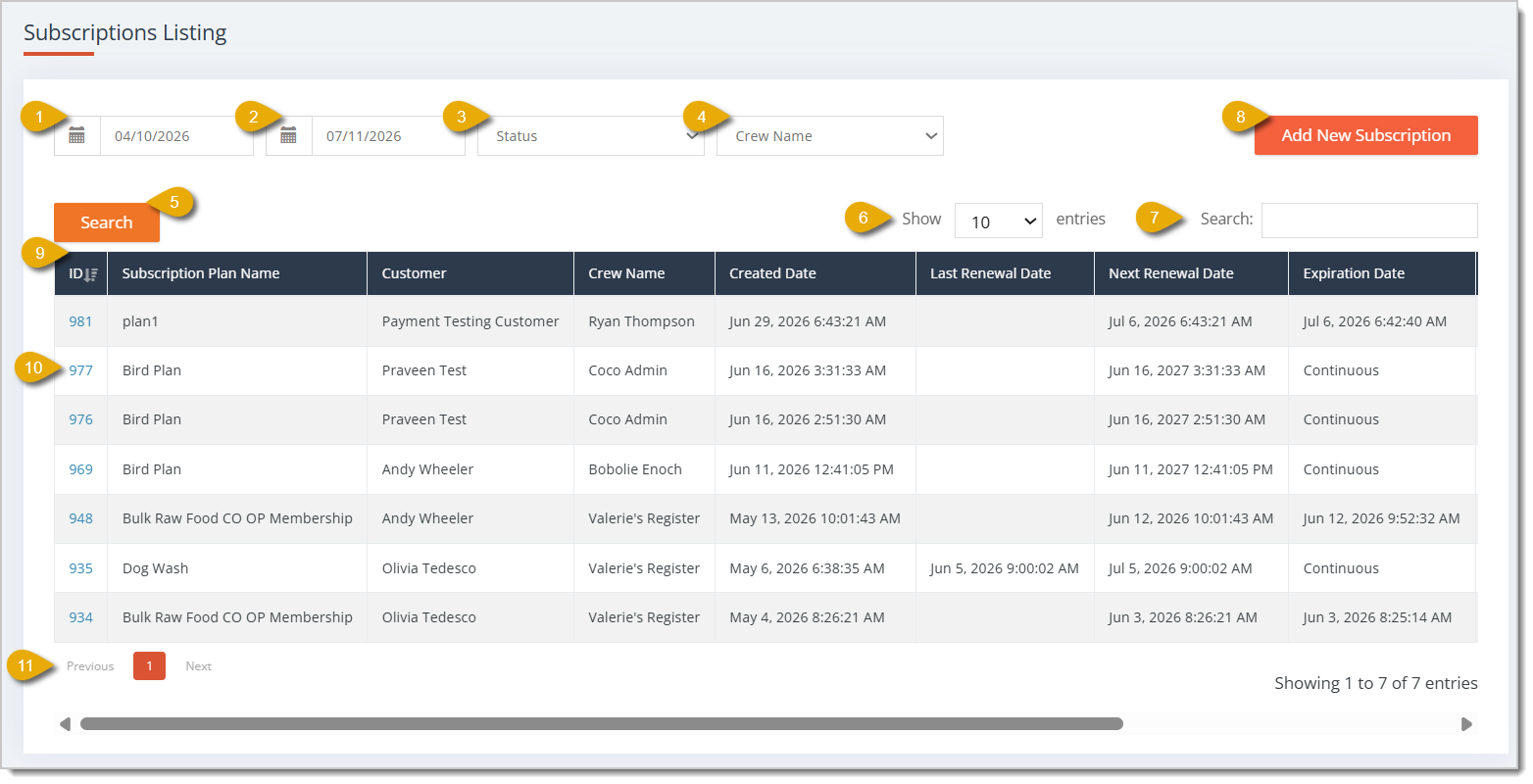
- Start Date — By default, the Subscriptions Listing page will show data from the last 3 months. You can edit the time period by entering a start date here.
- End Date — You can edit the time period of the data by entering an end date here.
- Status Filter — You can filter the Subscription data by selecting a Status from the drop-list: Active, Paused, Expired, and Canceled.
- Crew Name Filter — You can filter the Subscription data to the employee in charge of it by selecting their name in this drop-list.
- Search Button — After you've set any filters or entered anything in the Search Field, click on the Search button.
- Show Number of Entries — You can choose how many entries you'll view per page.
- Search Field — Enter keywords in the Search Field to find matching data.
- Add New Subscription — Click on the Add New Subscription button in the upper right if you want to create a Subscription. To learn how to use this form, go to the Add New Subscription section below. Please Note: You will only see this button if you are signed into the Register login. The normal Admin login does not display this, as it takes you to Register functionality.
- Data Table — The table shows data on each plan for the time period. Here is every column explained:
- ID — This column shows the ID of the Subscription. If you click on the ID, a page will load showing the full details of the Subscription Plan.
- Subscription Plan Name — This column shows the name of each Subscription Plan.
- Customer — This column shows the Name of the subscribed Customer.
- Crew Name — This column shows the name of the employee in charge of the plan.
- Created Date — This column shows time and date the subscription was created.
- Last Renewal Date — This column shows the last time and date the subscription was renewed.
- Next Renewal Date — This column shows the next time and date the subscription was renewed.
- Expiration Date — This column shows the date the subscription will expire. If the subscription is indefinite, this will read as Continuous instead.
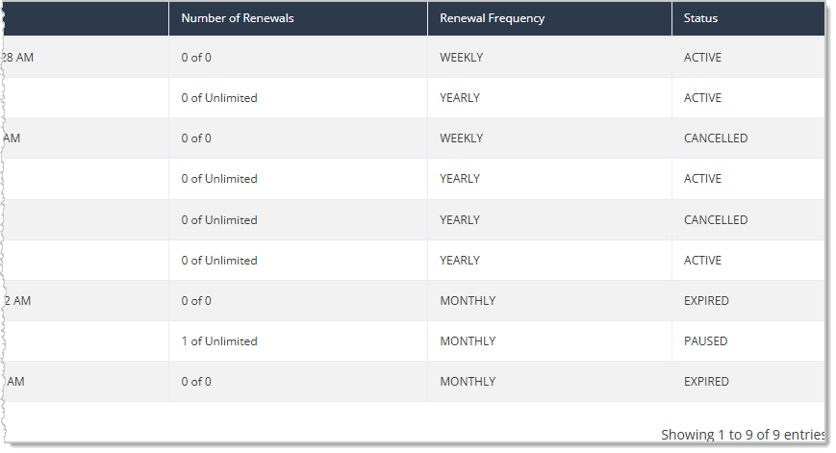
- Number of Renewals — This column shows the number of times this subscription has been renewed.
- Renewal Frequency — This column shows Subscription interval of the most recently renewed Subscription, either Weekly, Monthly, or Yearly.
- Status — This column shows the Status of each Subscription. Statuses include Active, Paused, Expired, and Canceled.
- Select Subscription — You can open the full details of a Subscription and edit it by clicking on its ID. To learn about what you can edit, go to the Add New Subscription section below.
- Navigate — If your plans span more than one page, you can click on the Page Numbers to skip to a page or click on Previous / Next.
Add a New Subscription
The Create Subscription form is where you can create new plans or update existing ones. You can get here only if you are signed in with a Register login, the standard Admin login does not have this functionality. On the Subscriptions page in the Memberships menu, click the New Subscription button to open the Create Subscription page. Here is everything to do on this page to create a new Subscription:
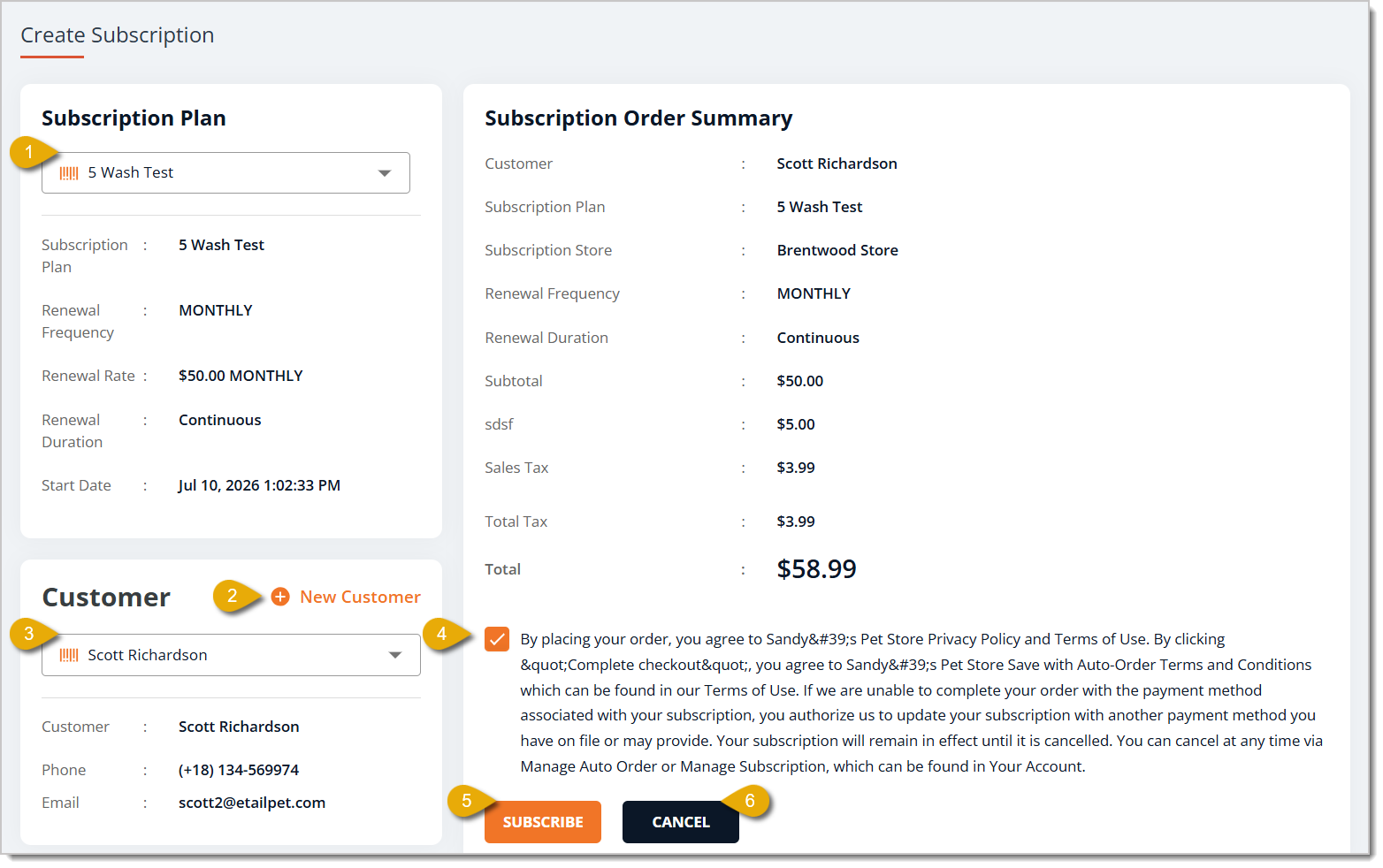
- Select the Subscription by entering keywords, then selecting it in the drop-list.
- If you want to create a new Customer record, click on New Customer. To learn how to create a new customer, click here to read Customers in New Sale.
- To add an existing customer to the subscription, select the Customer by entering at least 3 characters, then selecting the one you need from the drop-list.
- Check the box for the Terms and Conditions.
- Click on Subscribe to finalize the Subscription.
- Click on Cancel if you want to not save your changes.
Pause or Cancel a Subscription
If a customer requests to pause or cancel their subscription, here is how you can do so in the eTailPet system:
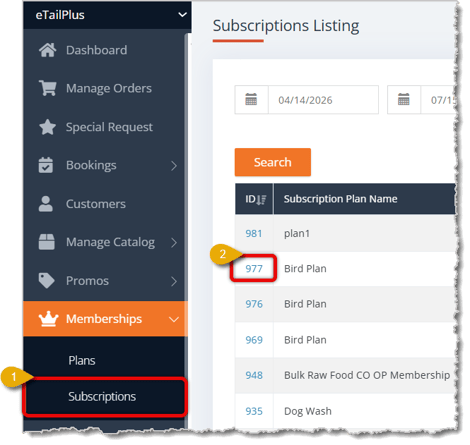
- Go to Memberships > Subscriptions in the main menu.
- Click on the ID of a subscription to view its full details. Make sure you're editing the correct customer's subscription by looking at their name in the Customer Name column.
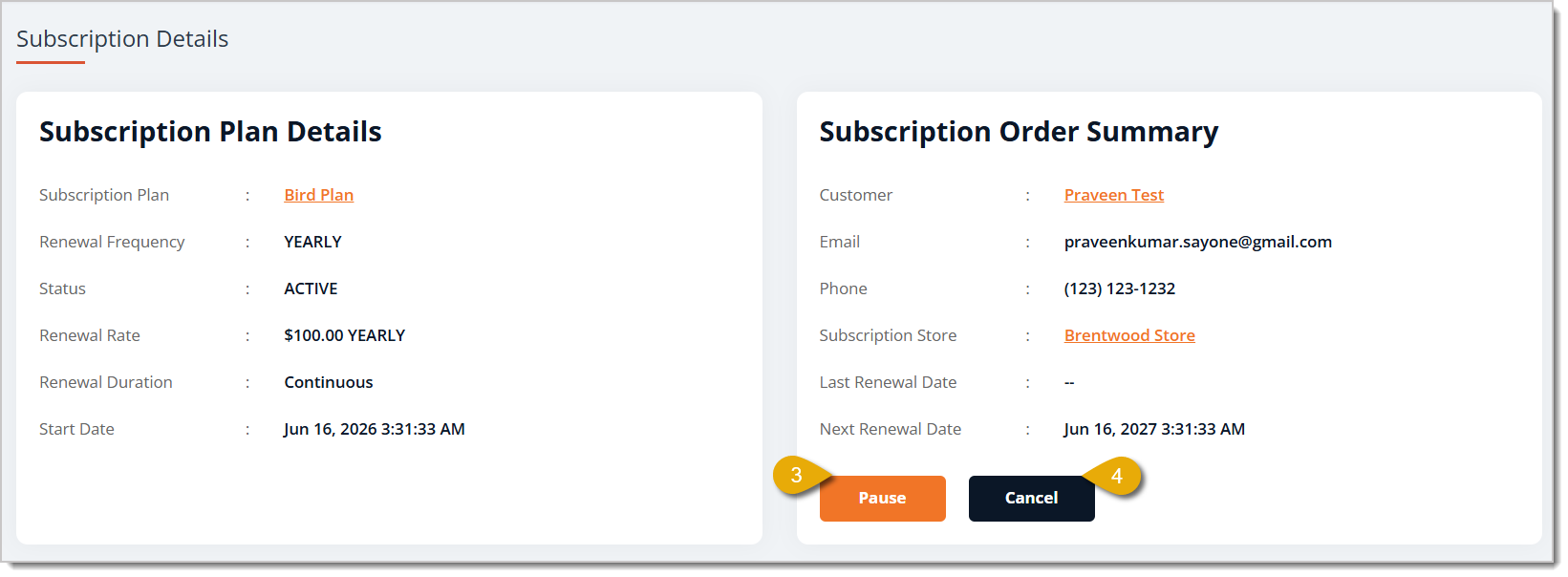
- On the Subscription Details page, you can click on Pause to pause the subscription.
- If the customer wants to cancel their subscription, click on Cancel.
View Subscription Order Details
To view the order ID of a customer's Subscription, do the following:
- Go to Memberships > Subscriptions in the main menu.
- Click on the ID of a subscription to view its full details. Make sure you're editing the correct customer's subscription by looking at their name in the Customer Name column.
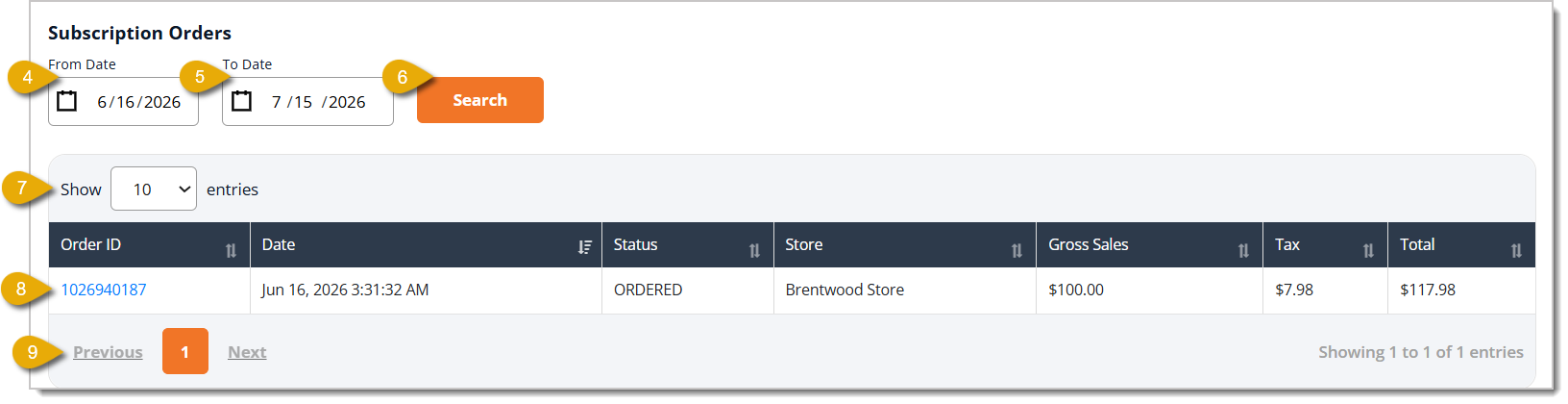
- Scroll to the bottom of the page to the Subscription Orders area.
- Enter a From Date if you want to view orders from a specific time range. This will be set to last month by default.
- Enter a To Date if you want to view orders from a specific time range. This will be set to the day following the current one by default.
- Click on Search to view orders that match your time period.
- You can select from the drop-list the number of entries you want to view per page.
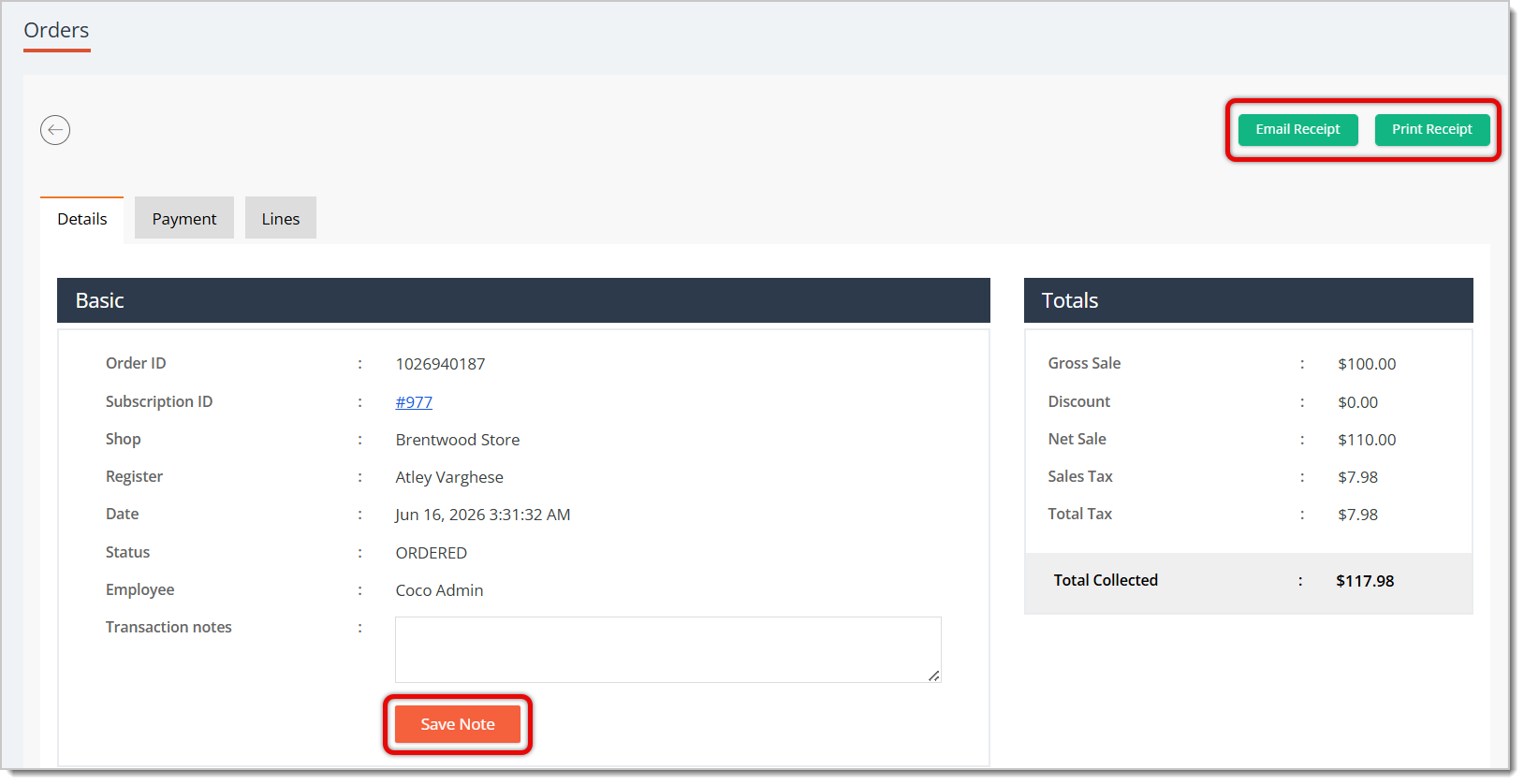
- You can click on an Order ID to view the order's full details, where you can email or print a receipt. You can also add notes for the order.
- You can navigate between pages of orders by clicking on a Page Number. You can also click on Previous or Next.
Related Topics
Plans
Online Subscriptions
Subscription Emails
Frequently Asked Questions
Q: How do I add customers to subscriptions?
A: You MUST be logged into the Register login. You can do that by going to Memberships > Subscriptions and click the New Subscription button. Follow the steps in the Add a New Subscription section above.
Q: What subscription statuses can I filter by?
A: You can filter by Active, Paused, Expired, and Canceled.
Q: What does "Continuous" mean in the Expiration Date column?
A: It means the subscription has no set end date — it keeps renewing on its own.
Q: Can I get a receipt for a subscription order?
A: Yes. In Subscription Orders, click into an Order ID to email or print the receipt, or add notes.
Q: I have a question, but I can't find my answer here. How do I get more assistance?
A: You can ask any question at the number listed here. Contact our support team at (323) 370-0738 for the U.S. and (888) 370-2363 for Canada.







 Jul 10, 2026
Is this page helpful?
×Help us improve our articles