😸 Paid membership programs can help your store get revenue on a regular basis, and you can use eTailPet to offer subscription plans to customers. The Plans area in the eTailPet system allows you to add, view, and manage membership subscription plans. Explore how you can provide your store with more revenue!
Please Note: This article does not cover adding customers to membership plans. If you would like to learn more about that, click here to learn more about Subscriptions.
Managing Membership Plans
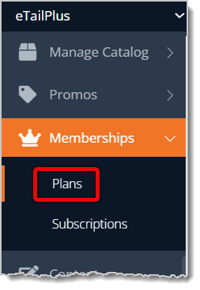
To access the Plans area, go to Memberships > Plans.
You'll be directed to the Plans Listing area. Here is everything you can use in this page:
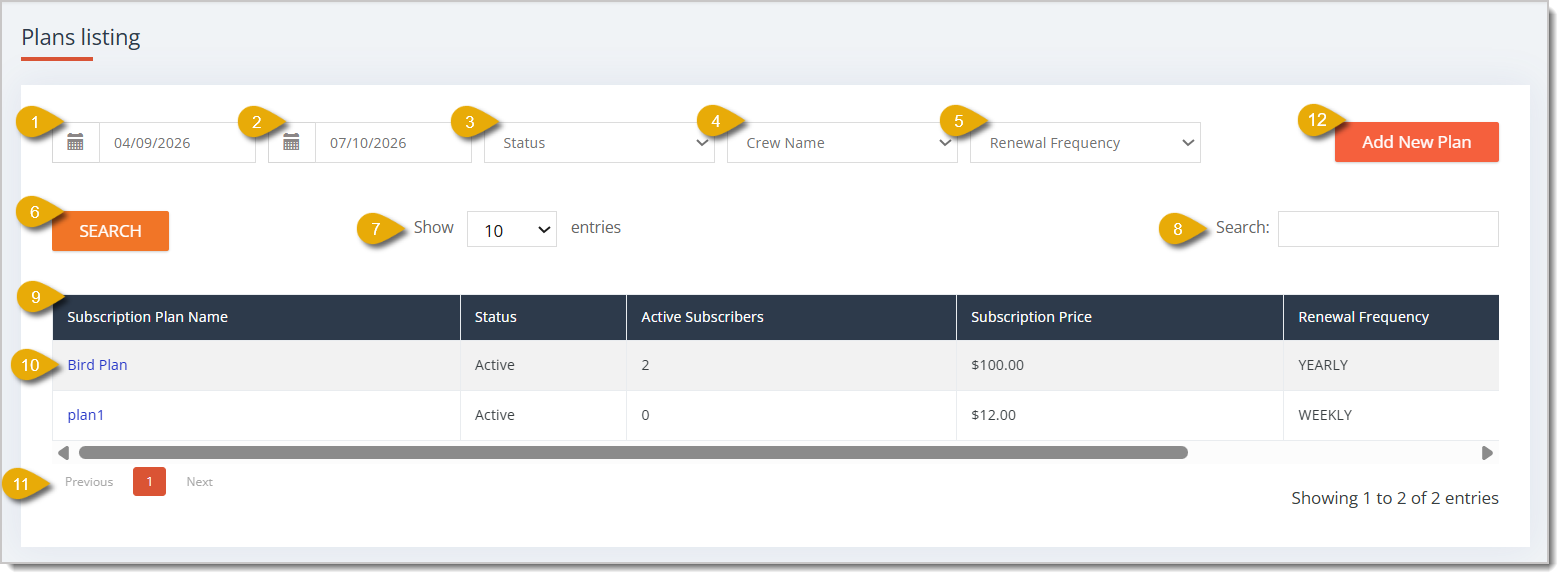
- Start Date — By default, the Plans Listing page will show data from the last 3 months. You can edit the time period by entering a start date here.
- End Date — You can edit the time period of the data by entering an end date here.
- Status Filter — You can filter the plan data by selecting a status from the drop-list: Active or Disabled.
- Crew Name Filter — You can filter the plan data to the employee in charge of it by selecting their name in this drop-list.
- Renewal Frequency Filter — You can filter the plan data to ones of a certain renewal frequency. Select from Weekly, Monthly, or Yearly in this drop-list.
- Search Button — After you've entered any filters or entered anything in the Search Field, click on the Search button.
- Show Number of Entries — You can choose how many entries you'll view per page.
- Search Field — Enter keywords in the Search Field to find matching data.
- Data Table — The table shows data on each plan for the time period. Here is every column explained:
- Subscription Plan Name — This column shows the name of the plan.
- Status — This column shows if the plan is active (still taking payments) or has been disabled (no longer taking payments).
- Active Subscribers — This column shows the number of active subscribers to the plan during the time period.
- Subscription Price — This column shows the price of the subscription charged to customers.
- Renewal Frequency — This column shows if the plan is renewed weekly, monthly, or yearly.
- Crew Name — This column shows the name of the employee in charge of the plan.
- Select Plan — You can open the full details of a plan and edit them by clicking on its name. To learn about what you can edit, go to the Add New Plan section below.
- Navigate — If your plans span more than one page, you can click on the Page Numbers to skip to a page or click on Previous / Next.
- Add New Plan — Click on the Add New Plan button in the upper right if you want to create a new subscription plan. To learn how to use this form, go to the Add New Plan section below.
Add New Plan
The Create Plan form is made up of three sections: Plan Basics, What's Included, and Online Content. Here, you can add new plans or update existing ones. Updating a plan is the same as adding a new plan, except Create functions are replaced with Update.
Plan Basics Section
Below is an explanation of each field or button in the Plan Basics section of the form:
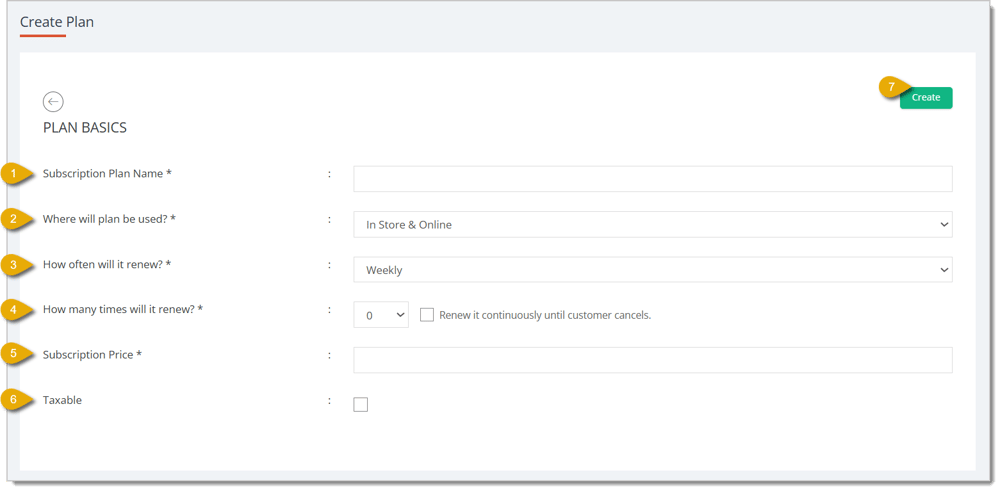
- Subscription Plan Name* — Enter the name of the subscription plan.
- Where will plan be used* — Select if the plan will be used in-store, online, or both.
- How often will it renew* — Select the frequency at which the plan will renew: weekly, monthly, or yearly.
- How many times will it renew* — Enter the maximum number of times the plan will automatically renew. If the plan will be renewed indefinitely, check the box for Renew it continuously until customer cancels instead.
- Subscription Price* — Enter the price of the subscription. Leave out dollar signs.
- Taxable — Check the box to indicate if the plan itself is taxable.
- Create — Click on Create to save the new subscription plan. This will read as Update if you are editing an existing plan.
* Required Field
What's Included Section
Below is an explanation of each field or button in the What's Included section of the form:
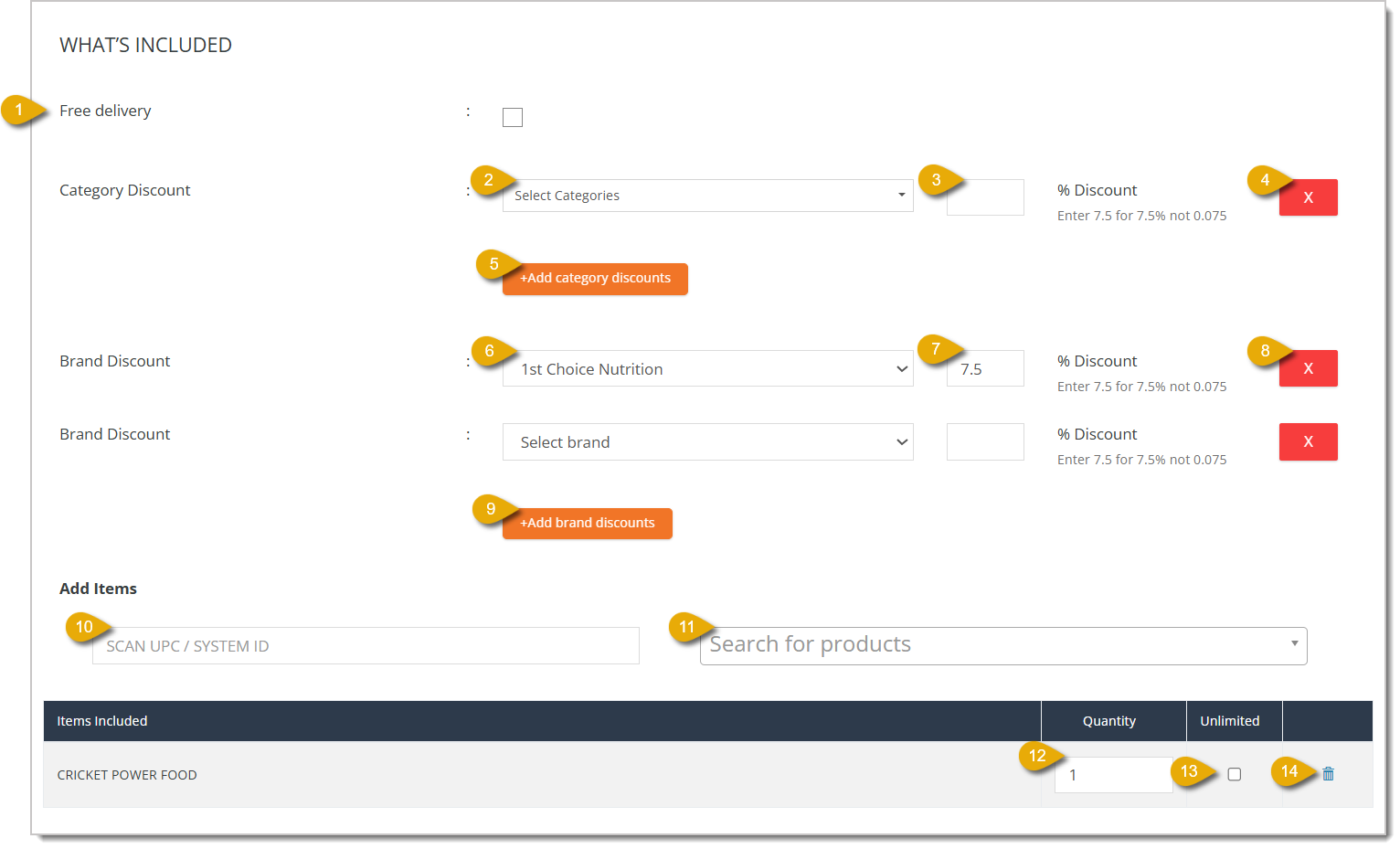
- Free Delivery — Check the box to indicate if subscribers to this plan will be eligible for free delivery.
- Select Categories for Category Discount — Select from the drop-list the product category that are eligible for discounts under this subscription plan.
- Percentage Discount for Category Discount — Enter the percentage that will be discounted from category products for plan subscribers. If you want a 7.5% discount, enter 7.5, not 0.075.
- Delete Category Discount — Click on the Red X next to a category discount to remove the discount.
- Add Category Discounts — Click on this button to add another category discount.
- Select Brand for Brand Discount — Select from the drop-list the product brand that is eligible for discounts under this subscription plan.
- Percentage Discount for Brand Discount — Enter the percentage that will be discounted from the brand's products for plan subscribers. If you want a 7.5% discount, enter 7.5, not 0.075.
- Delete Brand Discount — Click on the Red X next to a brand discount to remove the discount.
- Add Brand Discounts — Click on this button to add another brand discount.
- Scan Items — Click into this field and scan the product you want to offer to plan subscribers for free.
- Search Products — Enter keywords to find a product you want to offer to plan subscribers for free. Click on it in the drop-list to add it.
- Quantity — Enter the quantity of the product you want to give plan subscribers.
- Unlimited — Check the box if you instead want to offer an unlimited amount of the product to plan subscribers.
- Remove Product — Click on the Trash Can icon to remove the product from the plan.
Online Content Section
The Online Content section is where you can provide information about your subscription plan on your website. Below is an explanation of each field or button in the Online Content section of the form:
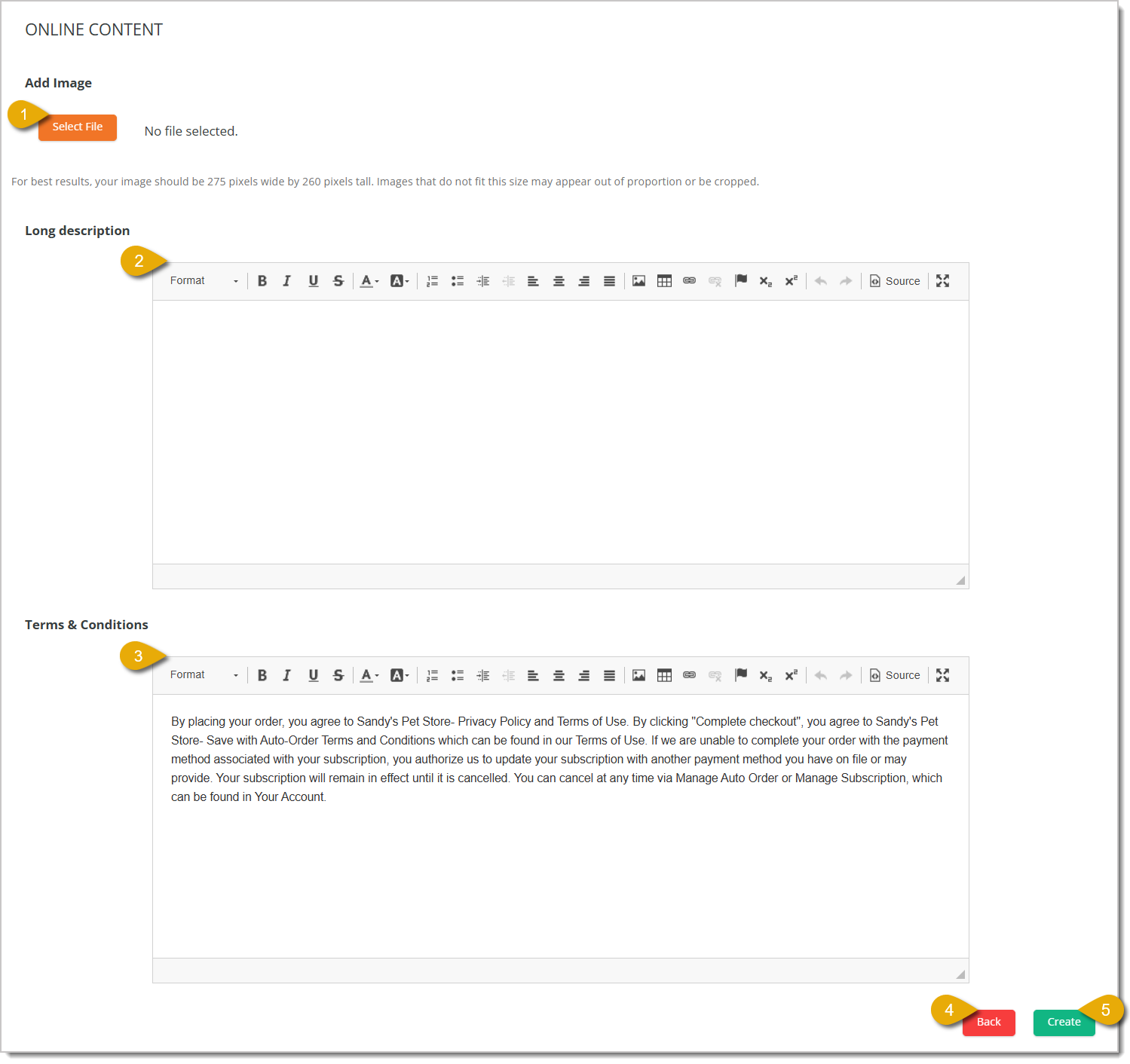
- Add Image — Click on Select File if you want to upload an image.
- Long Description — Use this text box to describe the subscription plan.
- Terms and Conditions — Use this text box to describe the terms and conditions of the subscription plan.
- Back Button — Click on Back to go back to the Plan Listings area.
- Create Button — Click on Create to save the new subscription plan. This will read as Update if you are editing an existing plan.
Related Topics
Subscriptions
Online Subscriptions
Subscription Emails
Frequently Asked Questions
Q: How do I add customers to subscription plans?
A: You can do that by going to Memberships > Subscriptions. Click here to read about Subscriptions.
Q: I have a question, but I can't find my answer here. How do I get more assistance?
A: You can ask any question at the number listed here. Contact our support team at (323) 370-0738 for the U.S. and (888) 370-2363 for Canada.







 Jul 09, 2026
Is this page helpful?
×Help us improve our articles