The Subscription Emails page of the eTailPet system allows you to view and manage the email and SMS templates sent to customers throughout their subscription lifecycle. These templates cover everything from the moment a subscription is created through renewals, plan changes, pauses, payment issues, and cancellation. Dive in and see everything you can do here!
Subscription Emails Page
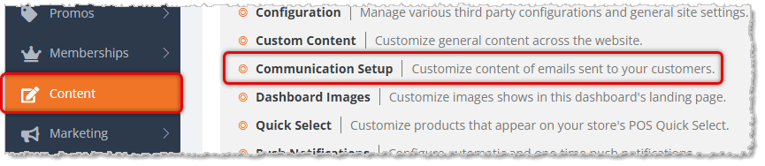
To get to this page, in the main system menu on the left, click on Content, then click Communication Setup.
On the Communication Setup page, click on the Sellit! POS tab. You'll see a list that includes all the Subscription Email templates.
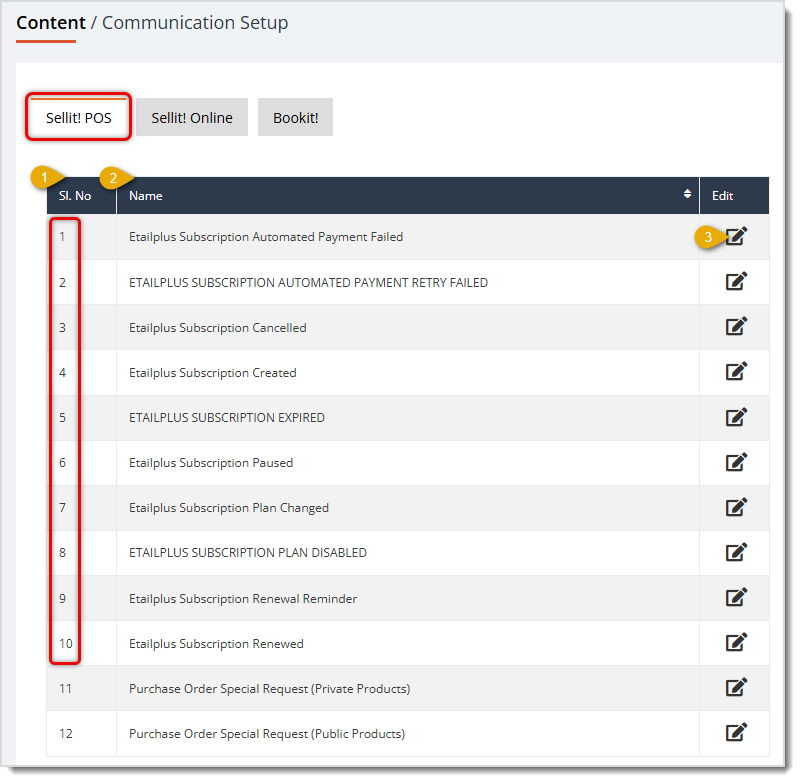
The Sellit! POS tab lists all of your communication templates in a single table. The first ten rows are dedicated to eTailPet Subscription events. Here is how to work with these templates:
Subscription Email Templates List
- Sl. No — This column shows Serial Item Number of each template, which is the numeric order of the templates in the data table.
- Name — This column displays the Name of each communication template, indicating which Subscription event triggers it.
- Edit — Click the Edit icon next to a template to open it and review or update its Channel, Subject, and message content. Each of the fields on the template detail page are explained in the section below, Working With Email Templates.
Here is a brief description of each of the first ten Subscription Email Templates:
- Etailplus Subscription Automated Payment Failed — Sent when an automatic Subscription payment attempt fails, prompting the customer to update their payment information. Subject: "Regarding Your Plan Renewal."
- Etailplus Subscription Automated Payment Retry Failed — A follow-up sent when a retried automatic payment also fails, alerting the customer that action is still needed. Subject: "Regarding Your Plan Renewal."
- Etailplus Subscription Cancelled — Confirms to the customer that their subscription has been cancelled. Subject: "We're sorry to see you go."
- Etailplus Subscription Created — Confirms to the customer that they have successfully created their new subscription. Covered in full detail below as the example template for template customization and configuration.
- Etailplus Subscription Expired — Informs the customer that their subscription plan has expired. Subject: "Your plan has expired."
- Etailplus Subscription Paused — Confirms that the customer's membership has been temporarily paused. Subject: "Your membership has been paused."
- Etailplus Subscription Plan Changed — Notifies the customer that the details of their subscription plan have changed. Subject: "Your plan is changing."
- Etailplus Subscription Plan Disabled — Alerts the customer that their subscription plan has been disabled. Subject: "Your plan has been disabled."
- Etailplus Subscription Renewal Reminder — Sent ahead of an upcoming renewal date to remind the customer their membership will soon renew. Subject: "Your membership is about to renew!"
- Etailplus Subscription Renewed — Confirms a successful renewal and encourages the customer to keep enjoying their benefits. Subject: "We hope you are enjoying your benefits!"
Working With Email Templates
All of your Email Templates work in the same manner and serve different purposes. You are able to customize and edit them so they will have your unique style. Below is an in-depth explanation of how to use an example template; we will use the Etailplus Subscription Created email in this example. The system sends this email when a customer successfully purchases a new Subscription plan.
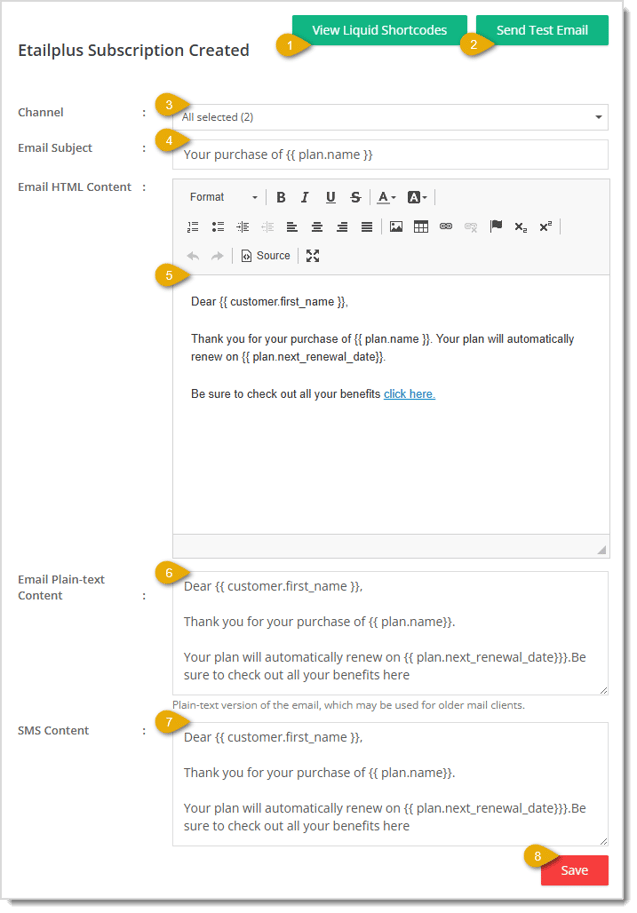
Here is how each field on this template works:
- View Liquid Shortcodes — Click this button to see the full list of merge variables available for use in this template. You are able to click a Copy button for any of the Liquid Shortcodes so you can paste it into a message if you need as pictured below. Shortcodes for this area include, Customer's First Name, Customer's Last Name, Customer's Email, Customer's Phone, Plan Name, and Next Renewal Date.
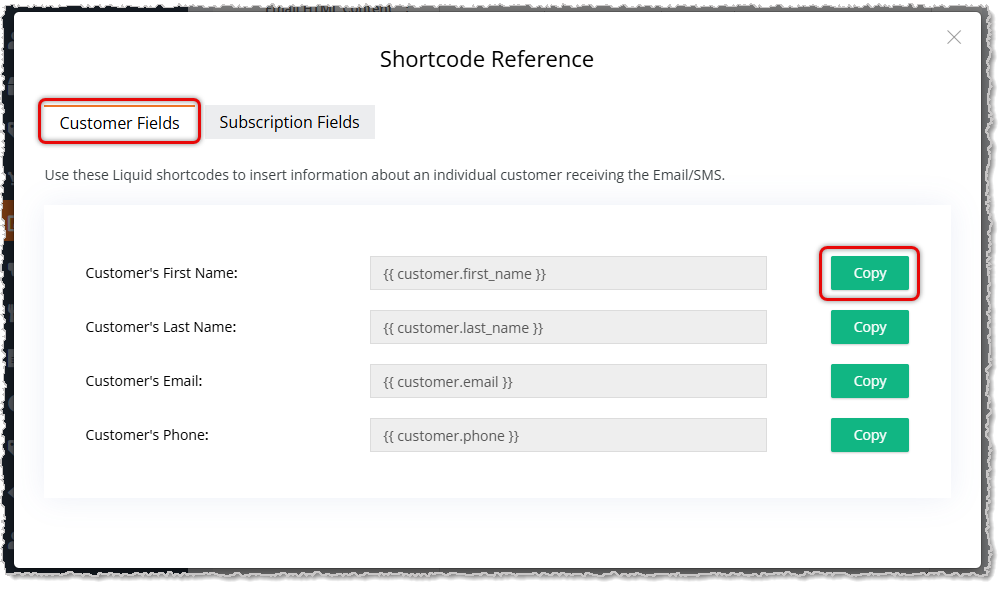 image needs alt text
- Send Test Email — Click this button to send yourself a test copy of this email so you can preview how it will look to customers.
- Channel — This drop-list shows which delivery channels are enabled for this template. For Etailplus Subscription Created, both Email and SMS are selected.
- Email Subject — This field holds the subject line customers see for this email: "Your purchase of ".
- Email HTML Content — This rich text editor holds the formatted email body. For this template, it greets the customer by first name, thanks them for purchasing the named plan, states the plan will automatically renew on the given renewal date, and includes a "click here" link inviting them to review their plan benefits.
- Email Plain-Text Content — This field holds a plain-text fallback version of the same message, used by older mail clients that can't render HTML.
- SMS Content — This field holds a condensed version of the same message, formatted for text messaging.
- Save — Click this button once you finish making changes to save your updates to the template.
Related Topics
Memberships Reports
Subscriptions
Communication Setup
Frequently Asked Questions
Q: Where do I find the subscription email templates?
A: Go to Content in the main menu, then select the Sellit! POS tab under Communication Setup. The first ten rows in the list are the eTailPlus subscription templates.
Q: Can I send a subscription email as SMS instead of email?
A: Yes, if the template's Channel field has SMS selected. You can edit the SMS Content field separately from the Email content.
Q: How do I preview what a subscription email will look like before it goes out?
A: Open the template and click Send Test Email to receive a test copy.
Q: What are the merge fields like for?
A: These are Liquid Shortcodes that automatically pull in customer- and plan-specific details when the email or SMS is sent. Click View Liquid Shortcodes on any template to see the full list available.
Q: I have a question, but I can't find my answer here. How do I get more assistance?
A: You can ask any question at the number listed here. Contact our support team at (323) 370-0738 for the U.S. and (888) 370-2363 for Canada.







 Aug 03, 2026
Is this page helpful?
×Help us improve our articles