






Holding and Resuming Transactions
Sometimes you have to put transactions on hold so the customer can come back later to complete it. T
 May 21, 2026
The eTailPet system enables you to give your best customers in-house credit accounts that they can use to purchase products and services. This article shows you how to set up in-house credit accounts and how customers can pay their balance. Take a look!

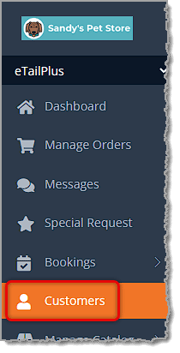
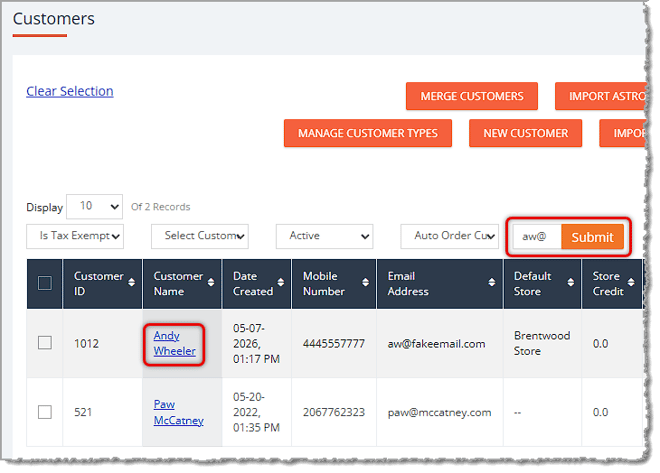
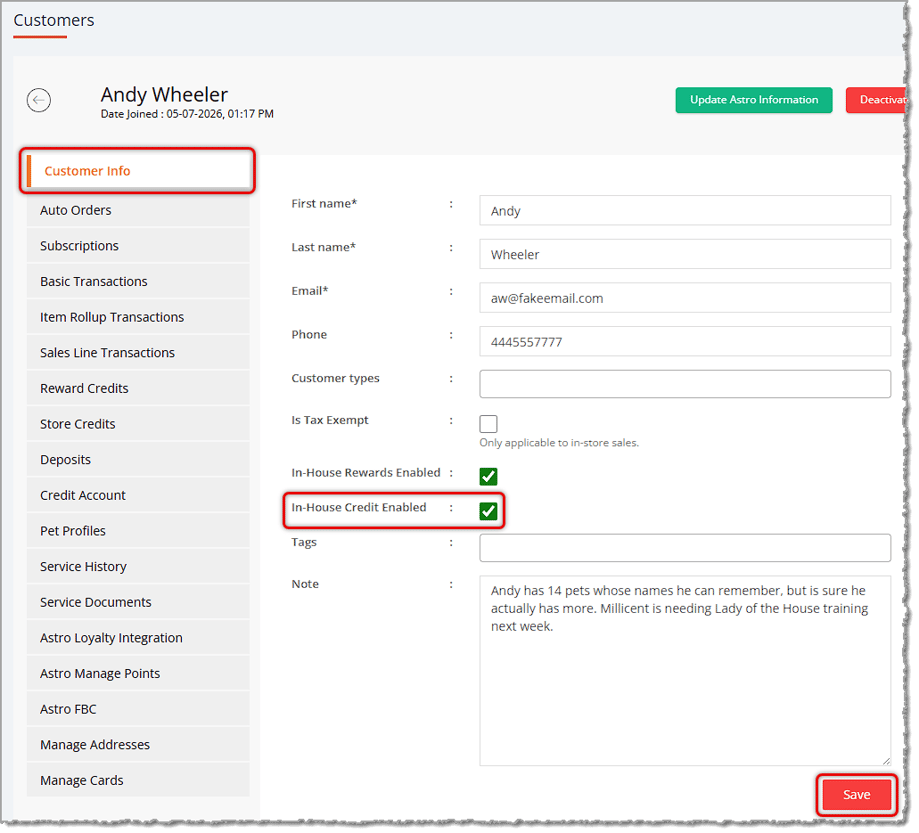
Here is how you can set up a customer's In-House Credit account:
When you go to the Payment page in New Sale for a customer who has an In-House Credit account, in the Other payment method area, you'll see On-Account as an option. Be sure to check the Outstanding balance the customer has at the top of that area:

Your store likely has a policy on how much balance a customer can have before they need to pay it off. If they can proceed, enter the amount the customer is paying with their In-House Credit into the amount field if it's less than the Total Due. Or if they are paying the Total Due, click the Max Amount button. Either way, when you have the amount in place, click the Apply button to add it to the transaction. You can then finish the transaction in the normal way.
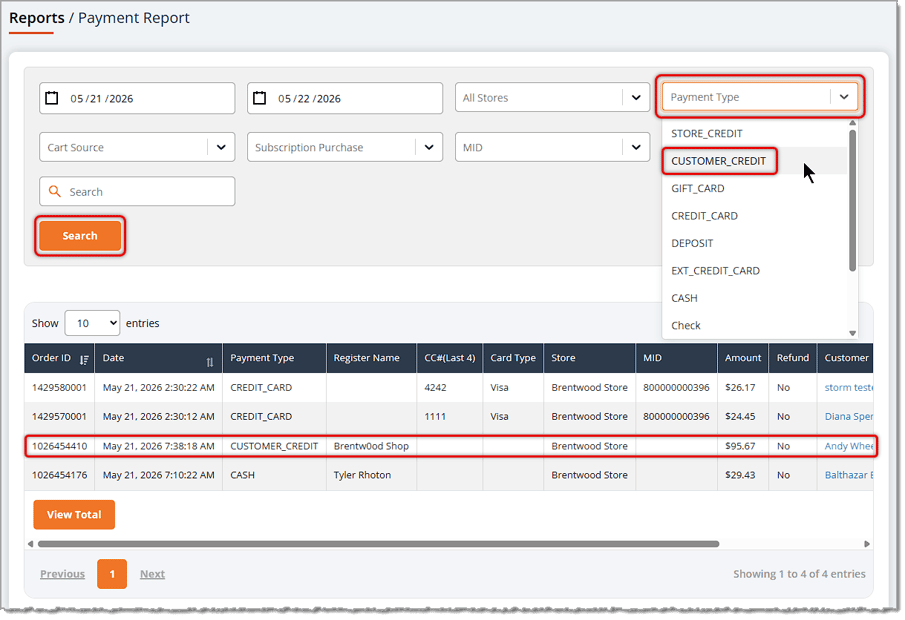
Purchases made with in-house credit appear on all sales reports the same as any other transaction. You can easily create a report of all in-house credit purchases by filtering with this Payment Type and a date range. Here are the relevant reports:
Boss Quote
"Make sure your human understands how easy it is to tell the difference between Store Credit and Customer Credit. Store Credit is what they get when a refund gives them money they can spend in the store. Customer Credit is when they have an account and use On-Account to pay. Swat your human a few times on the nose to chastise them, then purr for a bit so they love you again after your ferocious outburst."
— Adrian, Wenatchee, WA
⚠️Important Note: Invoicing and payment for house credit is typically NOT done through eTailPet POS.
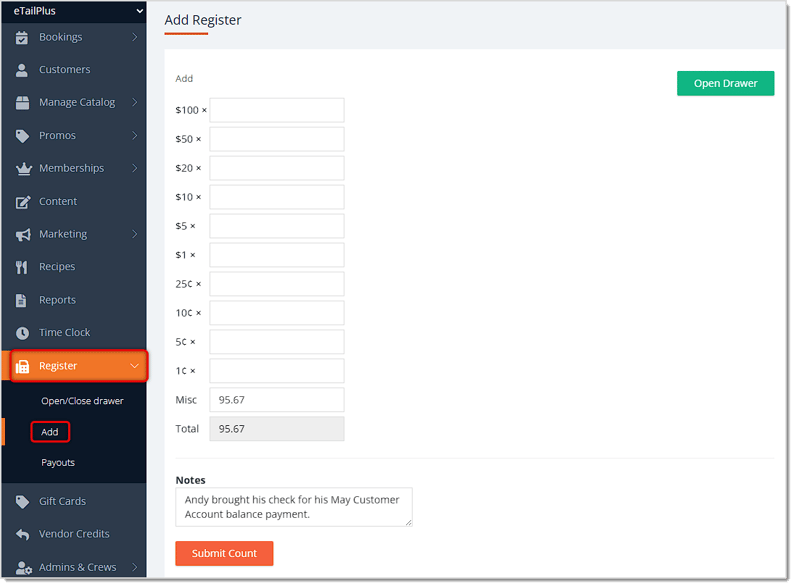
As a workaround, you can do the following:
Here’s how to export the house credit information so that you can create and send invoices through your regular accounting software:
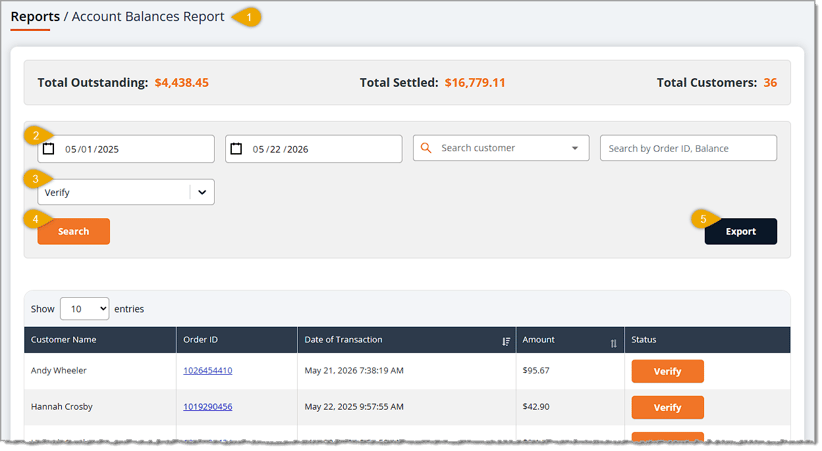
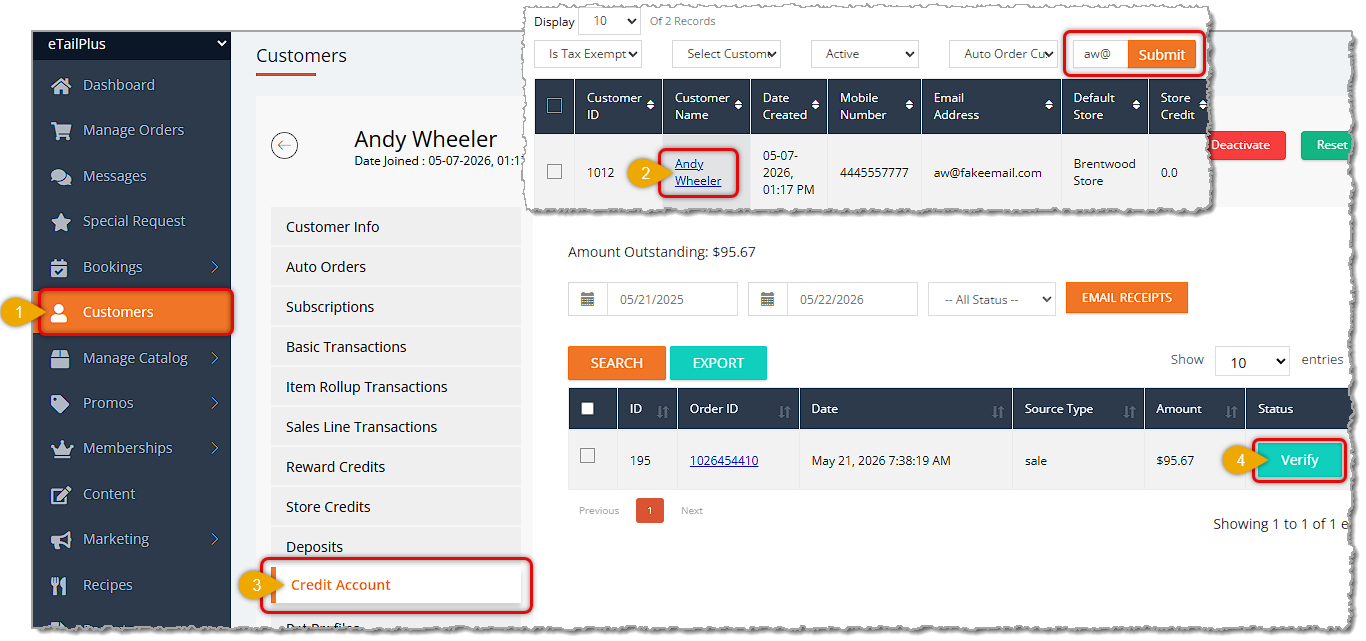
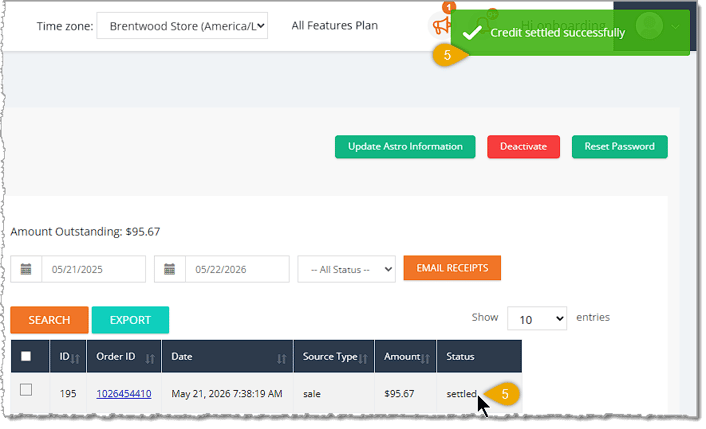
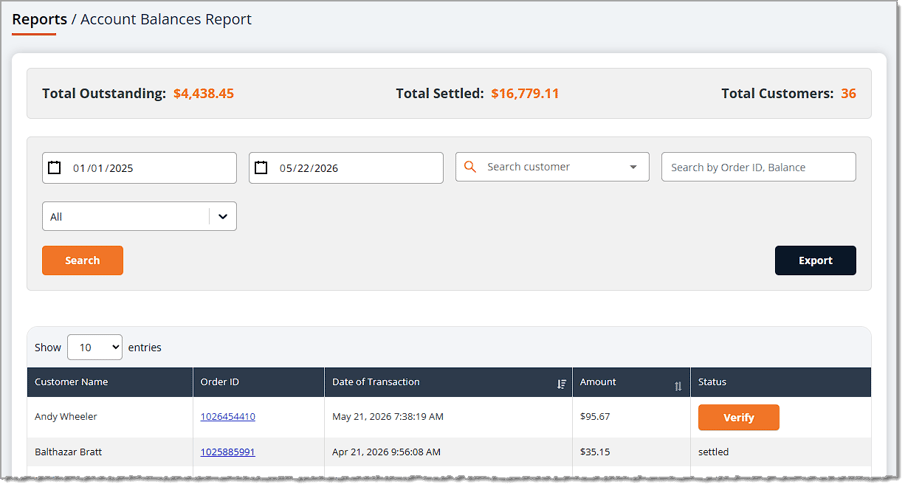
💡Please Note: You can also Verify from the Account Balances Report. If you have multiple customer payments to verify, this is the best place to do so.
Q: How do I set up an In-House Credit account for a customer?
A: Go to Customers in the main menu and click the customer's name. On the Customer Info tab, scroll down to In-House Credit Enabled, check the box, and click Save.
Q: How does a customer pay with their credit account at checkout?
A: On the Payment page in New Sale, find On-Account in the Other payment method area and check the customer's Outstanding balance. Enter the amount, or click Max Amount to pay the Total Due, then click Apply.
Q: What's the difference between Store Credit and Customer Credit?
A: Store Credit is money a customer receives from a refund that they can spend in the store. Customer Credit is what they use when they have an account and pay with On-Account.
Q: How do I see all the purchases made with in-house credit?
A: In the Payments area of Reports, open the Payment Report, enter your date range, set the Payment Type filter to Customer Credit, and click Search. Click View Total in the lower left to see the total. To see each customer's total balance, use the Account Balances Report.
Q: Can customers pay off their balance in the system?
A: Invoicing and payment for house credit typically isn't done through the system. As a workaround, take card payments through the Virtual Terminal in your Payments Processor Portal, or take cash by completing an Add under Register. Then Verify the payment in the system.
Q: How do I mark a customer's balance as paid?
A: Open the customer's page, click the Credit Account tab, find the payment, and click the Verify button. The line item changes to Settled. You can also verify from the Account Balances Report, which is the best place to do it when you have several payments to verify.
Q: I have a question, but I can't find my answer here. How do I get more assistance?
A: You can ask any question at the number listed here. Contact our 24/7 support team at (323) 370-0738 for the U.S. and (888) 370-2363 for Canada.
Is this page helpful?
×Help us improve our articles