







Holding and Resuming Transactions
Sometimes you have to put transactions on hold so the customer can come back later to complete it. T
 May 20, 2026
The eTailPet system has useful and easy functionality for working with your customers in New Sale. This article will show you how to load existing customers, create new ones, and edit customer information whenever you need. Explore what's here for you!
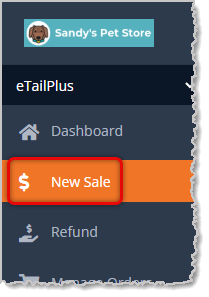
To start ringing up sales for customers, click on New Sale in the main menu on the left.
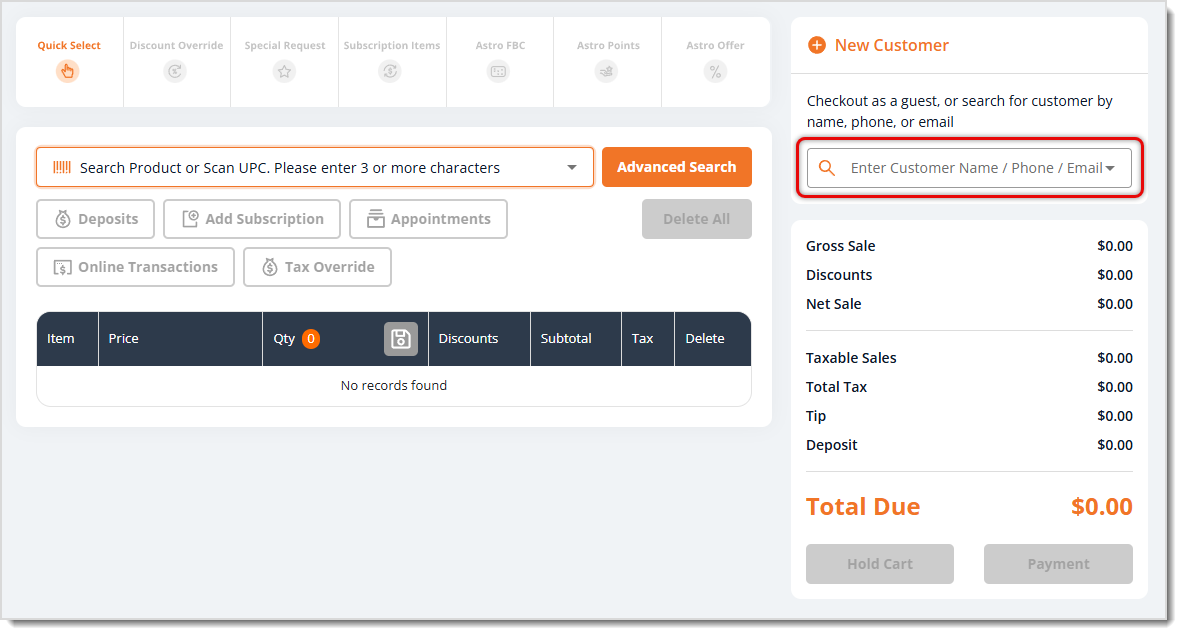
The first thing you'll do for each transaction is find the customer and add them to the transaction so they can earn their loyalty points if your store is using the Astro Loyalty program. The Customer Search area is on the right, as pictured below.
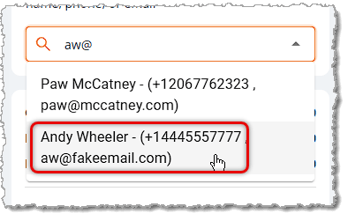
Since people can have the same name and similar phone numbers, the best way to find the right person is by entering their email address. You can search in the Customer Search field and the system will find matches as you type, as in the example below. Click on the customer you need.
If the customer isn't saved in the system, click the +New Customer button in the upper right to add them.

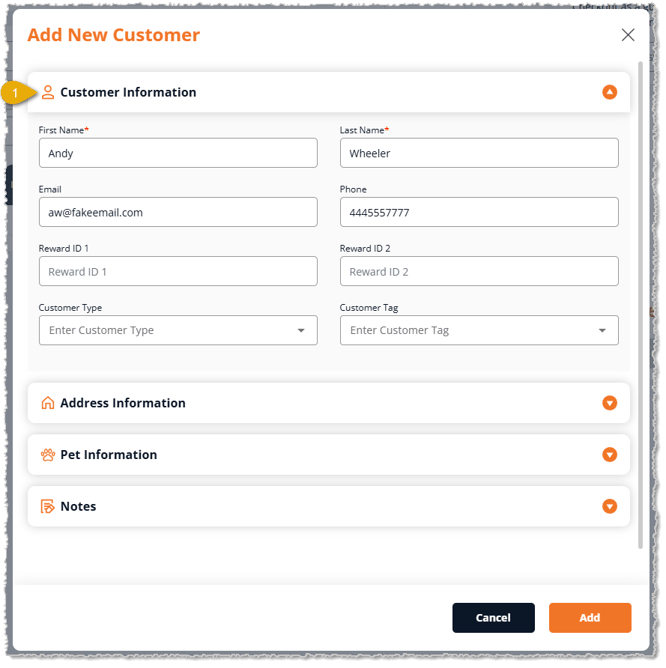
* Required field. You can't save the customer if this field is blank.
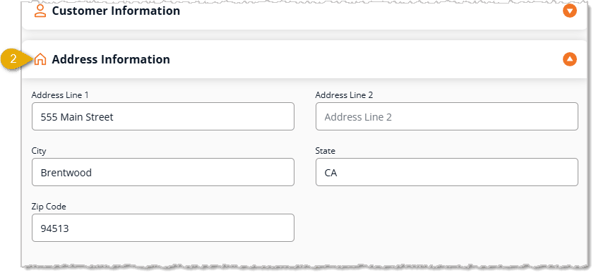
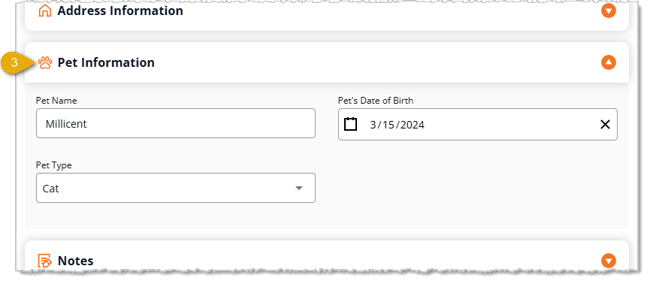
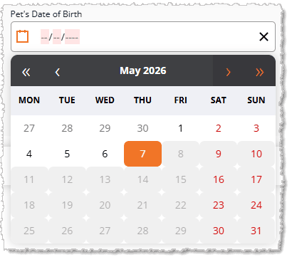
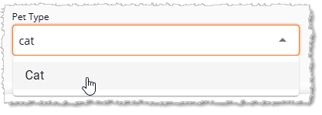
Boss Quote"The Pet Information is obviously the most important area in the customer profile. Make sure you get it right, or the customer might want to use you for a scratching post. Hmmm, that sounds nice..."
— Miss Wiggums, Rumford, ME
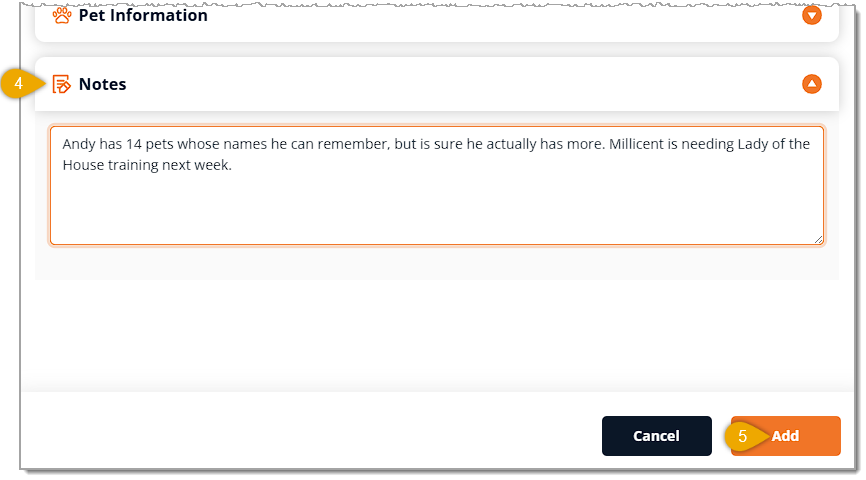
By default, once you add the customer, you'll see confirmations that the different customer areas you filled out were saved for the customer. The customer will become active in Astro Loyalty and the system will assign them an Astro ID. Here is what the customer looks like in New Sale:
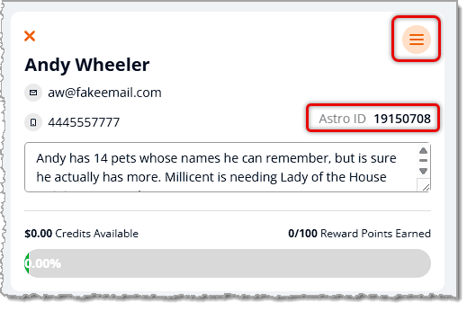
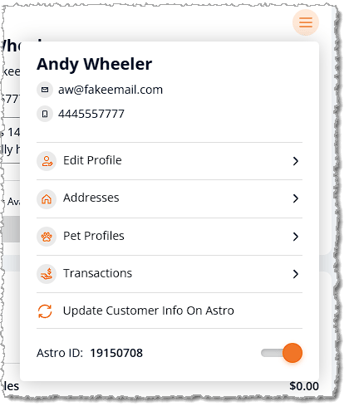
In the upper right, you can click on the Customer Actions icon (hamburger-stack icon) to do more with the customer. In the Customer Action Menu, you can Edit Profile, manage the customer's Addresses and Pet Profiles, and you can view Transactions. When you're initially creating the customer, you can add their first pet, but in this area, you can add any number of pets if they have more than one they'd like to list. If you make adjustments to the customer's information, you can Update Customer Info on Astro. You can also deactivate or activate the customer's Astro status in the system with the toggle in the lower right.
Customer In-House Credit Accounts
Q: What's the best way to find the right customer in New Sale?
A: Search by email address in the Customer Search field on the right. People can share names and similar phone numbers, so email is the most reliable. The system finds matches as you type, so click on the customer you need.
Q: What if the customer isn't saved in the system?
A: Click the +New Customer button in the upper right and fill out the Add New Customer window. When you're finished, click the Add button in the lower right to save the customer and add them to the transaction.
Q: Which customer fields are required?
A: First Name and Last Name are required, and you can't save the customer if either is blank. An email address isn't required, but it's highly recommended.
Q: Why would I enter an address for a customer?
A: Some customers have Subscription items that ship to their home address periodically, and others may want their address on file for eCommerce.
Q: Can I add more than one pet to a customer?
A: Yes. Click the Customer Actions icon in the upper right and choose Pet Profiles from the Customer Action Menu. You can add any number of pets there.
Q: How do I change a customer's information after I've added them?
A: Click the Customer Actions icon in the upper right and choose Edit Profile from the Customer Action Menu. If you make adjustments, you can also click Update Customer Info on Astro.
Q: Can I store card numbers in the customer's Notes?
A: No. Don't store sensitive information such as card numbers or other highly personal details in the Notes area.
Q: I have a question, but I can't find my answer here. How do I get more assistance?
A: You can ask any question at the number listed here. Contact our 24/7 support team at (323) 370-0738 for the U.S. and (888) 370-2363 for Canada.
Is this page helpful?
×Help us improve our articles