The Customers area of the eTailPet system allows you to create, search, and manage every customer account tied to your store. From here, you can add new customers, merge duplicate records together, manage the customer type options you use to categorize your shoppers, and open any customer's full profile to review their contact details, transactions, rewards, and more. Let's get to know your customers!

Working With Your Customers Page
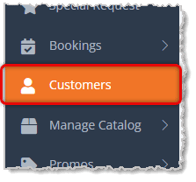
To get to this page, in the main system menu on the left, click on Customers.
Here is how to work with your Customers:
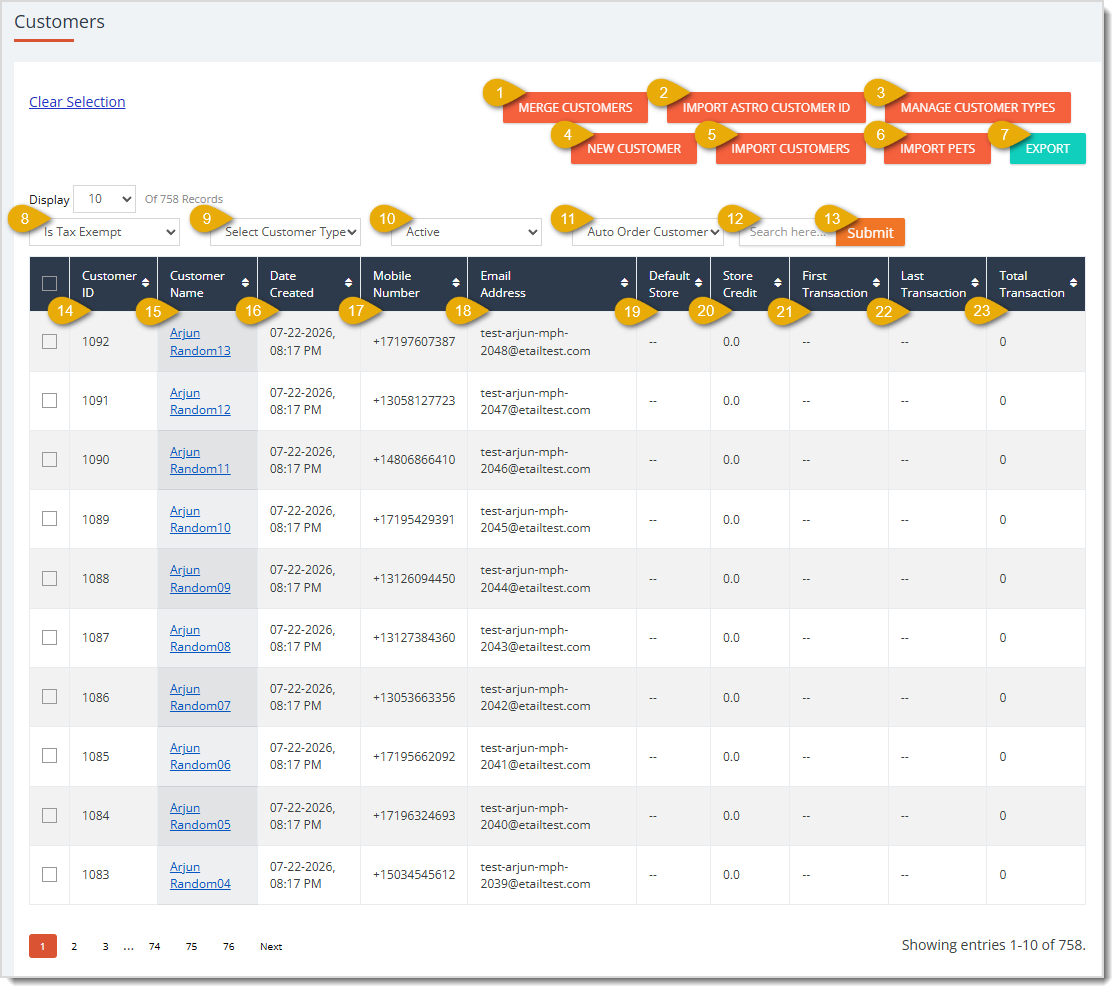
- Merge Customers — First check the boxes next to two customers in the table, then click this button to open the Merge Customers page, where you can combine the two records into one. See the section below on Merge Customers for details.
- Import Astro Customer ID — Click this button to open a menu with two options: click Upload Excel File to select a spreadsheet from your computer and import Astro customer IDs, or click Get Sample Excel to download a sample spreadsheet you can use as a template.
- Manage Customer Types — Click this button to open the Manage Customer Types page, where you can add, rename, or archive the customer type options available in the system. See the section below on Manage Customer Types for details.
- New Customer — Click this button to open the Customer Form window, where you can create a new customer. See the section below on Create a Customer for details.
- Import Customers — Click this button to open a menu with two options: click Upload Excel File to select a spreadsheet from your computer and import multiple customers at once, or click Get Sample Excel to download a sample spreadsheet you can use as a template.
- Import Pets — Click this button to open a menu with two options: click Upload Excel File to select a spreadsheet from your computer and import multiple pets at once, or click Get Sample Excel to download a sample spreadsheet you can use as a template.
- Export — Click the Export button to download the current customer list as a spreadsheet file.
- Is Tax Exempt — Select Yes or No from the drop-list to filter the list to customers with the Status you chose. By default, customers of both tax exempt statuses display.
- Select Customer Type — From this drop-list, select a customer type (like Employee or Military) that you have saved in the system to filter the list to customers assigned that type.
- Active — Select Active, Inactive, or All from the drop-list to filter the list by the customer's account status.
- Auto Order Customer — Select Yes or No from the drop-list to filter the list to customers who do or do not have an auto order set up.
- Search — Enter a customer's name, email address, or other detail here, then click the Submit button to find a specific customer.
- Submit — Click the Submit button to apply the filters and search term you entered above to the customer list.
- Customer ID — This column displays the system-assigned ID number for each customer. Click the column heading to sort the list by this field.
- Customer Name — This column shows each customer's Name. Click a customer's name to open their Customer Info page, where you can review or update their profile details. Each of these details are explained in the section below, View and Edit a Customer.
- Date Created — This column lists the Date and Time each customer's account was created.
- Mobile Number — This column displays each customer's phone number.
- Email Address — This column shows each customer's email address.
- Default Store — This column lists the Store assigned to each customer by default.
- Store Credit — This column displays each customer's current store credit balance.
- First Transaction — This column shows the Date of each customer's first transaction.
- Last Transaction — This column lists the Date of each customer's most recent transaction.
- Total Transactions — This column displays the total number of transactions each customer has made.
Create a Customer
To create a new Customer, click on the New Customer button in the Customers page. Here is each function of the form explained:
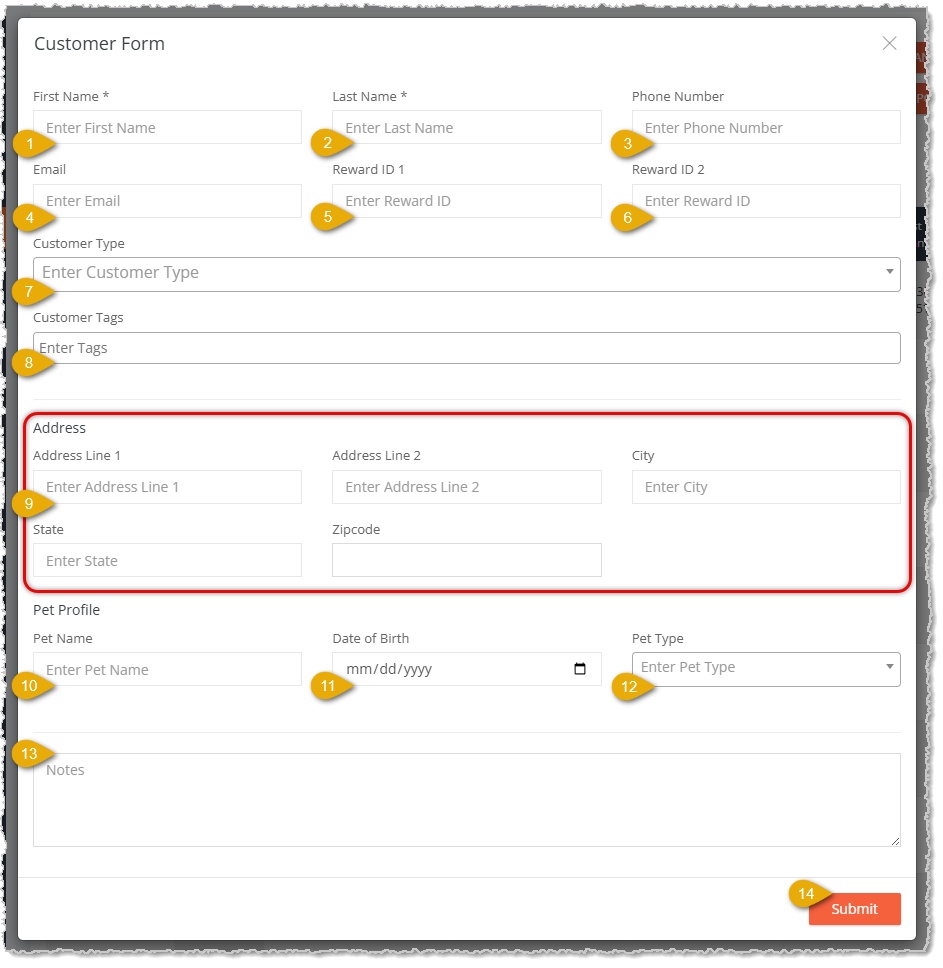
- First Name — Enter the customer's first name. This field is required to save the customer in the system.
- Last Name — Enter the customer's last name. This field is required to save the customer in the system.
- Phone Number — Enter the customer's phone number.
- Email — Enter the customer's email address.
- Reward ID 1 — Enter the customer's loyalty reward ID number, if they have one.
- Reward ID 2 — Enter a second loyalty reward ID number for the customer, if they have one.
- Customer Type — Select a customer type, such as Employee or Military, from the drop-list to categorize this customer.
- Customer Tags — Enter any tags you want to use to label or group this customer.
- Address — Enter the customer's Street Address, City, State, and ZIP Code.
- Pet Name — Enter the name of the customer's pet. Please Note: you can only enter one pet name here, but when editing the customer later, you can enter as many as are needed.
- Date of Birth — Enter the pet's date of birth.
- Pet Type — Select the type of pet, such as Dog or Cat, from the drop-list.
- Notes — Enter any additional notes about this customer.
- Submit — Click the Submit button once you finish entering the customer's details to create the new customer.
Your new customer will now appear in the list on your Customers page.
Merge Customers
After you check two customers on the Customers list and click Merge Customers, the system opens this page. Here is how to work with a customer merge:
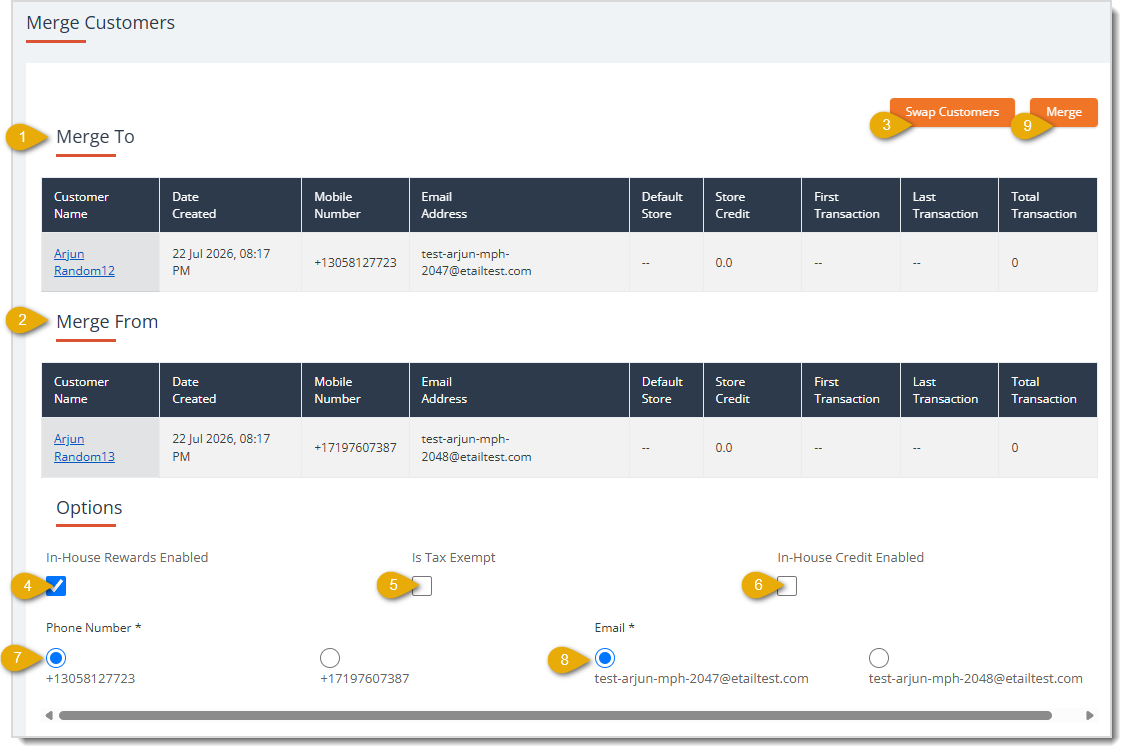
- Merge To — This table displays the details of the customer record that stays active after the merge. This table and the one below have columns for Customer Name, Date Created, Mobile Number, Email Address, Default Store, Store Credit, First Transaction, Last Transaction, and Total Transactions.
- Merge From — This table displays the details of the customer record that merges into the Merge To record and is then removed.
- Swap Customers — Click this button to switch which customer record displays under Merge To and which displays under Merge From.
- In-House Rewards Enabled — Check this box to keep in-house rewards enabled for the merged customer.
- Is Tax Exempt — Check this box to keep the merged customer marked as tax exempt.
- In-House Credit Enabled — Check this box to keep in-house credit enabled for the merged customer.
- Phone Number — Select the radio button next to the phone number you want to keep for the merged customer.
- Email — Select the radio button next to the email address you want to keep for the merged customer record.
- Merge — Click the Merge button to combine the two customer records into one, using the options you selected above.
Manage Customer Types
Click on the Manage Customer Types button above the table to edit or add customer types.
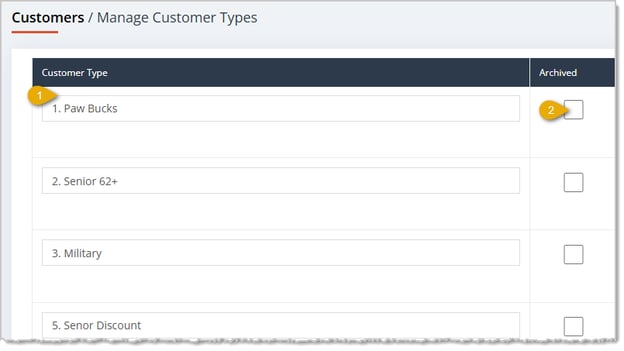
Here is how to work with your Customer Types:
- Customer Type — Enter or update the Name of a Customer Type in this field.
- Archived — Check this box to archive a Customer Type so it no longer appears as an active option when you assign a customer type elsewhere in the system.
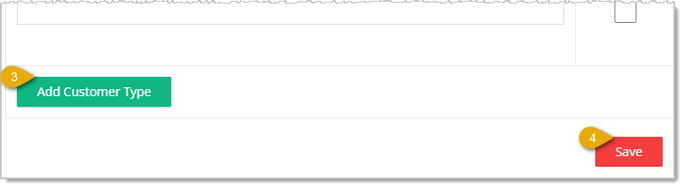
- Add Customer Type — Click the Add Customer Type button to add a new blank field where you can enter another customer type.
- Save — Click the Save button to save your changes to the customer types list.
View and Edit a Customer
When you click a customer's name from the Customers list, the system opens their Customer Info page. This page displays the customer's contact details, described below. We have provided descriptions of each of the other side tabs in the section below on Customer Details Page Side Tabs.
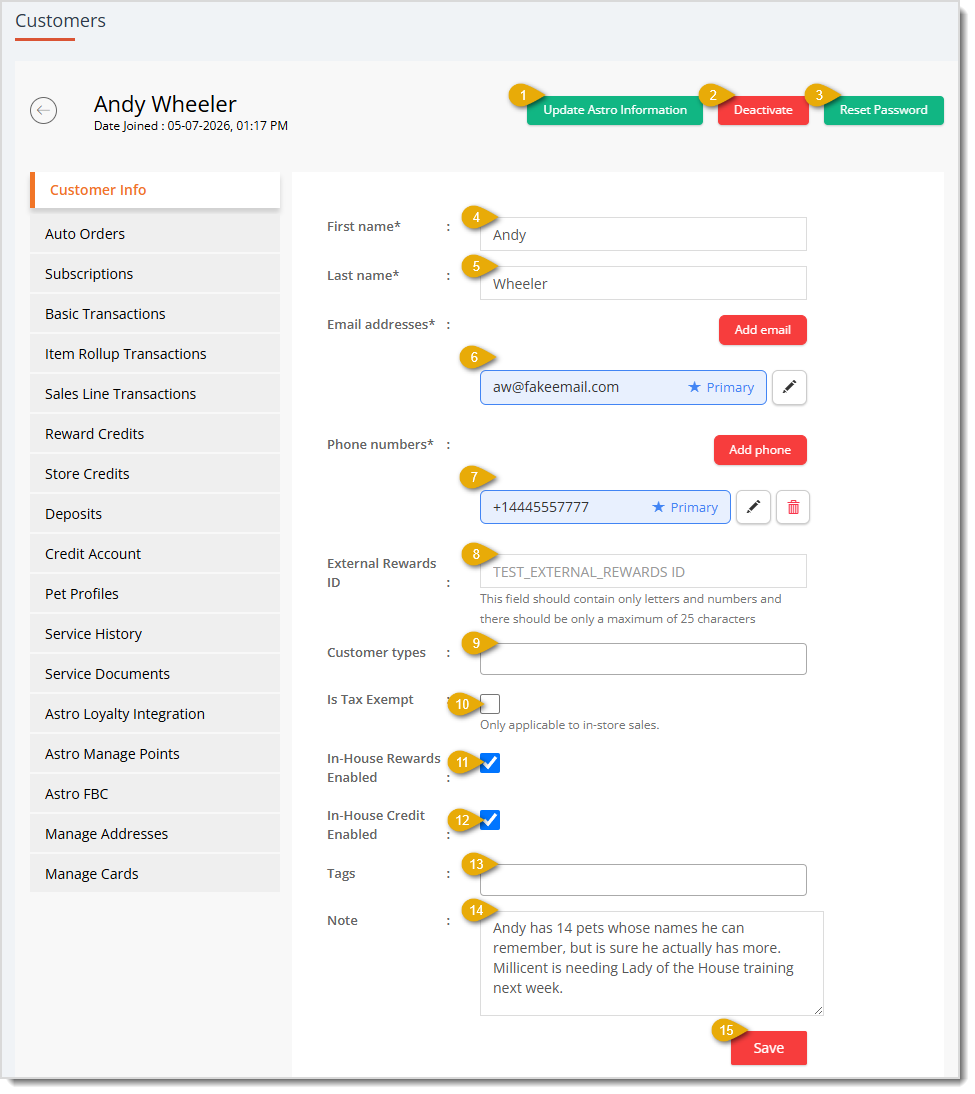
Here is how to work with the main Customer Info tab:
- Update Astro Information — Click the Update Astro Information button to refresh this customer's information from the Astro Loyalty program.
- Deactivate — Click the Deactivate button to deactivate the customer's account. Once deactivated, this button changes to Activate so you can click it again to reactivate the account.
- Reset Password — Click the Reset Password button to send the customer a link to reset their account password.
- First Name* — Enter or update the customer's first name.
- Last Name* — Enter or update the customer's last name.
- Email Addresses* — This area lists each email address on file for the customer. Click the star to mark an email as Primary, or click the pencil icon to edit it. Click the Add Email button, enter an additional address in the field that appears, then click Save to add it to the customer's account, or click Cancel to close the field without adding it. You can click the Edit button to edit any email address, and you can click a Trashcan button to Delete non-primary addresses.
- Phone Numbers* — This area lists each phone number on file for the customer. Click the star to mark a number as Primary, click the pencil icon to edit it, or click the trash icon to delete it. Click this button, enter the new address in the field that appears, then click Save to add it to the customer's account, or click Cancel to close the field without adding it. You can click the Edit button to edit a phone number, and you can click a Trashcan button to Delete a phone number.
- External Rewards ID — Enter the customer's External Rewards ID, if any, using only letters and numbers, up to 25 characters.
- Customer Types — Enter text for the Customer Type(s) you want to assign to this customer. You can search for any saved and active Customer Types.
- Is Tax Exempt — Check this box if this customer is tax exempt for in-store sales.
- In-House Rewards Enabled — Check this box to enable In-House Rewards for this customer.
- In-House Credit Enabled — Check this box to enable In-House Credit for this customer.
- Tags — Enter any Tags you want to use to label or group this customer.
- Note — Enter any additional Notes about this customer. These notes display on the New Sale page in the Customer area for your reference.
- Save — Click the Save button to save your changes to the customer's information.
*Required Field
Customer Details Page Side Tabs
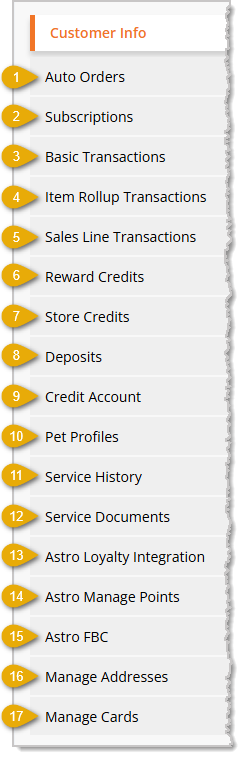
Here are the tabs below the Customer Info tab on the Customer Details page and what each one allows you to view and update:
- Auto Orders — View and manage this customer's recurring auto-ship orders, including product details, store, next order date, frequency, and status.
- Subscriptions — View this customer's membership / subscription plans (e.g. loyalty or CO-OP plans), showing creation date, renewal dates, frequency, and active/expired status.
- Basic Transactions — View a list of this customer's order-level transactions, including date, status, store, gross total, discounts, tax, cost, profit margin, and refund status.
- Item Rollup Transactions — View a summarized list of products purchased by this customer, rolled up by item, showing quantity, totals, discounts, cost, and profit margin.
- Sales Line Transactions — View line-item level detail for every product sold to this customer across orders, including UPC, store, quantity, pricing, and refund quantity/status.
- Reward Credits — View this customer's in-house rewards points and credit balance, along with a history of points earned, credits awarded, and credits redeemed per order.
- Store Credits — View this customer's available store credit balance and a history of credit issued or used, including source, related order, and the crew member who processed it.
- Deposits — View this customer's deposit balance and a history of deposit transactions, including date, type, and amount.
- Credit Account — View this customer's store credit account (charge account) activity, showing outstanding balance and a list of charges with order, date, amount, and settled/due status.
- Pet Profiles — View and manage the list of pets associated with this customer, including name, sex, date of birth, weight, and color. On this page you can add as many pets for the customer as needed.
- Service History — Search and view this customer's past grooming/boarding service appointments by pet, date range, status, or service type.
- Service Documents — View service-related documents tied to this customer's appointments, such as vaccination records and liability waivers.
- Astro Loyalty Integration — View and manage this customer's linked Astro Loyalty account details (customer ID, name, contact info) used to sync with the Astro loyalty program.
- Astro Manage Points — View this customer's Astro loyalty points balance and manually add points by dollar amount or point value.
- Astro FBC — View this customer's Astro Frequent Buyer Cards (punch-card style promotions), showing open and redeemed card progress toward free/discounted items.
- Manage Addresses — View, add, edit, or delete this customer's saved shipping / billing addresses, and set a default address.
- Manage Cards — View, add, edit, or delete this customer's saved payment cards on file for a selected store and payment gateway.
Customers in New Sale
When running a transaction on the New Sale page, you are able to add new customers or find existing ones and add them to the sale. You'll see their Name, Email Address, Phone Number (if any), Astro ID (if enrolled), Customer Notes (if any), In-House Rewards available Credits, if any, and points earned.
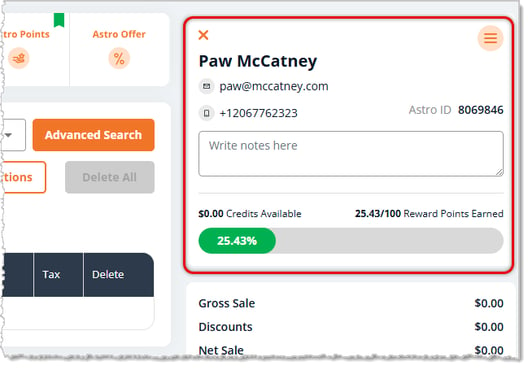
You also have a Customer Actions menu you can use to access full customer details.
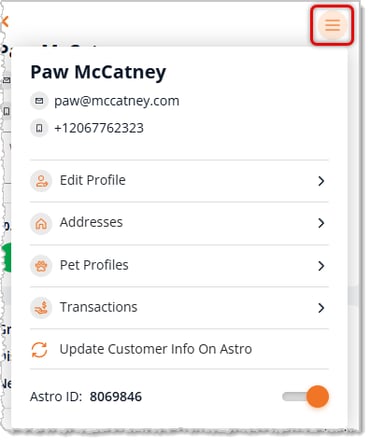
For full details on working with your customers in this area, refer to the article linked below on Customers in New Sale.
Related Topics
Customers in New Sale
Create a New Customer in the Admin
Manage Customer Types
Import and Export Customers
How to Disable Tax for a Customer
In-House Rewards Program
In-House Credit Account
Astro Loyalty Overview
Customer Reports
Frequently Asked Questions
Q: What happens to the customer record I merge from?
A: The Merge From customer's details combine into the Merge To record based on the options you choose, and the Merge From record is then removed. Be sure to select the correct customer to keep before you click Merge, since this cannot be undone.
Q: How do I stop a customer from logging into their account without deleting it?
A: Open the customer's Customer Info page and click Deactivate. You can click Activate on the same page later to restore their access.
Q: Can I add many customers at once instead of creating them one by one?
A: Yes. Click Import Customers, click Get Sample Excel to download the template, fill it in, then click Upload Excel File to import it.
Q: How do I find all customers assigned to a specific customer type?
A: Select that type from the Select Customer Type drop-list on the Customers page, then click Submit.
Q: How do I add a new customer type option to choose from?
A: Go to Manage Customer Types, click Add Customer Type, enter the name in the new field, then click Save.
Q: I have a question, but I can't find my answer here. How do I get more assistance?
A: You can ask any question at the number listed here. Contact our support team at (323) 370-0738 for the U.S. and (888) 370-2363 for Canada.







 Jul 30, 2026
Is this page helpful?
×Help us improve our articles