🙋 You can add new customers to your store's records in both the admin area of the eTailPet system and the New Sale page. This article will cover the admin area method. Read on to see how quickly you can add customers for more convenience in transactions!
If you want to learn how to add customers from New Sale, click here to read Customers in New Sale.

Create a New Customer in the Admin
To create a new customer in the admin area, go to Customers > New Customer. This will open the Customer Form.

Here is everything you can fill out in the Customer Form and how to save the information:
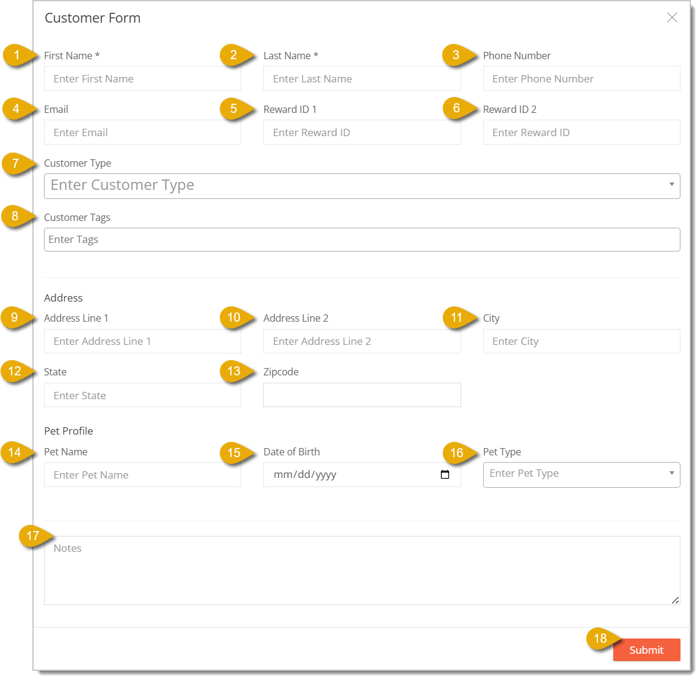
- First Name* — Enter the customer's first name. This field is required to save the customer's information.
- Last Name* — Enter the customer's last name. This field is required to save the customer's information.
- Phone Number — Enter the customer's phone number.
- Email — Enter the customer's email address.
- Reward ID 1 — If your store uses an external rewards program (meaning a third-party program), enter the new customer's first Reward ID here. Please Note: You first need to enable a third-party rewards program by going to Content > Configuration > External Rewards Program Name.
- Reward ID 2 — If your store uses more than one external rewards program, enter the new customer's second Reward ID here.
- Customer Type — Select Customer Types from the drop-list, if needed, for the customer. Customer Types are customer groups you can configure for special promotional deals or price slashes, such as seniors, military personnel, or new adopters. To learn more about Customer Types, click here.
- Customer Tags — Select Customer Tags from the drop-list, if needed. Customer Tags are another way to group customers. However, tags cannot be used for promotional discounts or price slashes; they are just meant to filter customers. To add a new Customer Tag, go to Customers > Click on a customer's name > Tags > Enter the new tag > Click on the Create popup in the drop-list.

- Address Line 1 — Enter the customer's street address if they've provided one.
- Address Line 2 — Enter the second line of the customer's street address if they've provided one.
- City — Enter the city of the customer's address if they've provided one.
- State — Enter the state of the customer's address if they've provided one.
- Zipcode — Enter the ZIP Code of the customer's address if they've provided one.
- Pet Name — Enter the customer's pet name. Please Note: If you edit the customer's information after completing these steps, you can add as many pets as you like to their account. In this creation phase you can add only one.
- Date of Birth — Enter the customer's pet's birth date.
- Pet Type — Enter what type of pet the customer owns.
- Notes — Enter any information you want to keep note of for the customer.
- Submit Button — Click on the Submit button to save the new customer's information.
*Required Items
Related Topics
Customers Overview
Manage Customer Types
Import and Export Customers
Customers in New Sale
Customer Loyalty in New Sale
Frequently Asked Questions
Q: What fields are required to save a new customer?
A: Just First Name and Last Name. Everything else on the form is optional.
Q: Can I add a Reward ID for a customer without setting anything up first?
A: No. You need to enable a third-party rewards program first, under Content > Configuration > External Rewards Program Name.
Q: What's the difference between Customer Types and Customer Tags?
A: Customer Types can be tied to promotional discounts and price slashes. Customer Tags are just for filtering and grouping customers, they can't be used for discounts.
Q: Can I add more than one pet when creating a new customer?
A: Not during creation, you can only add one pet at this stage. Edit the customer's record afterward to add more.
Q: How do I add a Customer Tag that doesn't already exist?
A: You can't do it from the New Customer form. Open the customer's record after saving, go to Tags, type the new tag, and click Create.
Q: I have a question, but I can't find my answer here. How do I get more assistance?
A: You can ask any question at the number listed here. Contact our support team at (323) 370-0738 for the U.S. and (888) 370-2363 for Canada.







 Jul 07, 2026
Is this page helpful?
×Help us improve our articles