






Customers in New Sale
The eTailPet system has useful and easy functionality for working with your customers in New Sale. T
 Jul 08, 2026
🙋 The Customers area of the eTailPet system allows you to view, search, and manage every customer record on file for your store. From this page, you can also bulk-import new or updated customer records and export the existing customer list. Read on to learn how to use the Import Customers and Export functions on this page.

You can reach the Customer List page by selecting Customers from the left-hand main menu.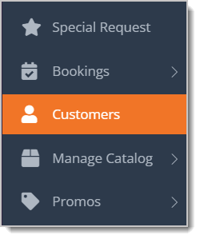
The Import Customers feature lets you add or update multiple customer records at once by uploading a spreadsheet instead of managing each individual customer record. You can import a maximum of 500 spreadsheet lines.
Here is how to use Import Customers:
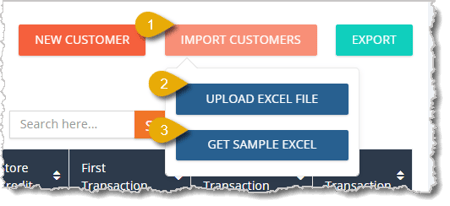
🐱 Please Note: When you download a sample Excel file, you will find an Instructions tab describing each column and information to keep in mind. Remember to delete the Instructions tab before you import your file.
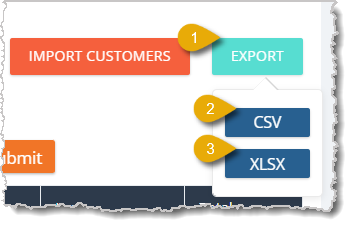
The Export tool lets you download the customer list shown on the page as a file.
🐱 Please Note: If you filter your customer list, then click on Export, you will get a file containing only the filtered customer list. To learn more about filters in this area, click here for the Customers Overview.
Here is how to export customers using the Export button:
When you download a sample file or export your customer list, the spreadsheet will already have columns set up to correspond with the Customer List. Do not alter any of the column names if you want to import the file. Below, you can read a description of how to fill out each column:
| id | Enter the internal Customer ID. Leave this blank if this is a new customer; you can update this later once the customer's ID is generated by the eTailPet system. |
| first_name | Enter the customer's first name. This is required. |
| last_name | Enter the customer's last name. This is required. |
| Enter the customer's email address. Any duplicated email addresses will be skipped. | |
| phone | Enter the customer's phone number. |
| notes | Enter any notes about the customer. |
| customer_types |
Enter the Customer Type (maximum 80 characters) under this column. For imports, you can only assign one customer type per customer. You can use customer types to group customers together for promotional discounts or price slashes. For example, you can make a New Adopter customer type to provide new pet parents with discounts. |
| tags |
Enter customer tags for the customer under this column. If you want to add multiple tags, use brackets. Surround the tag names with quotes and separate them by comma. For example: ['Dog Trainer', 'Dogsitter', 'Cat Parent'] You can use customer tags to group customers. |
| in_house_rewards_enabled | Enter Yes or No to indicate whether or not the customer will be enrolled in your in-house rewards program. |
| reward_credit | Enter the customer's number of available credits issued by the in-house rewards program that they can use for purchases. |
| reward_money | Enter the number of points the customer earned from the in-house rewards program. This will not be updated if the customer is marked as No in the in_house_rewards_enabled column. |
| store_credit | Enter the customer's number of credits issued by the store that they can use towards purchases. |
| is_tax_exempt | Enter Yes or No to indicate whether or not the customer is exempt from taxes for in-store purchases. |
| external_rewards_id | If you use a third-party rewards program, enter the customer's ID from that program here. Otherwise, leave this blank. |
| external_rewards_id_2 | If you use another third-party rewards program, enter the customer's ID from that program here. Otherwise, leave this blank. |
| address1 | Enter the customer's street address. Do not abbreviate. This can only be imported if it is for a new customer. |
| address2 | Enter the second line of the customer's street address, such as their apartment number. This can only be imported if it is for a new customer. |
| city | Enter the city of the customer's residence. Do not abbreviate. This can only be imported if it is for a new customer. |
| state | Enter the state the customer lives in using the 2-digit state code (i.e CA, UT, NY, etc.). This can only be imported if it is for a new customer. |
| zipcode | Enter the customer's ZIP code. This can only be imported if it is for a new customer. |
Create a New Customer in the Admin
Q: What file format does the Import Customers tool accept?
A: The Upload Excel File option only accepts Excel files with the .xlsx extension. Files in other formats, such as .csv or .xls, will not be accepted.
Q: What is the difference between the CSV and XLSX export options?
A: CSV produces a plain comma-separated values file that can be opened in most spreadsheet or database programs, while XLSX produces a native Microsoft Excel file with Excel-specific formatting.
Q: Will importing a spreadsheet overwrite my existing customer records?
A: The import is designed to add new customers and update matching existing records from your spreadsheet. Make sure to review your file carefully before uploading.
Q: I have a question, but I can't find my answer here. How do I get more assistance?
A: You can ask any question at the number listed here. Contact our support team at (323) 370-0738 for the U.S. and (888) 370-2363 for Canada.
Is this page helpful?
×Help us improve our articles