The Rewards page of the eTailPet system allows you to configure how your In-House Rewards work for your stores. This program can run instead of or in addition to Astro Rewards. This article will show you how to configure and use In-House Rewards in the eTailPet system. Take a look at what it can do to build customer loyalty!

Activate and Configure In-House Rewards
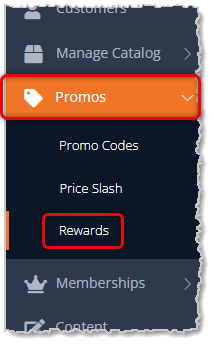
To get to this page, in the main system menu on the left, click on Promos, then on the Promos menu, click on Rewards.
Here is how to configure your In-House Rewards:
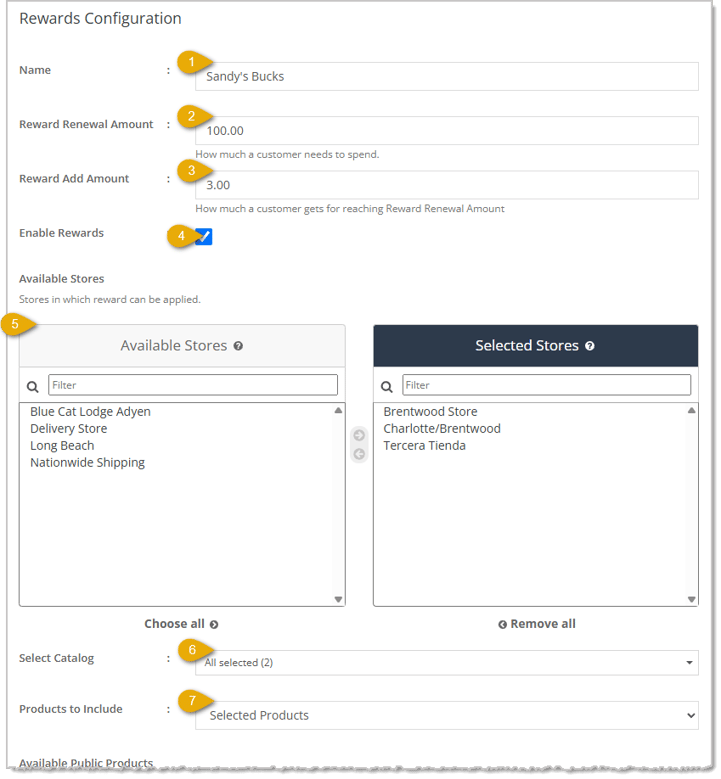
Here is how to configure your In-House Rewards program:
- Name — Enter the internal Name you want to use for your In-House Rewards program.
- Reward Renewal Amount — Enter the dollar amount a customer must spend to receive the Reward Add Amount (described below). Do not enter a dollar sign.
- Reward Add Amount — Enter the dollar amount you want to give the customer as a reward if they reach the Reward Renewal Amount. Do not enter a dollar sign.
- Enable Rewards — Check this box if you want to use In-House Rewards in one or more of your stores.
- Available Stores — Select which of your Store locations you want to use In-House Rewards. You can either double-click the Store, or click on the Store to highlight it, then click the Right Arrow button to move it into the Selected Stores list.
- Select Catalog — Choose Public Catalog (default), Private Catalog, or both using the drop-list.
- Products to Include — Use this drop-list to choose whether you will use Selected Products, chosen below, or All Products in your selected Catalog(s).
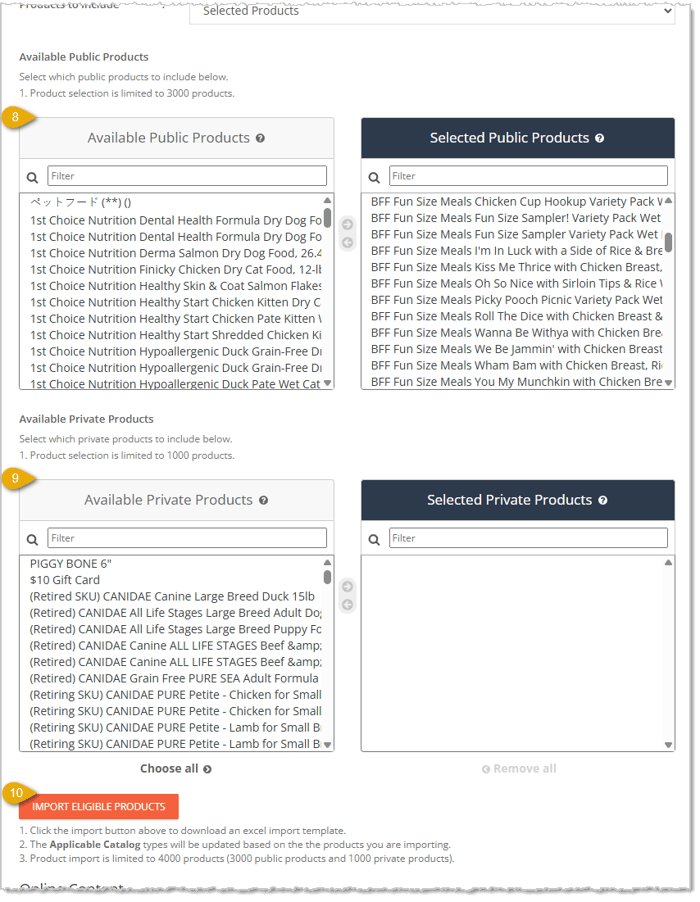
- Available / Selected Public Products — You can search for Public Products you want to be eligible to generate Rewards. You can double-click a product in Available Public Products to move it into the Selected Public Products list.
If you need to select multiple, click on the Product to highlight it, hold down Ctrl and click on as many others as you want, then click the Right Arrow button to move them into the Selected Products list.
Alternatively, if your products are by each other in the list, click to select the first one, hold down Shift, and click on the bottom one you want to select. All products from the first to the last will be selected, and you can click the Right-Arrow button to move them over at once.
- Available / Selected Private Products — If you are also allowing Private Products to generate rewards, follow the instructions in #8 above to select the ones you want and move them into the Selected Products list.
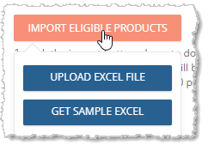
- Import Eligible Products — If you prefer to work with a spreadsheet, you can click the Import Eligible Products button to download an Excel import template. After assembling your product data, click the Upload Excel File button pictured below to import the products. The Applicable Catalog types will be updated based on the the products you are importing. Product import is limited to 4000 products (up to 3000 public products and up to 1000 private products).
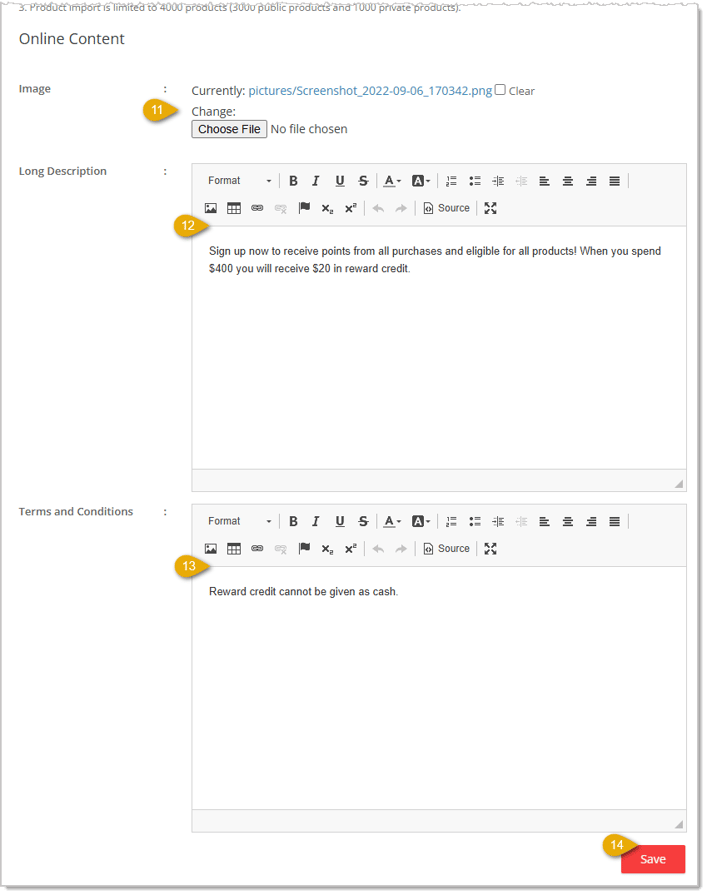
- Image — If you have an Image you want to use for your Rewards program, you can click the Choose File button to upload it. If you have uploaded an image, you can click on the file name to view it, or if you no longer want to use an image, you can check the box to Clear it. To replace an existing image, click the Choose File button and select a new one.
- Long Description — Enter as much text as you'd like in this area to describe your In-House Rewards program. You can also include links, images, and other rich content if you like.
- Terms and Conditions — Enter descriptive text about your Terms and Conditions for use of your In-House Rewards program.
- Save — Click the Save button in the bottom right once you finish configuring your In-House Rewards.
All of your customers will automatically be enrolled in your In-House Rewards program after enabling and saving it. New customers will also all be automatically enrolled. this doesn't include guest checkouts?
Using In-House Rewards
Here is how the In-House Rewards Program works:
- As your customers purchase eligible items, they will earn 1 reward point per dollar they spend at your active stores.
- Once a customer reaches the Reward Renewal Amount, which is $100 in the example below, their reward points will reset to zero and begin counting up again.
- Every time the Rewards renew, the customer earns Reward Credits equal to the Reward Add Amount you set in the configuration steps above. In the example below, the Credit is $3.00.
- At any time on a future purchase, the customer can redeem their Rewards, discounting the amount they need to pay on a transaction by however many Credit dollars they use.
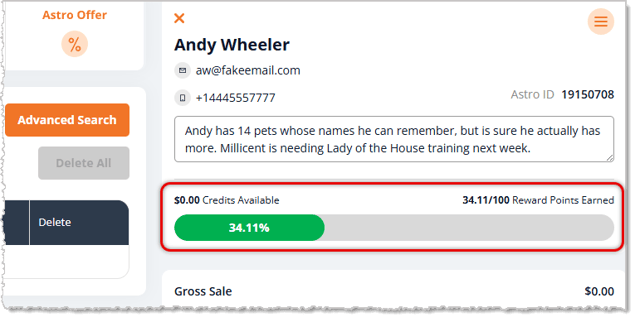
image needs alt text
In the image above, the highlighted area of the New Sale page shows that the example customer doesn't yet have any Credits, but is a third of the way toward the reward point goal of 100.
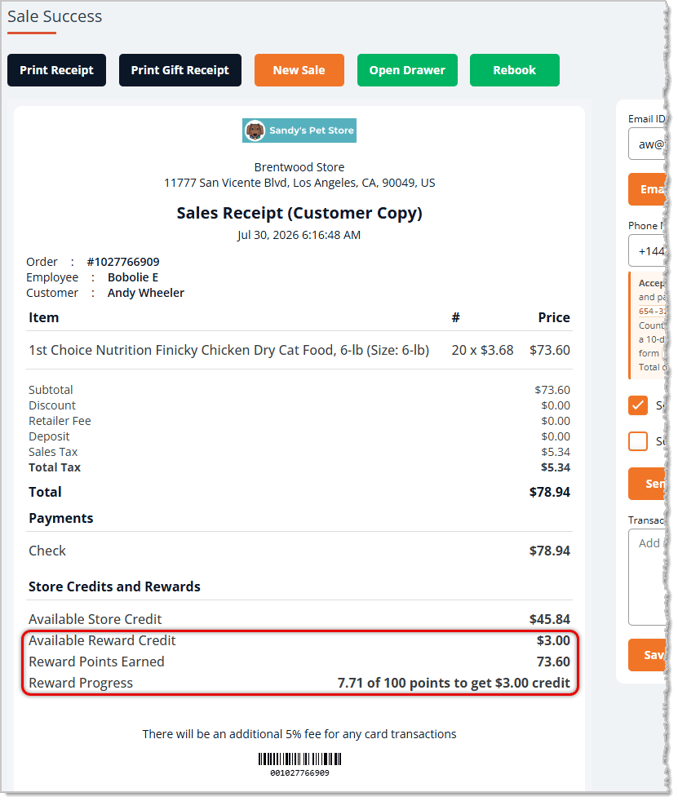
When the customer completes a transaction that earns them Reward points, the points will be itemized near the bottom, as pictured below. They will also be able to see any Reward Credits they've earned. With the transaction below, the customer earned a $3.00 credit, and in the line below that, we can see that their Reward Points reset and have begun counting upward again.
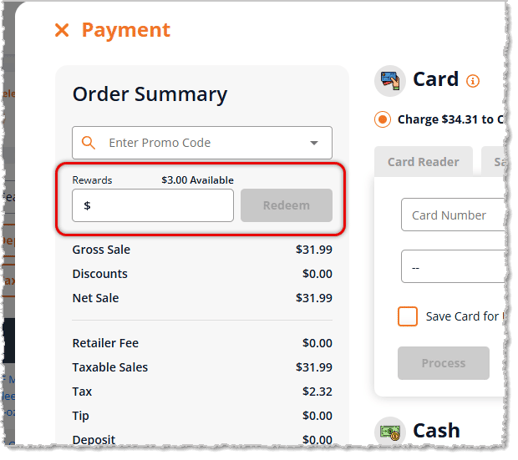
The next time the customer does a transaction, when you go to the Payment panel, in the upper right, you'll have the ability to enter the amount of the Customer's Reward Credits they want to use toward the sale, as pictured below. Enter the amount and click the Redeem button to use the credits.
You will be able to see activity for the In-House Rewards of your customers in the Rewards Program Report.
In-House Rewards Activation and Deactivation
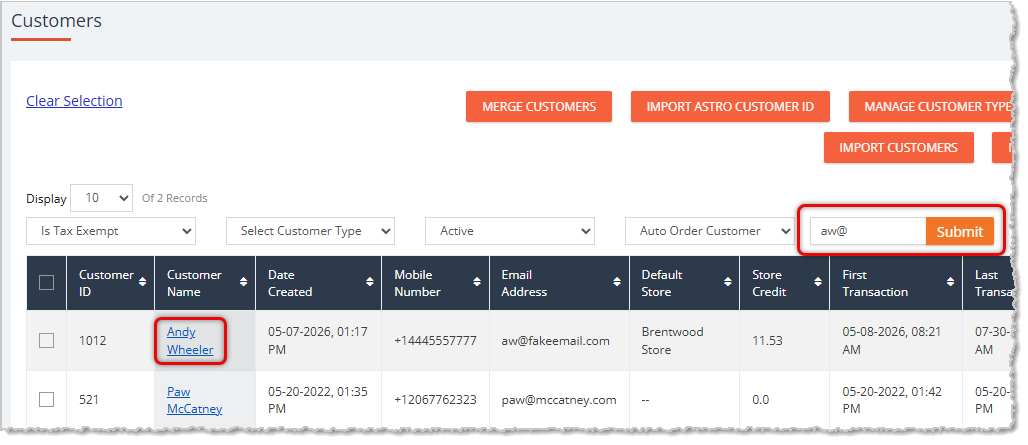
If you have reason to remove a customer from the In-House Rewards program, you can do so by going to Customers from the main menu, searching for the customer you want, and clicking on their Name, as pictured below.
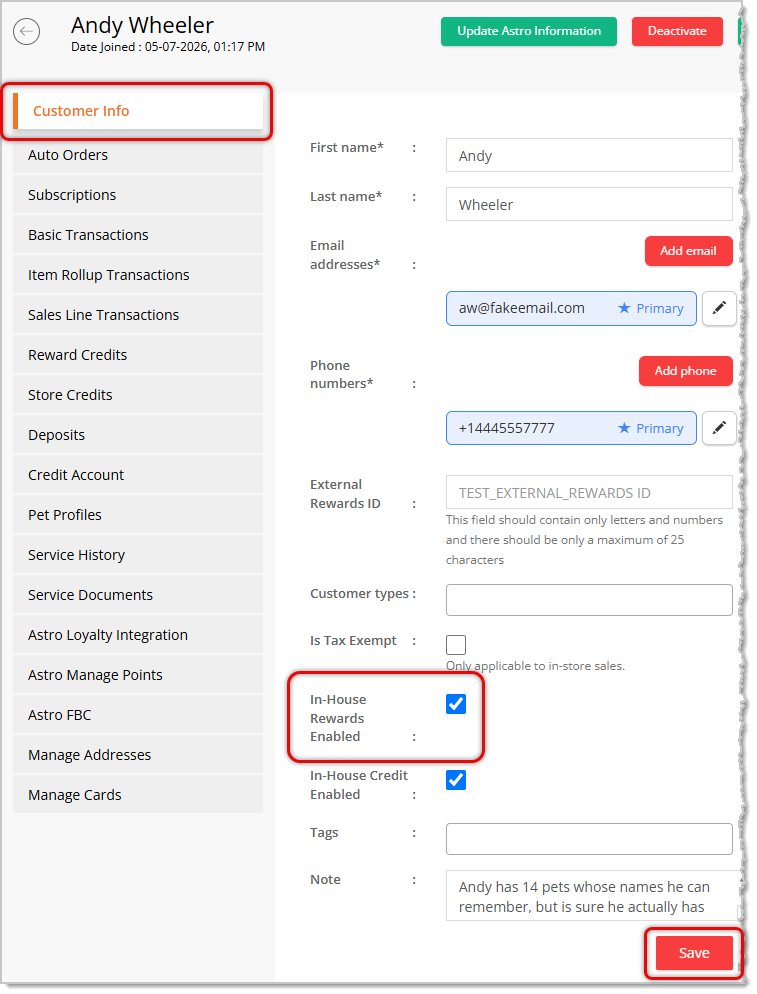
On the Customer's Details page, the Customer Info tab will automatically load. Near the bottom, you can find the In-House Rewards Enabled setting and either check or un-check the box, as needed. When you're finished with your adjustments, click the Save button in the lower right.
Related Topics
In-House Rewards Program Reports
Astro Loyalty Overview
Customer Loyalty in New Sale
Frequently Asked Questions
Q: I have a question, but I can't find my answer here. How do I get more assistance?
A: You can ask any question at the number listed here. Contact our support team at (323) 370-0738 for the U.S. and (888) 370-2363 for Canada.







 Jul 29, 2026
Is this page helpful?
×Help us improve our articles